
Connect Your Facebook Page with Unified Facebook Connect
Unified Facebook Connect makes it easier to manage Facebook Pages and linked Instagram professional accounts in Chat To Clients CRM Social Planner. By connecting Facebook once through Settings → Integrations, your accounts automatically become available in Social Planner without requiring a second connection. This article covers how to set up Unified Facebook Connect, manage account synchronization, and resolve missing permissions.
TABLE OF CONTENTS
Connect Your Facebook Page with Unified Facebook Connect
Unified Facebook Connect simplifies how Facebook Pages and linked Instagram professional accounts are connected and managed across Chat To Clients CRM. Instead of connecting the same Facebook account separately in Integrations and Social Planner, you can connect once through Settings → Integrations and automatically access your selected Facebook Pages in Marketing → Social Planner → Settings → Social Accounts.
Eligible Instagram professional accounts linked to those Facebook Pages also become available automatically. This reduces repeated Facebook logins, eliminates duplicate account setup, and makes it easier to get your social accounts ready for publishing. You can also reuse your existing Integrations connection when connecting Facebook through Social Planner, creating a more consistent account connection experience.
How To Connect Your Facebook Page
Connect Facebook through Integrations to make selected Pages and eligible linked Instagram professional accounts available in Social Planner. This method uses the Facebook authorization established in Integrations.
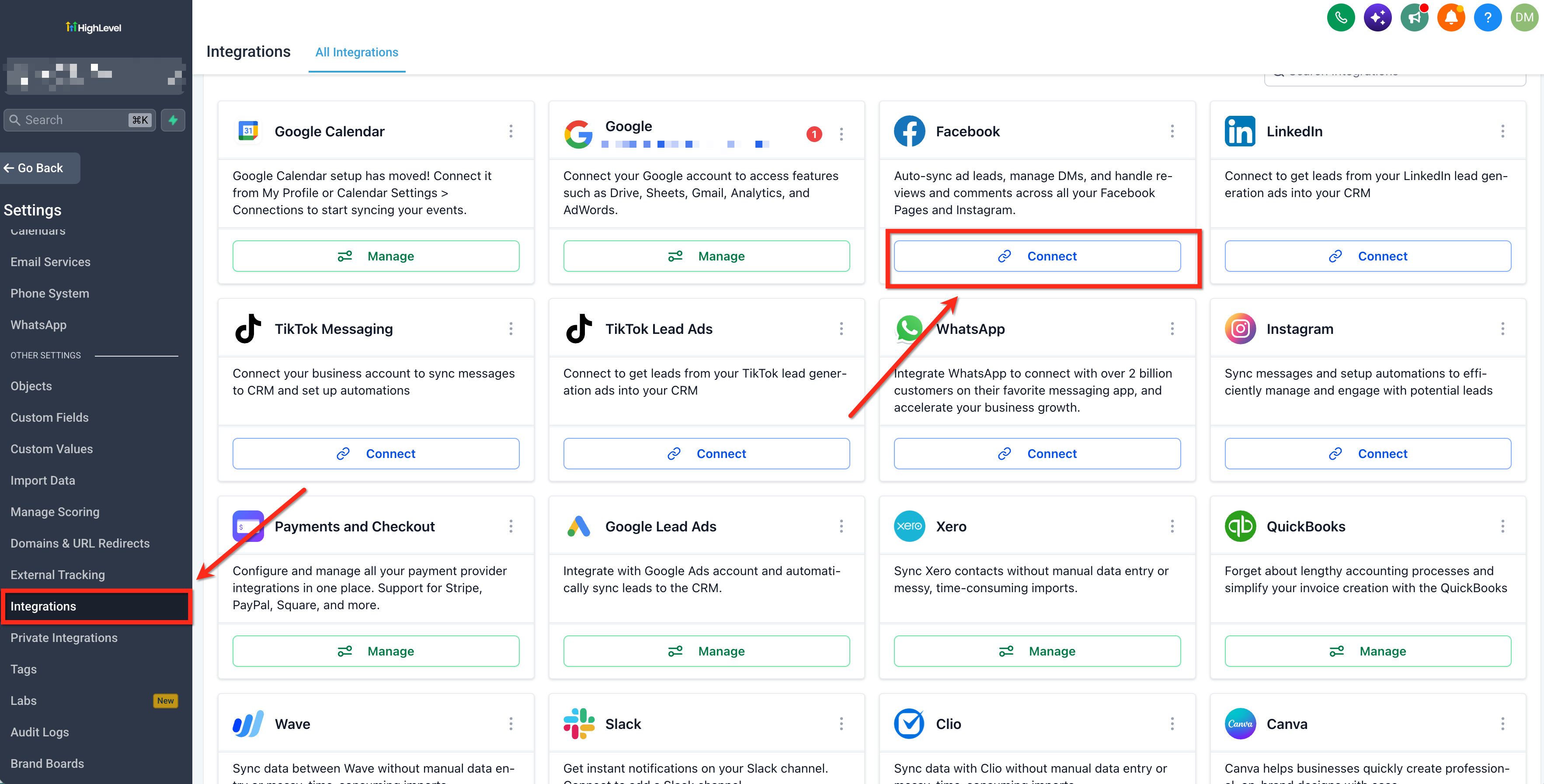
- From your sub-account, navigate to Settings → Integrations.
- Locate the Facebook integration card and click Connect.
- In the Facebook authorization window, sign in using the Facebook account associated with the Pages you want.
- Select the Facebook Pages you want to connect and complete all required permission steps.
- Your accounts will now be connected and available in the Social Planner.
Account Synchronization and Permissions
Facebook connections sync in one direction, from Integrations to Social Planner. Disconnecting a Facebook Page through Integrations removes it from Social Planner, while reconnecting the Page makes it available again. Facebook accounts connected directly through Social Planner do not sync back to Integrations.
Instagram Direct Login accounts continue to sync in both directions. Connecting or removing an Instagram Direct Login account from either Integrations or Social Planner updates both locations.
Social Planner also displays permission actions when additional Facebook access is needed:
Refresh: Additional permissions, such as insights access, are missing. Publishing remains available if the account has the required publishing permissions.
Reconnect: Required publishing permissions are missing. Complete the Facebook authorization flow to restore publishing access.
Click the corresponding action and complete the Facebook permission flow to grant the missing permissions.