
How to Manage A2P Registrations Across Sub-Accounts Using the Agency Trust Center
Monitor and manage A2P 10DLC Brand and Campaign registrations for every sub-account from one place. This article explains how to use the Agency Trust Center to manage A2P registrations efficiently.
Plan and User Availability: The Agency Trust Center (A2P) is currently available exclusively to agencies subscribed to Chat To Clients CRM's $497/month plan. This feature is accessible only to Agency Owners and Agency Admins. Other agency users and sub-account users will not have access to the agency-level A2P management console.
TABLE OF CONTENTS
- What is the Agency Trust Center (A2P)?
- How to Access the Agency Trust Center
- Understanding the Overview Dashboard
- Reviewing Brand and Campaign Rejection Reasons
- Understanding Chat Widget vs. Self-Serve Registration
- Managing Brand Registrations
- Managing Campaign Registrations
- Registering a New A2P Submission
- Frequently Asked Questions
- Related Articles
What is the Agency Trust Center (A2P)?
The Agency Trust Center (A2P) in Chat To Clients CRM allows agencies to monitor and manage A2P 10DLC registrations across all their sub-accounts from one centralized location. Instead of navigating into each sub-account individually, agency administrators can track registration approvals, identify rejected Brands and Campaigns, understand rejection reasons, and initiate registrations directly from the agency level.
A2P 10DLC is the registration process required by US carriers for businesses sending application-to-person text messages using US 10-digit long code phone numbers. To complete A2P registration, each sub-account must have an approved Brand and a verified Campaign.
The Agency Trust Center includes three main tabs:
Overview: Monitor A2P approval status, identify rejection reasons, and compare registration methods across sub-accounts.
Brands: View and manage Brand registrations, track their statuses, and initiate new registrations.
Campaigns: View and manage Campaign registrations, identify issues, and create Campaigns for approved Brands.
Note: The Agency Trust Center complements the existing sub-account Trust Center, allowing agencies to manage registrations without repeatedly switching between sub-accounts.
How to Access the Agency Trust Center
Log in to your Chat To Clients CRM agency account.
Navigate to Settings → Phone Integration.
Open the Trust Center (A2P) section.
Choose from the three available tabs: Overview, Brands, and Campaigns.
Understanding the Overview Dashboard
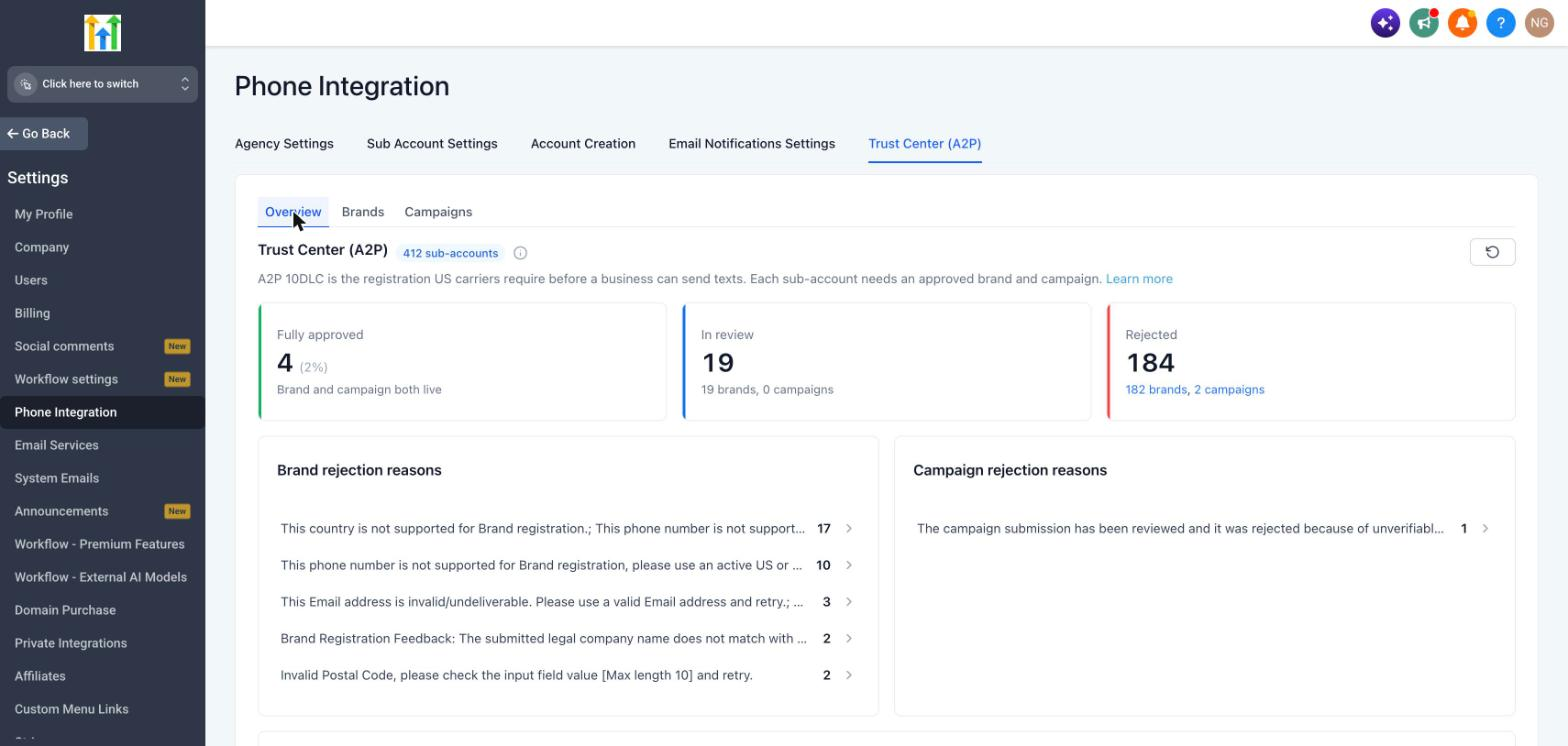
The Overview tab provides a consolidated view of A2P registration health across your agency. It helps you quickly understand how many sub-accounts have completed registration, how many are awaiting approval, and which registrations require corrective action.
Registration Status Overview
At the top of the dashboard, you will see three summary cards.
- Fully Approved: Displays the number and percentage of sub-accounts that have completed A2P registration. A sub-account is considered fully approved only when both its Brand and Campaign are approved or verified.
- In Review: Displays the number of sub-accounts whose registrations are currently being reviewed, with a breakdown of Brands and Campaigns under review.
- Rejected: Displays the number of sub-accounts with rejected registrations, with separate counts for rejected Brands and Campaigns. Click the Brand or Campaign rejection count to navigate to the corresponding registrations and review the issues.
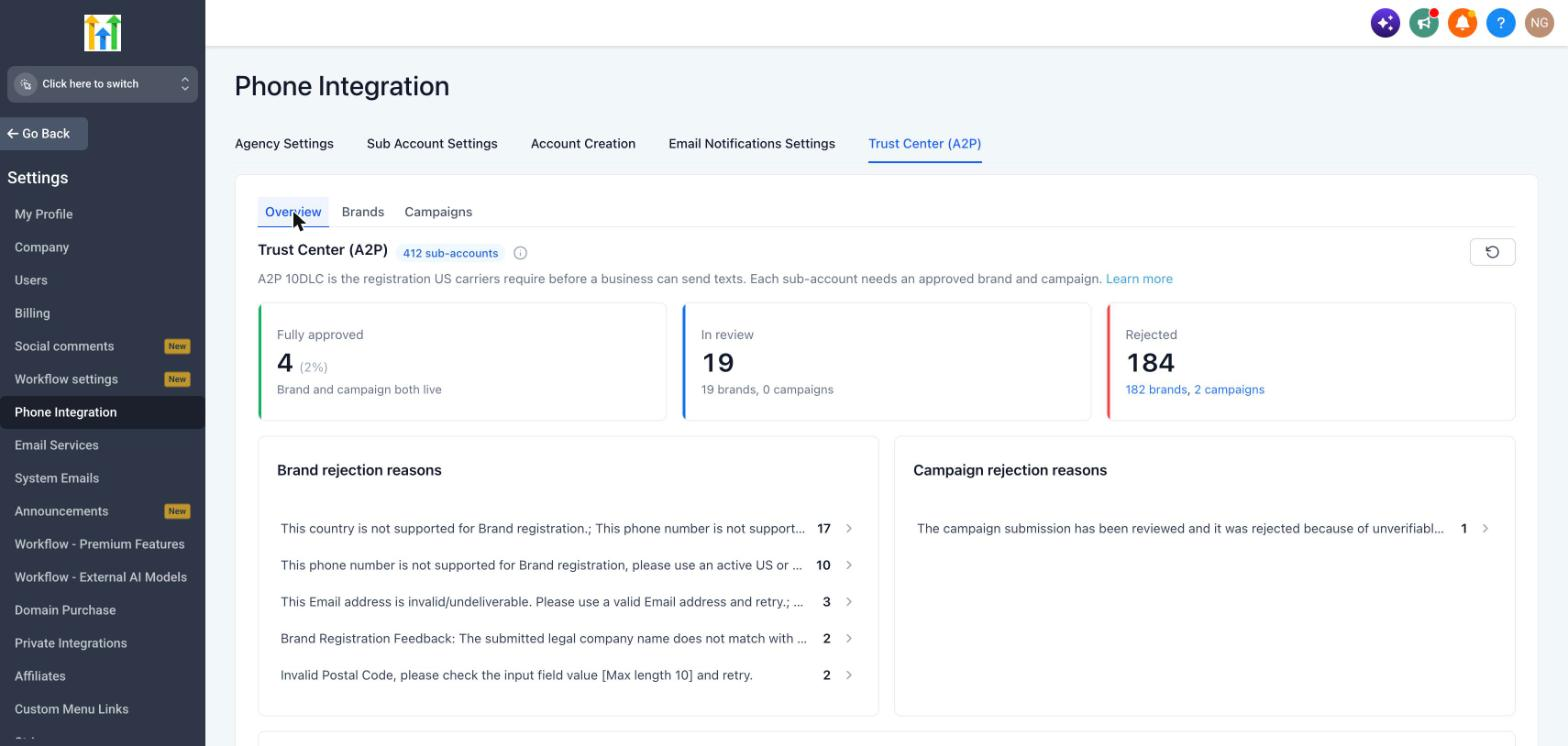
Important: These metrics represent sub-accounts rather than individual registration attempts. A sub-account must have both its Brand and Campaign approved to be considered fully approved.Filter by Date Range
Use the Date Range selector in the upper-right corner of the Overview dashboard to view registration activity for a selected period. For example, you can select Last 30 Days to review recent A2P registration performance.
Click the refresh icon to reload the dashboard with the latest available information.
Reviewing Brand and Campaign Rejection Reasons
The Overview dashboard provides separate sections for Brand Rejection Reasons and Campaign Rejection Reasons. These sections help agencies understand common registration failures and identify where corrective action is required.
Brand Rejection Reasons
The Brand Rejection Reasons section displays common reasons why Brand registrations were rejected. Examples include:
Business name does not match EIN: The submitted business name does not match the information associated with the Employer Identification Number.
Opt-in consent not properly evidenced: The submitted registration does not adequately demonstrate how customers provide consent to receive messages.
Business category not eligible for 10DLC: The business category or activity does not meet applicable A2P registration requirements.
Each rejection reason displays the number of sub-accounts that failed due to that reason. Click the arrow next to a rejection reason to navigate to the relevant registration records.
Campaign Rejection Reasons
The Campaign Rejection Reasons section displays common reasons Campaign registrations were rejected. Examples include:
Description does not match use case: The Campaign description does not accurately represent the selected messaging use case.
Opt-in consent not properly evidenced: The submitted consent collection process is incomplete or insufficient.
Website could not be verified: The website provided during registration could not be successfully verified.
Each reason displays the number of sub-accounts that failed due to that reason. Click the arrow next to a rejection reason to review the affected registrations.
Understanding Chat Widget vs. Self-Serve Registration
The How your sub-accounts are registering section helps agencies understand which registration methods their sub-accounts use and how successfully those methods perform.
A2P Campaign registration requires businesses to demonstrate how customers consent to receive messages, and Chat To Clients CRM supports two registration approaches.
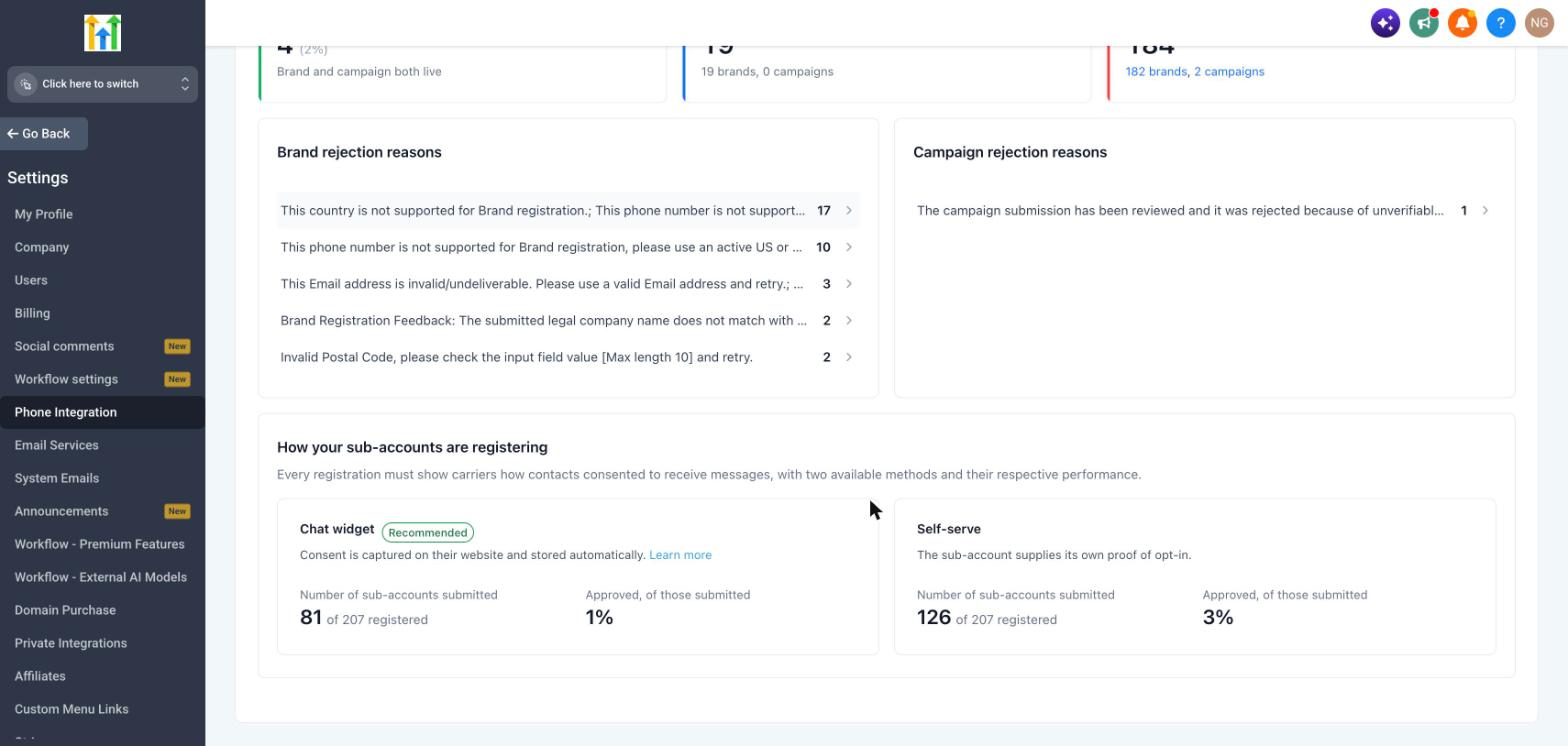
Chat Widget
The Chat Widget method uses a website-based consent collection experience. Customer consent is captured through the website Chat Widget and stored automatically, helping businesses demonstrate their opt-in process.
The dashboard displays:
Sub-accounts submitted: Number of registered sub-accounts using the Chat Widget method.
Approved, of those submitted: Percentage of registrations using this method that received approval among registrations with a final decision.
Self-Serve Registration
With the Self-Serve method, businesses provide their own proof of how customers consent to receive messages. This may involve submitting information about their opt-in forms, website, or other consent collection methods.
The dashboard displays:
Sub-accounts submitted: Number of registered sub-accounts using the Self-Serve method.
Approved, of those submitted: Percentage of registrations using this method that received approval among registrations with a final decision.
How to Interpret the Comparison
For example, suppose the dashboard shows:
Chat Widget
Sub-accounts using it: 15 of 22 registered
Approval rate: 90%
Self-Serve
Sub-accounts using it: 7 of 22 registered
Approval rate: 29%
This indicates that 15 registered sub-accounts are using the Chat Widget method, while 7 are using Self-Serve. Among registrations that have received a final decision, 90% of Chat Widget registrations were approved compared with 29% of Self-Serve registrations.
Pro Tip: This comparison can help agencies identify which registration method is performing better across their portfolio.
Managing Brand Registrations
The Brands tab provides a centralized view of Brand registrations across your agency's sub-accounts.
View Brand Registrations
Open the Agency Trust Center (A2P).
Select the Brands tab.
Review the Brand registrations associated with your sub-accounts.
Understanding the Brands Table
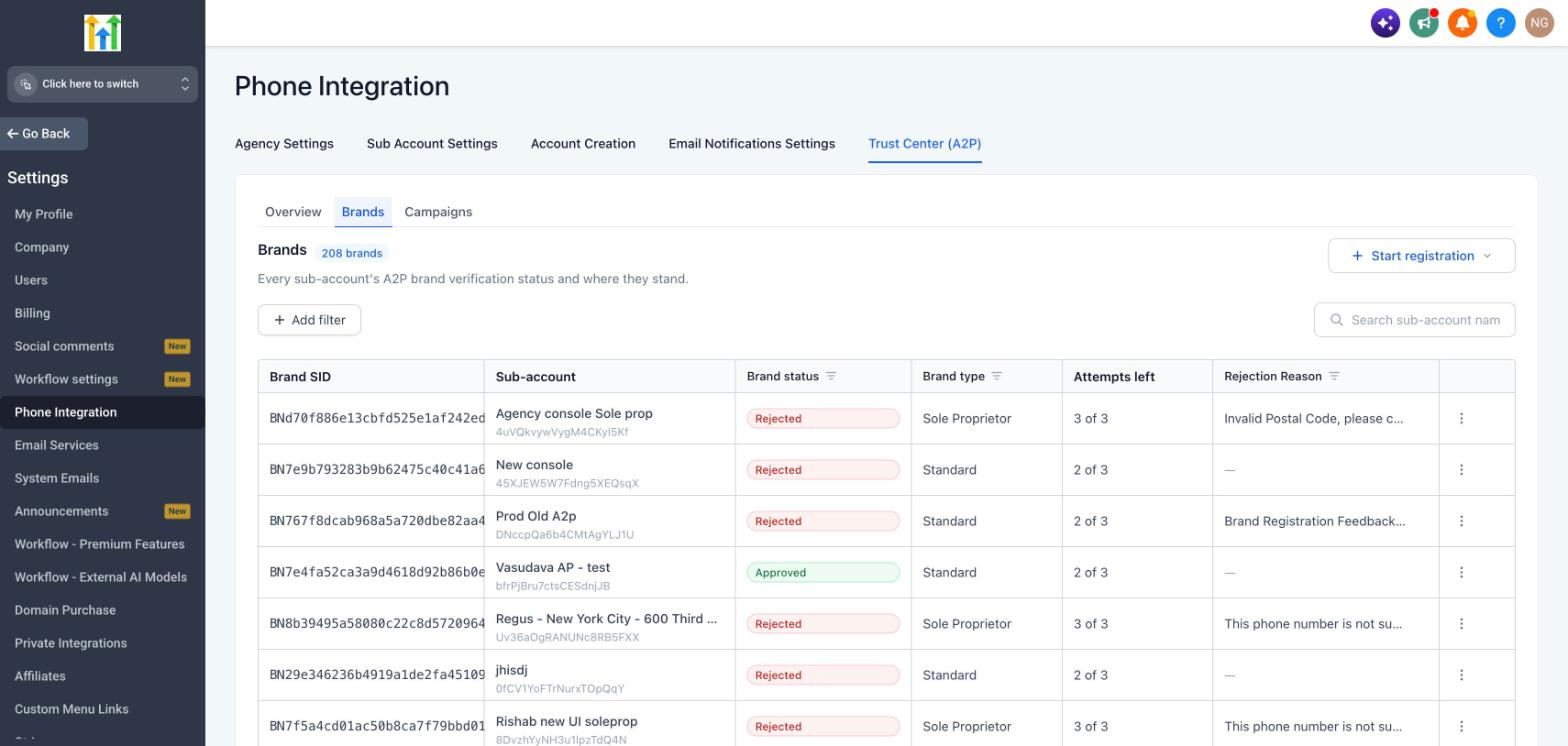
The Brands table contains the following information:
Brand SID: Unique identifier assigned to the Brand registration.
Sub-Account: Name of the sub-account associated with the Brand.
Brand Status: Current approval or registration status.
Brand Type: Type of Brand registration.
Attempts left: Number of Brand registration attempts left.
Rejection Reason: Most recent issue or rejection information.
Actions (⋮): Available action based on the Brand's current status.
Finding Registrations That Need Attention
Use the available filters to locate Brand registrations:
All: View all Brands.
In Progress: View Brands currently undergoing processing.
Rejected: View rejected Brands.
Approved: View approved Brands.
You can also search for a specific sub-account or use additional filters.
Taking Action on a Brand
Click the Actions (⋮) menu next to a Brand registration. Depending on the current status, you may be able to select Fix and Resubmit.
Managing Campaign Registrations
The Campaigns tab allows agencies to monitor and manage Campaign registrations across their sub-accounts.
View Campaign Registrations
Open the Agency Trust Center (A2P).
Select the Campaigns tab.
Review the Campaign registrations associated with your sub-accounts.
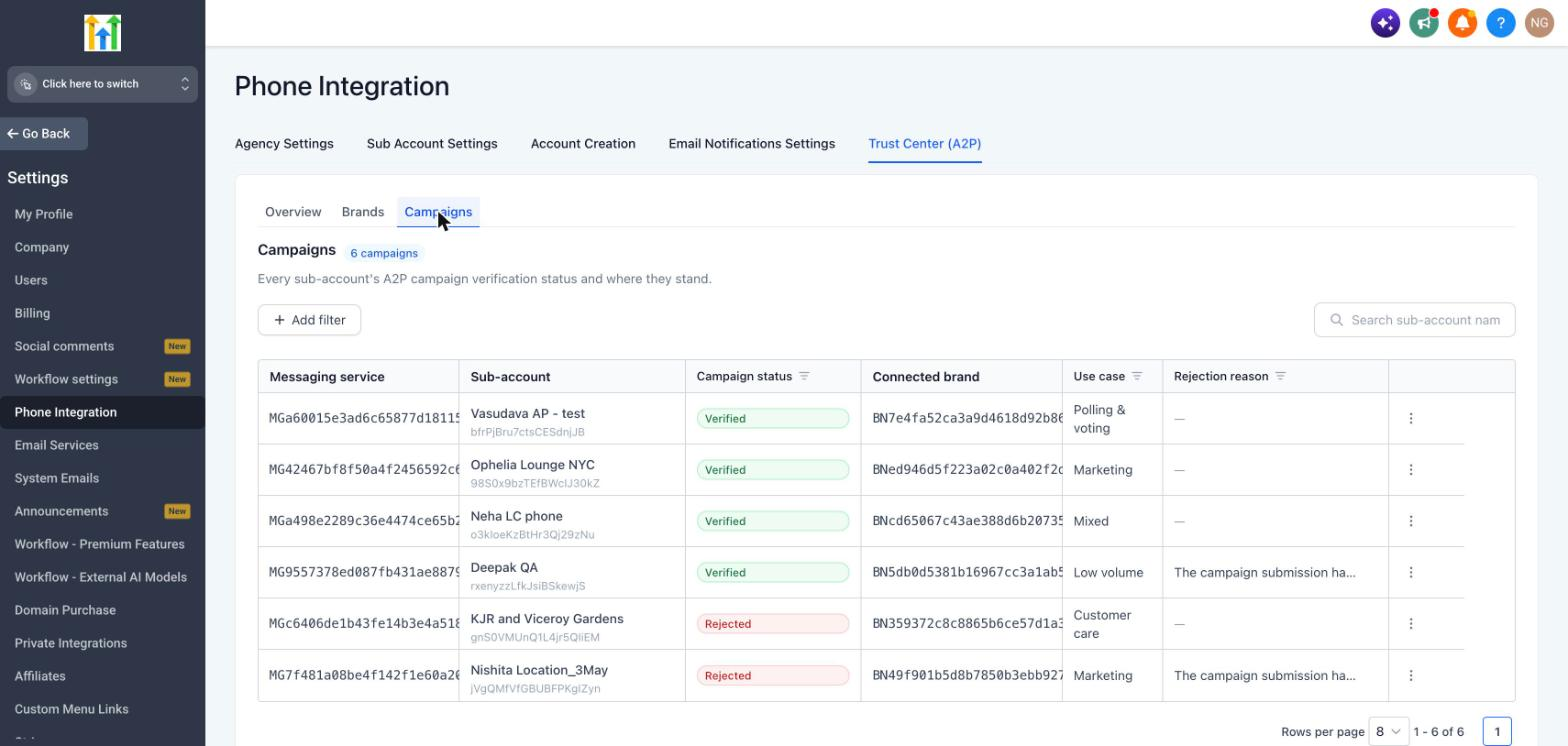
Understanding the Campaigns Table
The Campaigns table contains the following information:
Messaging Service: Messaging Service associated with the Campaign.
Sub-Account: Sub-account associated with the Campaign.
Campaign Status: Current Campaign approval status.
Connected Brand: Brand associated with the Campaign.
Use Case: Registered messaging use case.
Rejection Reasons: Most recent Campaign issue or rejection reason.
Actions (⋮): Available action based on Campaign status.
Filter Campaign Registrations
Use the available status filters:
All: View all Campaign records.
In Progress: View Campaigns currently under review.
Rejected: View rejected Campaigns.
Verified: View verified Campaigns.
Taking Action on a Campaign
Click the Actions (⋮) menu next to a Campaign registration. Depending on the current status, you may be able to select Fix and Resubmit.
Registering a New A2P Submission
Agency administrators can initiate registrations directly from the agency-level Trust Center.
Register an A2P Submission
Open the Agency Trust Center (A2P).
Select the Brands tab.
Click Start registration.
Select the sub-account for which you want to register the Brand.
Complete the required business and registration information.
Review the details for accuracy.
Submit the registration.
Once submitted, you can track its status from the Brands and Campaigns tabs.
Important: The submitted business information must match official business registration records. Incorrect business names, EINs, addresses, or other identity details can result in rejection. For more information, refer to 10DLC Brand and Campaign Registration.
Frequently Asked Questions
Q: Can I manage A2P registrations across multiple sub-accounts?
Yes. The Agency Trust Center allows you to view and manage Brand and Campaign registrations across all your agency's sub-accounts without switching between them.
Q: What does Fully Approved mean?
Fully Approved means that both the Brand and Campaign associated with a sub-account have received the required approvals.
Q: Why does the Overview show separate Brand and Campaign rejection counts?
Brand and Campaign registrations are evaluated separately. Displaying both counts helps you identify which stage of the registration process requires attention.
Q: Can I see why a Brand or Campaign was rejected?
Yes. The Overview dashboard displays common rejection reasons. You can also review the latest issue associated with individual registrations in the Brands and Campaigns tabs.
Q: Why are Chat Widget and Self-Serve approval rates different?
The two registration methods use different approaches to demonstrating customer consent. The Chat Widget method captures and stores consent information through the website, while Self-Serve requires businesses to provide their own evidence. Approval outcomes can vary depending on the completeness and accuracy of the information submitted.
Q: Does using the Chat Widget guarantee Campaign approval?
No. Although the Chat Widget is recommended, all registrations remain subject to applicable carrier and registration requirements.
Q: Can I create a Campaign before my Brand is approved?
No. Campaign creation requires an approved Brand.
Q: Can I start registrations on behalf of my sub-accounts?
Yes. Agency administrators and owners can initiate Brand and Campaign registrations directly from the Agency Trust Center by selecting the appropriate sub-account.
Q: Does the Agency Trust Center replace the sub-account Trust Center?
No. The existing sub-account Trust Center remains available. The Agency Trust Center provides an additional centralized management experience.
Q: Can I export registration data?
CSV export is not available in the initial version of the Agency Trust Center.