Analytics and Form Tracking in AI Studio
AI Studio includes built-in analytics and form submission tracking, making it easier to monitor your published projects without installing tracking code. You can track page views, visitor engagement, opt-ins, and conversion rates directly within your AI Studio project. This article explains how to access these features, understand your project performance, and manage submissions from within AI Studio.
TABLE OF CONTENTS
Analytics and Form Submission Tracking in AI Studio
AI Studio Analytics provides built-in reporting for published AI Studio projects, allowing you to monitor website traffic, visitor engagement, and lead conversions without manually configuring analytics tracking code.
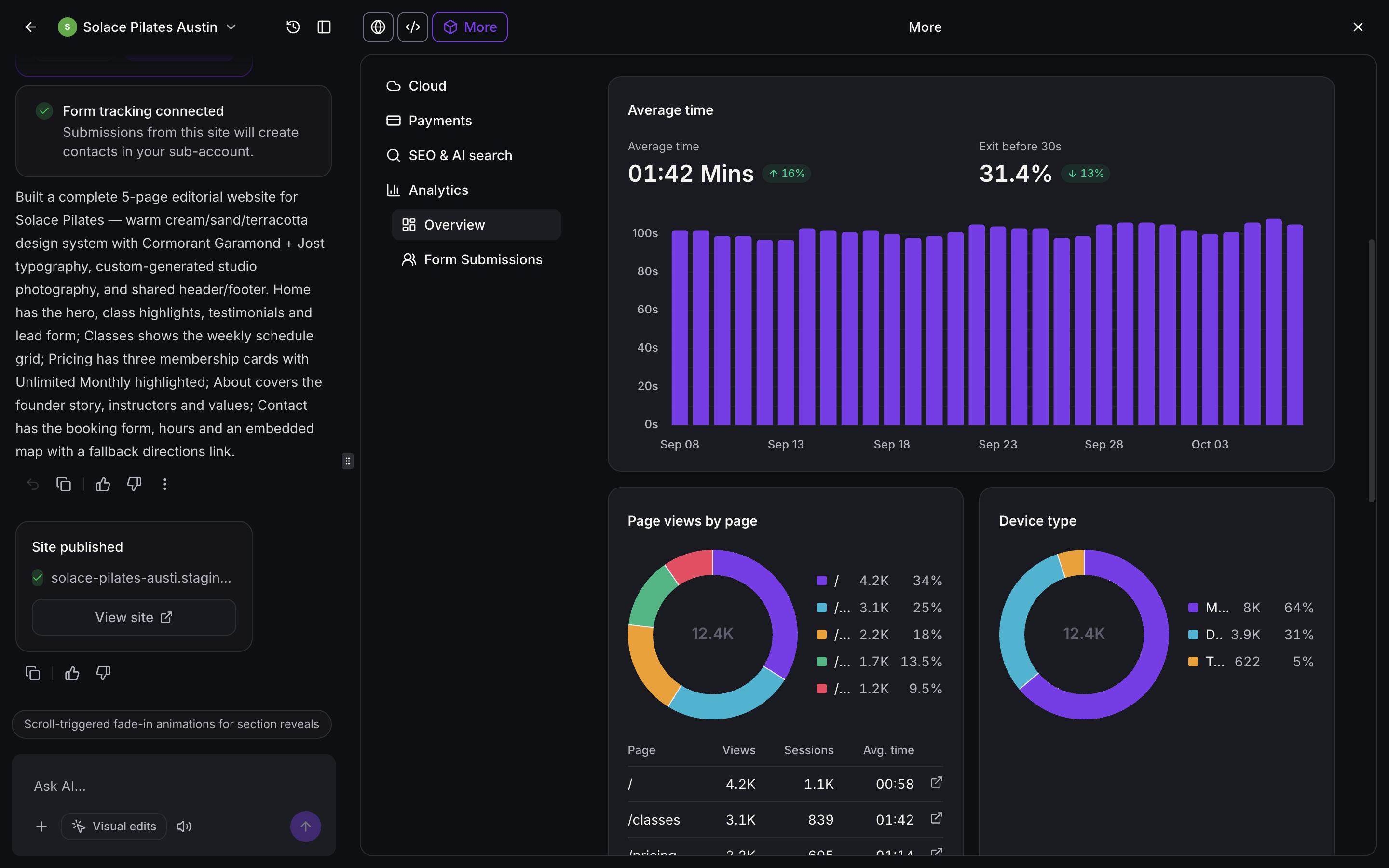
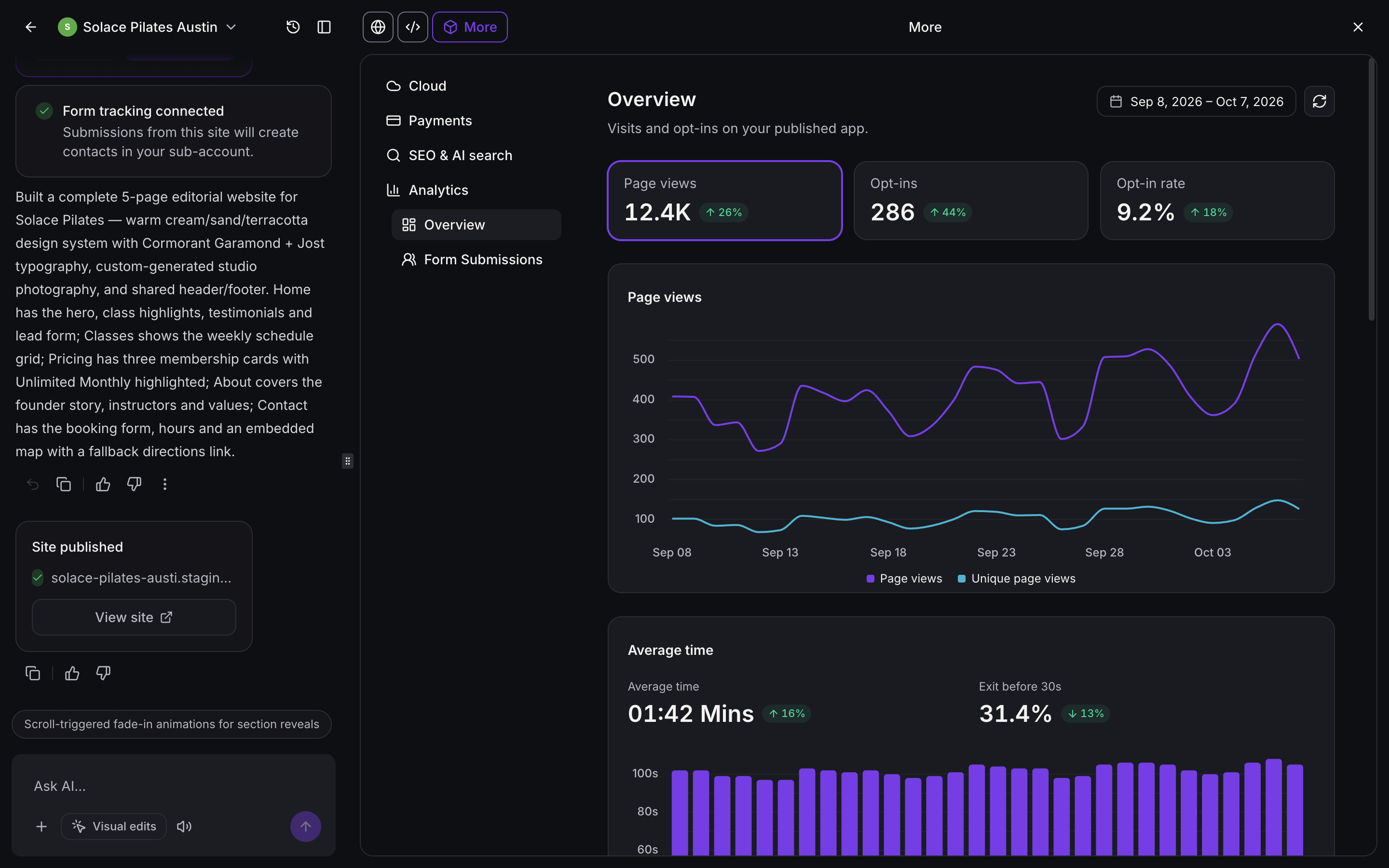
Within each project, you can access an Analytics dashboard that includes page views, unique page views, opt-ins, opt-in rate, average time, and visitor trends. Additional reporting helps you understand your most visited pages, traffic sources, devices, browsers, and visitor locations.
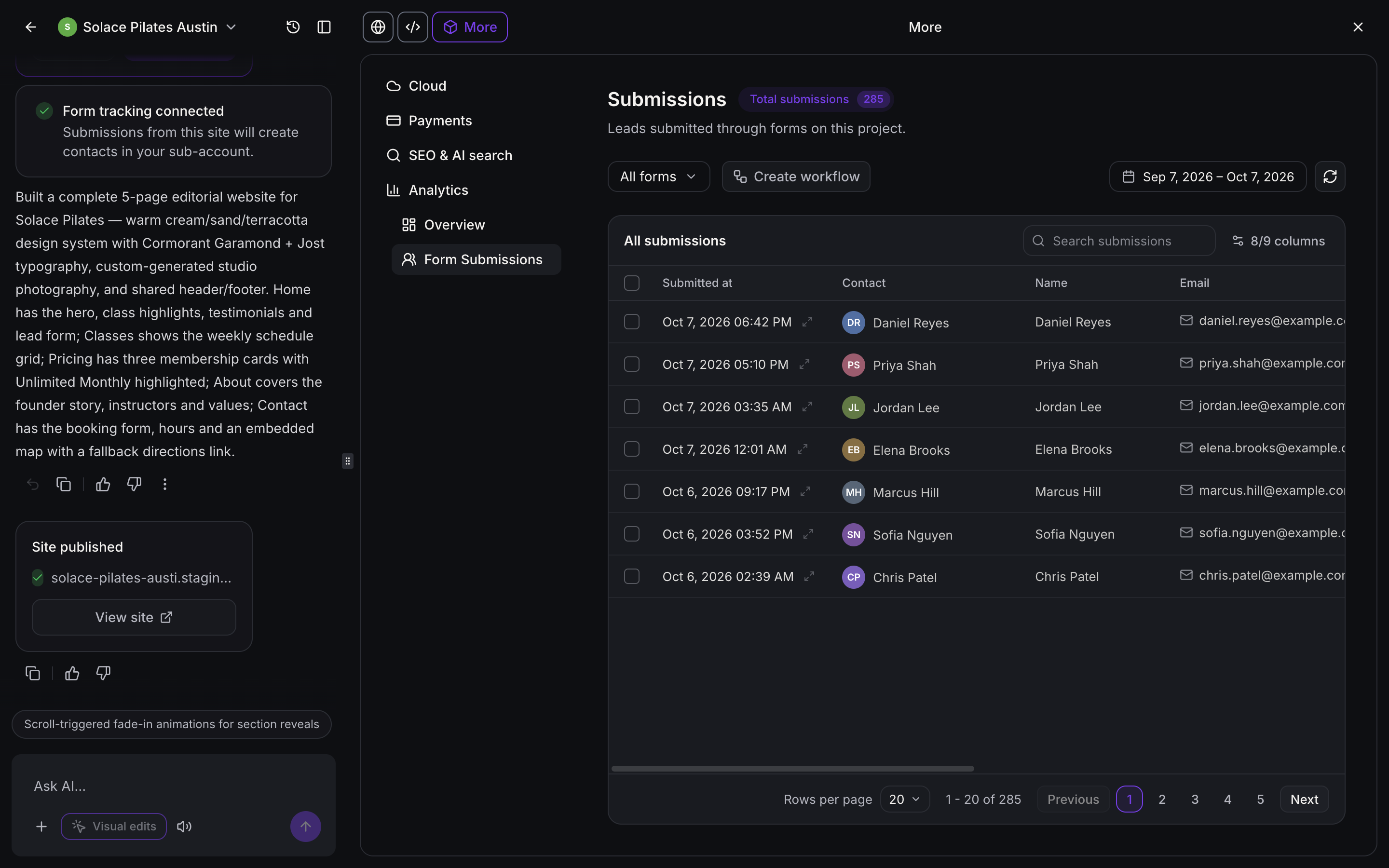
Form Submissions provides a centralized view of leads captured through connected forms on your AI Studio website. You can review submission details, filter records by form or date, and access related Chat To Clients CRM contacts.
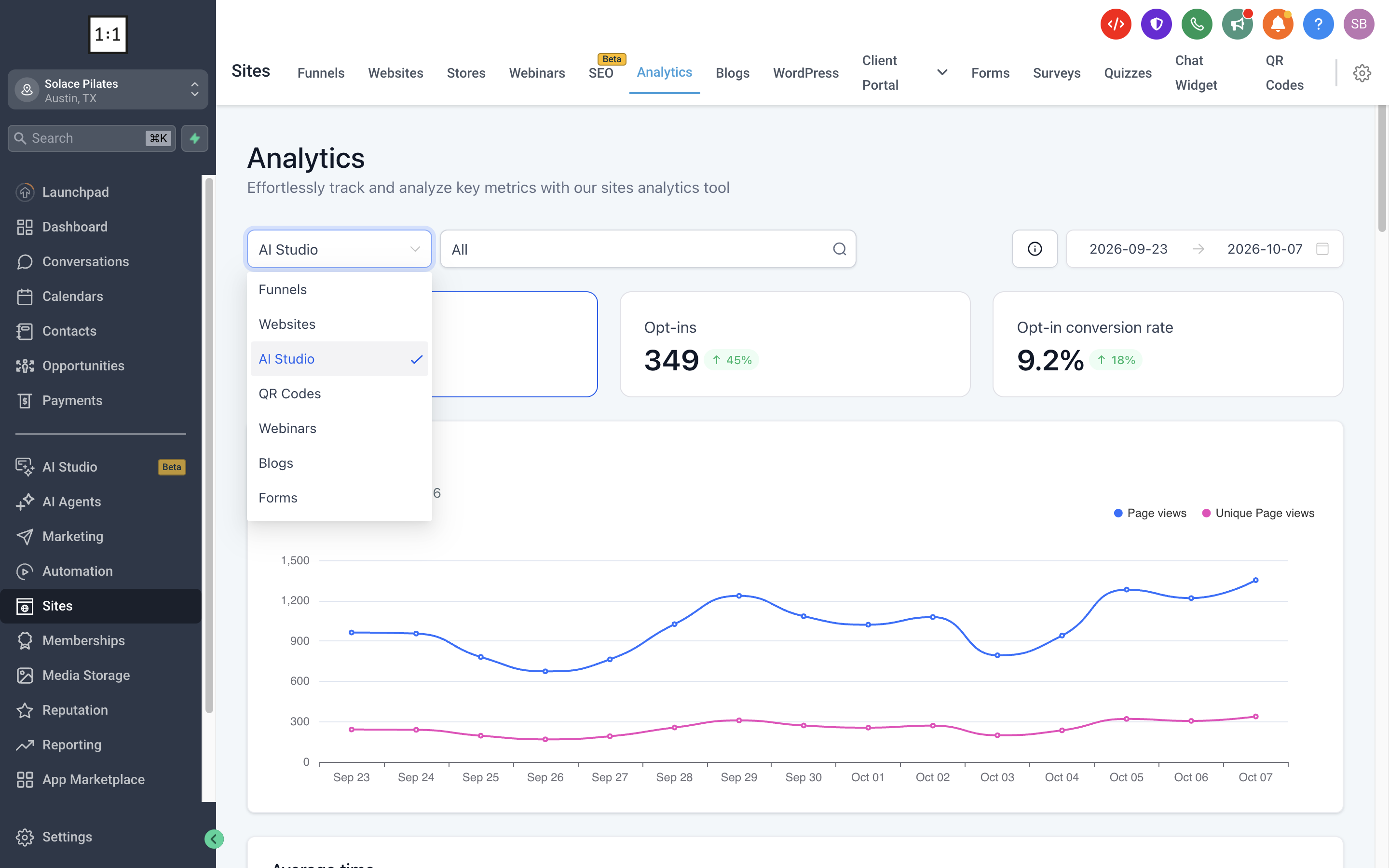
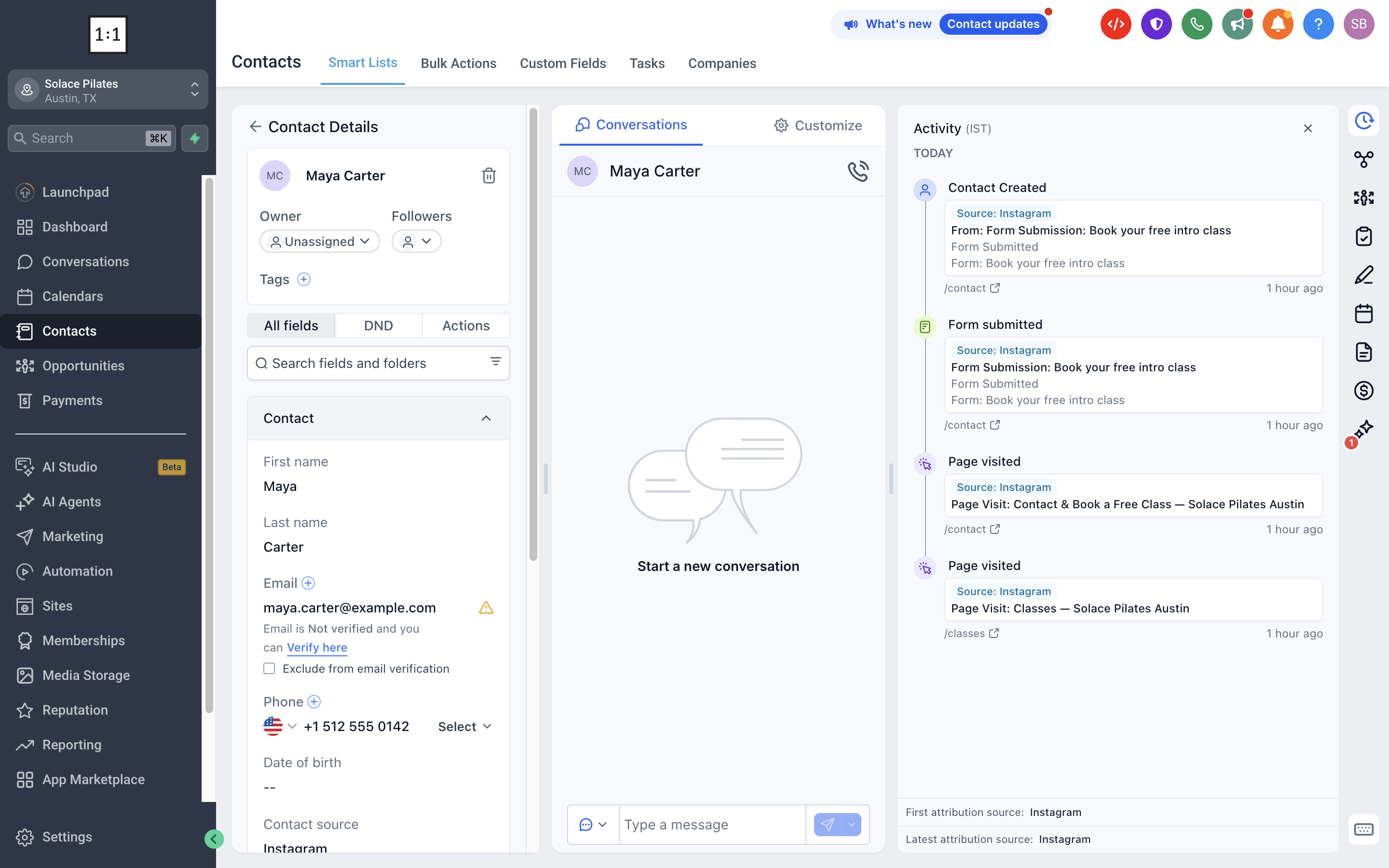
You can also view AI Studio performance alongside other site assets through Sites → Analytics → AI Studio. When a visitor submits a connected form, supported page visits and submission events can appear in the contact's Activity timeline, helping you understand the visitor's journey.
Important: Forms connected before this feature was released continue counting opt-ins. To associate new submissions with the pages visitors viewed beforehand, ask AI Studio to reconnect form tracking and publish the website again.
How To Access AI Studio Analytics
AI Studio Analytics gives you access to website performance metrics directly within your project. You can review traffic trends, conversion activity, page engagement, and visitor information to better understand how your published website performs.
To access Analytics in AI Studio:
Navigate to AI Studio in the left navigation menu.
Open the published project you want to analyze.
Click More in the top navigation bar.
Select Analytics from the menu.
Click Overview to open the analytics dashboard.
The Analytics Overview displays key performance metrics, including page views, unique page views, opt-ins, opt-in rate, and changes from the previous reporting period.
You can also explore average time on site, early exits, top-performing pages, and visitor breakdowns by traffic source, device, browser, and location to better understand how visitors interact with your website.
How To View and Manage Form Submissions
The Form Submissions view in AI Studio provides a centralized location to review leads captured through connected website forms. You can inspect submission records, filter results, locate associated contacts, and access workflow creation from the same interface.
To view form submissions:
From your Chat To Clients CRM Sub-Account view, click AI Studio in the left navigation menu.
Open the AI Studio project containing your connected website forms.
Click More in the top navigation bar.
Select Analytics.
Click Form Submissions.
Review the All submissions table to see captured form submissions.
The Form Submissions dashboard displays your total submissions and a list of captured leads, including submission dates, contact names, and available contact information.
You can also select Create workflow to begin setting up an automation.
View Lead Attribution in Contact Activity
When a visitor submits a connected form on your AI Studio website, Chat To Clients CRM can associate their page visits, traffic source, and form submission with their contact record. This helps you understand where the lead came from and which pages they visited before submitting the form.
To view this activity:
Navigate to Contacts.
Select the contact you want to review.
Open the Activity panel in the contact details.
Review the recorded Page visited and Form submitted events, along with the available attribution information.
View AI Studio Analytics Across Multiple Sites
You can also access AI Studio reporting through the main Sites Analytics dashboard, which supports reporting across different website asset types.
Navigate to Sites → Analytics.
Open the asset-type dropdown at the top of the dashboard and select AI Studio from the available options.
Use the adjacent project filter to select All or choose a specific AI Studio project.
Adjust the date range to review performance for the selected period.
This consolidated view makes it easier to review the performance of multiple AI Studio projects alongside other supported assets, including Funnels and Websites.