
Connect ChatGPT and Codex to Chat To Clients CRM MCP
Chat To Clients CRM MCP lets compatible OpenAI clients securely work with supported CRM data and actions through the Model Context Protocol. ChatGPT and Codex can connect through a dedicated OpenAI endpoint using OAuth, so you do not need to manually create or rotate a Private Integration Token for this connection.
You choose which supported sub-account or sub-accounts the connection can access and approve the requested permissions. This guide explains how Chat To Clients CRM MCP works, how to connect ChatGPT or Codex, and how to verify that the available CRM tools are working.
TABLE OF CONTENTS
- What Is Chat To Clients CRM MCP for OpenAI Clients?
- Key Benefits of Chat To Clients CRM MCP for OpenAI Clients
- Prerequisites and Limitations
- How Chat To Clients CRM MCP Works
- How to Connect ChatGPT to Chat To Clients CRM MCP
- How to Connect Codex to Chat To Clients CRM MCP
- How to Verify the Connection
- Frequently Asked Questions
- Related Articles
What Is Chat To Clients CRM MCP for OpenAI Clients?
Chat To Clients CRM MCP is a Model Context Protocol server that lets compatible AI clients securely interact with supported CRM data and operations.
ChatGPT, Codex, and other compatible OpenAI clients connect through the dedicated OpenAI MCP endpoint:
https://services.leadconnectorhq.com/mcp/openai/v2/The connection uses OAuth. During authorization, you sign in to Chat To Clients CRM, choose the supported sub-account or sub-accounts the connection can access, and approve the requested permissions.
After connecting, the AI client can discover and execute supported CRM operations allowed by your OAuth authorization.
Key Benefits of Chat To Clients CRM MCP for OpenAI Clients
Chat To Clients CRM MCP gives compatible OpenAI clients broad CRM access through a small, controlled toolset instead of requiring hundreds of individual integrations.
- OAuth authentication: Connect through the Chat To Clients CRM sign-in and consent flow without manually creating or rotating a Private Integration Token.
- Controlled CRM access: Approve only the permissions included in your OAuth grant.
- Sub-account control: Choose which supported sub-account or sub-accounts the connection can access.
- Broad CRM coverage: Access more than 550 active operations across 38 CRM domains through the current Chat To Clients CRM MCP catalog.
- Unified toolset: Use four MCP tools to discover, inspect, and execute supported CRM operations.
- Natural-language actions: Ask ChatGPT or Codex to perform supported CRM tasks without manually calling individual API endpoints.
Prerequisites and Limitations
A successful connection requires both a compatible OpenAI client and access to the Chat To Clients CRM account or sub-accounts you want to authorize.
Before connecting:
- Use an OpenAI client that supports remote Streamable HTTP MCP servers.
- Make sure you can sign in to the applicable Chat To Clients CRM account.
- You must have access to the CRM sub-account or sub-accounts you want to authorize.
- Your OAuth permissions determine which operations the OpenAI client can use.
- ChatGPT availability and MCP capabilities depend on your ChatGPT plan and workspace permissions.
Keep the following behaviors in mind:
- The dedicated OpenAI endpoint uses OAuth.
- Every MCP request operates against one sub-account at a time.
- Individual connections support a single sub-account.
- Agency multi-sub-account connections are rolling out and appear only when the multi-sub-account option is available for the installation.
- A connection cannot access a sub-account that was not authorized.
- Available operations can change as the active Chat To Clients CRM MCP catalog evolves.
- Sensitive or irreversible operations may require additional confirmation or safety checks.
How Chat To Clients CRM MCP Works
Chat To Clients CRM MCP exposes a small set of unified tools that allows the OpenAI client to find and execute supported CRM operations without loading hundreds of separate tools at once.
The four unified MCP tools are:
- list_locations: Lists the sub-accounts available to the connection or returns the single connected sub-account.
- search_operations: Finds supported CRM operations based on the task you want to complete.
- describe_operation: Retrieves an operation's inputs, example payload, required permissions, and safety
information. - execute_operation: Runs an approved operation against the authorized sub-account.
For example, if you ask the connected OpenAI client to find a contact and update an opportunity, it can discover the required operations, inspect their requirements, and execute them through this unified toolset.
The exact operations available depend on the permissions granted during OAuth.
How to Connect ChatGPT to Chat To Clients CRM MCP
Connecting ChatGPT creates a custom MCP-powered app that can use the Chat To Clients CRM tools allowed by your OAuth authorization.
Step 1: Confirm ChatGPT Access
Confirm that your ChatGPT account and workspace permissions allow you to create or use a custom MCP app.
If required, enable Developer mode from the applicable ChatGPT Apps settings before creating the connection.
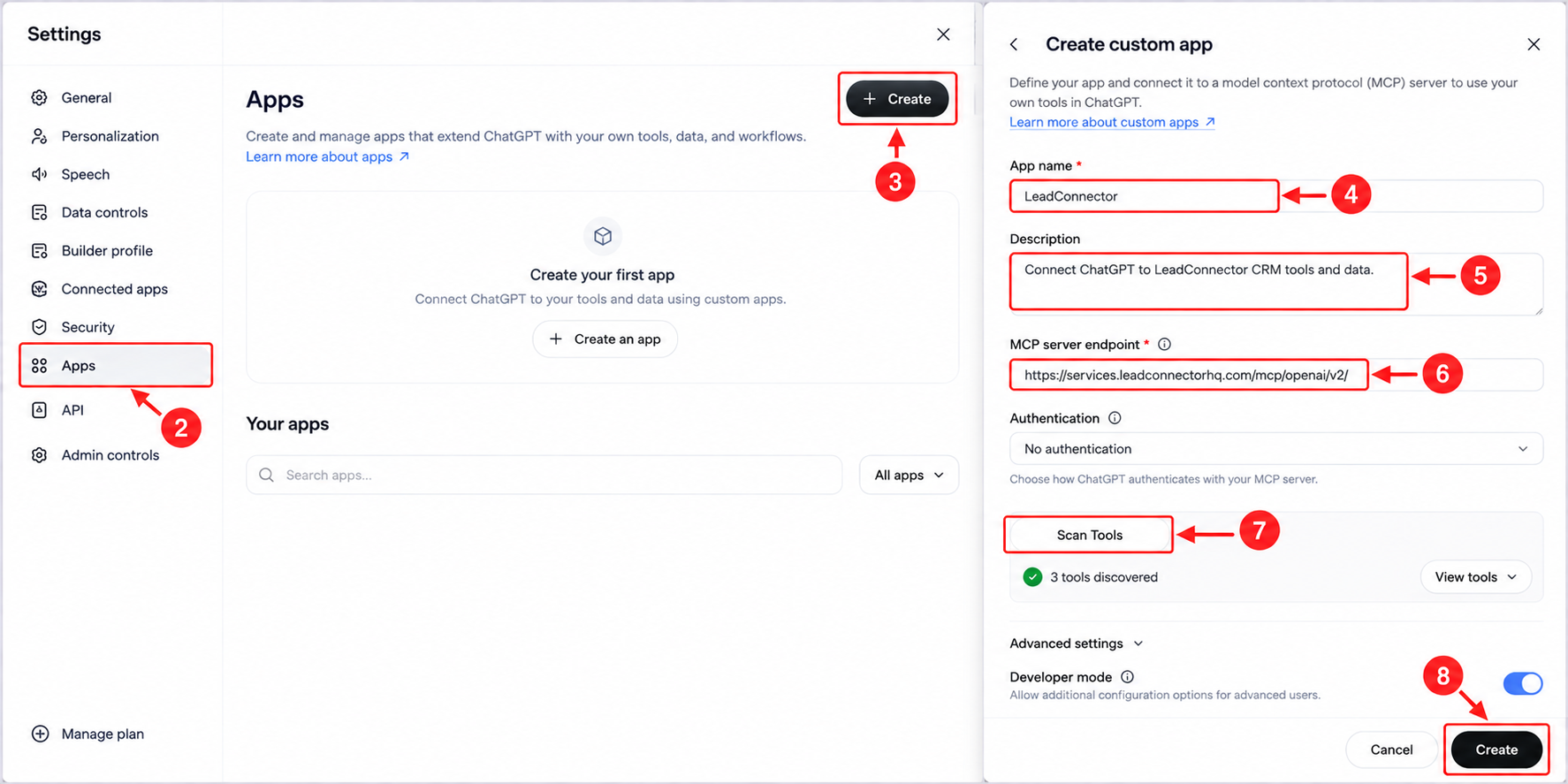
Step 2: Create the Chat To Clients CRM App
- In ChatGPT on the web, open Settings.
- Select Apps.
- Select Create.
- Enter a name such as Chat To Clients CRM.
- Add a description that identifies the app as your Chat To Clients CRM CRM connection.
- Enter the MCP server endpoint:
https://services.leadconnectorhq.com/mcp/openai/v2/
- Continue with the MCP app configuration.
Step 3: Scan and Authorize the Connection
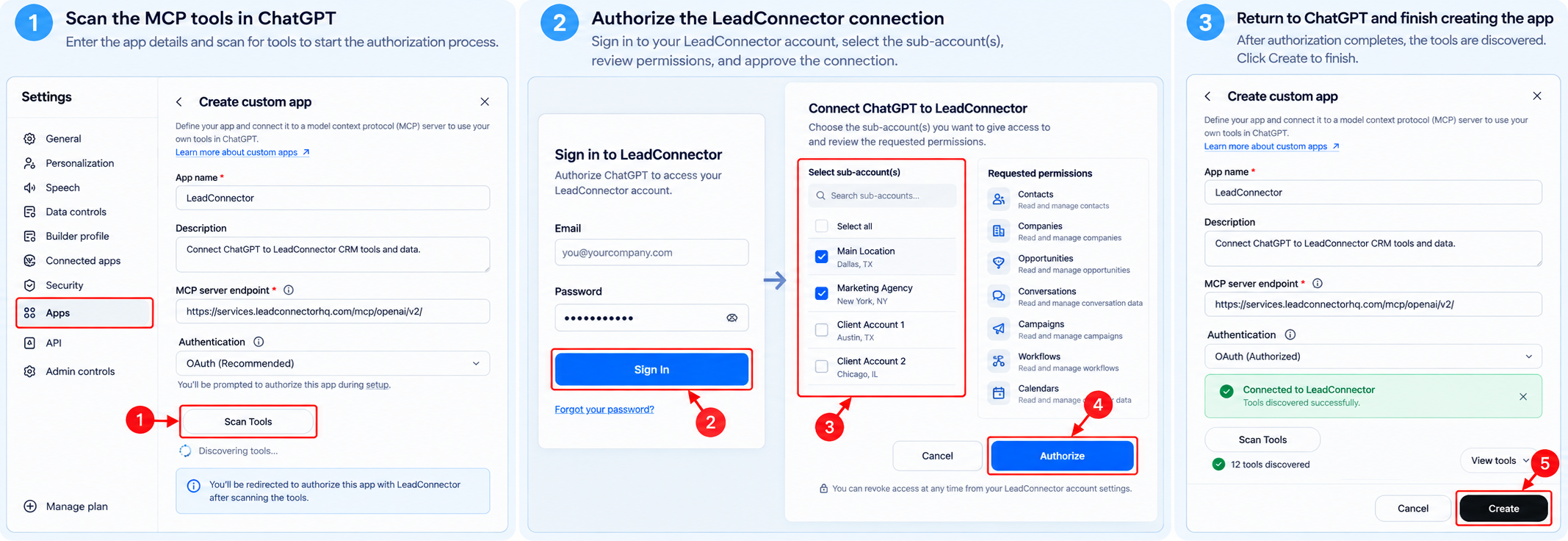
- Select the option to scan or discover the MCP tools.
- When prompted, begin the Chat To Clients CRM OAuth authorization.
- Sign in to your Chat To Clients CRM account.
- Select the available sub-account or supported sub-accounts you want the connection to access.
- Review the requested permissions.
- Approve the connection.
- Return to ChatGPT after authorization completes.
- Finish creating the app.
Step 4: Use Chat To Clients CRM in ChatGPT
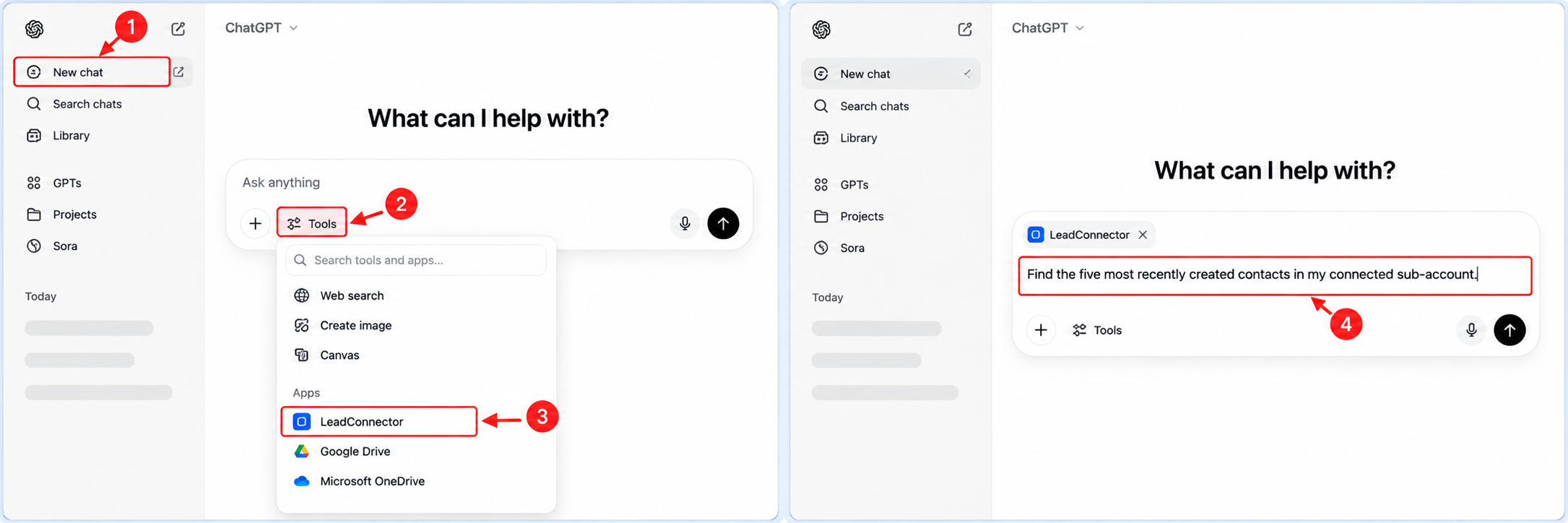
- Start a new ChatGPT conversation.
- Open the available Apps or tools menu.
- Select the Chat To Clients CRM app for the request.
- Enter a CRM request that uses an authorized operation.
For example:
Find the five most recently created contacts in my connected sub-account.How to Connect Codex to Chat To Clients CRM MCP
Codex can connect to the same OpenAI MCP endpoint through the CLI or supported IDE configuration.
Method 1: Codex CLI
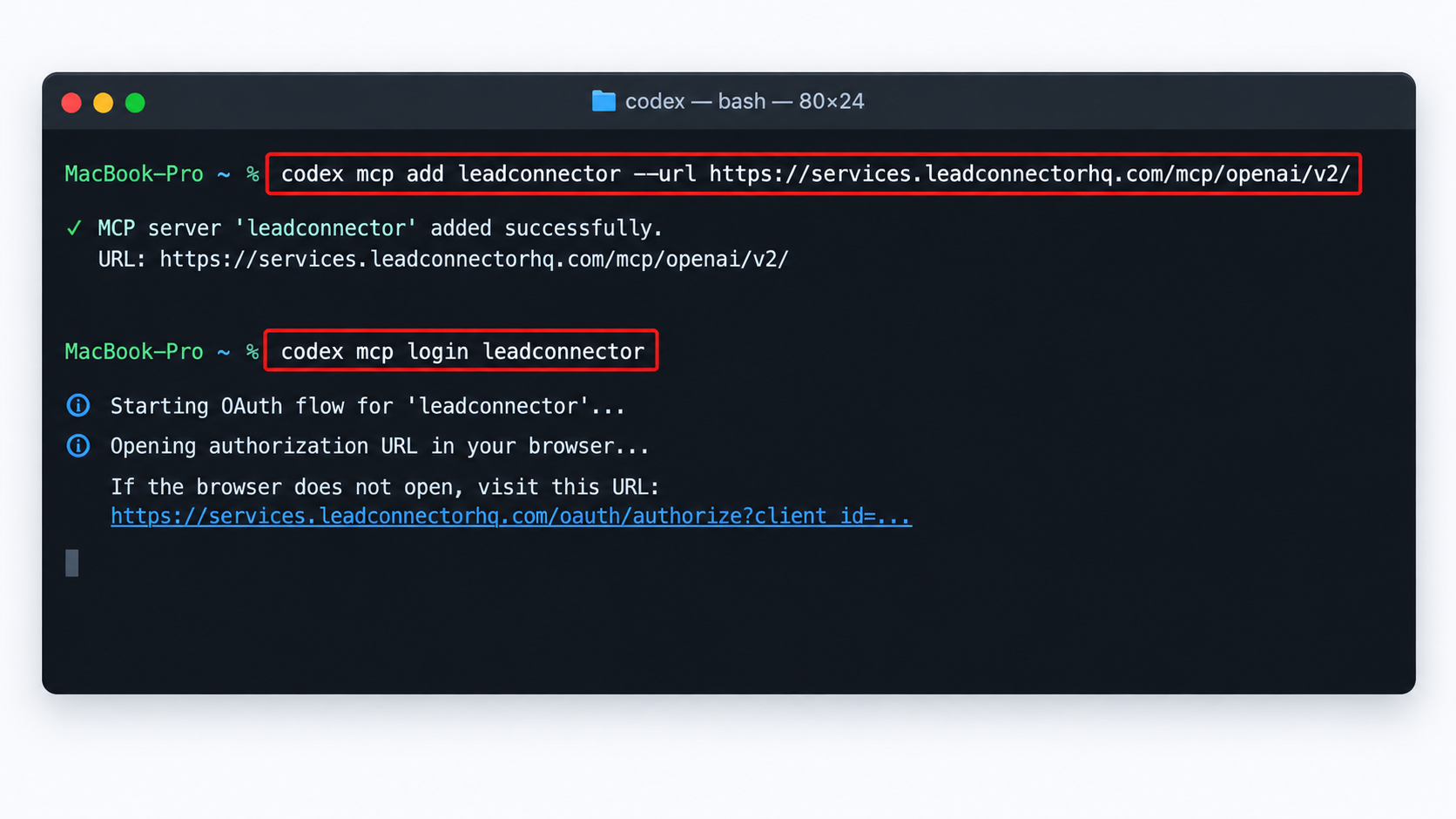
Add the Chat To Clients CRM MCP server:
codex mcp add Chat To Clients CRM --url https://services.leadconnectorhq.com/mcp/openai/v2/
Then start the Chat To Clients CRM OAuth flow:
codex mcp login Chat To Clients CRM
Complete the Chat To Clients CRM sign-in, sub-account selection, and permission approval when prompted.
After authorization, use Codex with requests that require the connected Chat To Clients CRM CRM operations.
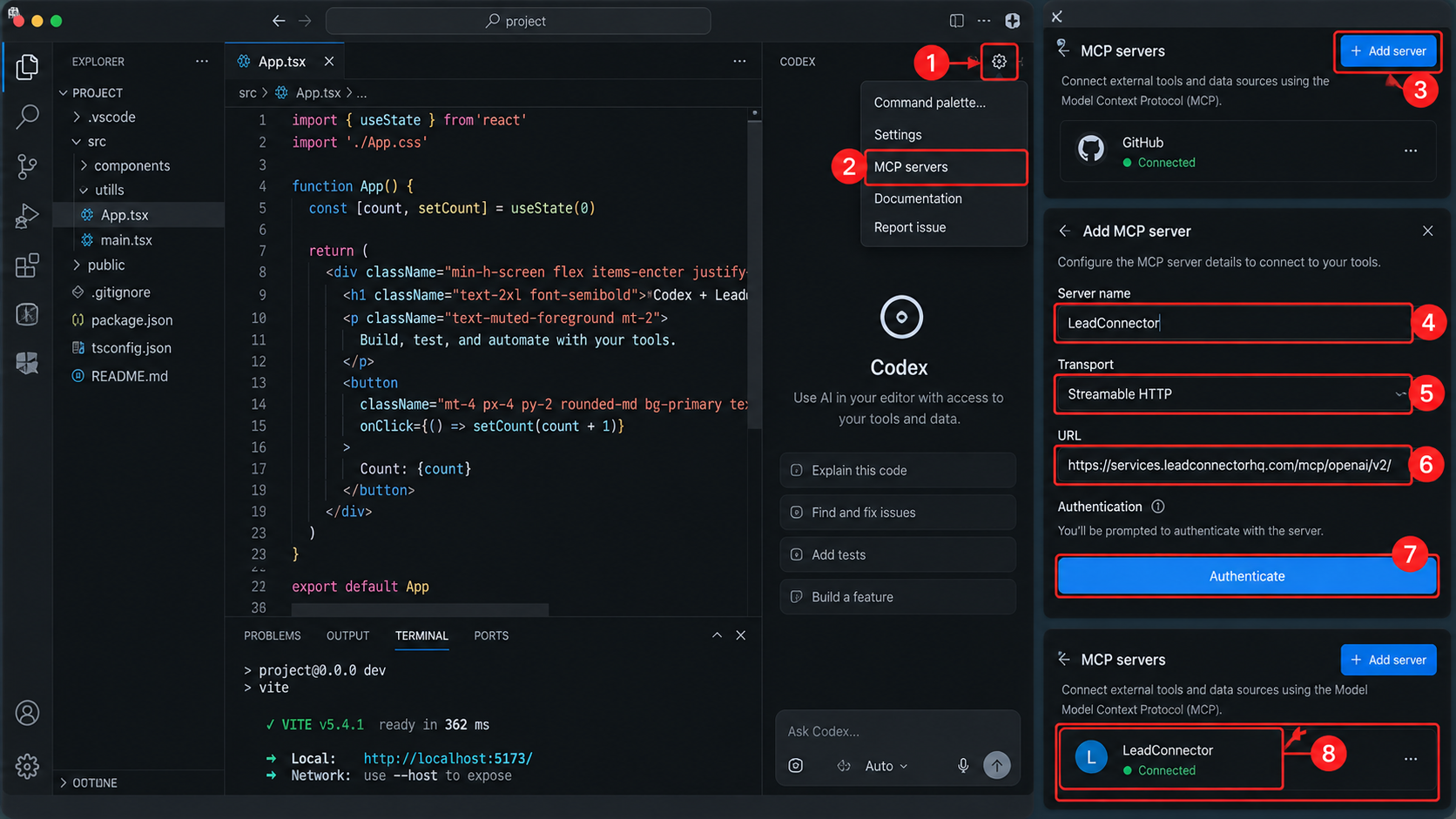
Method 2: Codex IDE
- Open the Codex IDE extension.
- Open the gear menu.
- Select MCP servers.
- Select Add server.
- Choose Streamable HTTP.
6. Enter:
https://services.leadconnectorhq.com/mcp/openai/v2/- Select Authenticate.
- Complete the Chat To Clients CRM OAuth flow.
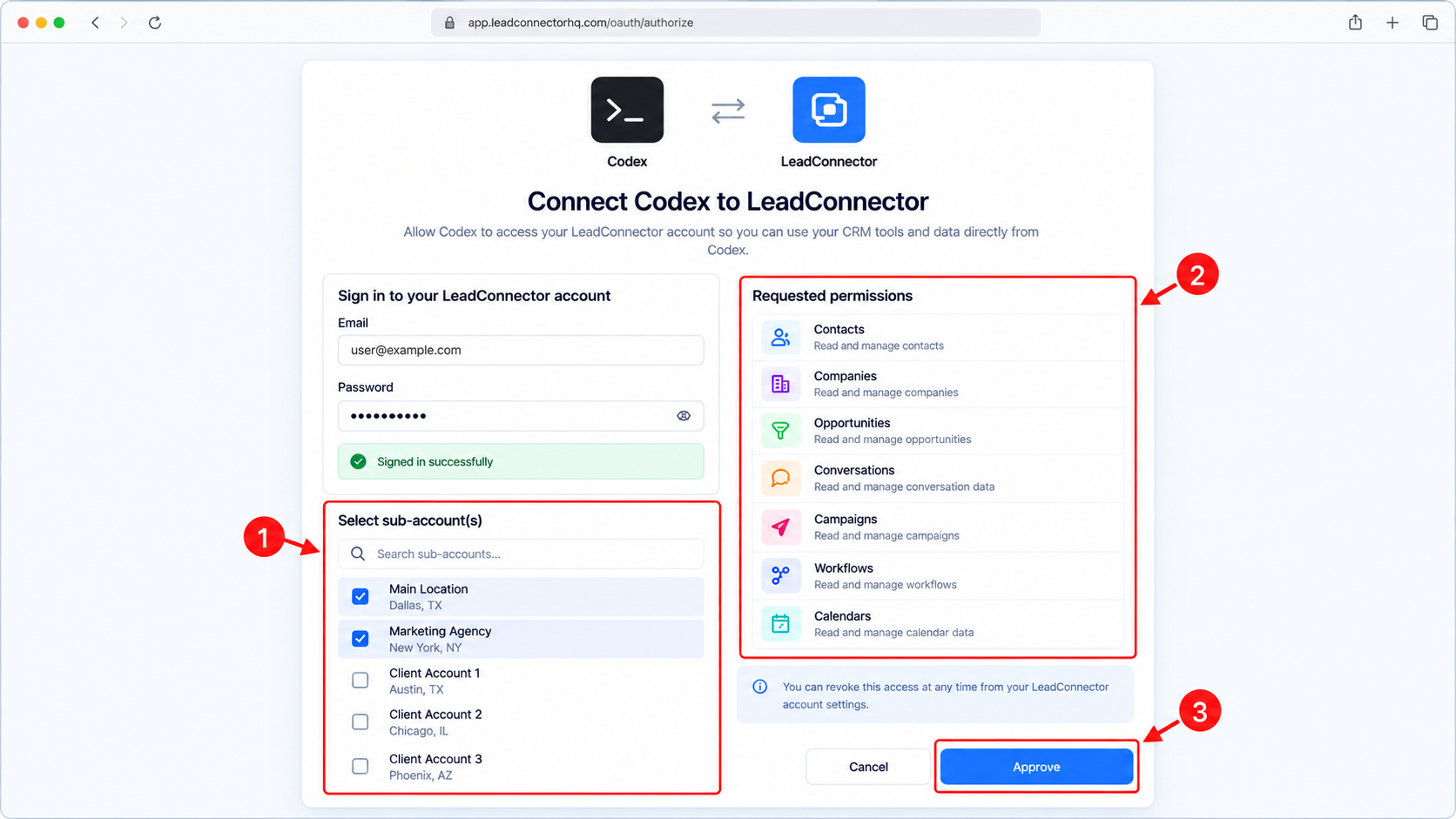
9. Select the appropriate sub-account access.
10. Approve the requested permissions.
How to Verify the Connection
Testing the connection confirms that the OpenAI client can identify the authorized CRM context and use the Chat To Clients CRM MCP tools successfully.
After connecting, start with a simple read request before using write or delete actions.
For example:
Find the five most recently created contacts in my connected sub-account.
For an agency connection with multiple authorized sub-accounts, include the sub-account name in the request.
If the requested sub-account is ambiguous, the client can use list_locations to identify the available locations before proceeding.
Note: The connection can only access operations and sub-accounts included in the OAuth authorization.
Frequently Asked Questions
Q: Which OpenAI clients can connect to the Chat To Clients CRM MCP OpenAI endpoint?
The current Chat To Clients CRM documentation specifically supports ChatGPT, Codex, and other compatible OpenAI clients that can connect to a remote Streamable HTTP MCP server.
Q: Do I need to create a Private Integration Token?
No. The dedicated OpenAI endpoint uses the Chat To Clients CRM OAuth sign-in and consent flow.
Q: Which endpoint should I use for ChatGPT or Codex?
Use:
https://services.leadconnectorhq.com/mcp/openai/v2/
Q: How many CRM operations are available?
The current Chat To Clients CRM MCP documentation lists more than 550 active operations across 38 domains. The exact operations available to your connection depend on your OAuth permissions.
Q: What are the four unified MCP tools?
The OpenAI connection exposes list_locations, search_operations, describe_operation, and execute_operation.
Q: Can one connection access multiple sub-accounts?
Agency multi-sub-account support is rolling out. When the multi-sub-account installation option is available, you can authorize multiple sub-accounts. Every request still operates against one sub-account at a time.
Q: Can the OpenAI client access a sub-account I did not approve?
No. The connection is limited to the sub-accounts and permissions included in your authorization.
Related Articles
- How to Setup and Use the Chat To Clients CRM MCP Server
- Chat To Clients CRM MCP for Anthropic — Increased Scopes
- Chat To Clients CRM API Documentation