
Email Domain Warm-Up: Automated Email Warm-Up
This guide explains how the platform's automated domain warm-up works, how to request beta access, how to enable it on your dedicated sending domain, how to read the warm-up reports, and how to pause or stop warm-up.
Domain warm-up is the process of gradually increasing your daily email volume to build a trusted sender reputation with inbox providers like Gmail, Outlook, and Yahoo.
Why Domain Warm-Up Matters
Inbox providers are cautious with domains that suddenly start sending large volumes. Without proper warm-up, new domains are more likely to:
- Be flagged as spam
- Experience high bounce or complaint rates
- Face email delivery blocks or delays
The platform automates this entire process so you can build trust with inbox providers and maximize deliverability without manually managing send volumes.
How Automated Email Warm-Up Works
Email Domain Warm-Up is fully automated. Instead of manually sending emails and increasing volume yourself, the platform uses dedicated warm-up mailboxes on your domain that:
Together, these signals build a strong sender reputation with providers like Gmail, Outlook, Yahoo, and others — improving inbox placement over time ?
Who Can Use It and When Warm-Up Starts
Email warm-up is available for both agency and sub-account dedicated sending domains.
When you enable warm-up on an existing domain, the system automatically analyzes past email activity and Google Postmaster reputation data (if integrated) to plan the warm-up.
The domain must be verified and its SSL certificate must be issued before you can start warm-up. Unverified domains show "Verify the domain and wait for its SSL certificate before starting warm-up" instead of the Start warm-up button.
How to Access Email Warm-Up (Beta)
Email Warm-Up is currently in beta. To get access, submit a request using the form below. Once your request is approved and the feature is enabled on your account, the Start warm-up option will appear on your dedicated domain cards.
Once Email Warm-Up is enabled on your account, the daily sending limit ramp currently shown on your dedicated domain will be removed. Automated warm-up takes over building your sender reputation instead.
How to Enable Domain Warm-Up
Go to Agency Settings or Sub-Account Settings → Email Services → SMTP Service, then open the Dedicated Domain and IP tab. (Email Warm-Up must first be enabled on your account — see How to Access Email Warm-Up.)
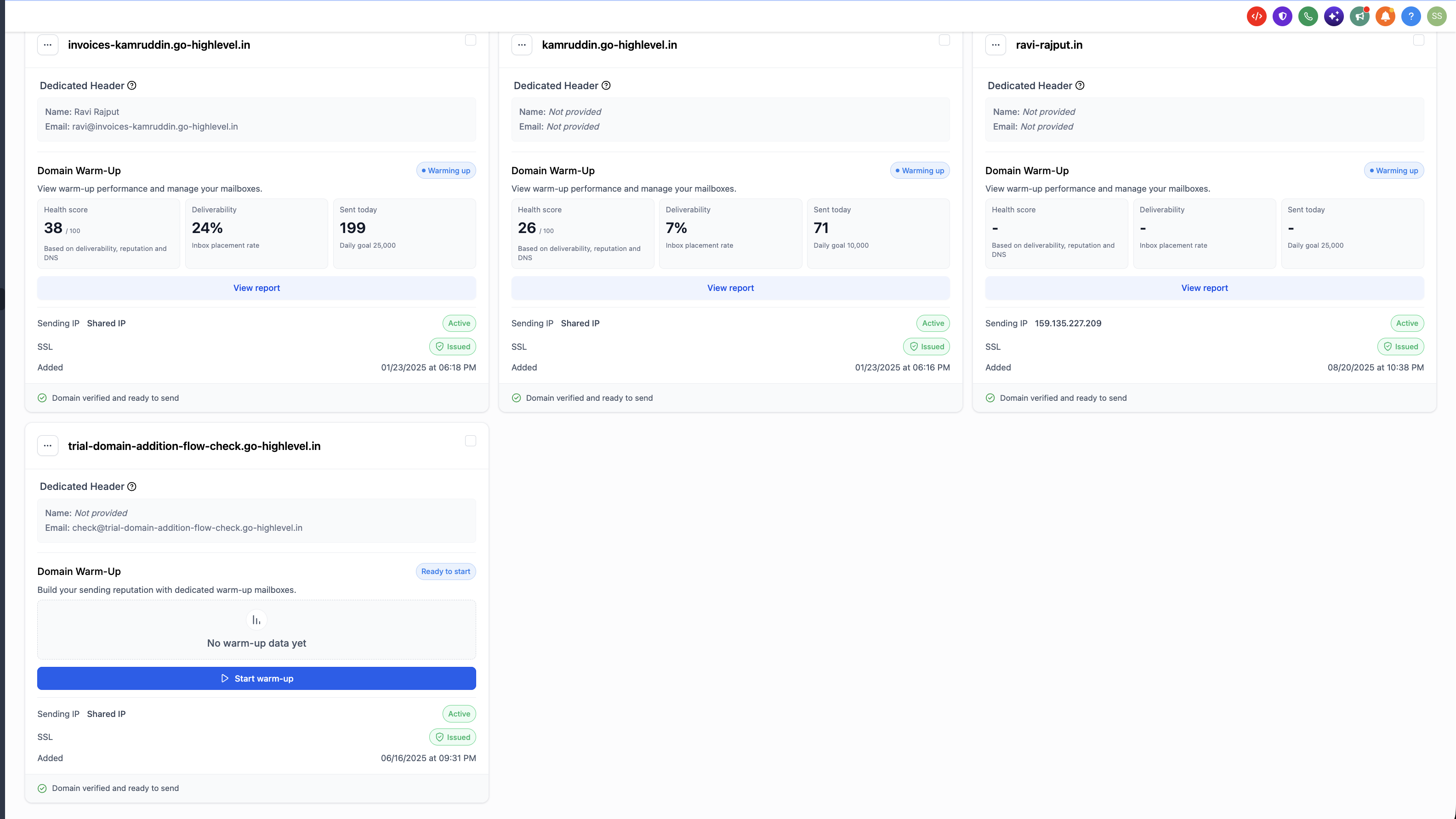
Find your domain card and, under Domain Warm-Up, click Start warm-up. A "Warm up <your domain>" popup opens.
Under Daily goal, click Change and pick a volume from the Daily warm-up limit dropdown (for example, 10,000 or 25,000 emails a day), then click Done. Sending increases gradually up to this amount — it is not a guaranteed daily volume.
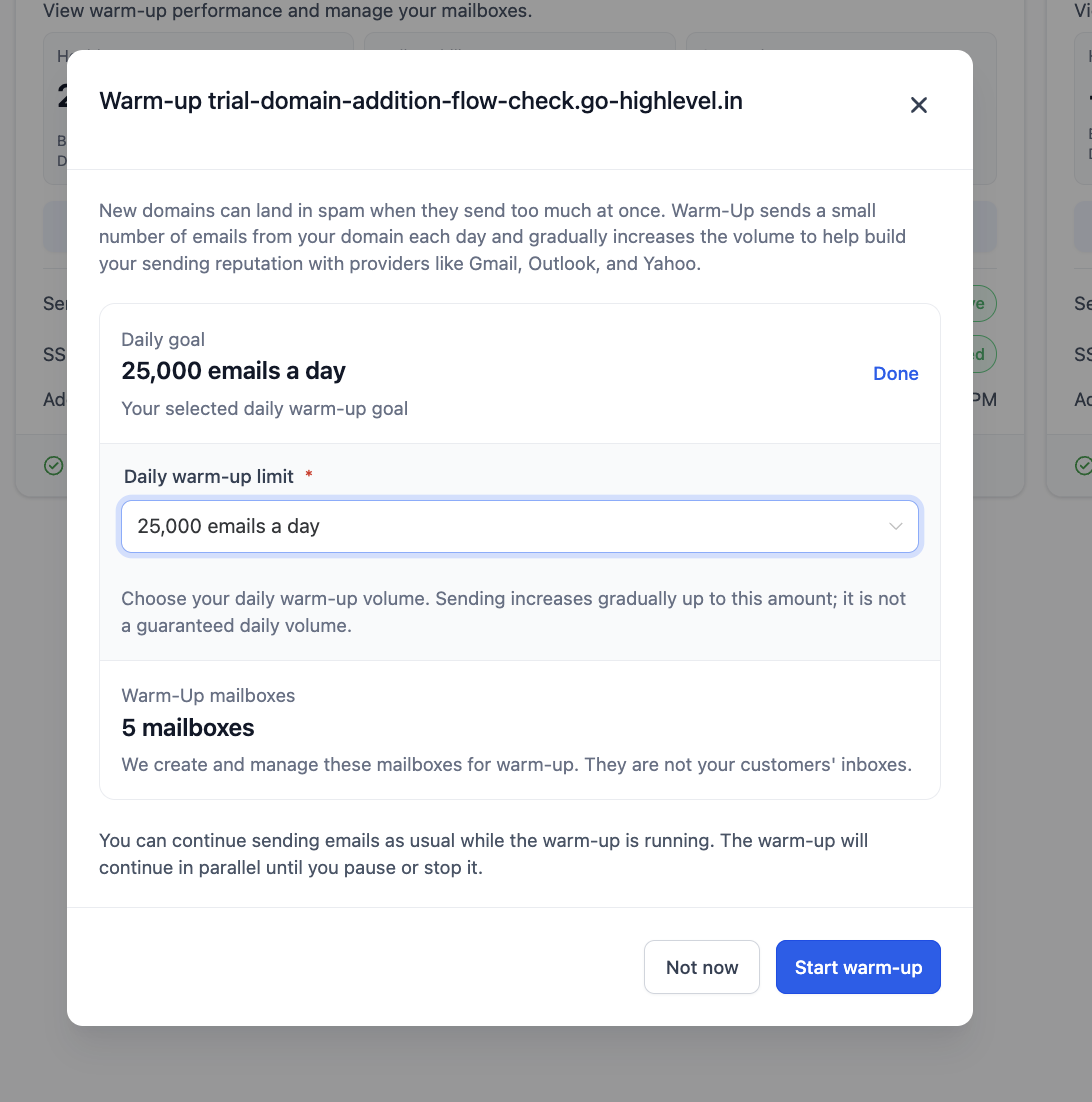
Based on the volume you select, the platform creates the required number of warm-up mailboxes (for example, a 25,000/day goal uses 5 mailboxes, each with a 5,000/day sending cap). We create and manage these mailboxes for warm-up — they are not your customers' inboxes.
Click Start warm-up to confirm. The domain card's Domain Warm-Up badge changes to Warming up.
You can continue sending emails as usual while warm-up is running. Warm-up continues in parallel until you pause or stop it.
If the domain is already enrolled, you'll see a "Warm-Up is already set up" message. Click Done and open its report from the domain card instead.
Domain Warm-Up Report
Once warm-up is enabled, each domain card shows warm-up performance at a glance: Health score (0–100), Deliverability (inbox placement rate), and Sent today against your daily goal.
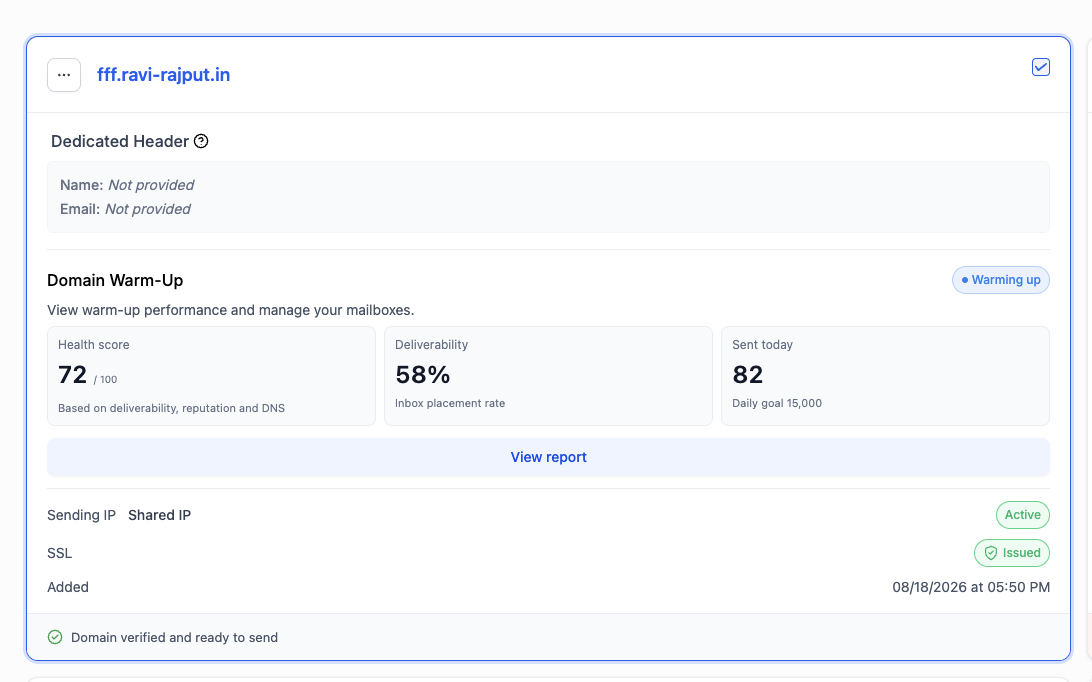
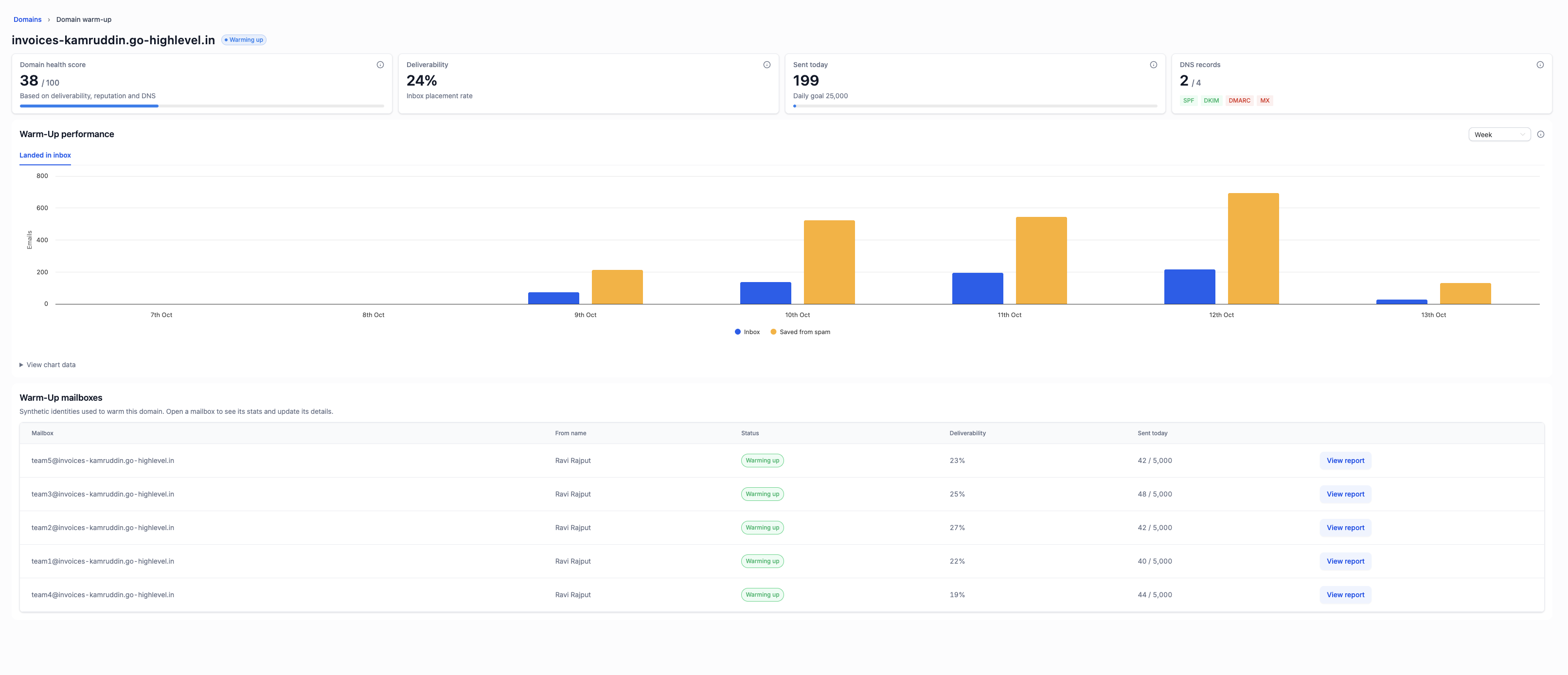
Click View report on the domain card to open the full Domain warm-up page.
| Report Item | What It Shows |
|---|---|
| Domain health score | Overall health of this domain on a 0–100 scale. |
| Deliverability | Inbox placement rate of warm-up emails. |
| Sent today | Warm-up emails sent today, with progress toward your daily goal. |
| DNS records | Status of SPF, DKIM, DMARC, and MX records (green = configured, red = missing or invalid). |
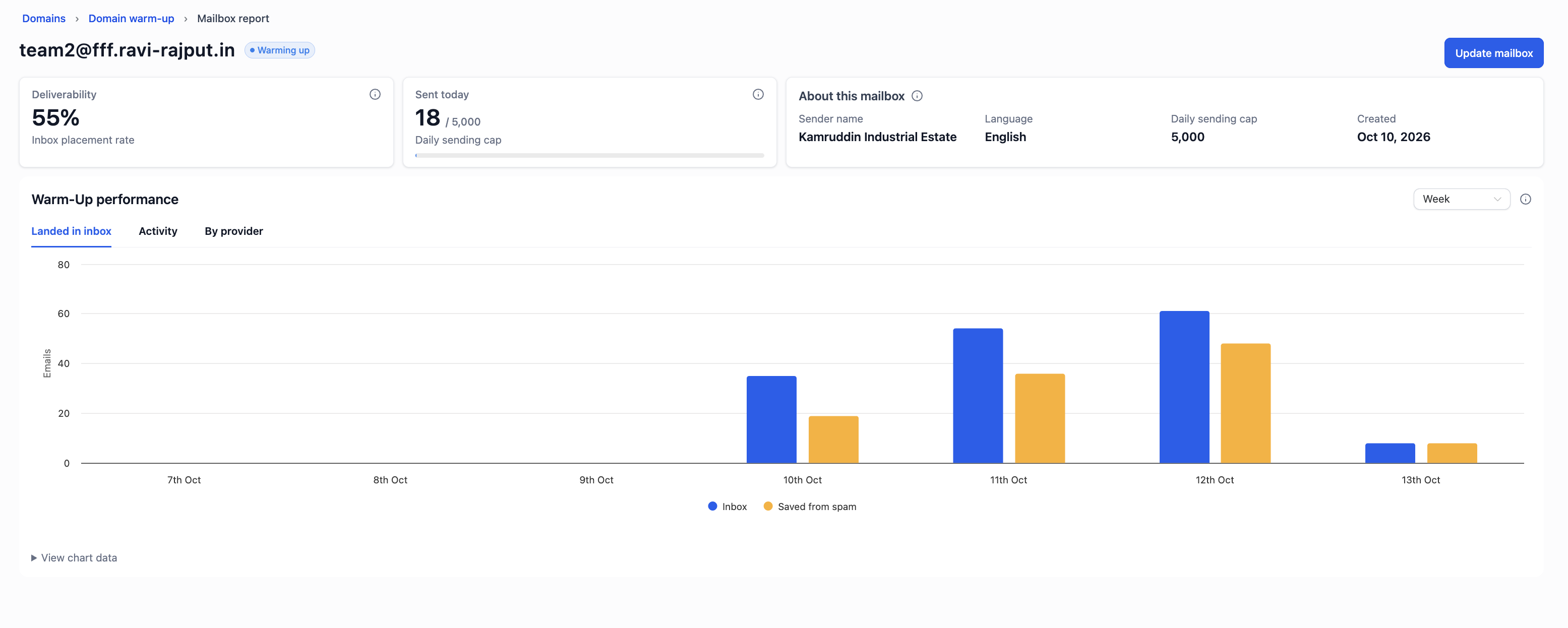
| Warm-Up performance | "Landed in inbox" chart comparing emails delivered to Inbox vs Saved from spam, filterable by time period (e.g. Week). |
| Warm-Up mailboxes | Each warm-up mailbox with its from name, status, deliverability, and sent today vs daily cap. |
Click View report next to any mailbox to see its deliverability, sent today vs daily sending cap, sender name, language, and created date. The performance chart has Landed in inbox, Activity, and By provider tabs. Use Update mailbox to edit the mailbox details.
How to Pause or Stop Domain Warm-Up
- Click the three dots (…) on the domain card.
- Select Pause warm-up or Stop warm-up.
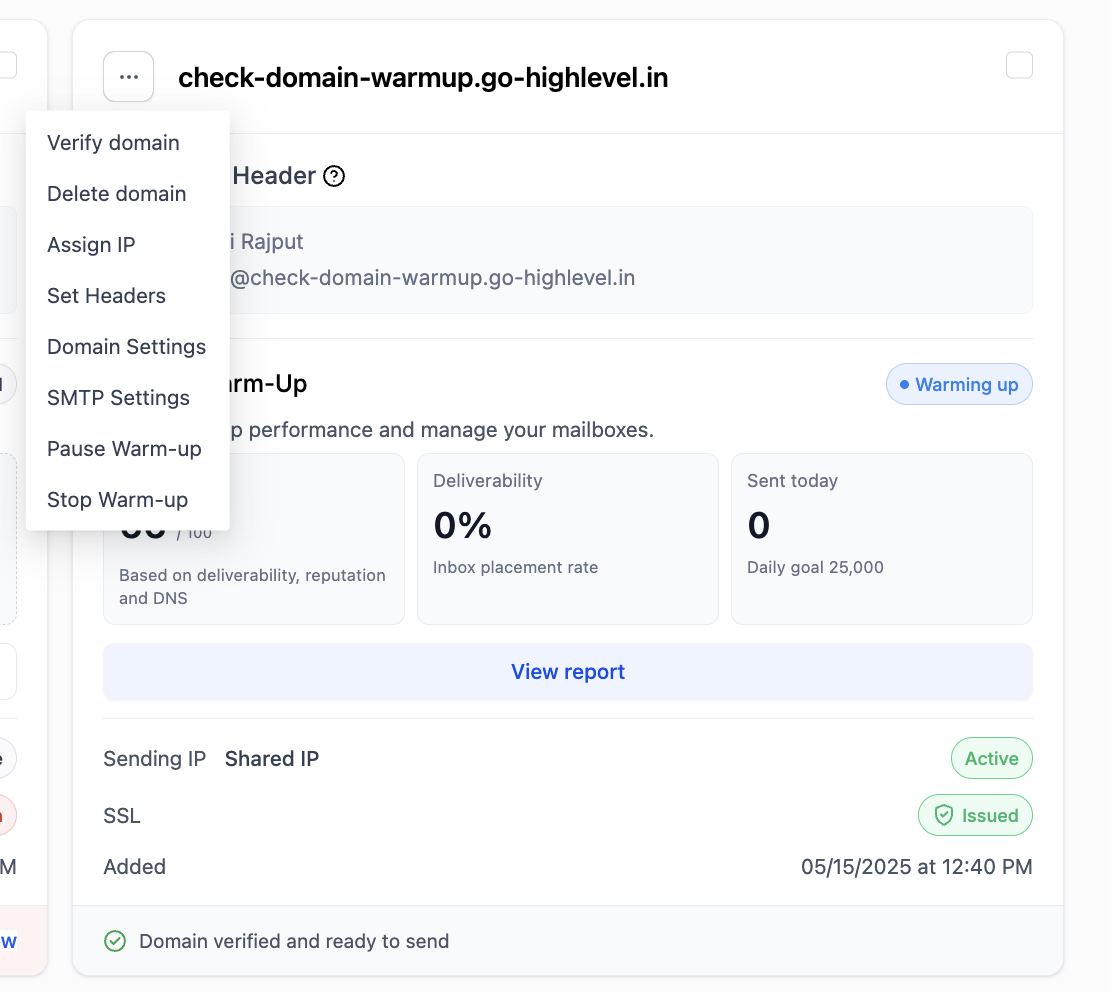
Use Pause for a temporary break and Stop when you want to end warm-up for the domain. Stopping early can slow down reputation building, especially on newer domains.