
Social comments in Conversations
TABLE OF CONTENTS
- Social Comments in Conversations
- Prerequisites
- Setting Up Social Comment Sync
- Step 2: Configure Comment Settings at the Sub-Account Level
- Step 3: Complete the First-Time Setup in Conversations
- Viewing Social Comments in Conversations
- Opening a Social Comment
- Replying to Social Comments
- Identify and Prioritize High-Intent Social Leads
- Supported Platforms
- Frequently Asked Questions
- Will comments on posts I didn't publish through Social Planner be synced?
- What happens if I turn comment sync off?
- Will my existing Facebook, Instagram and Tiktok comment workflows continue to work?
- Can the same person comment multiple times?
- My social account connection expired. What should I do?
- Can I still manage comments from Social Planner?
Social Comments in Conversations
Social Comments in Conversations brings comments from your social media posts directly into the Conversations inbox. Instead of switching between Social Planner and individual social platforms, your team can view and respond to comments from the same place where you already manage SMS, email, and DMs.
When comment sync is enabled, each commenter is saved as a contact and their comment appears as a conversation thread with the original post for context. Your team can reply publicly, continue the conversation through a private DM, or use workflows to automatically follow up with potential leads. Pasted markdown
Important: Enabling Social Comments also creates a contact for every new commenter. Contact creation cannot be disabled separately while comment sync is enabled.
Who Is This For?
Social Comments in Conversations is useful for:
- Agency admins managing social media for multiple clients
- Sales teams and reps handling inbound social leads
- Businesses using Social Planner to publish social content
- Teams that want to turn social engagement into conversations, leads, and opportunities Pasted markdown
How Social Comments Work
Once comment sync is enabled, comments from your connected social accounts are automatically brought into the Conversations → Team Inbox.
For each comment:
- The commenter is created as a new contact.
- The comment appears as a conversation in the Team Inbox.
- The original post is displayed at the top of the conversation for context.
- Your team can reply publicly to the comment or send a private DM.
- Existing workflows can also trigger follow-up actions based on the comment.
Note: Only comments on posts published through Social Planner are synced. Comments on posts that were published directly from Facebook, Instagram, or another social platform outside of Social Planner are not synced. This is a platform limitation.
Prerequisites
Before enabling Social Comments, make sure:
- You are an Agency Admin or have the required admin access to the sub-account.
- At least one supported social account is connected through Social Planner.
- The Conversations module is active for the sub-account.
Setting Up Social Comment Sync
Step 1: Managing Social Comment Sync
Social Comment Sync is enabled by default for eligible sub-accounts. If you do not want social comments to appear in the Conversations inbox, you can disable comment sync at the agency or sub-account level.
Disable Comment Sync for a Sub-Account
To disable comment sync for an individual sub-account:
- Go to Agency Settings → Social Comments.
- Find the sub-account where you want to disable comment sync.
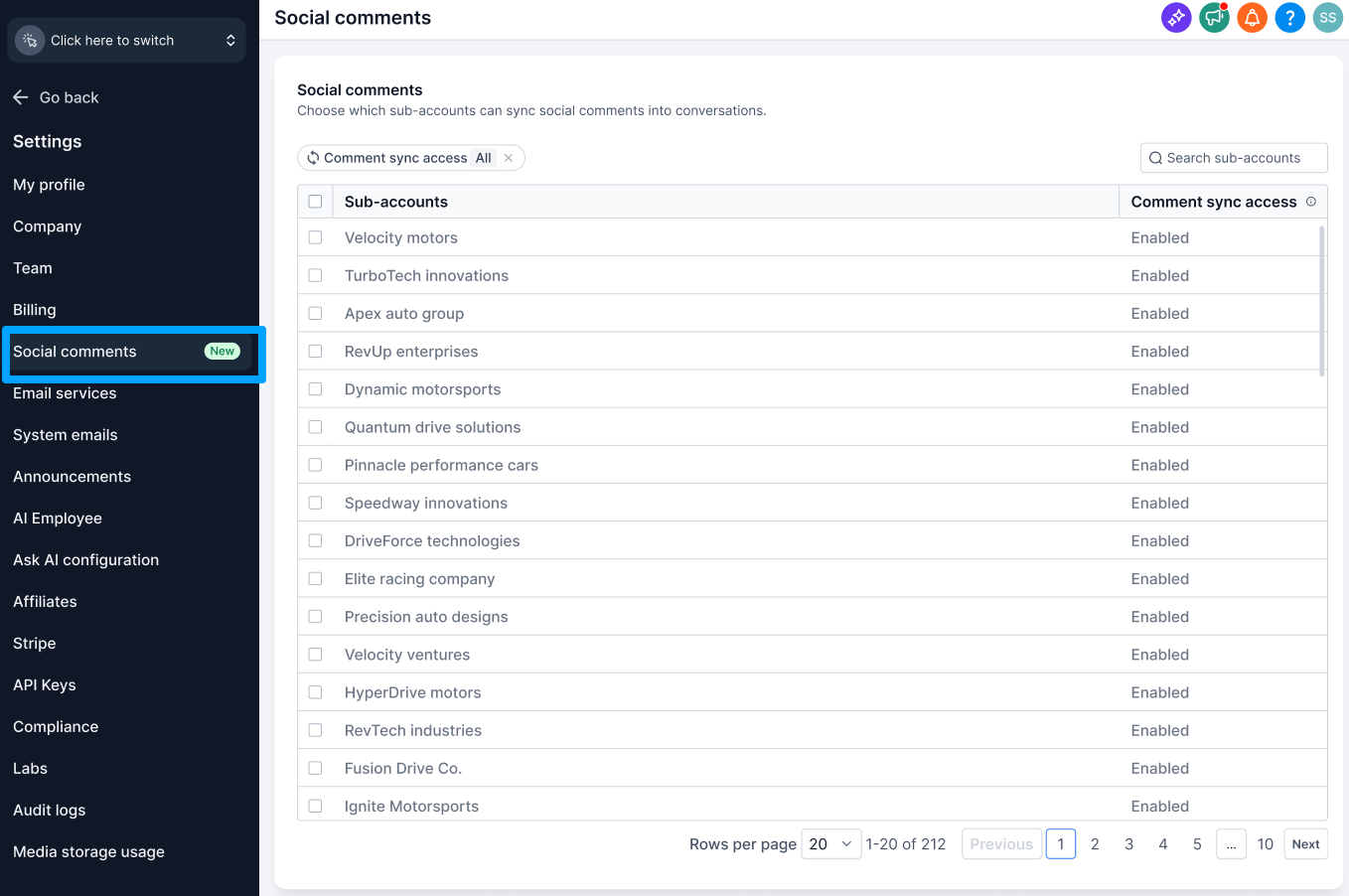
3. Turn Comment Sync off.
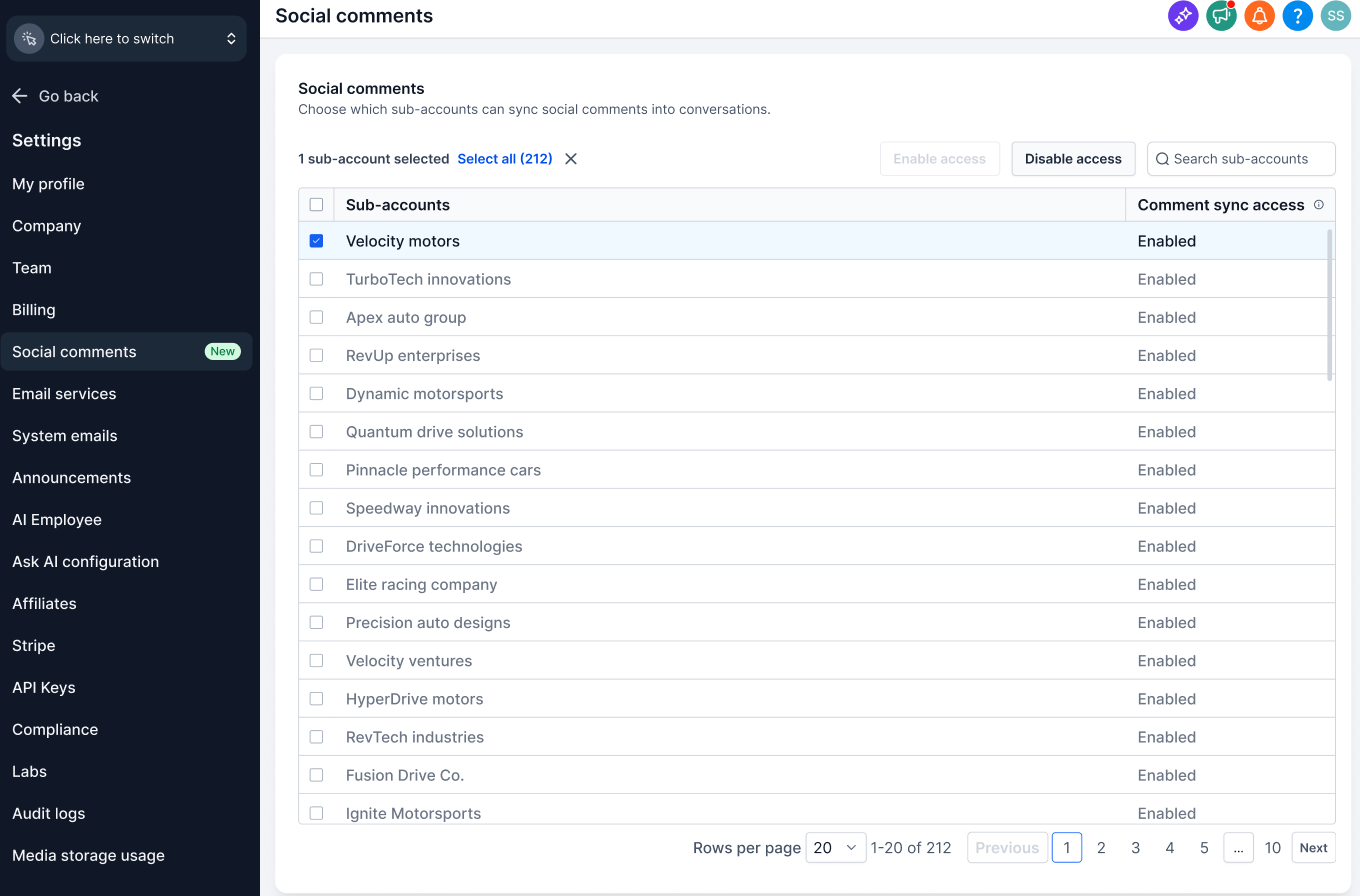
4. Review the confirmation prompt.
5. Click Confirm to apply the change.
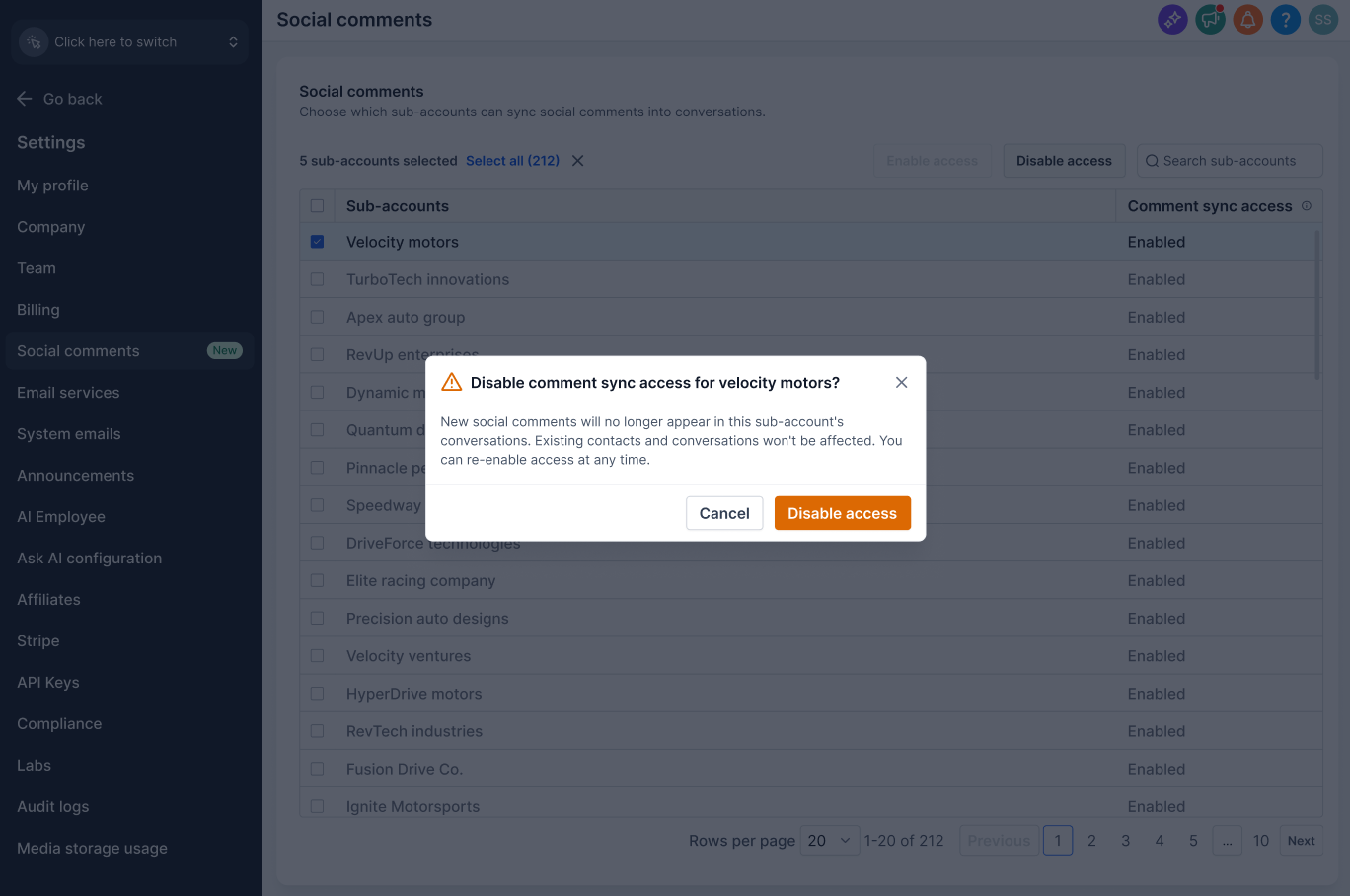
Once disabled, new social comments will no longer sync to Conversations for that sub-account.
Note: Disabling comment sync does not delete contacts or conversations that were created before sync was disabled. Existing conversations remain available in Conversations.
Disable Comment Sync for Multiple Sub-Accounts
Agency admins can also disable comment sync in bulk.
- Go to Agency Settings → Social Comments.
- Select the sub-accounts where you want to disable comment sync.
- Select Disable Comment Sync from the bulk action bar
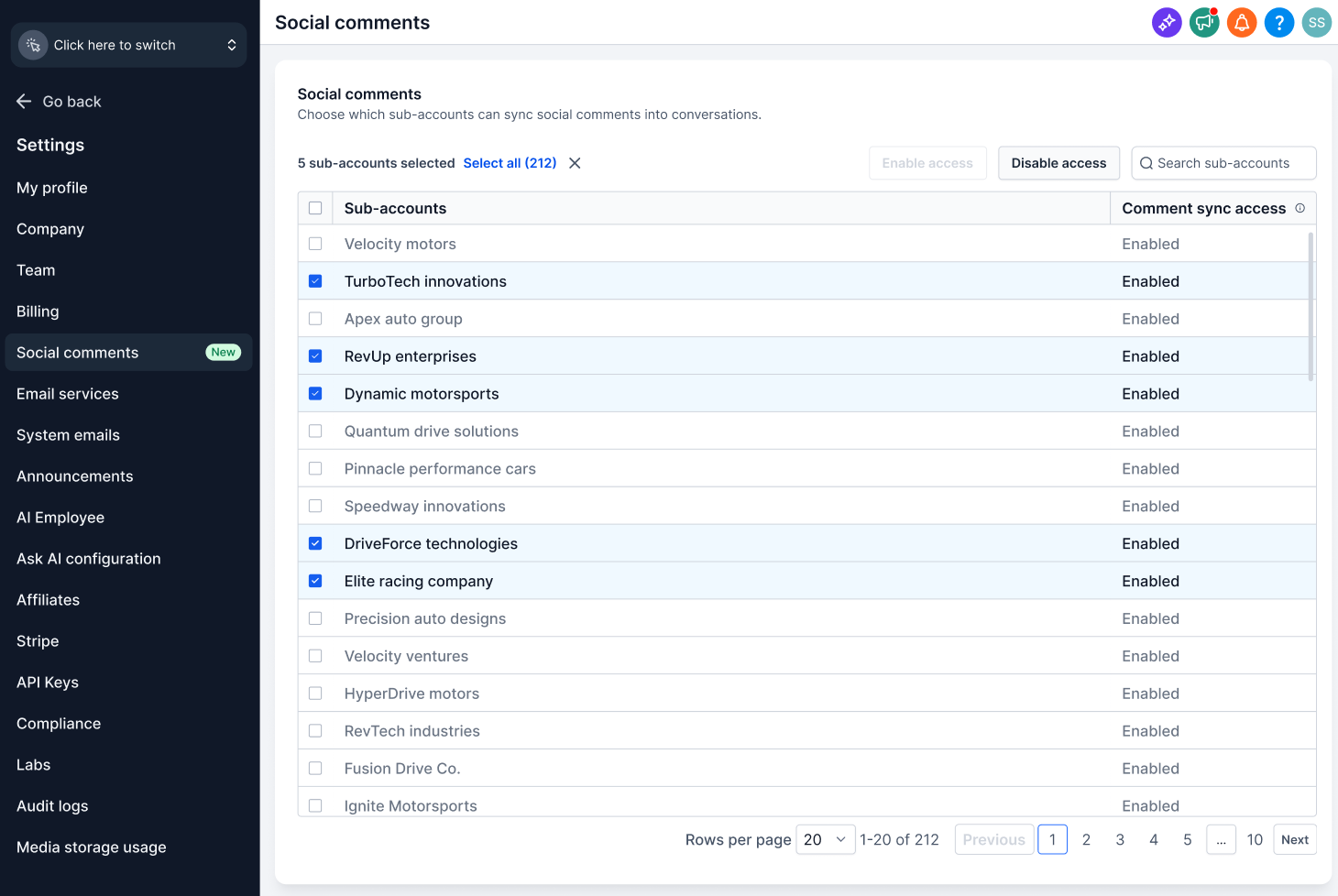
4. Review the confirmation modal.
5. Click Confirm.
6. A success notification confirms the sub-accounts where the setting was updated.
Disable Comment Sync at the Sub-Account Level
Users with the required sub-account permissions can also manage the setting from:
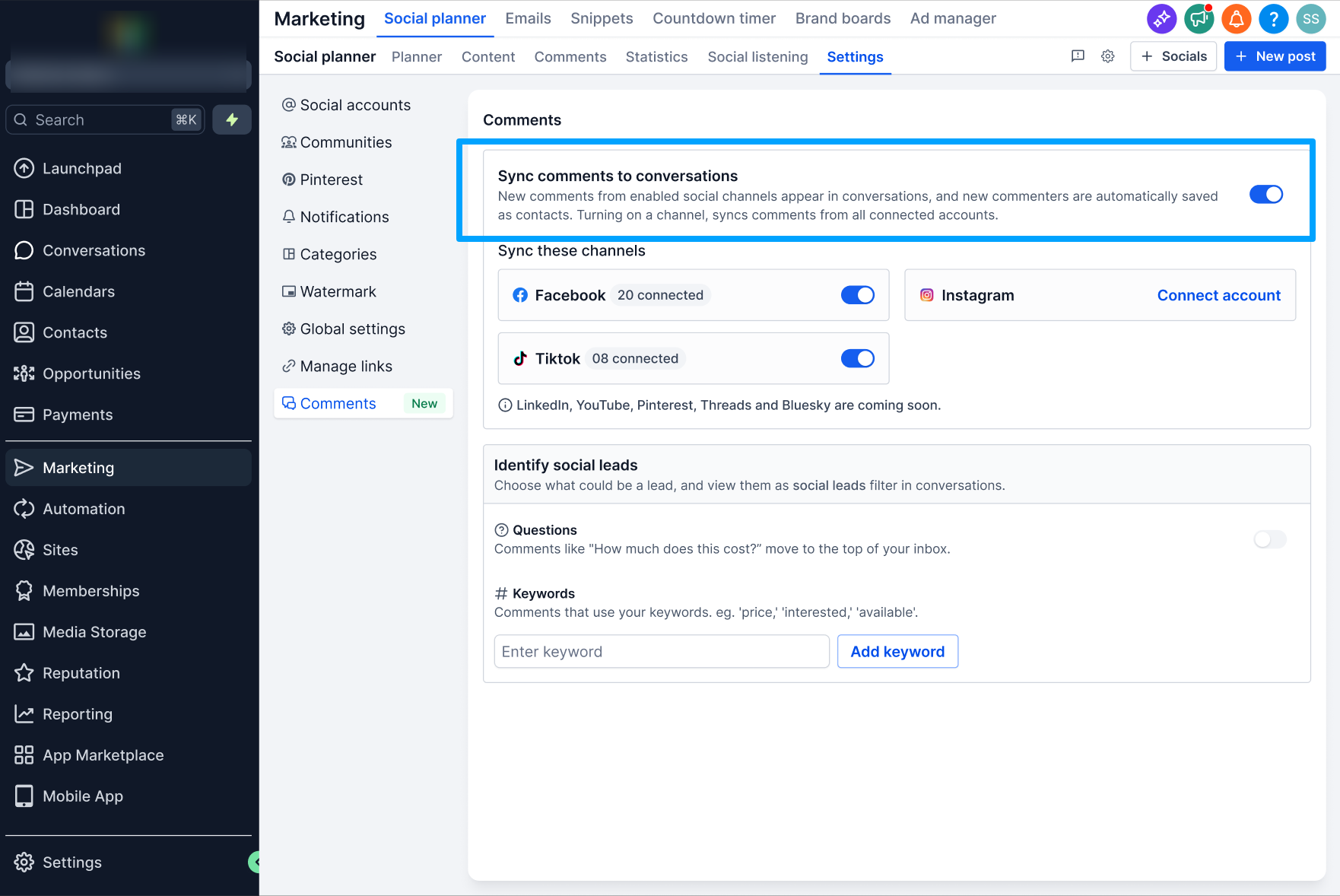
Marketing → Social Planner → Settings → Comments
Turn Sync comments to conversations toggle off to stop new social comments from appearing in Conversations.
What Happens When Comment Sync Is Disabled?
When comment sync is turned off:
- New social comments stop syncing to Conversations.
- Existing social comment conversations remain in the inbox.
- Existing contacts created from social comments are not deleted.
- Existing workflow automations are not deleted or modified.
- Comment management in Social Planner continues to work.
- You can turn comment sync back on whenever you want.
Step 2: Configure Comment Settings at the Sub-Account Level
Comment settings are available in: Marketing → Social Planner → Settings → Comments
You can configure the following settings.
1. Sync These Channels
Use the channel-level toggles to control which connected social platforms send comments to Conversations.
A platform without a connected account displays a Connect account option instead.
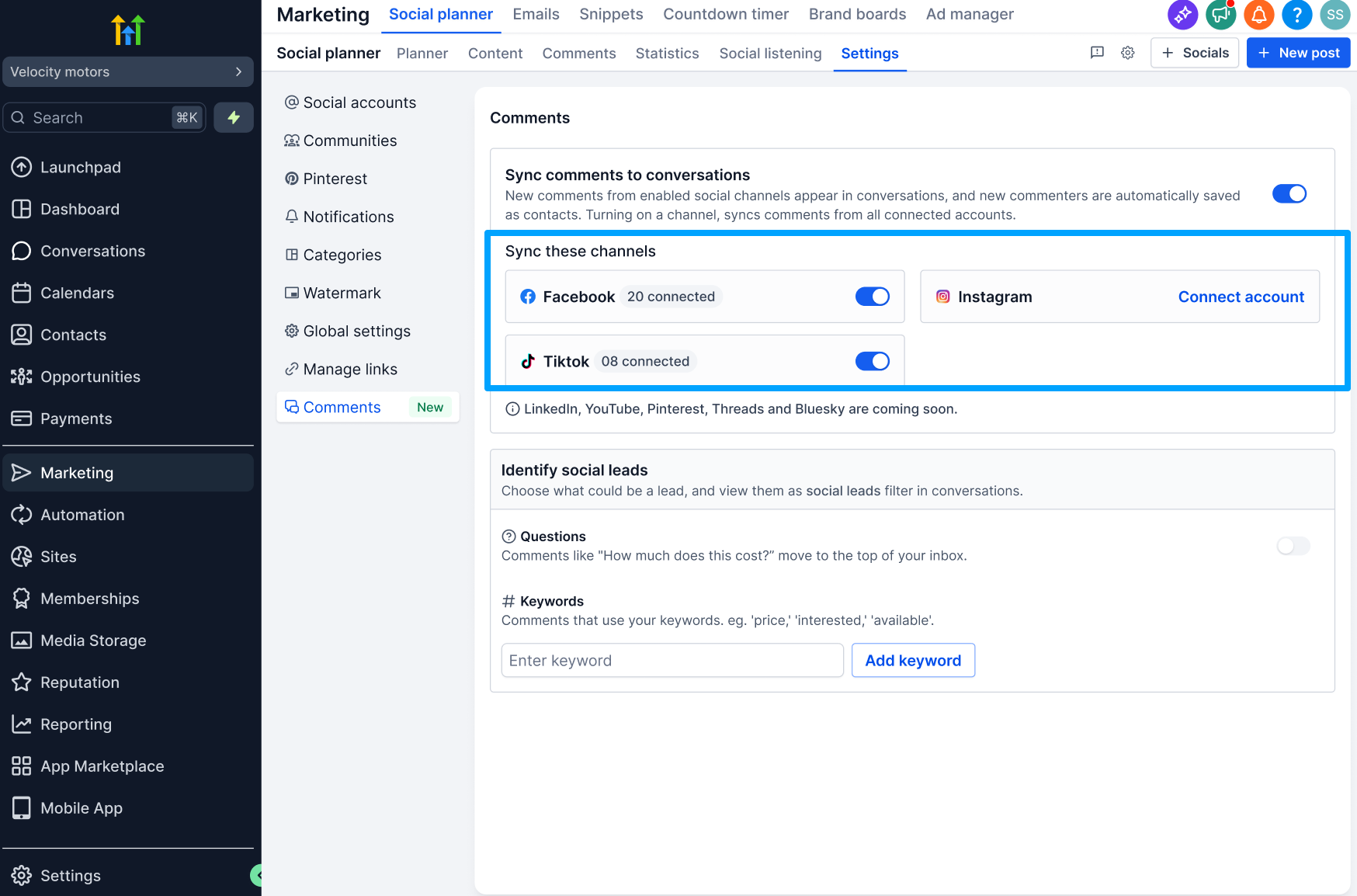
At launch: Facebook, Instagram Tiktok are supported.
Additional platforms are coming soon.
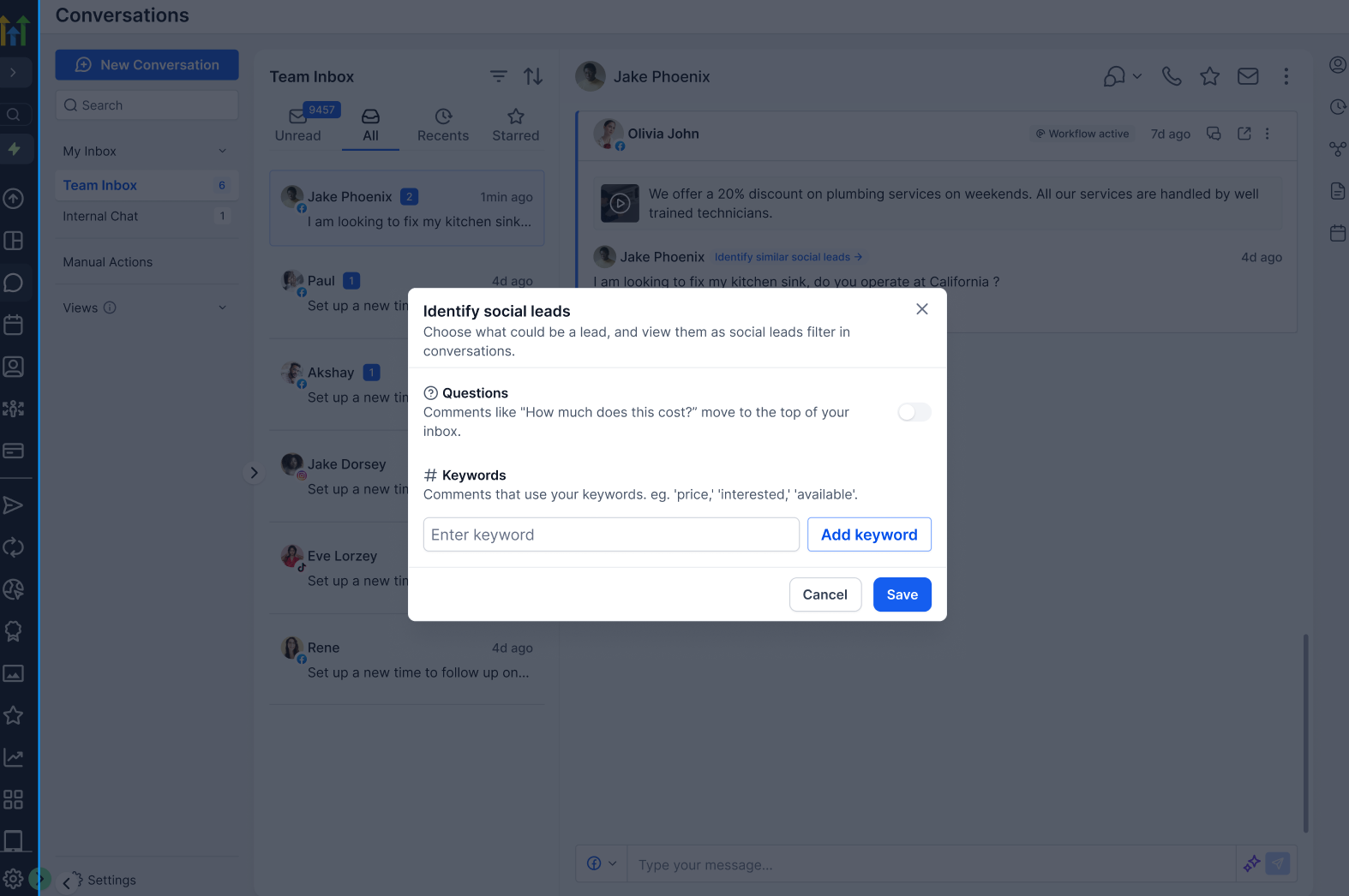
2. Identify Social Leads
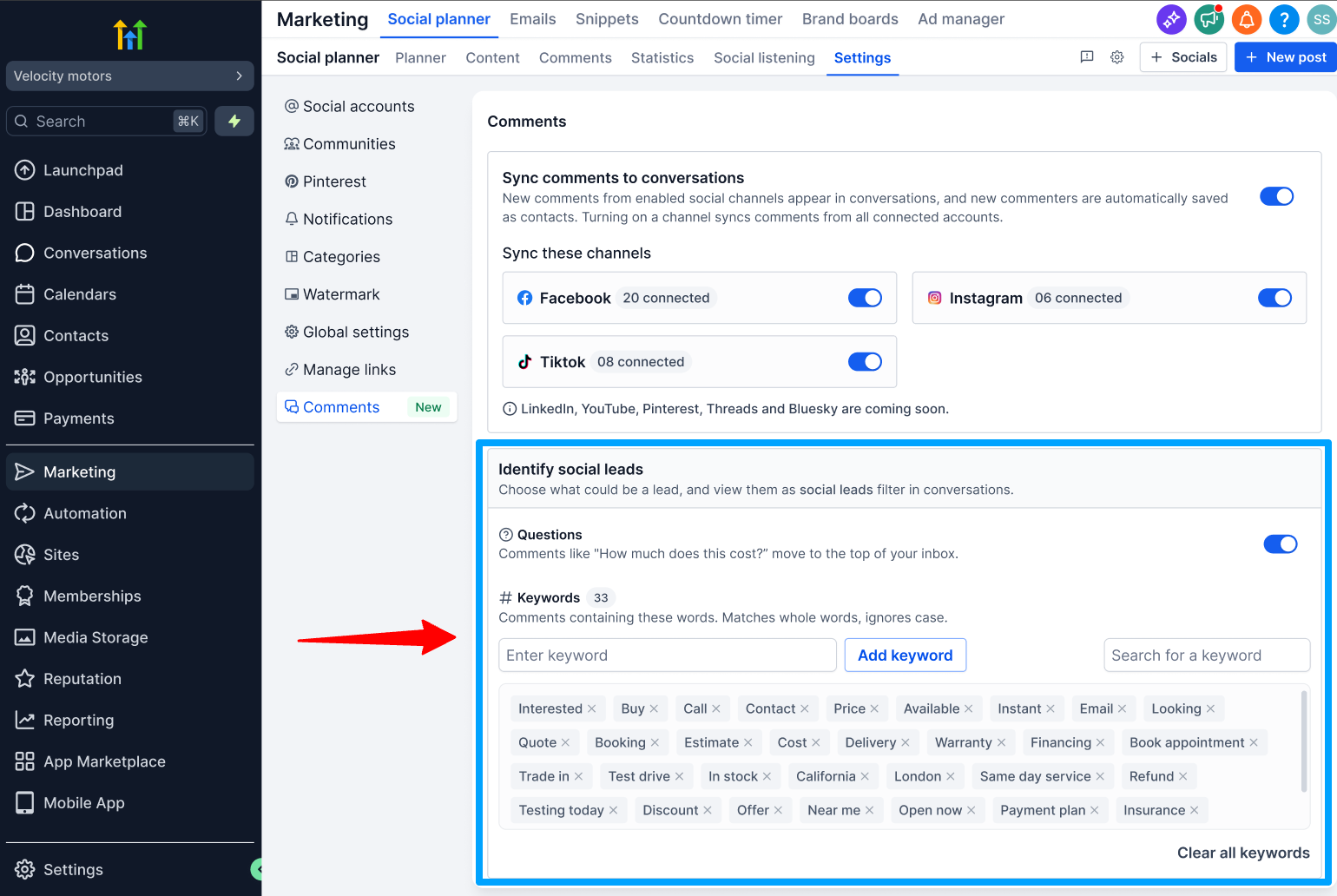
Add keywords that indicate potential buying intent, such as:
priceinterestedavailablehow much
Comments containing these keywords can be surfaced at the top of the inbox when the relevant sort option is used. There is not limit on adding keywords.
Comments With Questions
Enable this option to prioritize comments containing a question mark.
For example:
"How much does this cost?"
"Do you ship to Texas?"
Question-based comments can be surfaced at the top because they may indicate higher purchase intent.
Step 3: Complete the First-Time Setup in Conversations
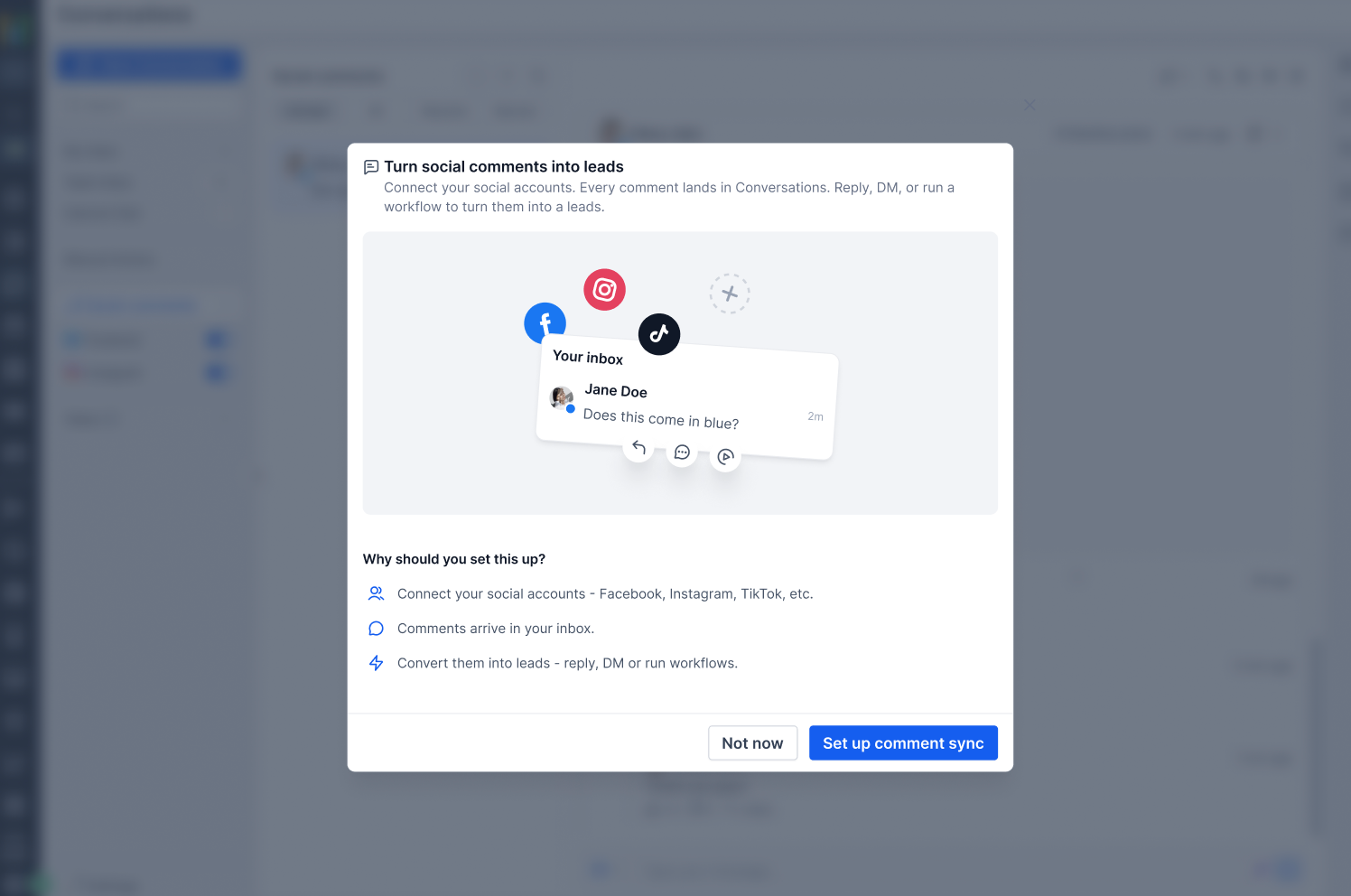
The first time you open Conversations after enabling comment sync, a one-time setup modal explains the feature.
You can click on "Set up comment sync" and you will be redirected to Social Planner>> Settings to configure basis your requirements.
Viewing Social Comments in Conversations
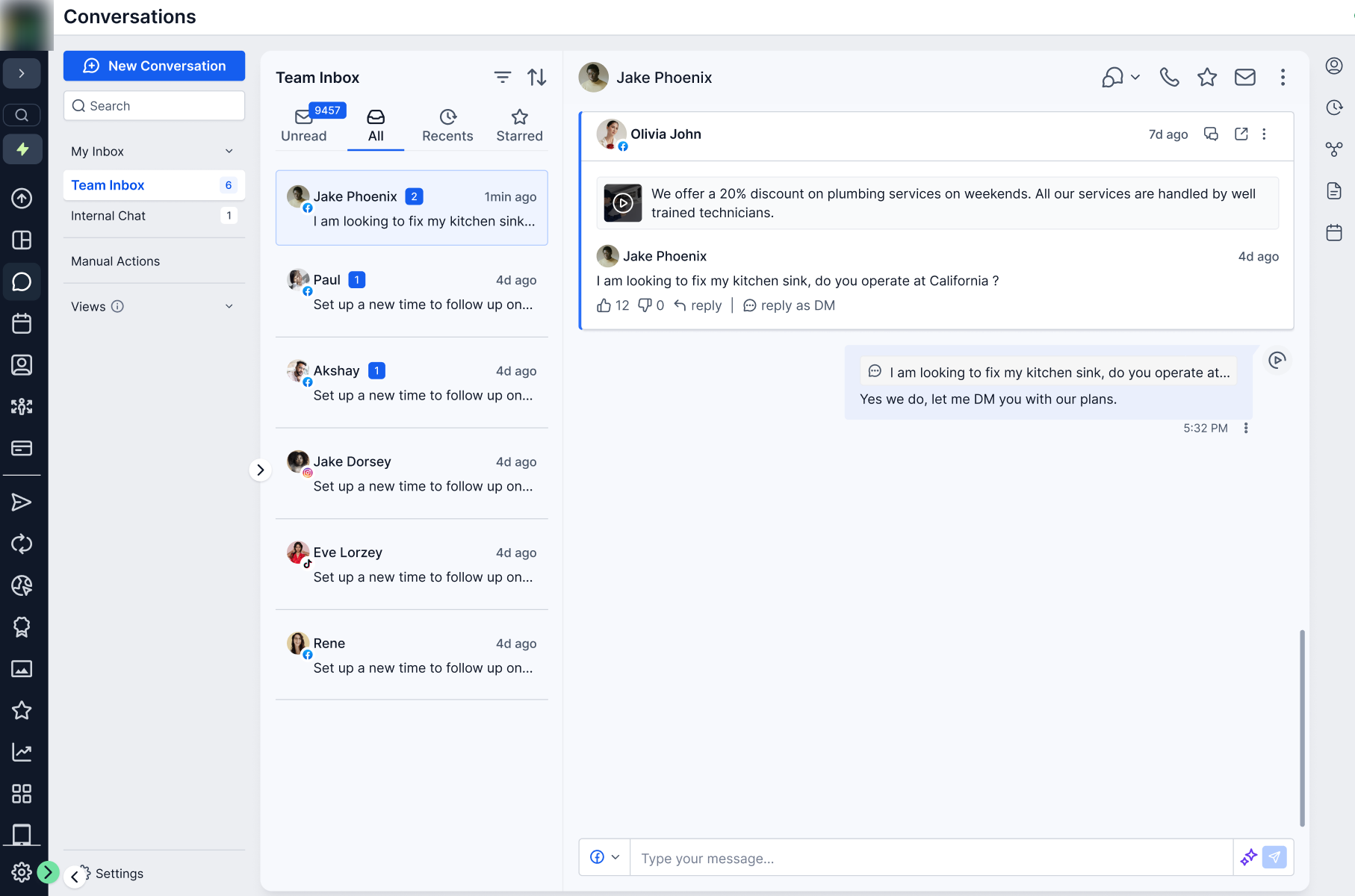
Once comment sync is enabled, social comments appear directly in the Team Inbox alongside your other conversations.
They are not placed in a separate inbox or tab.
Each social comment entry can show:
- Commenter's name or social handle
- Comment preview
- The post the comment was made on
- Social platform icon
- Timestamp
Filter for Social Comments
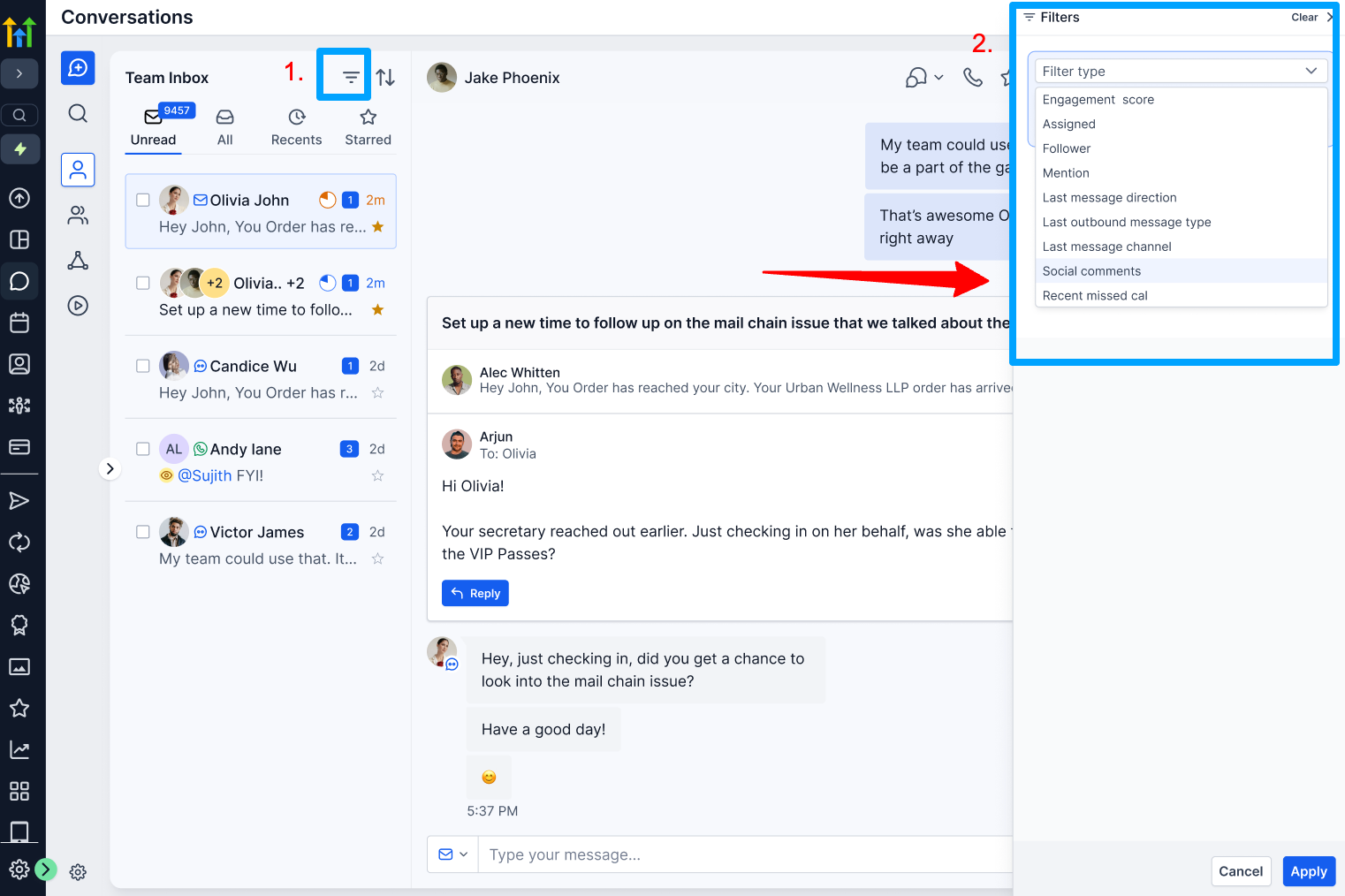
To view only social comment conversations:
- Open the Team Inbox.
- Click the Social Comments filter.
- Your inbox will show only social comment threads.
Opening a Social Comment
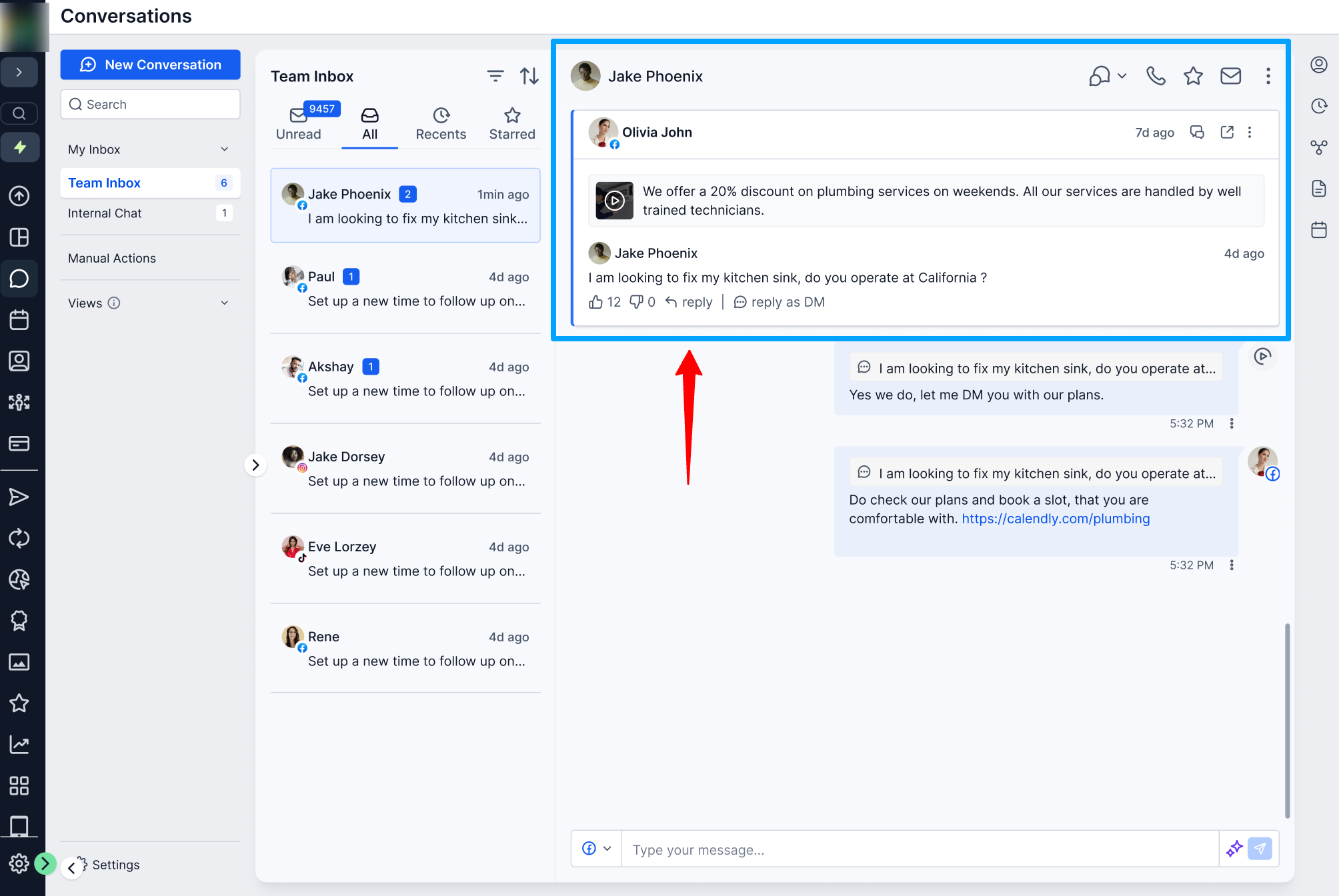
Click a social comment from the Team Inbox to open its conversation thread. The conversation view includes the original post and the comment.
Post Card
The post card at the top of the conversation can include:
- Post thumbnail
- Post caption
- Social account name
- Social platform
- View Post ↗ link to open the original post on the social platform
Contact Details
The right-side contact panel shows the contact created or matched for the commenter, including available:
- Name
- Social platform
- Tags
- Contact source
- Suggested actions
Replying to Social Comments
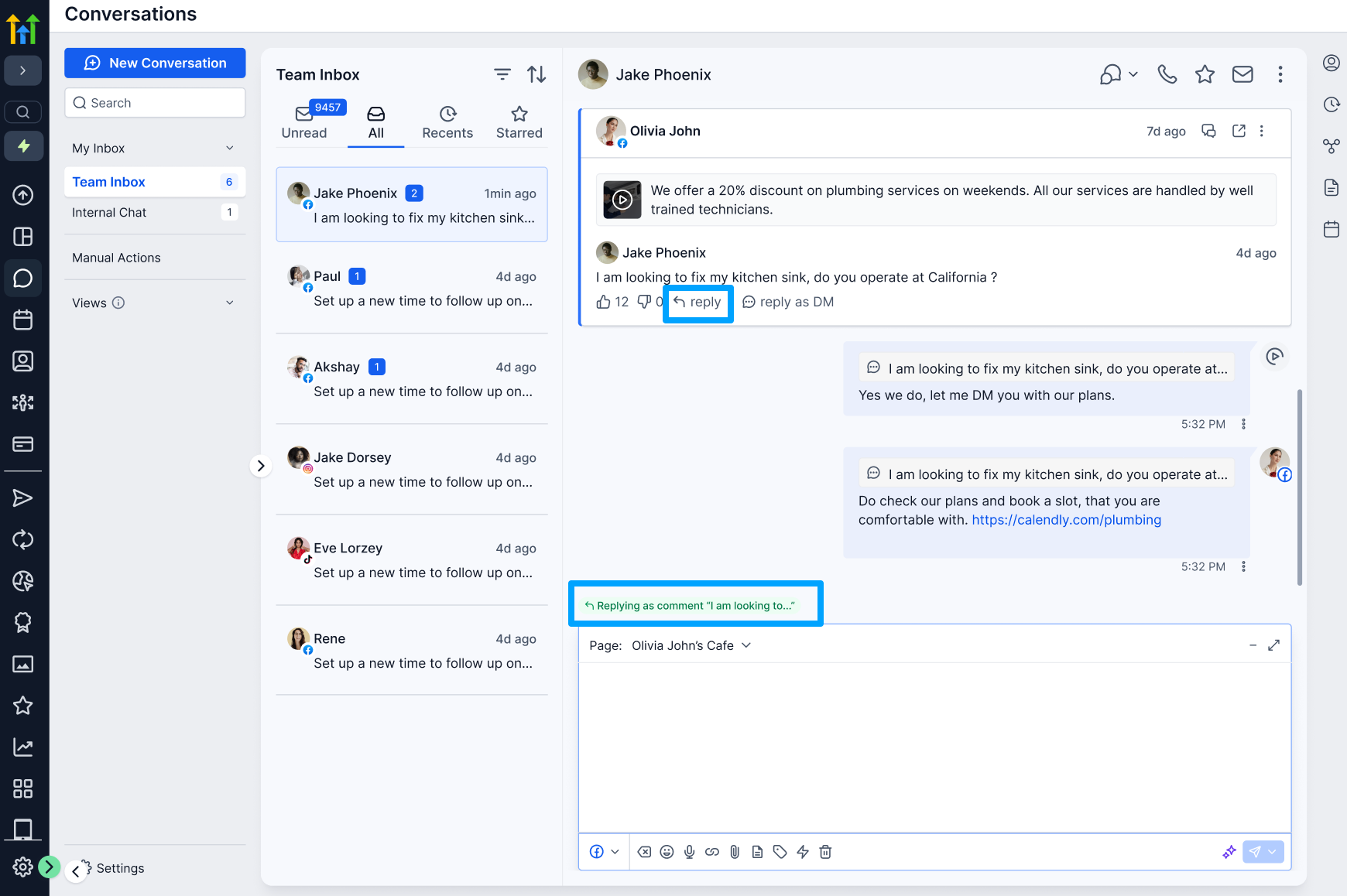
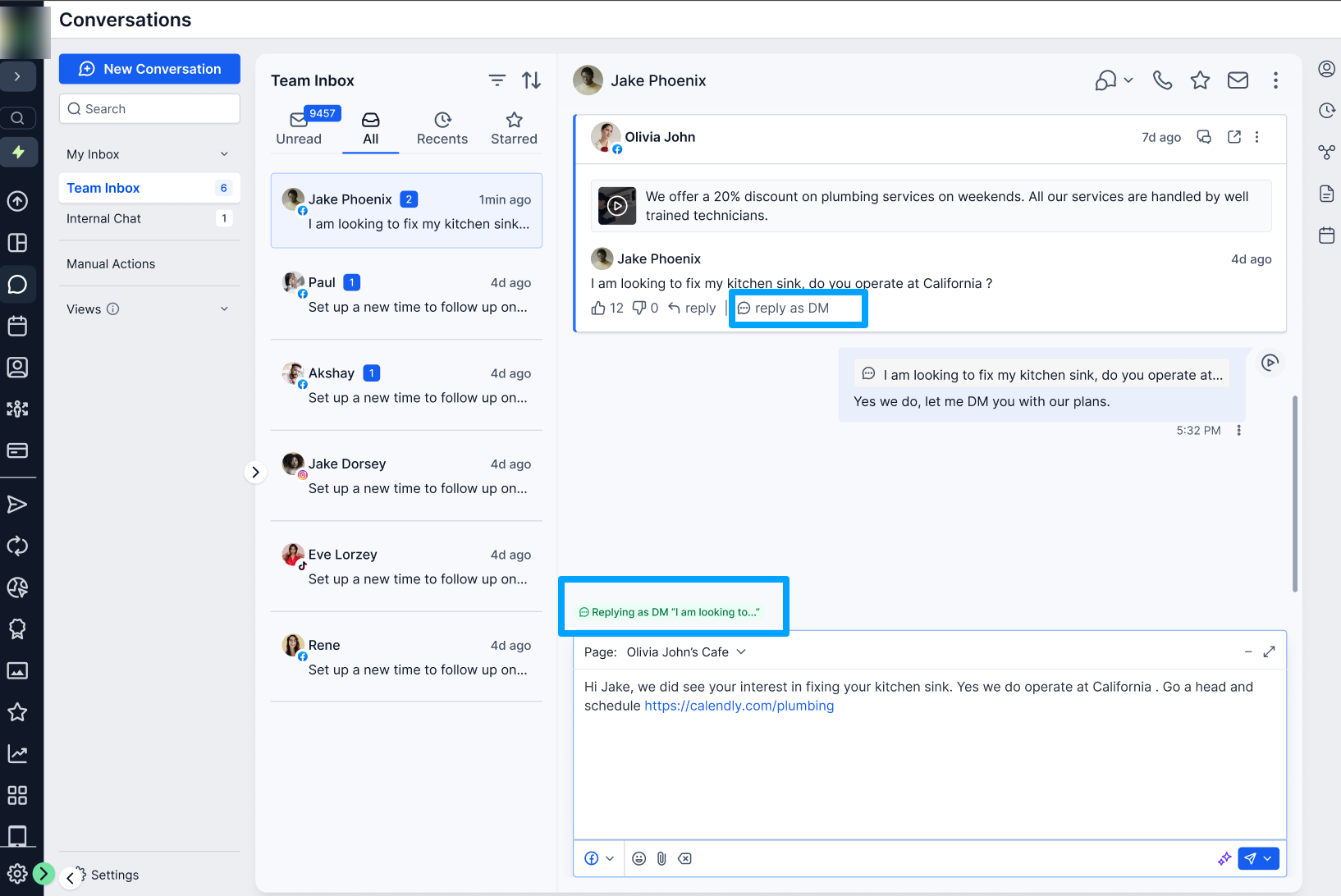
You can respond directly from the conversation. Two reply options are available:
Public Reply
- Use Public Reply to respond publicly underneath the original comment on the social platform.
- Your reply is visible to other users who can see the original post and comment.
- Platform-specific character and media limitations apply.
Send DM
- Use Send DM to continue the conversation privately with the commenter.
- The private conversation moves into the main inbox as a standard DM thread, while the original comment thread displays a Continued in DM indicator.
Reply Limits
| Platform | Character Limit | Images Supported |
|---|---|---|
| No limit | Yes, up to 10 MB | |
| No limit | Yes, up to 10 MB | |
| 3,000 characters | No | |
| TikTok | 150 characters | No |
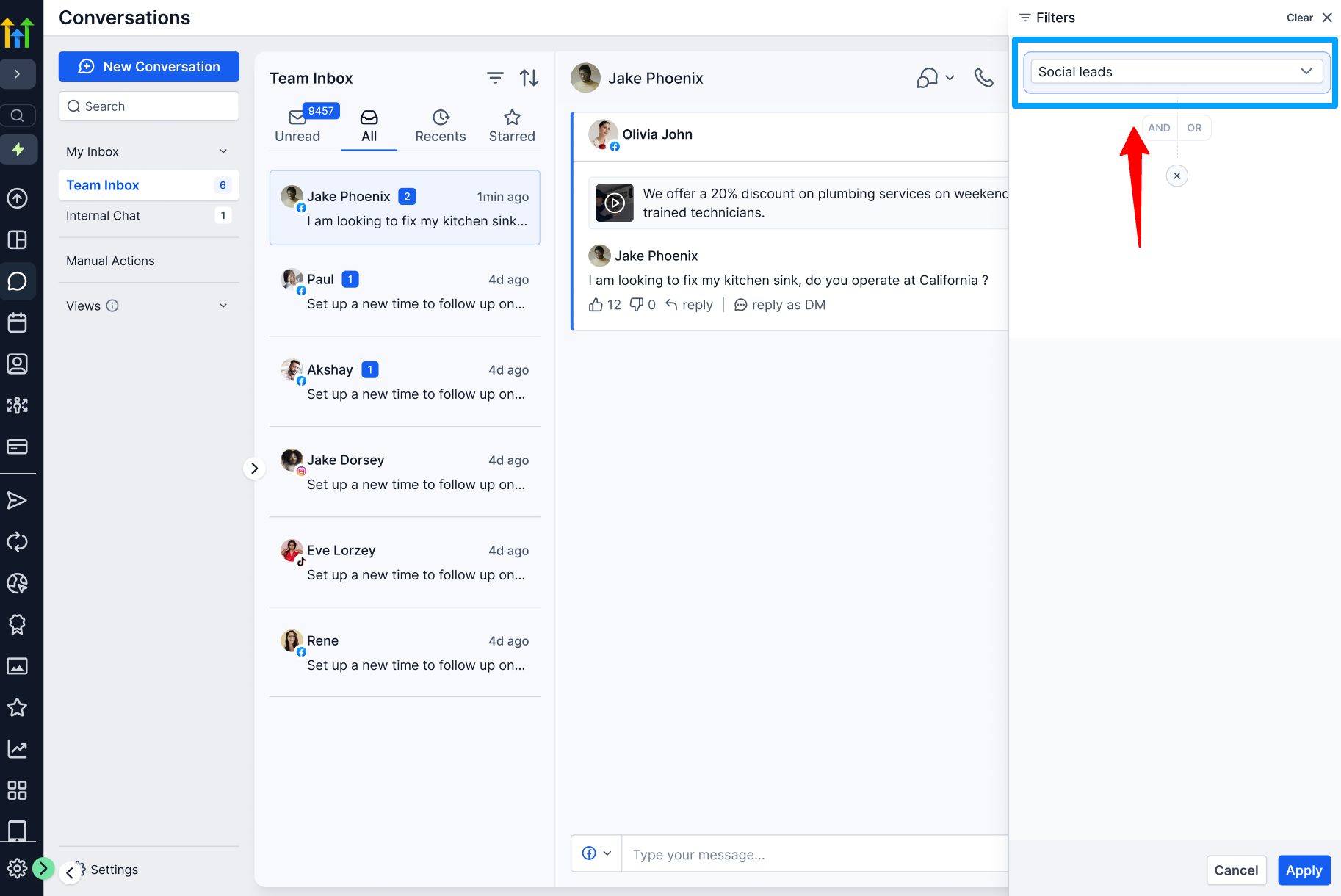
Identify and Prioritize High-Intent Social Leads
If one of your posts receives a large number of comments, use the available filtering and sorting tools to keep your inbox manageable.
You can:
- Use Social Comments to view only social comment threads.
This allows your team to focus on potential leads without losing visibility into other engagement.
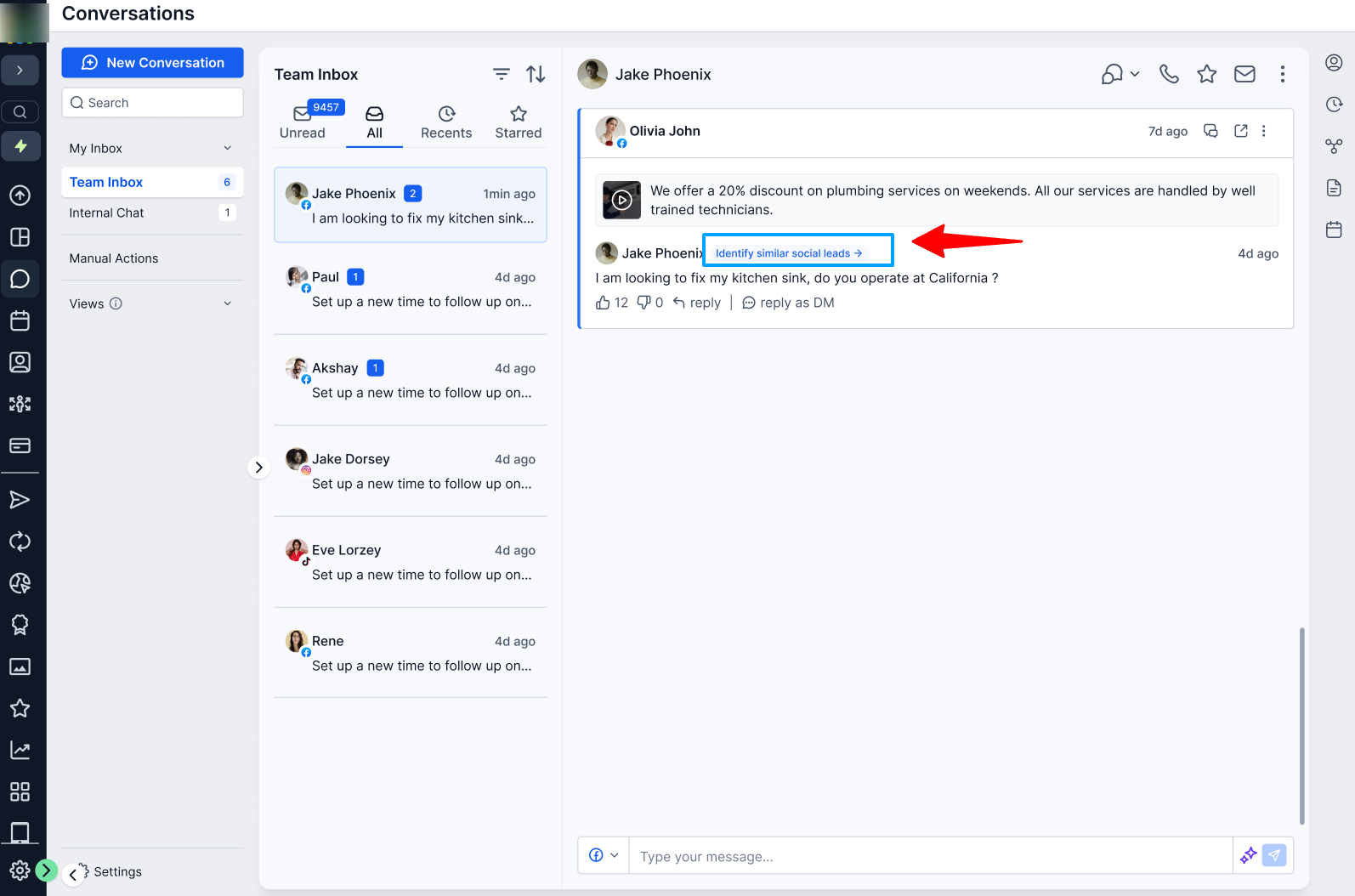
- Add buying-intent keywords to prioritize relevant comments.
- Enable Comments With Questions to surface question
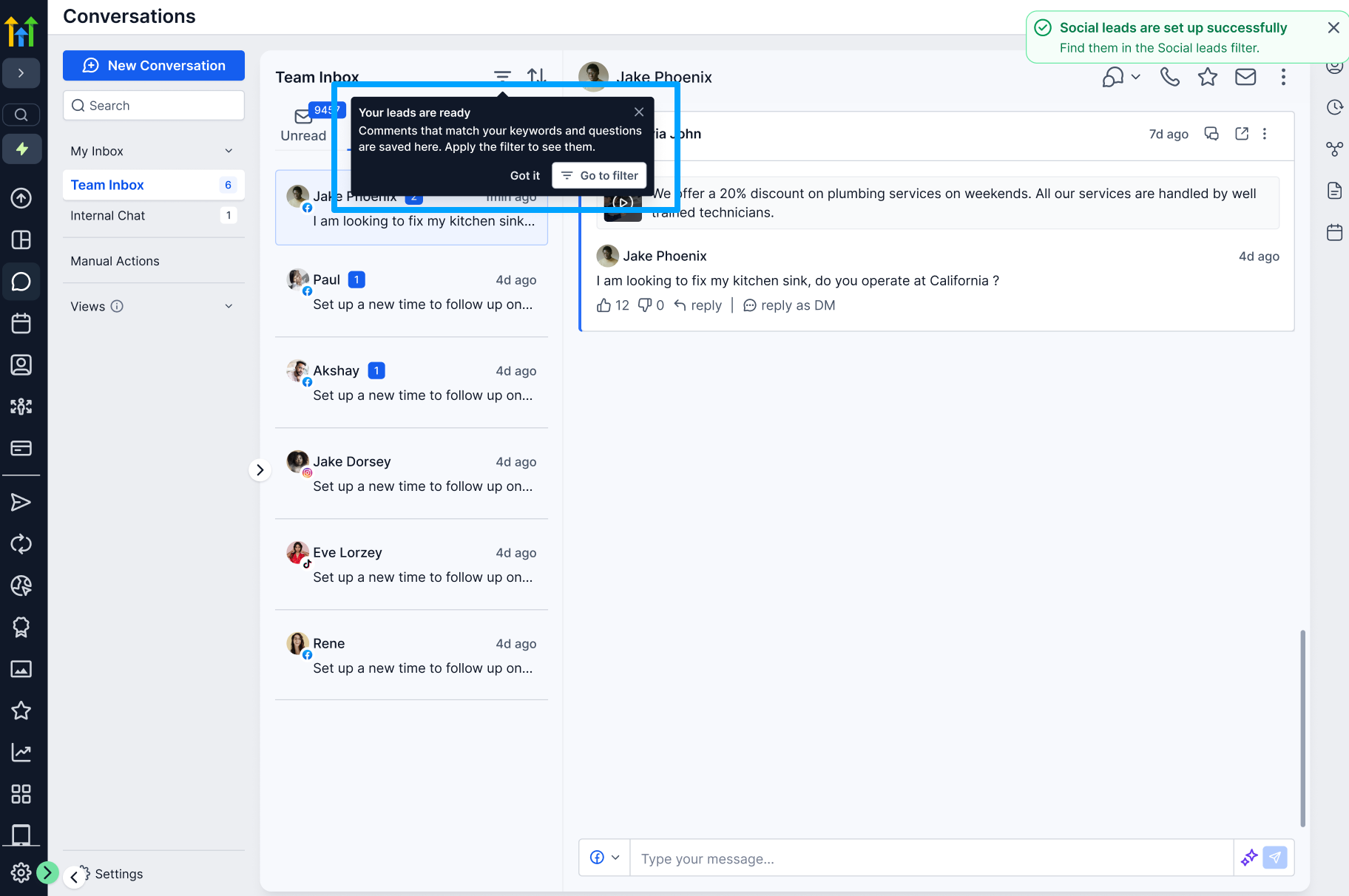
- Use the Sort option to bring higher-intent comments to the top. Pasted markdown
Supported Platforms
According to the current release scope:
Available at Launch
- TikTok
Coming Soon
- YouTube
- Threads
- Bluesky
- Community
Notes
- TikTok:Same as direct Instagram: the account syncs to the Integrations module, but messaging is disabled by default once enabled, direct inbound-outbound works no private DM support on Tiktok
- To enable DM for social planner connections then we need to enable it from settings option.
Frequently Asked Questions
Will comments on posts I didn't publish through Social Planner be synced?
No. Only comments on posts published through Social Planner are synced. Comments on posts published directly from Facebook, Instagram, or other platforms are not included.
What happens if I turn comment sync off?
New comments stop syncing. Existing contacts and conversations created before you disabled sync remain in place and are not deleted.
Will my existing Facebook, Instagram and Tiktok comment workflows continue to work?
Yes. Existing workflow triggers continue to work as before. Enabling comment sync does not change or break existing workflow behavior.
Can the same person comment multiple times?
Yes. Each comment appears as its own inbox entry, but comments from the same person are linked to the same contact record. Duplicate contacts are not created.
My social account connection expired. What should I do?
Reconnect the affected social account from your Social Planner settings. Once the account is successfully reconnected, comment syncing can resume.
Can I still manage comments from Social Planner?
Yes. Social Comments in Conversations adds another way to view and respond to comments. Existing comment management functionality in Social Planner continues to be available.