Accept Payments in AI Studio
You can accept payments directly within projects built in AI Studio using your existing Chat To Clients CRM products and payment setup. Payments can be introduced while AI Studio is building the project or configured later from within the builder. This article explains how to enable payments, add products, configure pricing, manage checkout, and review orders.
TABLE OF CONTENTS
Accept Payments in AI Studio
Payments in AI Studio lets you add functional checkout experiences to AI-generated projects. Whether you're selling a single product, offering subscriptions, or building an online storefront, you can use products and prices already configured in your Chat To Clients CRM account.
AI Studio handles how products and checkout appear within your project, while Chat To Clients CRM manages payment processing and order records. This allows you to customize the shopping experience without rebuilding your existing payment infrastructure.
This gives you a faster way to move from an idea to a working purchase experience while keeping your products, payment setup, and orders centralized in Chat To Clients CRM.
Important: Shipping and pickup are not supported in the current release. Payments are also not supported for AI Studio calendar experiences.
Current Limitations
Manual Payments: Manual payment methods, including Cash on Delivery, are unavailable.
Calendar Payments: Payments are not supported for AI Studio calendar experiences.
Product Personalization: Arbitrary product-personalization fields, such as engraving text or custom printing instructions, cannot be passed to orders.
Product Editing: Product details, prices, and variations must be managed in the Chat To Clients CRM product catalog.
Project Type: Payments are currently available only for projects built on TanStack Start. Existing React projects must be migrated using Project Settings > Migrate to SSR before the Payments option becomes available.
Shipping and Pickup: Customer-facing shipping and pickup options are not supported.
How to Enable Payments in AI Studio
Payments can be enabled while AI Studio is building your project or enabled directly from the project's Payments settings.
Automatic Payment Detection
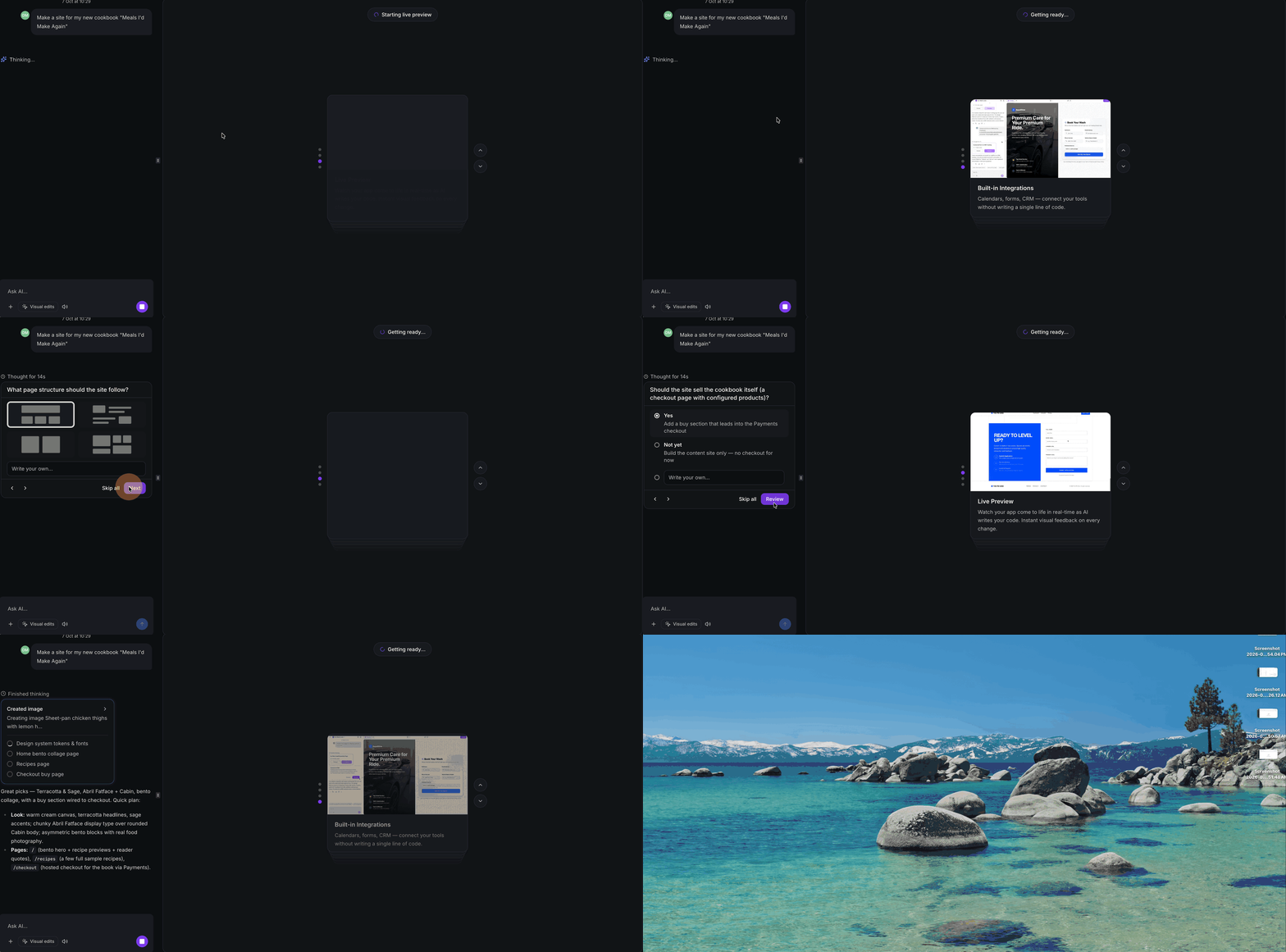
When AI Studio detects that your request involves selling a product or accepting payments, it can prompt you to enable payments while the project is being generated.
- Describe the website or experience you want AI Studio to build.
- If AI Studio detects selling intent, an Add payments to this app prompt appears.
- Click Enable Payments to include payments in the project.
- Continue through any follow-up questions AI Studio asks about the experience you want to create.
The follow-up questions are generated based on your original request, so the options can vary from project to project. For example, AI Studio may ask how you want customers to purchase the product or what type of selling experience you want to create.
Enabling payments during the build allows AI Studio to account for checkout and purchasing as it creates the project. After the project is generated, use More > Payments to review and complete the payment configuration.
Manually Enable Payments
You can also enable or manage payments directly from the project without relying on AI Studio to detect selling intent.
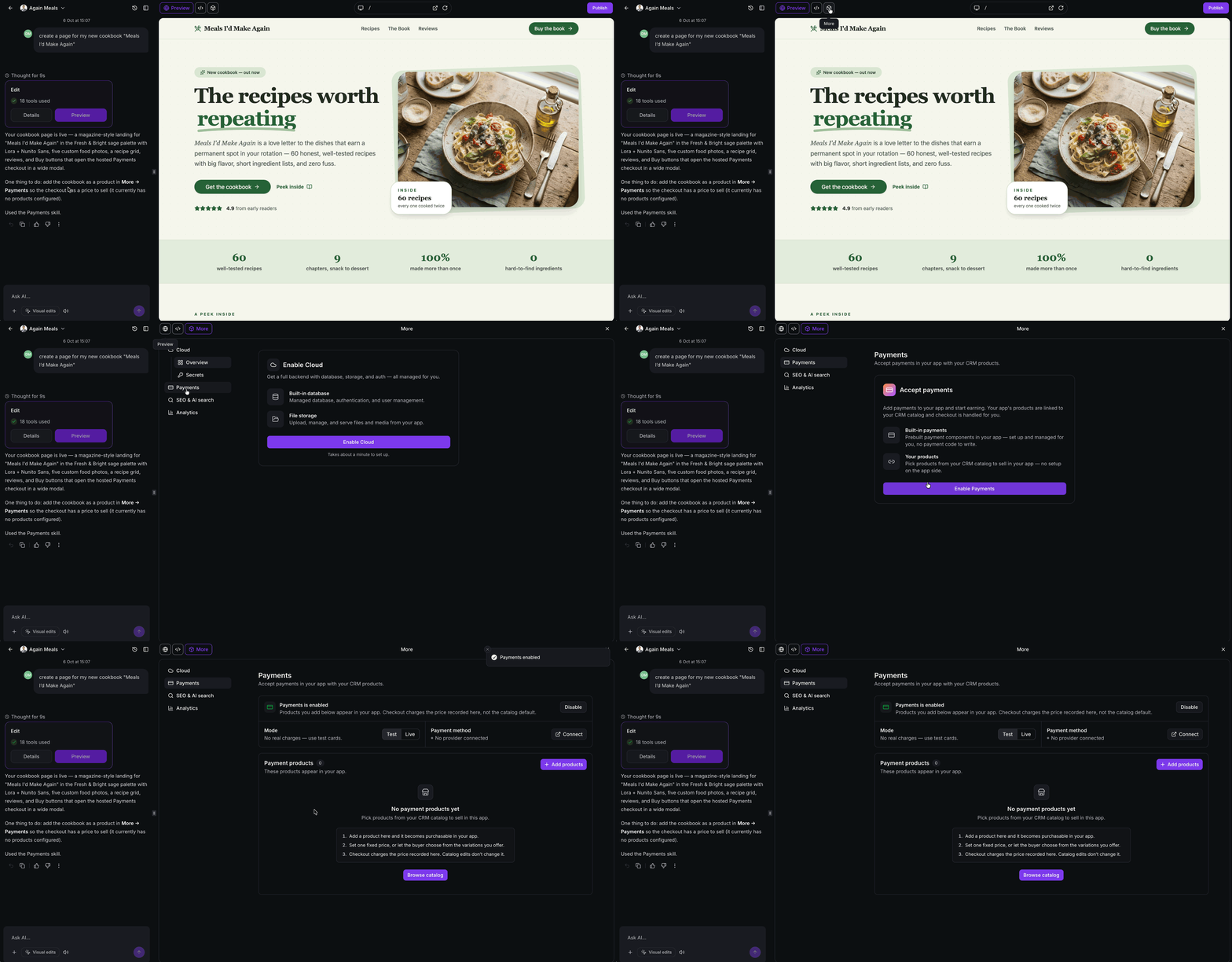
- From within AI Studio project, click More.
- Select Payments.
- Click Enable Payments.
The Payments area displays the project's payment status, Test and Live modes, payment method, and payment products. You can also disable payments on a project from this page.
Configure Your Payment Provider
AI Studio uses Chat To Clients CRM’s existing payment infrastructure, so payment providers are managed through your Chat To Clients CRM payment settings rather than through a separate AI Studio integration.
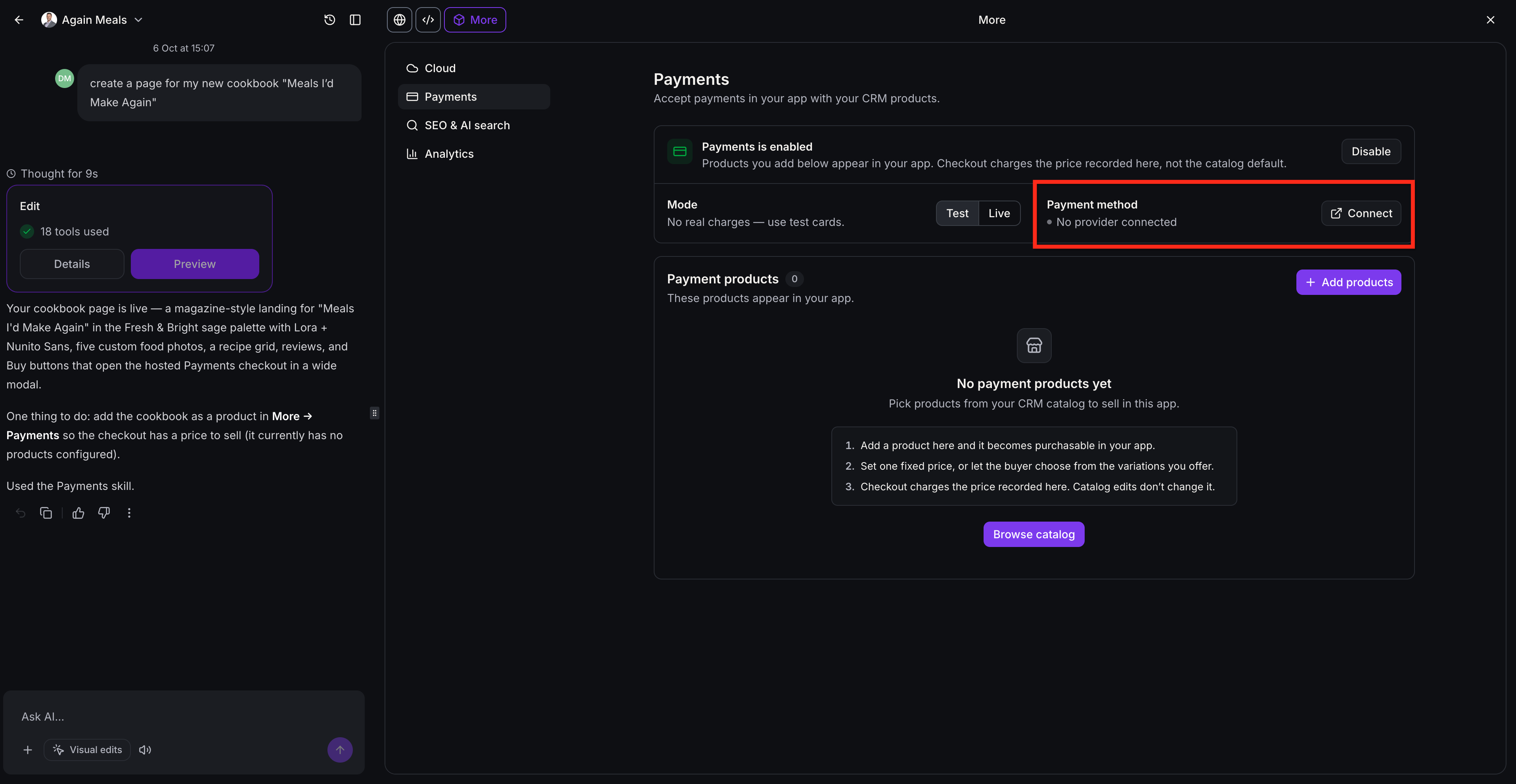
In the Payment method area:
- Click Connect if no payment provider is connected.
- Click Manage to review or update the existing payment integration.
If a provider is already connected in Chat To Clients CRM, AI Studio uses that payment setup for the project.
When payments are enabled, the project starts in Test mode by default. Use Test mode to verify the product, pricing, and checkout experience without processing real charges. When testing is complete, switch to Live mode to begin accepting real customer payments.
Important: Manual payment methods, including Cash on Delivery, are not supported in AI Studio Payments.
How to Add and Configure Products
AI Studio uses products from your existing Chat To Clients CRM product catalog. The product, its pricing, and any available variations must already be configured in Chat To Clients CRM before you can add it to an AI Studio project.
To add a product:
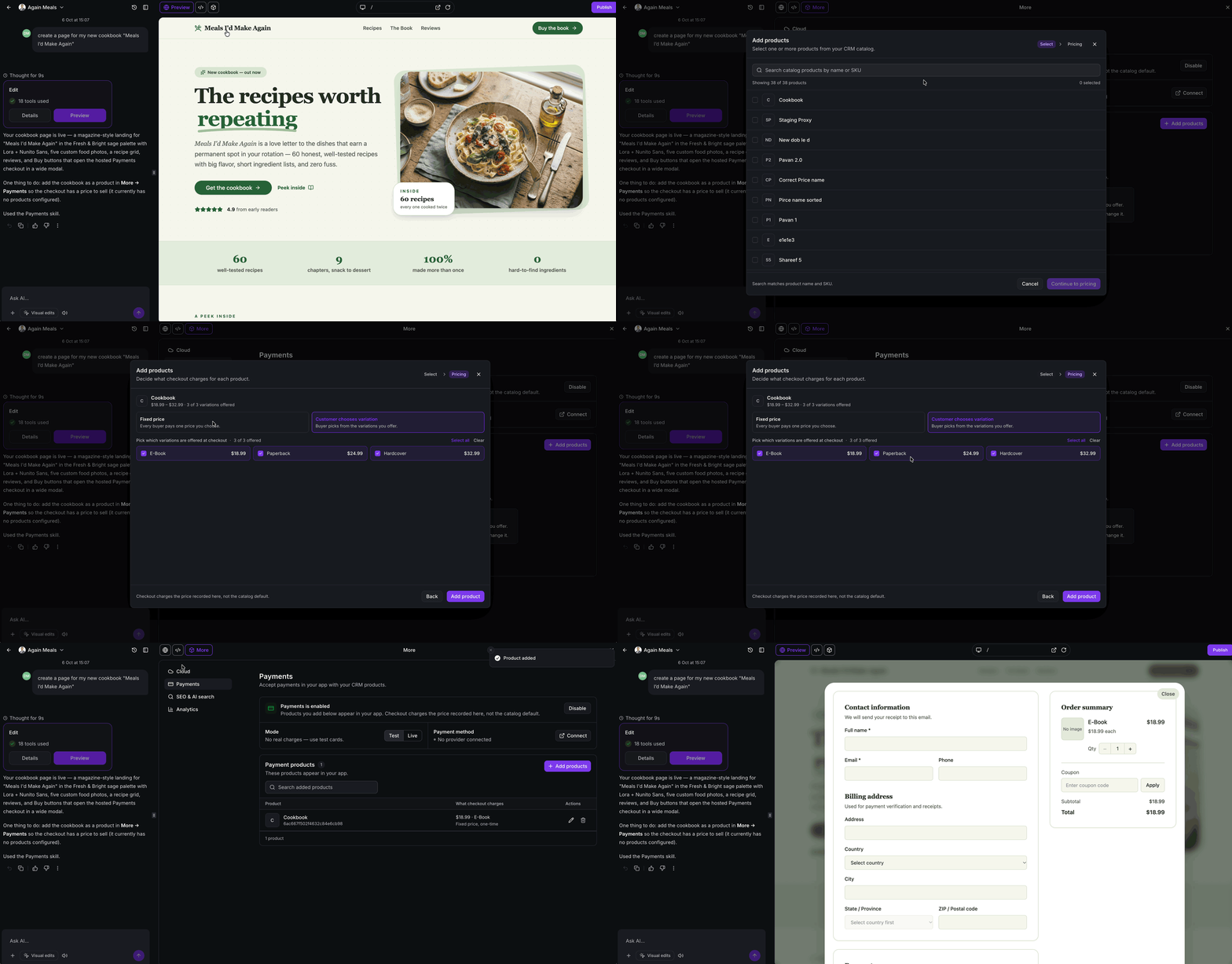
- Open More > Payments.
- In Payment products, click Add products or Browse catalog.
- Search for a product by name or SKU.
- Select the product or products you want to add then click Continue to pricing.
- Choose how the product should be offered:
- Fixed price: Select the specific price or variation customers will purchase.
- Customer chooses variation: Allow customers to choose from the variations already configured for that product.
- Fixed price: Select the specific price or variation customers will purchase.
- Review the configuration, then click Add product.
Note: AI Studio Payments supports both recurring products/subscriptions and post-purchase upsells
Checkout Experience
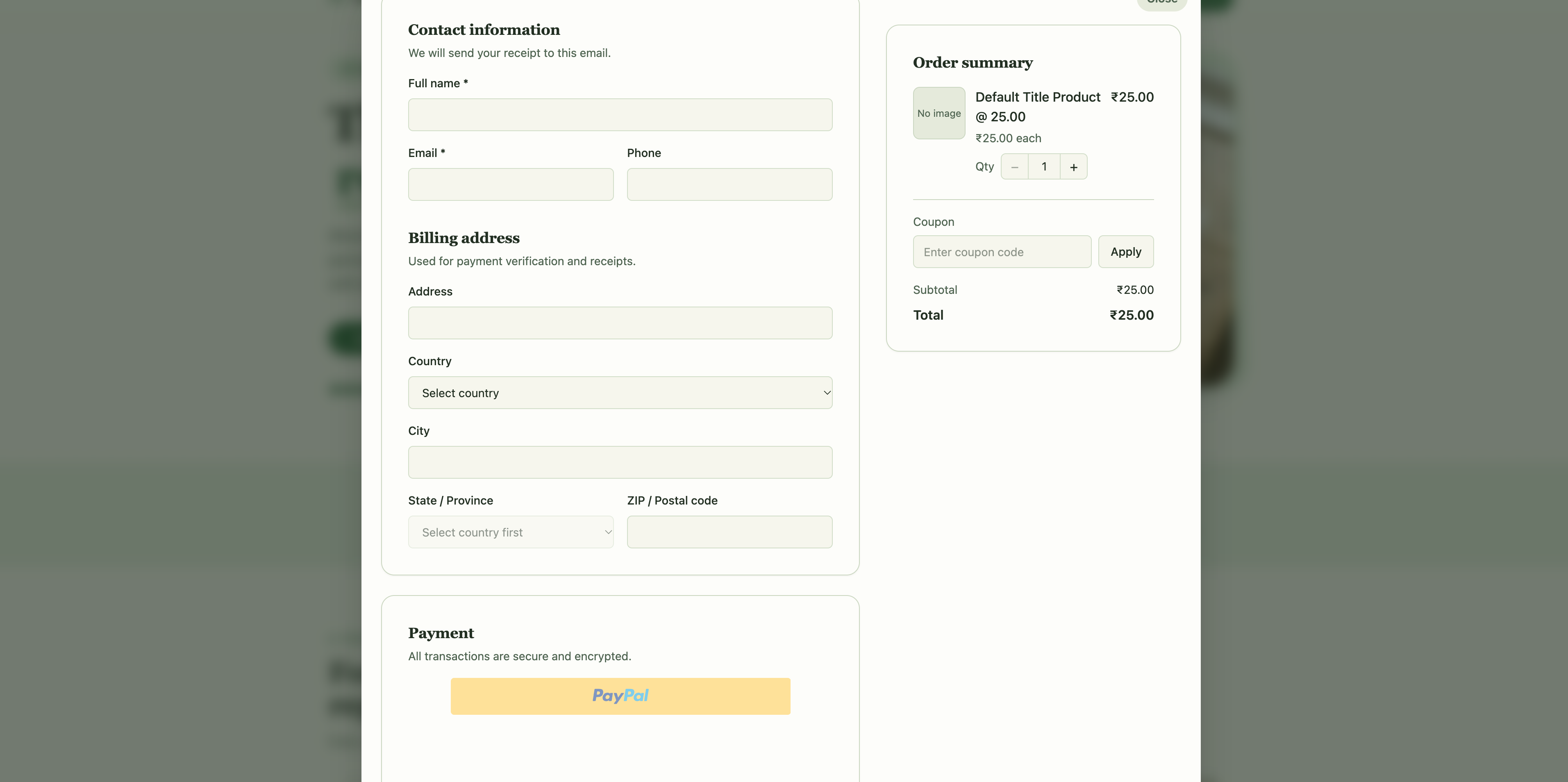
The checkout in an AI Studio project is hosted and managed by Chat To Clients CRM. Card details are entered and processed through Chat To Clients CRM’s hosted checkout and are never handled by your app’s generated code.
Supported payment methods include:
- Card payments through the connected payment provider
- PayPal Express Checkout
Checkout also supports fully discounted orders without requiring card details and subscriptions, including carts with multiple subscription products.
After checkout, you can present a post-purchase upsell. With supported saved-card providers (Stripe, Square, Authorize.net, NMI, Adyen, and Mercado Pago), customers can accept the offer in one click without entering payment details again. Other payment methods use the standard payment form.
An upsell can only be charged after the original order is successfully paid and can only be charged once per order.
Orders and Post-Purchase Experience
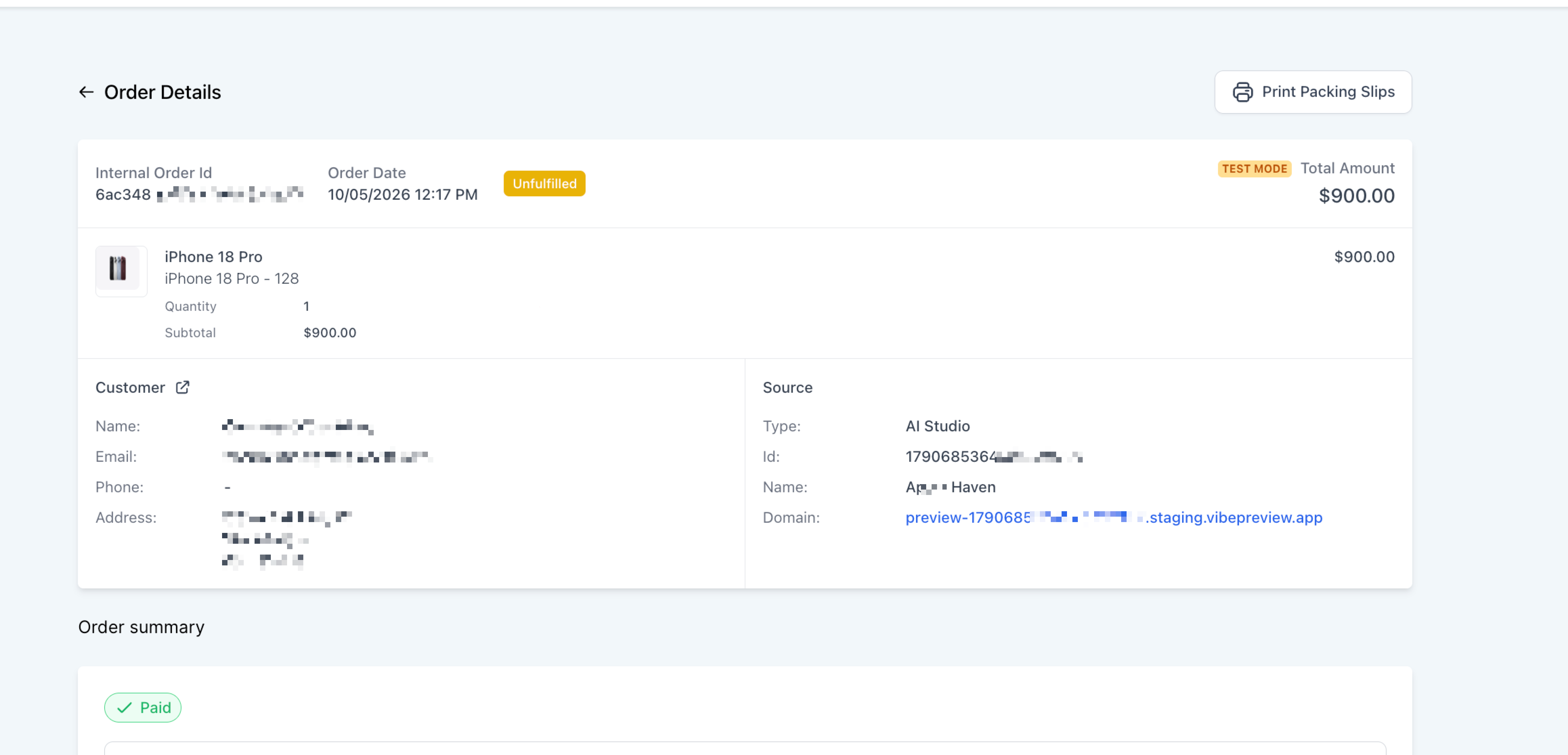
Orders from AI Studio appear in Orders in Chat To Clients CRM, just like orders from other sales channels. Open an order to view the customer, purchased products, payment status, transaction details, and fulfillment information.
The Source section identifies orders that came from AI Studio and shows the related project details, including the project name, project ID, and domain.
You can also use Chat To Clients CRM workflows after purchase to send confirmations, follow-up messages, internal notifications, or other post-purchase automations.