
Lead Source Report: see leads, status, and value by source
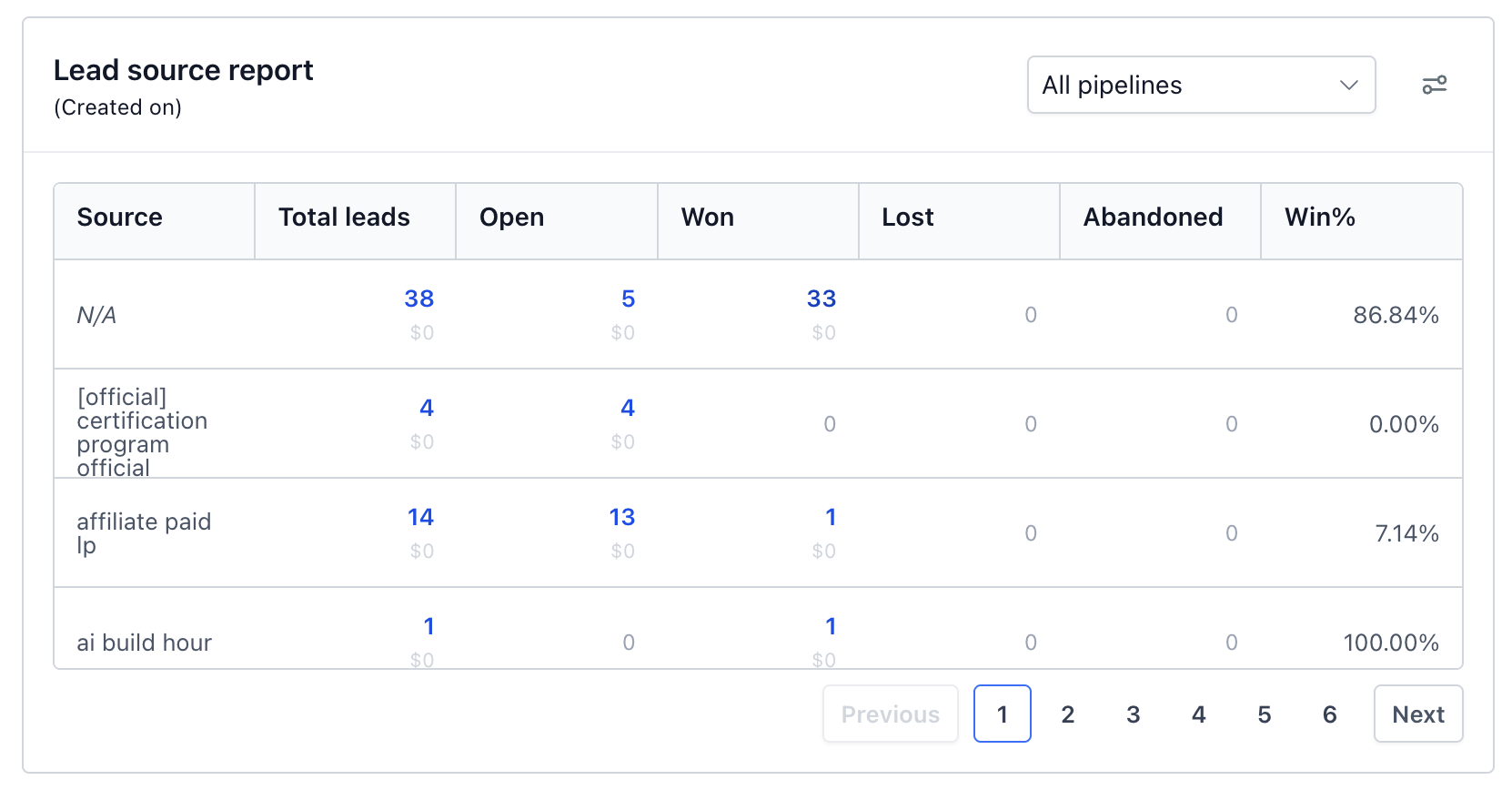
The Lead Source Report is a dashboard widget that shows how many leads each source brings in and what happens to them: how many are open, won, lost, or abandoned, and how much each is worth. You can click any number to see the exact opportunities behind it.
Use it to answer questions like:
- Which channel brings in the most leads this month?
- How much revenue have we won from Facebook ads versus our website?
- Which leads from a source are still open?
- Which opportunities are missing a source?
What's in the report
Each row is one source. Each column shows a count and value:
| Column | What it shows |
|---|---|
| Source | Where the lead came from. Opportunities with no source appear as N/A. |
| Total leads | All opportunities from that source in the selected date range |
| Open | Opportunities still in progress |
| Won | Opportunities marked as won |
| Lost | Opportunities marked as lost |
| Abandoned | Opportunities marked as abandoned |
Note: Values are visible only to users with permission to view lead value. Users without this permission see counts only.
Add the Lead Source Report to a dashboard
- Go to Dashboard in your sub-account.
- Open the dashboard you want to edit, then select Edit dashboard.
- Select Add widget.
- Find Lead Source Report in the widget list under 'General' category and add it.
- Choose a pipeline (all pipelines or one), set any filters in conditions, and save.
See the leads behind any number
- Find the source and status you want to look at.
- Click any count greater than zero.
- A table opens listing every opportunity that makes up that number.
For example, clicking 29 under Open for Facebook shows the 29 open Facebook opportunities.
Find opportunities without a source
If a source isn't recorded on an opportunity, it can't be attributed to a channel. To find these gaps:
- Option 1: Click a count in the N/A row to see opportunities with no source.
- Option 2: Add a filter: Source → Is empty.
To fix them, update the source on each opportunity. To prevent the gap, make sure your forms, funnels, calendars, and workflows record a source when they create opportunities.
To exclude unattributed opportunities from the report, use Source → Is not empty.
Filter the report
You can narrow the report with filters including:
- Pipeline
- Assigned user
- Followers
- Tags
- Primary contact name
- Lead value
- Custom fields
- Source (Is, Is not, Is empty, Is not empty)
- Attribution (first or latest, medium, session source, and UTM parameters)
Common questions
- Do I need a separate widget for each source?
No. The report lists every source as its own row, so you can compare all sources side by side in one widget. - Why don't I see some of my leads?
The most common reason is that the opportunity has no source. Check the N/A row or filter Source → Is empty. Also check the condition filters configured, pipeline selection and the dashboard date range. - Does "Total leads" count opportunities or contacts?
It counts opportunities: one contact with 3 opportunities counts as 3 leads. - Which date does the date range use?
As per the date property selected, created date or status change date. An opportunity created in September and won in October appears in different months depending on this setting. - What's the difference between Source and Attribution?
Source column comes from the opportunity's source. Attribution data (session source, medium, UTMs) is tracked separately. - Why can't I see values?
Values require permission to view lead value. Ask your account admin to update your user permissions.