
Folders for Conversation AI Agents
As your Conversation AI setup grows, folders make it easier to organize agents by team, purpose, or business function without relying on one long list. The updated Agents List also adds a visual grid view and surfaces configured channels directly on each agent, helping you find the right agent and understand where it is deployed more quickly.
TABLE OF CONTENTS
- What are Folders for Conversation AI Agents?
- Key Benefits of Folders for Conversation AI Agents
- How to Create a New Folder
- Manage Folders
- Browse Agents Inside a Folder
- Frequently Asked Questions
- Related Articles
What are Folders for Conversation AI Agents?
Folders help you organize Conversation AI agents into clear groups inside the Agents List. This makes larger collections of agents easier to browse and helps teams separate agents by use case, such as Sales, Support, Appointment Booking, or After Hours.
Folders are available from AI Agents > Conversation AI > Agents List. From the list, you can create folders, add agents to folders, move agents between folders, and update folder details as your setup changes.The updated Agents List also supports Table and Grid views and displays configured channel information directly from the list. Channel deployment itself is still managed from the individual agent's deployment settings.
Key Benefits of Folders for Conversation AI Agents
- Organization: Group agents based on team, purpose, customer journey, or business function.
- Faster navigation: Find the right agent without scrolling through one long list.
- Visual browsing: Switch to Grid view to browse folders and agents as cards.
- Channel visibility: Review which channels an agent is configured for directly from the Agents List.
- Configuration awareness: Quickly identify agents that do not yet have a channel configured.
- Scalability: Keep larger multi-agent setups easier to understand as new agents are added.
How to Create a New Folder
Creating folders gives your Conversation AI workspace a structure that matches how your business operates. You can organize existing agents while creating the folder so related agents are grouped together immediately.
- Go to AI Agents > Conversation AI > Agents List.
- Click Create folder.
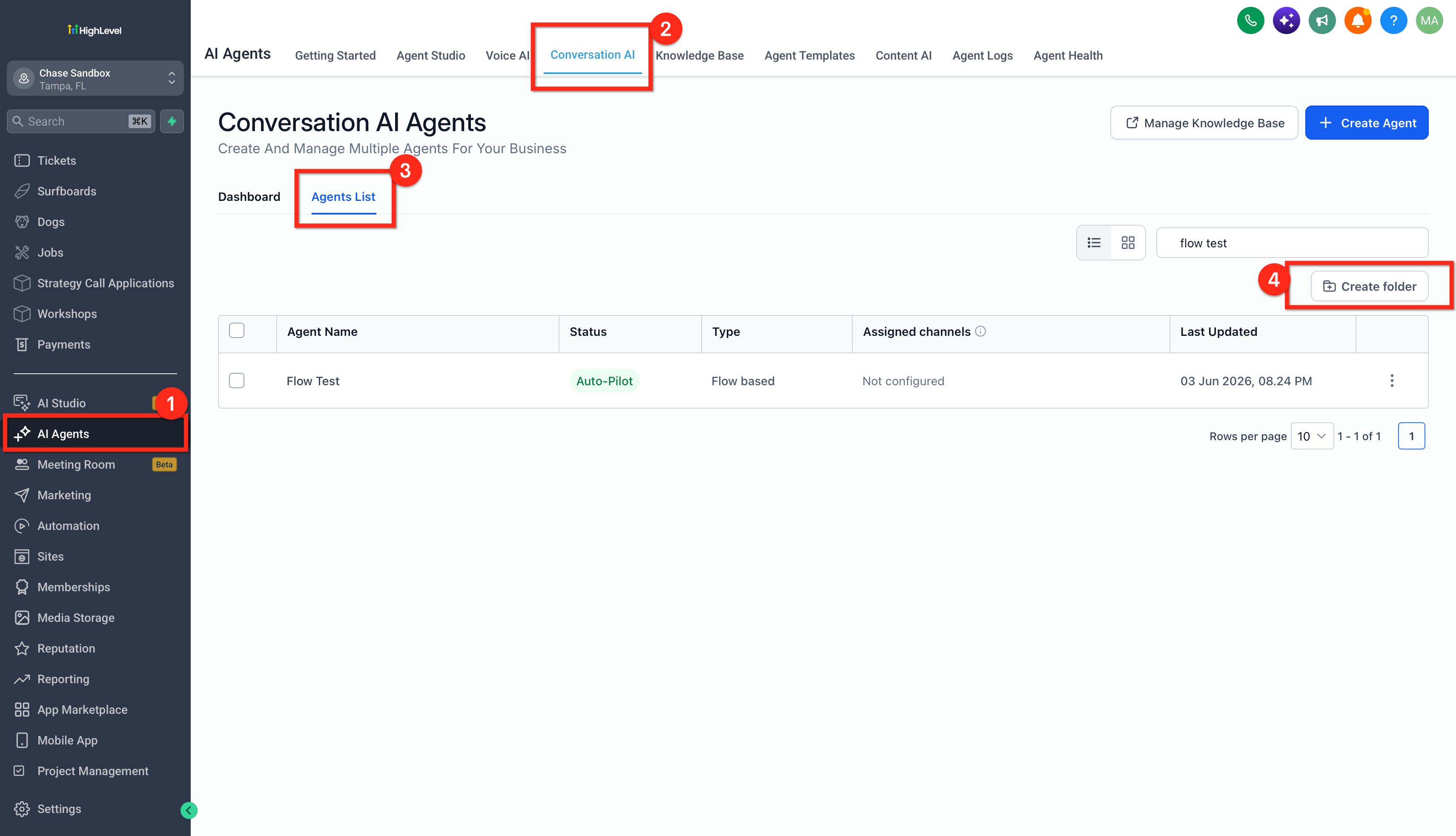
- Enter a name for the folder.
- Select the agents you want to associate with the folder.
- Create the folder.
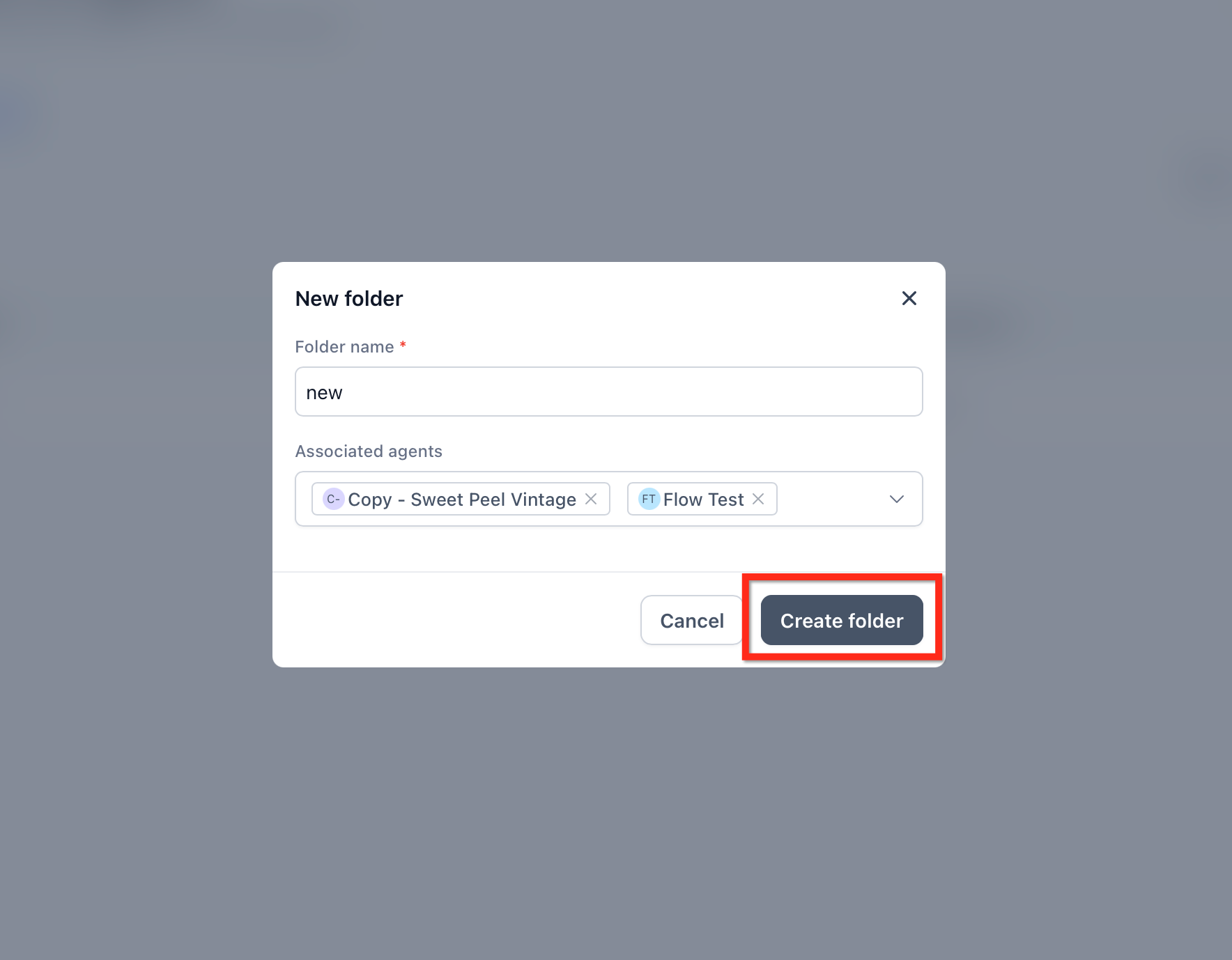
Manage Folders
Folder management lets you keep your agent organization aligned with changing teams, campaigns, and business needs. You can move agents into folders and update folder details without changing how the agent itself is configured.
Move an Agent to a Folder
Moving an agent helps keep related Conversation AI agents grouped together and easier to locate.
- From AI Agents > Conversation AI > Agents List, locate the agent you want to move.
- Click the agent's three-dot menu.
- Select the option to move the agent to a folder.
- Choose the destination folder. Confirm the move.
Edit or Rename a Folder
Updating a folder name allows your organization structure to evolve without requiring you to recreate the folder.
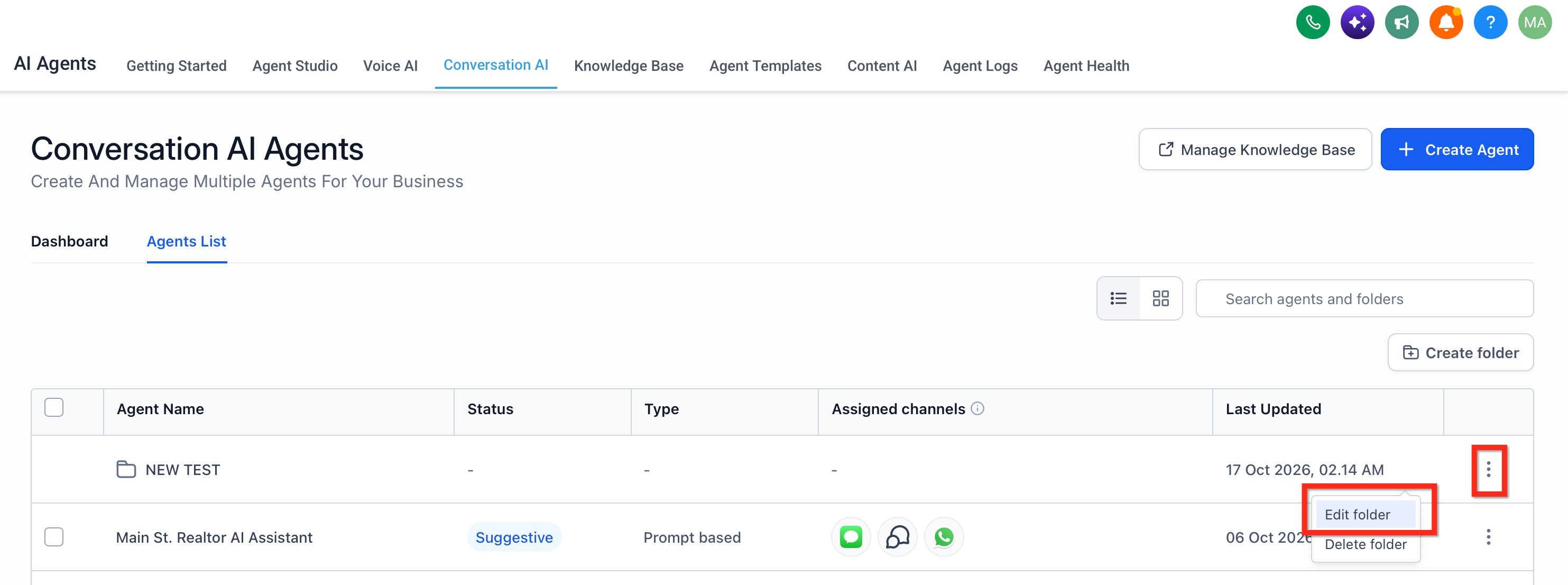
- Locate the folder in the Agents List. Click the folder's three-dot menu. Select the edit option.
- Update the folder name or associated agents as needed.
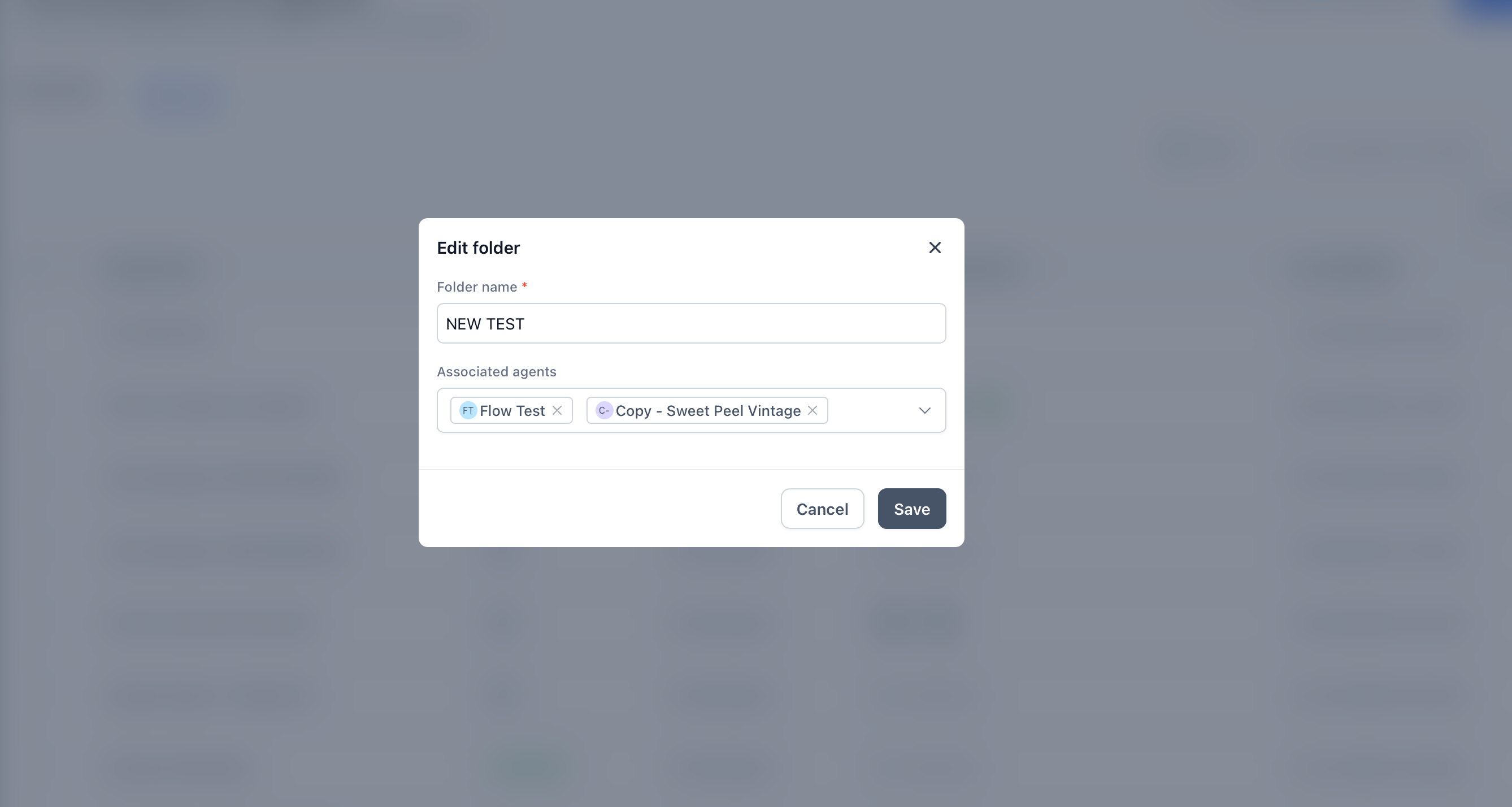
- Save your changes.
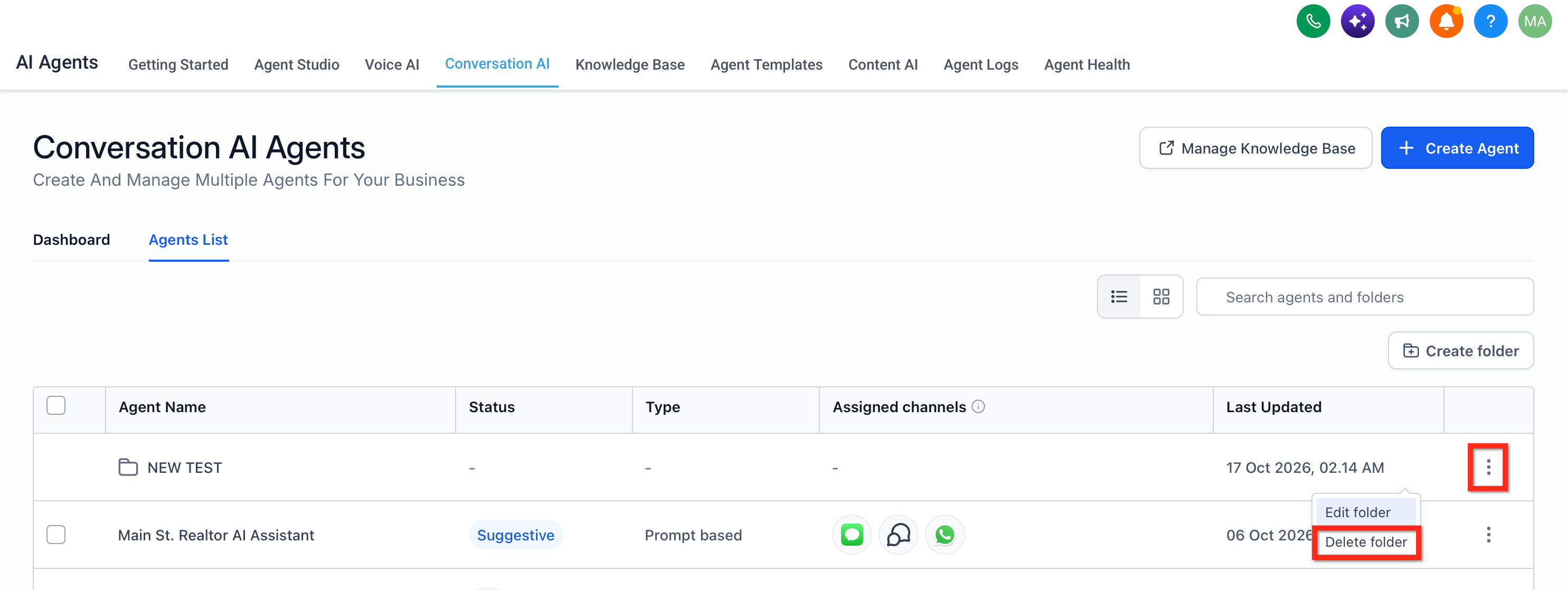
Delete a Folder
Delete folders that are no longer needed to keep the Agents List focused on your current organization structure.
- Locate the folder you want to remove. Click the folder's three-dot menu.
- Select Delete. Confirm the action when prompted.
Browse Agents Inside a Folder
Opening a folder gives you a focused view of only the Conversation AI agents associated with that group. This makes it easier to work with a particular department or use case without browsing unrelated agents.
When you open a folder, you can:
- View the agents assigned to that folder.
- Search within the folder.
- Switch between available list layouts.
- Use Add Agents to associate additional agents with the folder.
- Use the breadcrumb navigation to return to the main Agents List.
Table View
Table view provides a compact, information-dense layout for reviewing agents and folders. It is useful when you want to compare several agents quickly across details such as status, type, assigned channels, and recent updates.
The table can display information such as:
- Agent name
- Status
- Agent type
- Assigned channels
- Last updated information
- Folder entries
Use the view controls at the top of the Agents List to switch between Table and Grid views.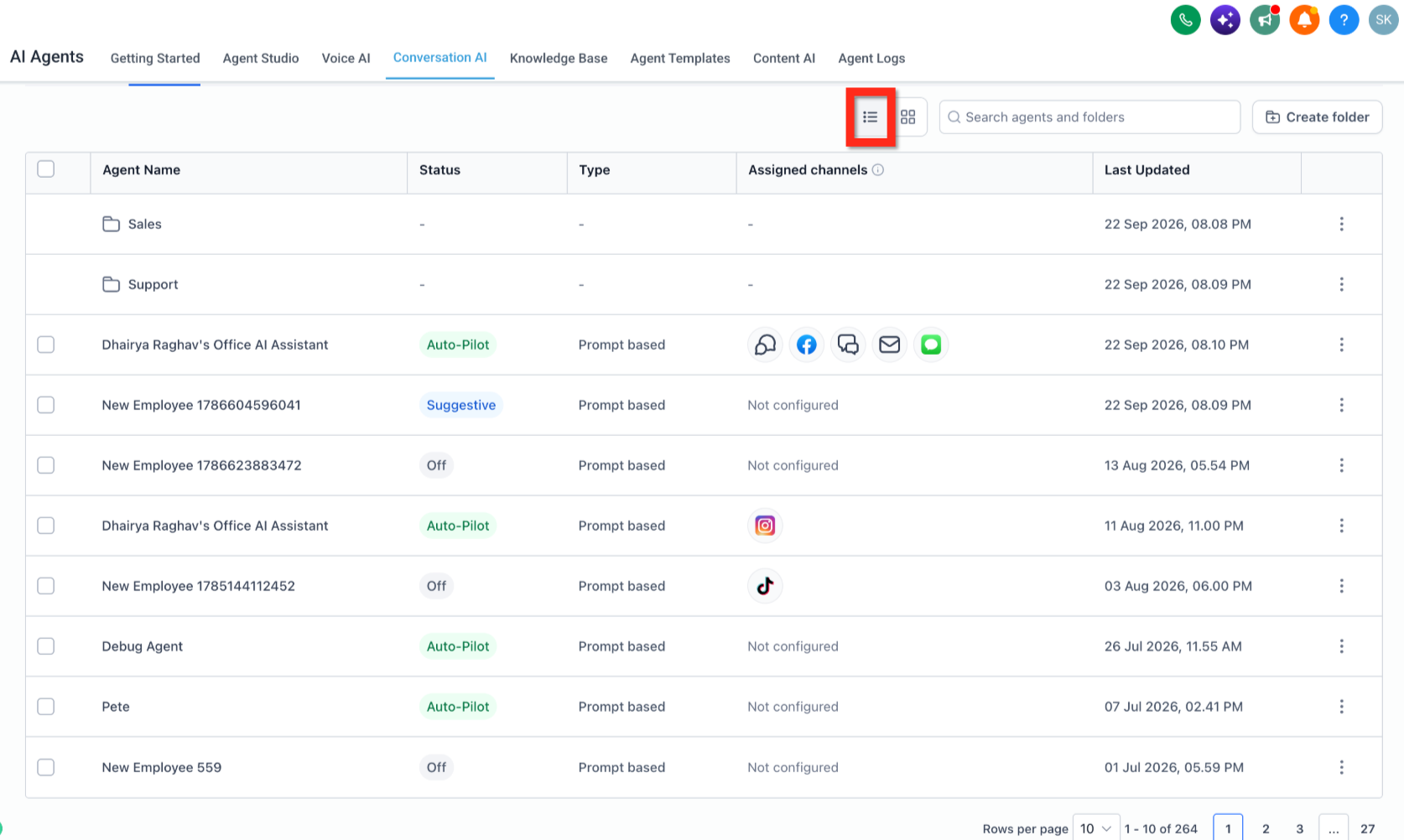
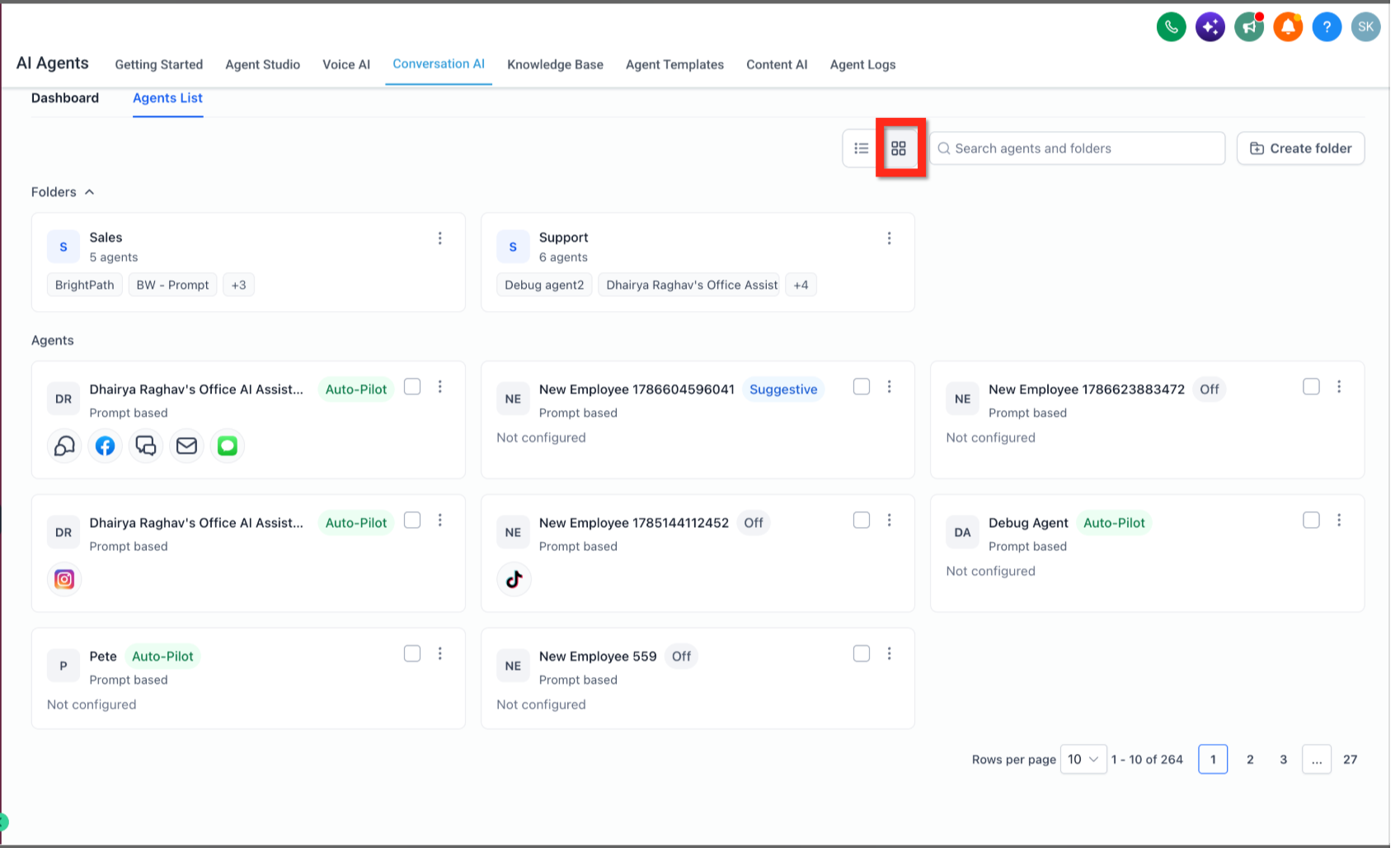
Grid View
Grid view provides a more visual way to browse folders and agents. Folder cards summarize the agents inside them, while agent cards surface important information such as status, agent type, and configured channels.
Grid view can help when you want to:
- Scan folders visually.
- See which agents belong to each folder.
- Compare agent status at a glance.
- Review configured channels without opening the agent.
- Identify agents that show Not configured for channel deployment.
Frequently Asked Questions
Q: Do folders change how a Conversation AI agent responds?
No folder behavior in the supplied release indicates that folders change agent logic or deployment. Folders are used to organize and browse agents.
Q: Where do I create folders for Conversation AI agents?
Go to AI Agents > Conversation AI > Agents List, then select Create folder.
Q: Can I add existing agents when I create a folder?
Yes. The release supports selecting existing agents while creating a folder.
Q: Can I add more agents after a folder has already been created?
Yes. You can move agents into a folder from the agent menu, and the folder view includes an Add Agents option.
Q: Does Grid view change the way my agents are configured?
No. Grid view changes how agents and folders are displayed in the Agents List.
Q: What does “Not configured” mean on an agent card?
It indicates that the agent does not currently show a configured channel assignment in the Agents List.
Q: Can I configure an agent's channels directly from the Agents List?
The Agents List displays channel information, but channel deployment and routing are configured from the individual agent's deployment settings. Chat To Clients Help Center
Q: Can one Conversation AI agent belong to multiple folders?
The supplied Conversation AI release information does not specify this behavior. Voice AI has separate documented folder behavior, but that should not be assumed to apply to Conversation AI. Chat To Clients Help Center
Q: What happens to agents if I delete a Conversation AI folder?
The release confirms that folders can be deleted but does not document what happens to the agents inside them. Confirm this behavior before adding a definitive answer to the published article.