
Multi-Language Support for Voice AI Agents
Voice AI Agents can support one language or an exact set of languages selected for your callers. Instead of using a fixed Multilingual language group, you can choose only the languages your business needs. Voice options automatically adjust to support your selected languages, while incompatible language combinations are identified during setup. This guide explains how to select languages, manage compatible voices, understand existing Multilingual agent migration, and configure language behavior for S2S agents.
Table of Contents
- What is Multi-Language Support for Voice AI Agents?
- Key Benefits of Multi-Language Voice AI
- Prerequisites and Limitations
- How To Configure Languages for a Voice AI Agent
- How Voice Selection Works With Multiple Languages
- Translation Behavior With Multiple Languages
- Existing Multilingual Voice AI Agents
- Language Selection for S2S Agents
- Frequently Asked Questions
- Related Articles
What is Multi-Language Support for Voice AI Agents?
Multi-Language Support lets you control exactly which languages a Voice AI Agent can use during calls.
Use Single-select when the agent should use one language. Use Multiselect when the agent should support a specific combination of languages.
For example, an agent serving English and Spanish callers can select those two languages without enabling additional languages that the business does not need.
When you select multiple languages, the first language selected remains the agent's primary language.
Key Benefits of Multi-Language Voice AI
Selecting exact languages gives you more control over multilingual calling while helping prevent incompatible configurations.
- Exact language control: Select only the languages the Voice AI Agent should support.
- Fewer separate agents: Use one compatible agent for callers speaking different selected languages instead of maintaining separate agents for each language.
- Primary language control: The first language selected remains the agent's primary language.
- Compatible voice selection: Voice options automatically filter to voices that support every selected language.
- Early compatibility feedback: The Language picker identifies language combinations that cannot be used together.
- Flexible existing-agent migration: Existing Multilingual agents continue working and can be adjusted later without requiring immediate changes.
Prerequisites and Limitations
Understanding language and voice compatibility before configuring an agent helps prevent unsupported combinations and unexpected voice availability.
Before configuring languages:
- Open the Voice AI Agent you want to configure.
- Determine whether the agent needs one language or multiple languages.
- Select a voice that supports every language assigned to the agent.
Current limitations include:
- Some languages can only be used by themselves and cannot be combined with other selected languages.
- The Language picker identifies incompatible combinations when they are selected.
- Available voices depend on the complete set of languages selected for the agent.
The previous fixed Multilingual language group should not be used as the current supported-language list. Available options should be reviewed directly in the updated Language picker.
How To Configure Languages for a Voice AI Agent
The Language picker at the top of the agent builder controls whether an agent uses one language or a specific combination of languages.
- From the Sub-Account view, select AI Agents in the left navigation.
- Select Voice AI.
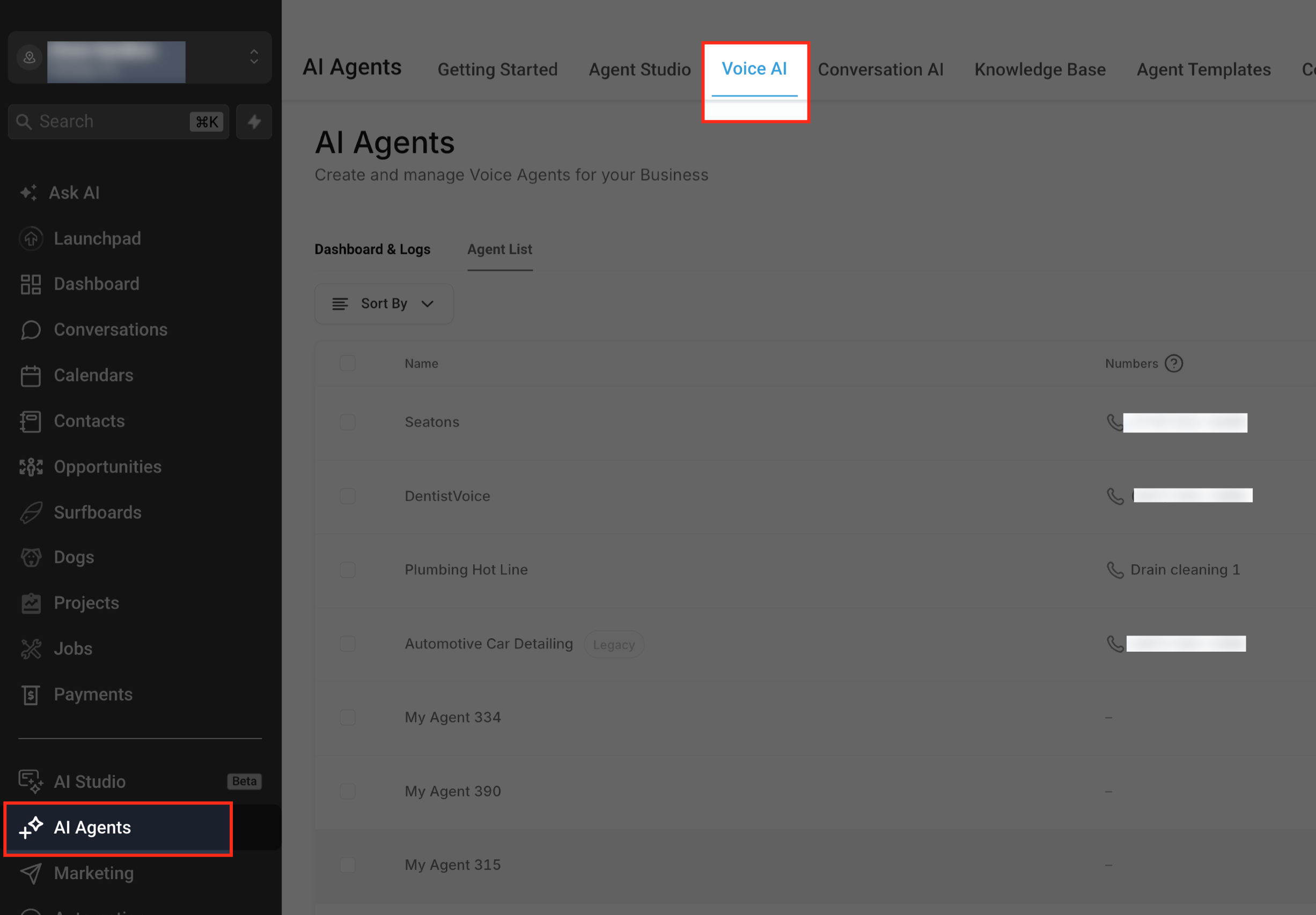
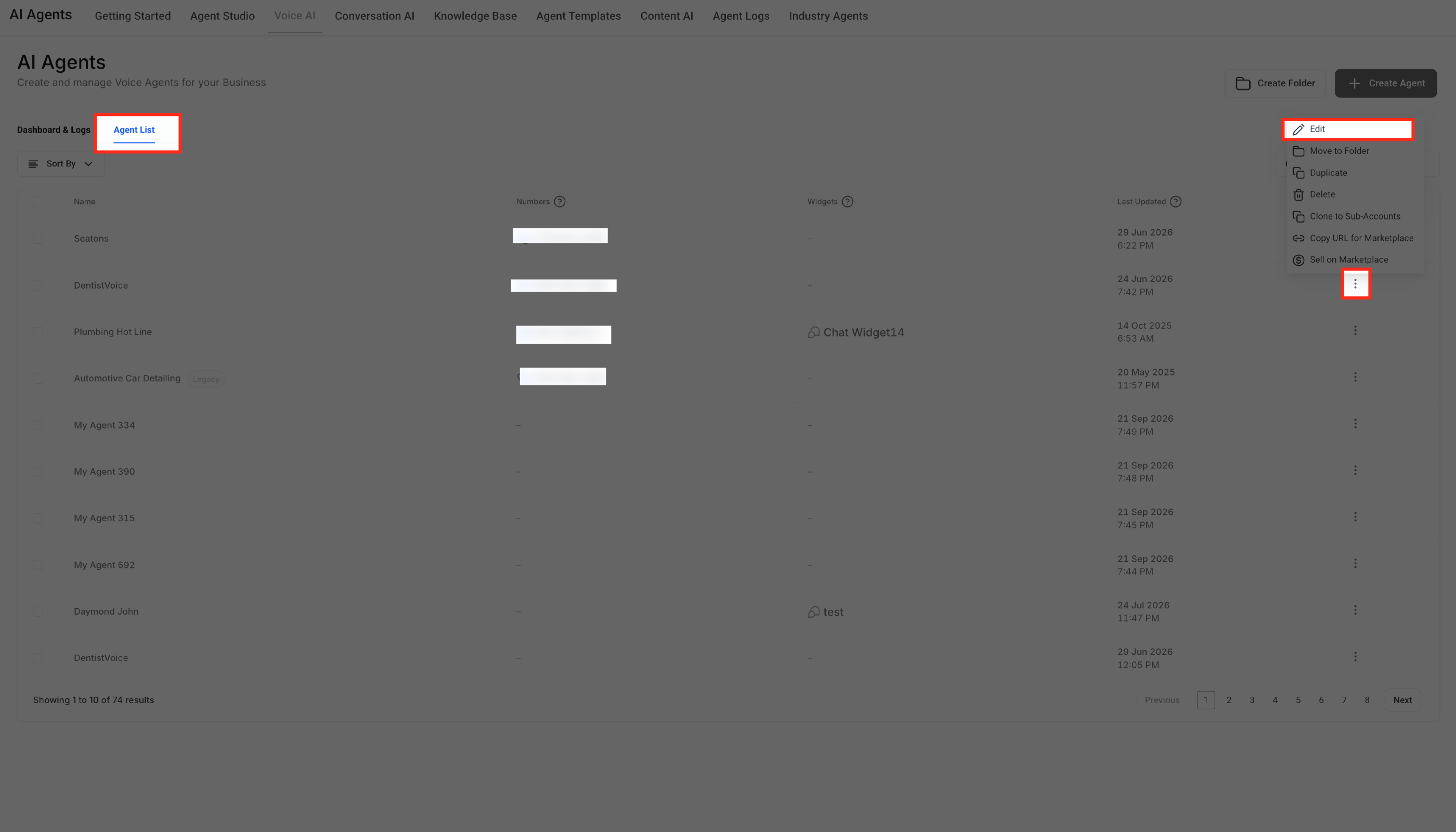
- Open the Agent List tab.
- Select the Voice AI Agent you want to edit.
- Locate Language at the top of the agent builder.
- Choose Single-select or Multiselect.
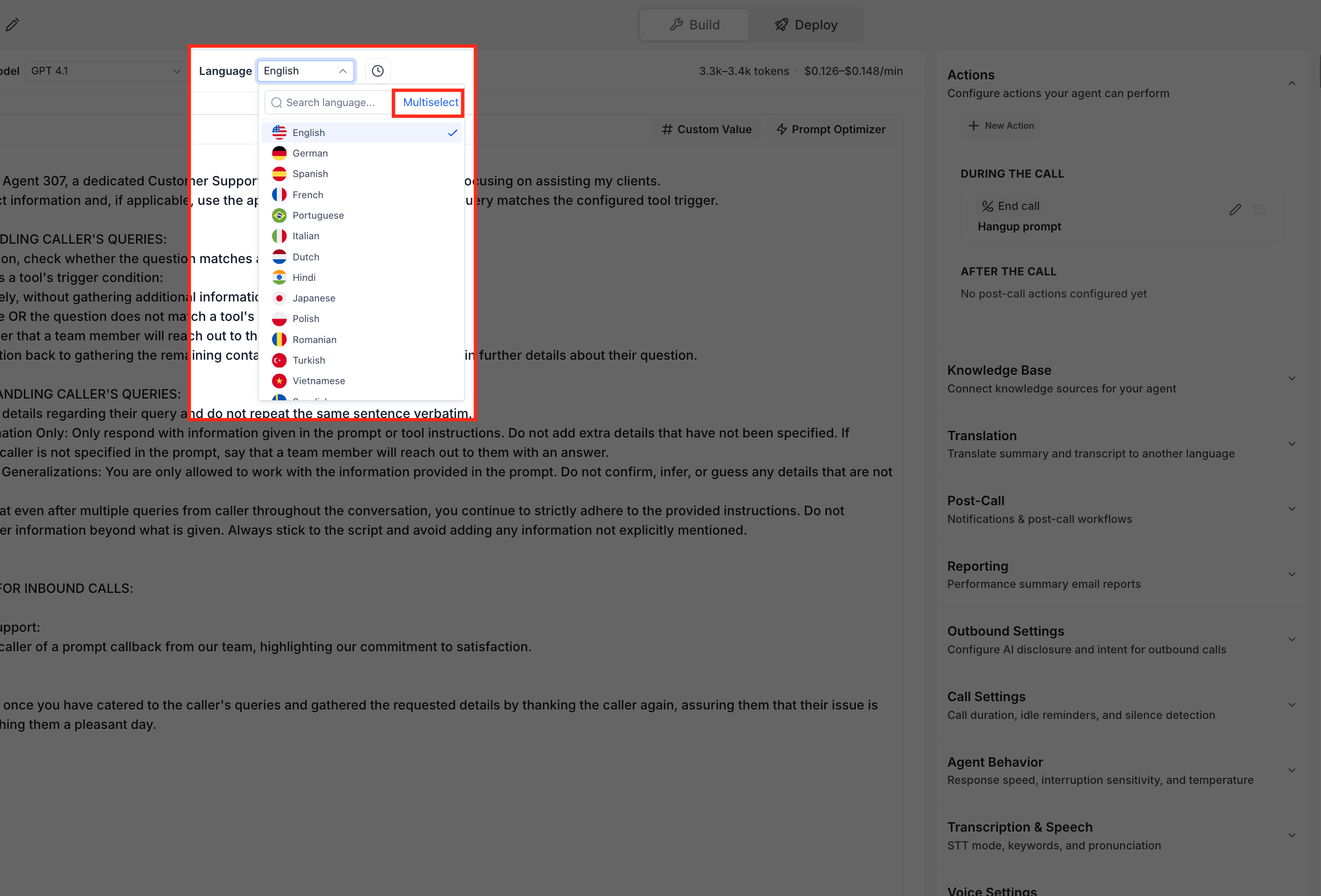
- To use one language, keep Single-select selected and choose the required language.
- To use multiple languages, switch to Multiselect and select each language the agent should support.
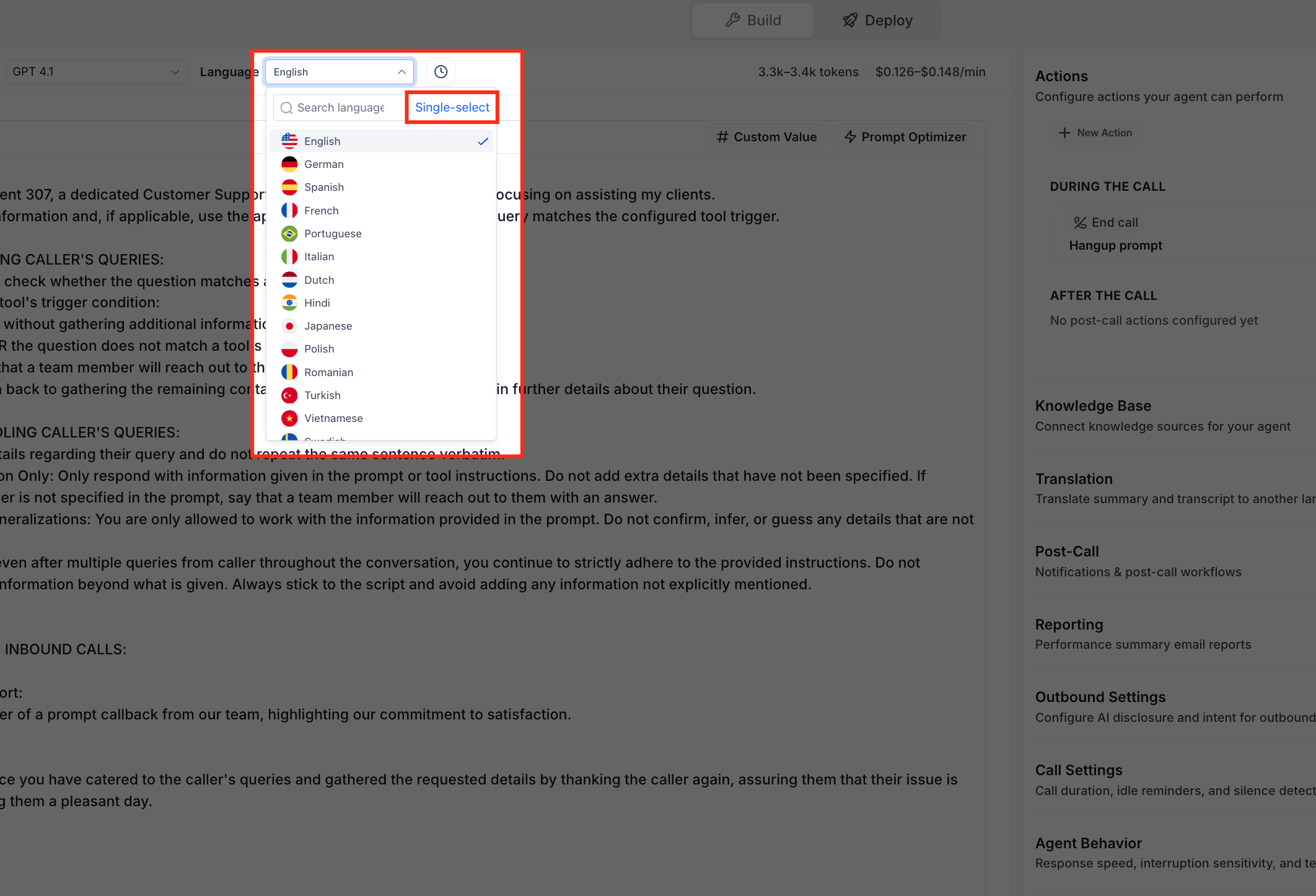
- Review the first selected language, which remains the agent's primary language.
- Review the available voices and choose a voice that supports every selected language.
- Click Save after completing the agent configuration. The current Voice AI builder documentation uses Save for agent settings.
When possible, test the agent with the languages you selected before using the configuration for live calls. Chat To Clients CRM's current Voice AI setup documentation includes testing as part of the agent setup process.
How Voice Selection Works With Multiple Languages
Voice availability automatically adjusts to the agent's selected languages. This prevents a voice from being assigned when it cannot speak every language the agent is configured to handle.
After you select the agent's languages:
- The voice library shows only voices compatible with every selected language.
- Adding or removing a language can change which voices are available.
- Choose a voice from the filtered results before completing the agent configuration.
Chat To Clients CRM's existing Voice Selection experience lets users compare and assign voices from the Voice AI Agent builder. The new language-selection behavior adds compatibility filtering based on the complete selected language set.
Translation Behavior With Multiple Languages
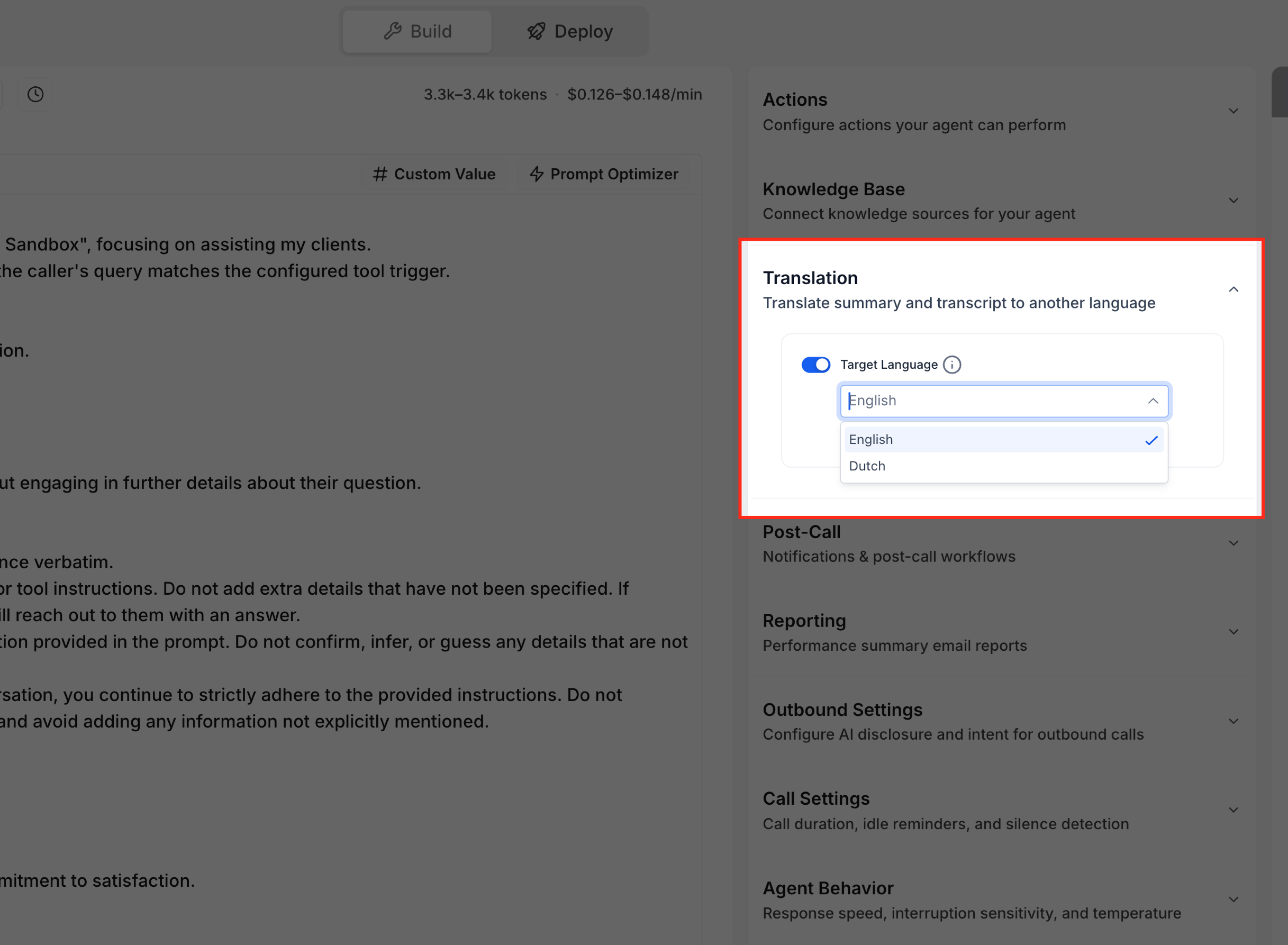
Translation remains separate from the languages the Voice AI Agent uses during the live call. Translation controls the language used for translated post-call transcripts and summaries.
With the updated multi-language configuration:
- Turn on Translation when translated call records are needed.
- English is preselected as the translation target when Translation is enabled.
- The Translation setting does not replace the languages selected for the live Voice AI conversation.
Existing Multilingual Voice AI Agents
Existing agents that used the previous Multilingual option are migrated automatically. This preserves their current behavior while making the individual languages available for future customization.
Existing Multilingual agents are moved to these ten languages:
- English (US)
- Spanish
- French
- German
- Hindi
- Russian
- Portuguese (Brazil)
- Japanese
- Italian
- Dutch
The agent's existing primary language does not change.
No action is required after migration. The agent continues answering calls as before.
You can later open the agent's Language picker to remove languages the business does not serve or add other compatible languages.
Language Selection for S2S Agents
S2S agents use the Language picker at the top of the builder instead of the previous language control in the settings sidebar.
For S2S agents:
- Leave Multilingual enabled when the agent should reply in the language used by the caller.
- Turn Multilingual off when the agent should be limited to languages you select.
- Language configuration is managed from the Language picker at the top of the builder.
Frequently Asked Questions
Q: Can I continue using only one language for my Voice AI Agent?
Yes. Keep the Language picker in Single-select mode and select the language the agent should use.
Q: Which language becomes primary when I select multiple languages?
The first language selected remains the agent's primary language.
Q: Why are fewer voices available after I select multiple languages?
The voice library only displays voices that can speak every language selected for the agent.
Q: Can every language be combined with other languages?
No. Some languages can only run by themselves. The Language picker identifies incompatible combinations during configuration.
Q: Do I need to update an agent that previously used Multilingual?
No. Existing Multilingual agents are migrated automatically, retain their primary language, and continue operating without requiring immediate changes.
Q: Can I change the languages on a migrated Multilingual agent?
Yes. Open the Language picker to remove languages you do not serve or add other compatible languages.
Q: How does language selection work for S2S agents?
Leave Multilingual enabled to respond in the caller's language. Turn it off when the agent should use only the languages you select.