
Invite Clients to Connect Social Accounts
TABLE OF CONTENTS
- How It Works
- Create a Social Connect Invite
- How Clients Connect Their Social Accounts
- Manage Social Connect Invites
- Invite Expiration and Security
- Why Use Social Connect Invite?
- Frequently Asked Questions
The Social Connect Invite feature lets you securely invite clients to connect their social media accounts to your sub-account without giving them access to your Chat To Clients CRM workspace.
You can generate a password-protected invite link, share it with your client, and let them complete the social account connection themselves. Once connected, the accounts are automatically added to your sub-account.
Why Use Social Connect Invite?
Connecting a client's social accounts often requires coordination between the agency and the client. With Social Connect Invite, the client can complete the authorization themselves without needing access to your Chat To Clients CRM account.
This helps you:
- Onboard clients faster
- Avoid giving clients access to your sub-account
- Avoid asking clients to share social media passwords
- Reduce back-and-forth during account connection
- Let clients authorize their own social accounts
- Connect multiple social platforms through a single invite
- Receive notifications when connected accounts need attention
How It Works
The process is simple:
- Enable Social Connect Invite from Settings → Labs.
2. Generate a secure invite link from Social Planner>>settings>>social account.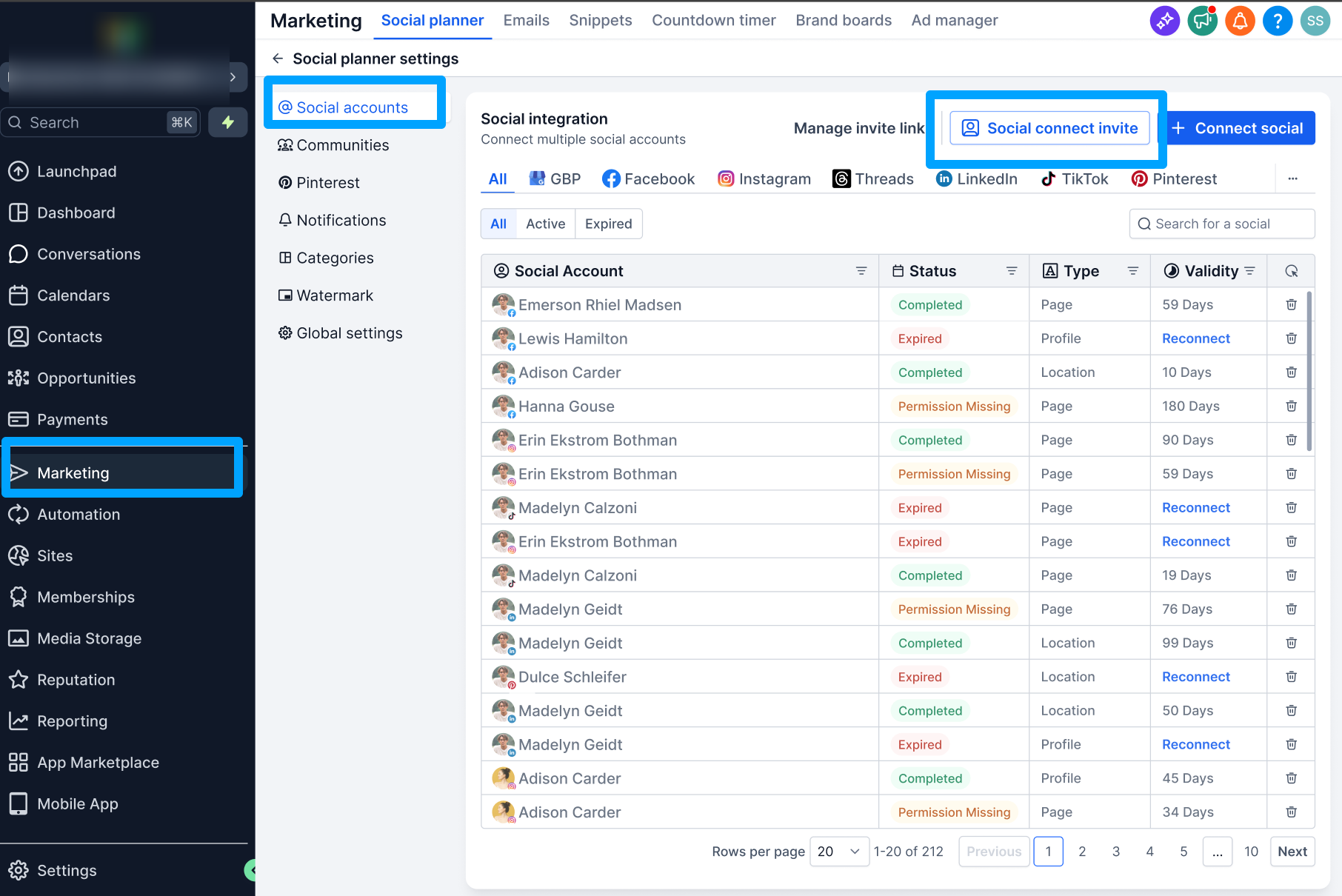
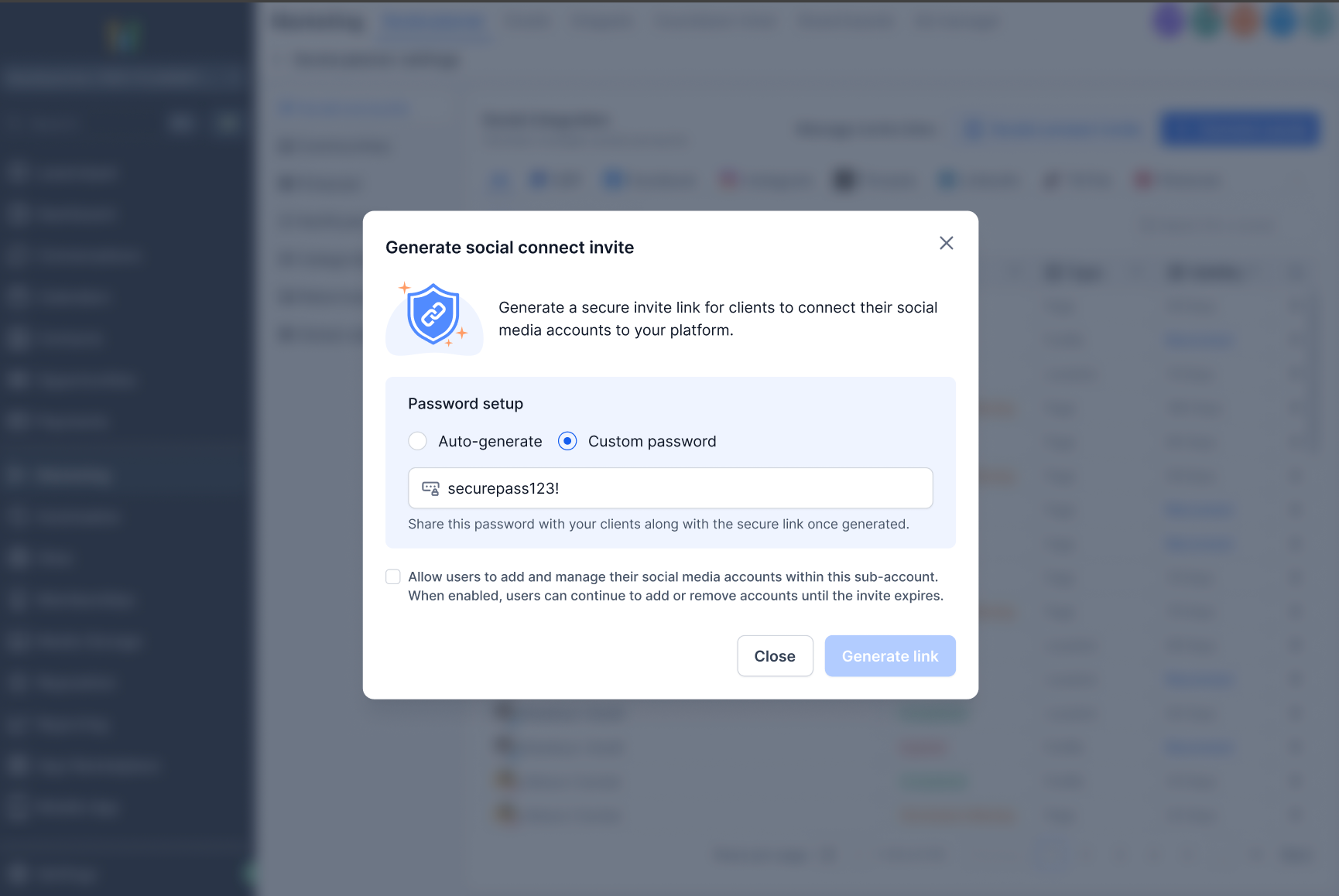
3. Create auto generated password or custom password
4. Share the invite link and password with your client.
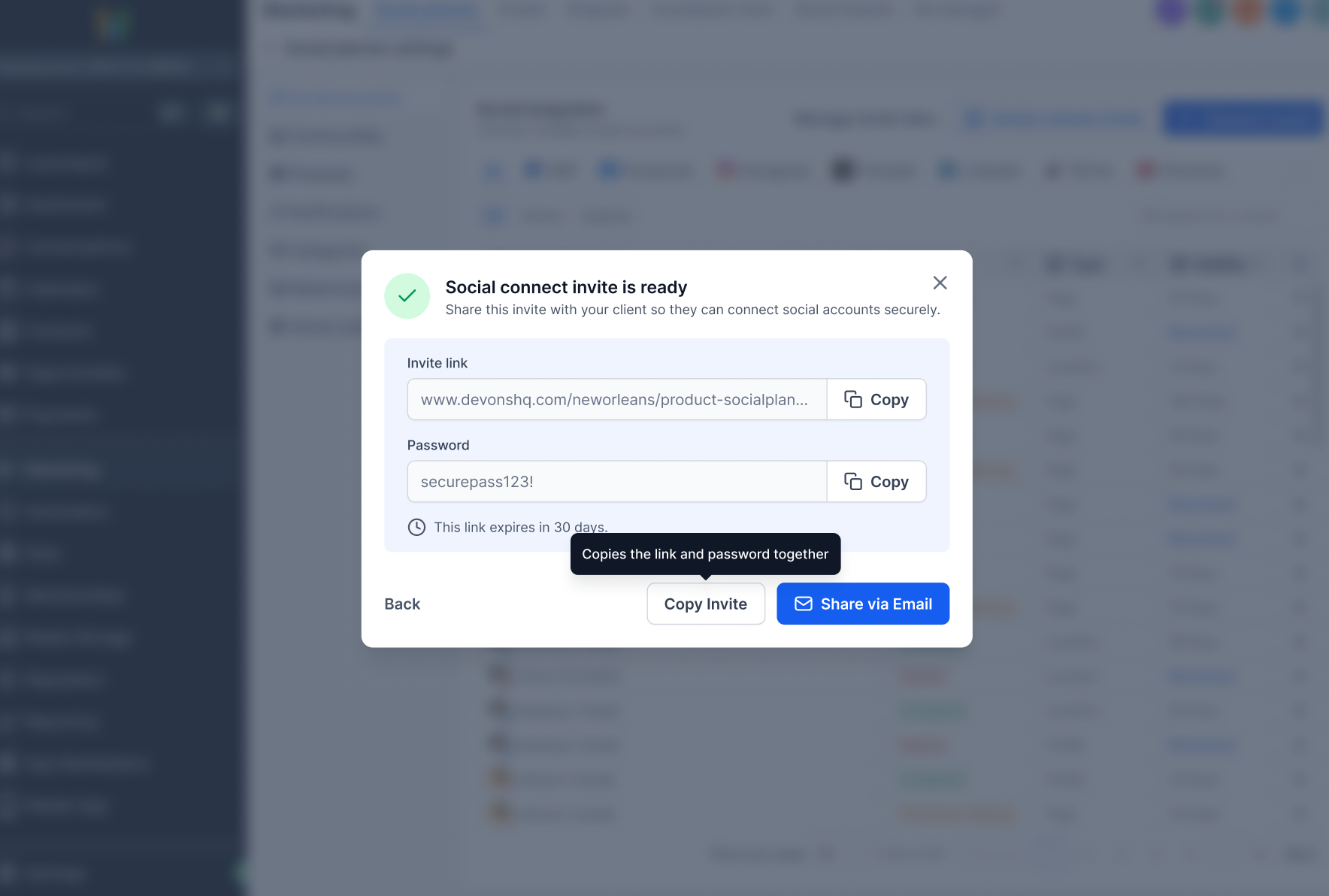
Tip: You can share the invite link and password with your client through your preferred communication channel.
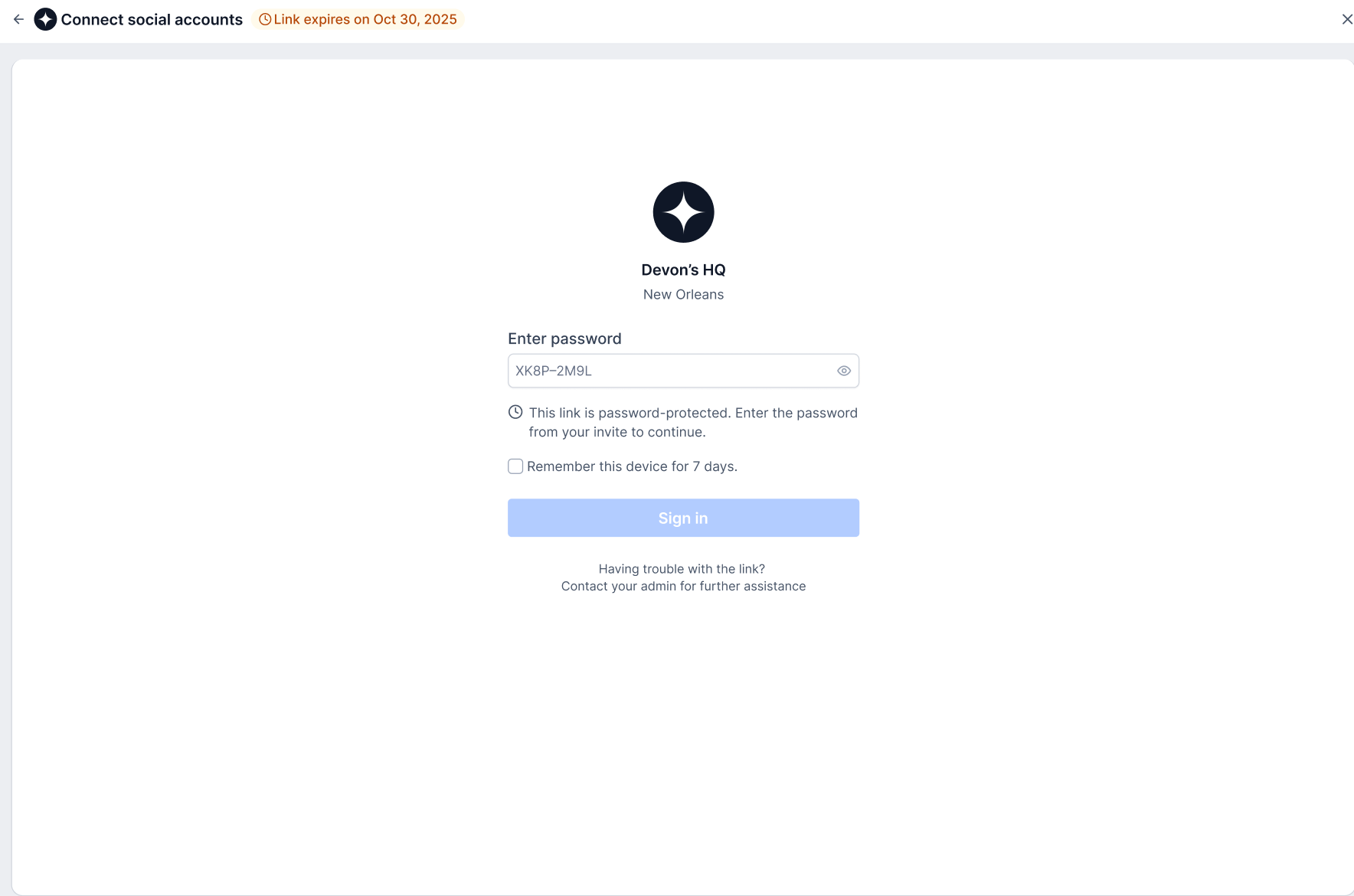
5. Your client opens the invite link and connects their social accounts.
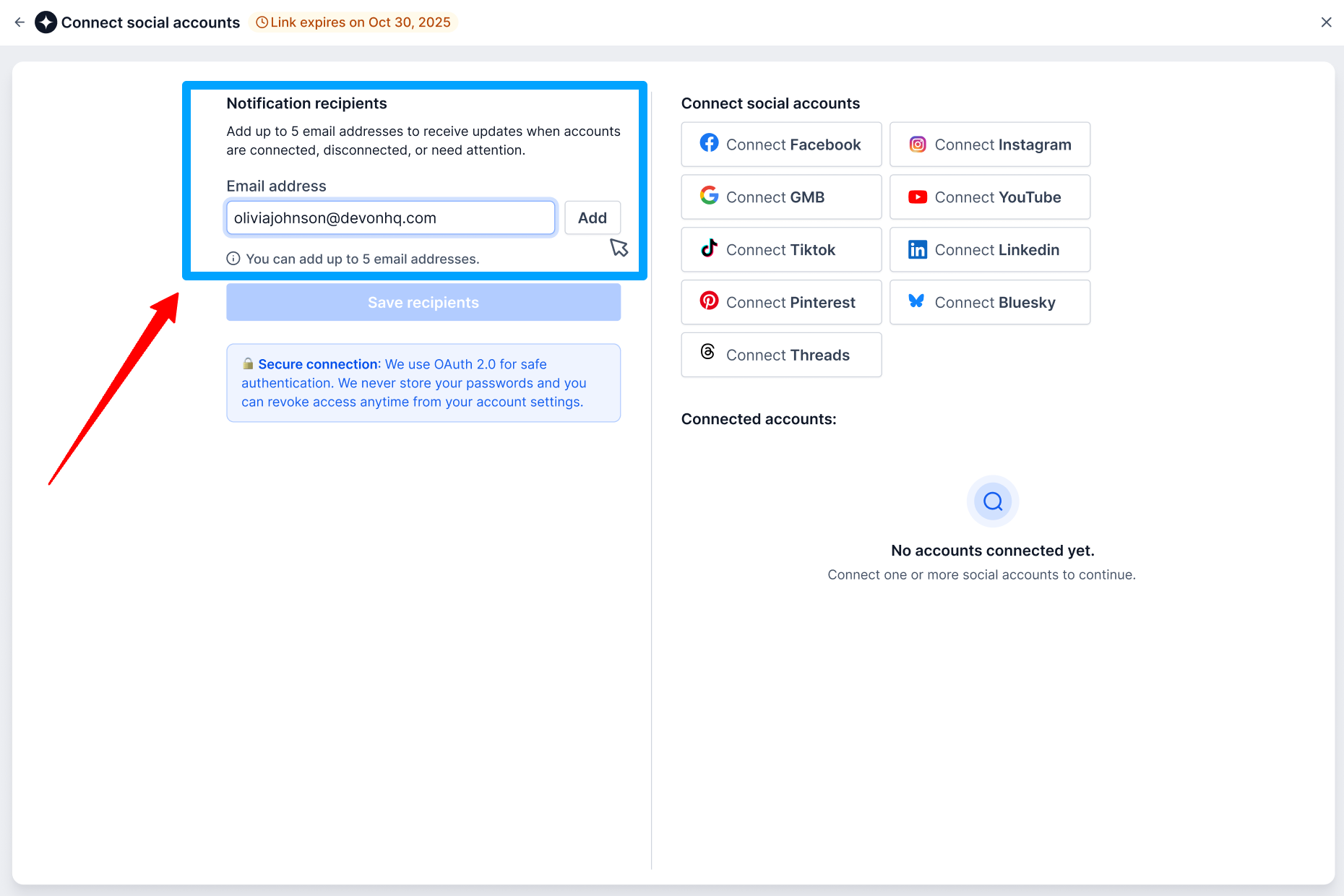
6. The client can also add email addresses under Notification recipients.
This allows designated recipients to receive updates when connected accounts:
- Are successfully connected
- Are disconnected
- Require attention
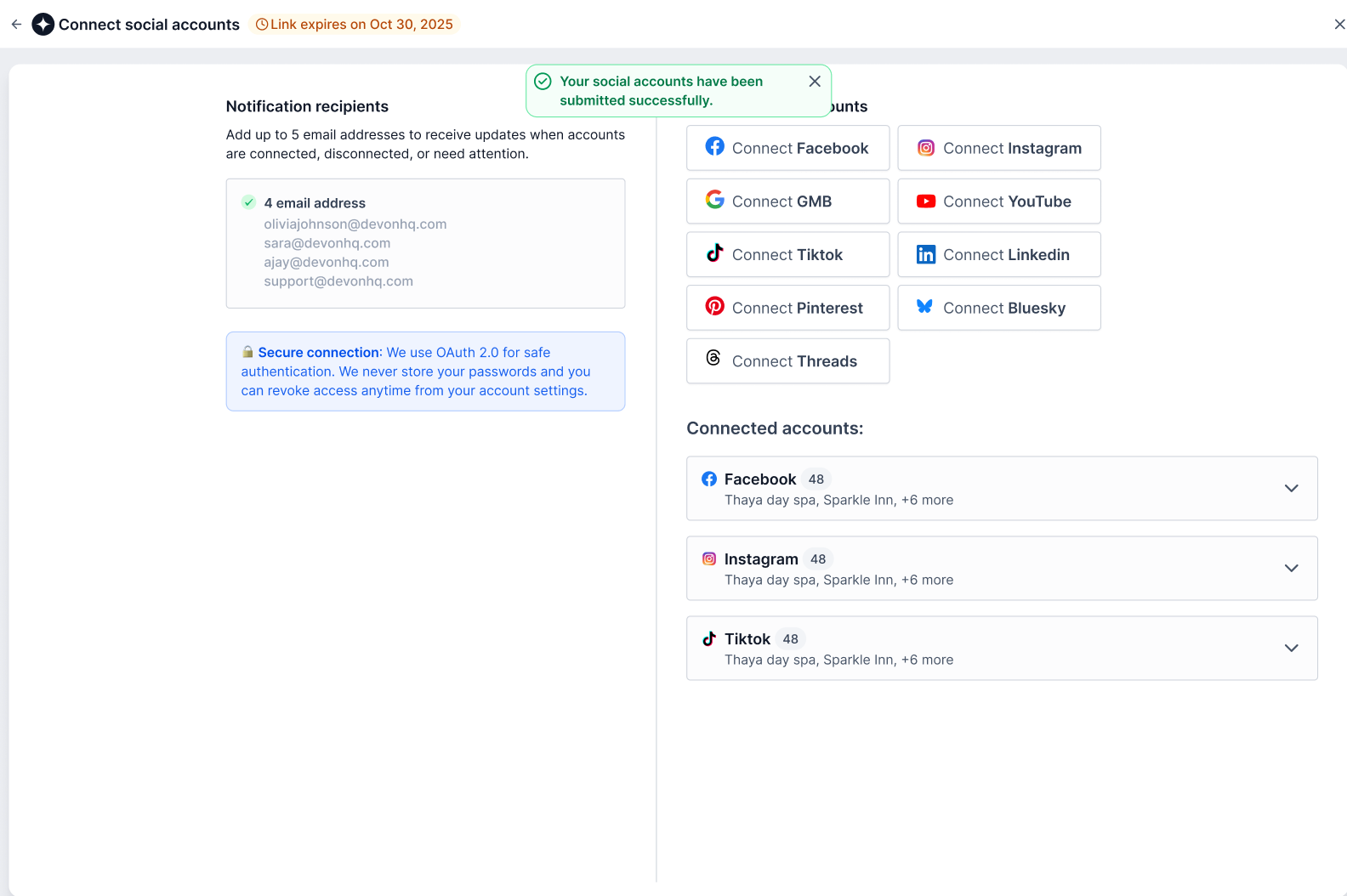
7. Once the connection is completed, the social accounts automatically appear in your sub-account.
Create a Social Connect Invite
- Go to Marketing → Social Planner → Settings → Social Accounts.
- Select Social Connect Invite.
- Generate an invite link.
- Choose whether to use an auto-generated password or create a custom password.
- Copy the invite link and password, or send the invite directly to your client.
Tip: You can share the invite link and password with your client through your preferred communication channel.
How Clients Connect Their Social Accounts
Your client does not need access to your Chat To Clients CRM sub-account.
They simply need to:
- Open the invite link you shared.
- Enter the invite password.
- Select the social platform they want to connect.
- Complete the platform's authorization process.
- Finish the connection.
Once the connection is successful, the social account is automatically added to your sub-account.
Manage Social Connect Invites
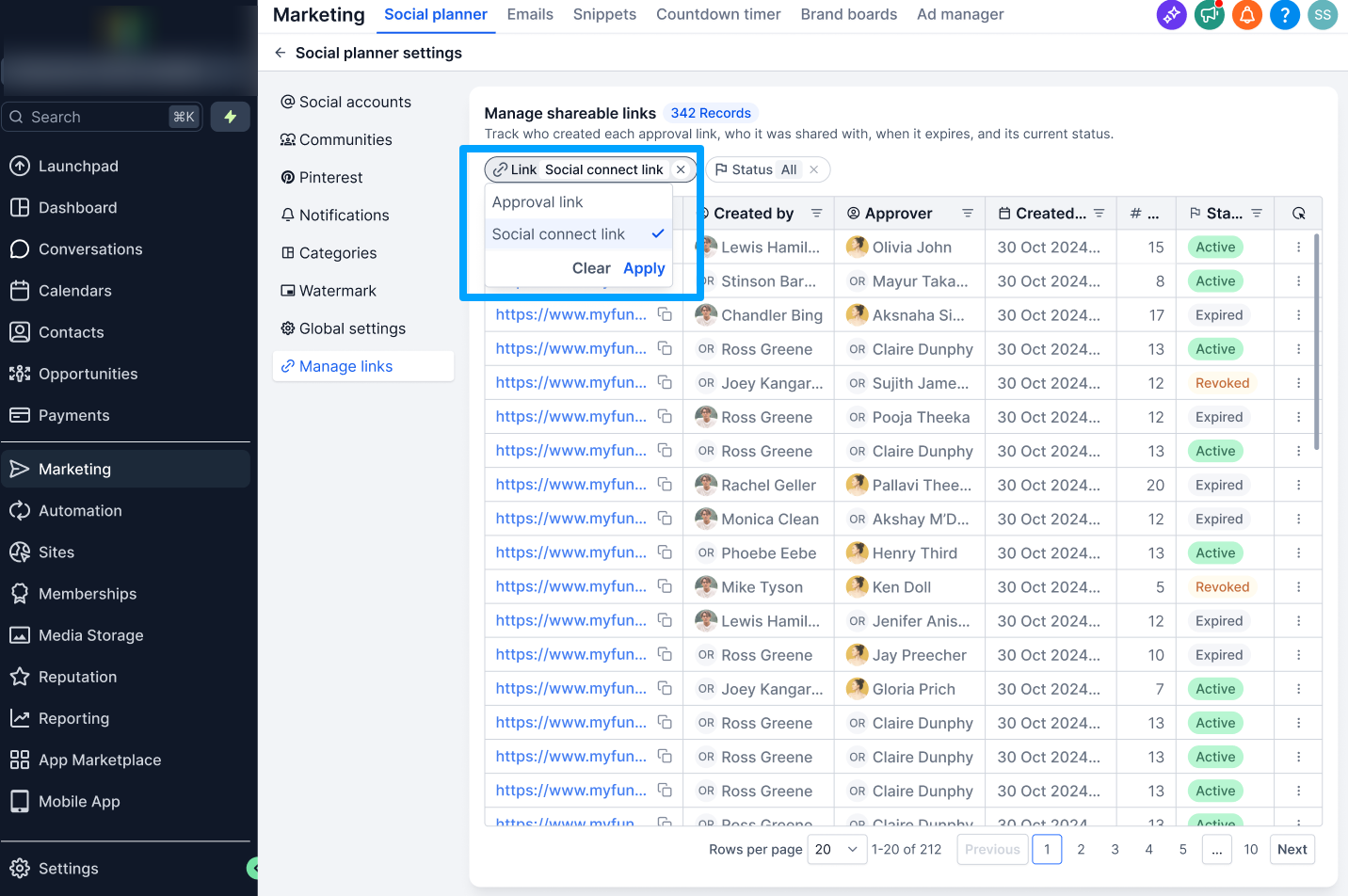
You can manage your existing invites from:
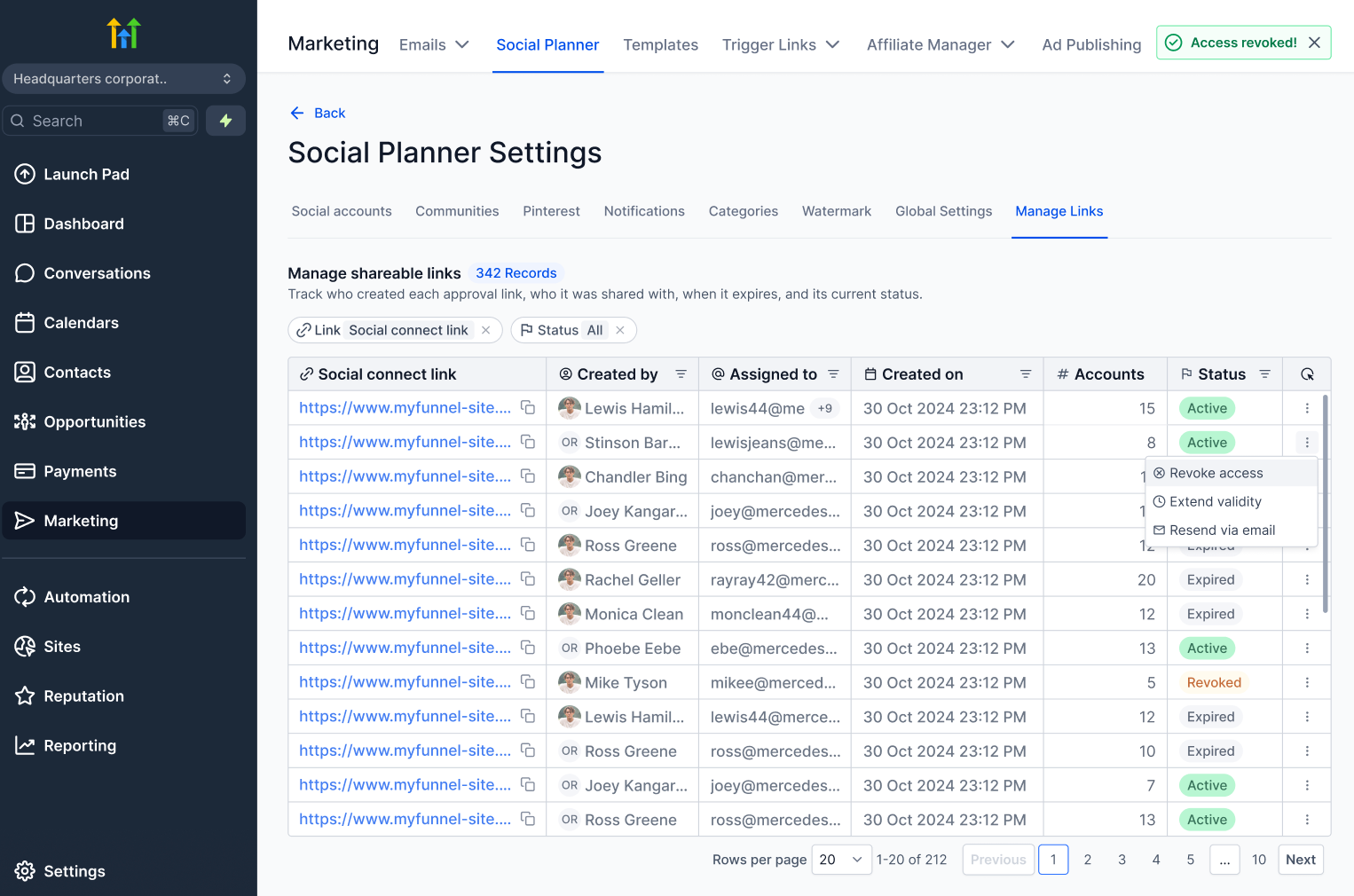
Settings → Manage Links → Social Connect Link
From here, you can:
- Extend validity of an invite
- Regenerate an invite
- Revoke an invite
Invite Expiration and Security
- Invite links expire 30 days after they are created.
- You can extend or regenerate an invite before or after it expires.
- Anyone who has both the invite link and password can use the invite to connect social accounts to your sub-account.
- Only share invite details with trusted clients.
- Revoking an invite immediately disables access to that invite.
Why Use Social Connect Invite?
Social Connect Invite makes it easier to onboard clients when you manage social media for multiple businesses or brands.
It allows you to:
- Let clients connect their own social accounts
- Avoid giving clients access to your Chat To Clients CRM sub-account
- Reduce back-and-forth during account setup
- Avoid asking clients to share social account credentials
- Manage connection invites from a central location
Frequently Asked Questions
Does my client need access to my Chat To Clients CRM sub-account?
No. The client connects their social account through the secure external invite page.
Are the connected accounts automatically added to my sub-account?
Yes. Once the client successfully completes the connection, the connected social accounts are automatically added to your sub-account.
How long is an invite link valid?
An invite link is valid for 30 days from the date it is created.
Can I stop an invite from being used?
Yes. Go to Settings → Manage Links → Social Connect Link and revoke the invite. Once revoked, the invite can no longer be used.
Can I use a custom password?
Yes. You can use an automatically generated password or create your own password when generating the invite.
Can I send the invite directly to my client?
Yes. You can send the invite directly from Social Planner or copy the invite link and password and share them through your preferred communication channel.