
How to Configure Advanced Opt-Out Management in Twilio- Non Isv
Advanced Opt-Out Management allows you to customize how opt-out, opt-in, and help keywords are handled for phone numbers associated with a Messaging Service. You can configure the keywords customers can send and customize the automatic confirmation message they receive.
For example, you can configure keywords such as STOP for opting out, START for opting back in, and HELP for assistance. Twilio matches configured keywords without regard to capitalization.
This guide applies to non-ISV Twilio accounts only. If your account is set up under an ISV model, reach out to Support and our team will help you configure Advanced Opt-Out Management.
Open the Messaging Service
- Log in to the Twilio Console.
- Navigate to Messaging → Services.
- Open the Messaging Service associated with your phone number(s).
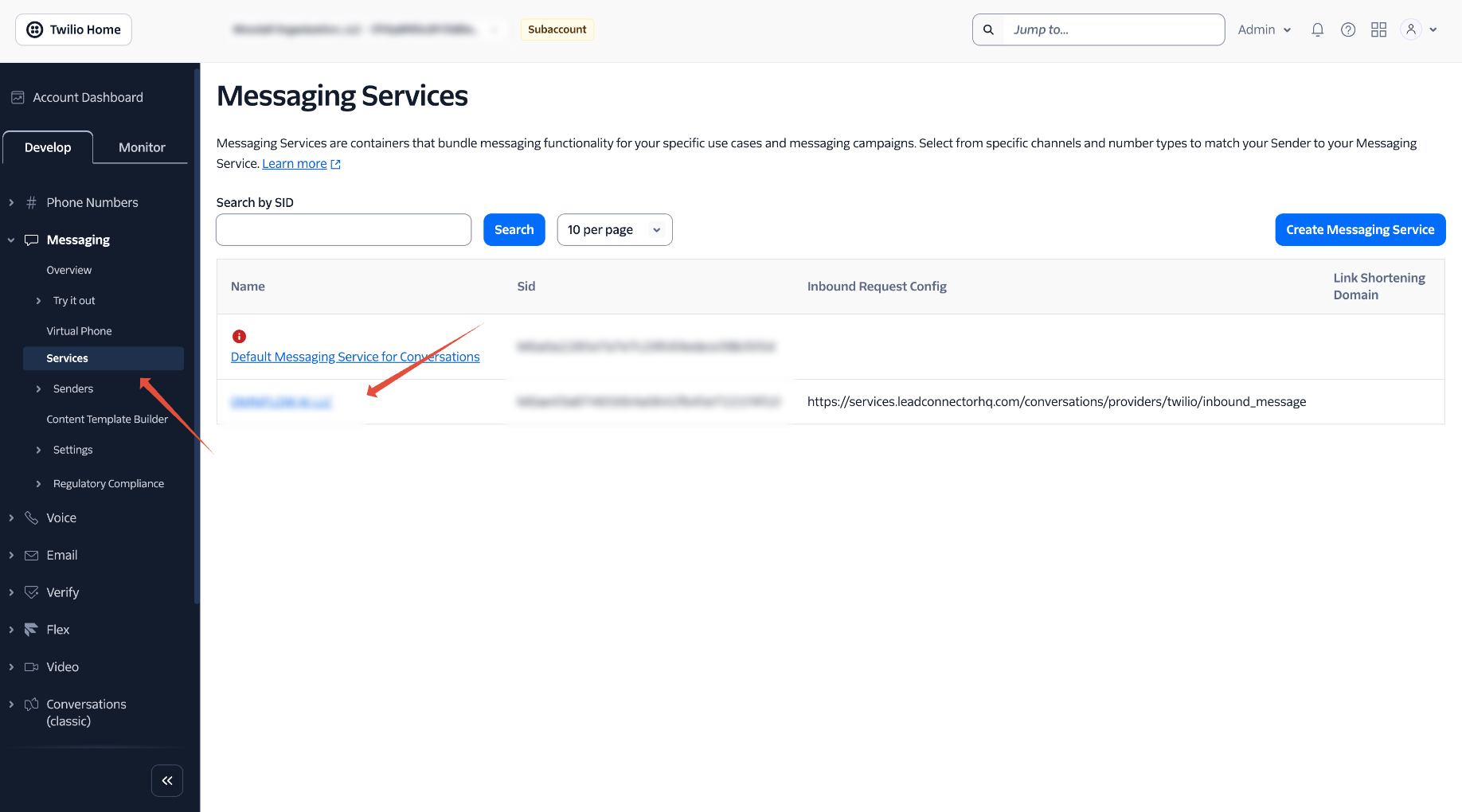
You can confirm the appropriate service by checking that the relevant phone number is included in its Sender Pool.
Open Opt-Out Management
- From the Messaging Service menu, select Opt-Out Management.
- If Advanced Opt-Out has not already been enabled, click Enable Advanced Opt-Out.
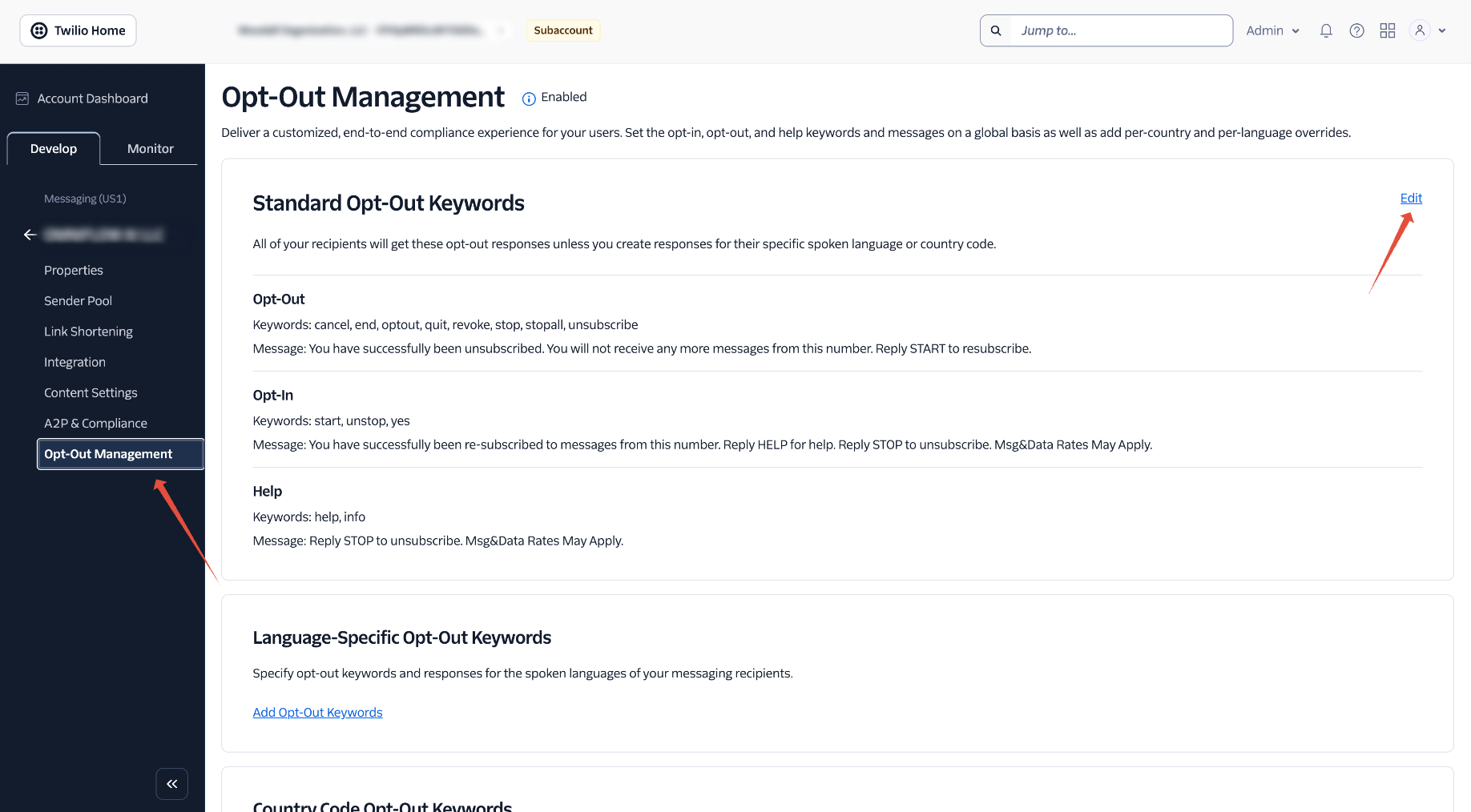
Once Advanced Opt-Out is enabled for a Messaging Service, the configuration applies to the senders in that Messaging Service. Twilio also notes that disabling Advanced Opt-Out after it has been enabled requires contacting Twilio Support.
Edit the Standard Opt-Out Keywords
Under Standard Opt-Out Keywords, click Edit. You can configure three types of responses:
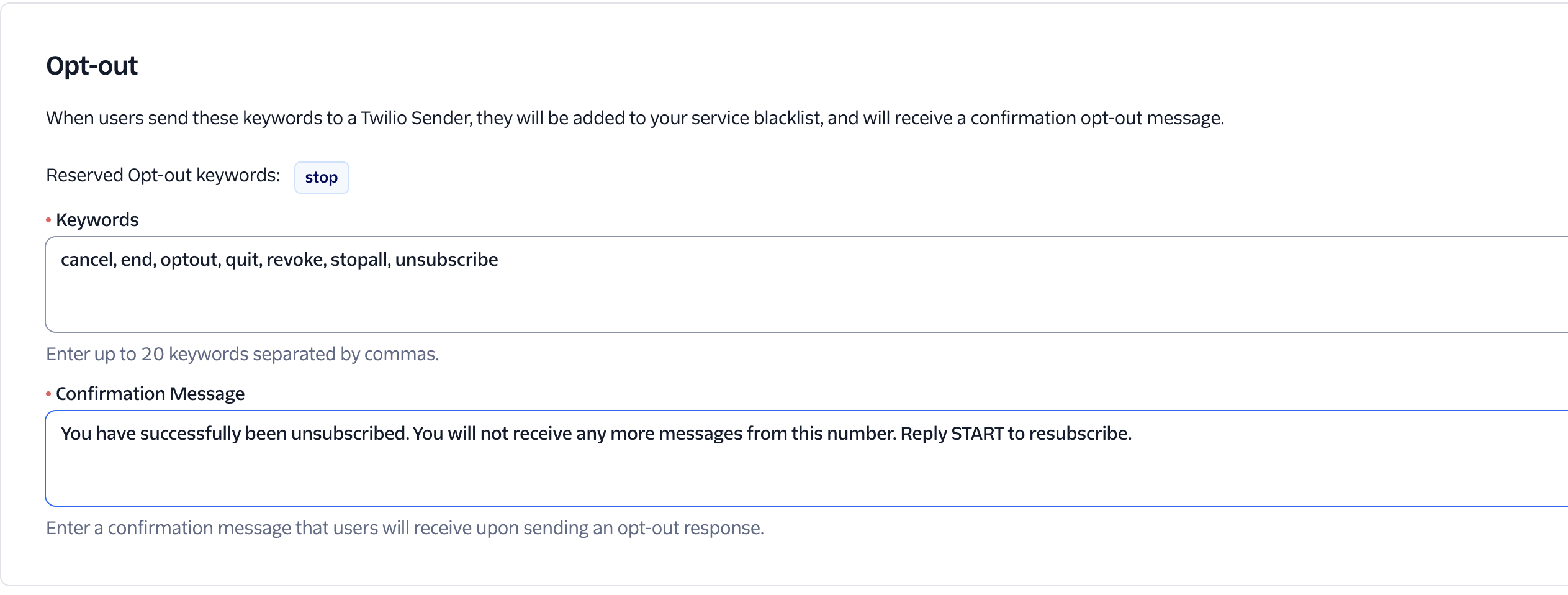
Configure the keywords customers can send when they no longer want to receive messages. Examples include:
STOP, CANCEL, END, OPTOUT, QUIT, REVOKE, STOPALL, UNSUBSCRIBE
You can also customize the confirmation message sent after the customer opts out, for example:
“You have successfully been unsubscribed. You will not receive any more messages from this number. Reply START to resubscribe.”
When a recognized opt-out keyword is received, the recipient is blocked from subsequent messaging until they opt back in. STOP is a reserved opt-out keyword and cannot be removed.
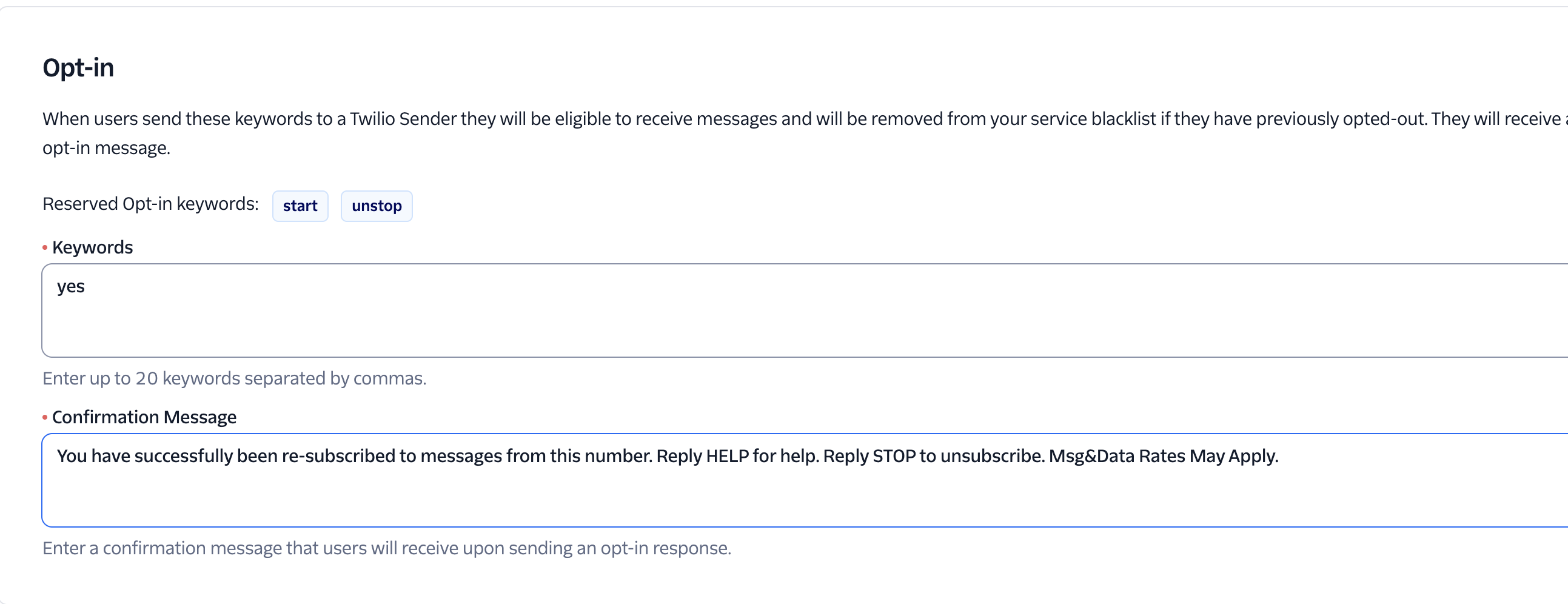
Configure the keywords customers can send to opt back into messaging. Examples include:
START, UNSTOP, YES
You can also configure the confirmation message sent when the customer successfully opts back in, for example:
“You have successfully been re-subscribed to messages from this number. Reply HELP for help. Reply STOP to unsubscribe. Msg&Data Rates May Apply.”
START and UNSTOP are reserved opt-in keywords and cannot be removed.
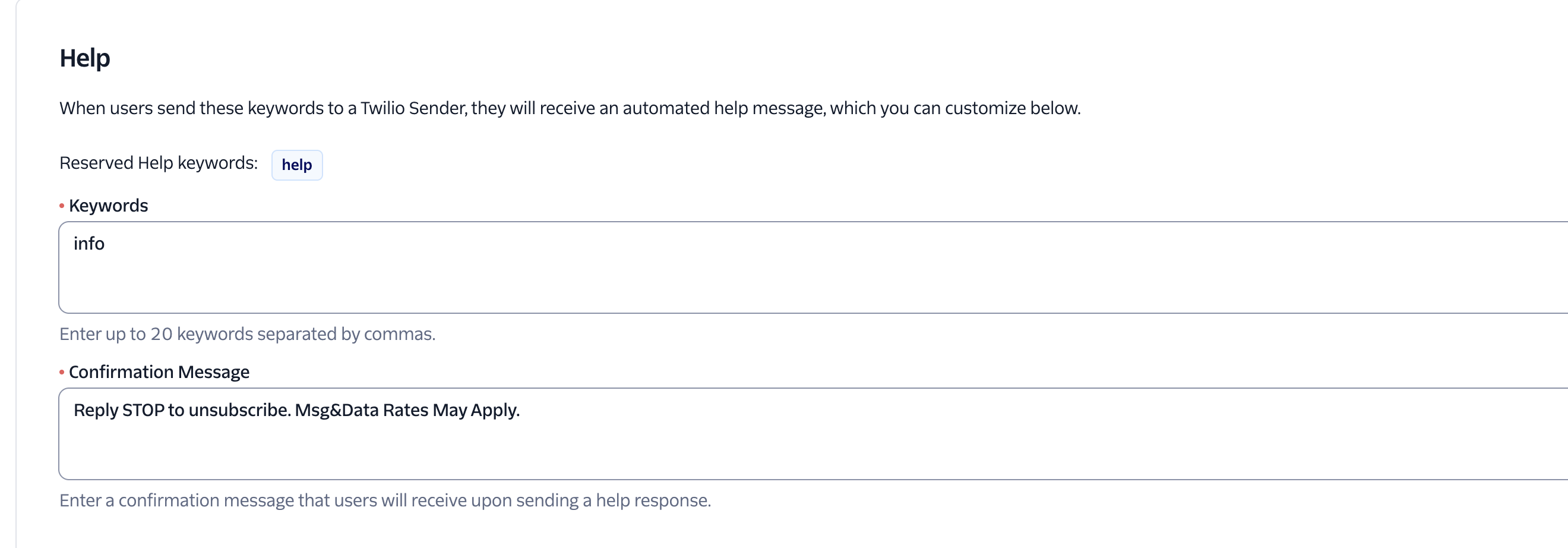
Configure keywords customers can use when they need messaging-related assistance. Examples include:
HELP, INFO
You can customize the automatic help response, for example:
“Reply STOP to unsubscribe. Msg&Data Rates May Apply.”
HELP is a reserved keyword and cannot be removed.
| Response Type | Reserved (Cannot Be Removed) | Example Keywords |
|---|---|---|
| Opt-Out | STOP | CANCEL, END, OPTOUT, QUIT, REVOKE, STOPALL, UNSUBSCRIBE |
| Opt-In | START, UNSTOP | YES |
| Help | HELP | INFO |
Save the Changes
Once the required keywords and confirmation messages have been configured, click Save.
The configured behavior will then be used when an end customer sends one of the recognized keywords to a sender associated with that Messaging Service.
Keywords are case-insensitive, so variations such as STOP, Stop, and stop are treated the same.
The complete incoming message needs to match a configured keyword. For example, STOP can trigger the opt-out behavior, while a longer sentence containing the word may not.
Your custom opt-out, opt-in, and help keywords and replies are now active for every sender in this Messaging Service.
Important Considerations
The steps in this article are for non-ISV accounts. If you are on an ISV setup, please reach out to Support instead of making these changes yourself.
Advanced Opt-Out is configured at the Messaging Service level, so make sure you are editing the Messaging Service associated with the relevant phone number before making changes.
Enabling Advanced Opt-Out changes how opt-in, opt-out, and help messages are handled for the Messaging Service. Review the configured keywords and confirmation messages carefully before enabling it, especially for messaging programs with specific compliance requirements.