
Video Element in Funnels & Websites
Add videos to your funnel and website pages using the Video element. This article shows you how to display videos from YouTube, Vimeo, Wistia, custom embed codes, or HTML5 video sources.
TABLE OF CONTENTS
- What is the Video Element?
- How to Add the Video Element in Funnels & Websites
- Video Element Settings
- Hosted Video
- Frequently Asked Questions
- Related Articles
What is the Video Element?
The Video element allows you to display video content directly on funnel and website pages using several supported video sources. Instead of relying on a single video provider, you can choose the video type that matches where your content is hosted and add it using a URL, embed code, or direct video file URL.
The Video element supports YouTube, including YouTube Shorts, Vimeo, Wistia, Custom Embed, and HTML5 video sources. Once the video is added, you can also configure common display and playback options, such as autoplay, width, colors, and background settings.
How to Add the Video Element in Funnels & Websites
Adding the Video element gives you access to the supported video types and their corresponding configuration options.
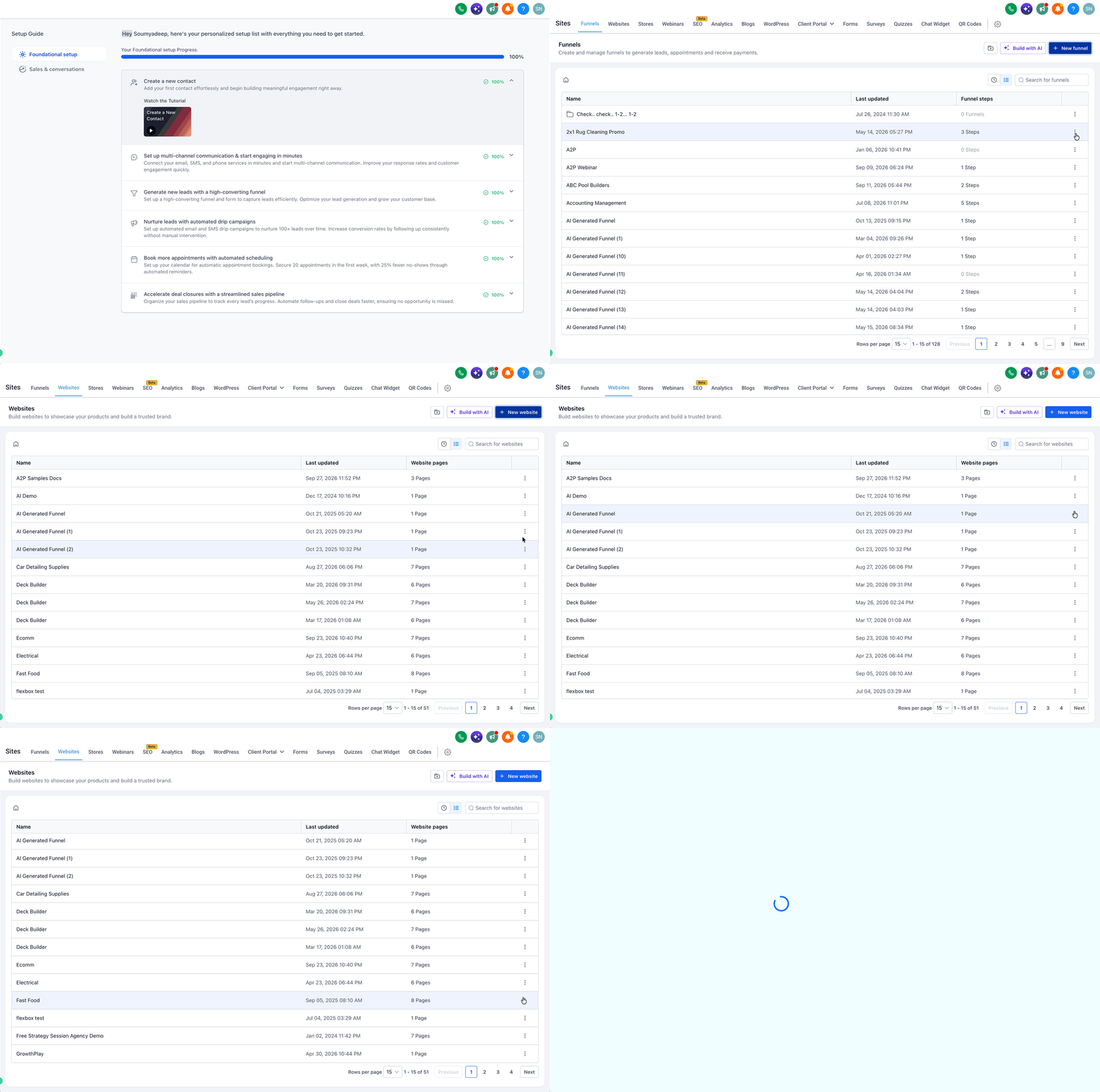
- Go to Sites.
- Open Funnels or Websites.
- Create a funnel or website or edit an existing one.
- Open the appropriate page in the builder.
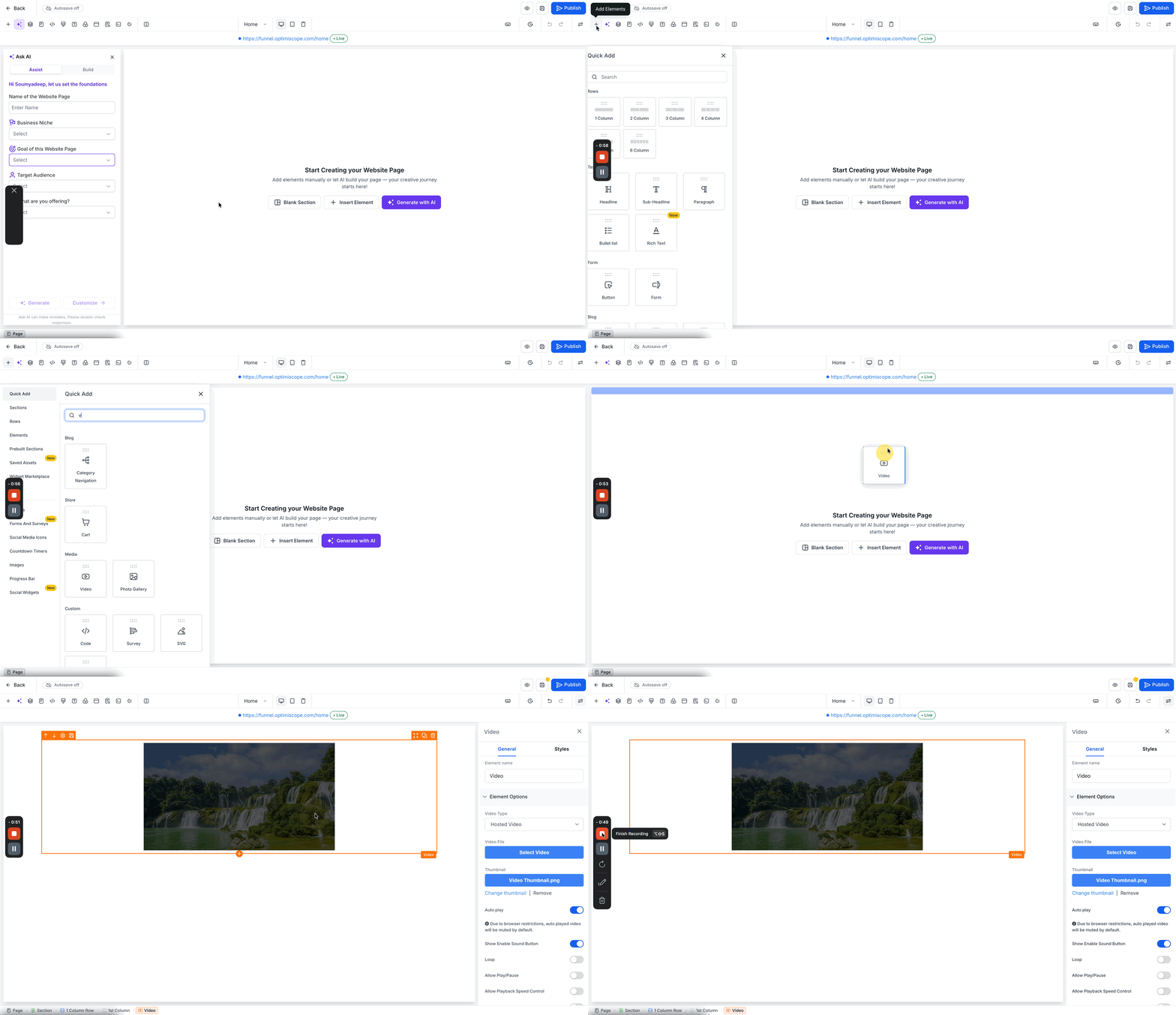
- Click Add Elements (+).
- Search for Video.
- Drag the Video element to the desired location on the page.
- Click the Video element to open its settings.
YouTube
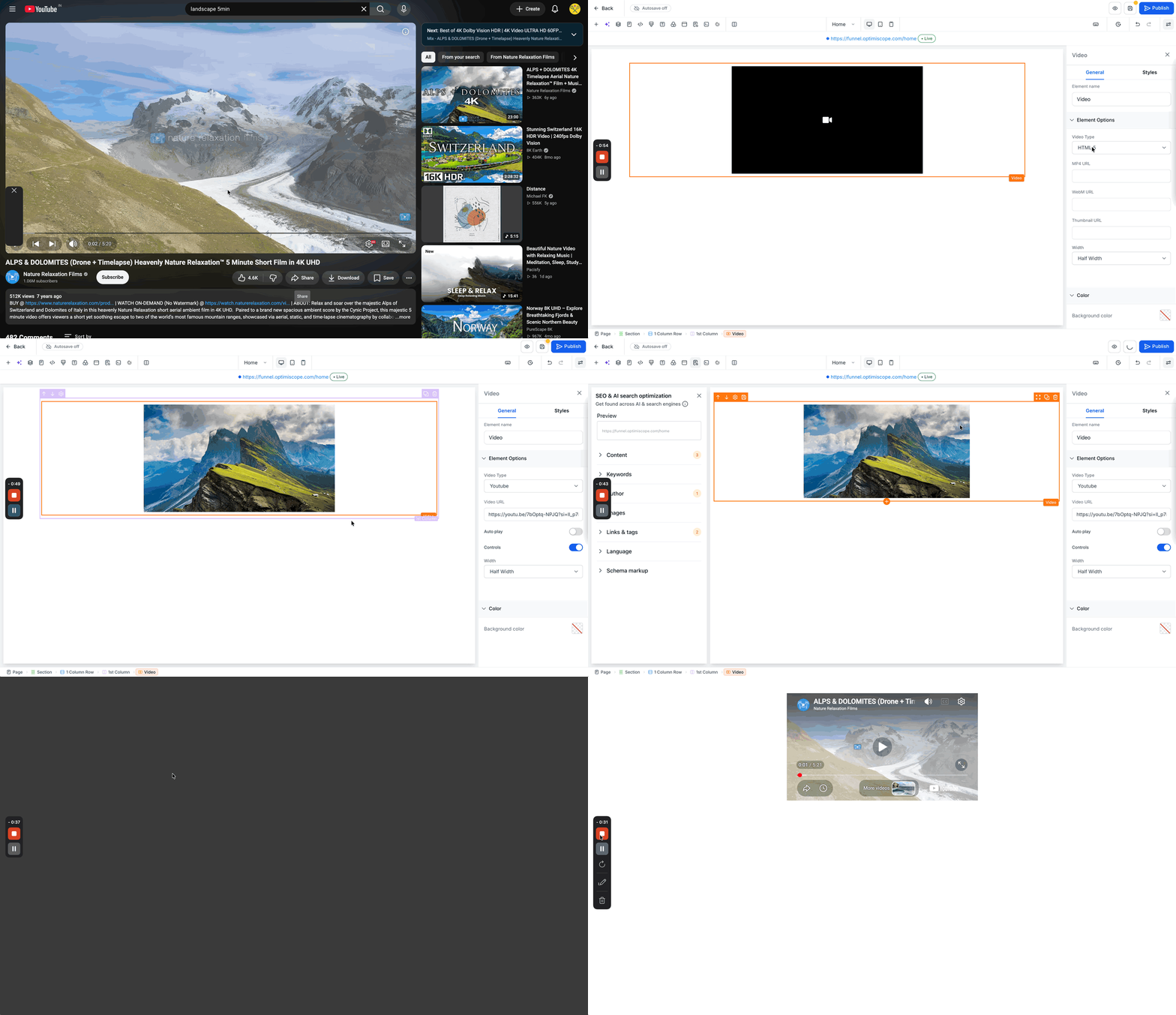
YouTube videos can be added using their public video URLs. The same process works for standard YouTube videos and YouTube Shorts.
Note: YouTube Shorts are supported using the same process. Copy the URL for the YouTube Short and paste it into the Video URL field after selecting YouTube.
- Open the video on YouTube.
- Click Share and copy the video link.
- Return to the Video element.
- Select YouTube as the video type.
- Paste the link into the Video URL field.
Vimeo
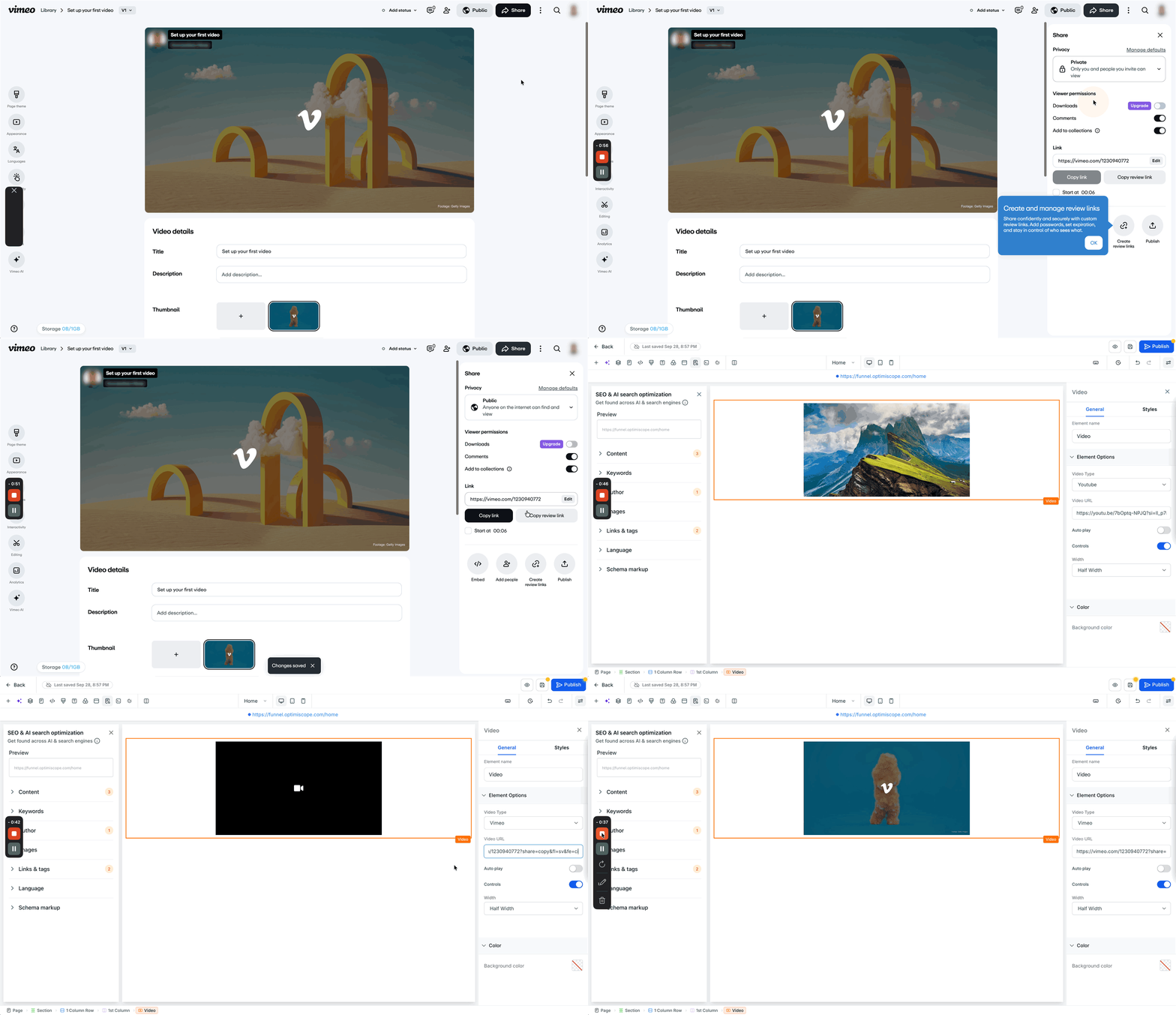
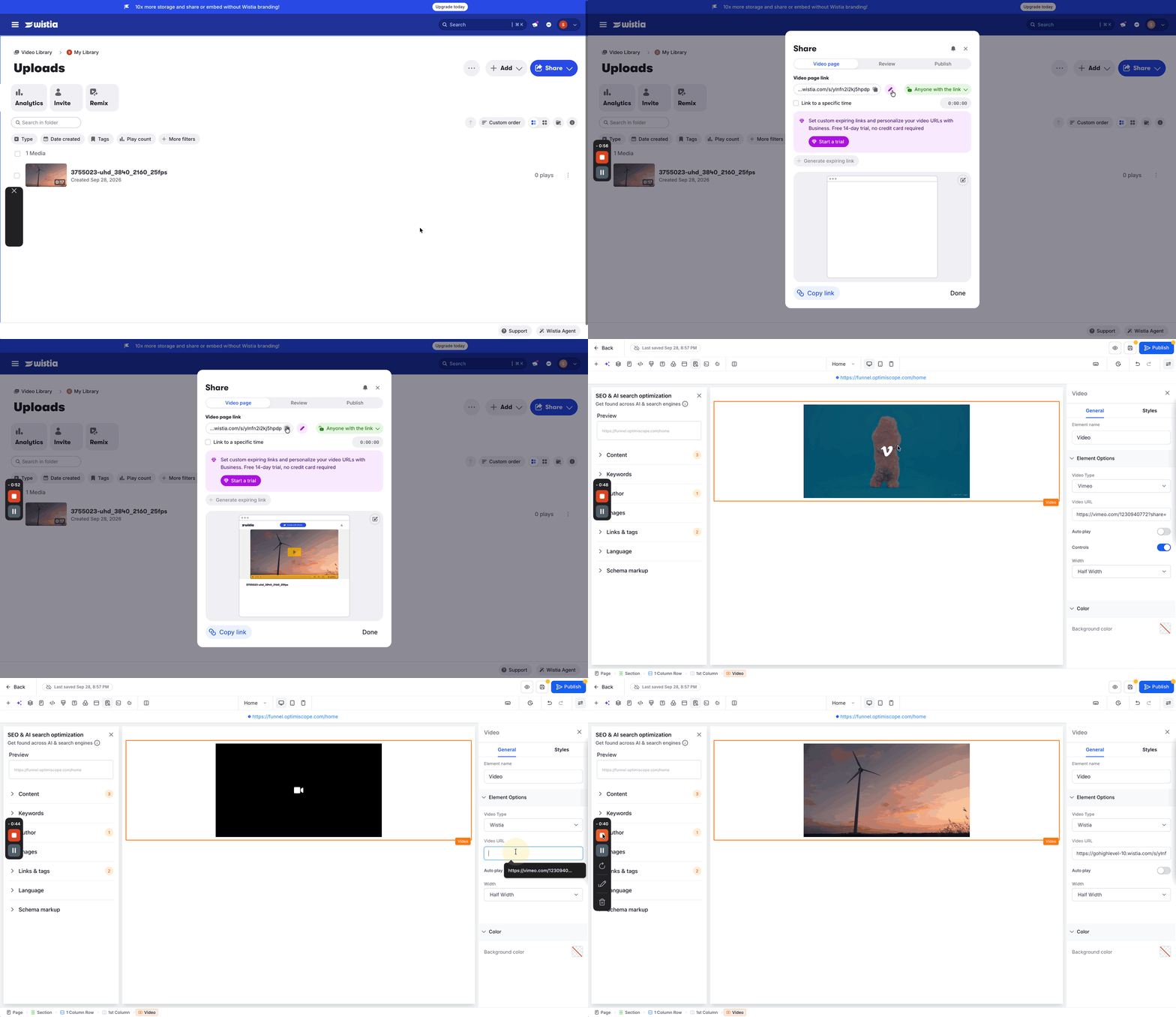
Vimeo videos can be displayed by providing a shareable video URL that the page can access.
- Open the video in Vimeo.
- Make sure the video's privacy settings allow it to be accessed through its shared link.
- Click Share and copy the video link.
- Return to the Video element.
- Select Vimeo as the video type.
- Paste the link into the Video URL field.
Wistia
Wistia videos can be added using a shareable video URL.
- Open the video in Wistia.
- Make sure the video's sharing settings allow access to anyone with the link.
- Copy the video's shareable link.
- Return to the Video element.
- Select Wistia as the video type.
- Paste the link into the Video URL field.
Custom Embed
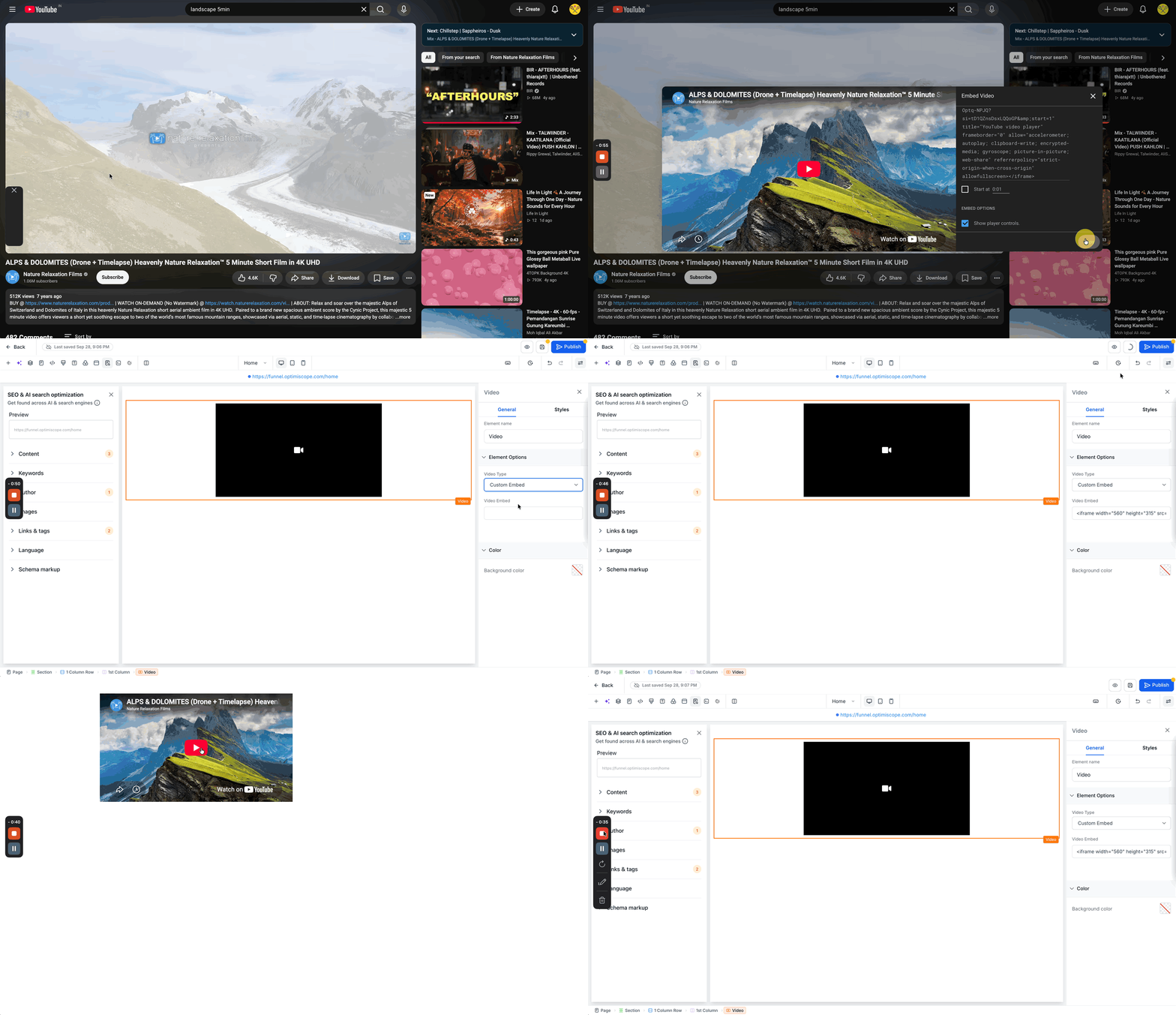
Custom Embed lets you use embed code provided by a supported video platform instead of adding the video through a direct URL.
- Open the video on the source platform.
- Find the video's Embed option.
- Copy the provided embed code.
- Return to the Video element.
- Select the custom embed option.
- Paste the code into the Video Embed field.
HTML5
HTML5 lets you display a video using direct video file URLs rather than a video-sharing platform.
When HTML5 is selected as the video type, you can provide:
- MP4 URL
- WebM URL
- Thumbnail URL
Enter the appropriate URLs into their corresponding fields to display the video.
Video Element Settings
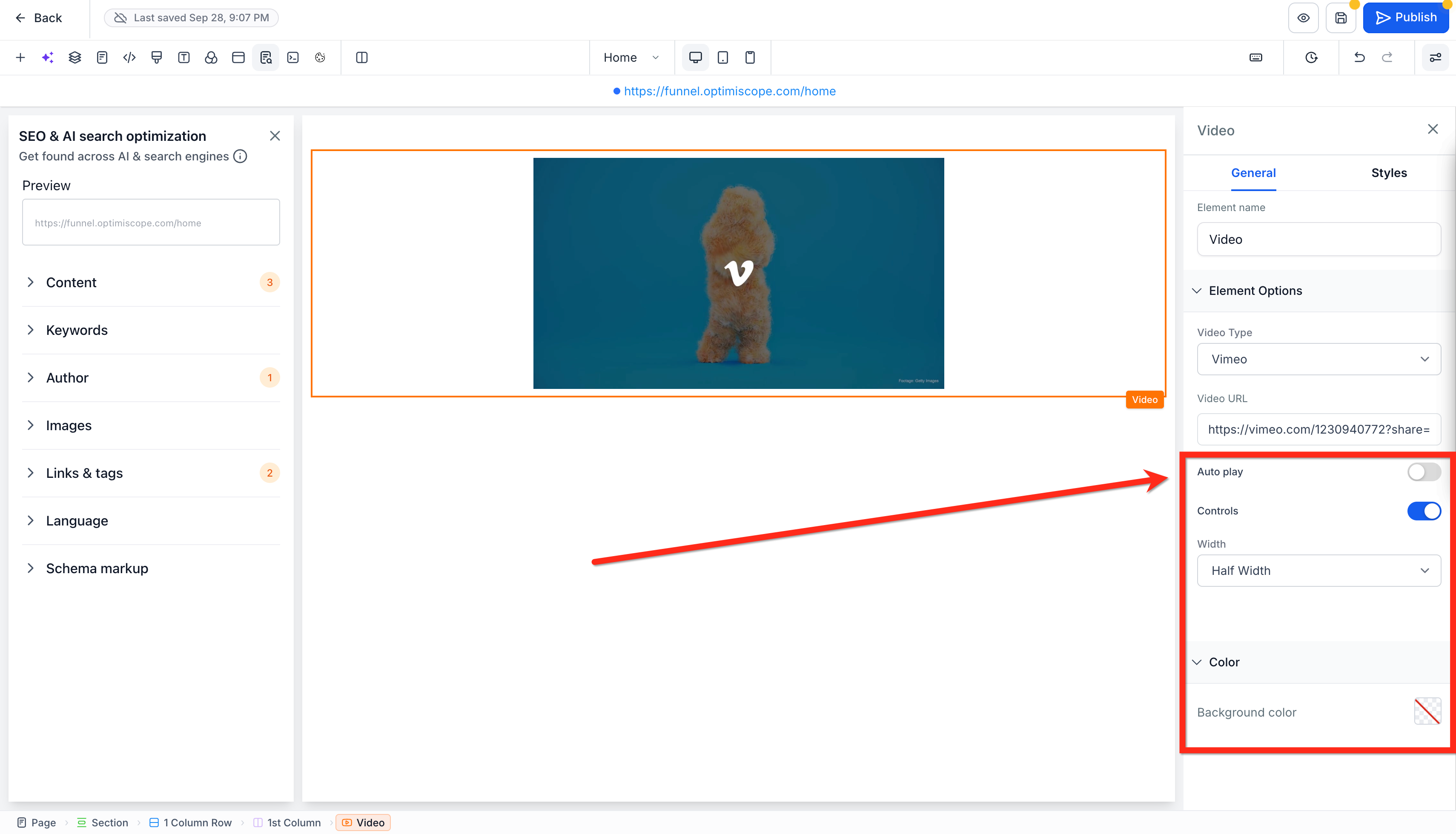
Video settings let you adjust how the video appears and behaves on the page. Available options can be configured after adding your video source.
Common settings include:
- Autoplay: Enable or disable automatic playback.
- Width: Adjust how much horizontal space the video occupies.
- Colors: Customize applicable colors.
- Background: Configure the background styling around the element.
Hosted Video
Hosted Video provides a separate option for adding videos directly through the Video element instead of using an external video URL or embed code.
For setup instructions and available Hosted Video settings, see Hosted Video Player For Funnels.
Frequently Asked Questions
Q: Are YouTube Shorts supported?
Yes. Copy the URL of the YouTube Short, select YouTube as the video type, and paste the URL into the Video URL field.
Q: Why isn't my YouTube, Vimeo, or Wistia video loading?
Make sure the video URL is accessible and that the video's privacy or sharing settings allow it to be viewed through the provided link.
Q: When should I use Custom Embed instead of a Video URL?
Use Custom Embed when you want to use the embed code provided by the source platform rather than its standard video URL.
Q: Can I use MP4 and WebM video URLs?
Yes. Select HTML5 and add the appropriate MP4 or WebM URL. You can also provide a thumbnail URL.
Q: Can I change the width or enable autoplay for an added video?
Yes. The Video element includes settings such as autoplay, width, colors, and background options.