
Pickup in Store for Ecommerce Stores
Pickup in Store lets Ecommerce Store customers collect physical orders from an enabled store location instead of having them shipped. Store owners can configure pickup addresses, instructions, preparation time, charges, and applicable taxes. Pickup details remain connected to the order throughout checkout and supported post-purchase experiences.
Learn how to configure pickup locations, understand how Pickup in Store changes checkout, manage pickup charges and taxes, and find pickup information after an order is placed.
What Is Pickup in Store for Ecommerce Stores?
Pickup in Store is a fulfillment option that lets customers collect physical Ecommerce Store orders from an enabled pickup location.
Each pickup location can include an address, pickup instructions, preparation time, pickup cost, and applicable taxes. When multiple enabled locations are available, customers can choose the location they prefer during checkout.
When Pickup in Store is selected, Chat To Clients CRM uses the selected pickup location as the shipping address and removes the Shipping Details section from checkout.
Key Benefits of Pickup in Store
Pickup in Store gives businesses another way to fulfill physical orders while keeping pickup information and payment details connected throughout the customer journey.
- Flexible Fulfillment: Let customers collect physical orders instead of requiring shipment.
- Multiple Pickup Locations: Offer customers a choice of enabled store locations.
- Clear Pickup Instructions: Show the location address, instructions, and preparation time before purchase.
- Pickup Charges: Add a location-specific pickup cost when needed.
- Applicable Taxes: Add configured taxes to the order total.
- Simplified Checkout: Remove Shipping Details automatically when the customer chooses pickup.
- Connected Order Data: Keep pickup information available across supported orders, transactions, receipts, customer order views, and workflows.
Prerequisites and Limitations
Pickup in Store appears only when the required location and fulfillment settings are configured, so review these rules before testing checkout.
- At least one pickup location must be created and enabled before Pickup in Store appears in checkout.
- Only enabled pickup locations are available to customers.
- Each pickup location must have a valid address.
- The selected pickup location address is used as the shipping address for the order.
- Pickup in Store applies to physical-order fulfillment.
- Selecting Pickup in Store hides the complete Shipping Details section.
- The Billing Address section remains displayed when Pickup in Store is selected, regardless of the Checkout Builder configuration.
- Configured pickup charges and applicable taxes are added to the order total.
How To Set Up Pickup in Store
Configure and enable at least one pickup location before testing the customer experience. Accurate location details ensure customers receive the correct pickup instructions, charges, and tax information at checkout.
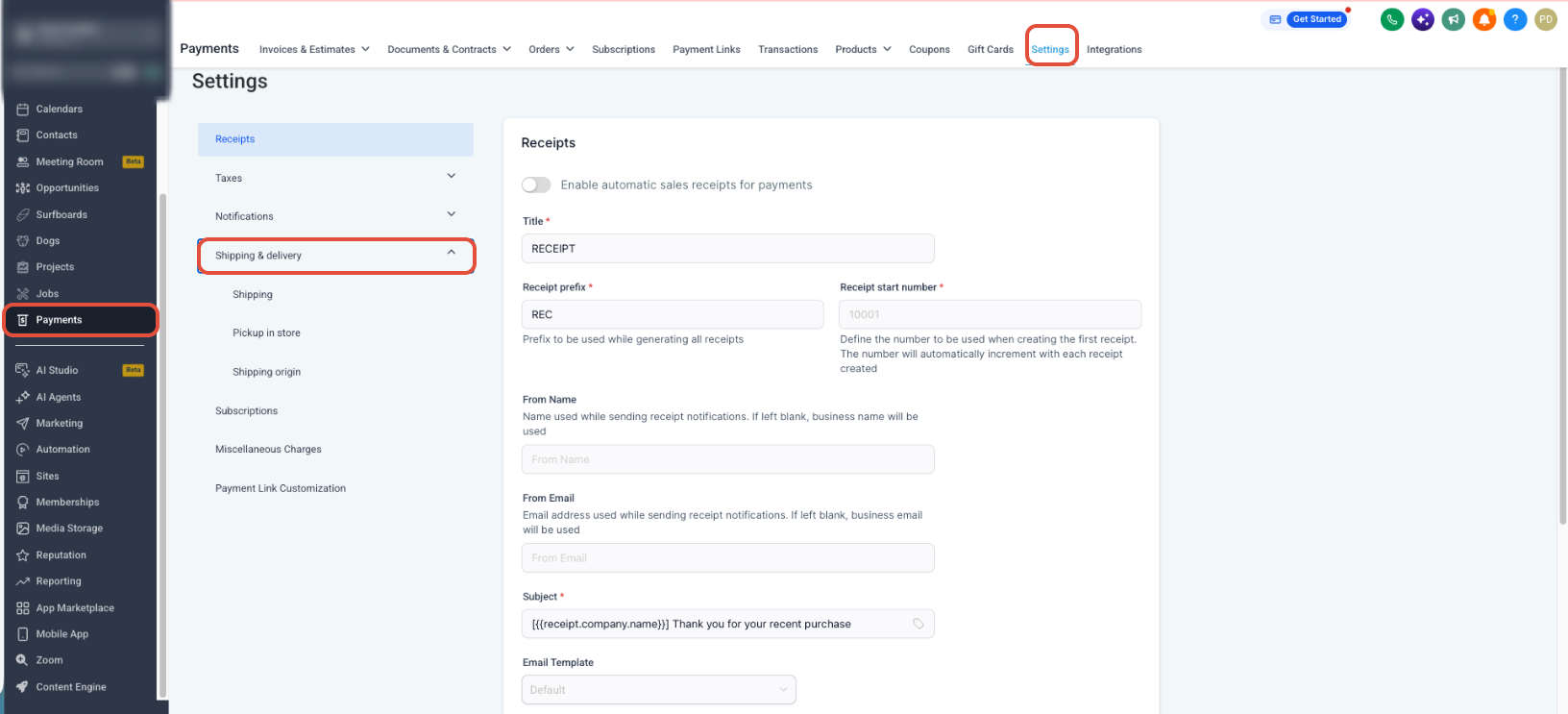
- From the Sub-Account view, select Payments.
- Select Settings.
- Open Shipping & Delivery.
- Select Pickup & Store.
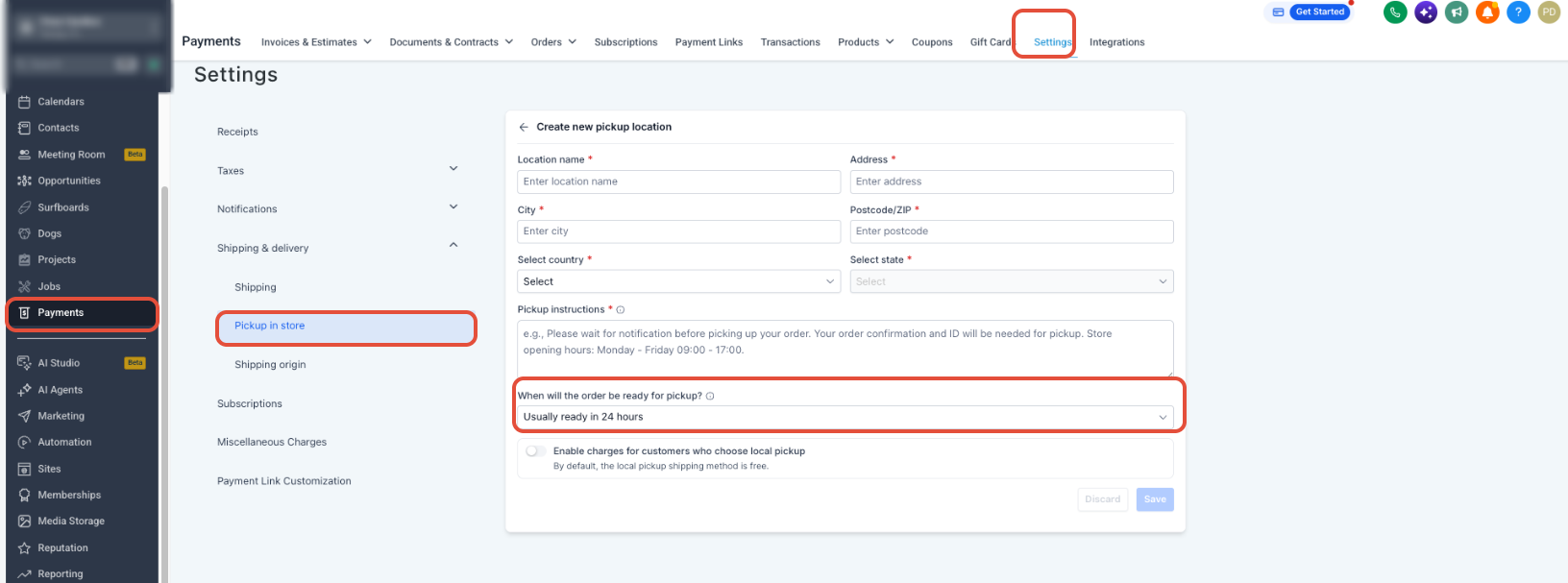
- Create a pickup location.
- Enter a valid pickup address.
- Add pickup instructions customers should follow when collecting the order.
- Configure the preparation time.
- Enter a pickup cost when a charge should apply.
- Configure any applicable pickup taxes.
- Enable the pickup location.
- Save or complete the pickup location setup.
After setup: Preview the Ecommerce Store checkout to confirm Pickup in Store appears. Pickup will not appear until at least one pickup location is enabled.
How Pickup in Store Works at Checkout
When an enabled pickup location is available, customers can choose pickup as the fulfillment method and review the location details and final order total before completing payment.
- The customer proceeds to checkout with physical products.
- When both methods are available, the customer chooses between Ship and Pickup in Store.
- The customer selects Pickup in Store.
- The Shipping Details section is hidden.
- The customer selects an available pickup location.
- The pickup address, preparation time, instructions, and applicable charges are displayed.
- Billing Address remains displayed.
- The selected pickup location becomes the shipping address for the order.
- The customer reviews the final total and completes the purchase.
Pickup Charges and Taxes
Pickup charges and applicable taxes remain part of the order total so customers can see the complete cost before placing the order.
- The configured pickup charge is added to the product subtotal.
- Applicable pickup taxes are added according to the configured tax settings.
- Pickup charges and taxes appear during checkout.
- These amounts remain available in supported order summaries and receipt views after purchase.
Pickup Details After an Order
Pickup information remains connected to the order after checkout, helping store owners and customers reference the selected location, charges, taxes, and fulfillment details.
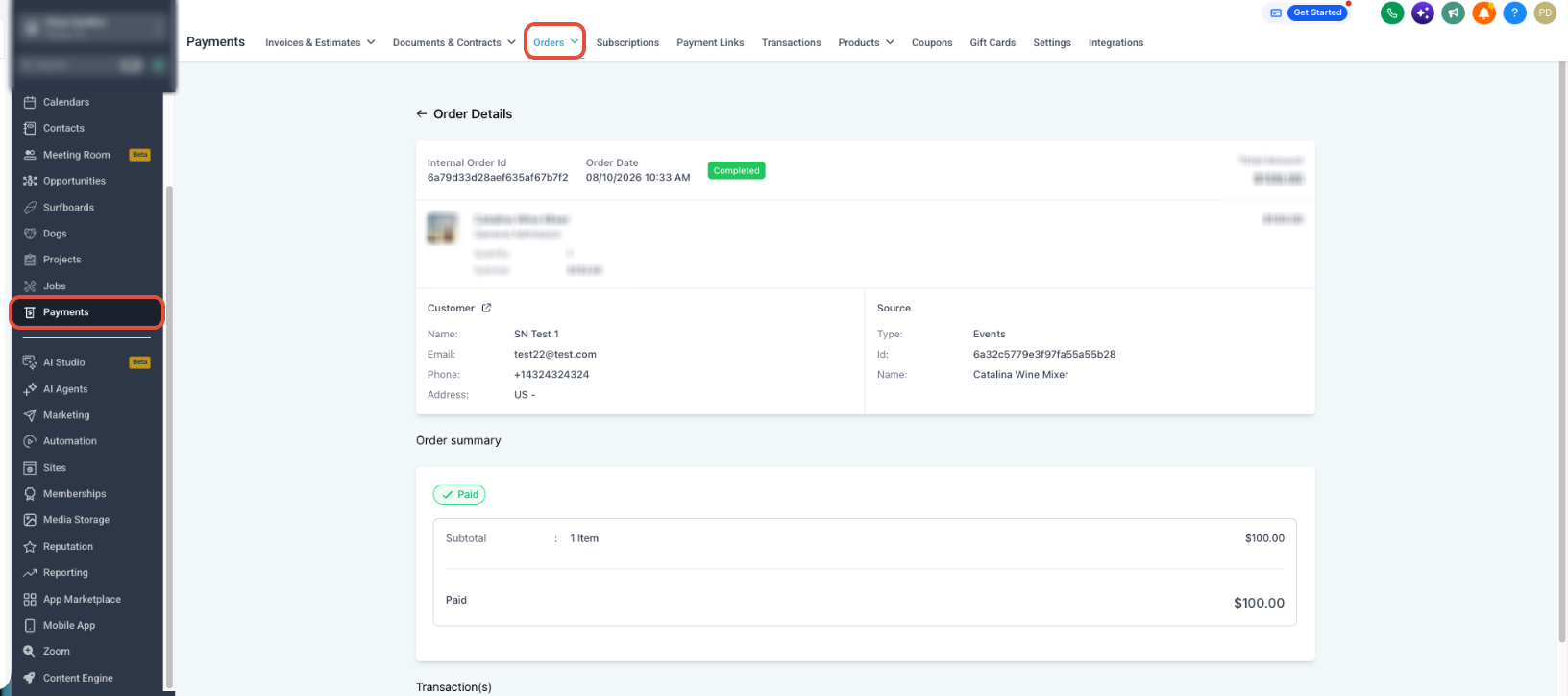
- Order Details: View the selected pickup location, address, pickup charges, and applicable taxes under Payments → Orders.
- Transactions: Supported transaction details retain Pickup in Store information.
- Customer Access Center: Customers can review supported pickup information with their order details.
- Receipts: Supported receipt views and downloadable receipts include pickup information, charges, and applicable taxes.
- Workflows: Pickup information is available as custom values for supported workflow use cases.
Pickup in Store and Upsells
Upsell purchases use the address that matches the type of product being added, keeping fulfillment information consistent with the purchase.
- Physical Product Upsells: The selected pickup address is carried forward.
- Digital Product Upsells: The billing address is used.
Frequently Asked Questions
Related Articles
- Shipping and Delivery Rates for Ecommerce Stores
- Ecommerce Store - Customizing Checkout Pages
- How to Set Up an E-Commerce Online Store (Websites)
- How to Add Customer Login in Ecommerce Stores to View Order Details and Past Orders
- Block Shipping at Checkout When No Rate Is Available
- How to Setup and Use International Automatic Taxes