
Configure and Filter General Widgets on your Sub-account Dashboard
Overview
Your Chat To Clients CRM dashboard comes with a set of pre-built widgets — called General Widgets — that give you an instant view of your business performance. Widgets like Opportunity Status, Conversion Rate, Lead Source Report, Tasks, and Sales Efficiency are in this category.
Until now, these widgets were fixed. You could view them but not change what data they showed. If the widget wasn't showing the right slice of data for your business, there was no way to fix it without deleting the entire dashboard and starting over.
With this update, General Widgets are now fully editable. You can configure what data each widget shows, add permanent filters, set a custom date range, compare performance across periods, rename widgets, apply themes, duplicate them, and delete ones you don't need.
What you can now do
| Capability | What it means |
|---|---|
| Edit widget configuration | Change the date property and date range each widget calculates on |
| Add conditions (data filters) | Filter by assigned user, tags, source, lead value, custom fields, and more |
| Date range override | Set a specific date range per widget, independent of the dashboard date filter |
| Comparison | Compare current period vs last year or last period directly on the widget |
| Date property label | See which date property the widget is using, shown explicitly on the widget face |
| Edit title | Rename any general widget to match your business language |
| Themes | Apply visual themes to general widgets just like custom widgets |
| Duplicate | Clone a widget to create variations for different segments |
How to edit a general widget
- Go to Dashboard from the left navigation
- Click Edit dashboard (top right)
- Hover over any general widget — a three-dot menu (⋮) appears on the widget
- Click the three-dot menu and select Edit
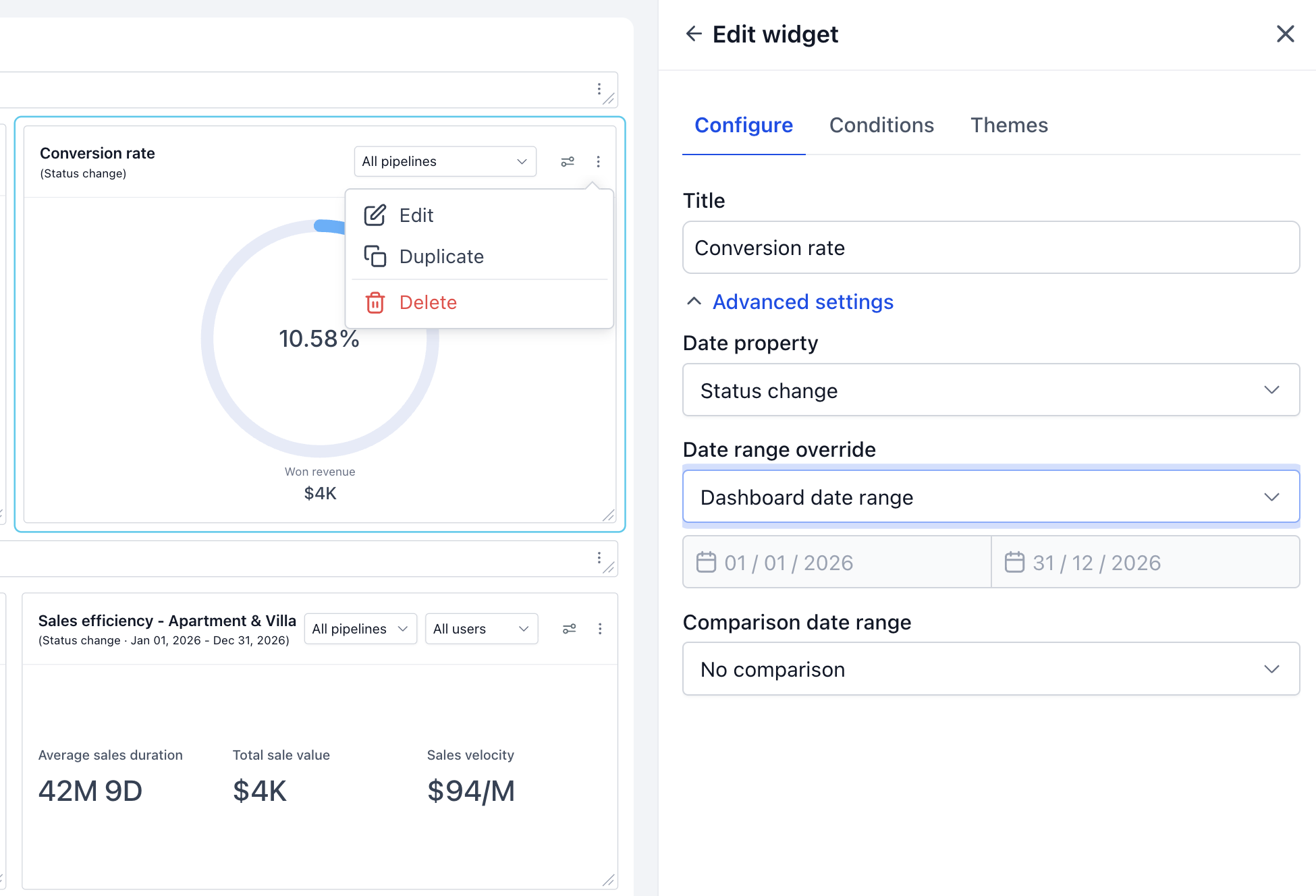
- The Edit widget panel opens on the right with three tabs: Configure, Conditions, and Themes
- Make your changes and click Save
Configure tab — what you can change
The Configure tab has two sections:
- Title Rename the widget to anything that makes sense for your team or your client. For example, rename "Opportunity Status" to "Lead Pipeline — Q3" or "Sales efficiency" to "Sales Efficiency — Single & Double Occupancy Rooms."
- Advanced Settings → Date range override By default, general widgets follow the dashboard-level date filter. With date range override, you can lock a widget to a specific time period — regardless of what the dashboard filter is set to.
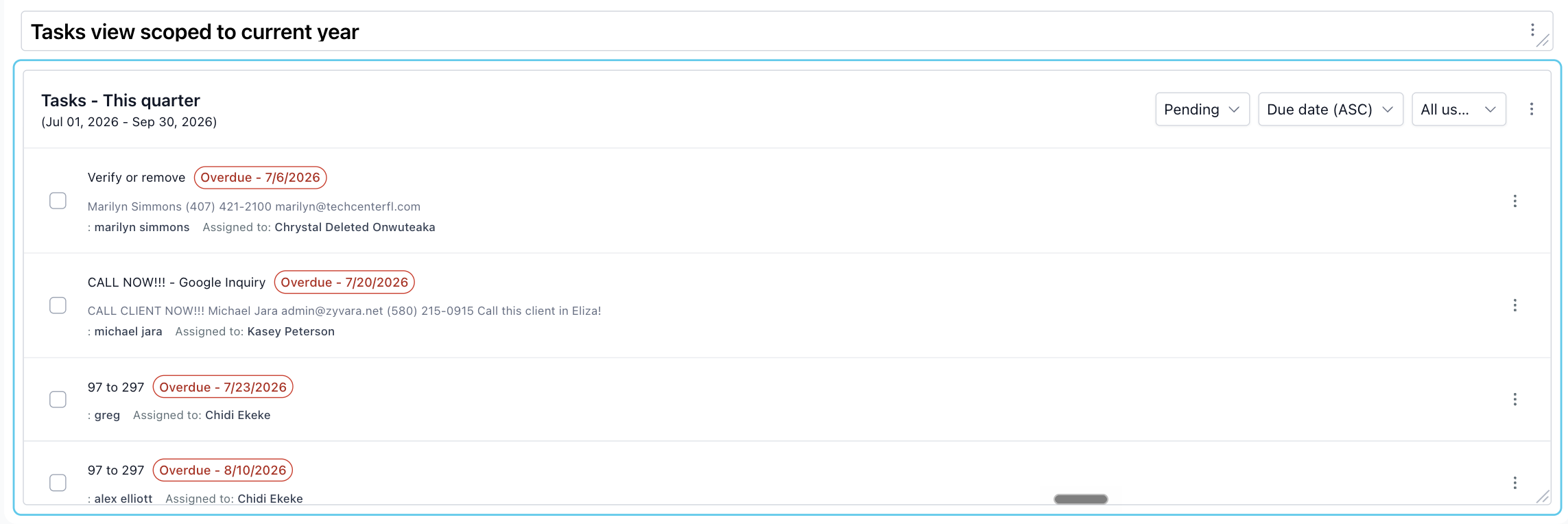
For example, set Tasks to "This quarter" and it will always show this quarter's tasks, even if someone changes the dashboard date filter to "Last year."
Once configured, the active date range is shown directly on the widget face — for example "(Jul 01, 2026 - Sep 30, 2026)" — so viewers always know what time period they are looking at.
Conditions tab — permanent data filters
Conditions let you permanently filter what data a widget shows. Unlike the runtime user preference filters on the widget face (pipeline), conditions are saved — they persist every time the dashboard is opened.
Available condition fields:
- Assigned user
- Followers
- Tags
- Primary contact name
- Lead value
- Custom fields
- Source
- Attribution
How conditions work:
- Select a field → select an operator (Is / Is not) → select or enter a value
- Add multiple conditions using AND logic
- Click Save — the conditions are permanently applied to that widget
Note:
1. Fields like Pipeline if available as a runtime filter on the widget face and is not included in Conditions. Conditions are for data-level filters that go beyond what the runtime filters support.
2. The condition fields will vary based on the general widgets and the module it belongs to (Opportunities, Email, Google Analytics, and so.)
Themes tab
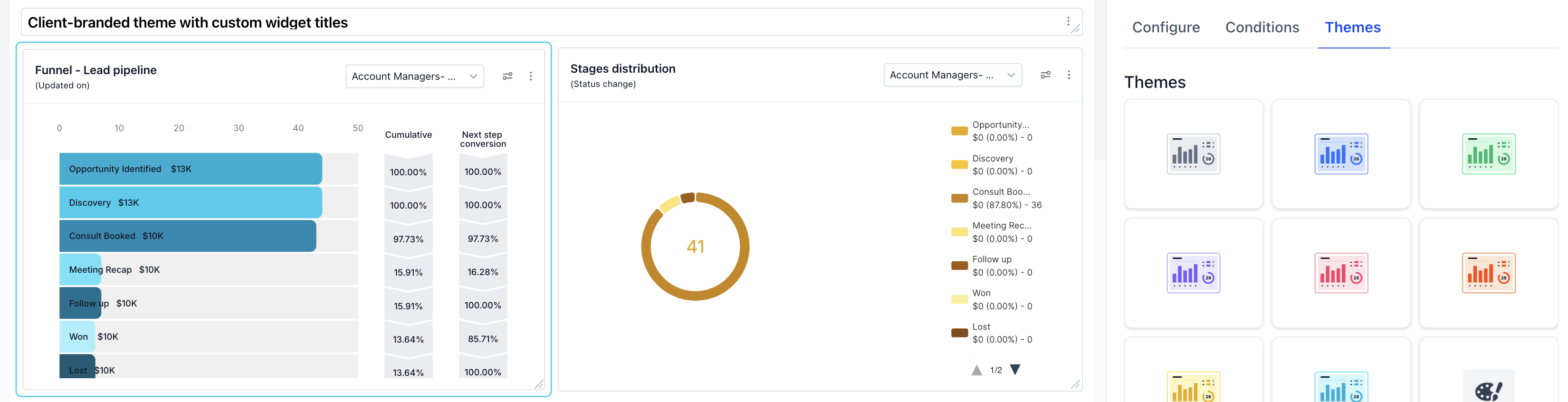
Apply any visual theme to your general widgets. This works the same way as themes on custom widgets. Useful for client-branded dashboards where you want a consistent visual style across all widgets.
Use cases — what you can build with this
Client-branded general widgets
The problem: The default widget names like "Opportunity Status" and "Funnel" are internal product terms that mean nothing to your client.
The solution: Edit each widget and rename it to client-friendly language — "Your Lead Pipeline," "Sales Funnel — Account Managers," "Lead Sources This Year." Apply a theme that matches the client's branding. Duplicate and configure widgets per pipeline or segment. The result is a dashboard that feels built for the client, not generic.
Personal performance dashboard for your team
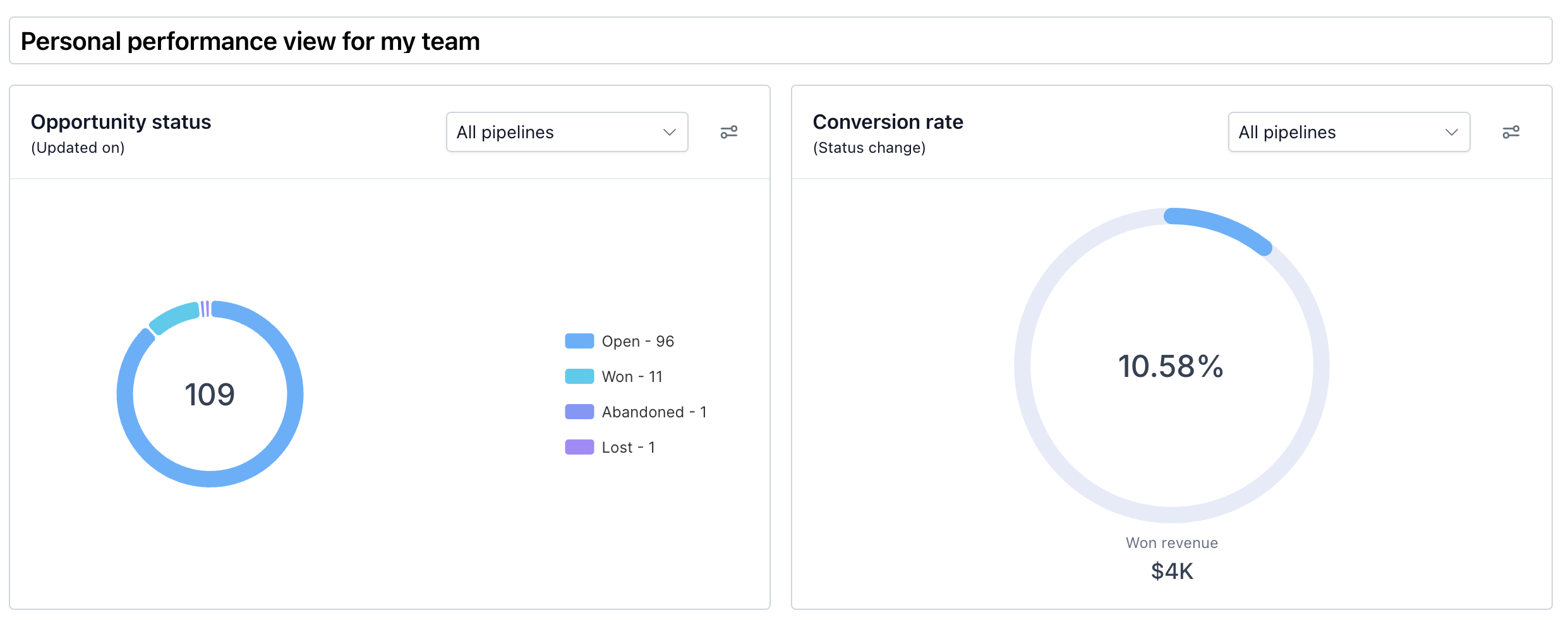
The problem: Every team member opens the same dashboard and sees data for all users — 600K+ opportunities — which is meaningless for an individual sales rep.
The solution: Edit Opportunity Status, Conversion Rate widgets. In Conditions, set Assigned user = Logged in user or select specific set of users per team. Now every team member / respective team who opens the dashboard automatically sees only their own data. One dashboard. Zero manual filtering. The manager can remove the condition to see everyone.
Year-over-year business health check
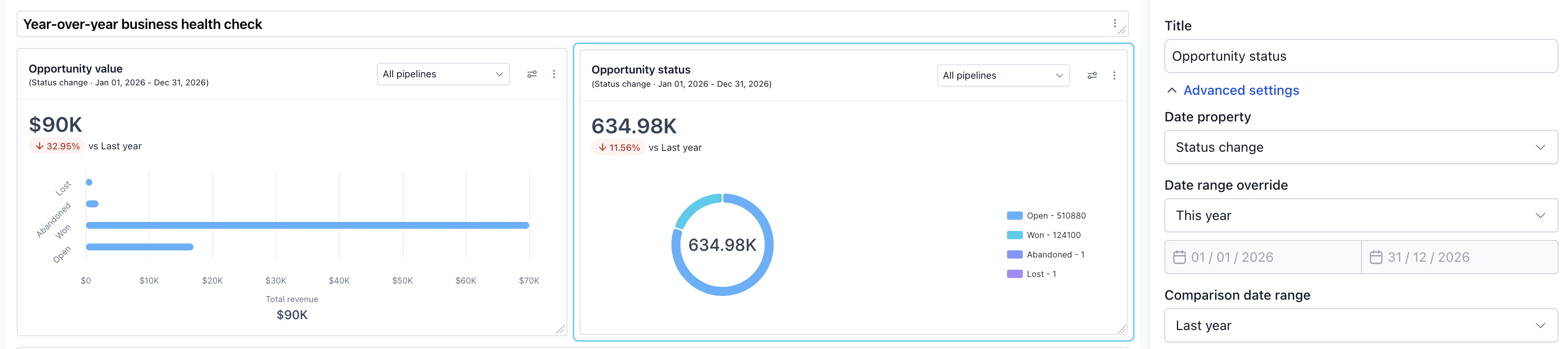
The problem: You want to show a client how this year compares to last year without asking them to change any filters every time they open the dashboard.
The solution: Edit Opportunity Value and Opportunity Status. Set date range override = This year (Jan 01, 2026 – Dec 31, 2026). Enable comparison = vs Last year. Both widgets now permanently show current year performance with the delta vs last year — "↓ 32.95% vs Last year" — visible at a glance every session.
Custom field based segment view
The problem: You manage a property business with different room types. 'Property Type' is a custom field in your opportunity. You want to track sales efficiency per room type on the same dashboard without building separate dashboards.
The solution: "Sales Efficiency — Single & Double Occupancy Rooms" and "Sales Efficiency — Apartment & Villa." Add a custom field condition to each to scope it to the respective segment. Both widgets now sit side by side showing segment-specific sales duration, total sale value, and sales velocity.

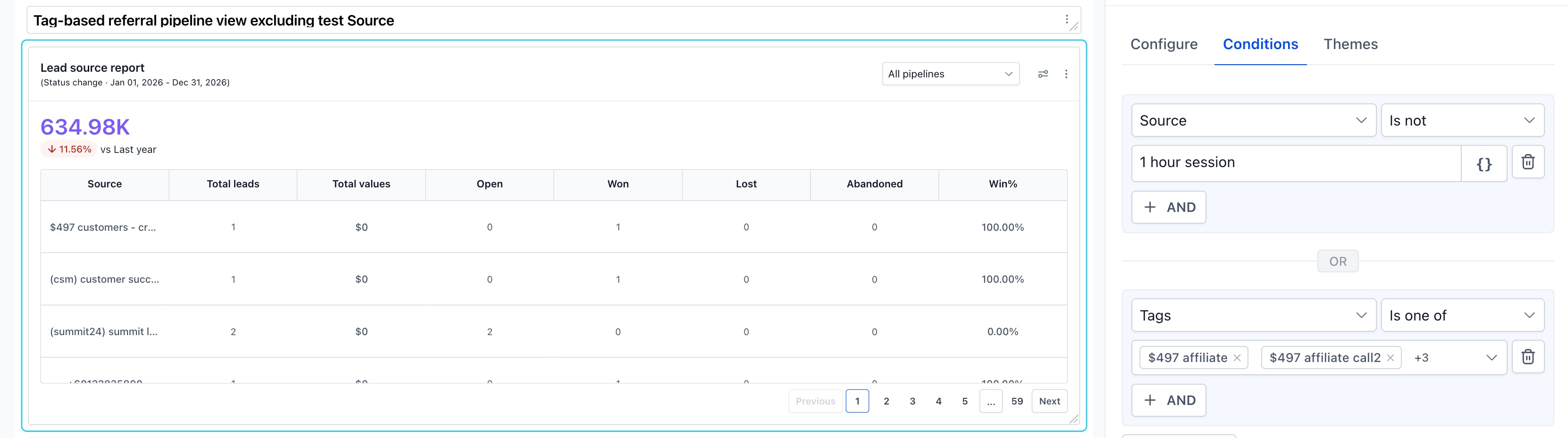
Source-based lead tracking
The problem: Lead Source Report shows 59 pages of sources — including test entries, internal traffic, and junk data — making it hard to find signal in the noise.
The solution: Edit Lead Source Report. In Conditions, set Source Is not "Internal Test Source" to permanently exclude it. Or set Source Is "Facebook Campaign" to permanently show only that campaign's leads — Total leads, Won, Lost, Win% — for a clean client-facing report.
Tag-based referral pipeline view
The problem: You track referral leads with a tag but have no way to see referral pipeline performance on the dashboard without manually filtering every session.
The solution: Edit Opportunity Status. In Conditions, set Tags = "Referral." Widget now permanently shows only referred opportunities. Duplicate it and set Tags = "Paid" for a side-by-side comparison of referral vs paid pipeline on the same dashboard.
Tasks scoped to current quarter
The problem: The Tasks widget shows all pending tasks regardless of date — making it hard to focus on what's relevant right now.
The solution: Edit Tasks. Set date range override = This quarter. Rename the widget to "Tasks — This Quarter." The widget now permanently shows only tasks for the current quarter, sorted by due date.
Frequently asked questions
- Can I still use the runtime filters (pipeline, date) on the widget after configuring conditions? Yes. Runtime filters on the widget face continue to work as before. Conditions are a separate, permanent data layer. Both work independently.
- Does editing a widget affect other dashboards? No. Widget edits are scoped to the dashboard they are on. Editing a widget on one dashboard does not affect the same widget type on another dashboard.
- Can I undo an edit? Yes. Open Edit on the widget, remove the condition or change the setting, and save. The widget reverts to its new saved state.
- Why can't I filter by pipeline in Conditions? Pipeline is available as a runtime filter directly on the widget face (the dropdown at the top right of the widget). It is not included in Conditions because it already has a dedicated runtime control.
- Do general widgets respond to dashboard-level Quick Filters? No. General widgets do not currently respond to dashboard Quick Filters.