
Change an Agency Owner Email When Verification Fails
Learn when an ownership-transfer fallback is appropriate, how to create an eligible replacement Agency Admin, how to transfer the Agency Owner role, and when to contact Chat To Clients CRM Support for account-access assistance.
Do not create a replacement user simply because the current email address cannot receive verification messages. If the existing Agency Owner can verify the login-email change through another available method, such as SMS or an Authenticator App, use the standard email-change process instead.
2. Key Benefits of the Agency Owner Email Change Fallback Process
3. When to Use This Process
4. Before You Begin
5. Requirements for the Replacement User
6. When to Contact Chat To Clients CRM Support
7. How To Change an Agency Owner Email When Verification Fails
8. Frequently Asked Questions
9. Related Articles
What Is the Agency Owner Email Change Fallback Process?
The Agency Owner email change fallback process provides an alternate way to establish the correct Agency Owner login when the standard verified email-change workflow cannot be completed. Instead of modifying the existing user profile, you create another Agency-level Admin using the preferred email address and transfer Agency Ownership to that user.
Chat To Clients CRM's standard login-email change process can use available verified authentication methods, including email, SMS, or an Authenticator App. If one of those methods lets the current Agency Owner complete the email update successfully, a replacement profile is not necessary.
Use the ownership-transfer workflow only when the standard email change still cannot be completed, account-access issues prevent the normal process, or Chat To Clients CRM Support directs you to use the replacement-user method.
Key Benefits of the Agency Owner Email Change Fallback Process
Using a replacement Agency Admin provides a controlled alternative when the current Agency Owner profile cannot complete the normal login-email update. The existing Owner remains in control until the replacement account is ready and ownership is intentionally transferred.
- Preserves Agency Access: Keep the existing Agency Owner active until the ownership transfer is complete.
- Corrects Login Credentials: Move Agency Ownership to a user profile that contains the correct and accessible email address.
- Supports Credential Validation: Test the replacement user's credentials before transferring ownership to reduce the risk of another access issue.
- Maintains Controlled Ownership Transfer: Transfer ownership to an eligible Agency Admin through the documented Agency Owner controls.
- Provides a Support Path: Escalate login or verification problems to Chat To Clients CRM Support when the self-service process cannot be completed.
When to Use This Process
Choosing the standard email-change workflow whenever possible avoids unnecessary user creation and role changes. The replacement-user method is intended for situations where verified login-email changes remain blocked.
Use this fallback workflow when:
- The Agency Owner cannot complete the standard verified login-email change using the available authentication methods.
- The current login email is incorrect or inaccessible and another verification method does not resolve the email-change issue.
- Account-access or verification problems prevent the normal email update from being completed.
- Chat To Clients CRM Support directs you to create another Agency Admin and transfer Agency Ownership.
Use the standard process first: If the existing Agency Owner can verify the login-email change through email, SMS, an Authenticator App, or another available verified method, update the existing profile instead of creating a replacement user.
Important: The Agency Owner login email belongs to the individual user profile used to sign in. It is different from the company email configured under Agency Company Settings.
Before You Begin
Maintaining access to the current Agency Owner is essential because the ownership transfer must be initiated from the current Owner profile. Verify access, the replacement email, and the new user's role before starting the transfer.
- Confirm that you can access the current Agency Owner account.
- Confirm that the preferred replacement email address is correct and accessible.
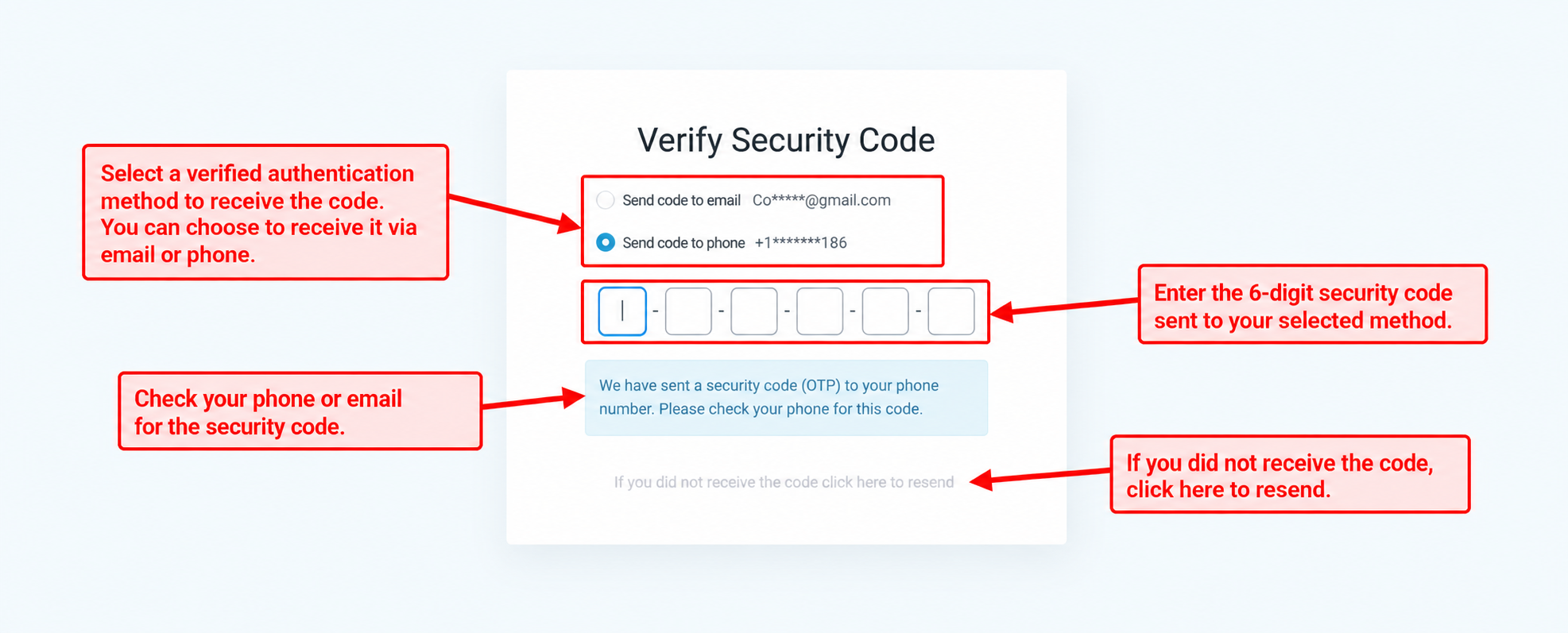
- Use an available verified authentication method when Chat To Clients CRM requests identity verification.
- Prepare the replacement user as an Agency-level Admin.
- Contact Chat To Clients CRM Support before continuing if you cannot access the current Agency Owner account or complete required verification.
Requirements for the Replacement User
Agency Ownership can only be transferred to an eligible Agency Admin. Creating the replacement user with the correct user type and role ensures that the user can be selected during the ownership-transfer process.
Configure the replacement profile with:
- The Agency Owner's correct name.
- The correct or preferred login email.
- A valid phone number when applicable.
- User Type: Agency
- Role: Admin
Recommended Credential Check
Before transferring ownership, it is a good practice to sign in to the replacement profile and confirm that its credentials and verification methods work. This reduces the risk of transferring ownership to a user who cannot successfully access the agency.
When to Contact Chat To Clients CRM Support
Login and verification problems can prevent the current Agency Owner from completing either the standard email update or the ownership-transfer fallback. Escalate the issue before changing roles when secure access to the current Owner profile cannot be maintained.
Contact Chat To Clients CRM Support when:
- You cannot sign in to the current Agency Owner profile.
- You cannot receive or complete the required verification method.
- The available authentication methods continue to fail.
- The Transfer Owner control is unavailable.
- The expected replacement Agency Admin does not appear as an ownership-transfer option after the user has been configured correctly.
If you can access Chat To Clients CRM, use the Support options available from the Help menu. If you cannot log in, use the external contact options documented in 24/7 Customer Support Options .
How To Change an Agency Owner Email When Verification Fails
Create the replacement Agency Admin before changing ownership, verify that the replacement credentials are usable, and then return to the current Agency Owner profile to complete the transfer. Keeping the current Owner active until the final transfer helps preserve continuous agency access.
Step 1: Sign In to the Current Agency Owner Account
Start from the current Agency Owner profile because only the current Owner can complete the final ownership transfer.
- Go to the Chat To Clients CRM login page.
- Enter the current Agency Owner login email.
- Enter the current password.
- Complete verification using an available verified authentication method.
- Open Agency View.
Cannot access the current Owner? Contact Chat To Clients CRM Support before continuing. Do not attempt to work around an inaccessible Agency Owner account by changing other users or permissions.
Step 2: Create the Replacement Agency Admin
The ownership target must be an Agency-level Admin. Configure the replacement user with the preferred login email before starting the ownership transfer.
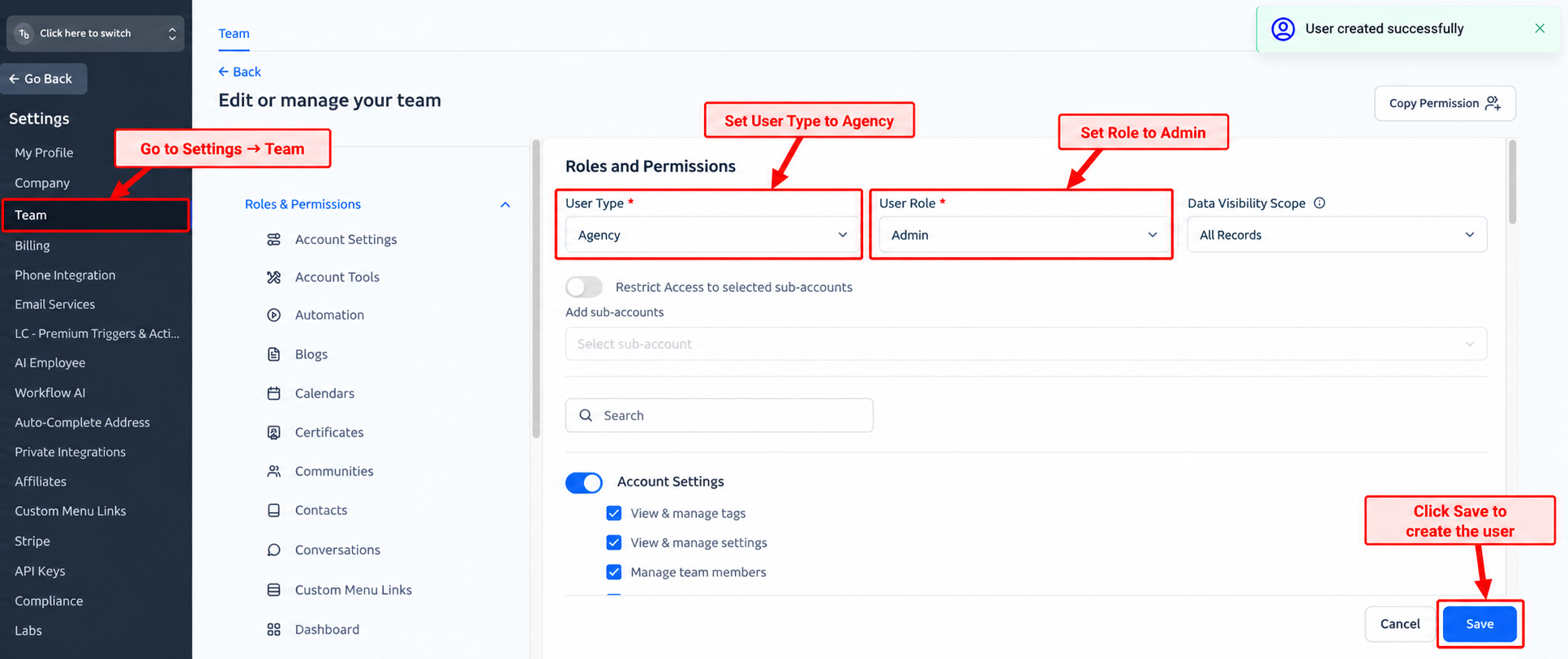
- From Agency View, go to Settings → Team.
- Click + Add User.
- Enter the Agency Owner's name.
- Enter the correct or preferred login email.
- Complete the other required user information.
- Under the user's roles and permissions, set User Type to Agency.
- Set the user's Role to Admin.
- Save the new user.
Step 3: Validate the Replacement User
Testing the replacement credentials before transferring ownership helps confirm that the preferred email and authentication setup work correctly.
- Log out of the current Agency Owner profile.
- Sign in using the newly created Agency Admin's email and credentials.
- Complete any required authentication or verification.
- Confirm that the replacement user can successfully access Chat To Clients CRM.
- Log out of the replacement profile.
Recommended: Testing the replacement login is a precaution that confirms the new credentials work before Agency Ownership is moved to that profile.
Step 4: Transfer Agency Ownership
Return to the current Agency Owner profile to transfer the Agency Owner role to the replacement Agency Admin. An agency can have only one Agency Owner at a time.
- Sign back in using the current Agency Owner profile.
- Complete the required verification.
- Go to Agency View → Settings → Team.
- Edit the current Agency Owner.
- Open User Roles.
- Select Transfer Owner.
- Choose the replacement Agency Admin.
- Confirm the ownership transfer.
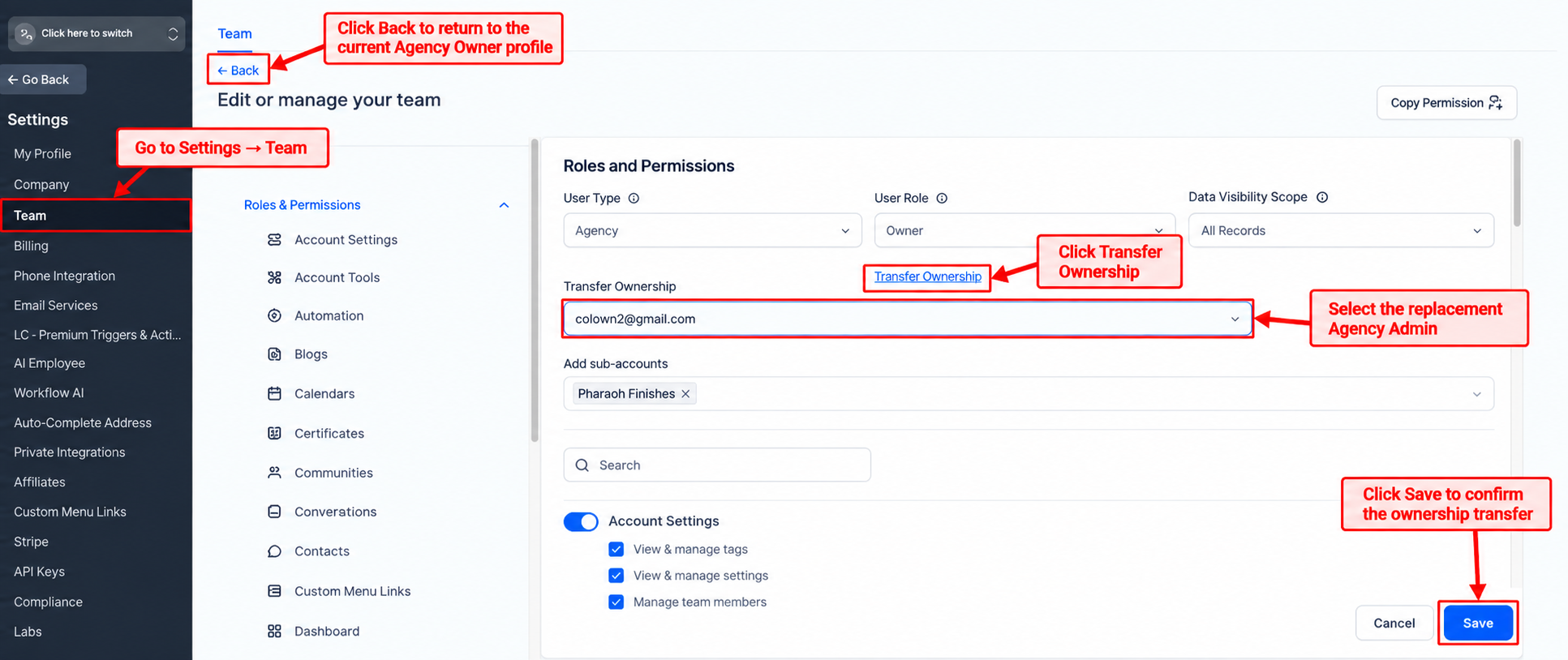
After the transfer: The selected Agency Admin becomes the Agency Owner. The previous Agency Owner automatically becomes an Agency Admin.
Step 5: Verify the New Agency Owner
A final login confirms that the replacement account has the expected Agency Owner access and that the preferred login email is working correctly.
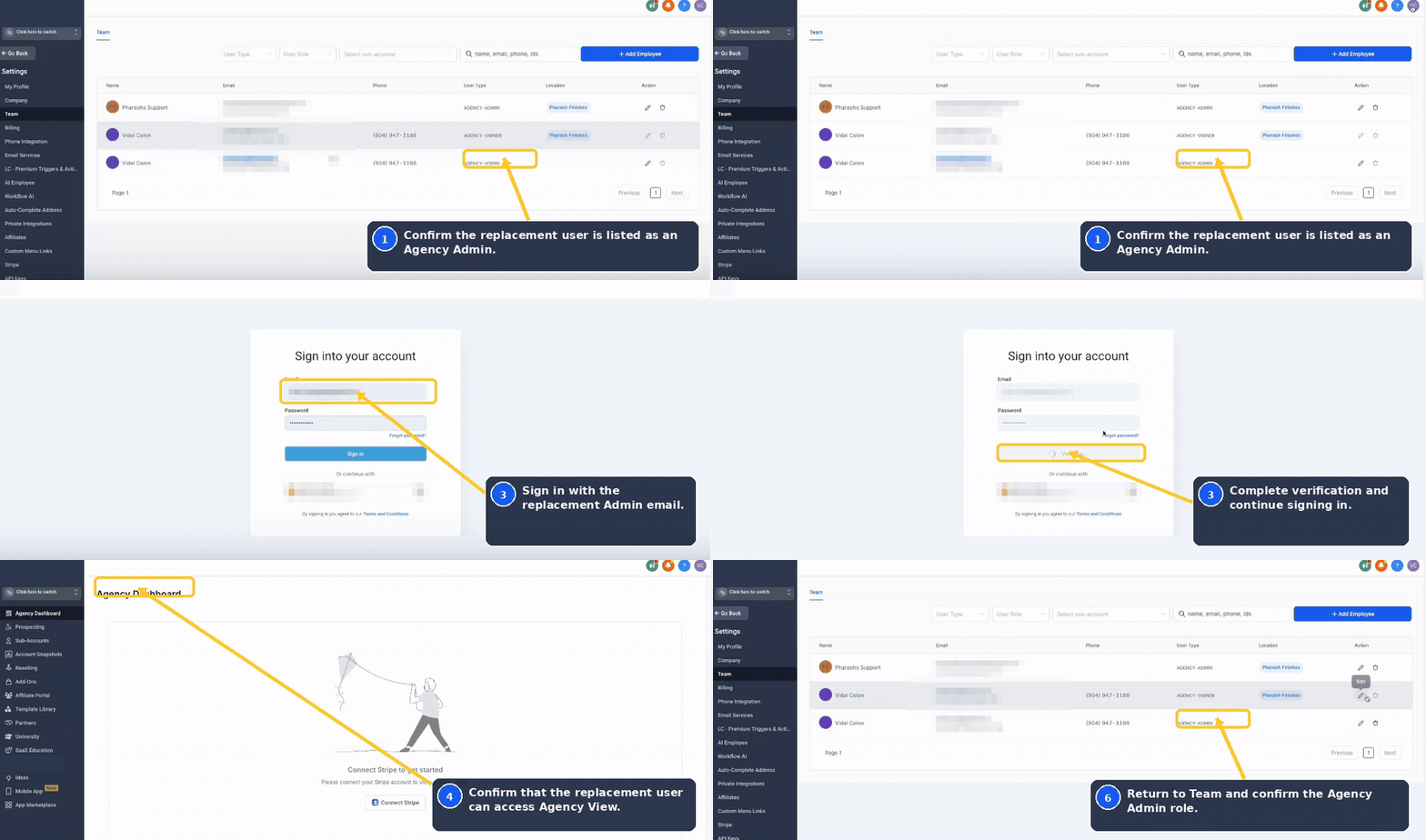
- Log out of the previous Agency Owner profile.
- Sign in using the new Agency Owner email and credentials.
- Open Agency View.
- Go to Settings → Team.
- Confirm that the replacement user is identified as the Agency Owner.
Frequently Asked Questions
Related Articles
- User Access in Chat To Clients CRM | Agency & Sub-Accounts
- Understanding the Agency Owner Role in Your Agency Account
- Manage Agency User Roles and Permissions in Chat To Clients CRM
- Troubleshooting Login Issues
- Authenticator App Support for Two-Factor Authentication (2FA)
- 24/7 Customer Support Options