
How to Use AI Employee Suggestive Mode in the Mobile App
AI Employee Suggestive Mode gives your team a ready-to-send AI reply for eligible incoming messages directly in the Chat To Clients CRM mobile app. Instead of choosing from multiple short suggestions, agents can review one suggested response, send it immediately, or edit it before replying. This creates a faster mobile workflow while keeping a human in control of every message.
TABLE OF CONTENTS
- What is AI Employee Suggestive Mode in the Mobile App?
- Key Benefits of AI Employee Suggestive Mode
- AI Suggested Reply Actions
- Send an AI Suggested Reply
- Edit an AI Suggested Reply
- Dismiss and Restore an AI Suggestion
- AI Suggestion Updates and Draft Preservation
- Eligibility and Availability for Mobile AI Suggested Replies
- Managing Conversation AI Settings on Web and Mobile
- Suggestion ID and Troubleshooting
- How To Setup AI Employee Suggestive Mode for Mobile
- Frequently Asked Questions
- Related Articles
What is AI Employee Suggestive Mode in the Mobile App?
AI Employee Suggestive Mode uses Conversation AI to draft a response to an eligible incoming message without sending that response automatically. Your team reviews the AI Suggested Reply and decides whether to send it as written, edit it first, or dismiss it. Core Conversation AI configuration and mode selection are managed from the web, while the mobile app provides the tools needed to work with suggestions during conversations.
When Suggestive Mode is active, the mobile experience displays one clear AI Suggested Reply above the message composer. This brings the mobile workflow in line with the Suggestive Mode experience on the web while reducing the number of decisions required to reply to a contact.
Key Benefits of AI Employee Suggestive Mode
Suggestive Mode combines AI-generated responses with human review, helping teams respond efficiently without giving up control over what is ultimately sent to a contact.
Faster responses: Review one ready-to-send suggestion instead of choosing between multiple short reply options.
Human oversight: AI drafts the response, while an agent decides whether to edit or send it.
Simpler mobile workflow: Send, edit, dismiss, and restore suggestions directly from the conversation.
Draft protection: Continue working on an existing draft even when a new inbound message generates an updated suggestion.
Consistent web and mobile experience: Use the same Suggestive Mode approach while working away from your desktop.
Easier troubleshooting: Use the Suggestion ID when additional information is needed for support.
AI Suggested Reply Actions
AI Suggested Reply actions let agents decide how much of the AI-generated response they want to use. A suggestion can be sent immediately, customized before sending, temporarily hidden, or restored without leaving the conversation.
Send an AI Suggested Reply
Sending a suggestion as written is useful when the generated response already matches what you want to communicate.
Open Conversations in the Chat To Clients CRM mobile app.
Select a conversation with an eligible new inbound message.
Review the AI Suggested Reply displayed above the composer.
Tap Send to deliver the response as written.
Edit an AI Suggested Reply
Editing gives agents the speed of an AI-generated draft while allowing them to personalize wording, add context, or make other changes before the message reaches the contact.
Review the AI Suggested Reply.
Tap Edit.
The suggested response loads into the message composer.
Make the required changes.
Send the edited message when ready.
While editing, you can restore the original AI suggestion if you want to undo your changes and return to the response initially generated by AI.
Dismiss and Restore an AI Suggestion
Dismissing a suggestion temporarily clears it from view without preventing you from accessing it again. This is helpful when you want more room to compose your own response but may still want to reference the AI-generated reply.
After dismissing the suggestion, tap Show AI suggestion to display it again.
AI Suggestion Updates and Draft Preservation
Incoming conversations can change while an agent is already preparing a response. Suggestive Mode keeps the newest AI-generated suggestion available while protecting text the agent has already entered into the composer.
When a new eligible inbound message results in a new AI reply, the suggestion updates to reflect the latest conversation. If you already have an unsent draft in the composer, Chat To Clients CRM keeps that draft safe rather than replacing it with the new AI suggestion.
This allows you to choose whether to continue with your existing response or review the latest AI suggestion based on the newest contact message.
Eligibility and Availability for Mobile AI Suggested Replies
Suggestion eligibility depends on both the mobile conversation and the underlying Conversation AI configuration. Confirming these requirements helps explain why an AI Suggested Reply may appear in one conversation but not another.
To use AI Suggested Replies on mobile:
AI Employee must be using Suggestive Mode.
Conversation AI must be configured and active.
The relevant messaging channel or provider must be enabled for the bot.
The conversation must be eligible for Conversation AI.
The bot must not be in sleep or paused mode for the conversation.
The mobile app must be updated to a supported version.
Conversation AI bots can be deployed to supported channels and connected destinations through their deployment settings. Current Conversation AI channel management supports channels including SMS, Email, Facebook, Instagram, WhatsApp, Live Chat, and Chat Widget, although individual feature availability can vary by channel.
For this mobile Suggested Reply release specifically:
Email suggestions are not available.
Group chats are not supported.
Internal chats are not supported.
Conversation AI must be enabled for the active channel or provider.
Suggestions do not appear while the bot is sleeping.
Important: General Conversation AI support for a channel does not necessarily mean that AI Suggested Replies are available for that channel in the mobile app.
Managing Conversation AI Settings on Web and Mobile
Conversation AI configuration is divided between the web application and mobile conversations. Understanding where settings are managed helps teams avoid searching for configuration controls that are not available from mobile.
Core configuration—including creating a bot, selecting its response mode, training it, and configuring advanced behavior—is managed from the web application. Chat To Clients CRM's current Conversation AI setup flow is available under AI Agents > Conversation AI.
The mobile app is designed primarily for working with Conversation AI inside active conversations. Existing Chat To Clients CRM mobile controls also allow users to manage bot activity for individual conversations, while core setup remains on the web.
For more detailed bot configuration, see How to Set Up a Conversation AI Bot.
Suggestion ID and Troubleshooting
A Suggestion ID helps identify a specific AI-generated response when troubleshooting unexpected behavior. Providing the identifier to support can make it easier to investigate the exact suggestion involved rather than relying only on screenshots or message text.
The Suggestion ID is available from the suggestion's information sheet in the mobile app.
When reporting an issue involving an AI Suggested Reply, capture the Suggestion ID along with relevant details about the conversation and the behavior you observed.
If suggestions are not appearing, verify that:
The bot is configured in Suggestive Mode.
Conversation AI is active.
The relevant channel or provider is assigned to the bot.
The bot is not sleeping or paused for that conversation.
The conversation is not a group chat or internal chat.
You are not attempting to use an Email suggestion in this release.
Your mobile application is updated to a supported version.
Channel assignments determine where a Conversation AI bot can respond, and contact-level bot status can control whether the bot is active for an individual conversation.
How To Setup AI Employee Suggestive Mode for Mobile
Proper setup ensures AI Employee can generate suggestions for the conversations and channels your team handles. Configure the bot and its deployment settings on the web first, then use the mobile app to review and send Suggested Replies.
On the Chat To Clients CRM web application, go to AI Agents > Conversation AI.
Create a Conversation AI bot or open an existing bot.
Configure the bot for your business needs.
Set the bot's response mode to Suggestive Mode. Chat To Clients CRM's Conversation AI setup supports Suggestive Mode as a response option for bots.
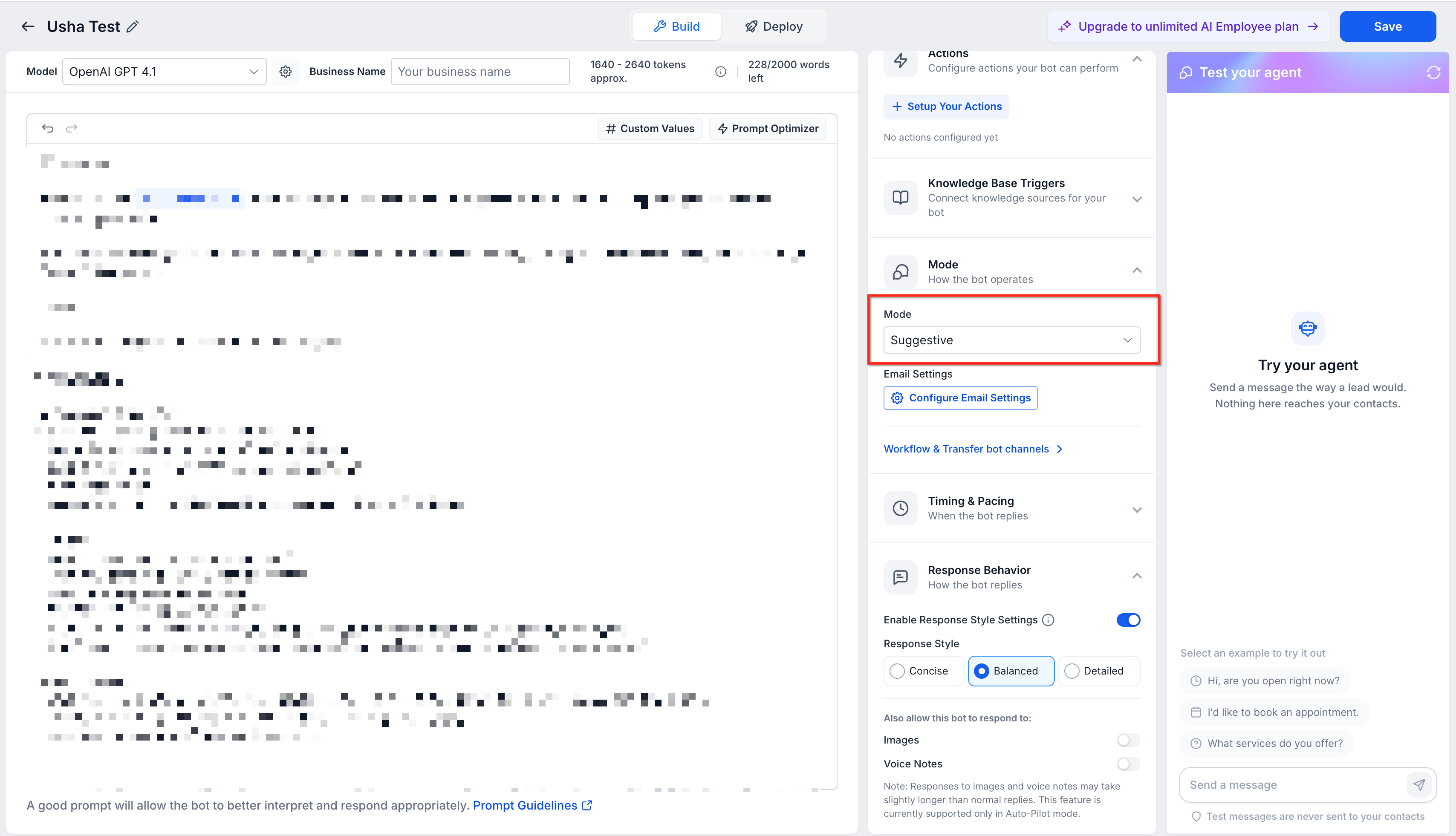
Configure the bot's deployment so the appropriate supported channels and destinations are assigned.
Save your Conversation AI configuration.
Open the mobile app and go to Conversations.
Open a conversation when an eligible inbound message arrives.
Review the AI Suggested Reply displayed above the composer.
Choose the appropriate action:
Tap Send to send the response as written.
Tap Edit to modify the suggestion before sending.
Dismiss the suggestion if you do not want to use it immediately.
Tap Show AI suggestion to restore a dismissed suggestion.
Frequently Asked Questions
Q: Why don't I see an AI Suggested Reply in a mobile conversation?
A: Confirm that the Conversation AI bot is using Suggestive Mode, the relevant channel or provider is enabled, the bot is active for the conversation, and the message is eligible. Suggestions also will not appear for Email, group chats, or internal chats in this release.
Q: Can I recover an AI suggestion after dismissing it?
A: Yes. Tap Show AI suggestion to display the dismissed suggestion again.
Q: What happens if a new message arrives while I am writing my own reply?
A: Your existing draft remains safe in the composer. If a new AI suggestion is generated from the latest inbound message, you can review it without losing the draft you were already writing.
Q: Can I restore the original AI response after editing it?
A: Yes. While editing an AI suggestion, you can restore the original suggestion with the available restore action.
Q: Are AI Suggested Replies available for Email on mobile?
A: No. Email suggestions are not available in this mobile release, even though Email can be supported by Conversation AI in other contexts.
Q: Can I configure Suggestive Mode completely from the mobile app?
A: No. Core Conversation AI setup, mode selection, bot training, and advanced configuration are managed from the web application. Mobile is used primarily to interact with Conversation AI inside conversations and manage supported conversation-level controls.
Q: What should I provide to support if an AI suggestion behaves unexpectedly?
A: Open the suggestion information sheet and locate the Suggestion ID. Provide that identifier along with details about the conversation and the behavior you experienced.
Q: Does pausing or putting the bot to sleep affect AI Suggested Replies?
A: Yes. Suggestions do not appear while the bot is inactive for the conversation. Chat To Clients CRM supports managing Conversation AI status for individual contacts when the bot is operating in Suggestive or Auto-Pilot mode.