
Expanded Custom Field Types for Opportunities in Chat To Clients CRM
Expanded custom field types are now supported for Opportunities in Chat To Clients CRM, giving teams more flexibility to capture and manage deal-specific information. Store proposal URLs, contract dates, formatted deal summaries, team assignments, and visual service selections directly on opportunity records. These fields also support Opportunity List View columns and Advanced Filters, making deal information easier to organize and access.
This update is available for Contacts earlier, now its available in oppurtunities.TABLE OF CONTENTS
- What Are Expanded Custom Field Types?
- Key Benefits of Expanded Custom Fields for Opportunities and Contacts
- Supported Custom Field Types and Configuration Options
- Mobile and Snapshot Support
- How to Set Up Expanded Custom Fields for Opportunities
- How To Set Up Expanded Custom Fields
- Display and Filter Custom Fields in Opportunity List View
- Frequently Asked Questions
- Related Articles
What Are Expanded Custom Field Types?
Expanded custom fields provide additional options for collecting, validating, and displaying information in Chat To Clients CRM. Previously available for Contacts, these capabilities now extend to Opportunities, allowing you to manage important deal information without relying on contact fields or unstructured notes.
The expanded field types include URL, Date & Time, Rich Text, User, and visual Checkbox and Radio Select options.
Key Benefits of Expanded Custom Fields for Opportunities and Contacts
Expanded custom fields help teams maintain accurate information, collaborate on deals, and quickly identify important opportunity details.
Centralized Deal Information: Store proposal links, contract dates, and deal summaries directly on opportunities.
Better Team Collaboration: Associate multiple team members with deals using User fields.
Flexible Formatting: Organize detailed deal information using Rich Text.
Visual Selections: Use images and icons to identify services, priorities, and categories.
Improved Pipeline Visibility: Display custom fields in List View and use Advanced Filters.
More structured URL collection: Capture website addresses, profile URLs, resource links, and other URLs using a dedicated field with domain controls.
Greater control over dates and times: Choose whether a field captures a date and time, date only, or time only, and control which dates can be selected.
Improved team collaboration: Use Users fields to associate one or multiple team members with a record and provide selected users with follower-level access.
More recognizable radio choices: Add images or icons to radio button options when users need to select a single choice.
Mobile Field Updates: View and edit supported custom fields directly on contact and opportunity records in the mobile app.
Supported Custom Field Types and Configuration Options
Each expanded field type offers different configuration options to help capture information in the most appropriate format. Selecting the right field type improves consistency and makes opportunity details easier to review.
| Field Type | Configuration Options | Opportunity Use Case |
|---|---|---|
| URL | Allow all domains, allow only specified domains, or block specified domains | Proposal and contract links |
| Date & Time | Date only, time only, or both; past/future dates, date ranges, and weekdays | Contract start dates and project deadlines |
| Rich Text | Text formatting, headings, lists, links, and emojis | Deal summaries and scope notes |
| User | Single-user or multiple-user selection | Sales and implementation teams |
| Checkbox | Text with image; multiple selections | Services included in a deal |
| Radio Select | Text with image or icon; single selection | Deal priority or service package |
Important Configuration Details
URL Validation: URLs that violate domain restrictions are rejected with the message: "This URL isn't allowed. Use an allowed domain."
Date Restrictions: Future Dates Only excludes today. Select Any Date if today's date should be allowed.
Rich Text: Supports bold, italics, underline, strikethrough, colors, highlighting, lists, links, emojis, and headings using
#or##.User Fields: Selected users receive follower-level access without becoming the opportunity owner. The Allow multiple users setting cannot be changed after field creation.
Visual Options: Checkbox fields support images, while Radio Select fields support images or icons.
For additional details about field configuration, mobile editing, and snapshot support, see Expanded Custom Field Types and Configuration Options.
Mobile and Snapshot Support
Expanded custom fields can also support mobile record management and reusable configurations across Chat To Clients CRM locations. This helps teams maintain consistent information when working from different devices or setting up new sub-accounts.
Mobile: Supported expanded fields can be viewed and edited on Contact and Opportunity records in the mobile app. Configured validation rules also apply.
Snapshots: Supported expanded custom fields and configurations, including URL restrictions, date settings, and visual options, can be included in snapshots.
How to Set Up Expanded Custom Fields for Opportunities
Creating custom fields under the Opportunity object ensures information is associated with the correct deal. Configure field restrictions and selection settings before saving, especially for User fields where multiple-user selection cannot be changed later.
Navigate to Settings > Custom Fields.
Select Opportunity and click Create Field.
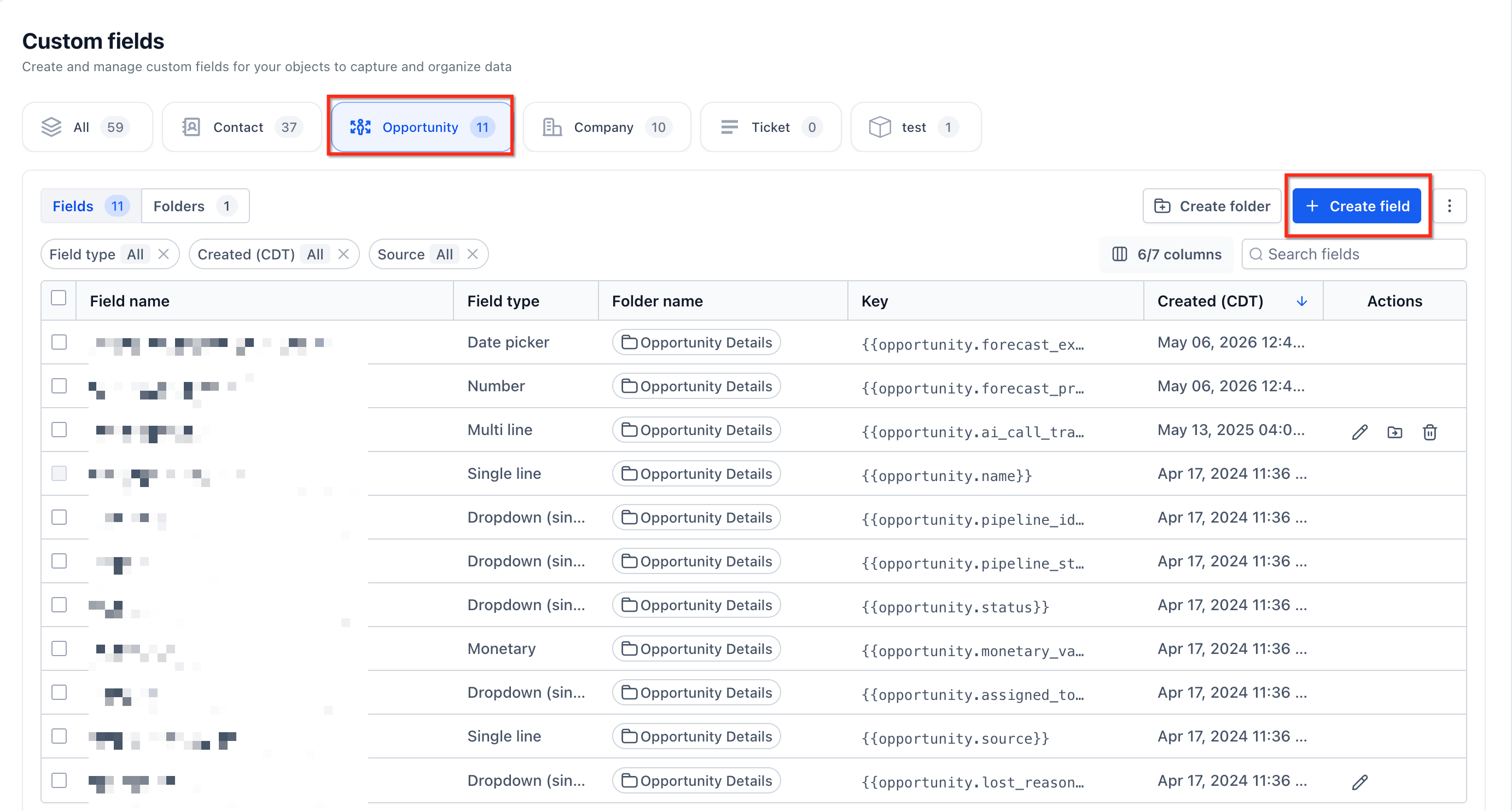
Choose URL, Date & Time, Rich Text, User, Checkbox, or Radio Select.
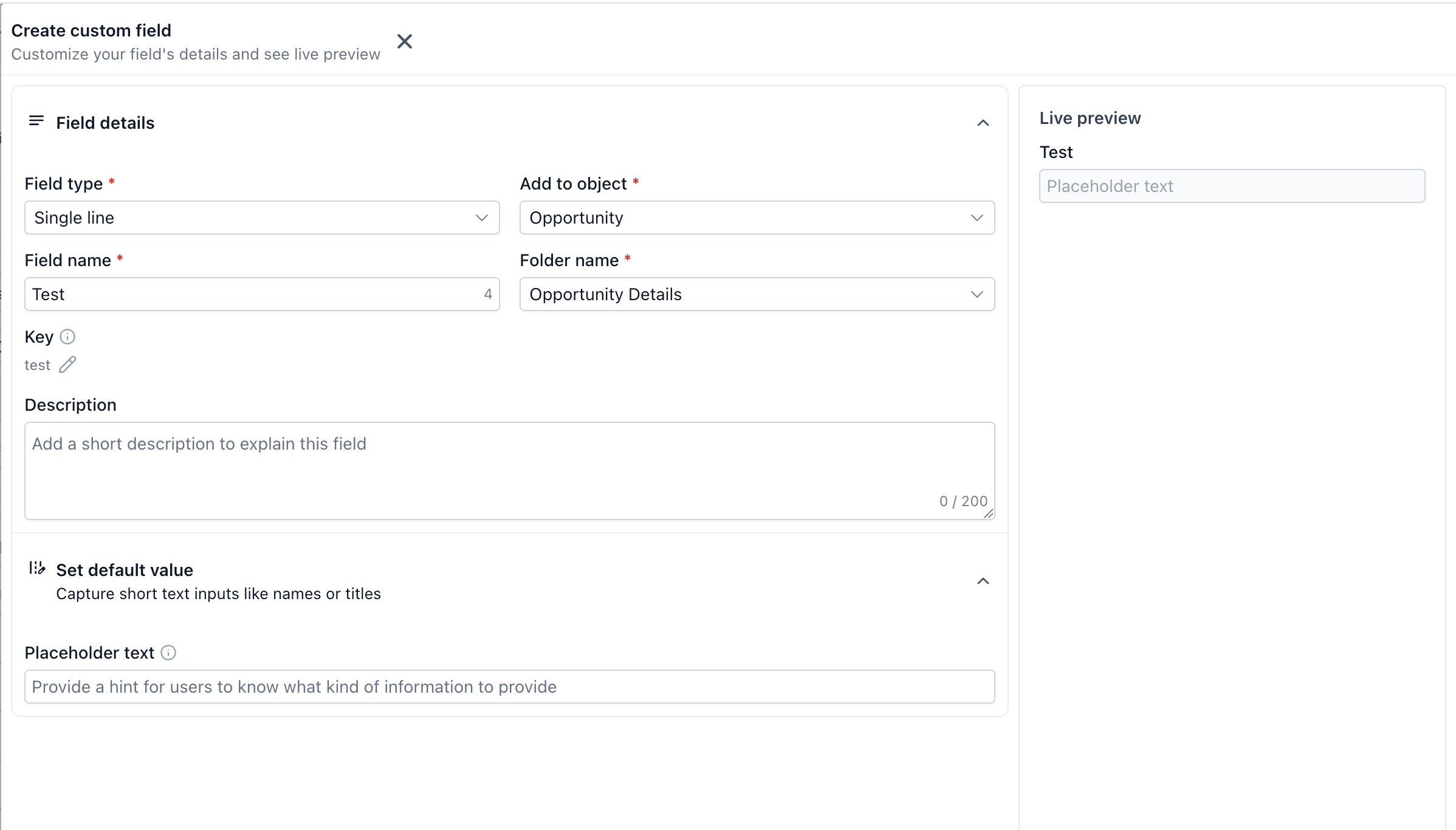
Configure the field name and applicable settings. For visual options, choose Text with image for Checkbox or Text with image / Text with icon for Radio Select.
Choose a folder and click Create custom field.
Navigate to Opportunities, open a deal, and populate the new field in its Fields area.
How To Set Up Expanded Custom Fields
Properly configuring the field type and its available settings helps ensure users capture information in the format your business process requires. Custom fields are managed from the Custom Fields area, where you can select the appropriate object and configure the field based on its intended use.
Go to Settings.
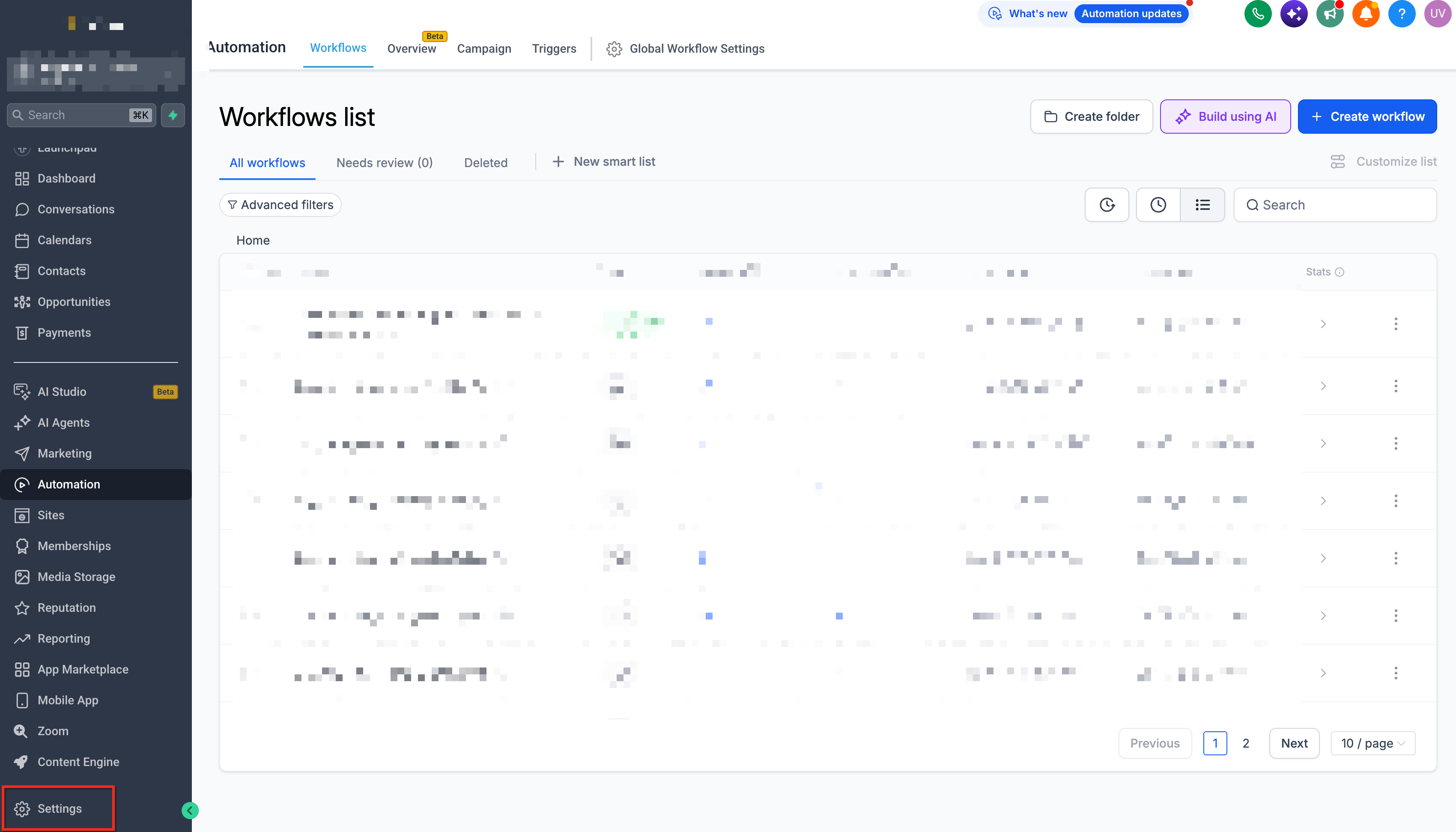
Select Custom Fields.
Select the object where you want to create the custom field.
Click Create Field or the available option to create a new custom field.
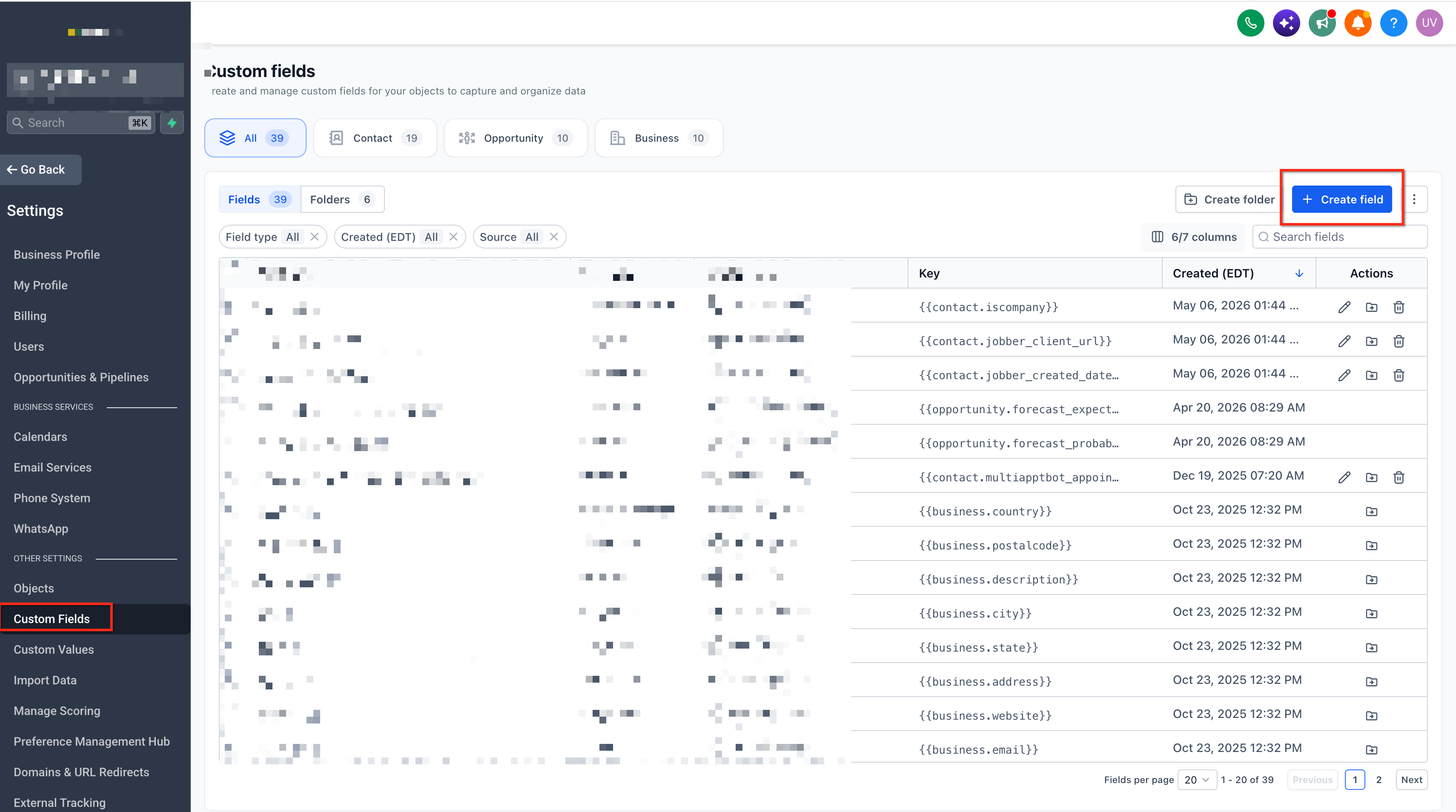
Select the field type appropriate for the information you want to capture.
Configure the field name and other applicable field settings.
Configure any settings specific to the selected field type:
For a URL field, configure the appropriate domain controls.
For a Date and Time field, select the required date/time format and applicable date restrictions.
For a Rich Text field, create the field for content that requires supported text formatting.
For a Users field, configure it based on whether the record should associate the applicable user or users.
For a Checkbox field, add images to applicable individual options when visual choices are needed.
For a Radio field, add images or icons to applicable individual options when visual context is needed.
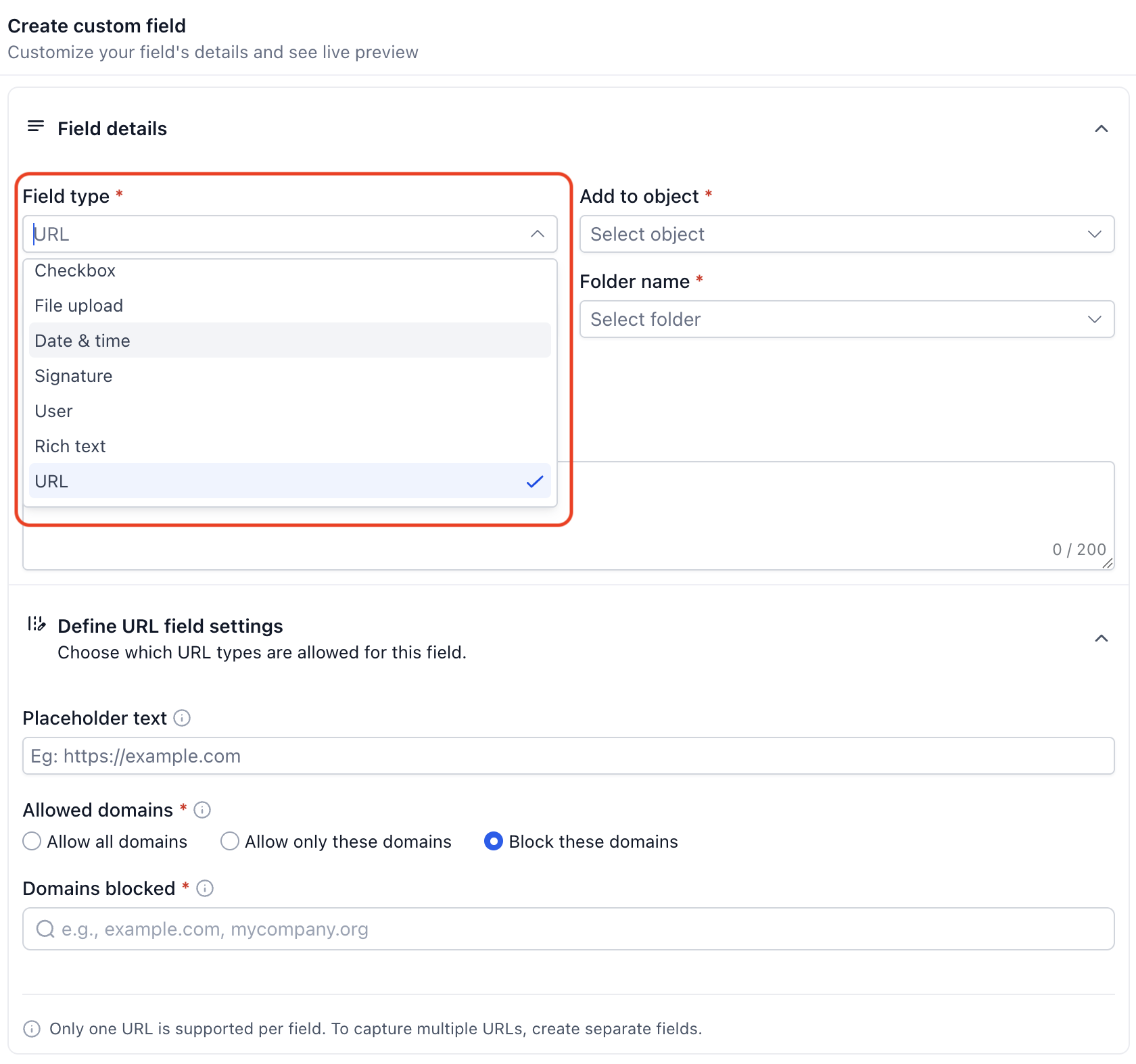
Review the field configuration and available preview.
Save the custom field.
Important: Custom field availability can vary based on the object or area where the field is being used. Confirm that the selected field type is available for the intended object and use case before building a process around it.Display and Filter Custom Fields in Opportunity List View
Expanded custom fields can be added as columns in Opportunity List View and used with Advanced Filters. This makes it easier to review deal information and locate opportunities based on their custom field values.
To display custom fields:
Navigate to Opportunities > List View.
Open Manage Fields.
Select the custom fields you want to display as columns.
To filter opportunities:
Open Advanced Filters in Opportunities.
Select the appropriate custom field.
Choose an available filter condition and value.
Apply the filter to view matching opportunities.
Filter operators vary by field type, and column visibility does not necessarily mean the field supports sorting.
Frequently Asked Questions
Q: Why can't I see the expanded custom field types for Opportunities?
These capabilities are part of the Opportunity-First private beta. Confirm that your location is enabled.
Q: Can I change a User custom field to allow multiple users after creation?
No. Allow multiple users must be enabled before creating the field.
Q: Does adding users through a User custom field change the opportunity owner?
No. Selected users receive follower-level access, but ownership remains separate.
Q: Why can't I select today's date in a Date & Time field?
Future Dates Only excludes today. Use Any Date or a suitable date range if today should be selectable.
Q: Can I use these fields in Opportunity List View and Advanced Filters?
Yes. The expanded field types can be displayed as List View columns and used with Advanced Filters. Available filtering options depend on the field type.
Q: Can I convert an existing Contact custom field into an Opportunity custom field?
No. Custom fields are associated with the object selected during creation. Create a new field under Opportunity to store the information directly on deals.