
Expanded Custom Field Types and Configuration Options in Chat To Clients CRM
Chat To Clients CRM’s expanded custom field options give you more flexibility over how information is collected, structured, and displayed. New field types and configuration controls let you capture URLs with domain rules, dates and times with selectable restrictions, formatted text, and associated users. You can also make checkbox and radio button choices easier to recognize by adding visual elements to individual options.
TABLE OF CONTENTS
- What Are the Expanded Custom Field Types in Chat To Clients CRM?
- Key Benefits of Expanded Custom Fields
- URL Fields and Domain Controls
- Flexible Date and Time Fields
- Rich Text Fields
- Users Fields
- Images for Checkbox Options
- Images and Icons for Radio Button Options
- How To Set Up Expanded Custom Fields
- Frequently Asked Questions
- Related Articles
What Are the Expanded Custom Field Types in Chat To Clients CRM?
Custom fields let you capture information that is specific to your business and records. The expanded field options provide additional controls for collecting structured information while helping users enter data in a format appropriate for its intended purpose.
Key Benefits of Expanded Custom Fields
Expanded custom fields give you more ways to structure information around your business processes. Choosing the appropriate field type can make records easier to understand while providing additional control over what users can enter or select.
More structured URL collection: Capture website addresses, profile URLs, resource links, and other URLs using a dedicated field with domain controls.
Greater control over dates and times: Choose whether a field captures a date and time, date only, or time only, and control which dates can be selected.
Better formatting for detailed information: Use Rich Text fields to organize longer information with formatting such as headings, lists, bold text, and italics.
Improved team collaboration: Use Users fields to associate one or multiple team members with a record and provide selected users with follower-level access.
More visual checkbox choices: Add images to checkbox options when users can select multiple choices.
More recognizable radio choices: Add images or icons to radio button options when users need to select a single choice.
URL Fields and Domain Controls
URL custom fields provide a structured way to capture web addresses instead of storing them in a general text field. Domain controls can help ensure submitted URLs align with your business requirements by determining which domains users are permitted to enter.
URL fields can be useful for information such as:
Company websites
Social profile URLs
Portfolio links
Resource links
Project URLs
Other web addresses associated with a record
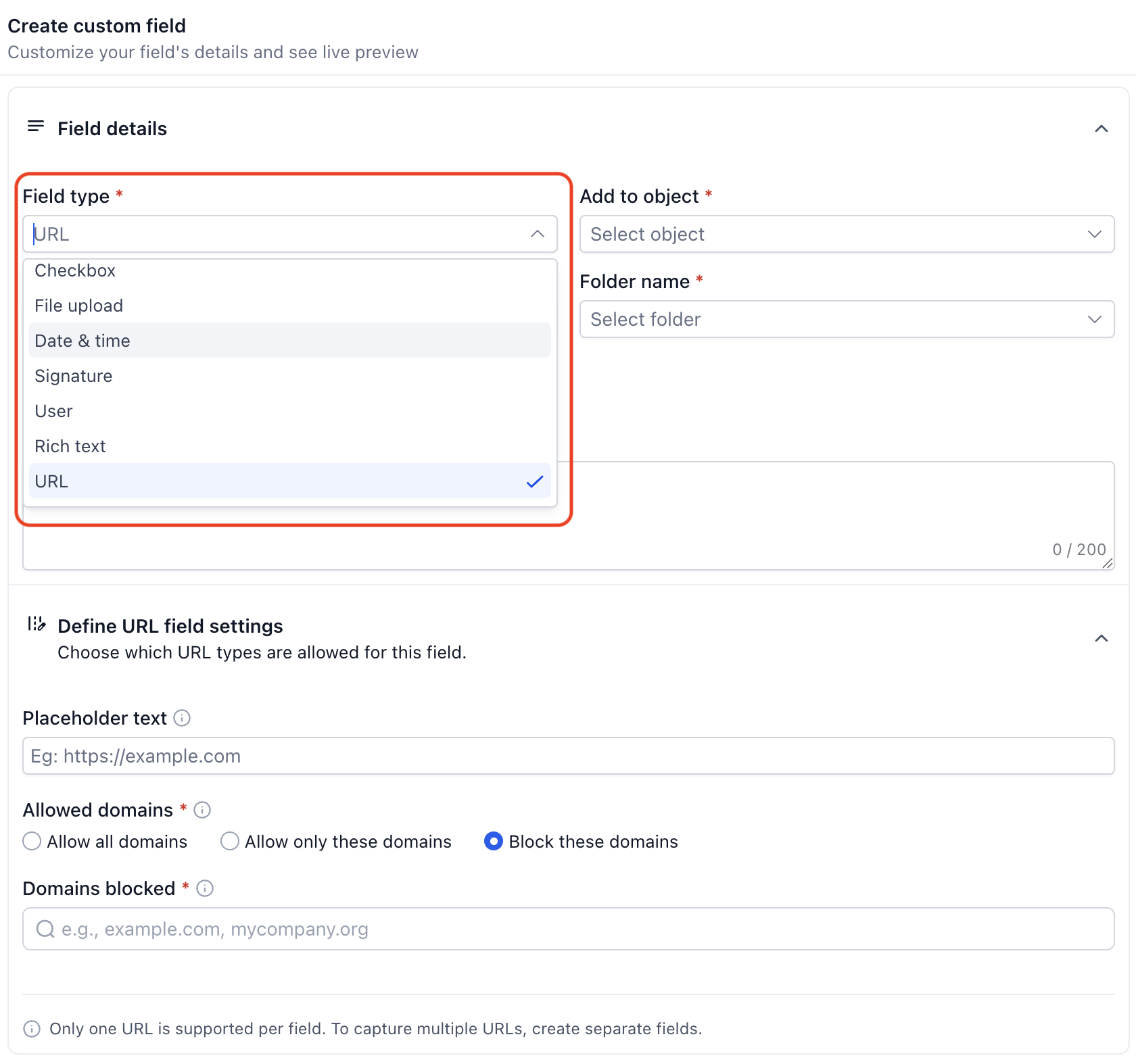
When configuring a URL field, you can choose how domains are handled:
Allow all domains: Users can enter URLs from any domain.
Allow only specific domains: Users can enter URLs only from the domains you permit.
Block specific domains: Users can enter URLs except those belonging to domains you have blocked.
Flexible Date and Time Fields
Date and time fields help ensure time-based information is collected in a format appropriate for its purpose. You can determine what type of date or time information users should provide and restrict selectable dates when the business process requires additional validation.
Choose from the following field formats:
Date & Time: Capture both a calendar date and a specific time.
Date Only: Capture a calendar date without requiring a time.
Time Only: Capture a time without requiring a date.
These formats can support use cases such as:
Important dates
Preferred contact times
Renewal dates
Scheduled events
Other date- or time-specific record information
For date-based fields, selectable dates can also be restricted based on the intended use:
Future dates only: Prevent users from selecting previous dates.
Past dates only: Prevent users from selecting future dates.
Specific date range: Limit selection to a defined range.
For example, a future-date restriction can help prevent an upcoming renewal date from accidentally being entered as a historical date.
Rich Text Fields
Rich Text custom fields are designed for information that needs more structure than plain text can provide. Formatting longer entries can make important details easier to scan and understand when users review a record.
Rich Text fields support formatting options such as:
Bold text
Italics
Headings
Lists
Additional supported text formatting
Rich Text fields can be useful for detailed notes, structured information, instructions, summaries, or other content where formatting improves readability.
Users Fields
Users custom fields let you associate relevant Chat To Clients CRM users with a record. This is useful when responsibility or collaboration extends beyond a single person and you need to identify additional team members connected to the record.
A Users field can be configured to allow the selection of one or multiple users. This can support scenarios where several team members collaborate on the same record.
Users selected through this field also receive follower-level access, helping the associated team members stay connected to the record.
Images for Checkbox Options
Images on checkbox options provide visual context when users can select multiple choices. Pairing text with an image can make options easier to identify when the choices represent products, designs, categories, or other visually distinct items.
Each checkbox option can include an image alongside its corresponding choice. This is particularly useful when an image communicates the difference between choices more quickly than text alone.
Possible use cases include:
Product selections
Design choices
Visual categories
Style preferences
Other multiple-selection choices that benefit from visual context
Images and Icons for Radio Button Options
Images and icons can make radio button options easier to distinguish when users must select one choice. Visual context is especially helpful when the available choices represent designs, categories, styles, or other concepts that are easier to recognize visually.
Unlike checkboxes, which support multiple selections, radio buttons are designed for choosing a single option. Individual radio button options can now include an image or icon alongside the choice.
How To Set Up Expanded Custom Fields
Properly configuring the field type and its available settings helps ensure users capture information in the format your business process requires. Chat To Clients CRM custom fields are managed from the Custom Fields area, where you can select the appropriate object and configure the field based on its intended use.
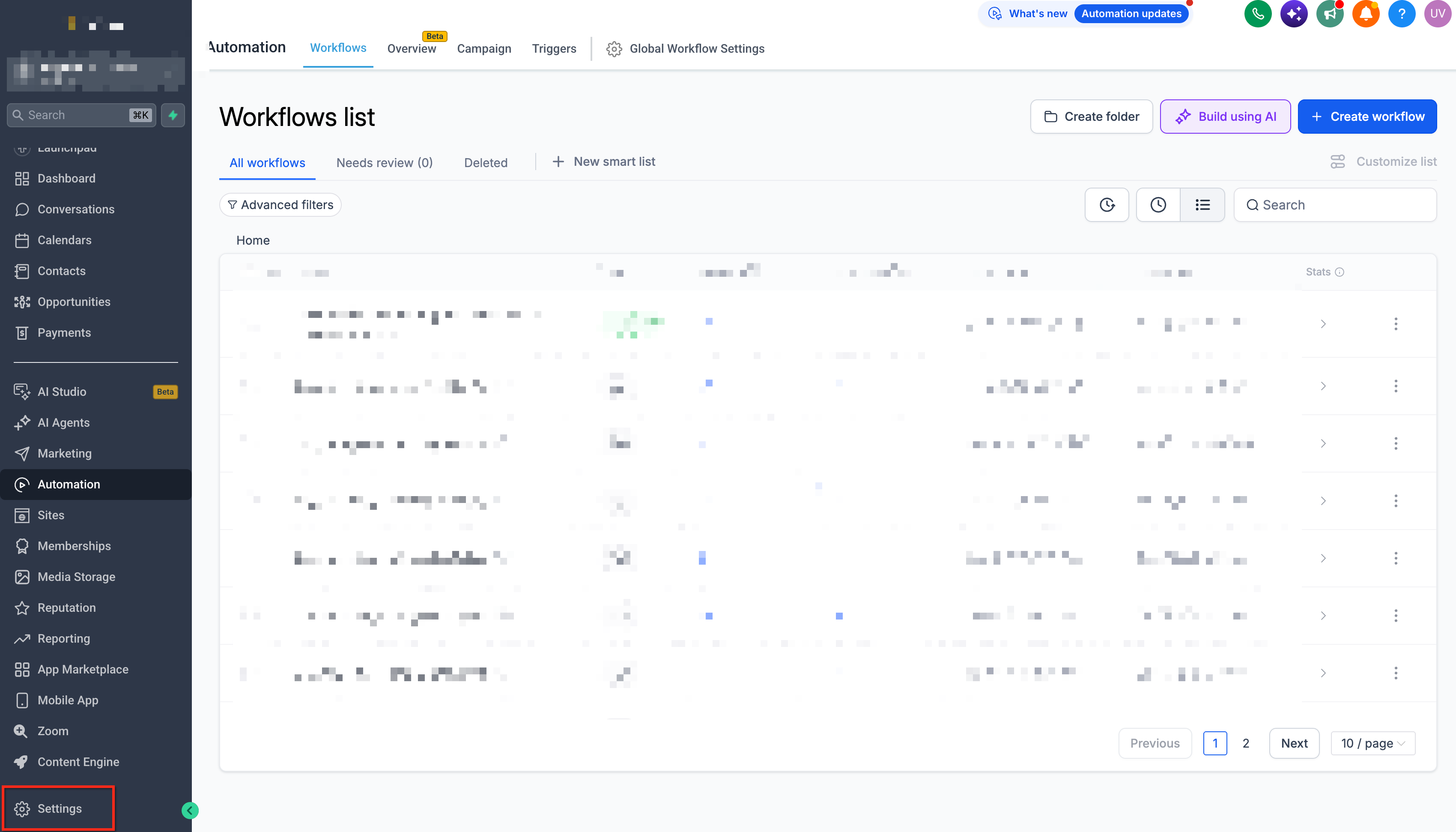
In your Chat To Clients CRM sub-account, go to Settings.
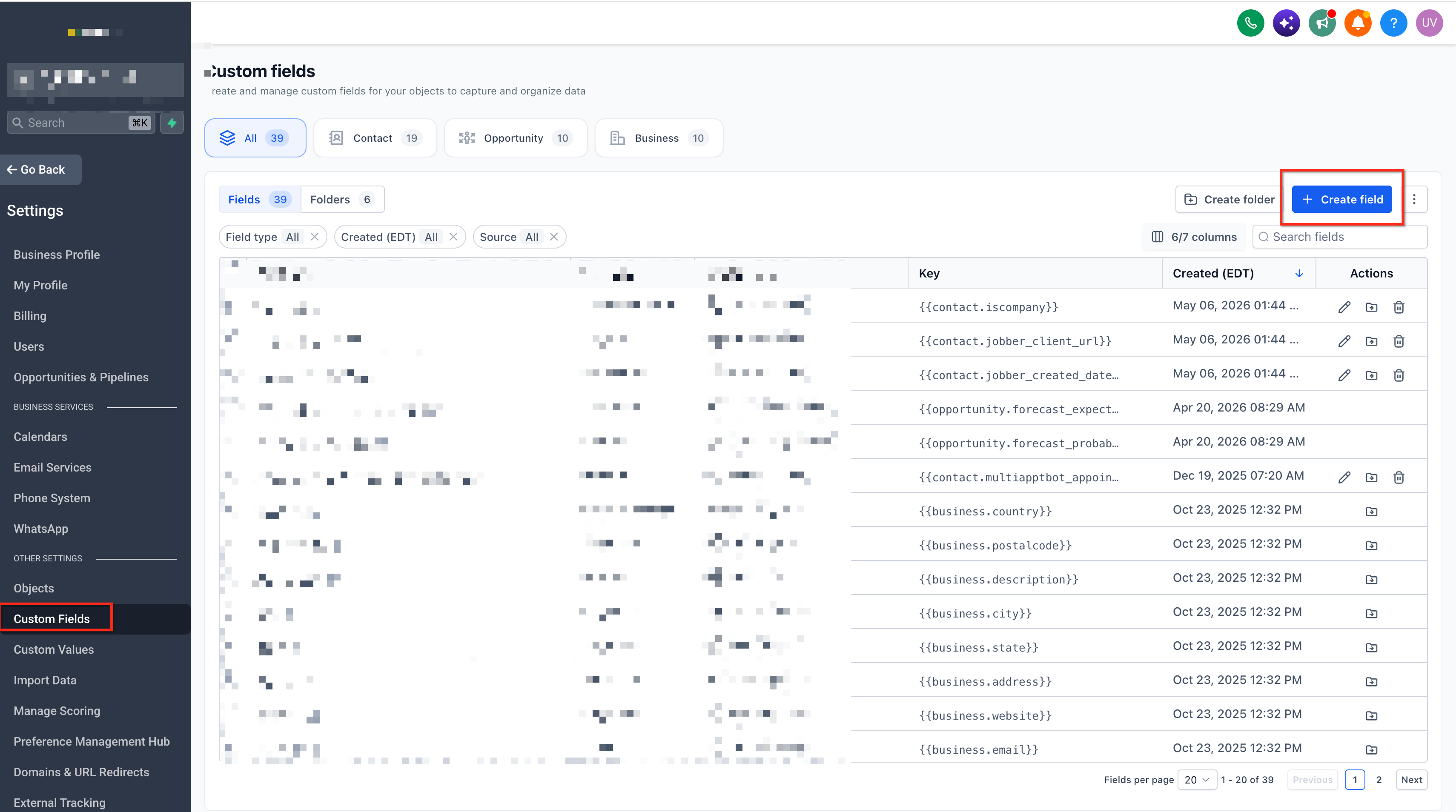
Select Custom Fields.
Select the object where you want to create the custom field.
Click Create Field or the available option to create a new custom field.
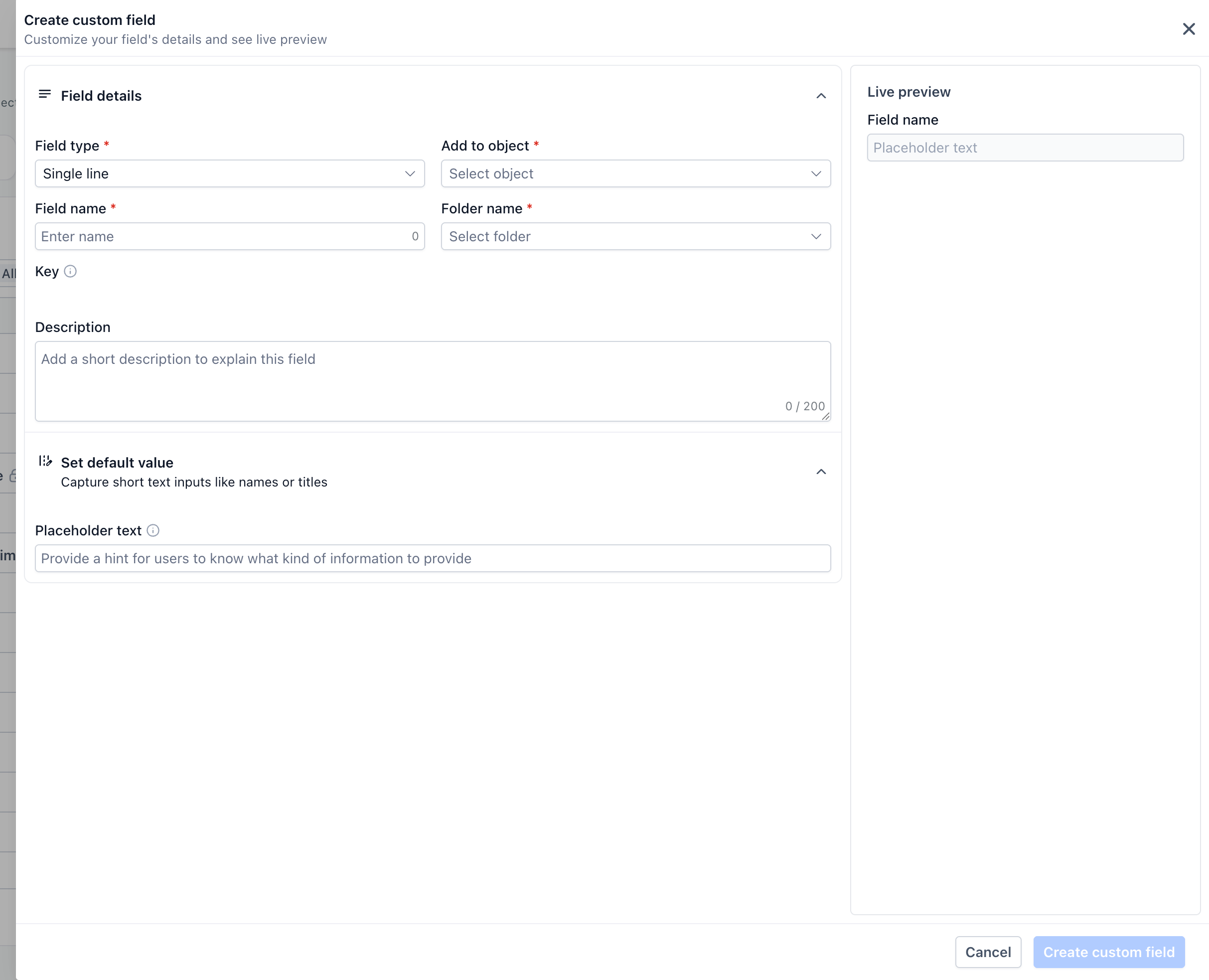
Select the field type appropriate for the information you want to capture.
Configure the field name and other applicable field settings.
Configure any settings specific to the selected field type:
For a URL field, configure the appropriate domain controls.
For a Date and Time field, select the required date/time format and applicable date restrictions.
For a Rich Text field, create the field for content that requires supported text formatting.
For a Users field, configure it based on whether the record should associate the applicable user or users.
For a Checkbox field, add images to applicable individual options when visual choices are needed.
For a Radio field, add images or icons to applicable individual options when visual context is needed.
Review the field configuration and available preview.
Save the custom field.
Important: Custom field availability can vary based on the object or area of Chat To Clients CRM where the field is being used. Confirm that the selected field type is available for the intended object and use case before building a process around it.
Frequently Asked Questions
Q: Should I use a URL field instead of a standard text field for web addresses?
A: A dedicated URL field is useful when the value being collected is specifically a web address. The additional domain controls also let you determine whether all domains, only specified domains, or all domains except specified blocked domains can be entered.
Q: Can I collect only a time without asking users to select a date?
A: Yes. The flexible date and time field options include a time-only format in addition to date-only and date-and-time formats.
Q: Can I prevent users from selecting a date in the past?
A: Yes. Date restrictions can be configured for future dates only. You can also restrict selection to past dates or a specific date range when those rules better fit the use case.
Q: When should I use a Rich Text field instead of a standard text field?
A: Rich Text is useful when longer information benefits from formatting such as headings, lists, bold text, or italics. A standard text field may be sufficient when you only need an unformatted value.
Q: Does selecting someone in a Users custom field make that person the record owner?
A: The released functionality states that users selected through the field receive follower-level access to the record. The Users field should therefore not be treated as a replacement for an ownership or assignment field unless the applicable Chat To Clients CRM feature explicitly supports that behavior.
Q: When should I use checkbox options instead of radio button options?
A: Use checkboxes when users should be able to choose multiple options. Use radio buttons when they should choose a single option.
Q: Do checkbox and radio button options both support visual choices?
A: Both can provide visual context, but their options differ. Checkbox options can include images, while radio button options can include images or icons.
Q: Are all expanded custom field types available everywhere in Chat To Clients CRM?
A: Custom field availability can vary depending on the object and area of Chat To Clients CRM where the field is being used. Check the available field types and settings for your intended object and workflow before configuring the field.