
Workflow Triggers and Actions: Jotform
Connect Chat To Clients CRM Workflows with Jotform to act on form submissions and signed documents the moment they arrive — and to create Jotform submissions directly from a workflow. No Zapier, no manual imports, no delay between a form landing and your team following up.
TABLE OF CONTENTS
- What is the Jotform Integration in Workflows?
- Key Benefits of the Jotform Integration
- Jotform Triggers
- Jotform Actions
- Getting Started with Jotform
- How Do Jotform Triggers Work?
- Supported Fields in Create Submission
- Fields That Aren't Supported
- Lead Capture and CRM Sync Use Case
- Signed Contract to Project Kickoff Use Case
- Log Offline Sign-ups Use Case
- Frequently Asked Questions
What is the Jotform Integration in Workflows?
The Jotform integration connects your Jotform account to Chat To Clients CRM Workflows in both directions. A new form submission or a completed e-signature in Jotform can start a workflow in Chat To Clients CRM, and a workflow can create a new submission inside a Jotform form. Client information, contracts and service requests move straight into your CRM without anyone copying records between tools.
Key Benefits of the Jotform Integration
- Follow up on new leads within minutes instead of waiting on a manual import.
- Kick off onboarding automatically the moment a contract is signed.
- Create Jotform submissions from any workflow, including phone, event and walk-in sign-ups.
- Remove third-party zaps and webhooks, cutting cost and failure points.
- Map any Chat To Clients CRM custom value into a Jotform field.
Jotform Triggers
Jotform Triggers let events in Jotform start a Chat To Clients CRM workflow.
- New Submission – Fires when a new response is submitted to a Jotform form.
- New Signed Document – Fires when a document containing an e-signature field is completed and signed.
Ideal when your intake, contracts or service requests live in Jotform but your follow-up lives in Chat To Clients CRM.
Jotform Actions
Jotform Actions execute inside Jotform whenever a Chat To Clients CRM workflow reaches the step.
- Create Submission – Add a new submission to any form in your Jotform account, with values mapped from your workflow.
Getting Started with Jotform
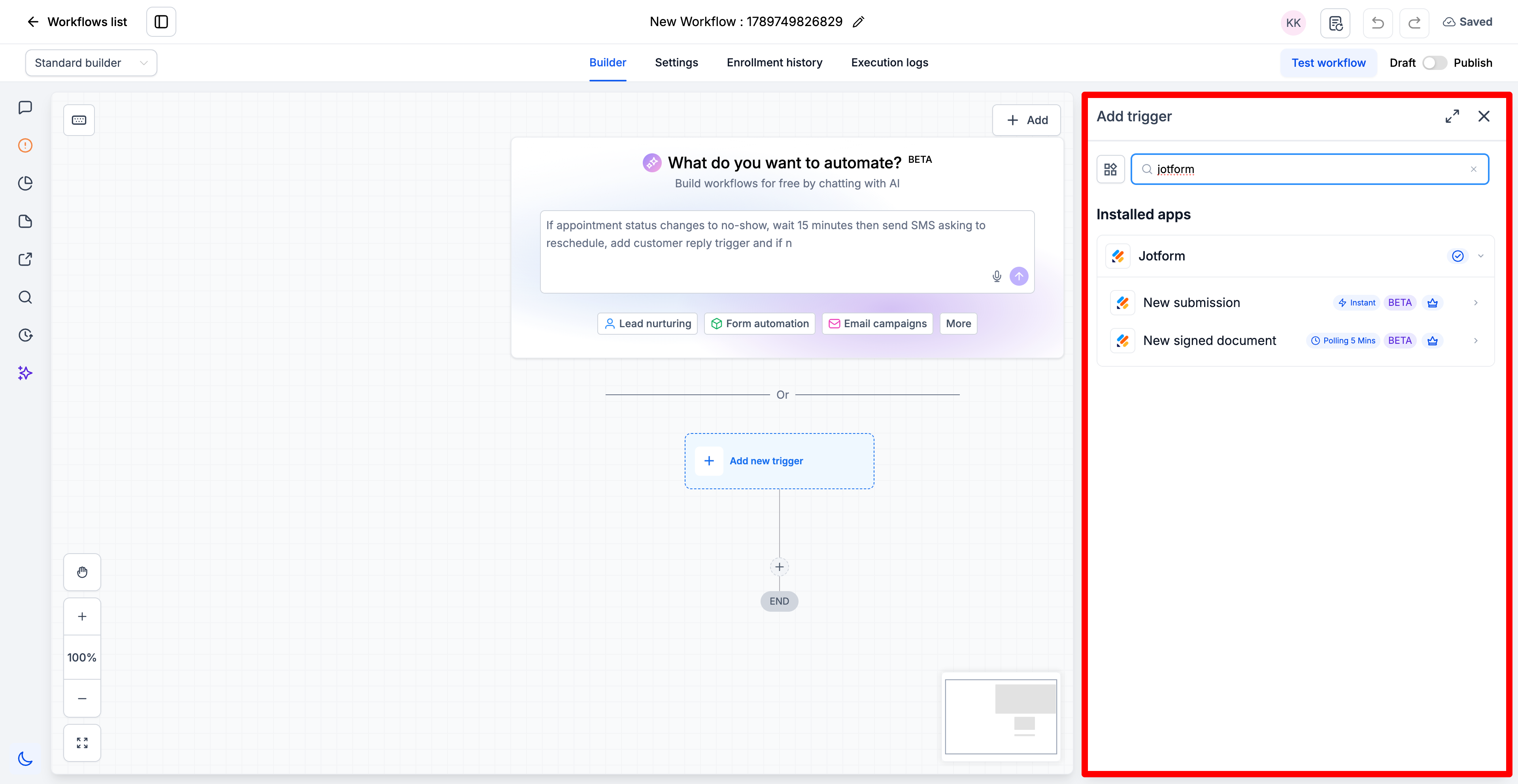
1. Search in Workflows: In the workflow builder, search for Jotform triggers or actions (e.g. "New Submission", "Create Submission").
2. Connect Your Account: If Jotform is already connected, you can configure fields right away. If not, click Connect your account and follow the instructions to obtain and provide the API key to connect to Jotform.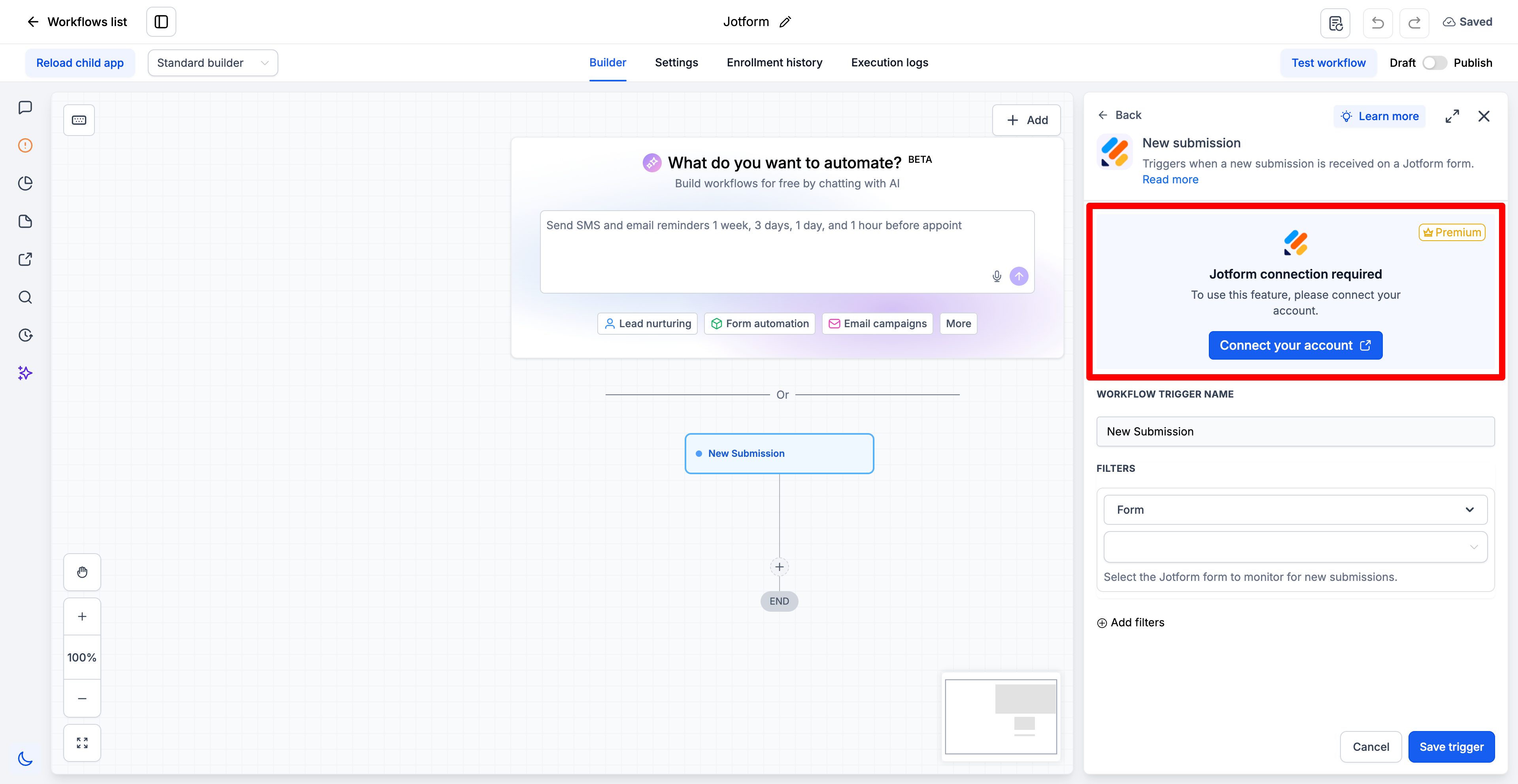
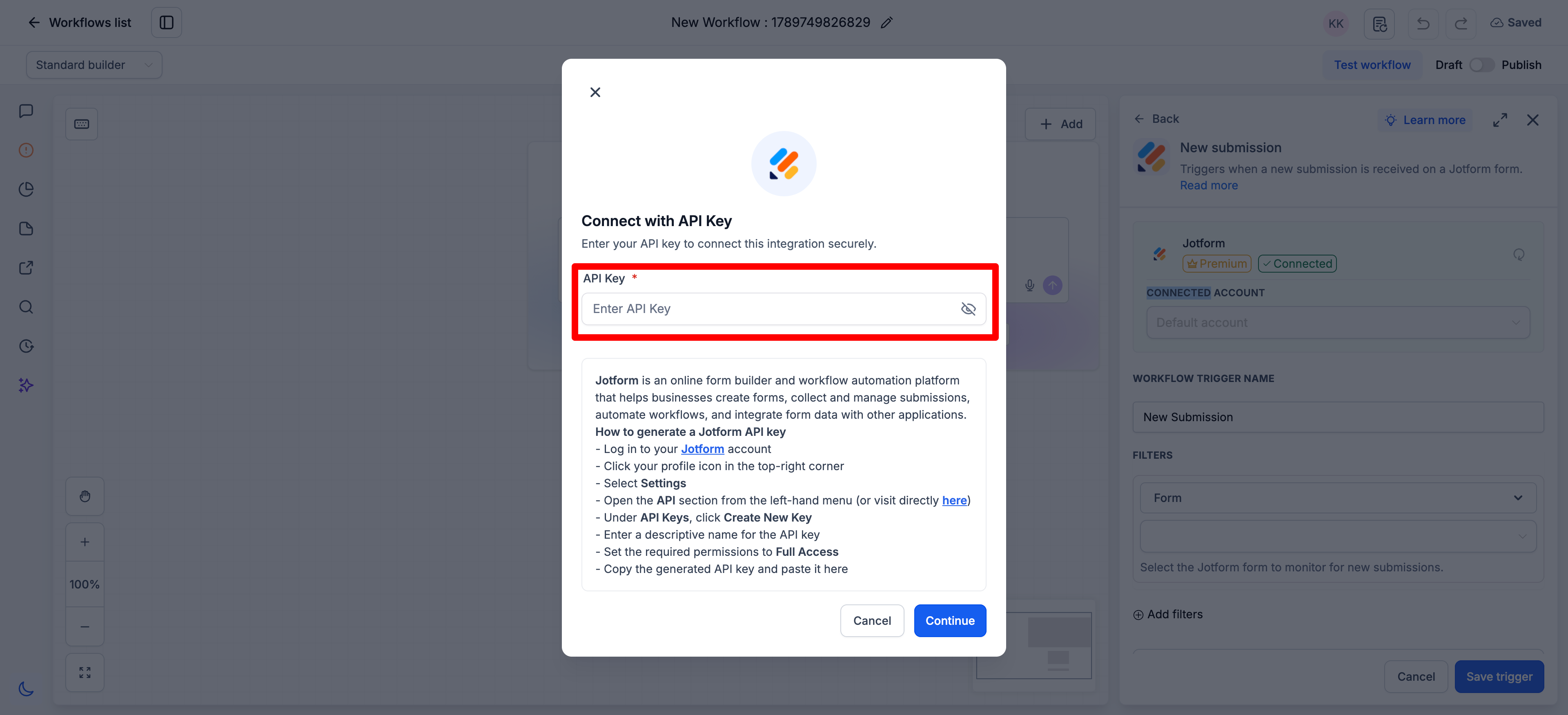
3. Alternative Method: Go to Settings → Integrations, locate Jotform, and authorize access.
Once connected, select a form and create submissions, trigger workflows on new submissions or new documents being signed.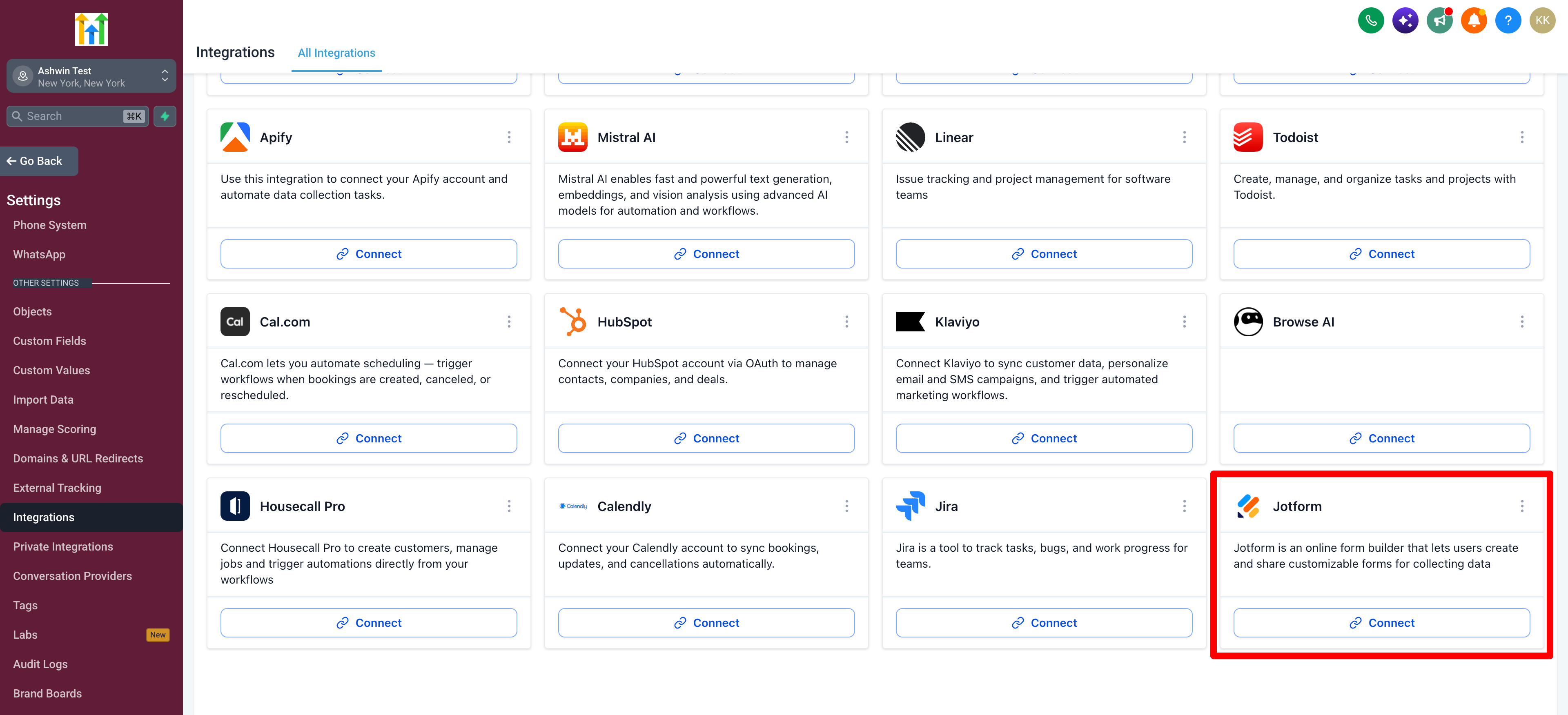
How Do Jotform Triggers Work?
Jotform triggers work in two ways. New Submission is powered by webhooks — Jotform notifies Chat To Clients CRM the moment a response is submitted, so the workflow starts instantly. New Signed Document is powered by polling: Chat To Clients CRM sends a request to Jotform at regular intervals (usually every 5 minutes) to check for newly signed documents, and workflows are triggered based on the response.
Setup Steps: Choose a trigger, give it a name, fill required details and click Test Trigger. Testing is required to pull metadata that can be used in later actions through custom values. Then click Save trigger.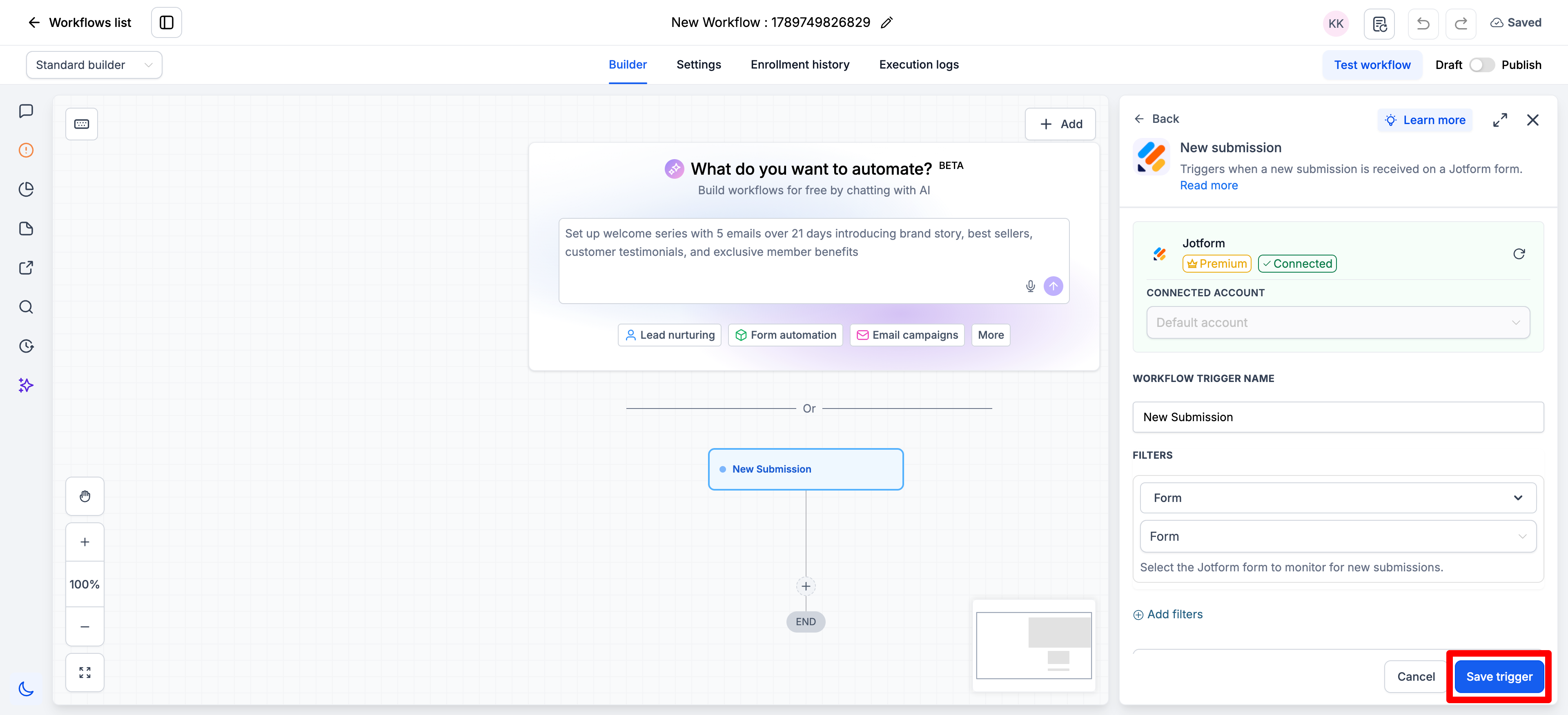
Supported Fields in Create Submission
When you select a form, the action lists every field it can fill. These field types are supported:
| Field type | Notes |
|---|---|
| Full Name | Maps as separate first and last name inputs |
| — | |
| Address | Maps as separate address line, city, state, postal code and country inputs |
| Phone | — |
| Short Text | — |
| Long Text | — |
| Number | — |
| Dropdown | — |
| Single Choice | — |
| Multiple Choice | — |
| Yes / No | Shown as a dropdown in the action |
| Star Rating | Shown as a dropdown in the action |
| Scale Rating | Shown as a dropdown in the action |
| Date Picker | Enter dates in YYYY-MM-DD format |
| Time | Enter times in HH:MM format |
Any of these can be filled with static text or with a custom value from your workflow.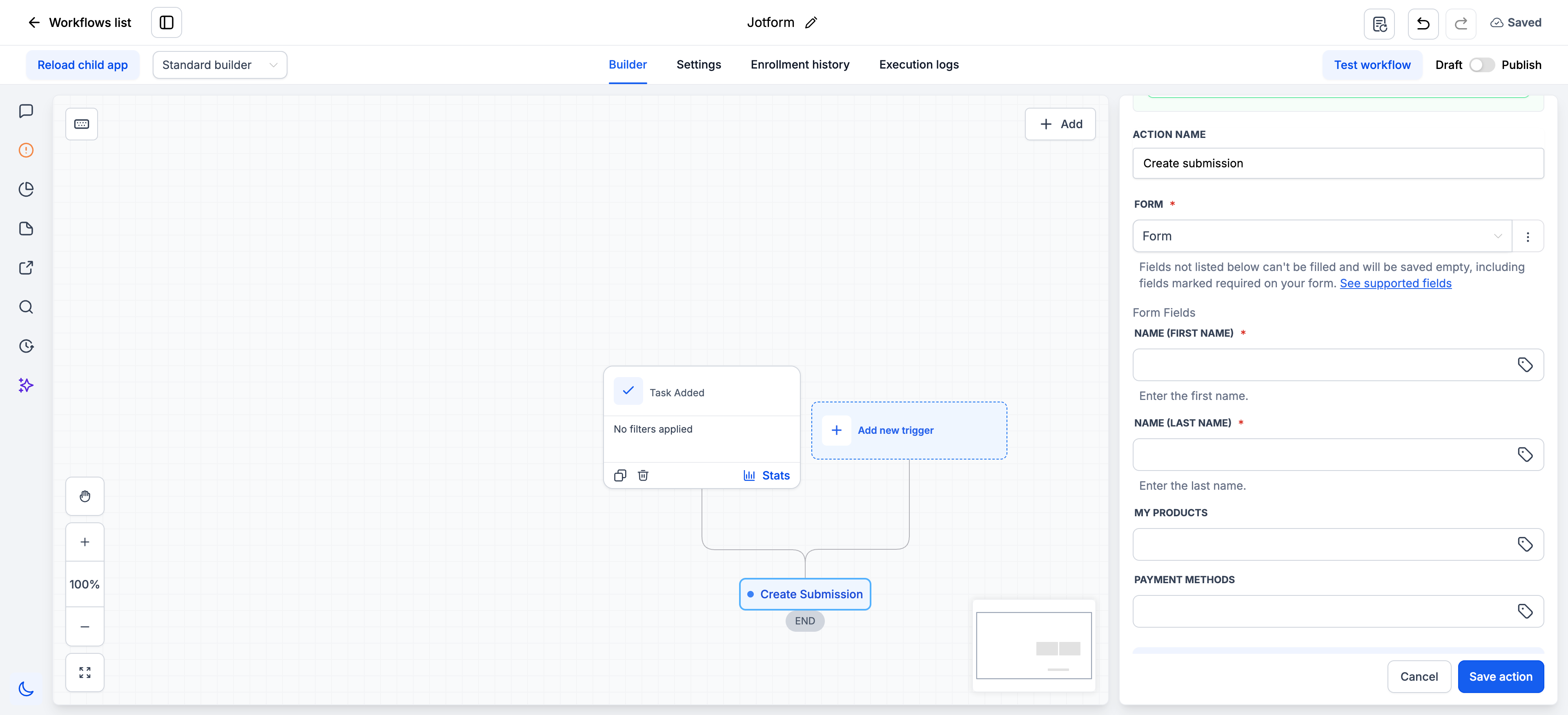
Fields That Aren't Supported
Some Jotform field types can't be filled through this action. Fields that aren't supported won't appear in the field mapping list — if you don't see a field, it can't be filled.
These field types aren't supported:
- File Upload
- Signature
- Appointment
- Payment
- Product List
- Input Table
- Fill in the Blanks
- Spinner
- Emoji Slider
- Image Choice
- Captcha
- Widgets, including Terms and Conditions, Checklist, Configurable List, Multi Text List, Dynamic Text Box and Calculation
What happens to these fields. They're saved empty. Jotform accepts submissions created through this action even when an unsupported field is marked required on your form, so the submission is created and marked active with those fields blank. No error is raised in your workflow.
Payment, product and appointment forms. A submission created by this action has no payment, amount, product or booked time slot attached to it, even if the form normally collects one. In Jotform these submissions look the same as any other. If you use this action on a form that takes payment, treat those submissions as unpaid unless you have confirmed payment another way.
Lead Capture and CRM Sync Use Case
Use Case: A digital marketing agency collects leads through Jotform landing pages and wants them in Chat To Clients CRM automatically.
Workflow Configuration:
- Trigger: New Submission
- Filter: Form = "Website Lead Form"
- Actions:
- Create or Update Contact in Chat To Clients CRM
- Send acknowledgment email via Gmail
- Add tag "New Lead"
- Send Slack message to the sales channel
Example: A visitor submits the "Website Lead Form" → the contact is created in Chat To Clients CRM → an acknowledgment email goes out → the sales team sees "New Jotform submission from {{name}}" in Slack within minutes.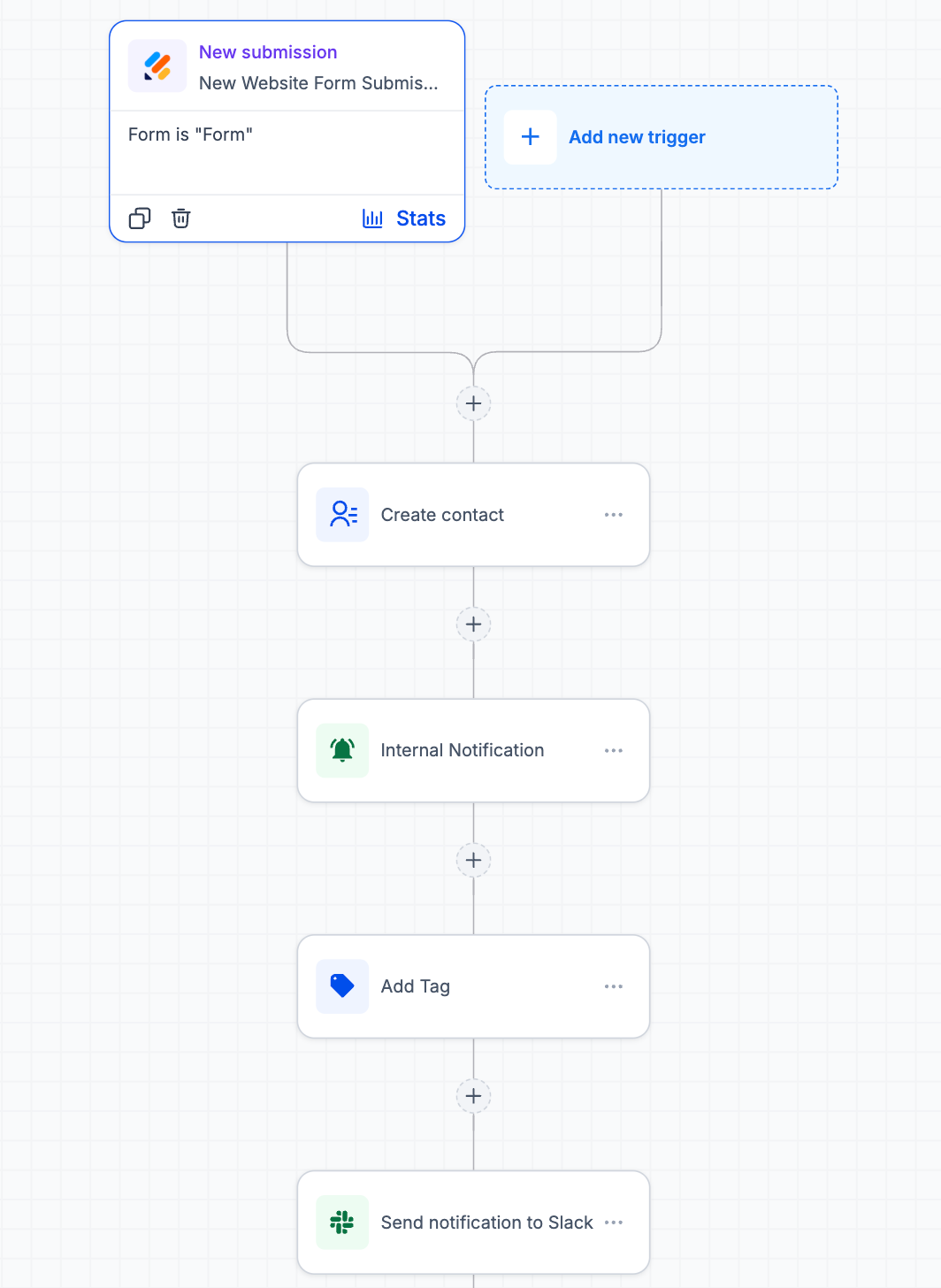
Signed Contract to Project Kickoff Use Case
Use Case: A client signs a digital agreement through Jotform Sign, and onboarding starts on its own.
Workflow Configuration:
- Trigger: New Signed Document
- Filter: Form = "Service Agreement"
- Actions:
- Update contact stage → "Contract Signed"
- Create an onboarding task in ClickUp
- Send Slack message to #operations
- Send a confirmation email with next steps
Example: A client signs the "Service Agreement" → their stage updates → an onboarding task appears for the account manager → #operations sees "{{client_name}} has signed the service agreement" → the client receives their next steps.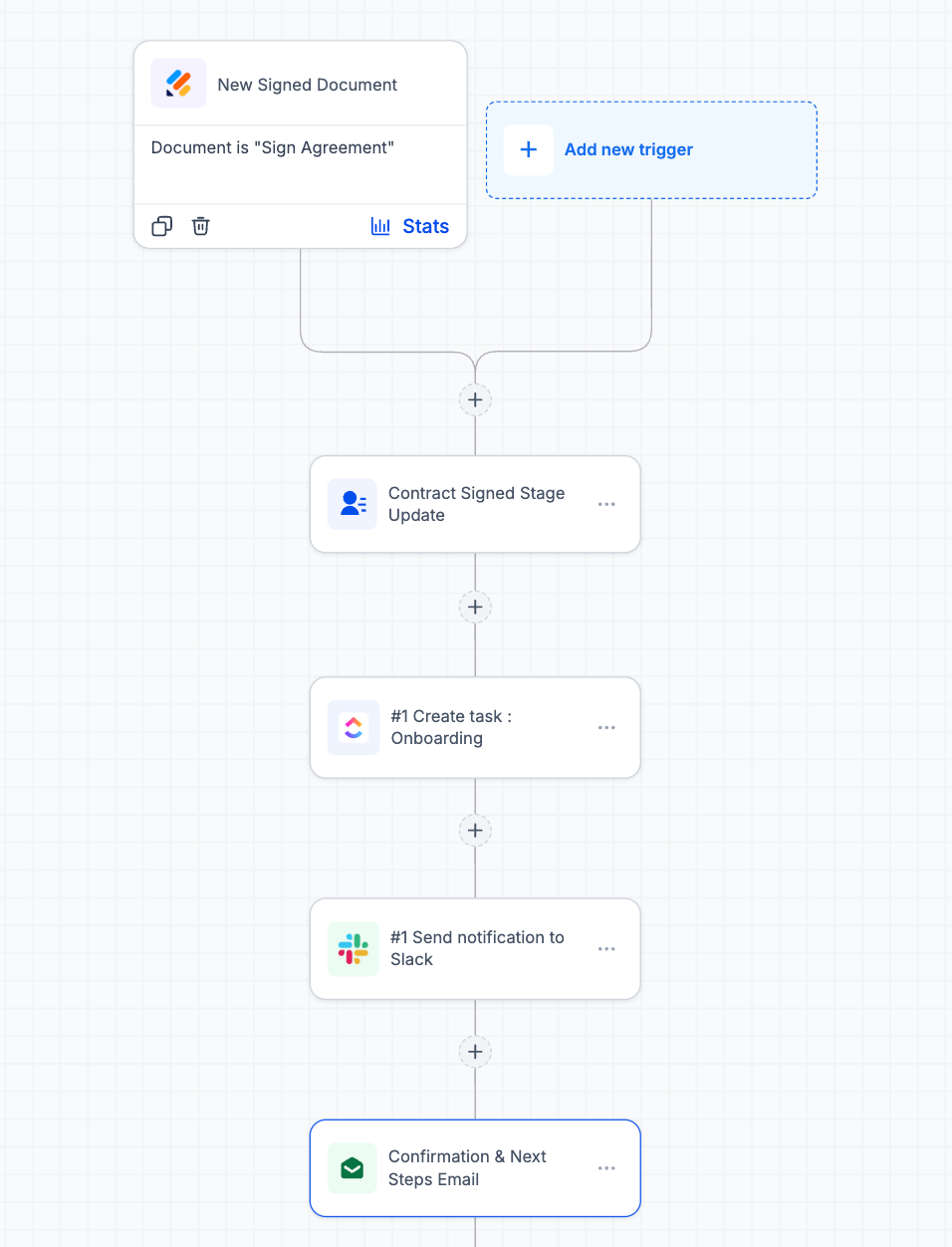
Log Offline Sign-ups Use Case
Use Case: Keep one complete record in Jotform, including sign-ups that never went through the form.
Workflow Configuration:
- Trigger: Appointment Booked
- Actions:
- Create Submission (Jotform) → form "Event Registration"
Example: Someone registers for an event over the phone and your team books it in Chat To Clients CRM → the workflow writes a matching submission into the Jotform form, so your Jotform reports show every attendee in one place rather than only the ones who filled the form themselves.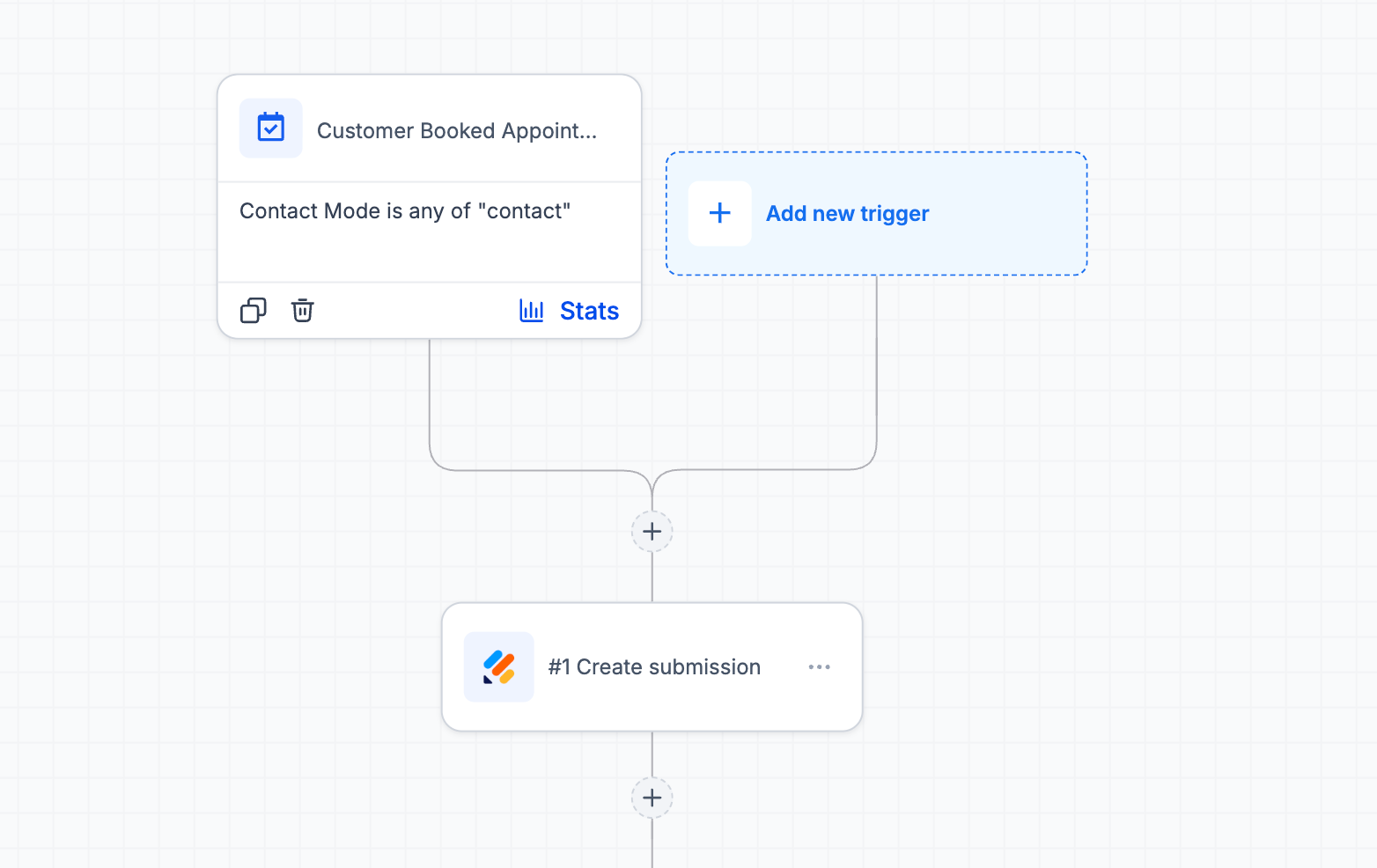
Frequently Asked Questions
Q: A field on my form isn't in the mapping list. Why? That field type isn't supported by this action. See the list above. The field will be saved empty on any submission this action creates.
Q: What happens if an unsupported field is marked required on my form? The submission is still created and marked active, with that field blank. Jotform does not reject submissions created through the API for missing required fields, so nothing fails and no error appears in your workflow.
Q: The New Signed Document trigger works with signatures. Why can't Create Submission fill a signature field? The two work in opposite directions. The trigger reads a document a person has already signed in Jotform. The action writes a new submission, and a signature has to be captured from a person — it can't be generated by a workflow. Signature fields on a form you write to are saved empty.
Q: Can I use this action on a form that collects payment? Yes, but no payment is taken or recorded. The submission is created with no payment, amount or product attached, and looks identical to a paid submission in Jotform. Only use this on payment forms when you're recording something that was paid for another way, such as cash or bank transfer.
Q: Does this action book an appointment slot? No. Appointment fields aren't supported, so no time slot is reserved.
Q: My date value isn't saving correctly. What format should I use? Use YYYY-MM-DD for dates and HH:MM for times. Other formats will be rejected with an error naming the field.
Q: Can I upload a file through this action? No. File Upload fields aren't supported and will be saved empty.
Q: Can I send a form to someone to fill in themselves? Not through this integration. Create Submission writes a submission directly — it doesn't send a form for someone to complete.
Q: Can I send a form to someone to fill in themselves? Not through this integration. Create Submission writes a submission directly — it doesn't send a form out for someone to complete.
Q: Will new field types be supported later? Field support is expanding. This article is updated as new types are added.