
Transfer Calls to Staff Without a Personal Phone Number
Transfer calls to staff members without requiring them to have a personal phone number configured! Chat To Clients CRM can route transferred calls through the staff member’s available Web App, Mobile App or SIP deskphone destinations when a phone is not available, making call routing more flexible. This article explains how to transfer a call to a staff member without requiring a personal phone number.
TABLE OF CONTENTS
- Transfer Calls to Staff Without a Personal Phone Number
- Key Benefits of Call Transfer Without a Personal Phone Number
- Transfer Limitations
- How To Transfer a Call to a Staff Member
- Frequently Asked Questions
- Related Articles
Transfer Calls to Staff Without a Personal Phone Number
You can transfer an active call to a staff member without requiring that user to have a personal phone number configured. Instead, Chat To Clients CRM uses the staff member’s available calling destinations to route the transferred call.
Depending on the staff member’s Forward Calls to settings, the transferred call can ring their Mobile App, Web App, Phone and SIP deskphone.
If multiple destinations are available, Chat To Clients CRM rings them at the same time, allowing the staff member to answer from an available device. This functionality works for both inbound and outbound calls and uses the existing warm and blind transfer workflows.
Key Benefits of Call Transfer Without a Personal Phone Number
- No personal phone number required: Staff members can receive transferred calls without having a personal phone number configured.
- Multiple receiving destinations: Transferred calls can ring the staff member’s available Mobile App, Web App, Phone, and SIP deskphone destinations.
- Inbound and outbound support: The transfer behavior works for both inbound and outbound calls.
Transfer Limitations
Although a personal phone number is no longer required, the receiving staff member must still have an eligible destination where Chat To Clients CRM can send the transferred call. Understanding these requirements helps explain why some staff members may appear unavailable during a transfer.
- At least one receiving destination is required: Removing the personal phone number requirement does not remove the need for an available calling destination. If a staff member does not have a supported destination configured, they appear disabled in the transfer list.
- Transfers are made to the staff member, not a specific device: You select the user during the transfer rather than choosing an individual Mobile App, Web App, Phone, or SIP destination. Chat To Clients CRM rings all of user's available destinations configured under Forward Calls to at the same time.
- Re-transferring is not currently supported: A staff member who receives a transferred call cannot transfer that same call again.
How To Transfer a Call to a Staff Member
The existing mobile call transfer workflow remains the same, but you can now select staff members who do not have a personal phone number configured. Chat To Clients CRM uses their available receiving devices to determine whether they can receive the transfer.
Step 1: Make or Answer a Call
Make an outbound call or answer an incoming call using the Chat To Clients CRM or Chat To Clients CRM mobile app.
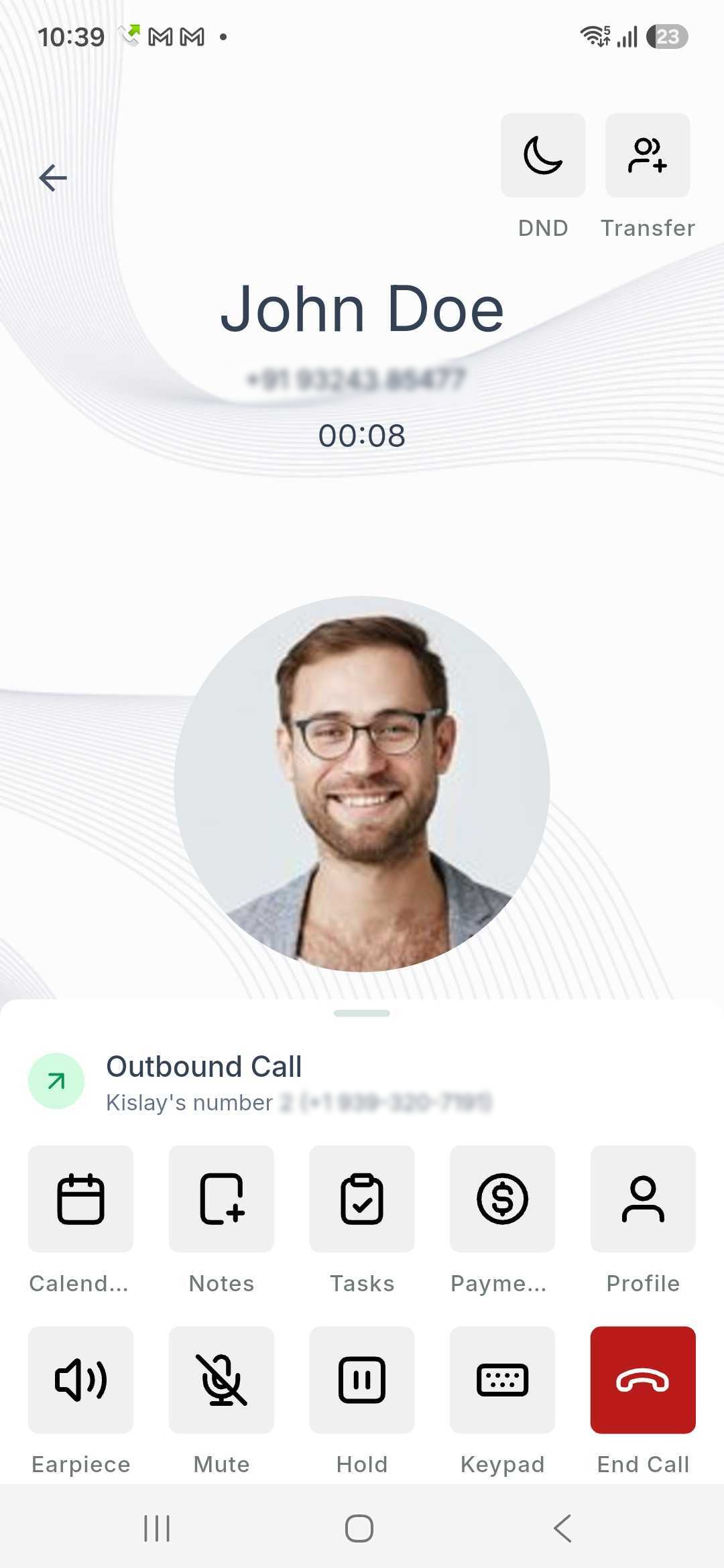
Step 2: Tap the Transfer Button
Tap the Transfer button located in the top-right corner of the call screen.
 |
Step 3: Select the Recipient
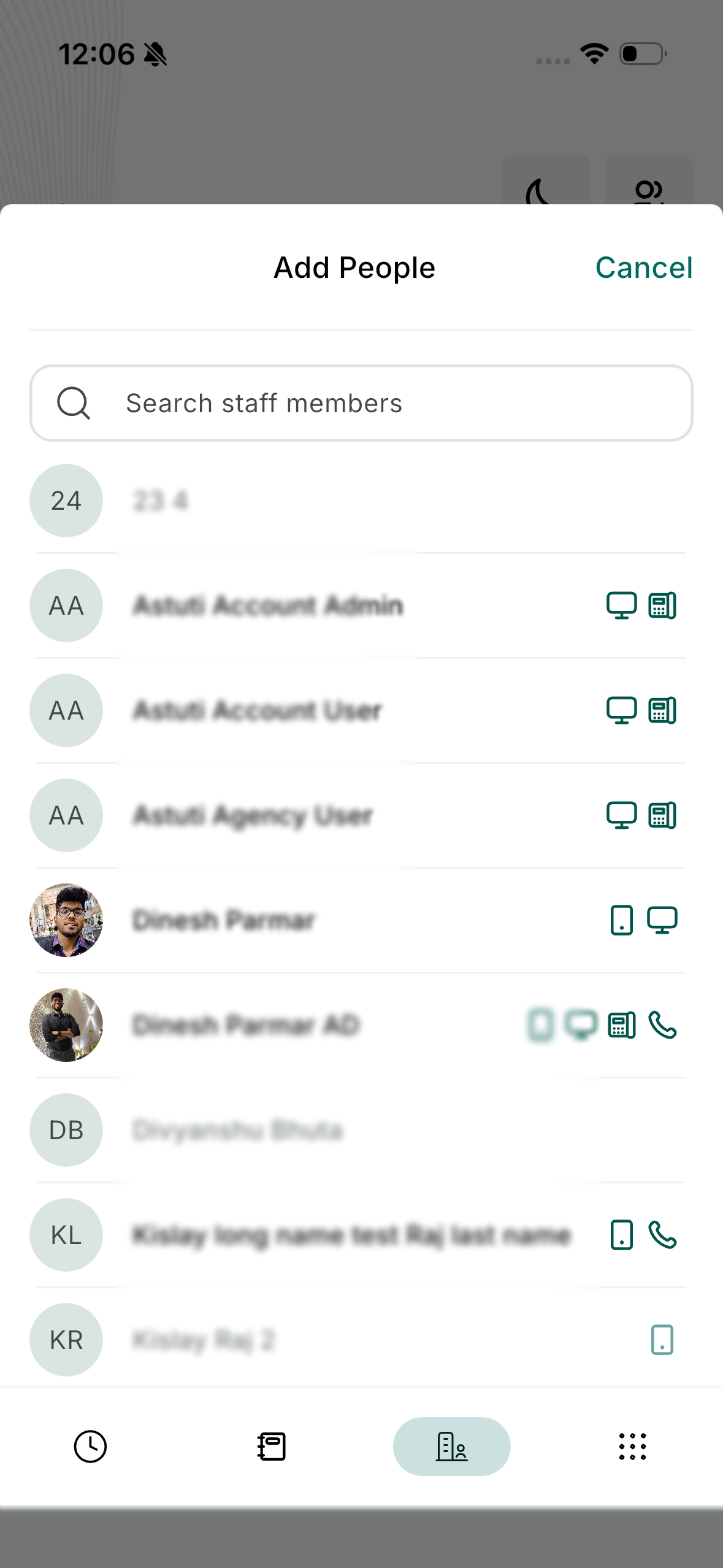
Open the Staff Members tab.
Find and select the staff member you want to transfer the call to. Staff members without any eligible destination appear disabled and cannot be selected.
 |
Step 4: Choose Transfer Type
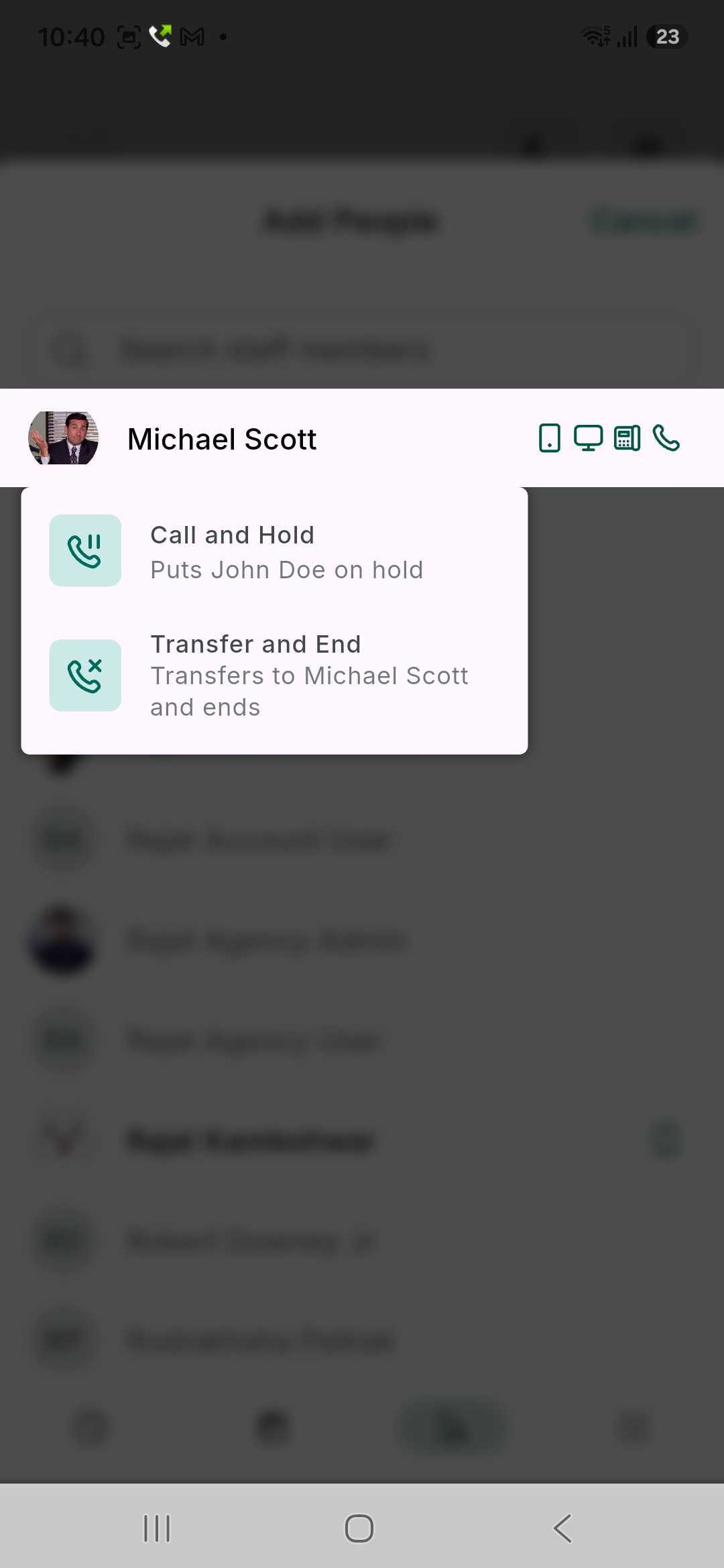
You’ll be prompted to choose between:
- Hold and Call - Stay in the call to provide context or introduce the caller. (Warm Transfer)
- Transfer and End – Instantly hand off the call and disconnect. (Blind Transfer)
 |
Step 5: Accept the Transfer
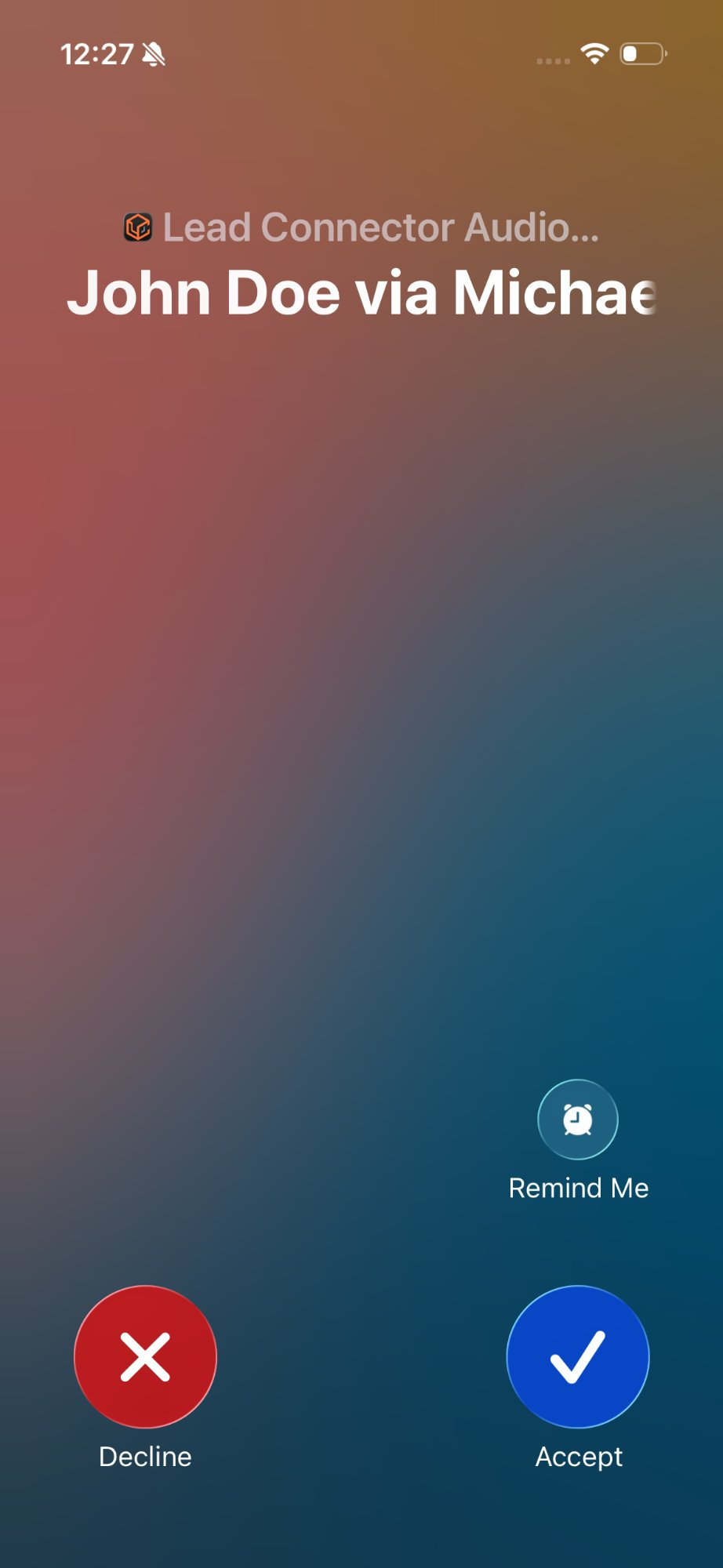
The staff member receiving the transferred call can see that it's a transferred call, along with who transferred it. When they tap Accept, the transfer can be executed as usual.
On iOS, the incoming call banner shows the contact name followed by "via" and the name of the staff member who transferred it. For example, "John Doe via Michael Scott".
On Android, the incoming call screen shows "Transferred call from Michael Scott".
 Screenshot from iOS Screenshot from iOS | 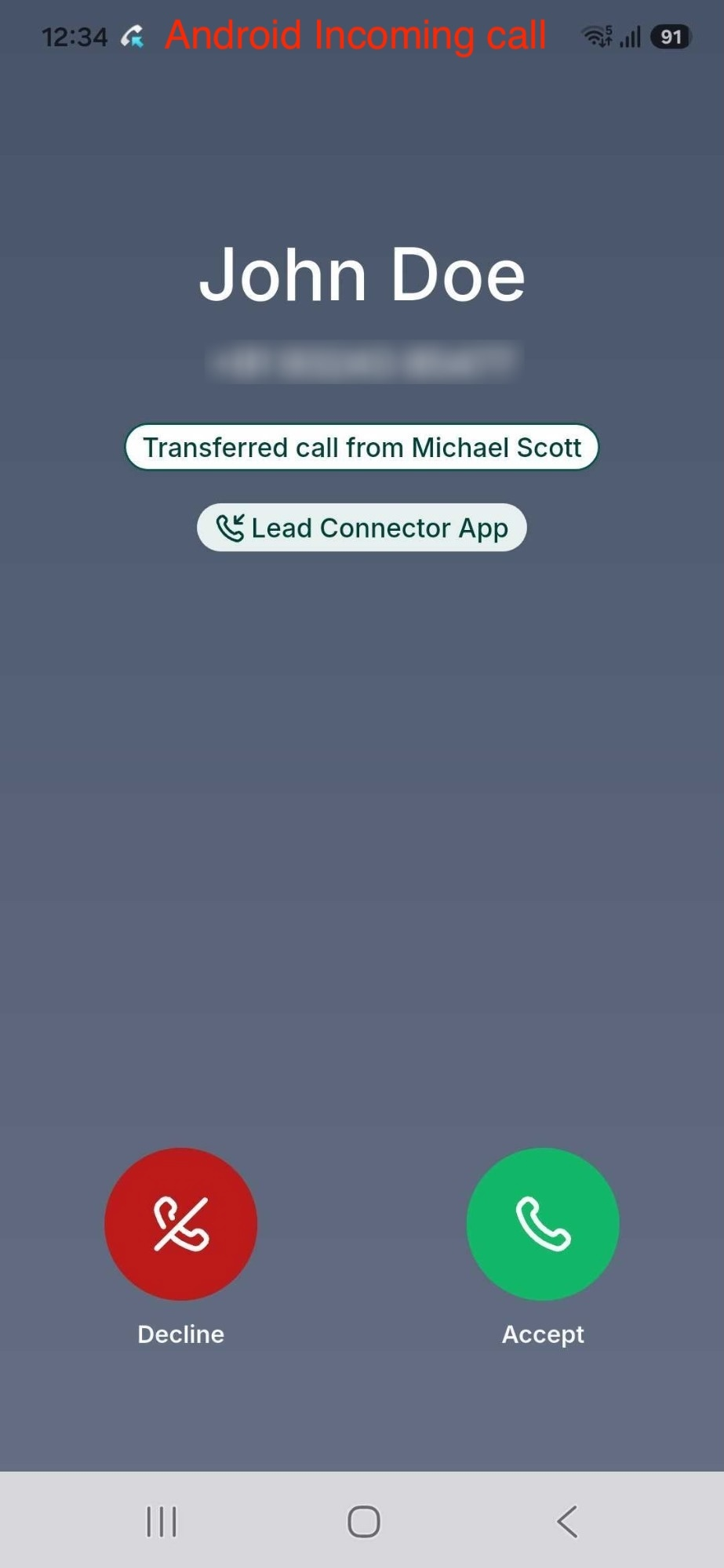 Screenshot from Android Screenshot from Android |
Frequently Asked Questions
Q: Does a staff member need a personal phone number to receive a transferred call?
No. Staff members can receive transferred calls without having a personal phone number configured as long as they have another eligible receiving destination available.
Q: What can be used instead of a personal phone number?
Calls can be transferred to the staff member's available Mobile App, Web App, Phone, or SIP deskphone destinations.
Q: Can I choose one specific device for the transfer?
No. You select the staff member rather than an individual device. Chat To Clients CRM rings the user's available destinations configured under Forward Calls to.
Q: Can I transfer a call that was already transferred to me?
No. Re-transferring an already transferred call is not currently supported.