
How to Use Voice AI Flow Builder Templates and Guided Setup
Voice AI Flow Builder now gives you ready-made starting points for common call types, so you do not have to build every agent from scratch. You can choose a template, review the instructions and actions Chat To Clients CRM adds automatically, and complete only the settings that still need your input. The update also adds a new Update Tag action and clearer setup warnings to help you prepare an agent for testing and deployment.
TABLE OF CONTENTS
- What is the Voice AI Flow Builder Guided Setup?
- Key Benefits of Voice AI Flow Builder Templates
- Choosing How to Create Your Voice AI Agent
- Pre-Configured Voice AI Templates
- What are Voice Actions?
- Using the Update Tag Action
- Guided Setup Notifications
- Saving, Testing, and Deploying Your Agent
- Templates vs. Build with AI
- How To Set Up a Voice AI Agent Using a Template
- Frequently Asked Questions
- Related Articles
What is the Voice AI Flow Builder Guided Setup?
The Voice AI Flow Builder helps you create a voice agent by connecting the instructions and actions the agent needs during a call. The new guided setup makes this easier by letting you start with a ready-made template for a common business use case.
A template is a ready-made starting point. When you choose one, Chat To Clients CRM adds the main agent instructions and relevant actions to the Flow Builder automatically.
Instead of setting up every action yourself, you can choose what you want the agent to do and then customize the generated setup.
Chat To Clients CRM provides five pre-configured templates:
Business FAQ Assistant: Answers common questions about your business, such as hours, pricing, services, and policies.
Front Desk Receptionist: Greets callers, understands what they need, and helps transfer them to the right person.
Lead Qualification: Asks qualifying questions, saves contact information, and tags the outcome.
Post-Call Automation: Handles follow-up tasks after the call, such as adding a tag or starting a workflow.
SMS Follow-Up: Sends the caller a text message after the call.
If you prefer to build your own setup, choose Create Your Custom Agent instead.
Note: Existing Voice AI agents are not changed by this update. Their current instructions and actions remain as configured.
Key Benefits of Voice AI Flow Builder Templates
Templates and guided setup reduce the amount of manual work required to create a usable Voice AI agent. They also make it easier to see what still needs attention before you test or launch the agent.
Faster setup: Start with instructions and actions already added for a common call type.
Beginner-friendly starting point: Choose a business goal instead of deciding every action from scratch.
Editable setup: Change the agent instructions, actions, and settings after selecting a template.
Clear setup guidance: Chat To Clients CRM shows which actions still need your input.
Direct access to unfinished actions: Click a pending item to open the setting that needs attention.
Save your progress anytime: You can save an unfinished agent and return later.
Capture call outcomes: Use the new Update Tag action to add useful tags to contact records.
Choosing How to Create Your Voice AI Agent
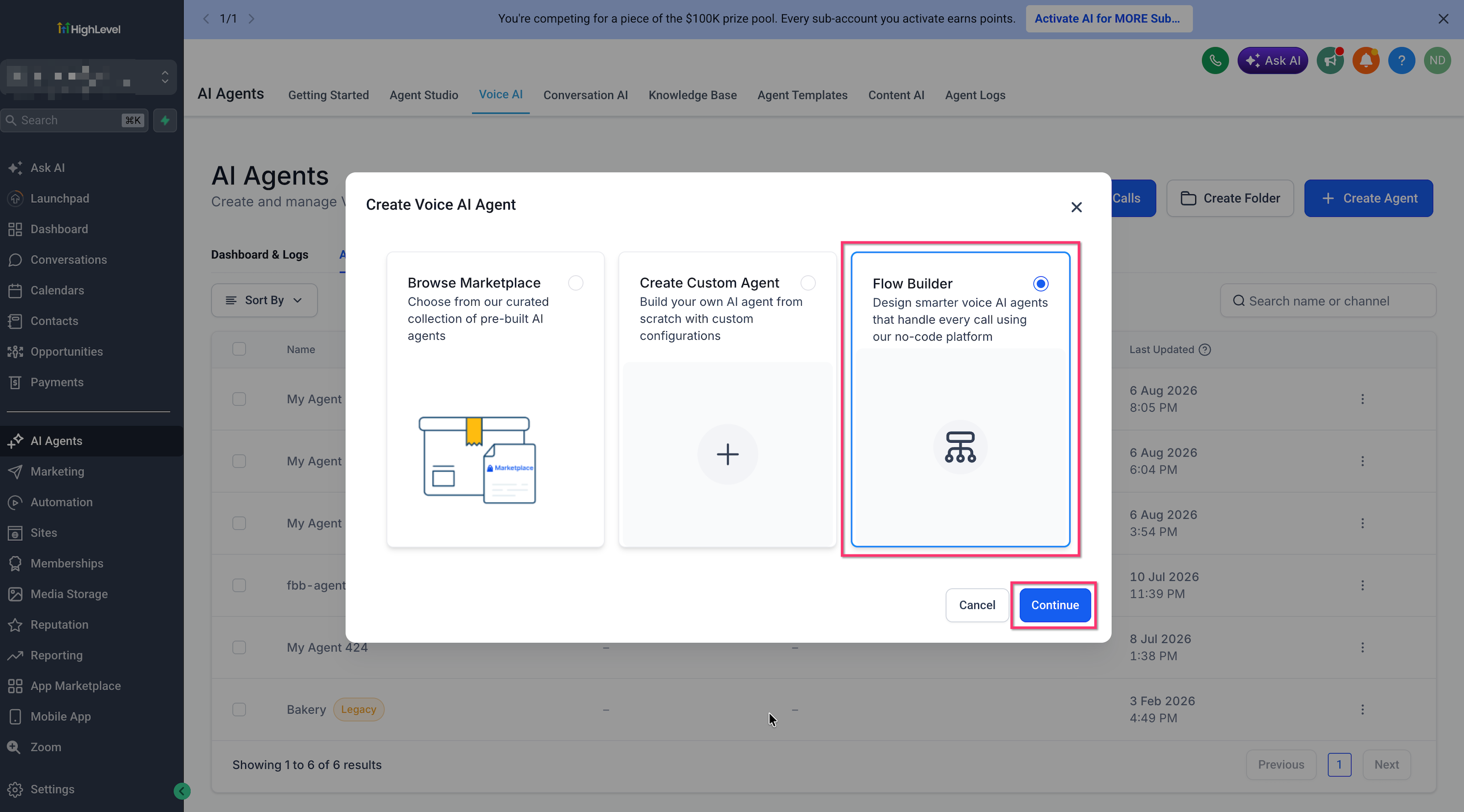
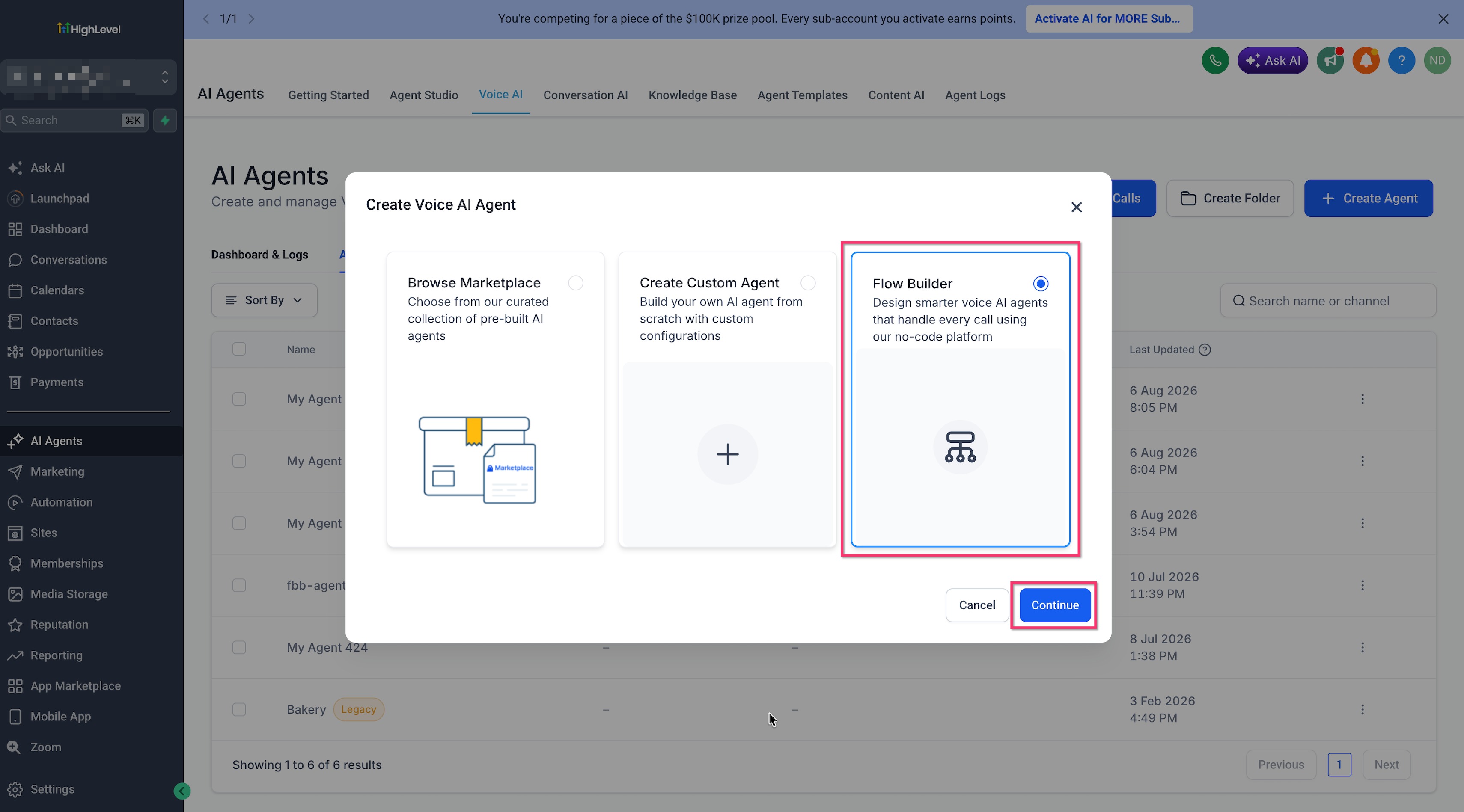
Chat To Clients CRM gives you several ways to begin creating a Voice AI agent. Choosing Flow Builder gives you access to the guided setup and ready-made use cases described in this article.
When creating a Voice AI agent, you may see options such as:
Browse Marketplace: Start with an available Marketplace agent.
Create Custom Agent: Build an agent using the standard setup.
Flow Builder: Build the call experience visually and use the new pre-configured templates.
Choose Flow Builder when you want to start from one of the guided use cases.
Pre-Configured Voice AI Templates
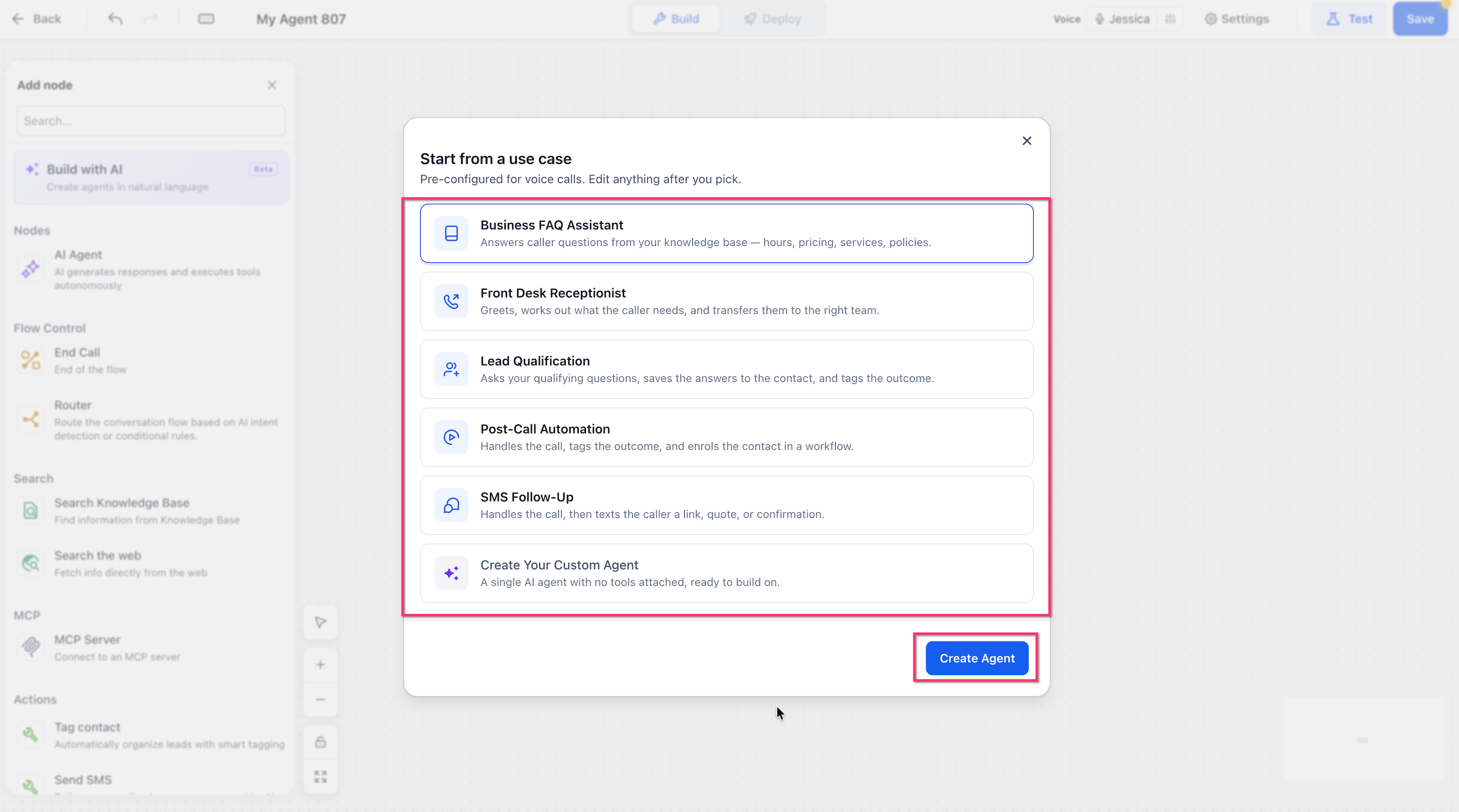
Pre-configured templates give you a useful starting setup for common business calls. Each template includes instructions designed for voice conversations and actions that match the selected use case.
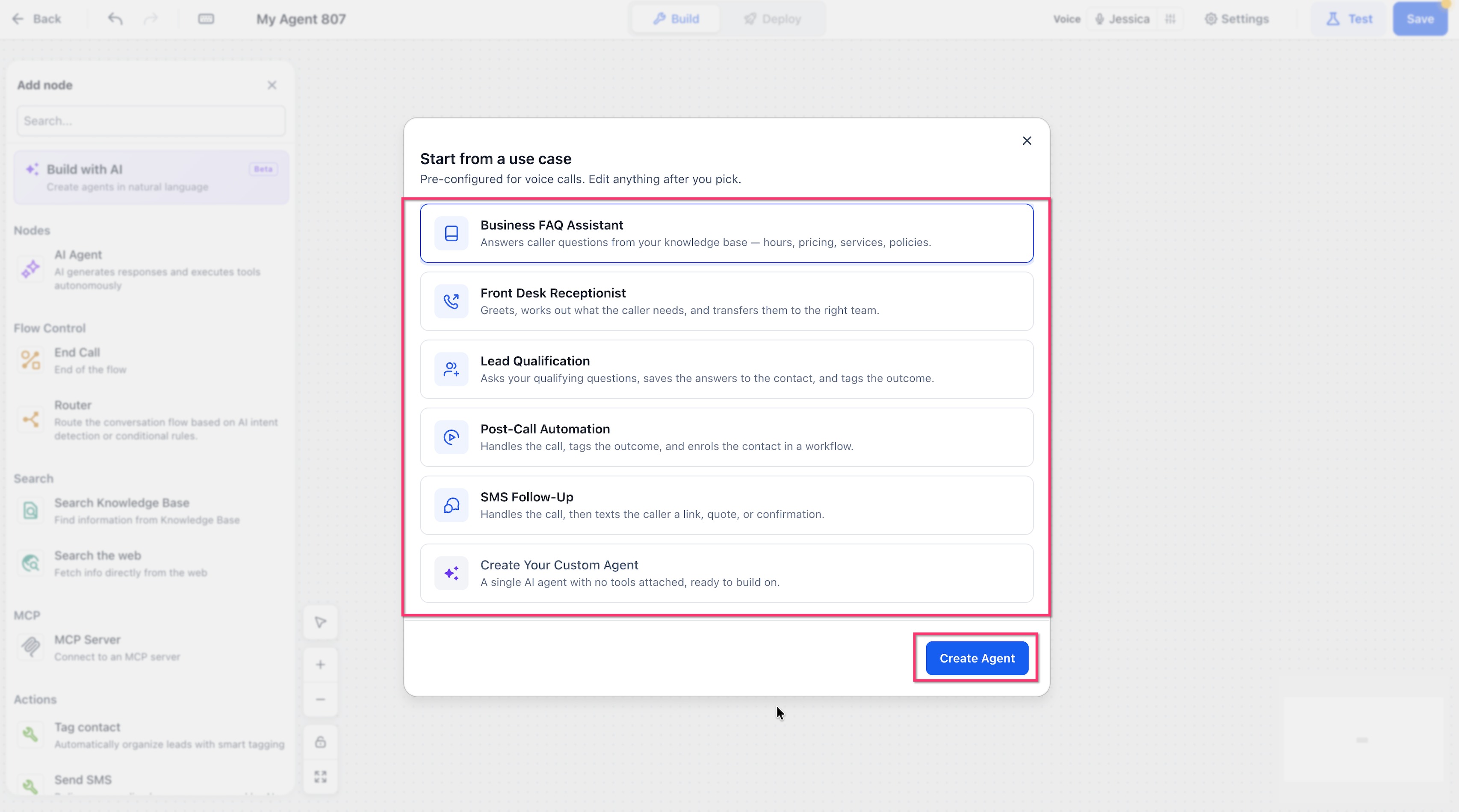
After choosing Flow Builder, you can select from:
Business FAQ Assistant
Use this option when you want the agent to answer common business questions using your available knowledge.
Example questions may include:
What are your business hours?
How much does a service cost?
What services do you provide?
What is your cancellation policy?
Front Desk Receptionist
Use this template when you want the agent to greet callers, understand why they are calling, and help connect them to the appropriate person or team.
Lead Qualification
Use this template when you want the agent to ask qualifying questions and save useful information about the caller.
It can help with tasks such as:
Collecting contact information
Asking qualification questions
Updating contact information
Adding a tag based on the result
Post-Call Automation
Use this option when actions need to happen after the call.
For example, the agent can help:
Add a tag
Update contact information
Start a workflow
SMS Follow-Up
Use this template when you want the agent to send a text message after the conversation.
For example, the SMS might include:
A confirmation
A link
A quote
Follow-up information
Create Your Custom Agent
Choose Create Your Custom Agent when none of the templates match your needs or when you prefer to build the agent yourself.
This gives you a basic starting agent without automatically adding a use-case-specific collection of actions.
What are Voice Actions?
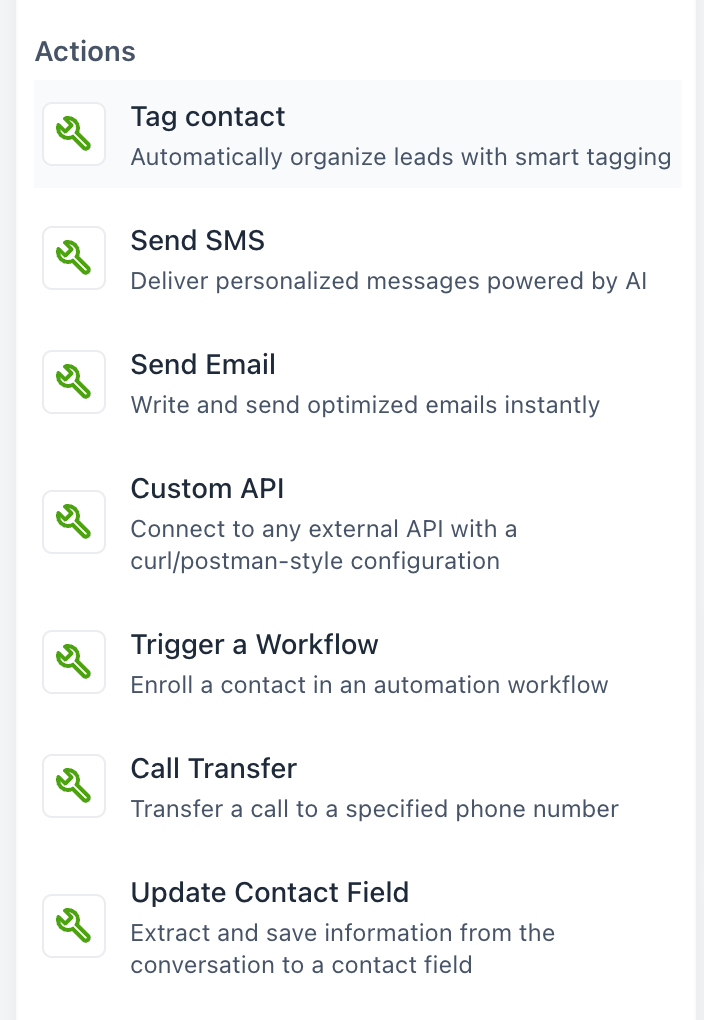
Voice Actions are tasks your agent can perform during or after a call. They allow the agent to do more than simply talk to the caller.
Depending on your setup, available actions can include:
Tag contact: Add a tag to the contact.
Send SMS: Send the caller a text message.
Send Email: Send an email.
Custom API: Send information to an outside system.
Trigger a Workflow: Add the contact to a Chat To Clients CRM workflow.
Call Transfer: Transfer the caller to another phone number.
Update Contact Field: Save information from the conversation to the contact record.
Templates can add relevant actions automatically, but you can still edit, remove, or add actions based on the needs of your agent.
Using the Update Tag Action
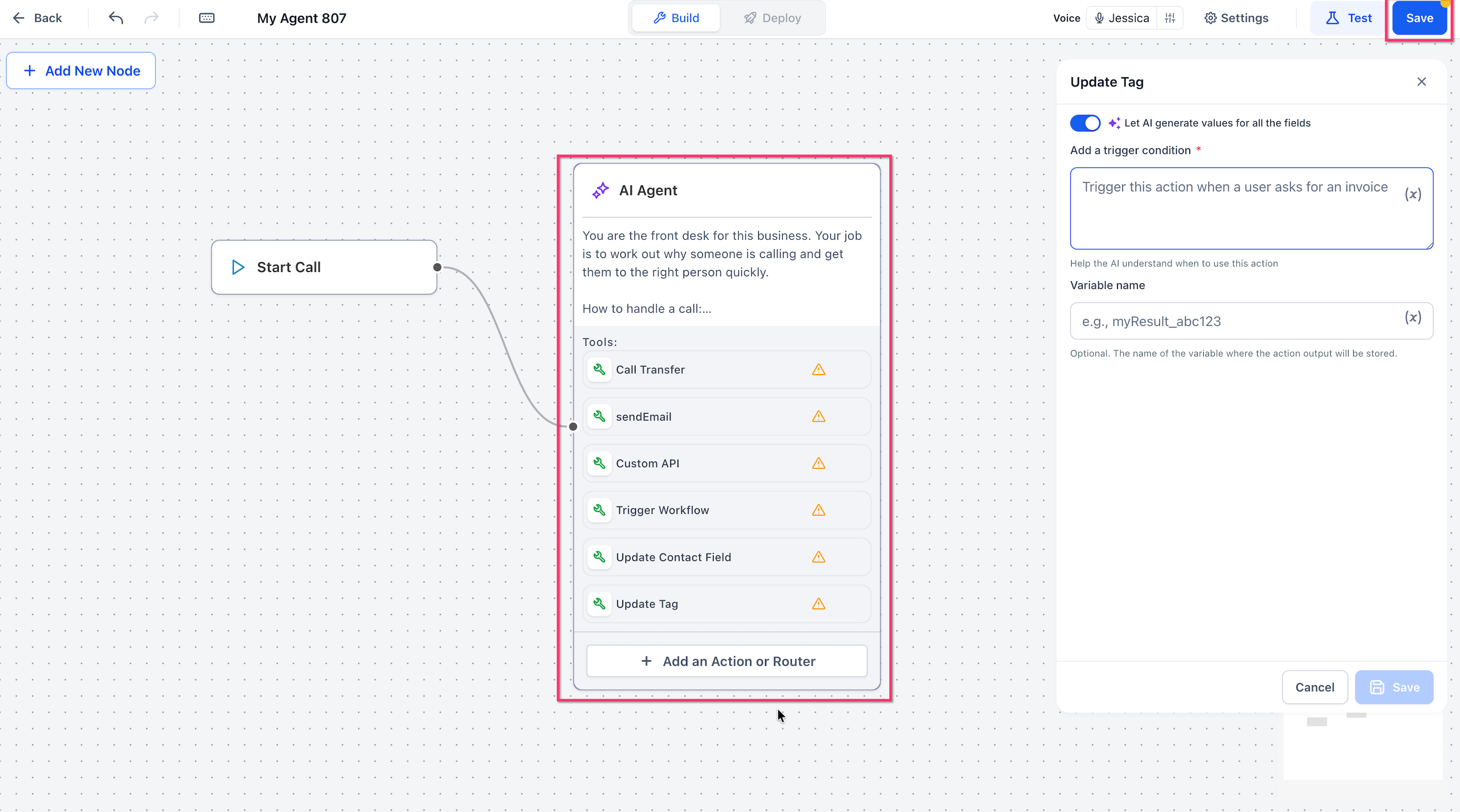
The Update Tag action lets your Voice AI agent save the result of a conversation as a contact tag. This makes it easier to organize contacts and use the call outcome in other areas of Chat To Clients CRM.
For example, your agent could add:
Qualified Lead
Not Interested
Needs Follow-Up
Booked
A tag can then help you:
Organize contacts
Build Smart Lists
Start workflows
Create follow-up campaigns
For example, if a caller meets your qualification requirements, the agent could add the Qualified Lead tag. A workflow could then use that tag to begin the next step in your sales process.
When configuring the action, provide a clear trigger condition that tells the agent when the tag should be applied.
Guided Setup Notifications
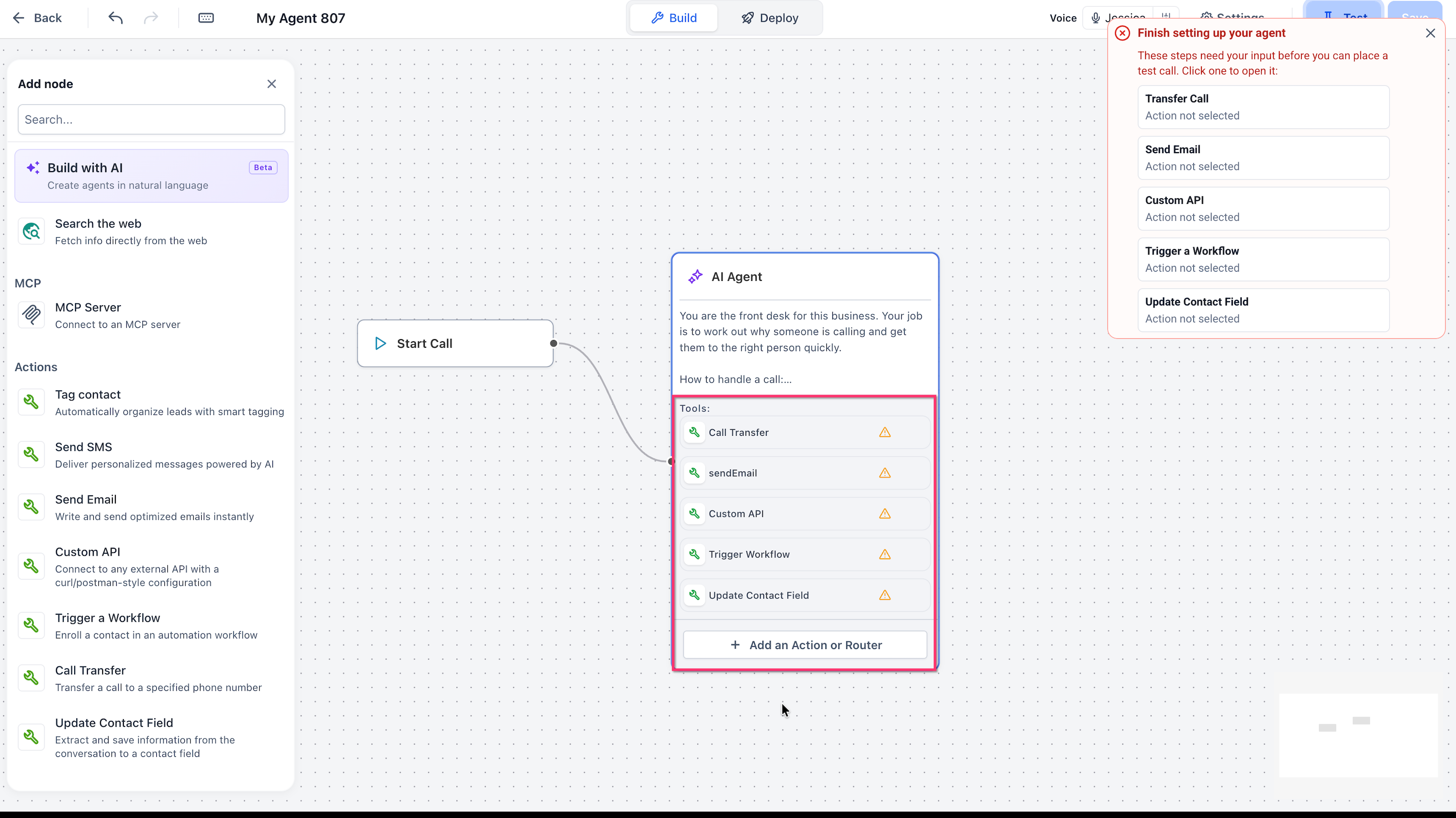
Guided setup notifications help you identify actions that are not completely configured. Instead of searching through the entire Flow Builder, you can see a list of items that still need your input.
When Chat To Clients CRM finds an incomplete required action, you may see Finish setting up your agent.
The notification can list unfinished items such as:
Transfer Call
Send Email
Custom API
Trigger a Workflow
Update Contact Field
Click a listed item to open the action that needs attention.
Chat To Clients CRM automatically focuses on the related action so you can complete its settings.
If several actions need setup, each one appears separately so you can work through them one at a time.
Saving, Testing, and Deploying Your Agent
Chat To Clients CRM separates saving your work from making the agent ready for use. You can save an incomplete agent, but required setup must be finished before the agent can be tested or deployed.
Saving
You can save your agent even when some actions still need configuration.
This means you can:
Stop partway through setup.
Save your work.
Return later.
Continue configuring incomplete actions.
Testing
Required setup must be completed before you can run a test call.
Testing helps you confirm:
The agent follows its instructions.
The conversation sounds natural.
Actions happen at the correct time.
Information is saved correctly.
Note: If you need to test an actual call transfer, use Phone Call testing because Call Transfer is not available during Web Call testing.
Deploying
Deploy remains unavailable until required setup items are complete.
This helps prevent an unfinished agent from being launched before important actions have been configured.
Templates vs. Build with AI
Templates and Build with AI can both help you create an agent faster, but they work differently. Understanding the difference helps you choose the best starting point.
Pre-configured templates give you a predefined setup based on a common business use case.
For example, selecting Front Desk Receptionist gives you a starting configuration designed for receptionist-style calls.
Build with AI lets you describe the experience you want in your own words, and Chat To Clients CRM uses those instructions to help create or change the flow.
Use templates when one of the provided use cases already matches your goal. Use Build with AI when you want to describe a more custom flow.
How To Set Up a Voice AI Agent Using a Template
Starting with a template gives you the main instructions and actions needed for a common use case. You can then finish the required settings and customize the agent before testing it.
Step 1: Open Flow Builder
Go to AI Agents > Voice AI.
Click Create Agent.
Select Flow Builder.
Click Continue.
Step 2: Choose a Template
Review the available use cases.
Select the template that best matches your goal.
Choose Create Your Custom Agent if you do not want to use a template.
Click Create Agent.
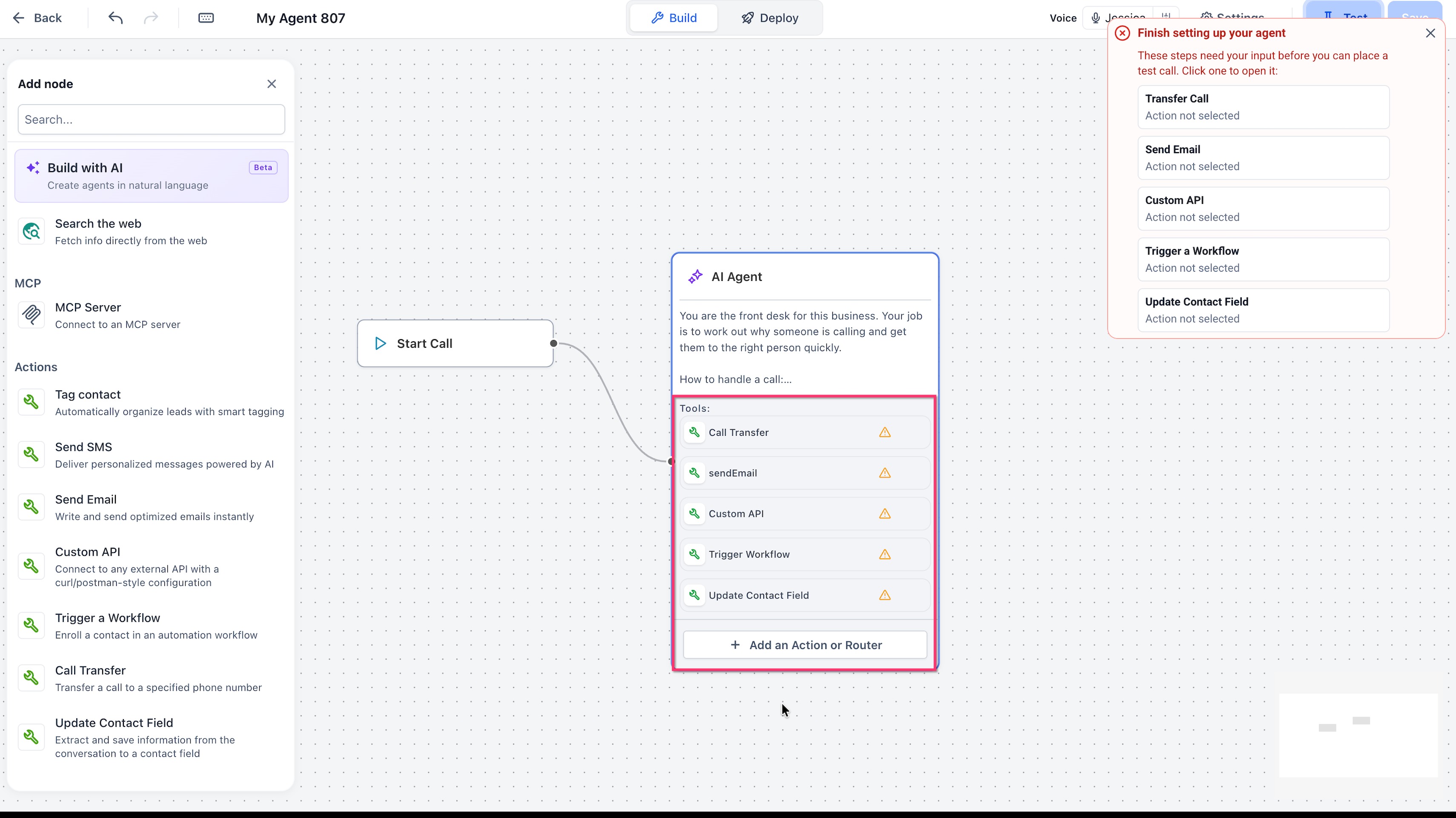
Step 3: Review the Generated Agent
After the agent is created:
Review the agent instructions.
Review the actions that Chat To Clients CRM added.
Remove any actions you do not need.
Add other actions if necessary.
Adjust the instructions to match your business.
Everything added by the template remains editable.
Step 4: Complete Pending Actions
Look for warning icons on actions.
Open Finish setting up your agent if it appears.
Click an incomplete item.
Complete the required information.
Save the action.
Repeat for each remaining warning.
Examples of information you may need to provide include:
Transfer phone number
Workflow
Contact field
SMS content
Email information
Action trigger conditions
Step 5: Configure Update Tag if Needed
Add or open the Update Tag action.
Enter a clear condition describing when the tag should be added.
Configure the required tag information.
Add an optional variable name if needed.
Click Save.
Step 6: Save and Test
Click Save.
Confirm that all required warnings are resolved.
Click Test.
Run the appropriate test call.
Confirm that the agent responds and performs its actions correctly.
Step 7: Deploy the Agent
After testing is complete:
Open Deploy.
Choose the available destination for the agent.
Complete the deployment settings.
Save your changes.
Frequently Asked Questions
Q: Do I have to use a template?
A: No. Choose Create Your Custom Agent if you want to start with a basic setup and build the agent yourself.
Q: Can I edit an agent after choosing a template?
A: Yes. The instructions, actions, and flow remain editable after the template is created.
Q: Can I add more actions to a template?
A: Yes. You can customize the generated flow and add actions that your use case requires.
Q: Can I remove actions that came with a template?
A: Yes. Templates provide a starting point rather than a locked configuration.
Q: Why is Test unavailable?
A: One or more required actions may still need setup. Review the warning icons and Finish setting up your agent notification.
Q: Why is Deploy unavailable?
A: Required setup must be completed before the agent can be deployed.
Q: Can I save an unfinished agent?
A: Yes. Saving is allowed even when actions still need configuration.
Q: What does Update Tag do?
A: It lets the agent add a tag to the contact based on what happens during the call.
Q: Can a tag added by Voice AI trigger a workflow?
A: Yes. Contact tags can be used as workflow triggers when the workflow is configured for that tag.
Q: Are my existing Voice AI agents changed by these templates?
A: No. Existing agents keep their current instructions and actions.
Q: What is the difference between a template and Build with AI?
A: A template gives you a predefined setup for a specific use case. Build with AI creates or changes a flow based on instructions you provide.