
Fix Google and LinkedIn Campaign Errors Before Publishing
Chat To Clients CRM Ad Manager now makes it easier to find and fix campaign issues before publishing Google and LinkedIn ads. Instead of showing one error at a time, Chat To Clients CRM can display multiple problems together, explain what needs to be fixed, and help you jump directly to the affected field. This reduces repeated publish attempts and makes campaign setup easier to troubleshoot.
TABLE OF CONTENTS
- What are Campaign Publishing Checks?
- Key Benefits of Campaign Publishing Checks
- What Happens When You Click Publish?
- View Multiple Errors at the Same Time
- Jump Directly to the Field That Needs Attention
- Google Campaign Pre-Publish Checks
- Google Demand Gen Campaign Checks
- LinkedIn Campaign Error Improvements
- What Happens After You Fix an Error?
- Pre-Publish Errors vs. Google or LinkedIn Rejections
- Validation Errors vs. Opportunity Score
- How To Fix Campaign Publishing Errors
- Troubleshooting Campaign Publishing Errors
- Frequently Asked Questions
- Related Articles
What are Campaign Publishing Checks?
Campaign publishing checks review your campaign for missing or incorrect information before it is sent to Google or LinkedIn. These checks help you fix common setup problems earlier so you can publish with fewer failed attempts.
For example, Chat To Clients CRM may check for issues such as:
Missing headlines
Missing descriptions
Missing Website URLs
Missing keywords
Invalid campaign dates
Missing creative assets
If Chat To Clients CRM finds a problem, it can stop publishing and show you what needs to be corrected first.
Key Benefits of Campaign Publishing Checks
The improved campaign checks make it easier to understand what is wrong and fix several issues at once. This helps reduce repeated publish attempts and gives you clearer guidance before the campaign is submitted.
See multiple errors at once: Review several campaign issues in one list instead of discovering them one by one.
Get clearer error messages: Understand what is missing or incorrect and where the problem is located.
Jump directly to the problem: Click an error to go to the field or section that needs attention.
Fix errors faster: Resolve several issues before trying to publish again.
Better Google checks: Google campaigns now go through additional checks before submission.Clearer LinkedIn errors: LinkedIn carousel and creative issues now identify the affected item more clearly.
Better publishing feedback: Status messages make it easier to understand what Chat To Clients CRM is checking during publishing.
What Happens When You Click Publish?
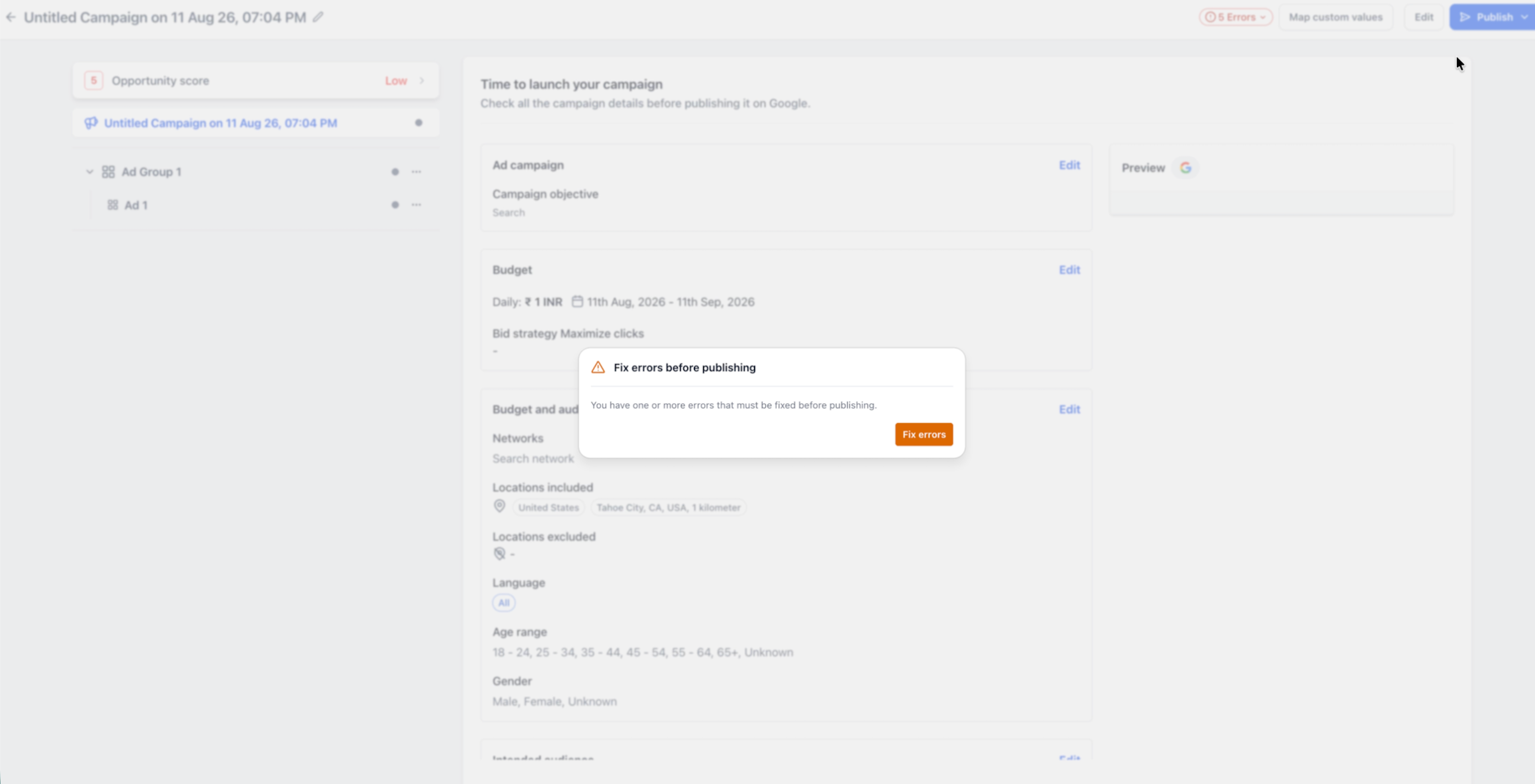
When you click Publish, Chat To Clients CRM checks the campaign for supported setup issues before sending it to the advertising platform. If problems are found, publishing pauses so you can fix them.
The basic flow is:
Finish setting up the campaign.
Click Publish.
Chat To Clients CRM checks the campaign.
If errors are found, the Fix errors before publishing prompt appears.
Open the error list.
Review the issues.
Fix the affected fields.
Publish again.
View Multiple Errors at the Same Time
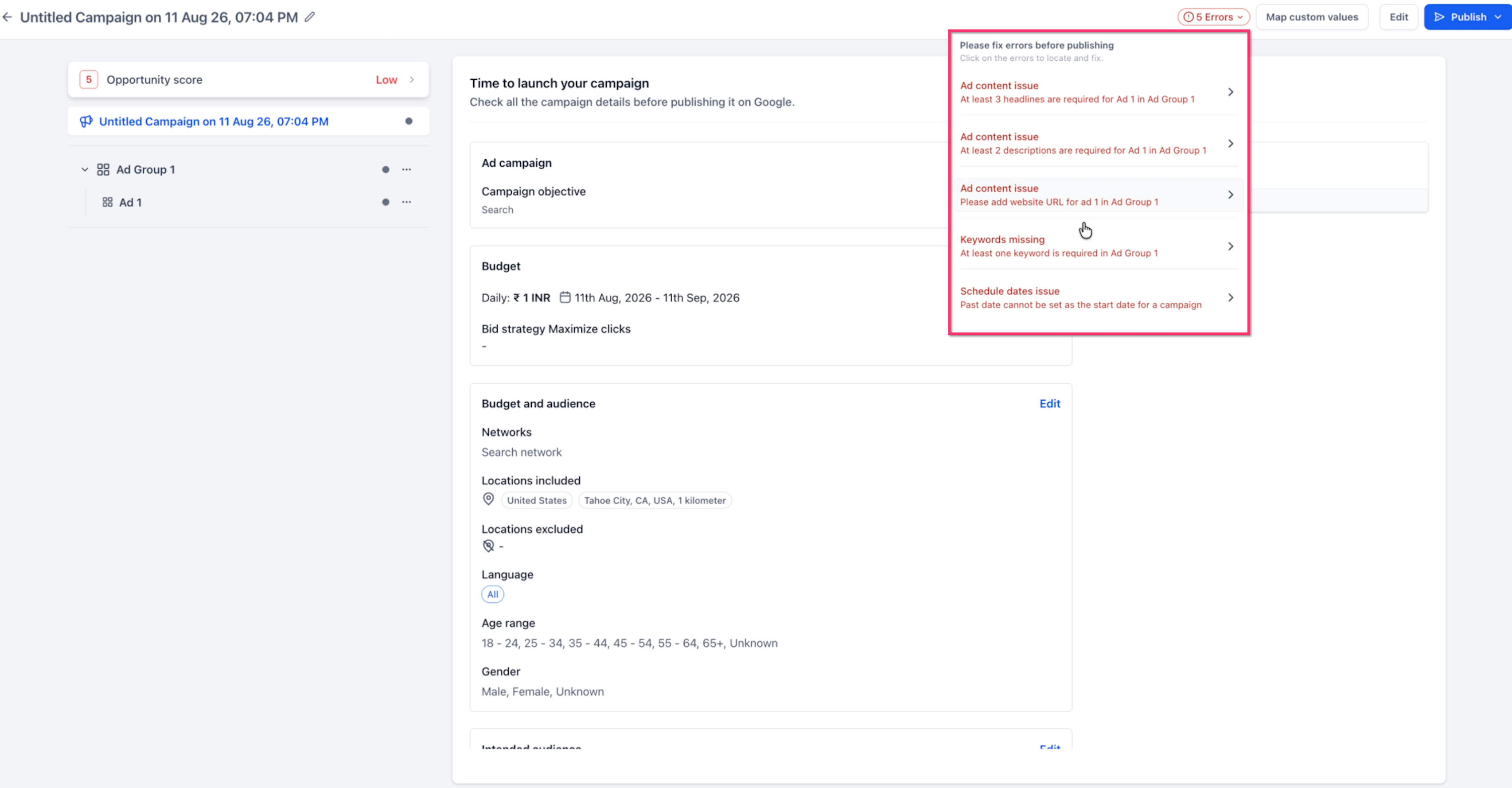
Chat To Clients CRM now groups multiple campaign problems together so you can review them in one place. This is useful when a campaign has several missing fields or setup problems.
For example, the error list may show:
Missing ad headlines
Missing descriptions
Missing Website URL
Missing keywords
Invalid schedule dates
Instead of fixing one issue, publishing again, and then discovering another issue, you can work through the full list in one pass.
Jump Directly to the Field That Needs Attention
Clickable error messages help you find the exact place that needs to be fixed. This is especially useful for larger campaigns with multiple ads, ad groups, creatives, or carousel cards.
To use an error shortcut:
Open the error list.
Click the error you want to fix.
Chat To Clients CRM takes you to the related field or section.
Correct the issue.
Return to the review screen and continue fixing any remaining errors.
This reduces the need to search through the campaign manually.
Google Campaign Pre-Publish Checks
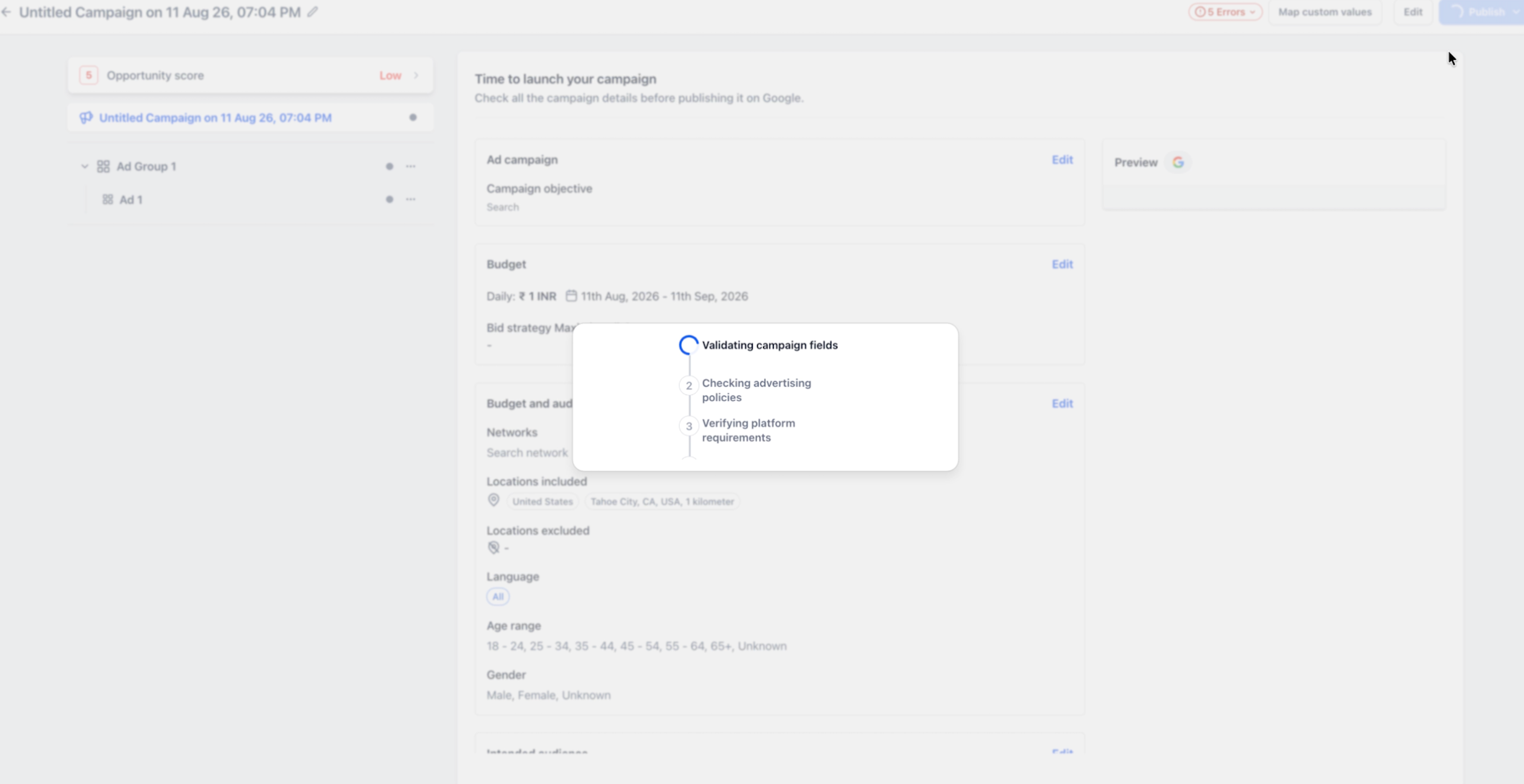
Google campaigns now include an additional review process before submission. These checks help identify supported campaign and creative issues before the campaign is sent to Google.
The process can include:
Validating campaign fields
Checking advertising requirements
Verifying platform requirements
You may see progress messages while these checks are running.
Google Demand Gen Campaign Checks
Demand Gen campaigns can require several types of creative content. Chat To Clients CRM now provides clearer checks for missing or incomplete Demand Gen assets before publishing.
Depending on the campaign format, Chat To Clients CRM may check for items such as:
Images
Logos
Videos
Headlines
Descriptions
Long headlines
Carousel assets
Chat To Clients CRM also provides clearer messages for missing Website URLs and duplicate creative content.
For full Demand Gen setup requirements, refer to the dedicated Google Demand Gen article in the Related Articles section.
LinkedIn Campaign Error Improvements
LinkedIn campaigns now provide clearer error messages for creatives and carousel cards. This makes it easier to understand which part of the ad needs to be fixed.
For carousel ads, Chat To Clients CRM can provide better context when a specific card is missing required information such as:
A headline
A destination URL
This is especially useful when several carousel cards are included in the same ad.
What Happens After You Fix an Error?
After you correct campaign details, Chat To Clients CRM refreshes the campaign checks so fixed issues no longer remain incorrectly listed.
A simple workflow is:
Open the error list.
Fix the first issue.
Continue working through the remaining errors.
Save your campaign changes.
Click Publish again.
Chat To Clients CRM checks the campaign again.
If no blocking issues remain, publishing can continue.
Pre-Publish Errors vs. Google or LinkedIn Rejections
Passing Chat To Clients CRM's campaign checks does not guarantee that Google or LinkedIn will approve the campaign. The advertising platform may still return an error or rejection after submission.
There are two different types of issues to understand:
Pre-publish errors: Problems Chat To Clients CRM finds before the campaign is submitted, such as missing fields or incomplete ad content.
Platform errors or rejections: Problems returned by Google or LinkedIn after submission, such as policy violations or platform-specific requirements.
If the campaign passes Chat To Clients CRM's checks but is later rejected, review the feedback returned by the advertising platform.
Validation Errors vs. Opportunity Score
Validation errors and Opportunity Score serve different purposes. Understanding the difference helps you know which items must be fixed and which are recommendations.
Validation errors: Problems that may prevent the campaign from publishing until they are fixed.
Opportunity Score: Recommendations that can help improve campaign readiness or setup but are not the same as
blocking publishing errors.
A low Opportunity Score does not necessarily mean the campaign has a publishing error.
How To Fix Campaign Publishing Errors
Following the error list in order can help you correct campaign issues quickly and avoid repeated publish attempts. Start by opening the campaign review screen and fixing each issue shown.
Open the Google or LinkedIn campaign in Ad Manager.
Review the campaign, ad groups or ad sets, and ads.
Click Publish.
If prompted, click Fix errors.
Open the error list.
Review all identified issues.
Click an error to go directly to the affected field or section.
Correct the issue.
Repeat until all required errors are fixed.
Save your changes.
Click Publish again.
For Google campaigns, wait for the pre-publish checks to complete.
If the campaign passes the checks, continue with submission.
Troubleshooting Campaign Publishing Errors
Most publishing problems can be resolved by reviewing the error list, checking required campaign fields, and trying the publish process again after saving changes.
The Publish button does not complete the campaign
Open the error list and check for required fields that still need attention.
I fixed an error, but it still appears
Save the campaign changes and run the publishing checks again. The list should refresh after the campaign is rechecked.
I see several errors for one ad
One ad can have more than one missing or incorrect field. Work through each error shown for that ad.
Google or LinkedIn rejected the campaign after Chat To Clients CRM showed no errors
Chat To Clients CRM's checks do not replace Google or LinkedIn's own platform and policy review. Review the rejection details returned by the advertising platform.
A LinkedIn carousel error does not make sense
Review the specific carousel card mentioned in the error and check its headline and destination URL.
My campaign start date is in the past
Update the campaign schedule to use a valid future or current start date, then publish again.
Frequently Asked Questions
Q: Can Chat To Clients CRM show more than one campaign error at a time?
A: Yes. The improved error list can show multiple campaign issues together.
Q: What happens when I click an error?
A: Chat To Clients CRM takes you to the field or section related to that error so you can fix it faster.
Q: Do Google campaigns receive extra checks before publishing?
A: Yes. Google campaigns can go through additional checks for campaign fields, advertising requirements, and platform requirements.
Q: Does this work with Google Demand Gen campaigns?
A: Yes. Demand Gen validation includes clearer checks for supported creative requirements such as images, logos, headlines, descriptions, videos, and carousel assets.
Q: Are LinkedIn carousel cards checked individually?
A: The improved LinkedIn error experience provides clearer context about the specific carousel card that needs attention.
Q: Will fixed errors disappear from the list?
A: After campaign details are corrected and rechecked, resolved errors should refresh correctly.
Q: Can Google or LinkedIn still reject a campaign after it passes Chat To Clients CRM's checks?
A: Yes. The advertising platform can still return policy or platform-level errors after submission.
Q: Is Opportunity Score the same as a publishing error?
A: No. Opportunity Score provides recommendations, while publishing errors identify issues that may need to be fixed before the campaign can be submitted.
Related Articles
Creating and Managing LinkedIn Ads in Chat To Clients CRM Ad Manager
Google Demand Gen Campaigns in Chat To Clients CRM Ad Manager