
Use Custom Fields as Metrics in Dashboards, Reports & Custom Metrics
Numeric and monetary custom fields can be more than filters or grouping options in Chat To Clients CRM reporting. Contact and Opportunity custom fields that store business-specific numbers—such as treatment cost, property value, or projected deal size can now be aggregated directly in dashboards and Custom Reports. This gives you more flexibility to measure the data that matters to your business without forcing it into a standard field.
TABLE OF CONTENTS
- What Are Custom Field Metrics?
- Key Benefits of Custom Field Metrics
- Supported Fields and Aggregations
- Where Custom Field Metrics Are Available
- How To Setup Custom Fields as Metrics
- Example: Reporting on Property Value
- Frequently Asked Questions
- Related Articles
What Are Custom Field Metrics?
Custom field metrics turn eligible numeric and monetary values stored on Contacts or Opportunities into measurable reporting data. Instead of only filtering or grouping records by a custom field, you can calculate the Sum, Minimum, Maximum, or Average of its values and display the result in supported reporting tools.
For example, if your Opportunities contain a Monetary custom field named Property Value, you can calculate the total property value across won opportunities or identify the highest-value property in a selected period.
Key Benefits of Custom Field Metrics
Measure business-specific data: Aggregate values such as property value, treatment cost, estimated project value, or other numeric information unique to your business.
Choose the calculation that fits your goal: Apply Sum, Min, Max, or Average to the same custom field depending on the insight you need.
Report across multiple tools: Use eligible custom fields in Dashboard widgets, Custom Reports, and the Custom Metric module.
Reduce manual reporting: Analyze custom-field values directly in Chat To Clients CRM instead of exporting the data for separate calculations.
Use new fields automatically: Eligible custom fields become available as metrics when they are created without requiring a separate admin toggle or enablement step.
Supported Fields and Aggregations
Custom field metrics are available for supported Contact and Opportunity fields that store numeric or monetary values. Chat To Clients CRM separates the field you want to measure from the calculation applied to it, so the same custom field can be used to answer different reporting questions.
Supported custom field metrics include:
Objects: Contacts and Opportunities
Field types: Number and Monetary custom fields
Aggregations:
Sum: Adds all applicable values together.
Min: Displays the lowest applicable value.
Max: Displays the highest applicable value.
Average: Calculates the average of all applicable values.
When configuring a metric, use the two separate dropdowns in the metric picker:
Field: Select the custom field you want to measure, such as Property Value.
Aggregation: Select how Chat To Clients CRM should calculate that field, such as Sum, Min, Max, or Average.
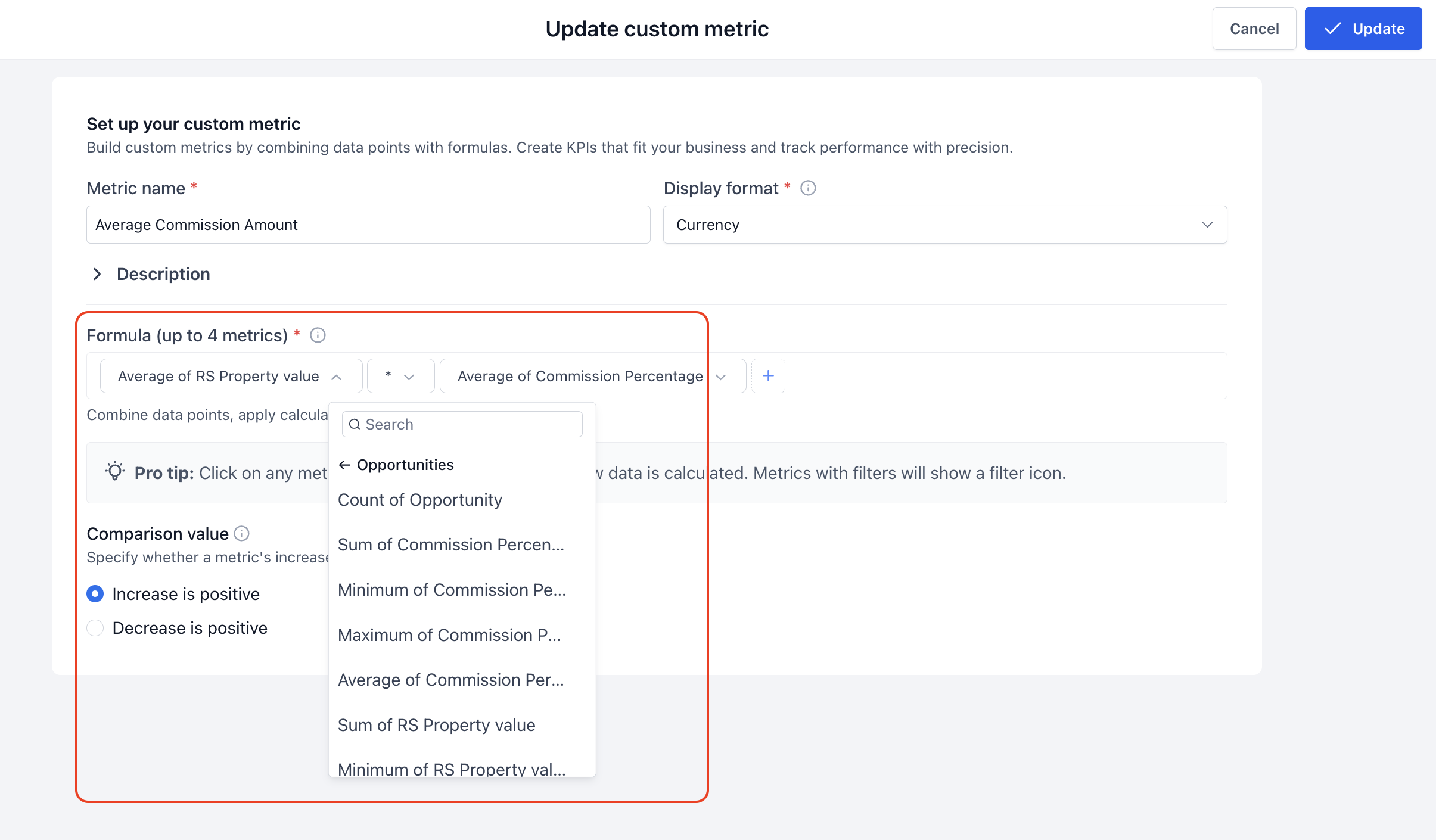
For example, to calculate the total property value across a set of Opportunities, select Property Value as the Field and Sum as the Aggregation. You will not see a combined option such as Sum of Property Value in the Field dropdown.
If you need to create a supported custom field first, see Creating and Managing Custom Fields for Better Data Organization.
Note: Eligible custom fields are added to the metric picker automatically, so no additional setup or enablement is required after the field is created.Where Custom Field Metrics Are Available
Custom field metrics can be used across Chat To Clients CRM's primary reporting experiences, allowing the same business-specific data to support quick dashboard monitoring, shareable reports, and more advanced calculated KPIs.
Eligible Contact and Opportunity custom fields are available as metrics in:
Dashboard widgets: Add the aggregated value to a dashboard for ongoing KPI monitoring.
Custom Reports: Use custom-field metrics inside report widgets alongside other reporting data.
Custom Metric module: Include eligible custom-field metrics when building supported calculated KPIs.
How To Setup Custom Fields as Metrics
Proper setup starts with an eligible custom field and then depends on where you want to use that metric. Dashboard widgets and Custom Reports use metric configuration controls, while the Custom Metric module uses a formula builder for combining metrics and calculations.
Use a Custom Field in a Dashboard Widget or Custom Report
Dashboard widgets and Custom Reports let you measure the values stored in an eligible custom field by pairing the field with a supported aggregation.
- Confirm that the custom field is eligible.
Verify that the field belongs to either Contacts or Opportunities and uses a Number or Monetary field type.
If the field does not exist yet, create it under Settings > Custom Fields. Choose the correct object when creating the field because a Contact custom field cannot later be converted into an Opportunity custom field, or vice versa.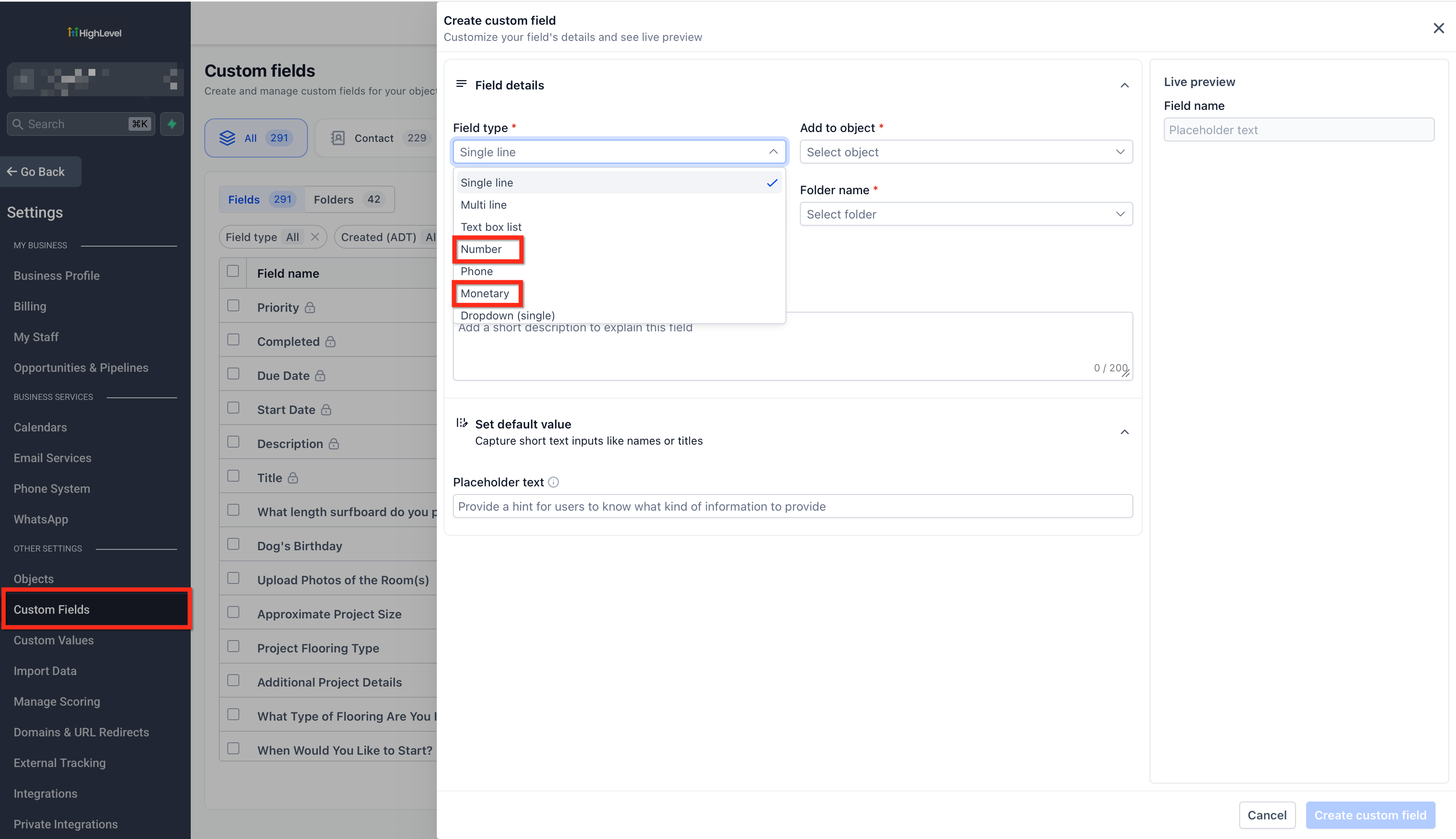
- Open the reporting destination and Edit.
Open the Dashboard widget or Custom Report where you want to use the custom field.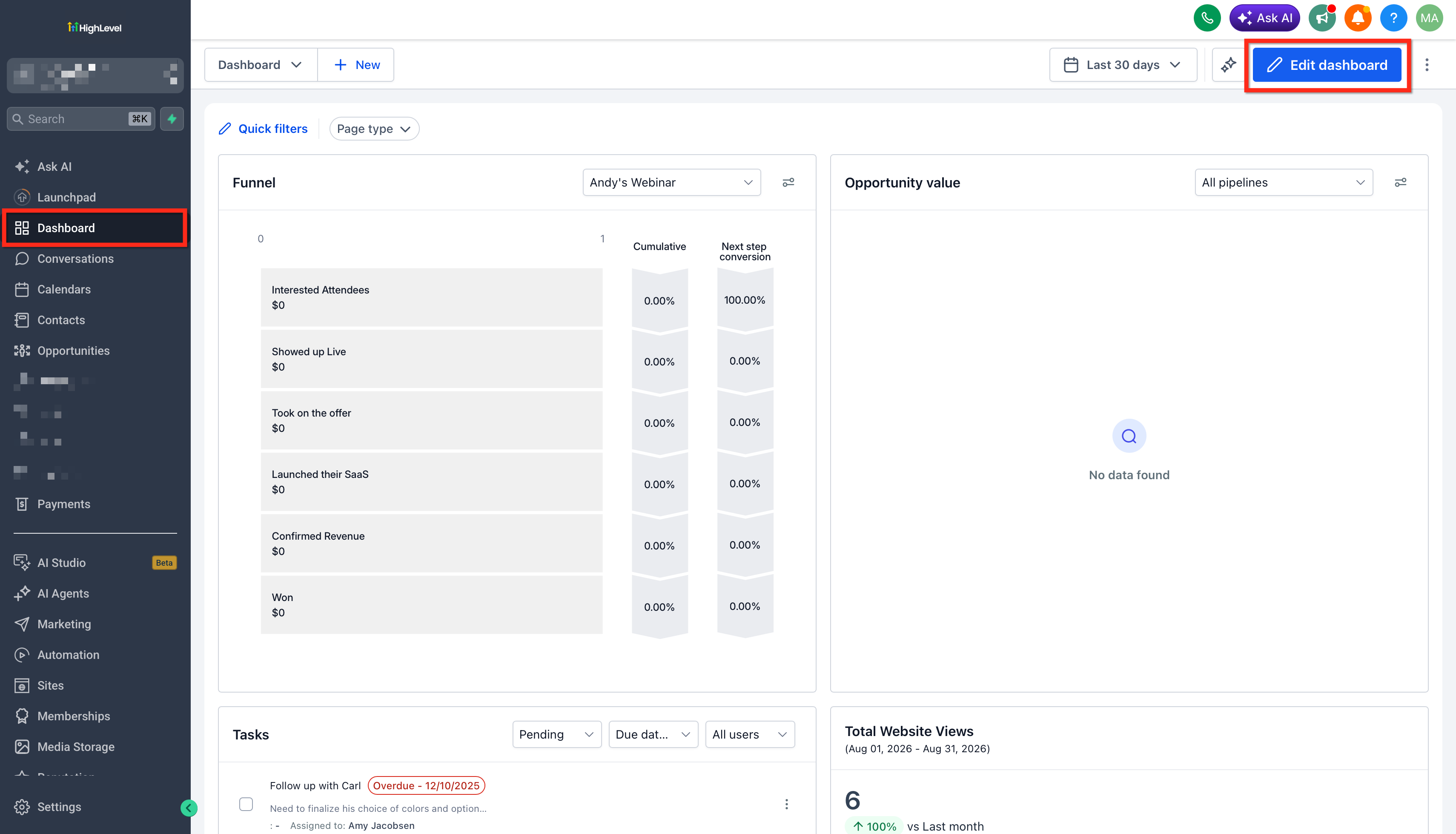
- Add or configure the metric and Select the custom field.
Open the metric configuration for the widget. Choose the Number or Monetary custom field you want to measure, such as Property Value. - Choose the aggregation.
Select the calculation you want Chat To Clients CRM to apply: Sum, Min, Max or Average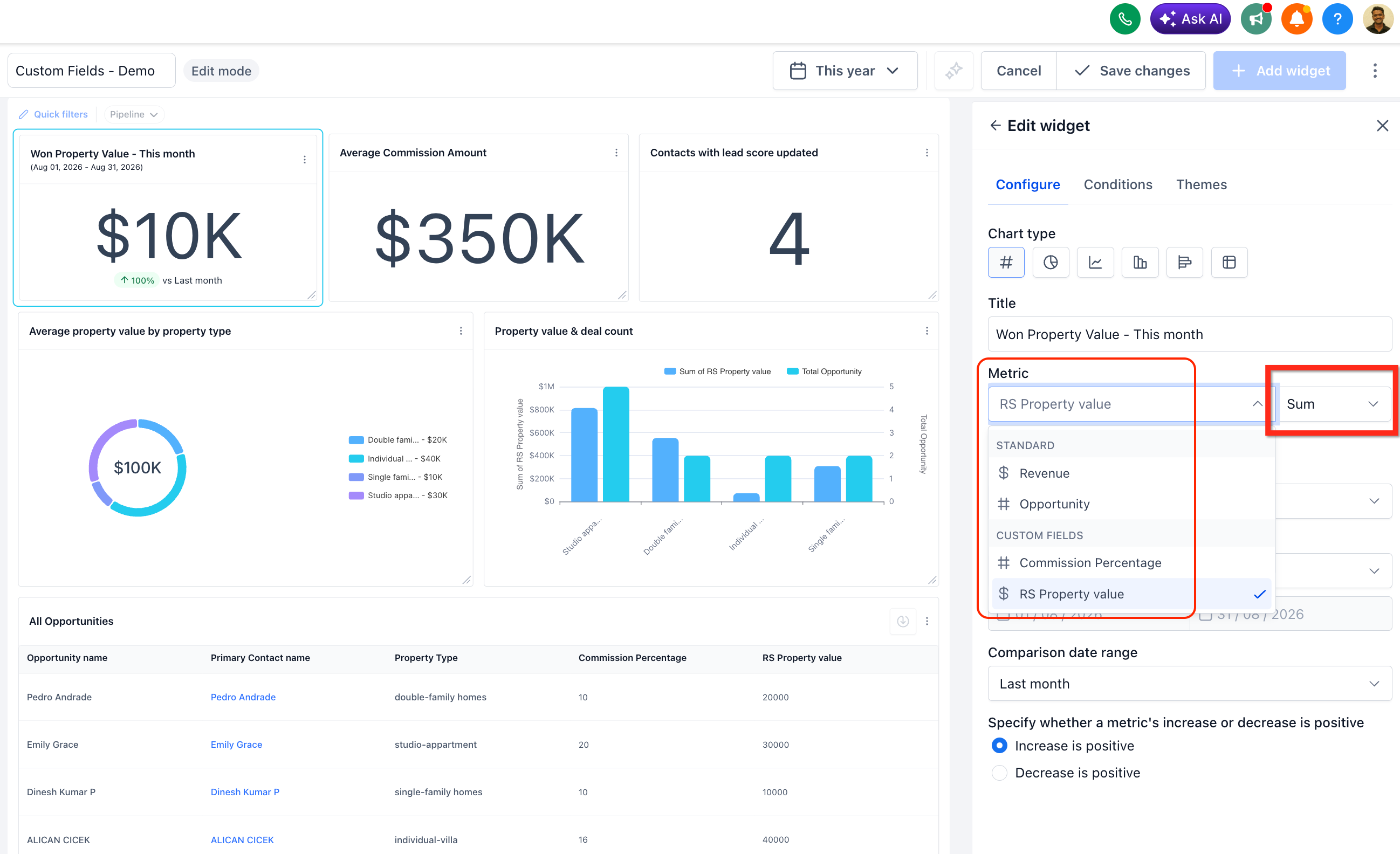
- Add filters or a View By when needed.
Refine the metric to answer a more specific reporting question. For example, filter Opportunities to won records or group the results by another supported field. - Save the widget or report configuration.
Use a Custom Field in a Custom Metric
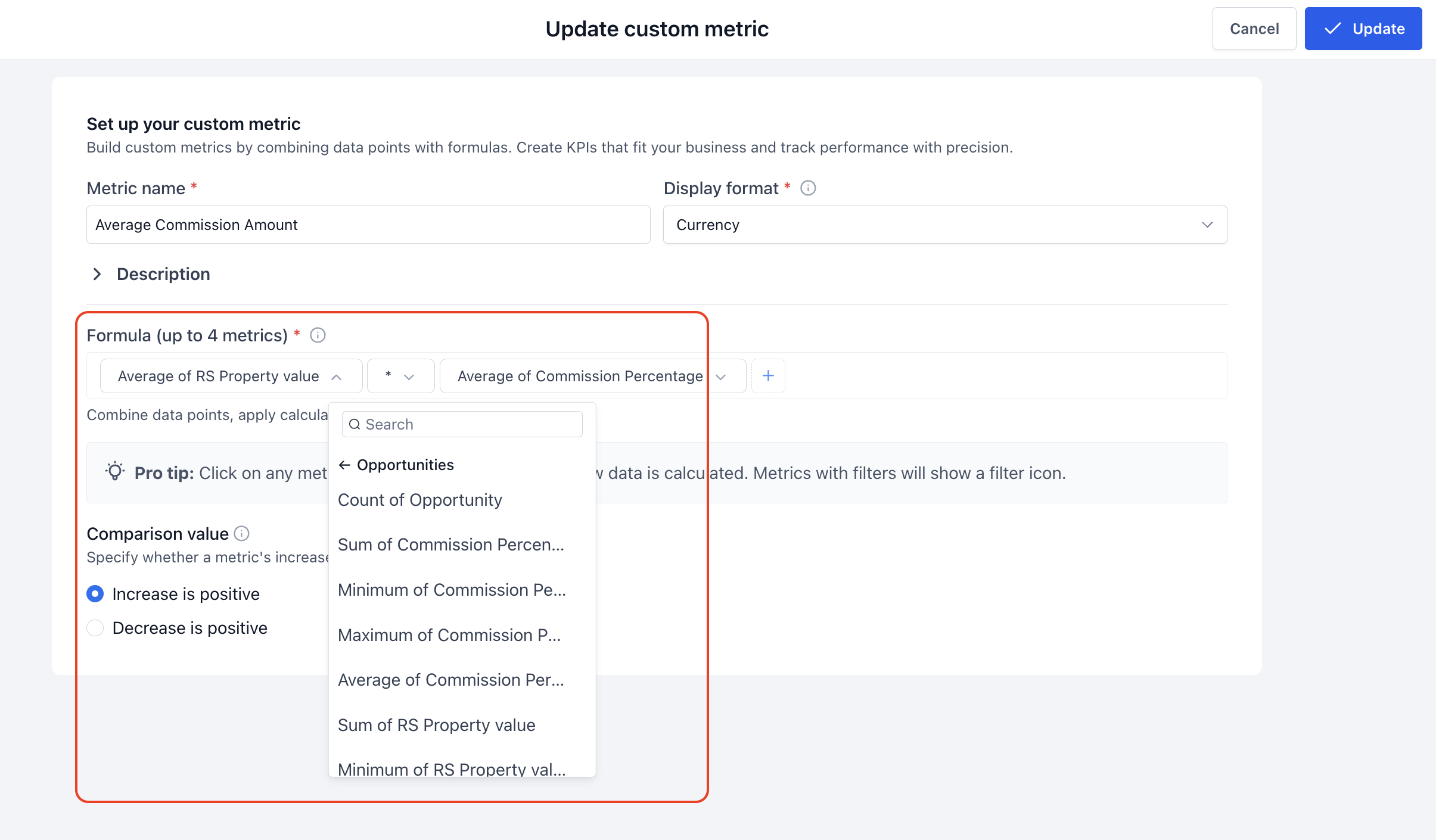
Custom Metrics let you combine individual metrics into formulas for more advanced KPI calculations. The formula builder provides separate options for adding metrics, mathematical operators, and fixed numbers.
- Open the Custom Metric module and create a new Custom Metric.
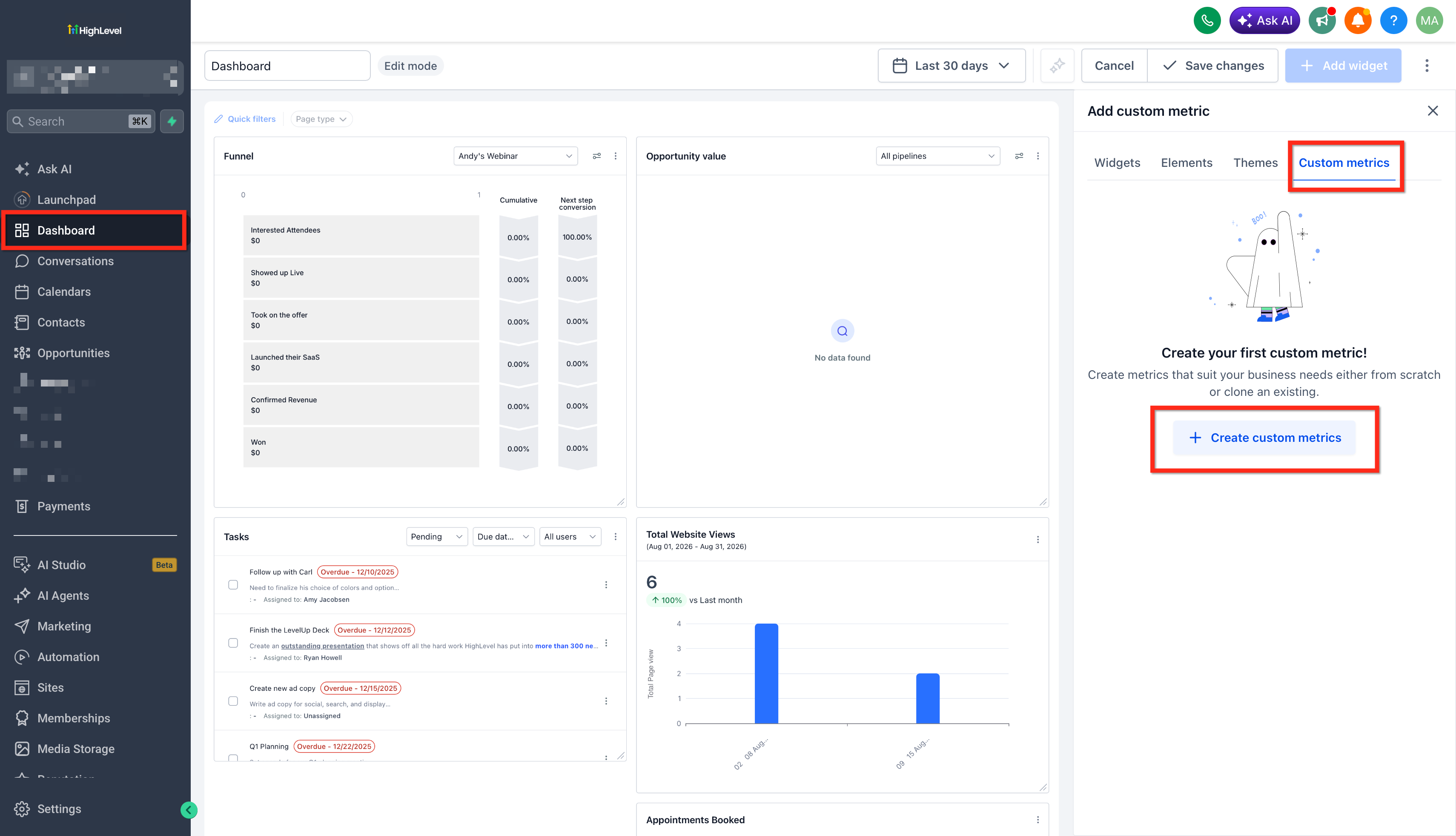
- Enter the Metric name and select the Display format.
- Add a metric to the Formula builder.
Select the metric you want to use. Custom-field metrics can be included when available. - Click the + button to add another formula component.
- Choose what you want to add:
- Metrics
- Operator
- Number
- If you select Operator, choose the mathematical operation you want to use:
- +
- −
- *
- /
- (
- )
- Continue building the formula as needed.
Custom Metrics support formulas containing multiple metrics. - Configure the comparison value behavior.
Select whether an increase or decrease should be considered positive for the metric. - Click Create/Update to save the Custom Metric.
Example: Reporting on Property Value
A practical example shows how the same custom field can answer different business questions simply by changing the aggregation, filters, or reporting dimension. This allows one field to support several KPIs without creating duplicate fields for each calculation.
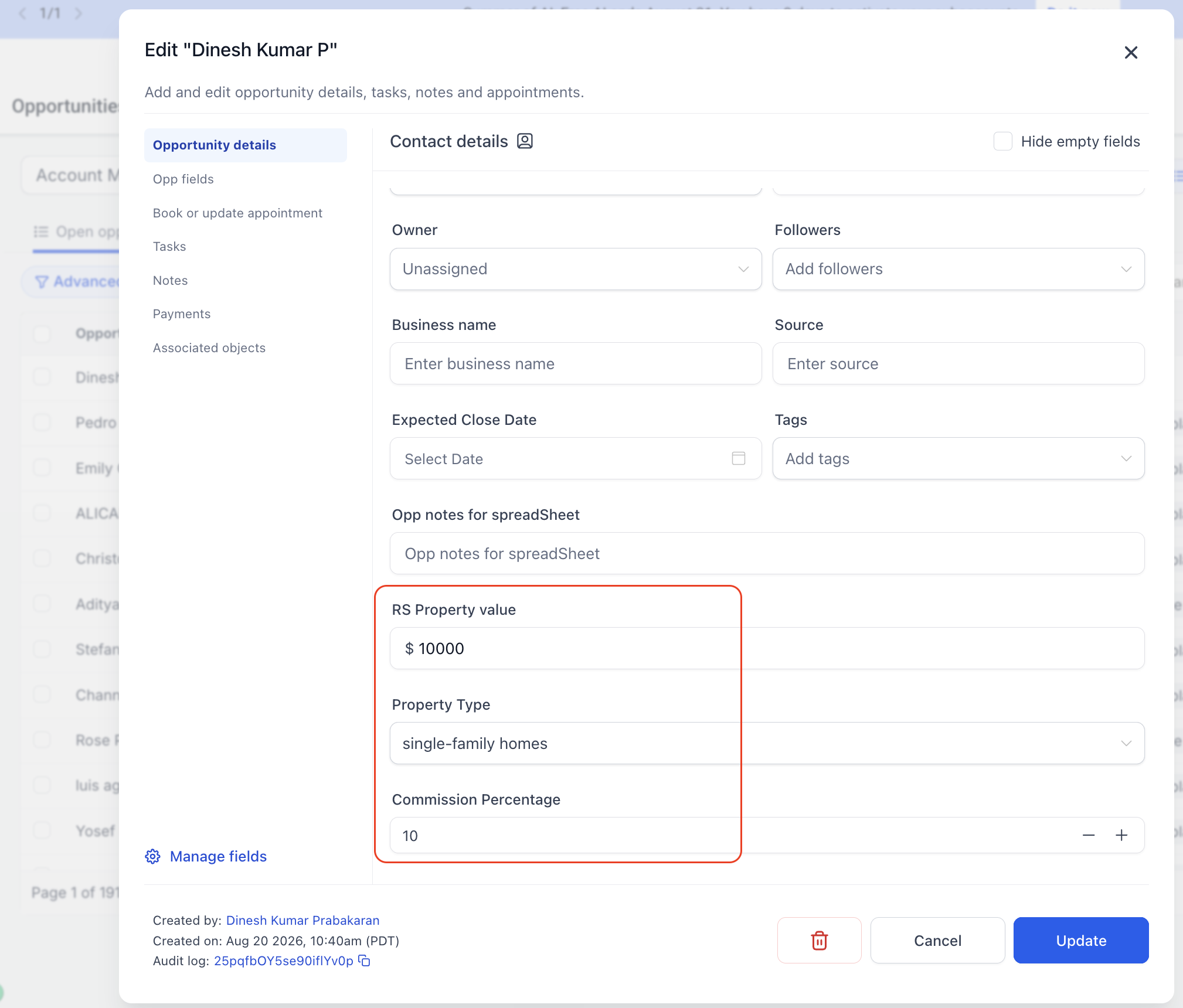
Suppose a real estate agency stores Property Value as a Monetary custom field on each Opportunity.
Total value of won properties: Select Property Value as the Field and Sum as the Aggregation, then filter the results to won opportunities. When the applicable reporting period is set to the current month, the metric can show the total property value represented by won opportunities for that period.
Largest property value: Select Property Value as the Field and Max as the Aggregation to identify the highest applicable property value.
Property value by property type: Use Property Value as the metric and add Property Type as the View By/dimension to compare values across categories.
The custom Monetary field in this example is separate from Chat To Clients CRM's built-in Opportunity Monetary Value. A custom field stores a value defined for your specific business process, while standard Opportunity value metrics use Chat To Clients CRM's built-in opportunity data.
Frequently Asked Questions
Q: Why is my custom field not appearing in the Field dropdown?
Confirm that the custom field belongs to either Contacts or Opportunities and uses a supported numeric/Number or Monetary field type. Custom-field availability can depend on the object, field type, and reporting component being configured.
Q: Can I change a Contact custom field into an Opportunity custom field if I created it under the wrong object?
No. The object associated with a custom field cannot be changed after the field is created. Create a new field under the correct object instead.
Q: Is a Monetary Opportunity custom field the same as Opportunity Monetary Value?
No. Opportunity Monetary Value is a standard Chat To Clients CRM opportunity value used by built-in Opportunity reporting. A Monetary custom field is a separate field created for business-specific information, such as Property Value or Estimated Project Cost.
Q: Can I use filters or grouping with a custom field metric?
Yes. Supported reporting configurations can combine a custom-field metric with filters or a View By/dimension. For example, Property Value can be summed for won opportunities and then analyzed by Property Type.
Q: Do Dashboard widgets, Custom Reports, and Custom Metrics have the same plan availability?
Not necessarily. Chat To Clients CRM's reporting features can have different plan requirements. Review the dedicated Custom Metrics documentation for the current availability of that module rather than assuming access to one reporting feature automatically includes every reporting feature.
Q: What should I do if I need the same custom field calculated in different ways?
Select the same custom field as the Field and choose the aggregation appropriate to each reporting use case. For example, Sum can measure the combined value while Max can identify the highest value.