
How to utilize usernames in interactive messages
Customers using WhatsApp usernames can message a business without initially sharing their phone number. Request Contact Info provides a customer-controlled way to collect that number through a WhatsApp template or an automated workflow message.
Chat To Clients CRM checks whether another contact already uses the shared number before adding it, helping prevent duplicate phone assignments. This guide explains how to configure both request methods and what happens after a customer shares their information.
TABLE OF CONTENTS
- What Is Request Contact Info for WhatsApp Username Contacts?
- Key Benefits of Request Contact Info
- Prerequisites and Limitations
- How to Set Up Request Contact Info
- Duplicate-Safe Phone Number Capture
- WhatsApp Calling for Username Contacts
- Frequently Asked Questions
- Related Articles
What Is Request Contact Info for WhatsApp Username Contacts?
Request Contact Info lets businesses ask a WhatsApp username contact to voluntarily share their phone number.
WhatsApp usernames allow customers to communicate with businesses without initially revealing their phone number. Chat To Clients CRM can maintain the WhatsApp contact and conversation using the username-based identity provided by WhatsApp.
When you need the customer's phone number, you can request it using either:
- A supported WhatsApp template, or
- A WhatsApp Interactive Messages workflow action.
The customer remains in control of the information they choose to share.
Key Benefits of Request Contact Info
Request Contact Info helps businesses collect missing phone numbers from WhatsApp username contacts while respecting the customer's choice to share their information.
- Customer-controlled sharing: The customer chooses whether to provide their contact information.
- One-tap request: Customers can share their information through WhatsApp without manually typing their phone number.
- Template support: Add Share contact info to supported Marketing and Utility WhatsApp templates.
- Workflow automation: Automatically request contact information at the appropriate point in a workflow.
- Duplicate-safe capture: Chat To Clients CRM checks whether another contact already uses the shared phone number before adding it.
- More complete contact records: Successfully captured phone numbers can support applicable phone-based Chat To Clients CRM workflows.
- Username calling support: WhatsApp Calling also supports contacts who use WhatsApp usernames.
Prerequisites and Limitations
Understanding WhatsApp's messaging-window and template requirements helps you choose the correct Request Contact Info method.
Before using Request Contact Info:
- Your sub-account must have WhatsApp connected and configured.
- The username-based contact must already be known to your Chat To Clients CRM account.
- Workflow-based WhatsApp Interactive Messages require an open 24-hour Customer Service Window.
- When the Customer Service Window is closed, use an approved WhatsApp template where required.
- WhatsApp templates must complete the standard Meta approval process before use.
Keep these limitations in mind:
- Request Contact Info does not automatically reveal a customer's phone number.
- The customer controls which contact information they choose to share.
- If another Chat To Clients CRM contact already uses the shared phone number, Chat To Clients CRM does not add that number to the username-based contact.
- Request Contact Info does not automatically merge contacts when the shared number already exists.
- WhatsApp username availability follows Meta's username rollout.
- WhatsApp Calling has its own availability and eligibility requirements.
How to Set Up Request Contact Info
Chat To Clients CRM provides two ways to request a phone number from a WhatsApp username contact. Use a WhatsApp template for a template-based request, or automate the request through a workflow during an open Customer Service Window.
Method 1: Add Share Contact Info to a WhatsApp Template
Adding Share contact info to a supported WhatsApp template gives customers a one-tap way to provide their contact information.
- From the Sub-Account View, select Settings.
- Select WhatsApp.
- Select Templates.
- Create a new template or edit an applicable template.
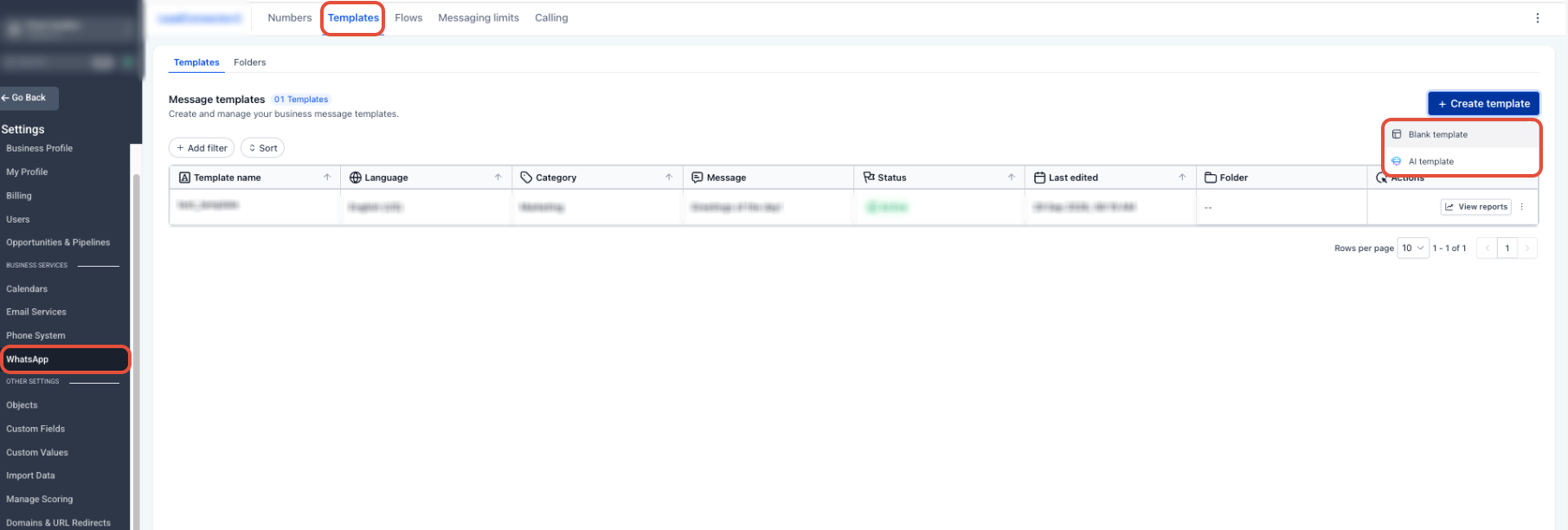
- Select a supported template category:
- Marketing
- Utility
- Marketing
- Configure the template content.
- Open Button (Optional).
- Select Share contact info.
- Complete the remaining template settings.
- Submit the template through the standard WhatsApp template approval process.
- After approval, use the template with the applicable WhatsApp contact.
When the customer receives the template, they can choose whether to share their contact information through WhatsApp.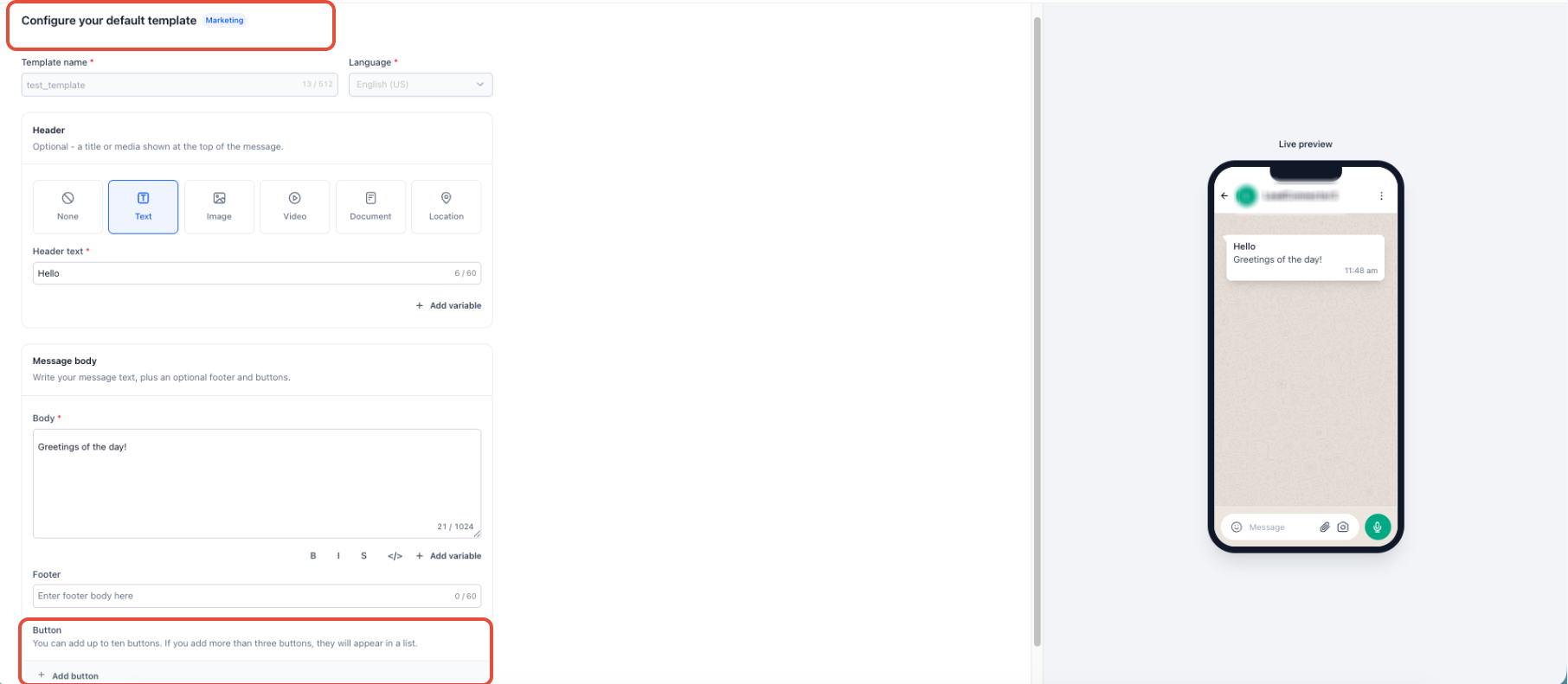
Method 2: Request Contact Info from a Workflow
Workflow automation lets you request contact information automatically at the appropriate stage of a customer journey.
Note: Before sending the interactive request, confirm that the contact's 24-hour WhatsApp Customer Service Window is open.
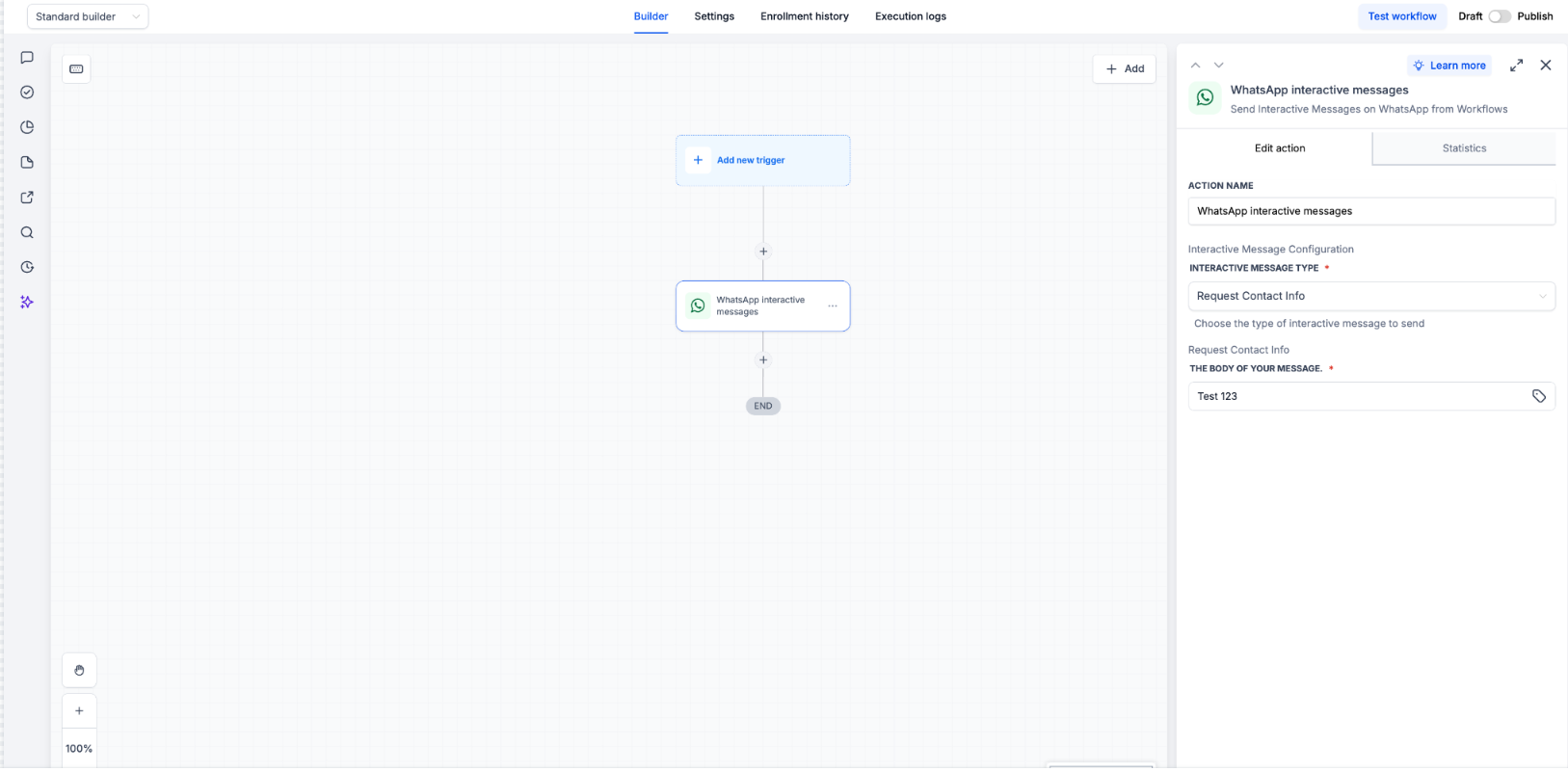
From the Sub-Account View, select Automation.
- Open the applicable workflow.
- Click Add Action (+).
- Select WhatsApp Interactive Messages.
- Select the applicable From Phone Number.
- Open Interactive Message Type.
- Select Request Contact Info.
- Enter the message body that explains why you are requesting the customer's information.
- Save the action.
- Complete the remaining workflow configuration.
- Publish and test the workflow.
Use clear message copy so the customer understands why your business is requesting their phone number.
When the customer responds, WhatsApp opens its native contact-sharing experience. The customer chooses which available contact information to share before sending it.
Duplicate-Safe Phone Number Capture
Duplicate-safe capture helps prevent the same phone number from being assigned to multiple Chat To Clients CRM contacts.
When a WhatsApp username contact shares a phone number, Chat To Clients CRM checks whether another contact already has that number.
- If no existing contact uses the number: Chat To Clients CRM can add it to the username-based contact.
- If another contact already uses the number: Chat To Clients CRM does not add the same number to the username-based contact.
Note: Request Contact Info does not automatically merge the two contact records.
If you determine that separate records belong to the same person, review and merge them using Chat To Clients CRM's standard duplicate-contact management tools.
WhatsApp Calling for Username Contacts
WhatsApp Calling support for username contacts allows supported WhatsApp voice interactions to work even when the contact uses a username.
Request Contact Info and WhatsApp Calling solve different needs. You do not need to collect a phone number solely because a contact uses a WhatsApp username before using supported username-based WhatsApp Calling.
Request Contact Info remains useful when your business needs the customer's actual phone number for other supported use cases.
WhatsApp Calling availability and setup requirements continue to follow the applicable WhatsApp Calling rules for your account.
Frequently Asked Questions
Q: Does Chat To Clients CRM automatically reveal the phone number behind a WhatsApp username?
No. The customer must choose to share their contact information through WhatsApp.
Q: Which WhatsApp templates support Share contact info?
Share contact info is supported on Marketing and Utility WhatsApp templates.
Q: Can I automate Request Contact Info?
Yes. Add WhatsApp Interactive Messages to a workflow and select Request Contact Info as the Interactive Message Type.
Q: Can I send the workflow Request Contact Info message outside the 24-hour Customer Service Window?
Interactive WhatsApp Messages require an open Customer Service Window. When the window is closed, use an approved Marketing or Utility template where required.
Q: What happens if the customer shares a number already used by another contact?
Chat To Clients CRM does not add the same phone number to the username-based contact.
Q: Does Request Contact Info automatically merge duplicate contacts?
No automatic merge behavior is documented for this feature. Review and merge duplicate records separately when appropriate.
Q: Does a WhatsApp template with Share contact info still require Meta approval?
Yes. WhatsApp templates follow the standard template creation and Meta approval process.
Related Articles
- WhatsApp Usernames: Contact Capture Without Phone Numbers
- Interactive WhatsApp Messages
- How to Create a WhatsApp Template
- WhatsApp Settings
- WhatsApp Calling in Chat To Clients CRM
- How to Manage and Merge Duplicate Contacts in Chat To Clients CRM