
Manage Task Status
Statuses describe the stages tasks move through and appear as columns on the Kanban board. They are configured per Space and organized under four fixed status groups: Not started, Active, Done, and Closed. This article explains how status groups work, how to add custom statuses to supported groups, and how to organize statuses to fit your team's workflow.
Note: Project Management is now available to agencies on the $497 plan. To enable it, navigate to Agency or Sub-account settings → Labs and toggle on Project Management to access the new experience.
TABLE OF CONTENTS
- What is a Status?
- The Four Status Groups
- Why statuses belong to the space
- Steps for viewing your statuses
- Steps for adding a status
- Steps for Changing a Task's Status
- Designing a good status set
- Frequently Asked Questions
What is a Status?
A status identifies the stage of a task, such as To Do, In Progress, or Completed. Every task has one status at a time. Each status belongs to a status group that represents the task's overall progress.
The Four Status Groups
Task statuses are organized under four fixed groups. These groups represent different stages of the task lifecycle.
Not started (previously To do): Tasks that have not yet been started.
Active (previously Doing): Tasks that are currently in progress.
Done: Tasks that have been completed but may still require review, follow-up, or other action.
Closed: Tasks that are fully completed and require no further action.
You can create custom statuses within the Not started, Active, and Done groups to reflect your team's workflow.
Closed is a system-defined status group. It contains a single default status and does not support custom statuses.
The Status options panel displays the status groups and the statuses associated with each group.
The distinction between Done and Closed helps teams identify completed tasks that still require attention and tasks that are fully resolved.
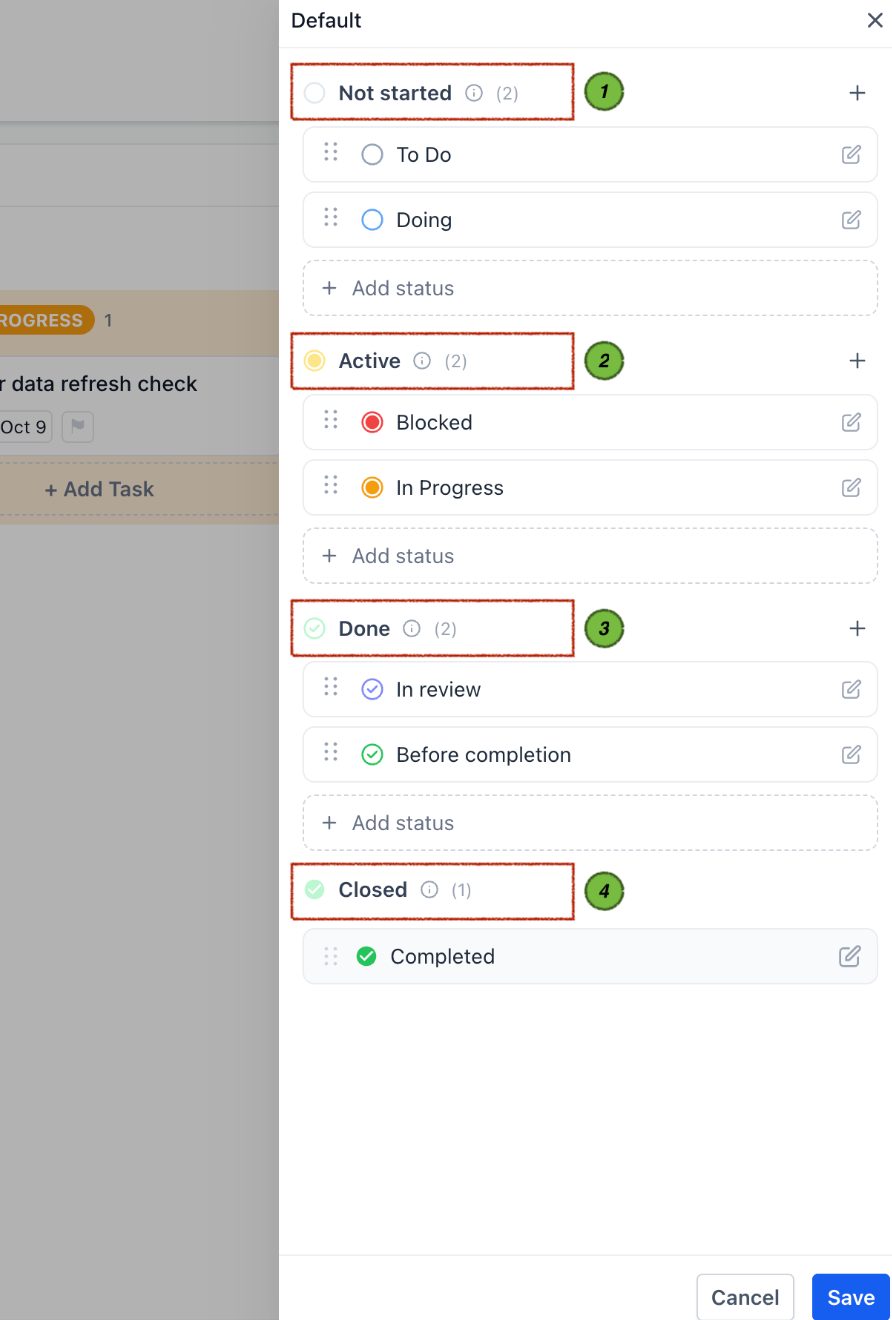
The groups matter because they tell the system what a status means. A status in the Done group represents finished work regardless of what you have called it, which keeps board ordering sensible even when teams use their own vocabulary.
Why statuses belong to the space
Statuses are configured on the Space, not on individual Lists or Folders. Every List inside a Space shares the same statuses.
This is worth knowing before you build your structure. If two workstreams genuinely need different stages - say a content pipeline with six stages and a support queue with three - they should live in separate Spaces rather than as two Lists in one Space.
Steps for viewing your statuses
Open the Tasks page
Go to "Contacts" in the left navigation menu, then select the "Tasks" tab.
Find the Space in the left panel
Hover over the Space whose statuses you want to review.
Open the Space options menu
Click the options control on the Space row. The menu contains Rename, Settings, Create list, Create folder, Custom fields, Status options, and Delete.
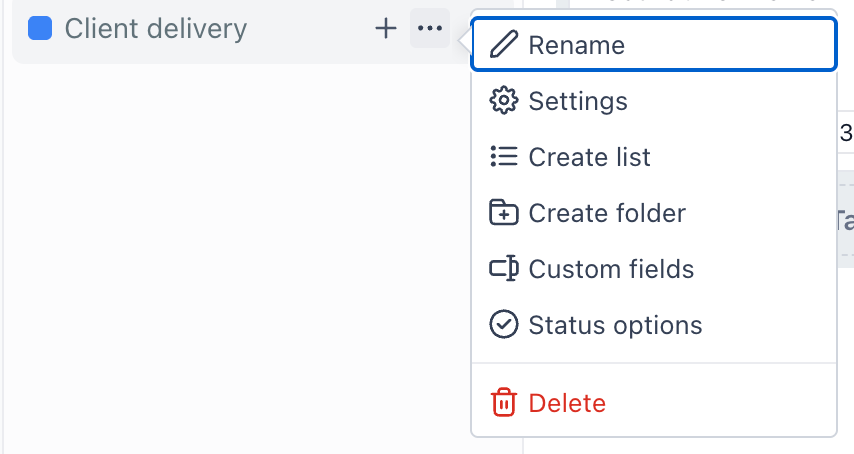
Choose "Status options"
A panel opens showing the Space name and four status groups—Not started, Active, Done, and Closed—with their associated statuses.
Steps for adding a status
Choose the group that best represents the task's stage:
Not started: The task has not started.
Active: The task is in progress.
Done: The task is completed but may still require review, follow-up, or another action.
The Closed group represents tasks that are fully completed and require no further action. You cannot add custom statuses to this group.
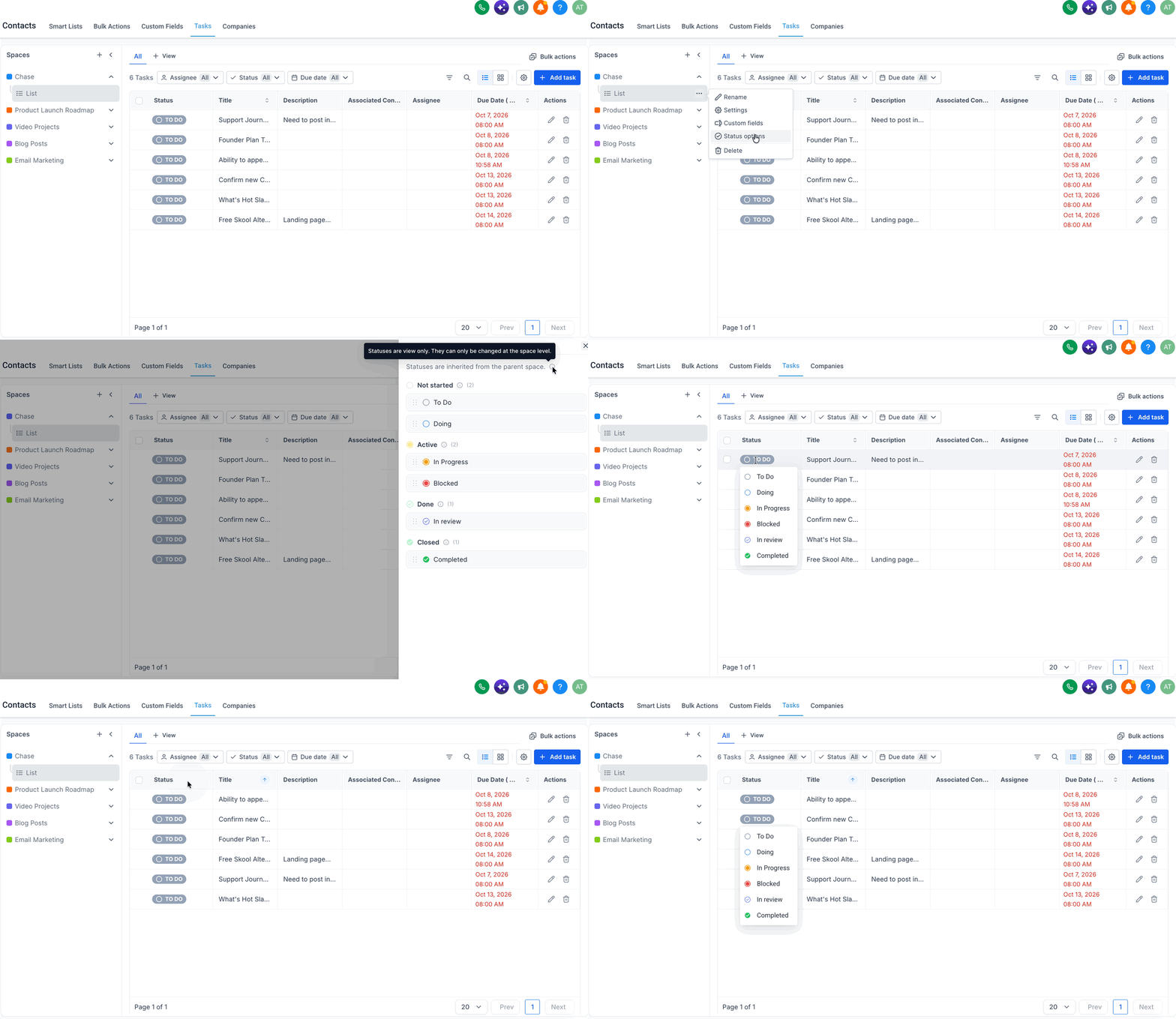
Please Note: Statuses are view only. They can only be changed at the space level.
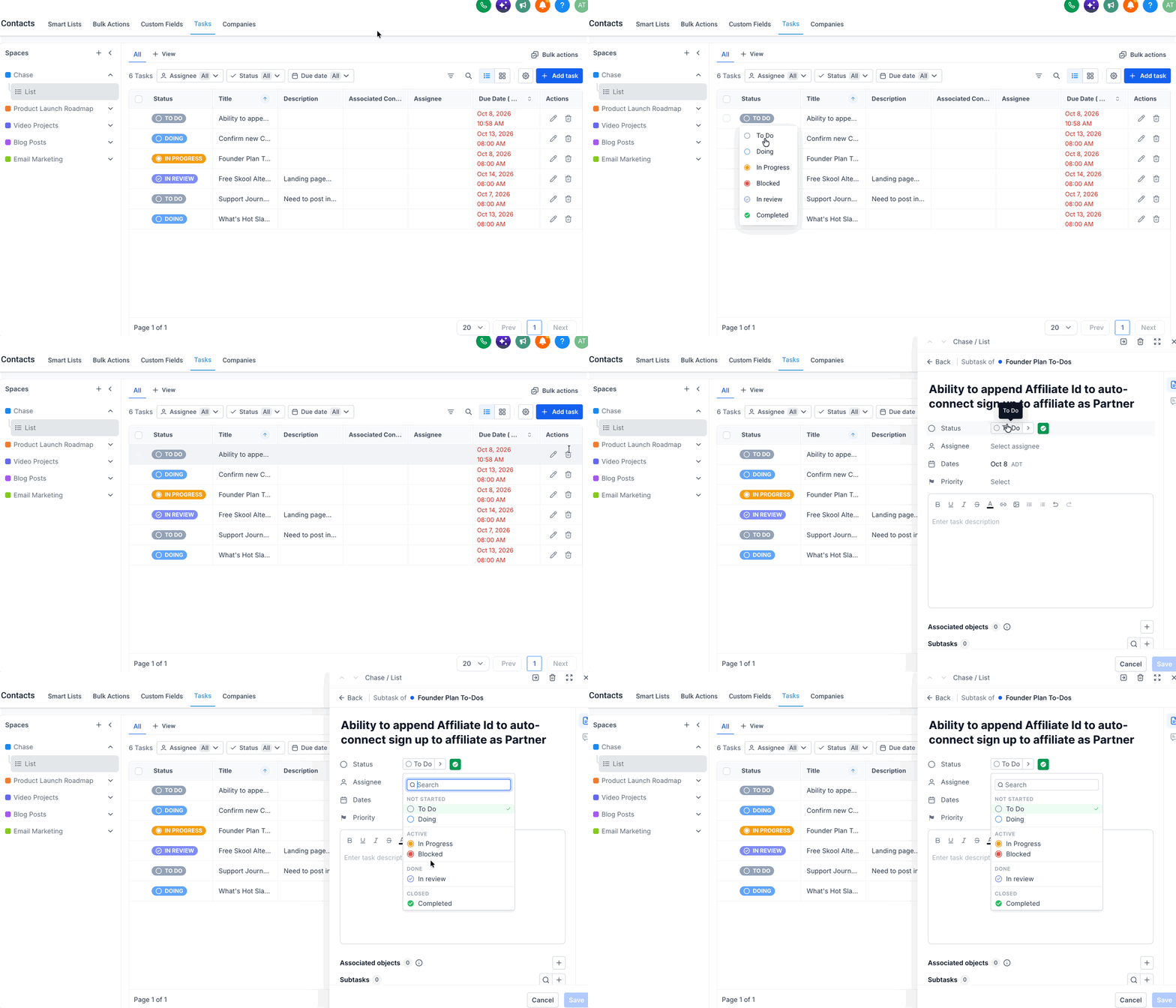
Steps for Changing a Task's Status
There are two ways, and both do the same thing.
Option 1 - Drag the card
In Kanban view, drag the task card from its current column to the column you want. This is the quickest route when you are working through a board.
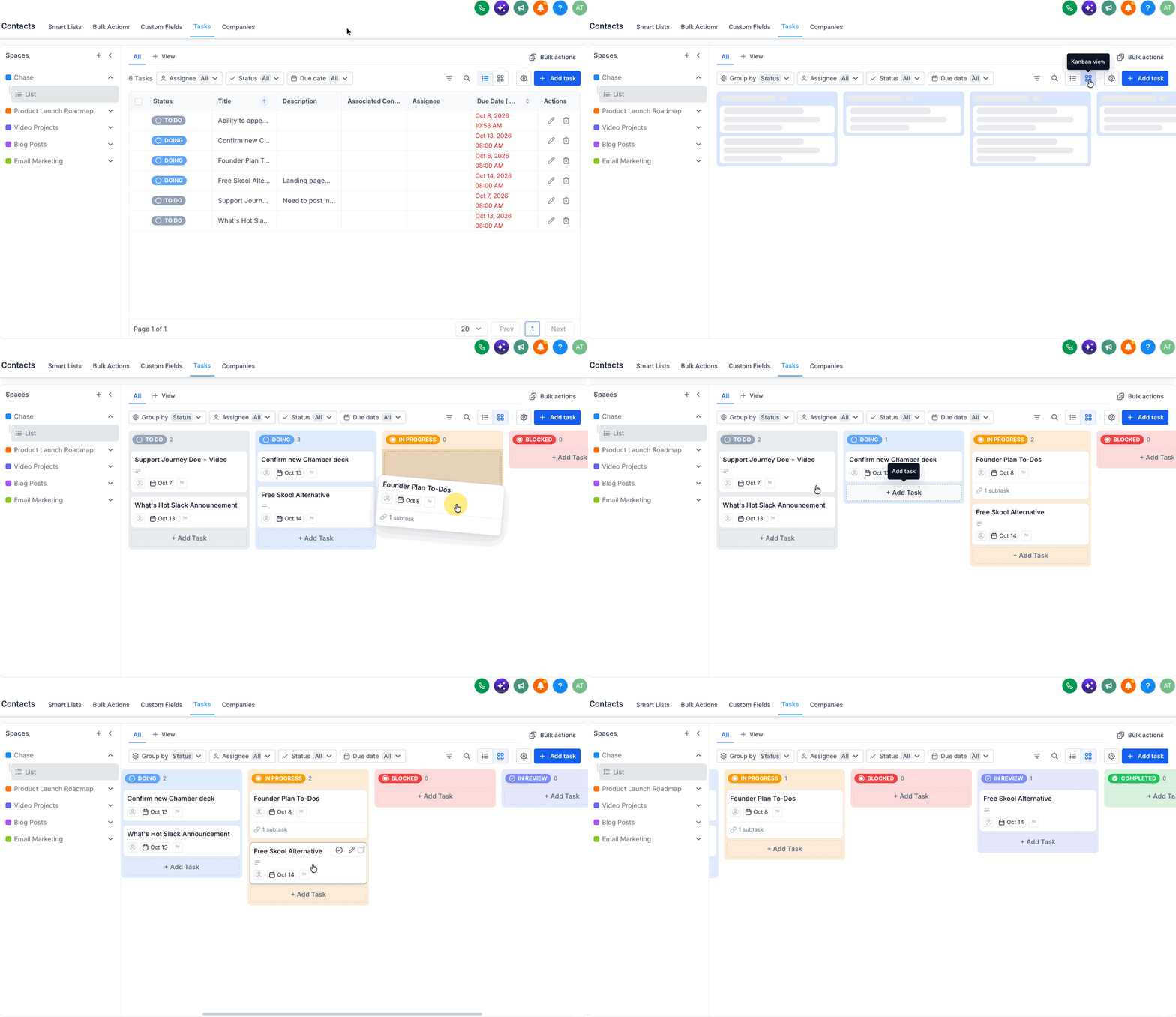
Option 2 - Edit the task
Open the task and change the Status property in the detail panel. Useful when you are already in the task adding detail.
Designing a good status set
- Fewer statuses are usually better: Each one is a column, and a board with a dozen columns is harder to read than one with five.
- Every status should describe a real stage: If nothing different happens to a task while it is in a status, it probably does not need to exist.
- Choose the appropriate status group: Use Not started for work that has not begun, Active for work in progress, and Done for completed work that may still require attention. Closed represents fully completed work that requires no further action.
- Plan before you add tasks: Reviewing statuses on a Space before your team starts filling it is much less disruptive than rearranging a busy board later.
- Watch for near-duplicates: Two statuses with similar names in the same group tend to be a sign that the process was never quite agreed.
Frequently Asked Questions
Q: Can I add my own status groups?
No. The four status groups—Not started, Active, Done, and Closed—are fixed. You can create custom statuses within Not started, Active, and Done. Closed is system-defined and does not support custom statuses.
Q: How many statuses can one group hold?
You can add custom statuses to the Not started, Active, and Done groups. The Closed group contains one system-defined default status and does not allow additional custom statuses.
Q: Where are statuses configured?
On the Space, through Status options in the Space options menu. They apply to every List inside that Space.
Q: Can two lists in the same space use different statuses?
No. Statuses belong to the Space. You can use separate Spaces if you need different stages.
Q: Can I rename or delete a status?
You can rename a status but cannot delete one.
Q: Can I reorder the statuses within a group?
Statuses can be reordered, and that reordering changes the column order on the board
Q: Can I set a colour on a status?
Yes, you can set a color on a status
Q: Why does an empty column still appear on my board?
Because the status exists on the Space. Empty columns are normal and let you drag work into that stage.
Q: Does changing a status set affect existing tasks?
Adding a new status does not move any existing task. Tasks stay in the status they were already in until someone changes them.