
Conditional Custom Fields for Opportunities
Conditional Custom Fields let Admins control which opportunity fields appear and which fields must be completed based on a deal’s pipeline, stage, status, or other field values.
This keeps opportunity forms focused and helps teams collect the right information at the right point in the sales process.
TABLE OF CONTENTS
- How Conditional Rules Work
- How to Enable Conditional Custom Fields
- How to Create a Conditional Rule
- Using AND and OR Conditions
- Showing Fields and Folders
- Making Fields Mandatory
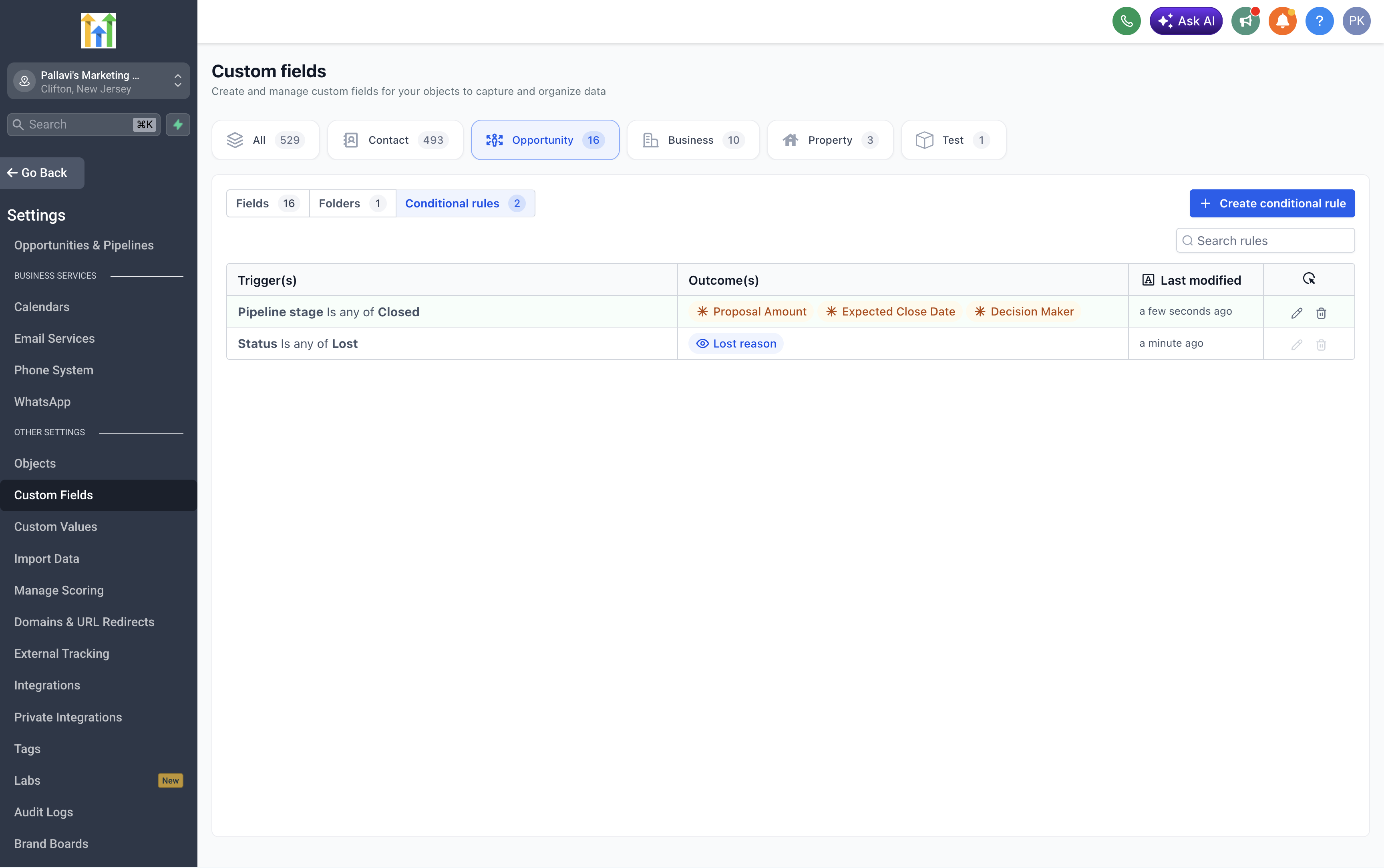
- How to Manage Existing Rules
- How to Manage Rules from the Pipelines Page
- Important Notes and Limitations
- Frequently Asked Questions
How Conditional Rules Work
Each conditional rule contains:
- Triggers: The conditions that activate the rule.
- Outcomes: The fields or folders that appear or become mandatory when the conditions are met.
Supported triggers include:
- Pipeline
- Pipeline Stage
- Status
- Dropdown fields
- Radio fields
- Checkbox fields
- Multi-select fields
Available outcomes include:
- Show field: Displays an individual opportunity field.
- Show folder: Displays an entire folder of opportunity fields.
- Make mandatory: Requires a visible field to be completed before the opportunity can be saved.
For example, you can show additional onboarding fields when an opportunity is Won or require proposal details when it reaches a particular pipeline stage.
How to Enable Conditional Custom Fields
If the feature is not already enabled:
- Go to Settings → Labs.
- Find Show & Require Opportunity Fields Conditionally.
- Enable the feature for the sub-account.
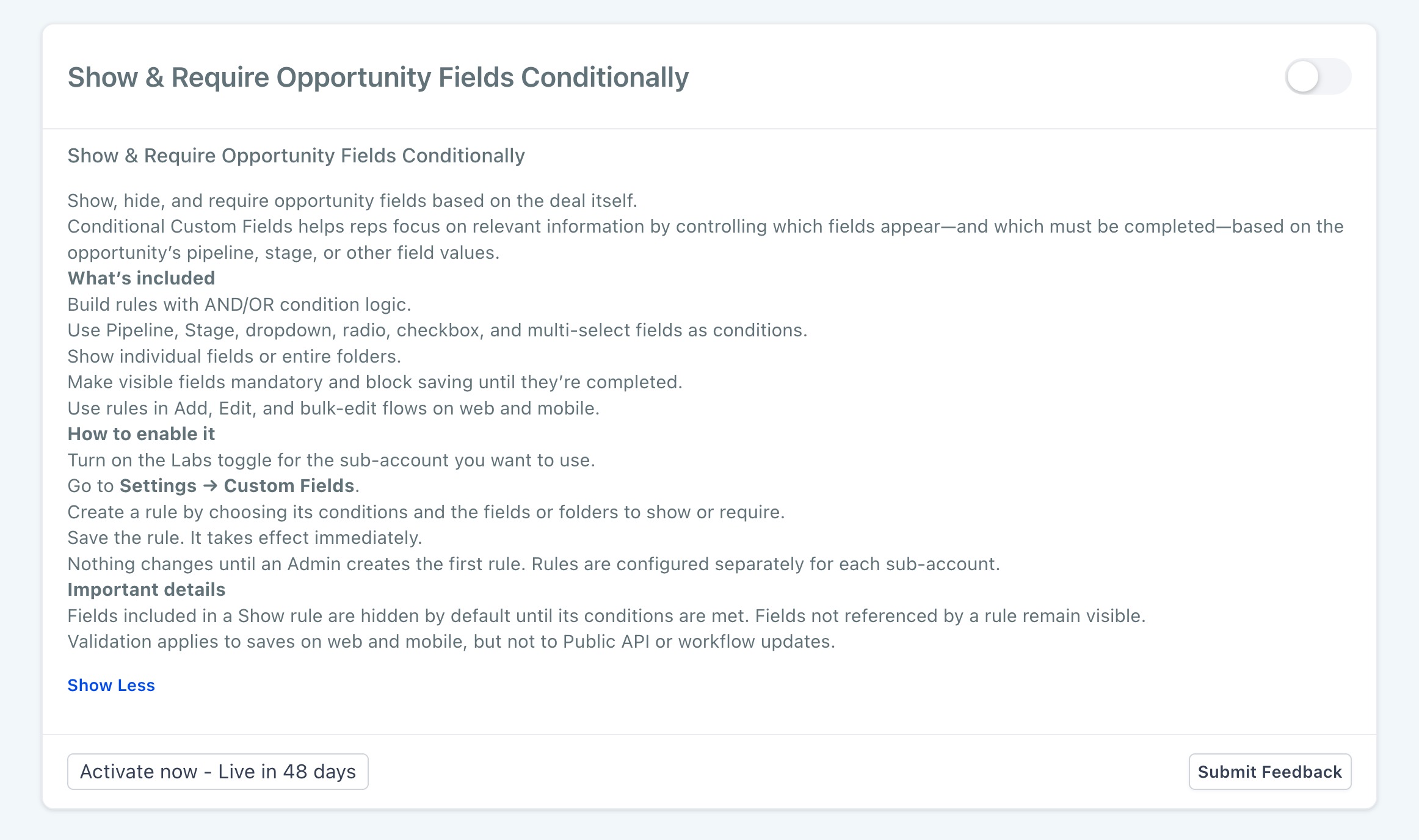
Enabling the feature does not change existing opportunity forms. Conditional behavior begins after an Admin creates and saves the first rule.
How to Create a Conditional Rule
- Go to Settings → Custom Fields.
- Select Opportunity.
- Open the Conditional Rules tab.
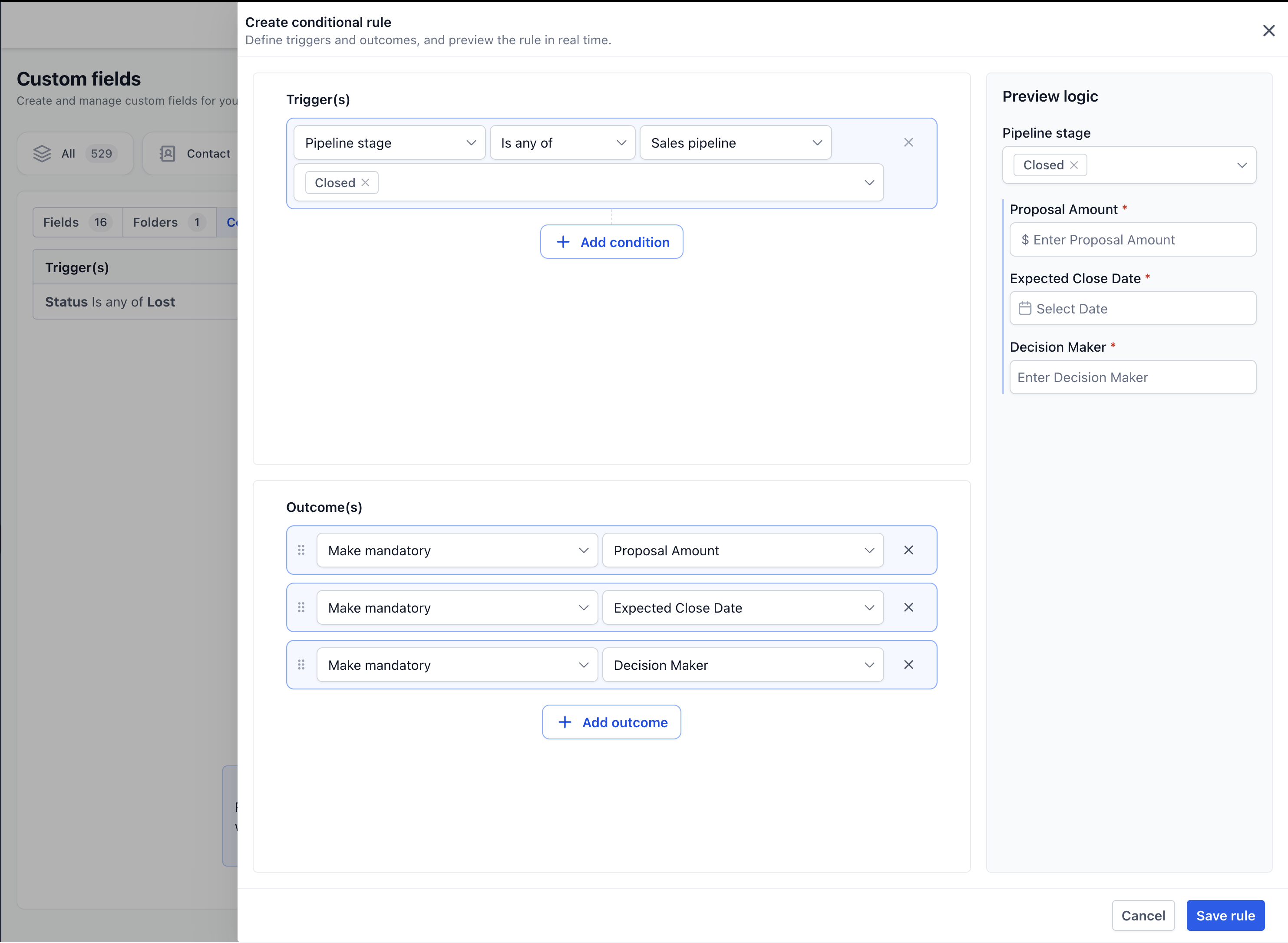
- Click Create conditional rule.
- Select the field that should trigger the rule.
- Choose an operator and trigger value.
- Add more conditions if needed.
- Connect multiple conditions using AND or OR logic.
- Add one or more outcomes.
- Review the rule using the live preview.
- Click Save rule.
The rule becomes active immediately after it is saved.
Using AND and OR Conditions
Use AND when every condition must be met.
Example:
- Pipeline is Sales Pipeline
- AND Pipeline Stage is Closed
Use OR when any condition can activate the rule.
Example:
- Pipeline Stage is Proposal Sent
- OR Pipeline Stage is Closed
Use the live preview to confirm the expected behavior before saving the rule.
Showing Fields and Folders
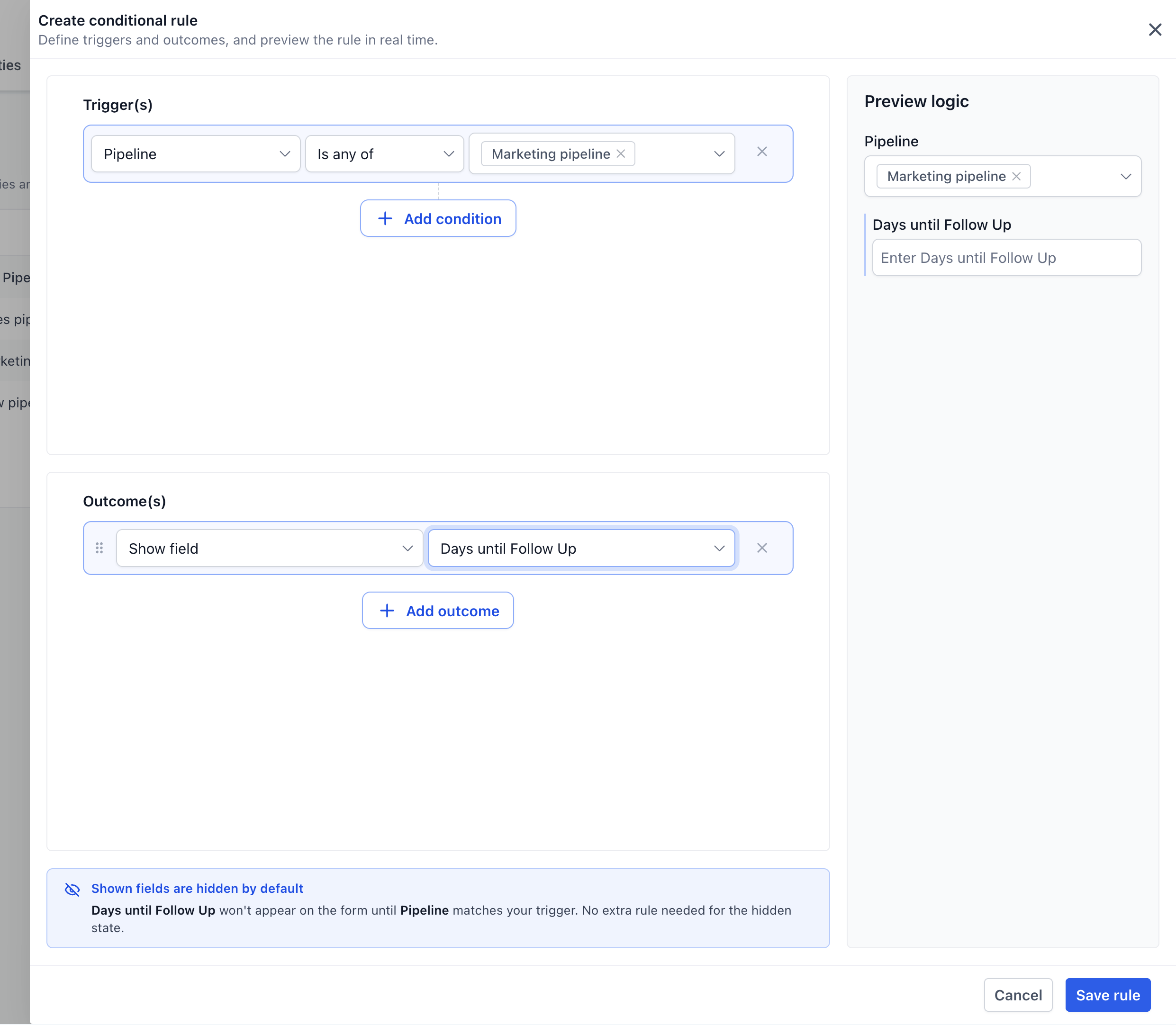
Fields and folders included in a Show outcome are hidden by default. They appear only when the rule’s trigger conditions are met.
Fields that are not included in a Show rule remain visible as usual.
To show a field or folder conditionally:
- Configure the rule’s trigger conditions.
- Under Outcomes, select Show field or Show folder.
- Select the field or folder.
- Review the live preview.
- Save the rule.
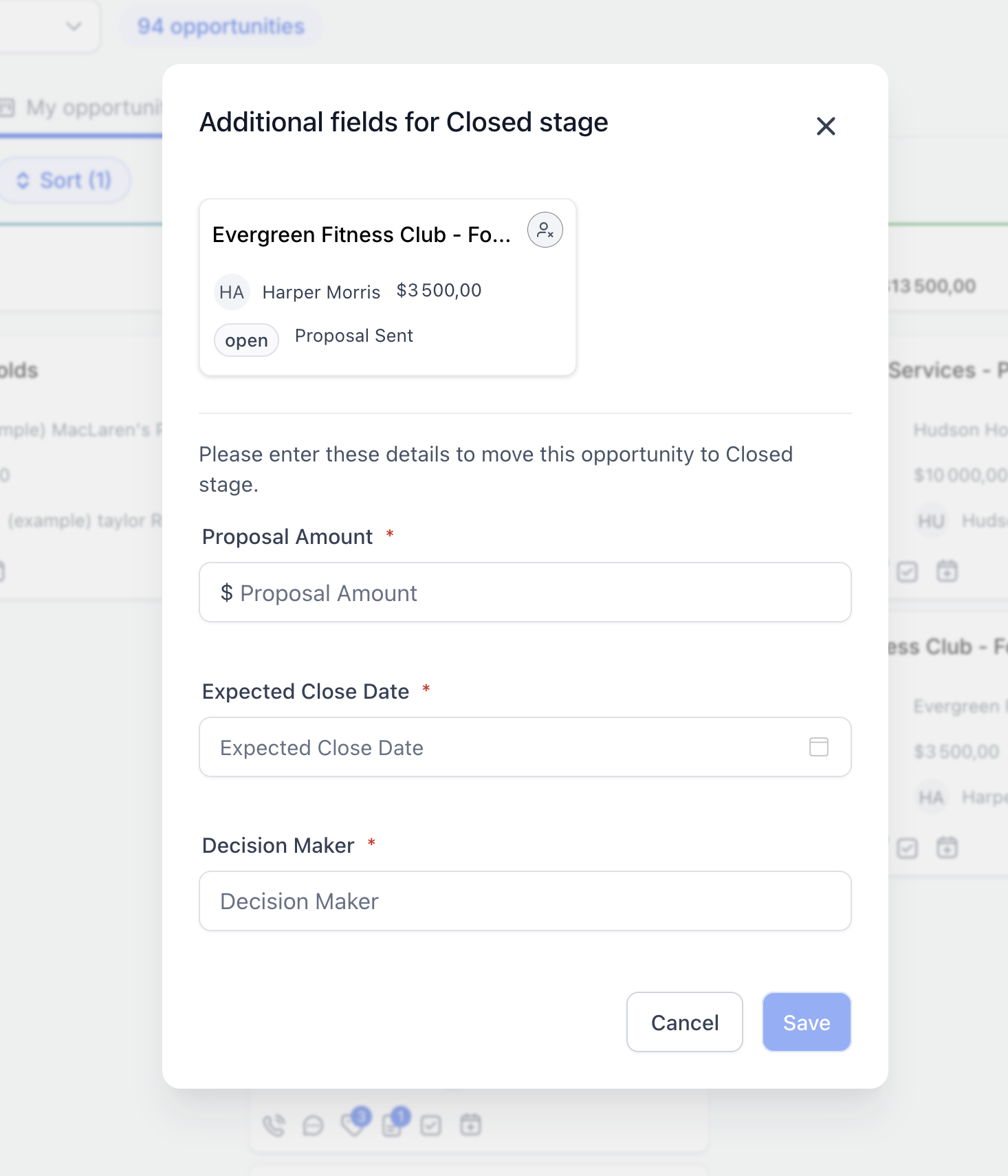
Making Fields Mandatory
A Make mandatory outcome requires users to complete a visible field before saving an opportunity.
Example:
- Trigger: Pipeline Stage is Closed
- Outcomes:
- Make Proposal Amount mandatory
- Make Expected Close Date mandatory
- Make Decision Maker mandatory
- Make Proposal Amount mandatory
When a user moves an opportunity to the Closed stage, the applicable fields must be completed before the change can be saved.
Important: A mandatory outcome does not automatically display a hidden field. If a field is controlled by a Show rule, make sure its visibility conditions allow it to appear when required.
How to Manage Existing Rules
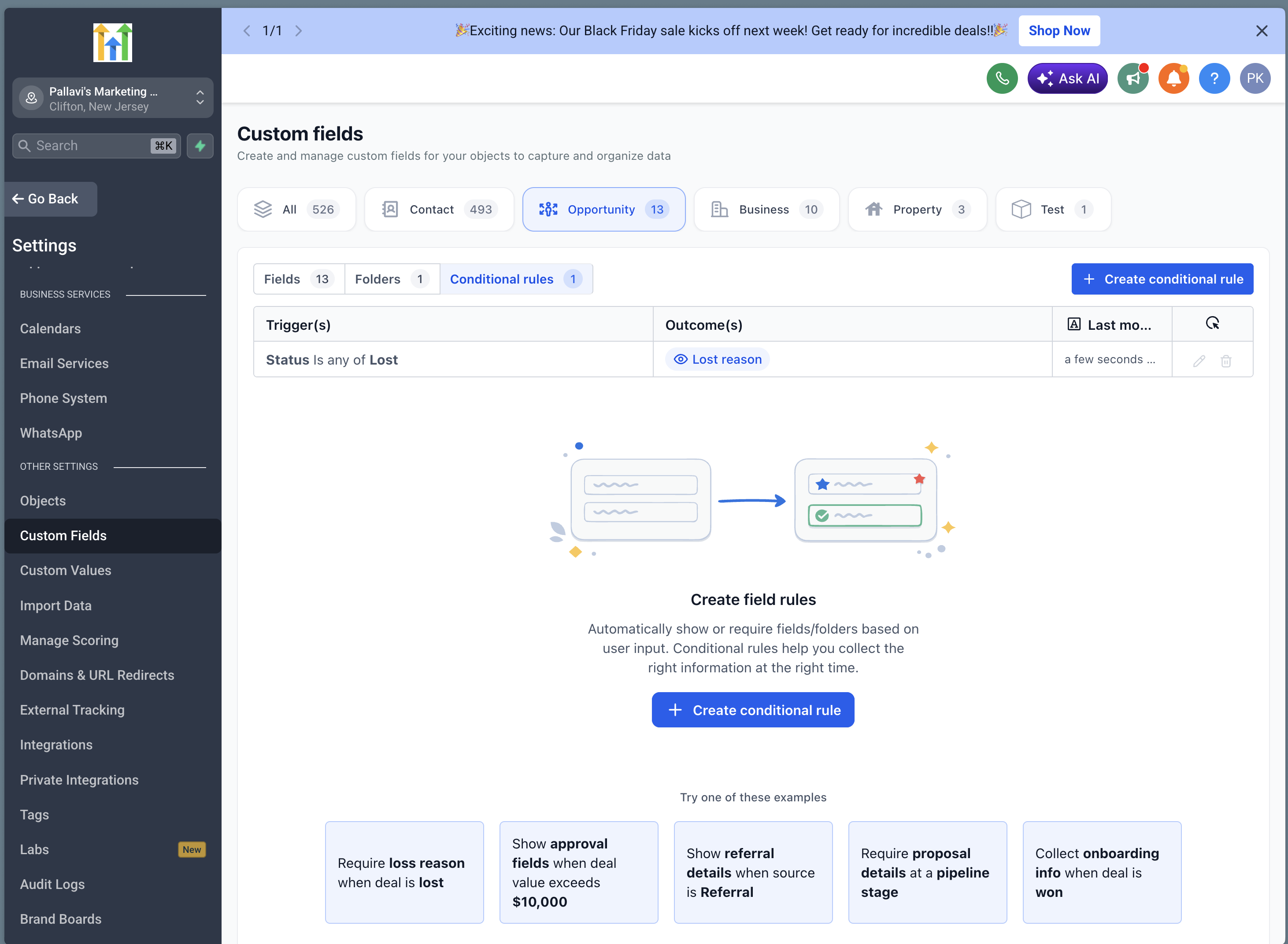
Go to Settings → Custom Fields → Opportunity → Conditional Rules.
From this page, Admins can:
- View a rule’s triggers and outcomes.
- Search for an existing rule.
- Edit a rule.
- Delete a rule.
- Create additional rules.
Changes take effect as soon as the rule is saved.
How to Manage Rules from the Pipelines Page
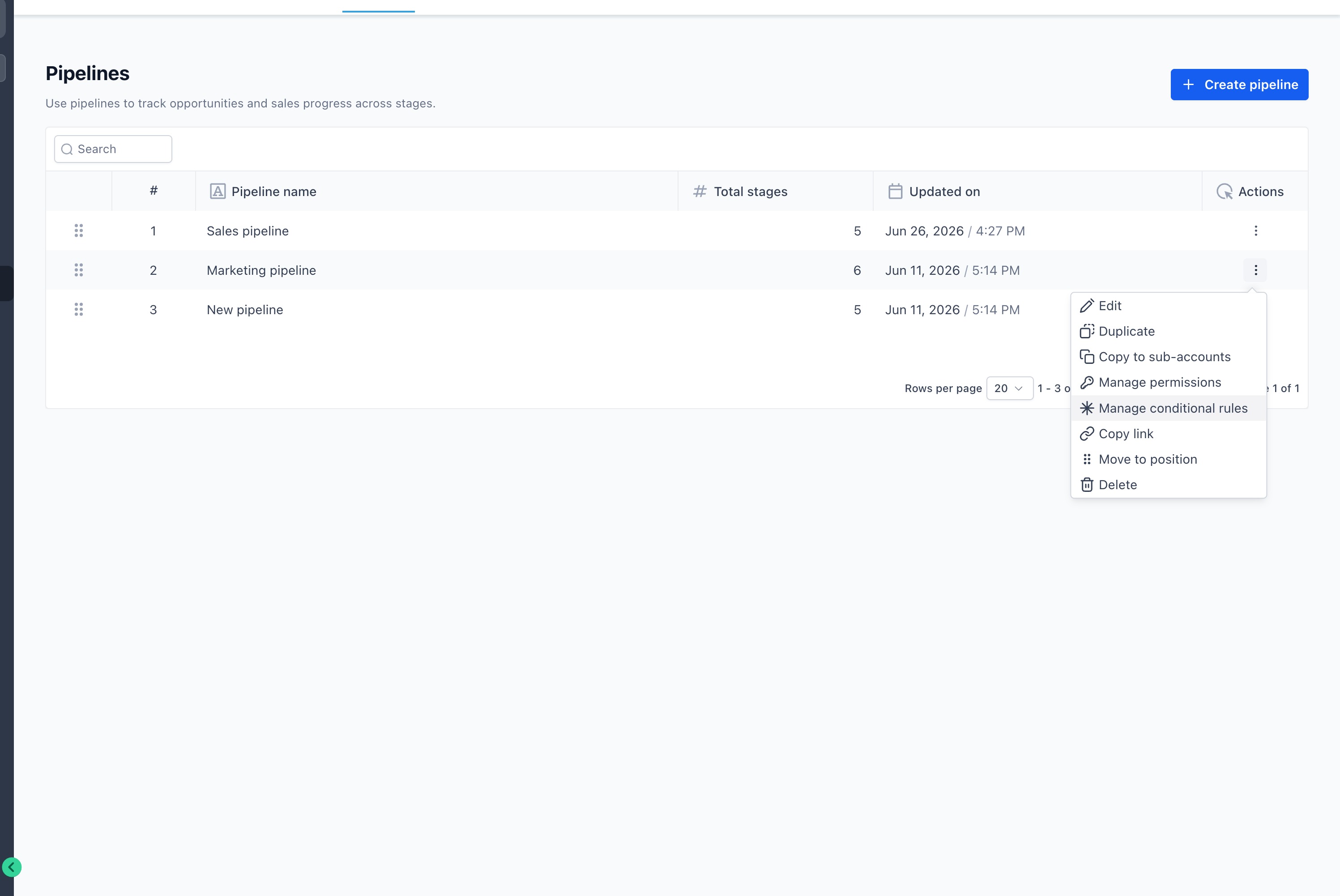
Pipeline-specific rules can also be managed from the Pipelines page.
- Go to Settings → Opportunities & Pipelines.
- Find the required pipeline.
- Open its Actions menu.
- Select Manage conditional rules.
- Create or update the rule.
- Review the live preview.
- Click Save rule.
Important Notes and Limitations
- Only Admins can create, edit, or delete conditional rules.
- Rules are configured separately for each sub-account.
- Rules work when users add, edit, or bulk-edit opportunities on web and mobile.
- Fields and folders included in a Show outcome remain hidden until the conditions are met.
- Fields not included in a Show rule remain visible.
- Hidden fields retain their existing values.
- Hidden fields are excluded from mandatory validation.
- If multiple rules apply, their mandatory requirements are combined.
- Conditional validation does not apply to Public API or workflow-based updates.
Frequently Asked Questions
Q. Why is a field still visible when the rule conditions are not met?
A field is hidden by default only when it is included in a Show field or Show folder outcome. Fields not included in a Show rule remain visible.
Q. What happens to an existing value when its field becomes hidden?
The value is retained. Hiding a field does not remove or change its existing data.
Q. Are hidden fields included in mandatory validation?
No. A hidden field is excluded from mandatory validation until it becomes visible.
Q. What happens when multiple rules apply to an opportunity?
The applicable outcomes are combined. Users must complete all visible fields made mandatory by those rules.
Q. Why is a conditional field not appearing?
Confirm that:
- The feature is enabled.
- The rule has been saved.
- The opportunity matches the rule’s trigger conditions.
- The correct pipeline, stage, status, or field value is selected.
- The field or folder is included in a Show outcome.
Q. Do conditional rules apply to API and workflow updates?
Conditional validation applies to supported saves on web and mobile. It does not apply to Public API or workflow-based updates.