Chat To ClientsHelp Center

How can we help?

Knowledge baseMarketingEvents

Embed Events with Code Snippet

Events Management

Embed Events Anywhere with a Single Code Snippet

Display your public event pages directly on your funnels, websites, or external platforms to create a seamless registration experience.
What You'll Learn

This article explains how to embed your Chat To Clients CRM event pages directly into your own websites, funnels, or external platforms using a simple embed code. You'll learn how to generate the code, copy it with one click, and integrate your event registration flow seamlessly into any web page.

By embedding events, you keep visitors on your site throughout the entire registration process, eliminating redirects and creating a more cohesive user experience.

Table of Contents
1
What is Event Embedding?
2
Key Benefits
3
How to Embed an Event Page
4
Where to Use Embedded Event Pages
5
Related Articles
6
Frequently Asked Questions
1

What is Event Embedding?

Event embedding allows you to display your public event pages directly on your own websites, funnels, or external platforms using a simple embed code. Instead of redirecting visitors to a separate event URL, the entire event registration experience—including event details, schedules, and the registration form—appears within your own page.

This feature generates an iframe-based embed code that you can copy with one click and paste into any HTML editor, website builder, or content management system. Attendees can browse event information and complete their registration without ever leaving your website.

2

Key Benefits

Embedding event pages into your own digital properties creates a seamless, on-brand registration experience while keeping visitors engaged on your site.

Seamless User Experience — Attendees can browse event details and register without leaving your website, reducing friction and drop-off rates during the registration process.
Brand Consistency — Keep visitors within your branded environment throughout the entire event discovery and registration flow, reinforcing your brand identity.
One-Click Deployment — Copy the embed code with a single click and paste it into any platform that supports HTML, including Chat To Clients CRM Funnels, Websites, WordPress, Wix, Squarespace, and more.
Complete Registration Flow — The embedded experience includes all event information, schedules, and the registration form, providing a full-featured event page within your own site.
Flexible Integration — Embed events on landing pages, funnel steps, blog posts, or any other web page where you want to promote and capture event registrations.
3

How to Embed an Event Page

Follow these steps to generate and deploy the embed code for your event page.

Step 1
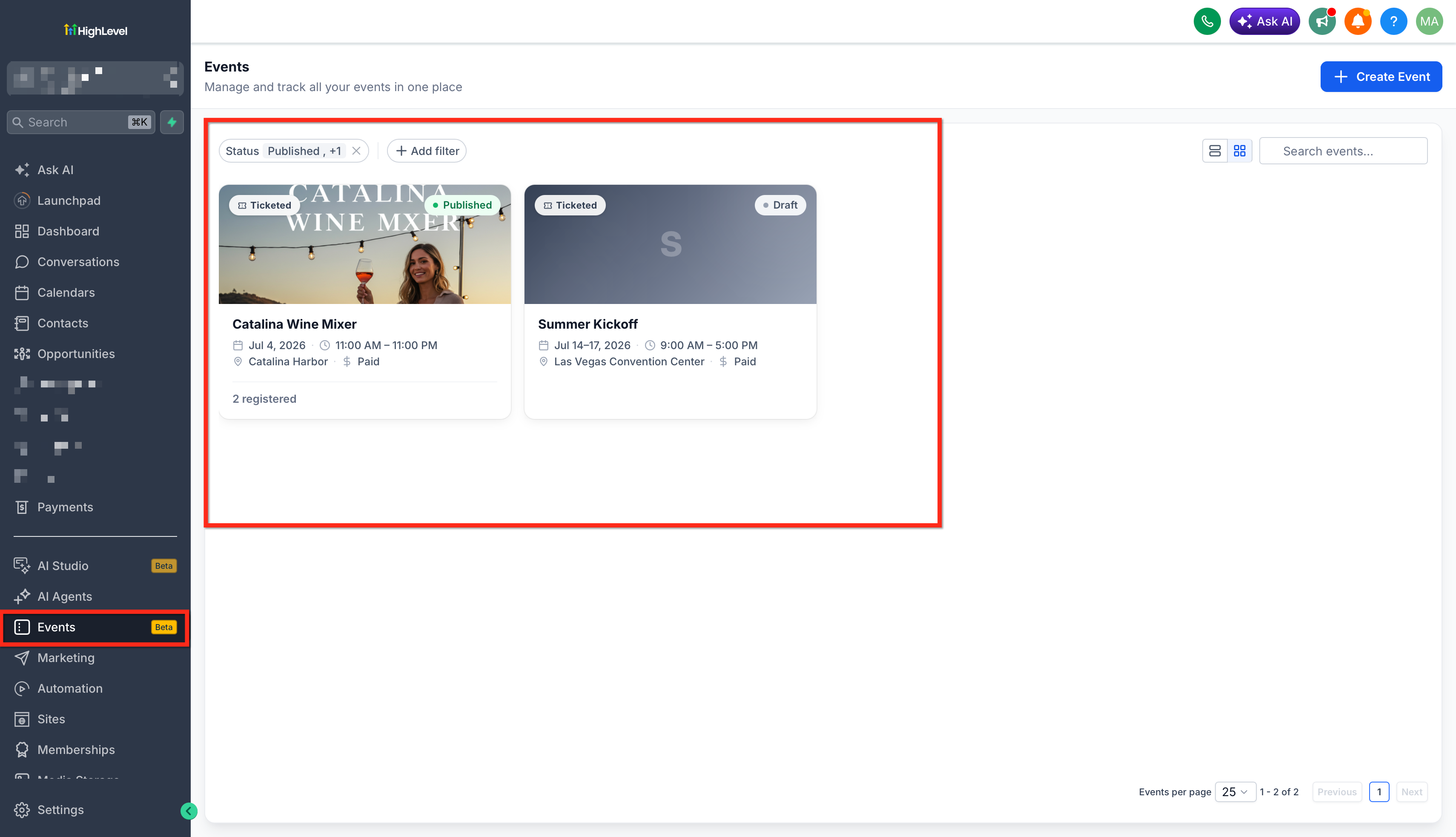
Navigate to Your Event

Go to the Events section in your Chat To Clients CRM account and select the public event you want to embed.

Step 2
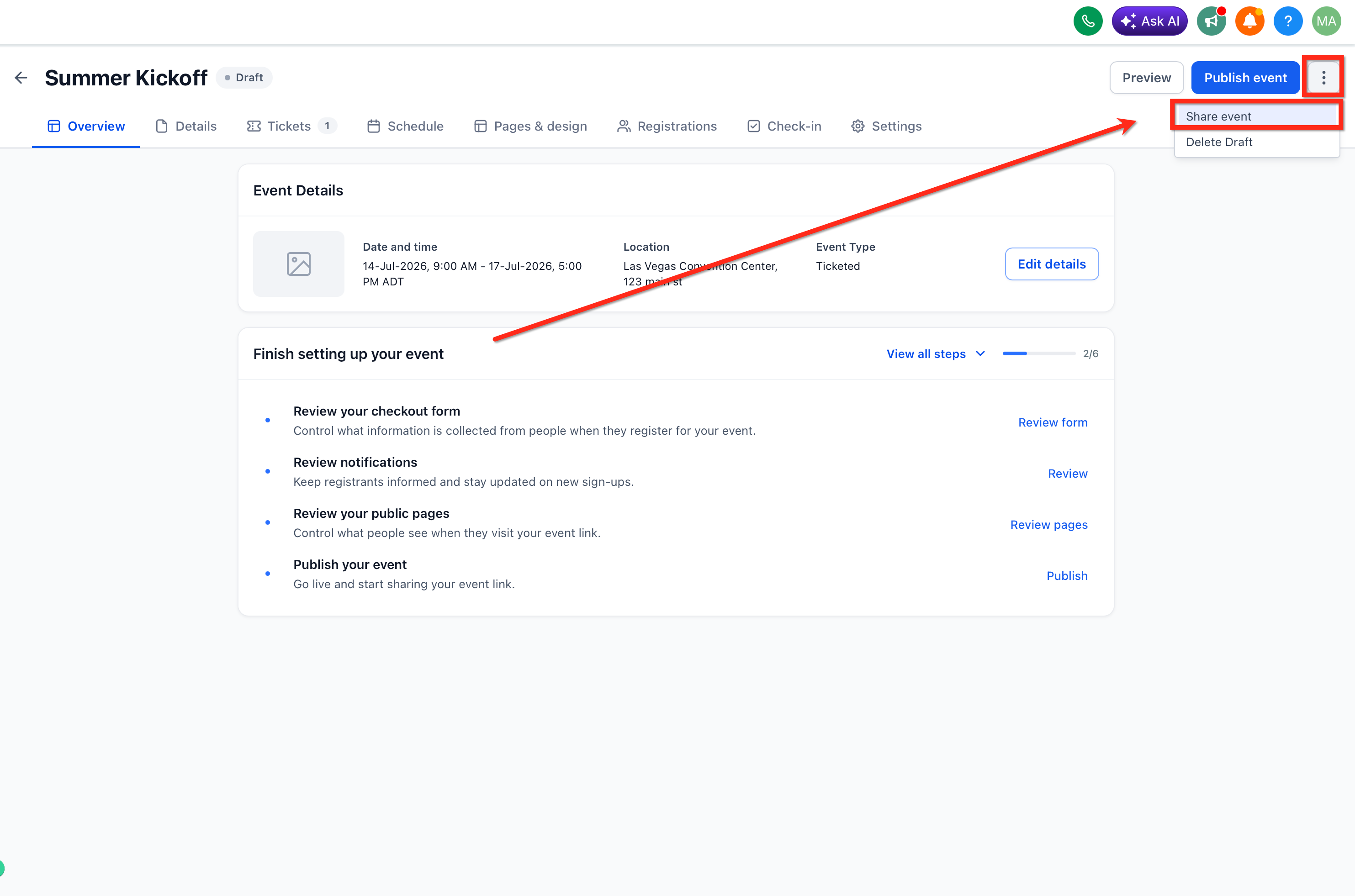
Open the Share Event Modal

Click the Share Event button to open the sharing options modal.

Step 3
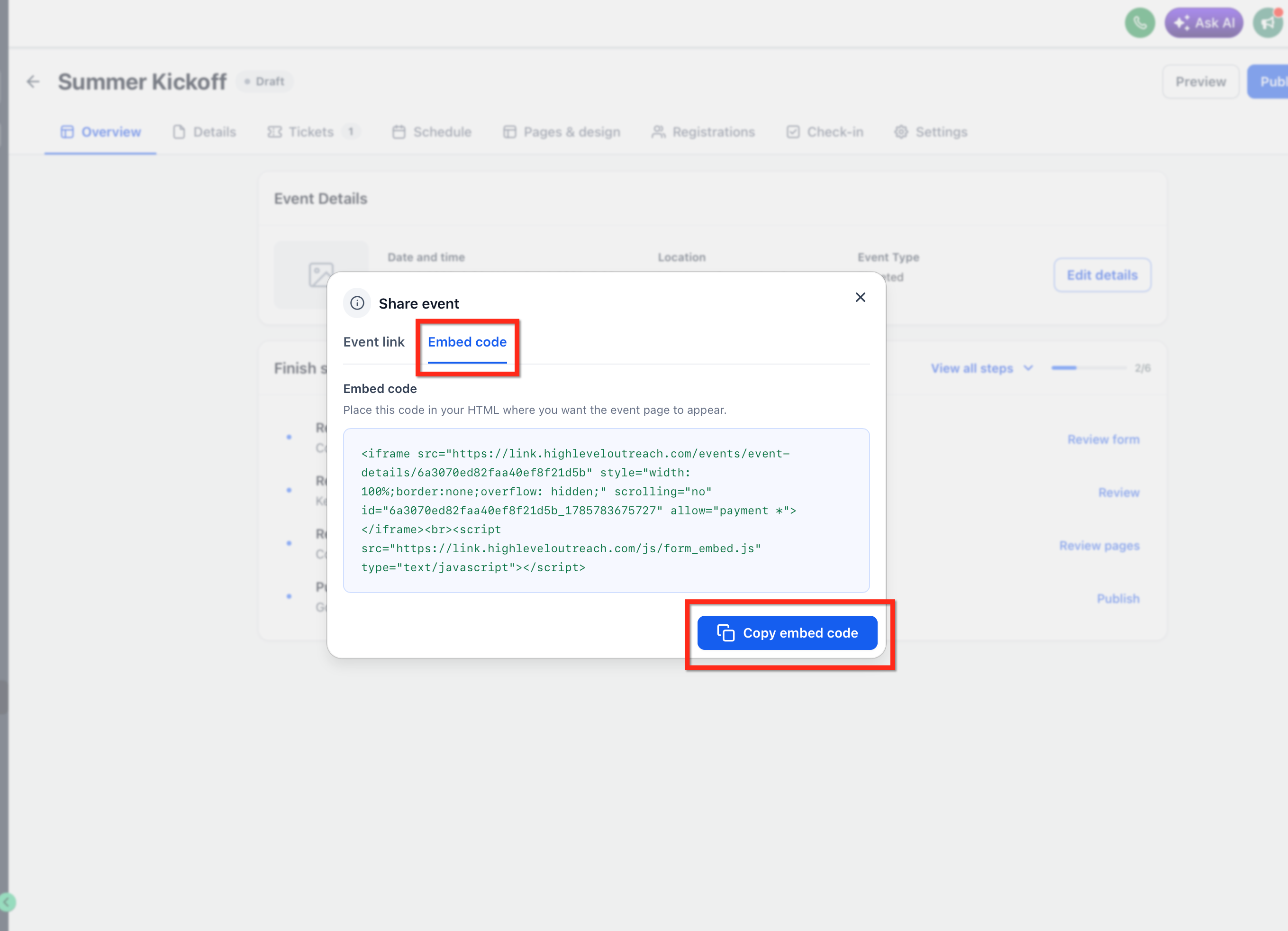
Access the Embed Code Tab

Within the Share Event modal, select the Embed Code option. The system generates an iframe-based embed code for your event page. Click the Copy button to copy the embed code to your clipboard with a single click.

Step 4
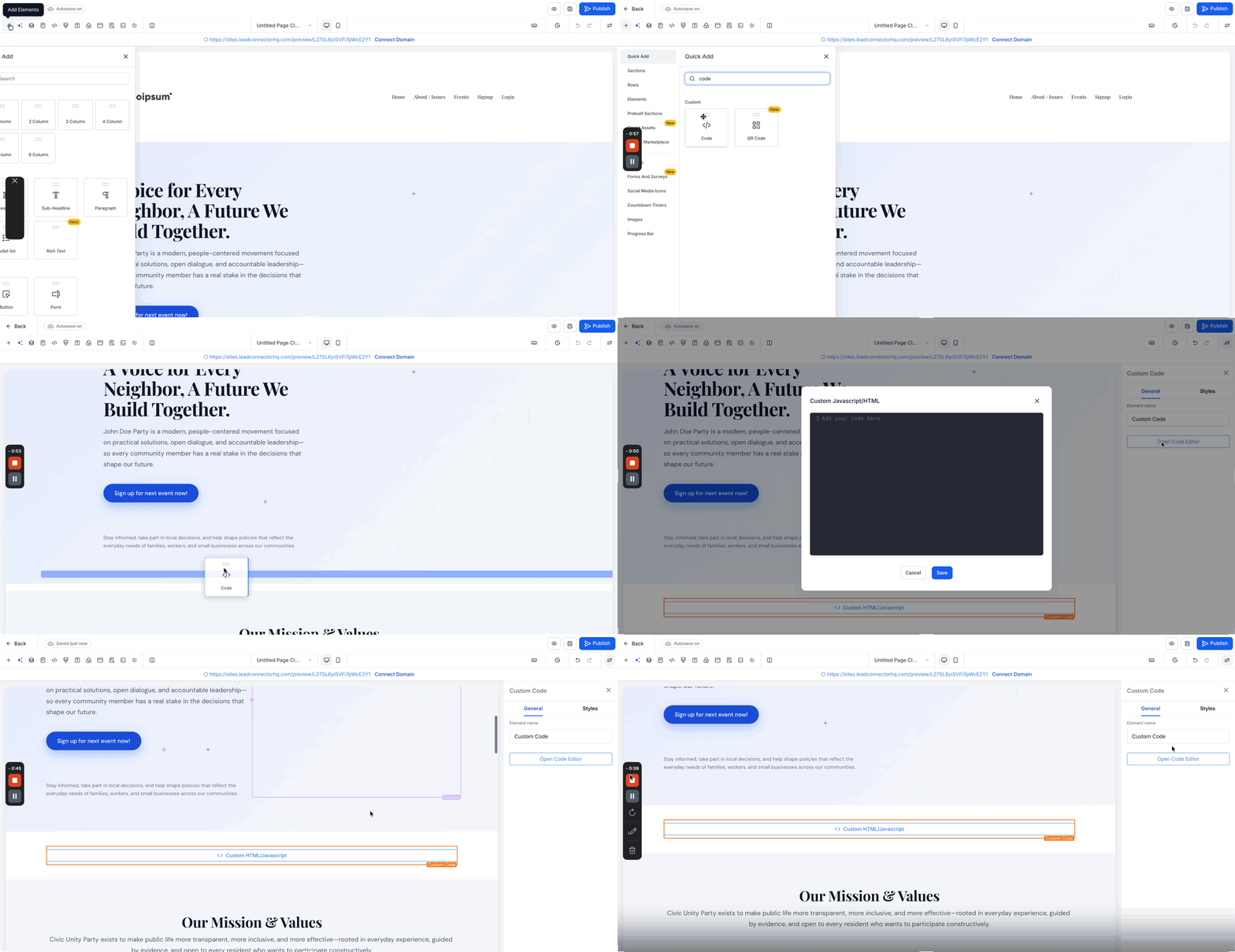
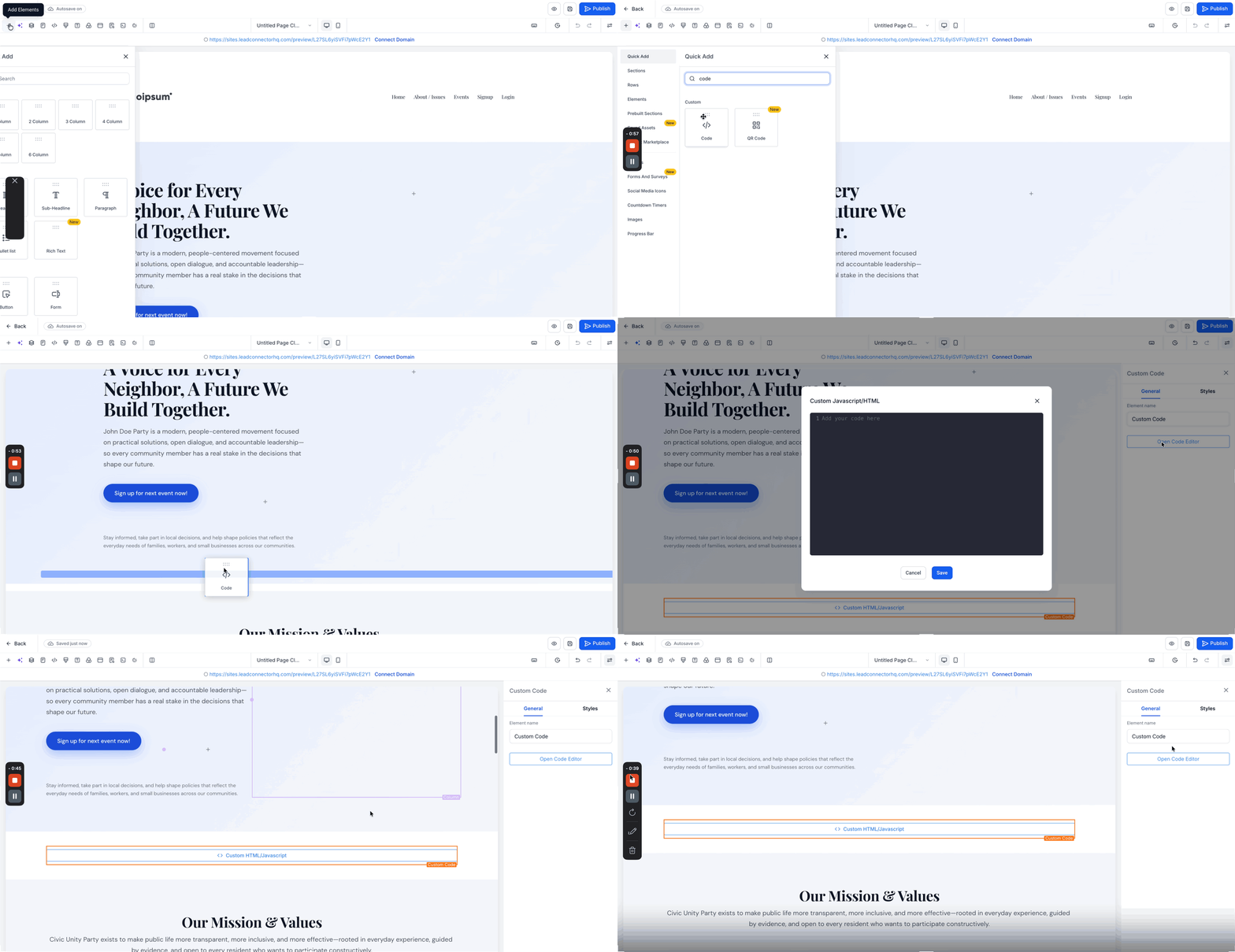
Paste the Code into Your Website

Open the Custom code section of your website, funnel, or platform and paste the embed code where you want the event page to appear. Save and publish your changes.

Success

Your event page is now embedded and ready to accept registrations directly from your website.

4

Where to Use Embedded Event Pages

You can embed your event pages in any platform or environment that supports custom HTML code.

Use Case 1
Chat To Clients CRM Funnels and Websites

Embed events directly into your Chat To Clients CRM-built funnels, landing pages, or websites to create a cohesive sales and registration experience within your marketing campaigns.

Use Case 2
External Website Builders

Paste the embed code into WordPress, Wix, Squarespace, Webflow, or any other website platform that allows custom HTML or iframe elements.

Use Case 3
Blog Posts and Content Pages

Embed events within relevant blog posts or educational content to drive registrations from readers who are already engaged with your material.

Use Case 4
Landing Pages and Sales Pages

Place embedded event pages on dedicated landing pages to create high-converting event registration experiences without requiring visitors to navigate away from the page.

5

Related Articles

6

Frequently Asked Questions

Q: Can I embed any type of event?
The embed code is available for public events. Private or restricted events may require additional access controls and may not be suitable for embedding on public websites.
Q: Does the embedded event page include the full registration process?
Yes, the embedded experience includes all event details, schedules, and the complete registration form. Attendees can browse information and register without leaving your website.
Q: Can I customize the appearance of the embedded event page?
The embedded event page reflects the design and branding settings configured in your event settings. Customize your event page appearance within Chat To Clients CRM before generating the embed code.
Q: Will the embed code work on mobile devices?
Yes, the embed code generates a responsive iframe that adapts to different screen sizes, providing a seamless experience on desktop, tablet, and mobile devices.
Q: Can I embed the same event on multiple websites?
Yes, you can use the same embed code on as many websites or pages as needed. All registrations will be captured in your Chat To Clients CRM account regardless of where the embed code is deployed.
Q: What happens if I update the event details after embedding?
The embedded event page automatically reflects any changes you make to the event in Chat To Clients CRM. You do not need to regenerate or update the embed code when you modify event details.
Q: Can I track registrations that come through the embedded event page?
Yes, all registrations made through the embedded event page are tracked and recorded in your Chat To Clients CRM Events dashboard, just like registrations made through the direct event URL.
Q: Where do I find the Share Event modal?
Navigate to the Events section in your Chat To Clients CRM account, select the event you want to share, and click the Share Event button. The Embed Code option is available within the sharing options modal.
Last updated Mon, 3 Aug, 2026 at 2:19 PM