
Client Portal - File Share Notifications for Contacts
Chat To Clients CRM automatically notifies contacts when a new file is shared with them through the Client Portal. These notifications help contacts find important documents, contracts, invoices, and other shared files without relying on a separate message from the business. Contacts can view notifications across supported Client Portal experiences and manage their notification preferences based on how they want to receive updates.
TABLE OF CONTENTS
- What Are File Share Notifications?
- Key Benefits of File Share Notifications in Client Portal
- How to Share a File with a Contact
- How Contacts Manage Notification Preferences
- Frequently Asked Questions
- Related Articles
What Are File Share Notifications?
File share notifications alert contacts when a client portal admin shares a file through the Client Portal. This helps businesses keep clients informed while giving them a direct way to identify and access newly shared documents.
When a user shares a file from a contact record and enables the option to upload or share it with the Client Portal, Chat To Clients CRM creates a notification for the contact.
Depending on the contact’s notification preferences, the contact may receive:
- An in-app notification in the Client Portal.
- A push notification through the supported White Label Mobile App. (Push notifications depend on device permissions. If disabled, contacts can still view notifications in the Client Portal.)
A separate workflow is not required to generate the standard file share notification.
Key Benefits of File Share Notifications in Client Portal
- Automatic Client Updates: Contacts are notified when a file is shared with them through the Client Portal.
- Improved File Visibility: Important documents are less likely to be overlooked after they are uploaded.
- Fewer Manual Reminders: Businesses do not need to send a separate message each time a file is shared.
- Cross Platform Access: Notifications are supported through the Client Portal web experience and the White Label Mobile App.
- Contact Controlled Preferences: Contacts can choose whether to receive available in-app and push notifications.
- Better Client Experiences: Timely alerts make document sharing feel more organized and reliable.
How to Share a File with a Contact
Sharing files through the supported Client Portal flow ensures that the contact can access the document and receive the associated notification.
- In Chat To Clients CRM, navigate to Contacts.
- Open the contact who should receive the file.
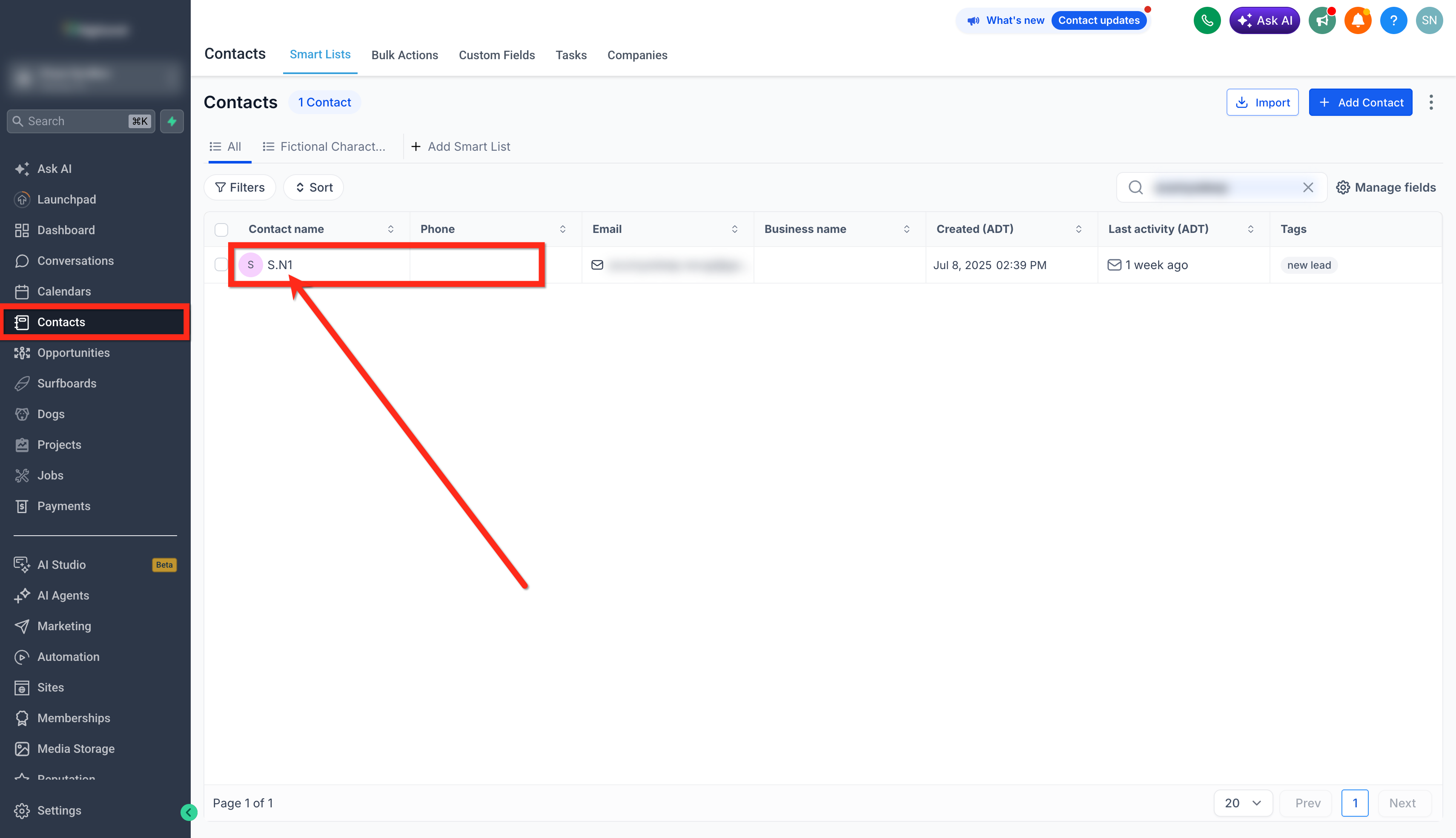
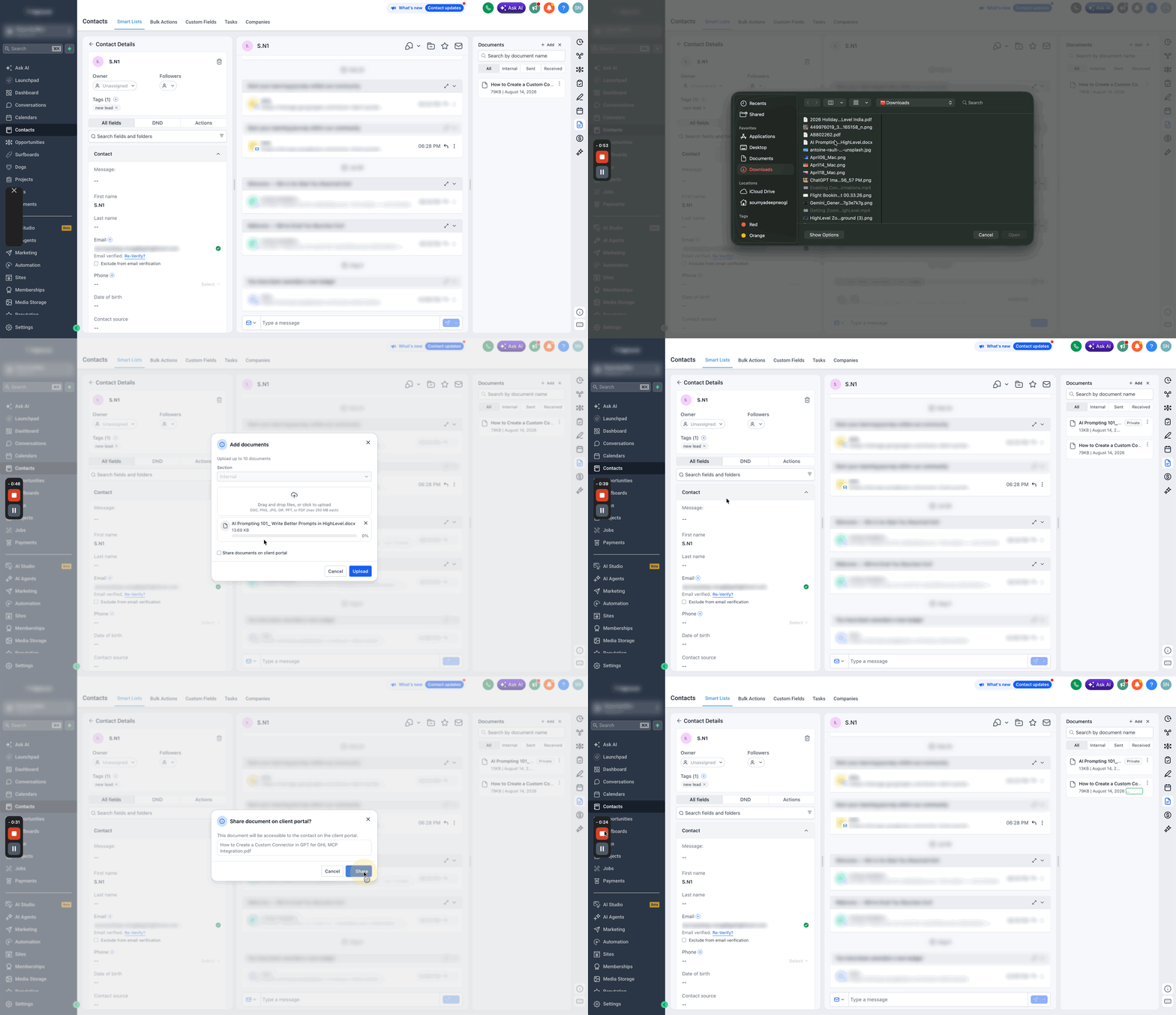
- Open the Files/Documents area from the right-side navigation panel.
- Upload a new file or select an existing file.
- Enable Upload to Client Portal.
- After the file is saved and shared, Chat To Clients CRM sends the contact an in-app notification and, when enabled, a push notification.
How Contacts Manage Notification Preferences
Notification preferences let contacts control how they receive file-related updates. Keeping these settings current helps contacts avoid unwanted alerts while continuing to receive important notifications through their preferred channels.
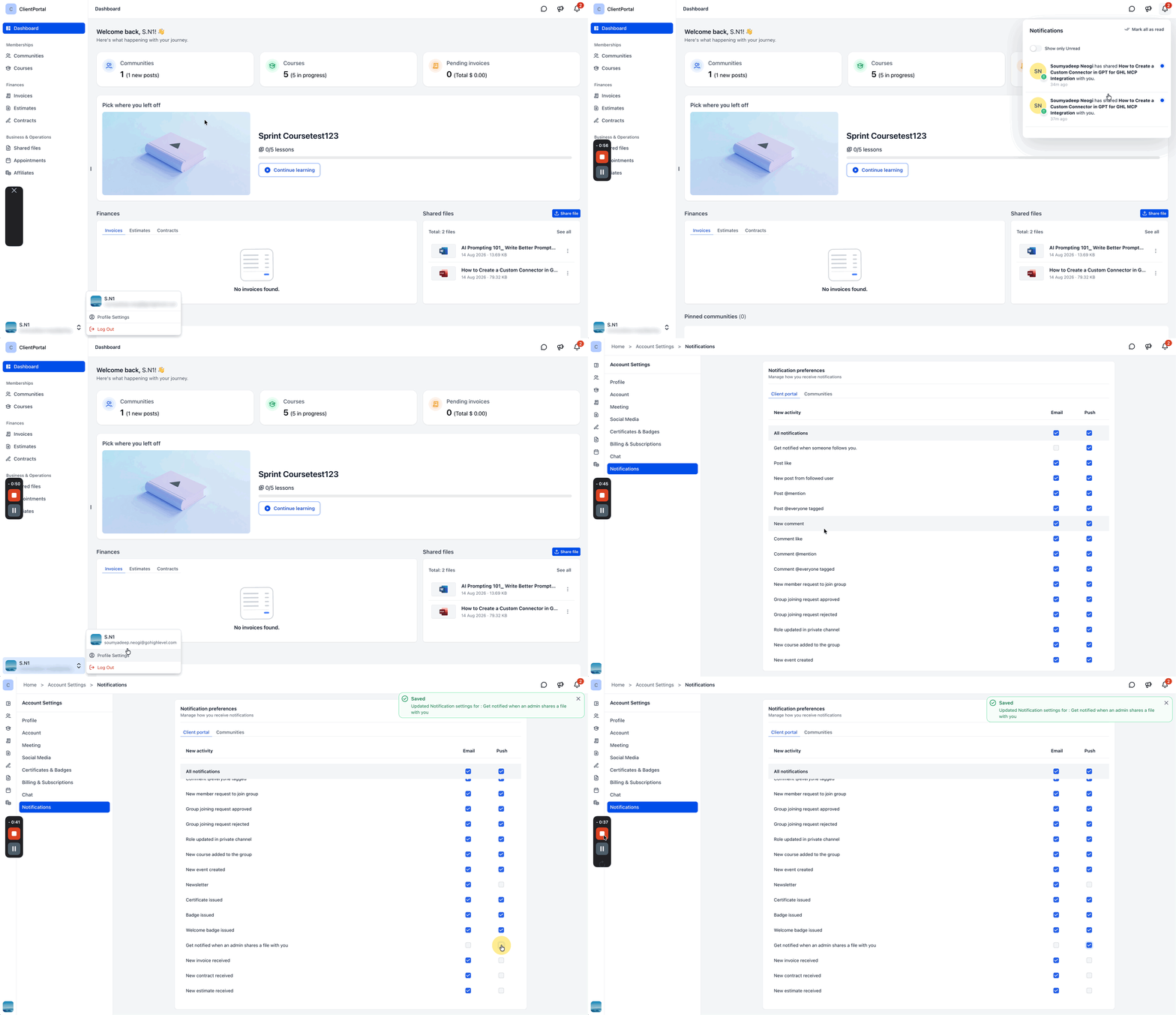
Note: Disabling notifications does not remove the contact’s access to files that have already been shared. It only changes how the contact is alerted about supported activity.- Log in to the Client Portal.
- Go to Settings.
- Open Notification Preferences.
- Enable or disable In-app Notifications and Push Notifications.
Frequently Asked Questions
Q: Does a workflow need to be created for file share notifications?
No. Chat To Clients CRM automatically generates the notification when the file is shared through the supported Client Portal file-sharing process.
Q: Which notification channels are supported?
File share notifications support in-app notifications and push notifications. Push notifications must be enabled by the contact.
Q: Can contacts disable file share notifications?
Contacts can manage available in-app and push notification settings from their Client Portal notification preferences.
Q: Will disabling notifications remove access to a shared file?
No. Notification preferences control alerts, not access to files that have already been shared.
Q: Why did the contact receive an in-app notification but not a push notification?
Push notifications may be disabled in the Client Portal preferences, the mobile app, or the contact’s device settings.