
Using Media Controls from the Notification Tray in the Chat To Clients CRM Mobile App
Media controls in the Chat To Clients CRM mobile app make it easier for users to manage supported media playback without returning to the app every time they need to pause, resume, or skip. This is especially helpful for learners watching or listening to longer course, membership, or community content on mobile.
TABLE OF CONTENTS
- What is Media Control from the Notification Tray?
- Key Benefits of Media Controls from the Notification Tray
- Supported Mobile App Version
- How To Use Media Controls from the Notification Tray
- Troubleshooting Notification Tray Media Controls
- Frequently Asked Questions
- Related Articles
What is Media Control from the Notification Tray?
Media controls from the notification tray allow users to manage supported media playback after starting content inside the Chat To Clients CRM mobile app. Instead of reopening the app to control playback, users can use their mobile device’s notification area to pause, resume, or skip supported media.
This feature improves the mobile learning experience by making playback more flexible for users who consume long-form content while multitasking. It also supports a smoother experience across mobile surfaces where users interact with media, courses, memberships, communities, posts, comments, chats, and Go Live-related content.
Key Benefits of Media Controls from the Notification Tray
Notification media controls reduce friction for users who need quick playback access while using their mobile device. These controls help learners and members stay engaged with content without constantly navigating back into the app.
- Faster Playback Control: Pause, resume, or skip supported media directly from the notification tray.
- Better Long-Form Learning Experience: Continue consuming longer course or membership content with fewer interruptions.
- Improved Multitasking: Control media while switching between apps or using other areas of the device.
- Cleaner Mobile Experience: Enjoy a refreshed editor experience across posts, comments, chats, and Go Live.
- More Reliable Playback: Benefit from video and media improvements designed to reduce playback interruptions.
- Improved Navigation Flow: Move through the app more smoothly with better background refresh, carousel browsing, and back navigation.
Supported Mobile App Version
Using the latest mobile app version helps ensure that users can access the newest playback controls, editor improvements, and bug fixes. App updates are especially important when features rely on device-level behavior, such as notification tray media controls.
The notification tray media controls are included in:
- iOS: v26.03.210 or later
- Android: v26.03.210 or later
Users should update the Chat To Clients CRM mobile app before trying to use this feature. Existing Chat To Clients CRM mobile course guidance also recommends updating the app to access newer mobile course experiences.
How To Use Media Controls from the Notification Tray
Starting playback inside the Chat To Clients CRM mobile app is required before notification tray controls can appear. Once supported media is playing, the mobile device can display playback controls in the notification area.
- Update the Chat To Clients CRM mobile app to v26.03.210 or later.
- Open the Chat To Clients CRM mobile app on iOS or Android.
- Navigate to supported media content, such as a course, membership, or other media-enabled area.
- Start playing the media inside the app.
- Swipe down from the top of the screen to open the device notification tray.
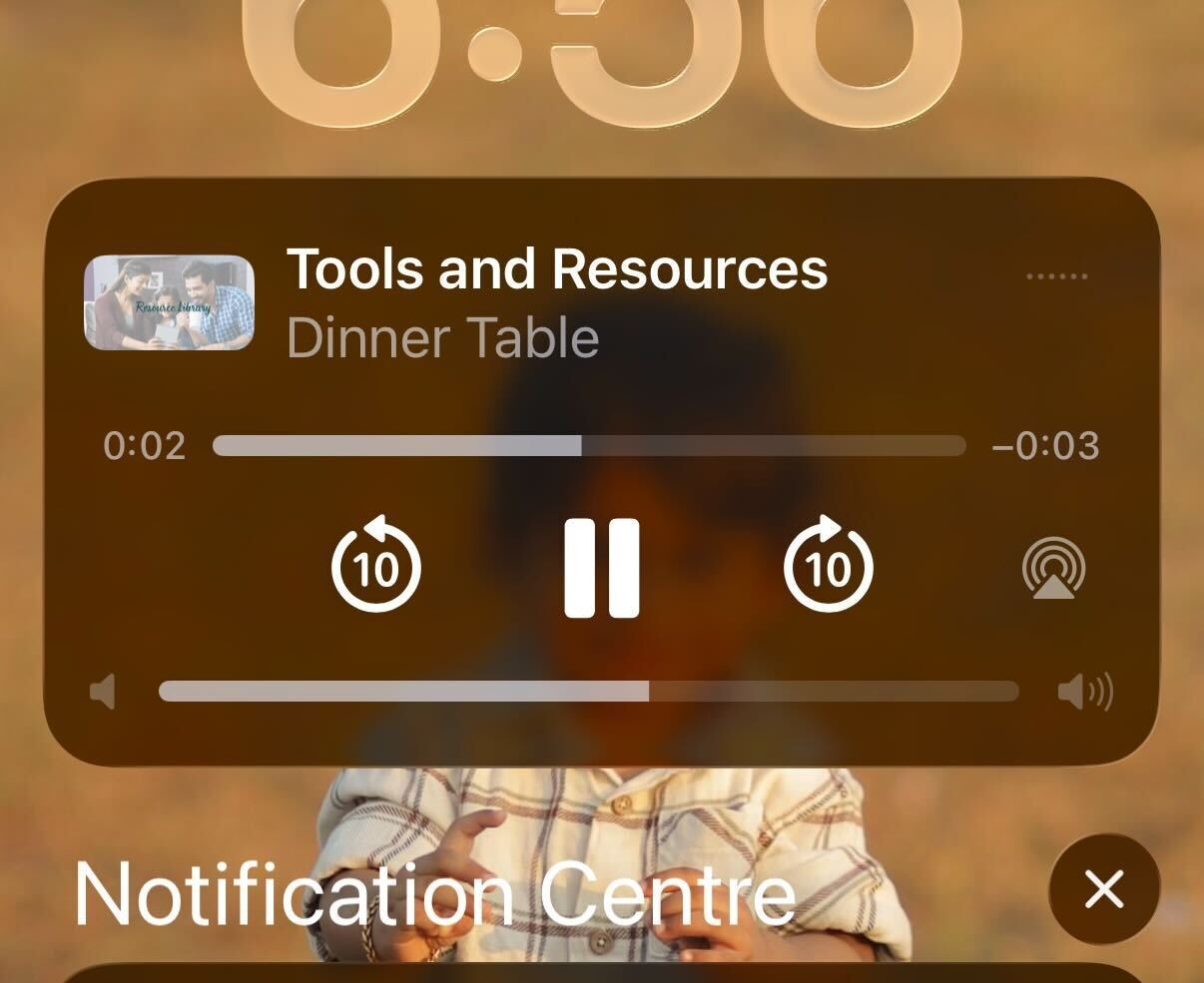
- Use the available media controls to pause, resume, or skip playback.
- Return to the Chat To Clients CRM app when you want to continue interacting with the content directly.
Troubleshooting Notification Tray Media Controls
Notification tray controls depend on the mobile app version, supported media behavior, and device-level notification settings. Checking these items first can help resolve most cases where controls do not appear as expected.
Try the following:
- Confirm the Chat To Clients CRM mobile app is updated to v26.03.210 or later.
- Start playback inside the Chat To Clients CRM mobile app before opening the notification tray.
- Confirm the media type supports notification tray controls.
- Make sure mobile notifications are enabled for the app.
- Check whether the device has background playback or battery restrictions enabled.
- Close and reopen the app, then start playback again.
- Restart the device if controls still do not appear.
Chat To Clients CRM has separate notification-related documentation for Client Portal and mobile app notifications, including notification preferences and mobile push notification behavior.
Frequently Asked Questions
Q: Do I need to update the mobile app to use notification tray media controls?
A: Yes. Users should update to iOS or Android app version v26.03.210 or later before using this feature.
Q: Can I pause and resume media without reopening the Chat To Clients CRM app?
A: Yes. After supported media starts playing in the app, users can pause or resume playback from the notification tray.
Q: Can I skip media from the notification tray?
A: Yes, skip controls are included in the release note. Availability may depend on the supported media type and device behavior.
Q: Why do I not see media controls in my notification tray?
A: Confirm the app is updated, media is actively playing, notifications are enabled, and the content type supports notification tray controls.
Q: Did this update change posts, comments, chats, or Go Live?
A: Yes. The editor experience across posts, comments, chats, and Go Live was refreshed to feel cleaner.
Q: Are notification tray controls the same as Chat To Clients CRM push notifications?
A: No. Notification tray media controls manage active media playback. Push notifications alert users about updates, messages, comments, or other activity.
Related Articles
- Courses Mobile – How to Navigate the New Lessons & Courses UI
- Media Library – Mobile App
- The Revamped Mobile App Experience – Mobile v4.0.0
- Communities - Use Go Live to Host Meetings & Broadcasts
- How to Setup, Customize, and Manage Your Communities
- Notifications inside Client Portal