
Custom Module Links with Role & Account-Based Visibility
Custom Module Links in Chat To Clients CRM’s Whitelabel Customizer now offer advanced control over who can see specific navigation links and where they appear. By combining role-based visibility with account targeting, admins can create a cleaner, more relevant user experience while protecting sensitive resources.
TABLE OF CONTENTS
- What is Custom Module Links with Role & Account-Based Visibility?
- Key Benefits of Custom Module Links with Role & Account-Based Visibility
- Role-Based Visibility
- Account (Location) Targeting
- Unified Custom Module Configuration
- How To Setup Custom Module Links with Role & Account-Based Visibility
- Frequently Asked Questions
- Related Articles
What is Custom Module Links with Role & Account-Based Visibility?
Custom Module Links allow you to add external or internal links directly into your app’s navigation menu. With the introduction of role-based and account-based visibility, these links are no longer static—they can now be tailored to specific users and locations for a more controlled and personalized experience.
This enhancement enables admins to define whether a link should be visible to all users or restricted to admins, as well as limit its appearance to selected accounts (locations). As a result, navigation becomes more intentional, secure, and aligned with operational needs.
Key Benefits of Custom Module Links with Role & Account-Based Visibility
Understanding how this feature improves usability and control can help you better structure your app navigation and user experience.
- Targeted Visibility: Display links only to specific users or roles, ensuring relevance and reducing clutter
- Improved Security: Restrict sensitive or internal links to Admin users only
- Account-Specific Customization: Tailor navigation experiences for different accounts or client locations
- Controlled Rollouts: Test new links with a limited group before releasing them broadly
- Centralized Configuration: Manage title, URL, icon, account selection, and visibility in one place
Role-Based Visibility
Role-based visibility determines which users can see a custom module link based on their assigned role. This ensures that only the appropriate users have access to certain navigation items, improving both usability and security.
- All Users: The link is visible to all users within the selected accounts
- Admin Only: The link is restricted to users with Admin-level access
Example Use Cases:
- Internal dashboards visible only to admins
- Training resources available to all team members
Account (Location) Targeting
Account targeting allows you to control where a custom module link appears by selecting specific accounts (locations). This ensures that only relevant users within those accounts see the link.
- Select one or multiple accounts where the link should appear
- Leave unselected accounts excluded from visibility
Example Use Cases:
- Client-specific resources for individual locations
- Region-based tools or integrations
Unified Custom Module Configuration
All settings for custom module links are now managed within a single Add/Edit Module popup. This unified interface simplifies the setup process and reduces the need for multiple configuration steps.
Within this popup, you can:
- Enter the Title of the link
- Add the URL destination
- Choose an Icon for visual identification
- Select Accounts (Locations)
- Define Role-Based Visibility
How To Setup Custom Module Links with Role & Account-Based Visibility
Proper setup ensures that your custom links appear only where intended and are accessible to the right users, helping maintain a clean and secure navigation experience.
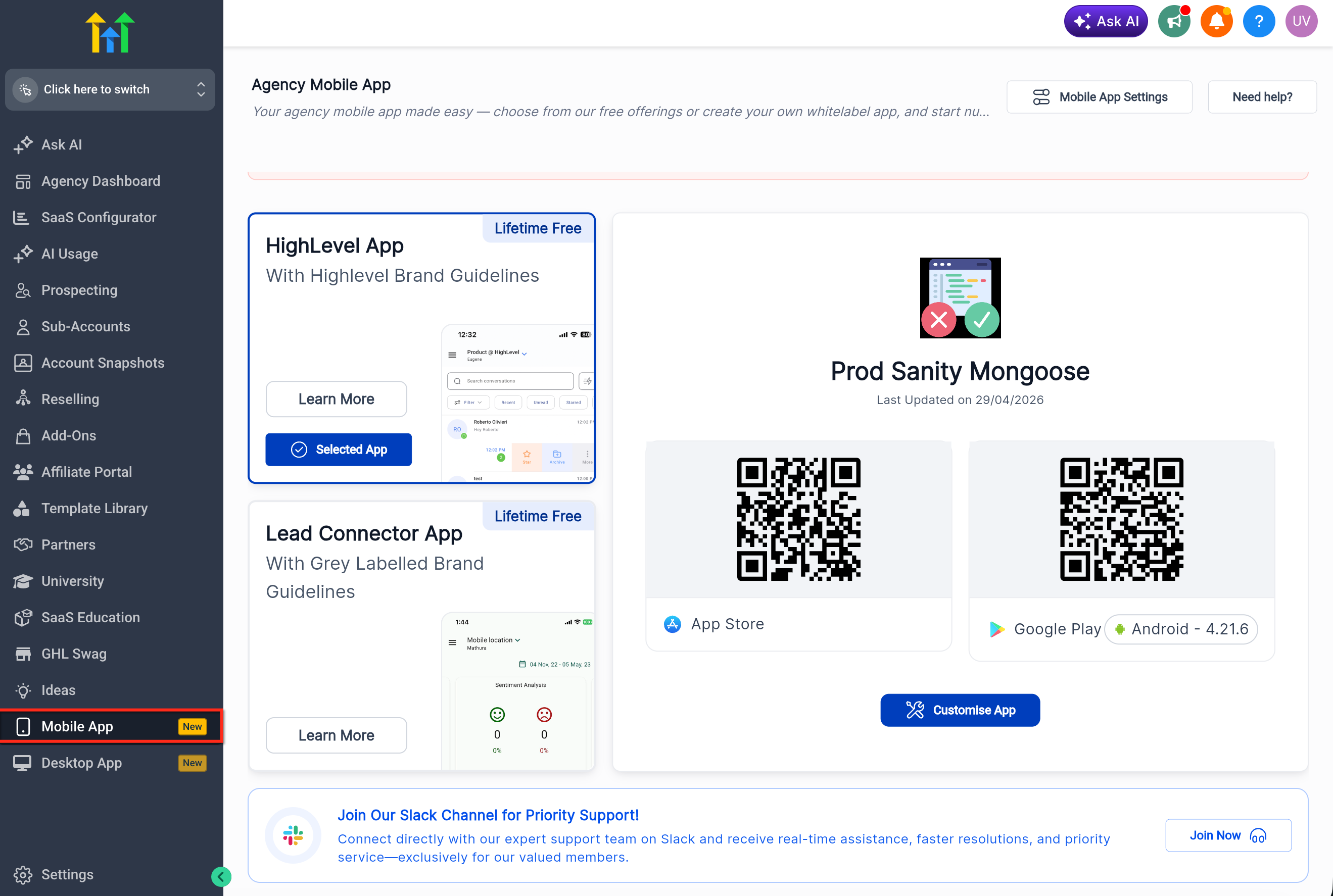
- Navigate to Mobile App in your agency left pane.
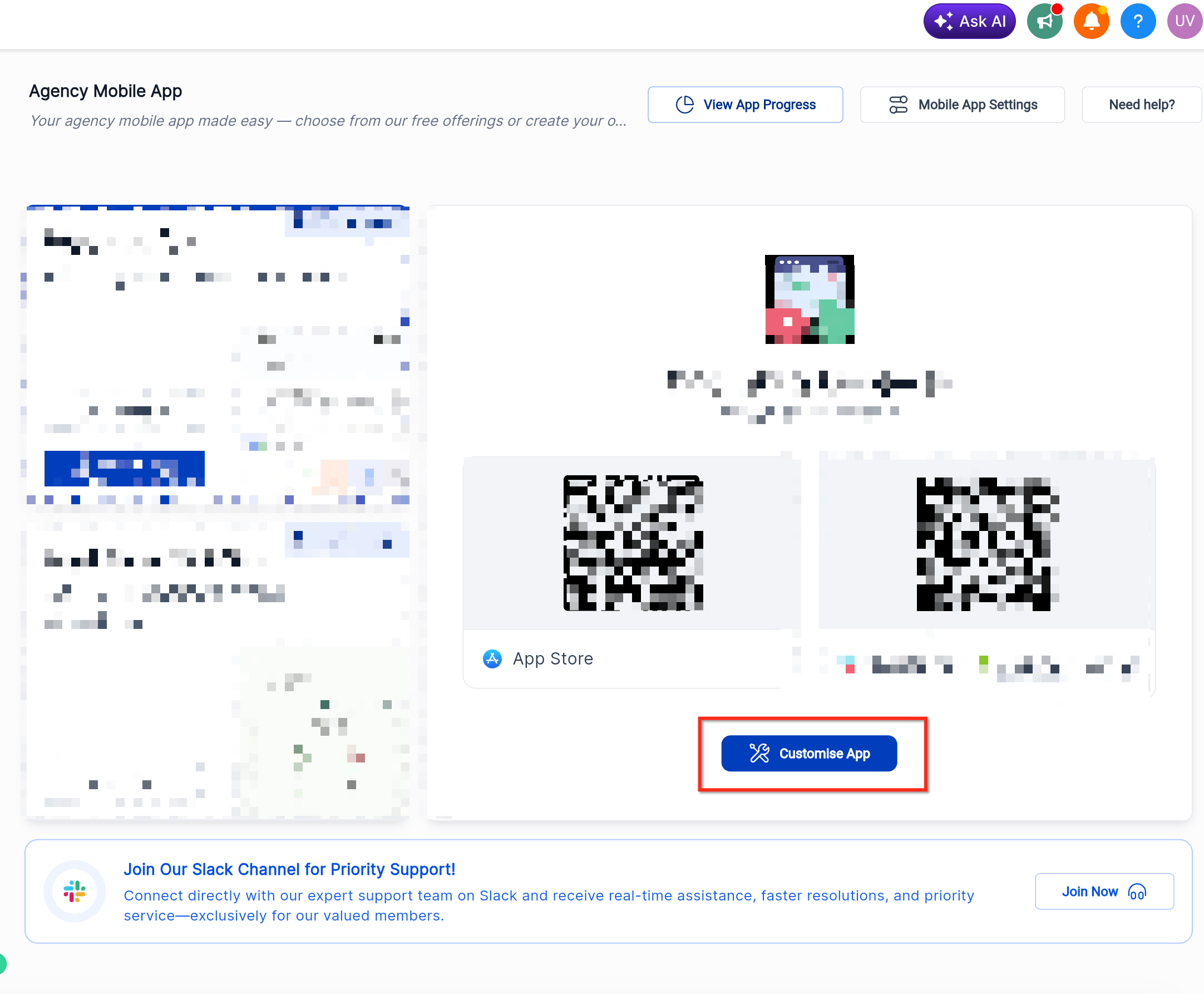
- Select Customize App to make the changes.
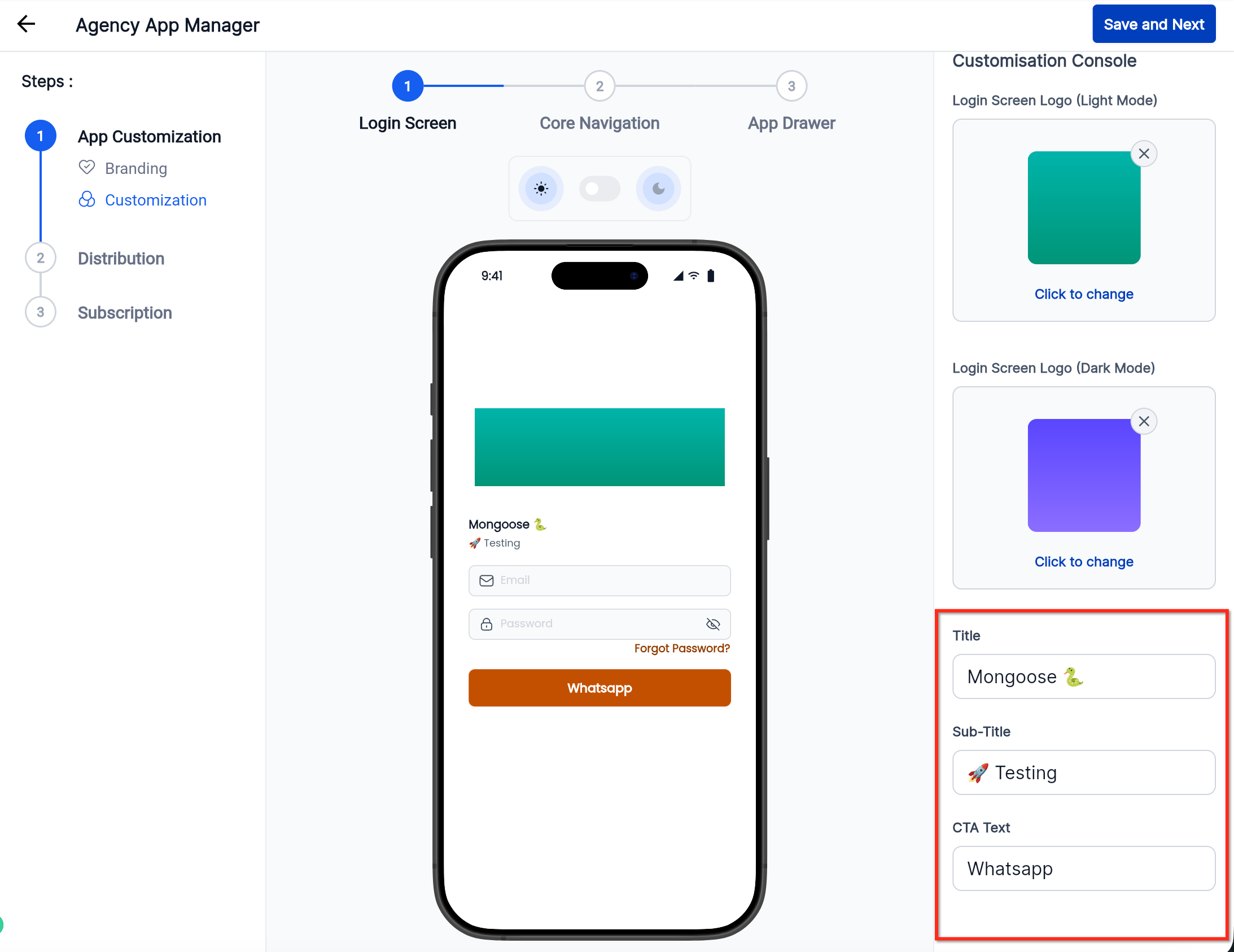
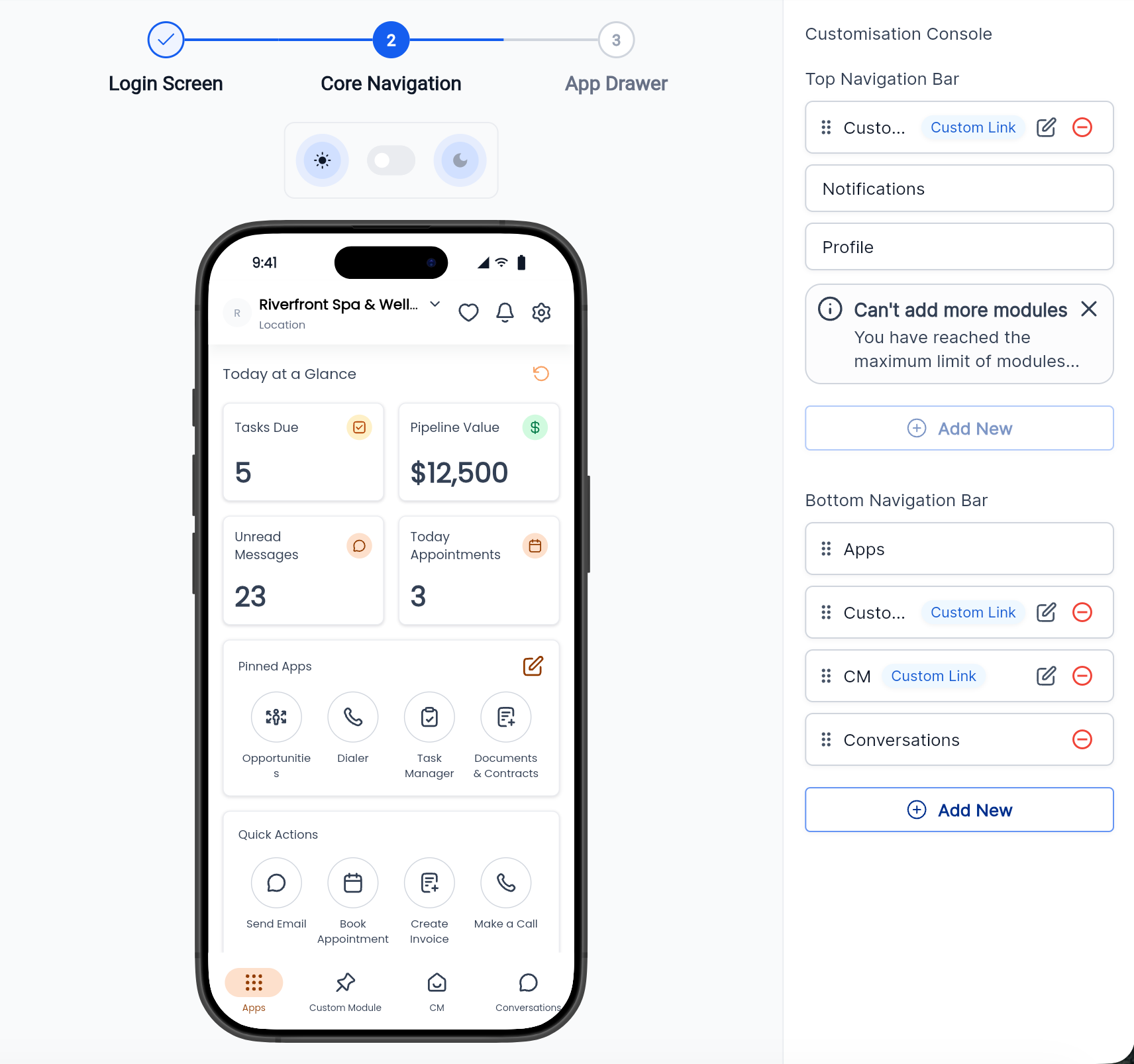
- Enter the Title, and URL
- Choose App Logo through Branding.
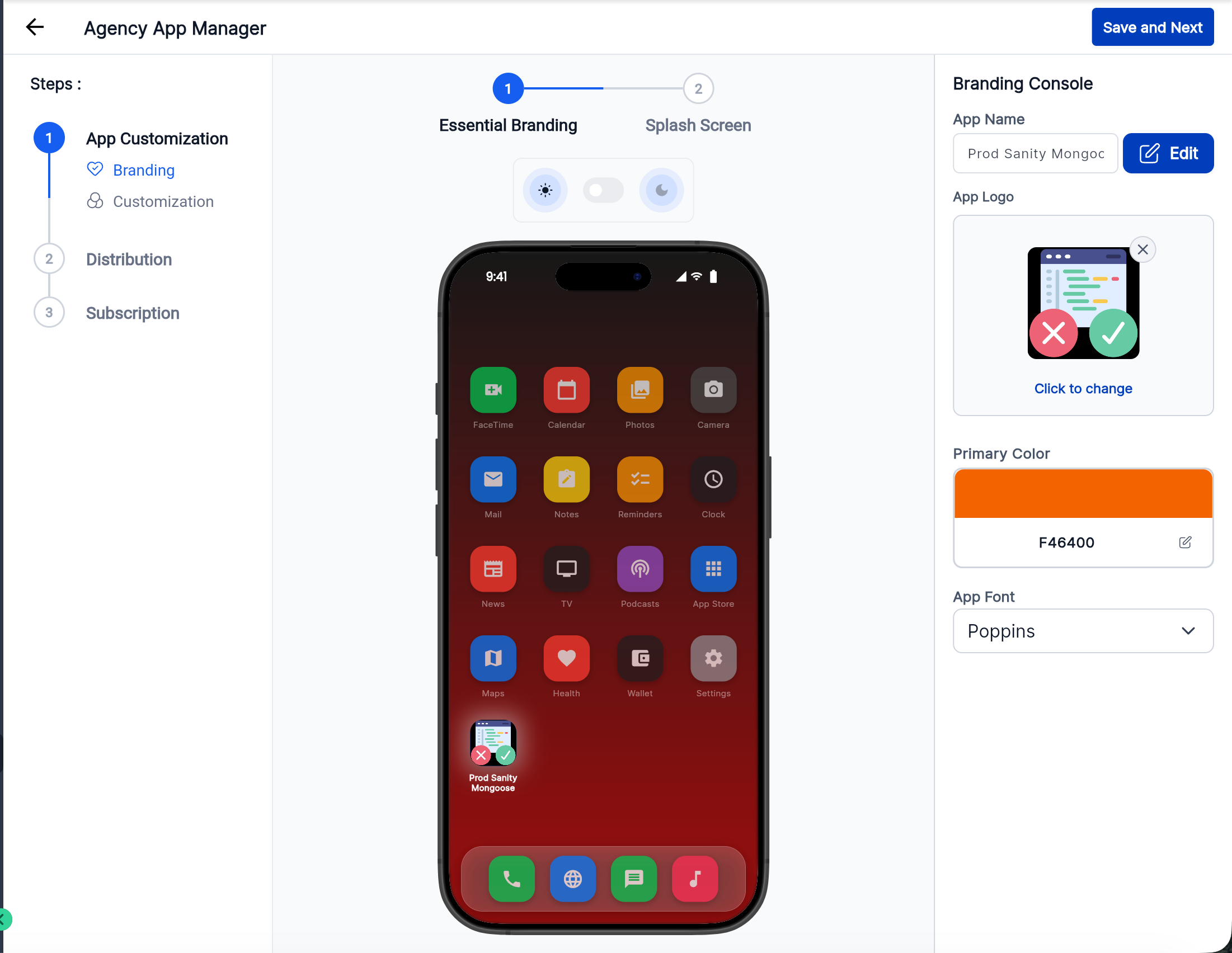
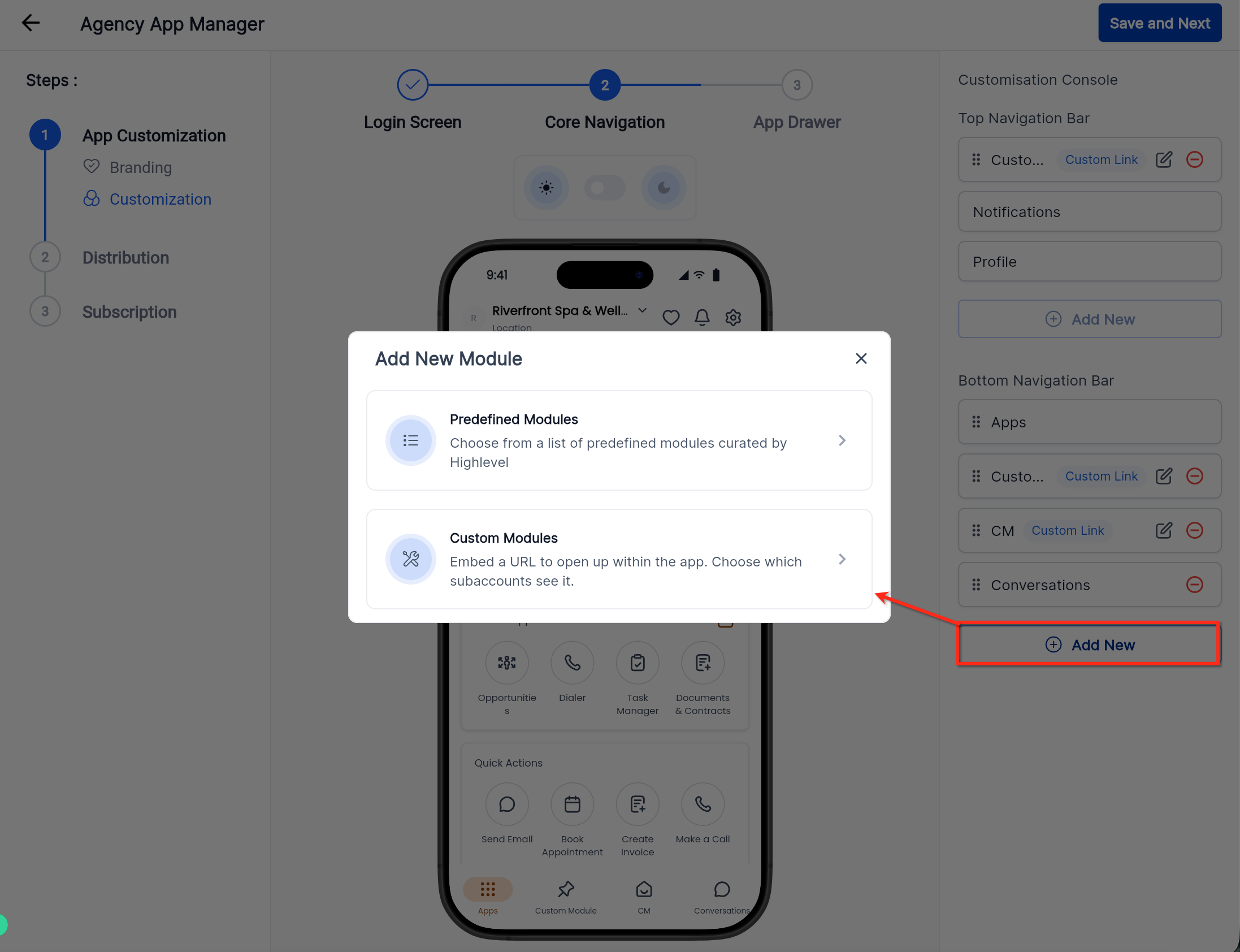
- Click "Add New" to create new modules.
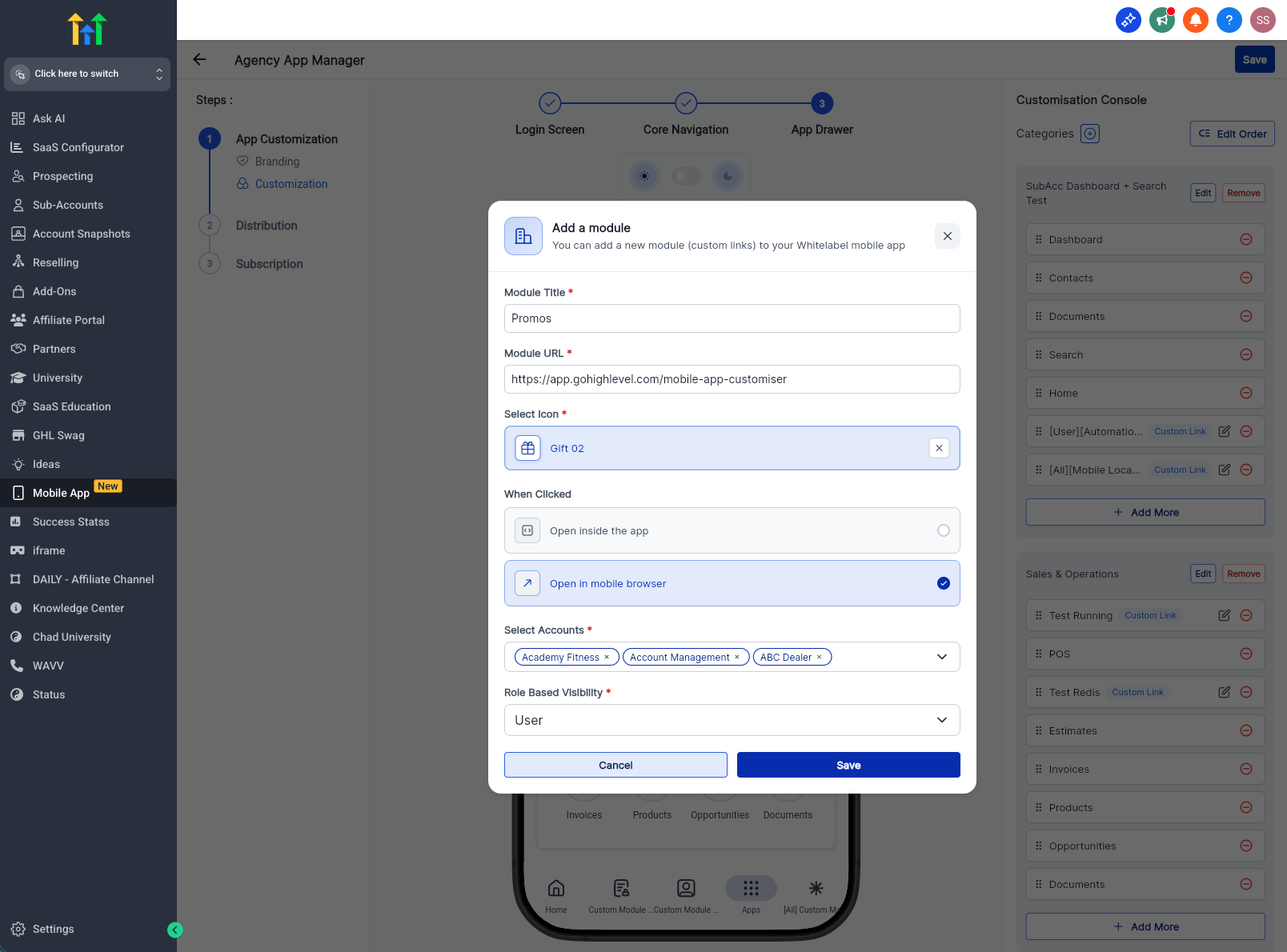
- Click Save
Frequently Asked Questions
Q1: What happens if I don’t select any accounts?
If no accounts are selected, the link may not appear in any location. It’s recommended to explicitly choose the accounts where the link should be visible.
Q2: Can I assign visibility to roles other than Admin or All Users?
Currently, visibility is limited to All Users or Admin Only.
Q3: Can I edit visibility settings after creating a link?
Yes, you can update role visibility and account selection at any time by editing the custom module.
Q4: Will users be notified when new links are added?
No automatic notifications are sent. Users will see the link appear in their navigation based on the visibility settings.
Q5: Can I use this feature to hide links temporarily?
Yes, by adjusting account selection or role visibility, you can effectively control when and where links are visible.
Q6: Does this affect existing custom module links?
Existing links may need to be reviewed and updated to take advantage of the new visibility controls.