
Auto-minimize, Pin & Drag Chat To Clients CRM Dialer
Chat To Clients CRM’s updated dialer makes it easier to stay on a call while continuing to work inside the platform. With auto-minimize, pin, and drag, you can keep the dialer accessible without letting it block important contact or pipeline information. These improvements help create a cleaner workspace and a smoother calling experience in the Chat To Clients CRM web app.
TABLE OF CONTENTS
- What is Dialer Auto-minimize, Pin & Drag?
- Key Benefits of Dialer Auto-minimize, Pin & Drag
- Auto-minimize
- Pinning the Dialer
- Dragging and Position Memory
- How To Setup Dialer Auto-minimize, Pin & Drag
- Frequently Asked Questions
- Related Articles
What is Dialer Auto-minimize, Pin & Drag?
Dialer Auto-minimize, Pin & Drag is a usability enhancement for the Chat To Clients CRM web dialer that gives you more control over how the dialer behaves and where it appears on your screen. It introduces three core behaviors: the dialer can minimize automatically when you click outside it, stay visible when pinned, and be moved to a preferred location on your screen. This makes it easier to manage calls while reviewing records, updating details, or navigating to other areas of Chat To Clients CRM.
Key Benefits of Dialer Auto-minimize, Pin & Drag
- Less screen clutter: Auto-minimize helps free up space when you click into other areas of Chat To Clients CRM during a call.
- More control: Pinning keeps the dialer visible when you want call controls available at all times.
- Flexible placement: Dragging lets you move the dialer to a part of the screen that works best for your workflow.
- Consistent layout: When the dialer is pinned, it can reopen in the same location where you last placed it.
- Smoother multitasking: You can review contact details or pipeline information without manually closing or repositioning the dialer each time.
Auto-minimize
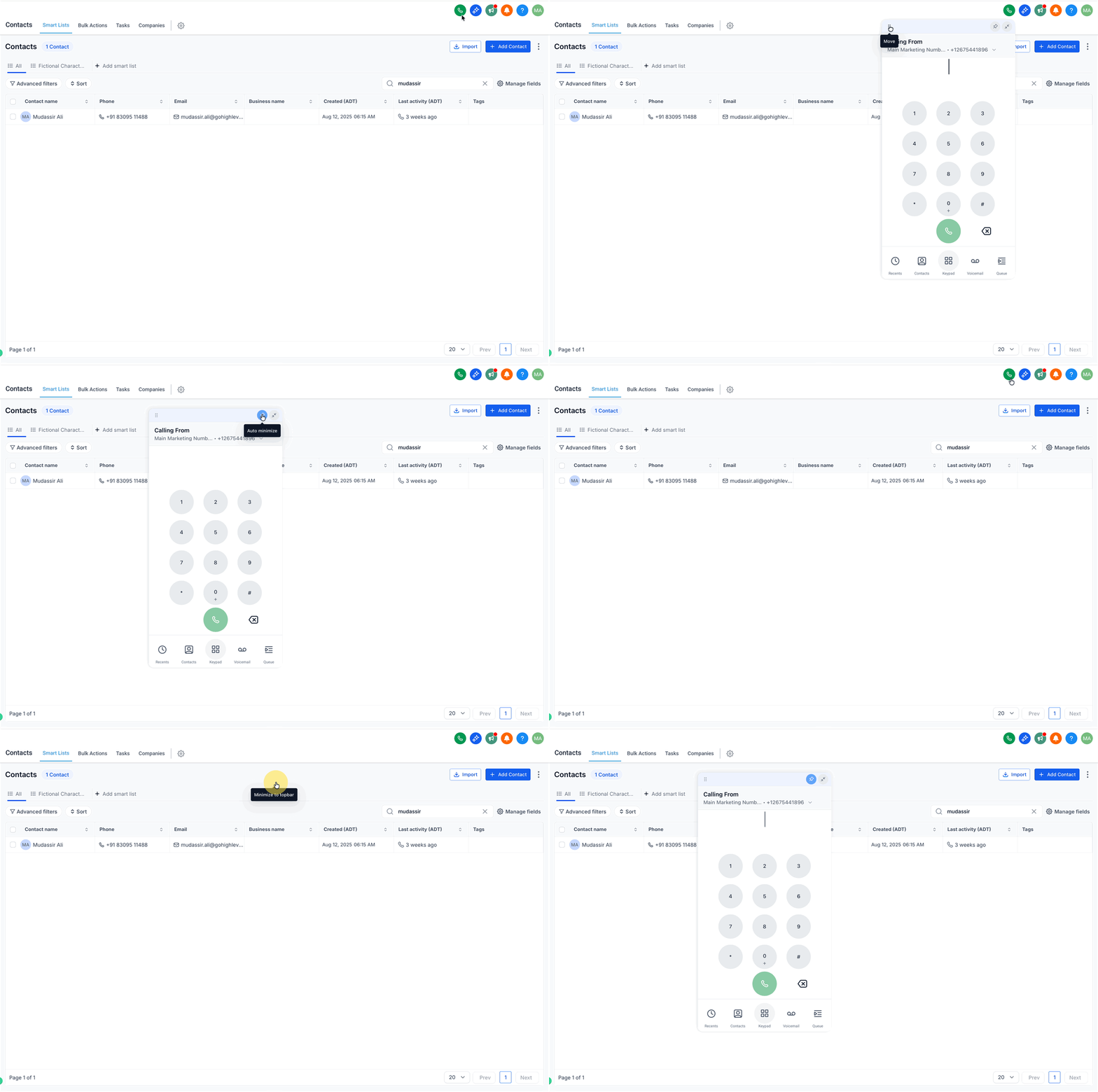
Auto-minimize helps keep the dialer out of the way while you work in other parts of Chat To Clients CRM during an active call. This makes it easier to review records and update information without the dialer staying fully expanded on top of the page.
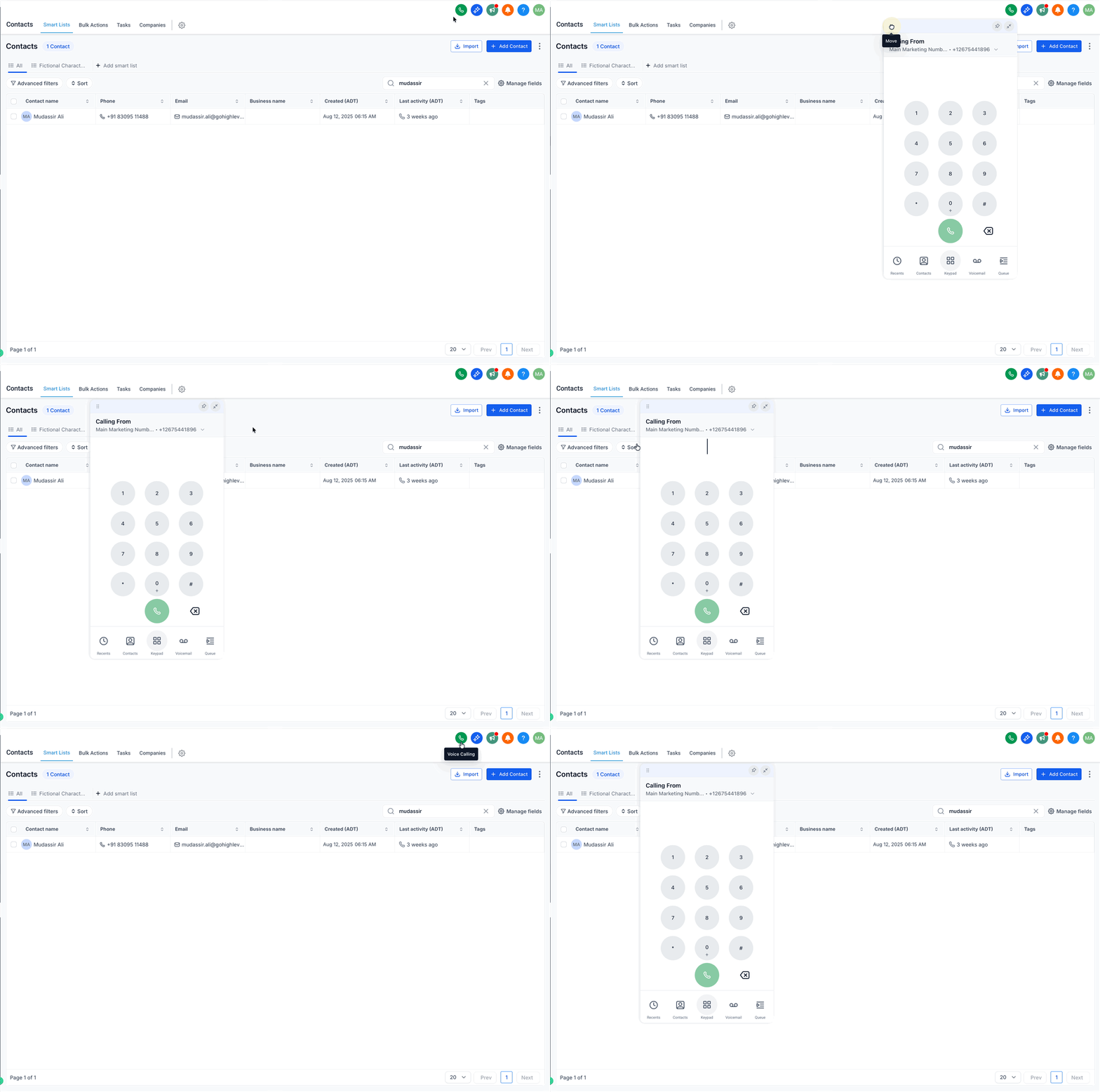
- When the dialer is open and not pinned, clicking outside the dialer minimizes it.
- Minimizing the dialer changes how it appears on screen, but it does not end the call.
- You can reopen the dialer from its minimized state whenever you need to access call controls again.
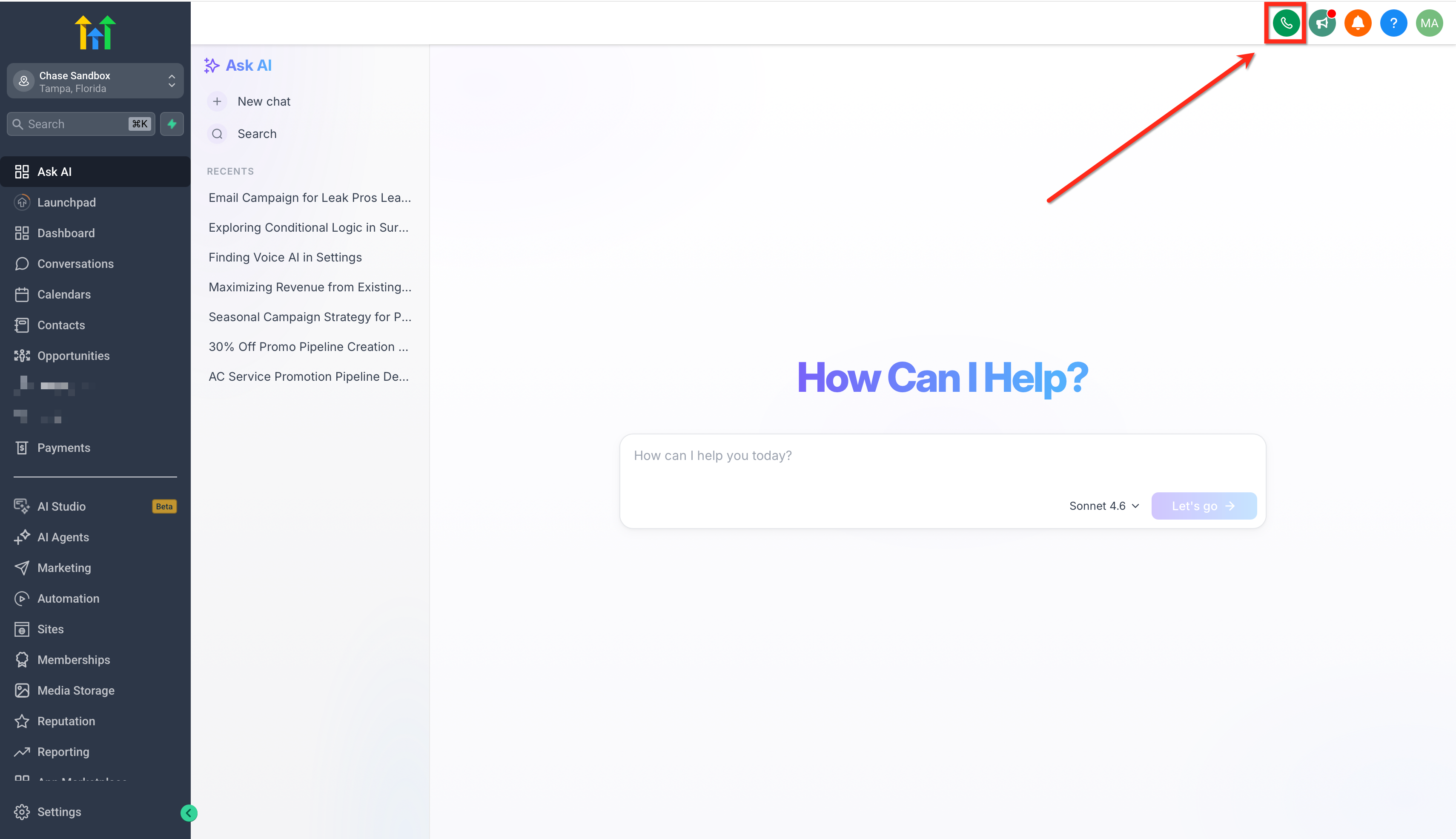
- To restore the minimized dialer, click the phone icon in the top navigation.
Pinning the Dialer
Pinning allows you to keep the dialer visible while moving through other areas of the platform. This is useful when you want call controls to remain on screen while reviewing records, following a script, or updating notes during a conversation.
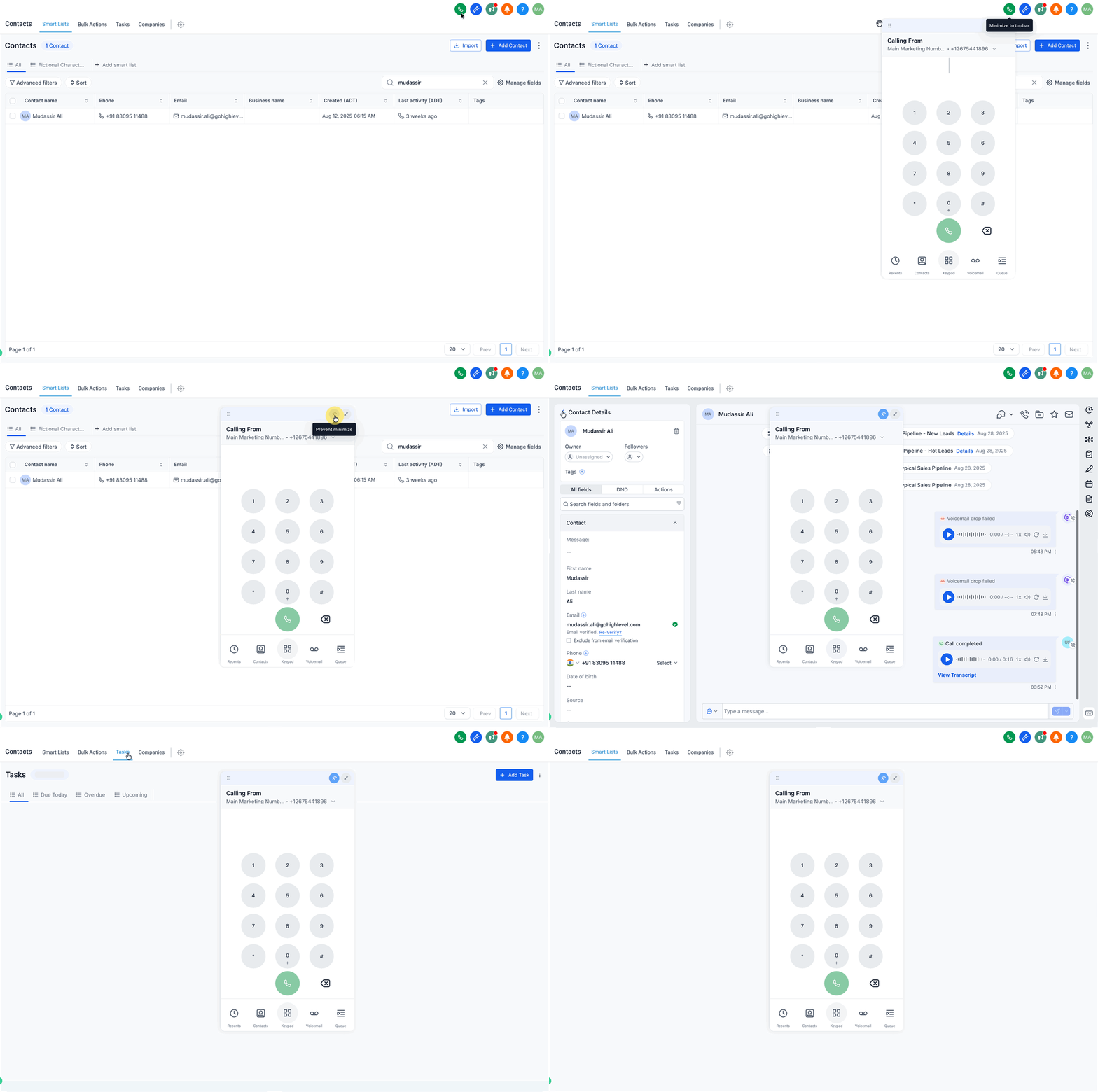
- Click the pin icon to keep the dialer open.
- When pinned, the dialer stays visible instead of minimizing when you click elsewhere.
- To return to the standard behavior, unpin the dialer or minimize it manually.
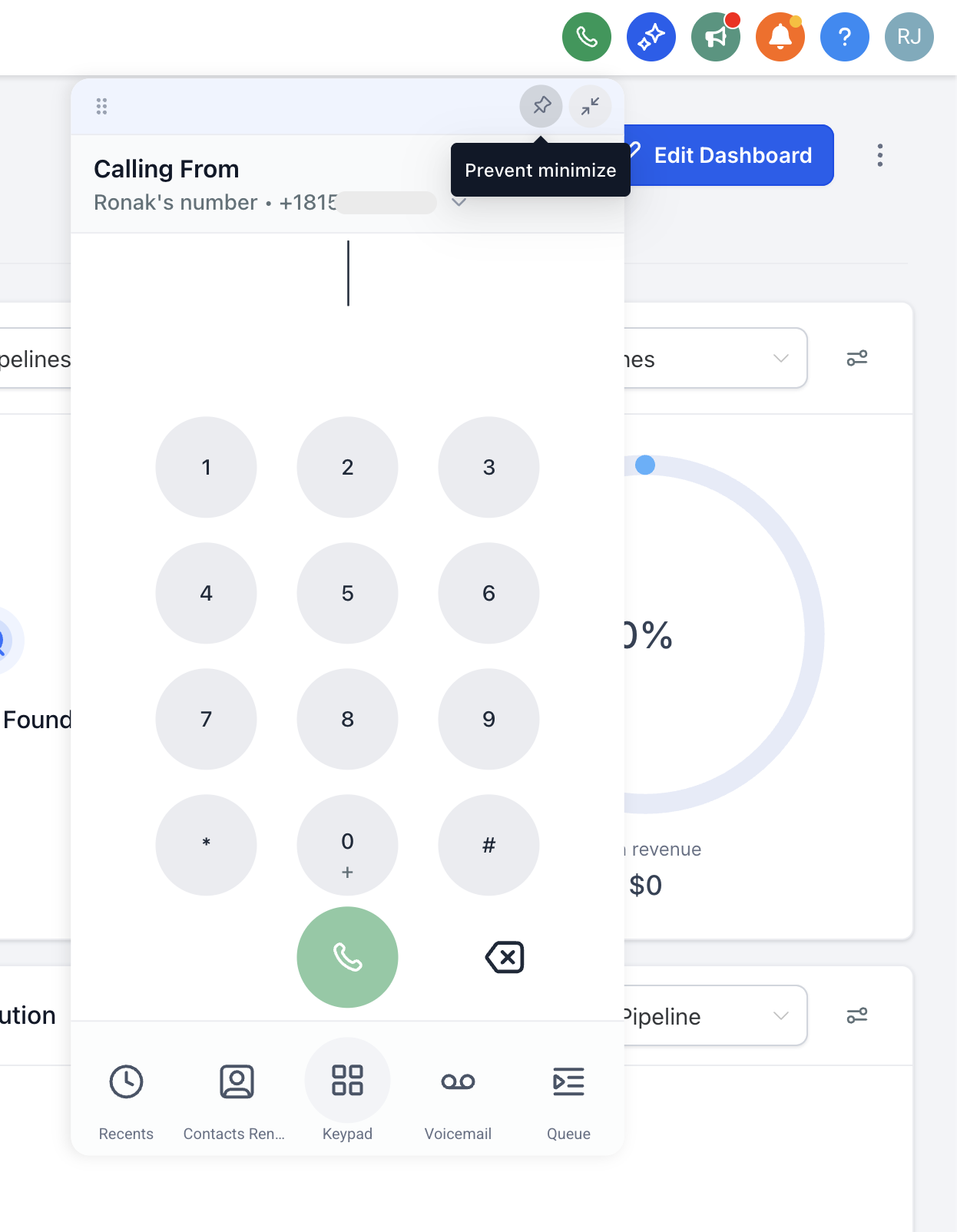
Dragging and Position Memory
Dragging allows you to place the dialer where it fits best on your screen. This makes it easier to keep it accessible without covering the information you need most. You can drag the dialer to a preferred location on the screen while it is open.
- Click and hold the dialer header or drag area.
- Move the dialer to your preferred on-screen location.
- Release it to place the dialer there.
- If the dialer is pinned, it can reopen in that saved position.
How To Setup Dialer Auto-minimize, Pin & Drag
These controls are built into the Chat To Clients CRM Web Dialer and do not require additional setup.
- From the top navigation bar in Chat To Clients CRM, click the green phone icon to open the Web Dialer.
- Leave the dialer unpinned and click anywhere outside it to see the auto-minimize behavior in action.
- Click the pin icon when you want the dialer to stay open while you work elsewhere in the platform.
- Drag the dialer to a preferred location on the screen. If it is pinned, reopen it to confirm that it appears in the same saved position.
Frequently Asked Questions
Q: Does auto-minimize end my call?
No. Auto-minimize only changes how the dialer appears on screen. Your call remains active.
Q: Does the dialer remember where I placed it?
Yes, when the dialer is pinned, it can reopen in the same location where you left it.
Q: How do I keep the dialer open while I work in other areas of Chat To Clients CRM?
Click the pin icon. When pinned, the dialer stays open until you unpin it or minimize it manually.
Q: Can I move the dialer to another part of my screen?
Yes. You can drag the dialer to a different location on your screen.
Q: Where do I open the dialer in Chat To Clients CRM?
You can open the dialer from the phone icon in the top navigation bar of the web app.