ACH - bank transfer support on NMI
NMI bank transfers let businesses accept payments from eligible US and Canadian bank accounts through invoices, recurring invoices, and subscriptions. Customers can pay directly from a bank account instead of using a card, which may provide a more practical payment option for larger transactions.
This guide explains the requirements, customer payment experience, processing timeline, and recurring-payment limitations.
TABLE OF CONTENTS
- What Are NMI ACH Bank Transfers?
- Key Benefits of NMI ACH Bank Transfers
- Supported Countries and Payment Types
- Requirements for NMI ACH Bank Transfers
- US Bank Account Payment Experience
- Canadian Bank Account Payment Experience
- How Payment Processing and Settlement Work
- How Saved Bank Accounts Work With Recurring Payments
- Frequently Asked Questions
What Are NMI ACH Bank Transfers?
NMI ACH bank transfers allow customers to pay through an eligible US or Canadian bank account using the NMI payment processor. The payment is initiated from an invoice and remains in a processing state until the customer’s bank returns a final result.
Chat To Clients CRM supports NMI bank-account payments for:
- One-time invoices
- Recurring invoices
- Subscriptions
- US bank accounts
- Canadian bank accounts
US customers provide an ABA routing number, while Canadian customers provide transit and institution numbers. The information requested during checkout changes according to the selected country.
Key Benefits of NMI ACH Bank Transfers
Bank-account payments give businesses and customers an alternative to card transactions while supporting both one-time and recurring billing experiences.
- Additional payment flexibility: Customers can pay directly from an eligible bank account instead of using a credit or debit card.
- Potential processing savings: Bank transfers may be more economical for some businesses, particularly for larger transactions.
- Support for US and Canadian accounts: Customers can enter the bank details required for their country.
- Recurring payment compatibility: Previously saved bank accounts can be used for recurring invoices and subscriptions.
- Clear transaction tracking: Businesses can review the payment provider, payment mode, source, masked account number, and current transaction status.
Supported Countries and Payment Types
Understanding the supported countries and payment experiences helps businesses determine when the NMI bank-account option can be offered to customers.
NMI bank transfers are supported for eligible bank accounts based in:
- United States
- Canada
The payment method can be used with:
- Invoices
- Recurring invoices
- Subscriptions
A customer must first complete a bank-account payment through an invoice before that bank account can be used for a recurring invoice or subscription. The saved account is then available for eligible recurring payment experiences.
The release information does not confirm support for payment links, order forms, Text2Pay, documents, or other payment channels.
Requirements for NMI ACH Bank Transfers
A properly connected and configured NMI account is required before customers can submit bank-account payments. Completing these requirements helps ensure the payment option appears correctly and transaction updates are returned to Chat To Clients CRM.
Before accepting bank transfers:
- Connect an eligible NMI merchant account to the correct Chat To Clients CRM subaccount.
- Confirm that bank-account processing is enabled in the connected NMI account.
- Contact NMI to request activation when bank-account processing is not currently enabled.
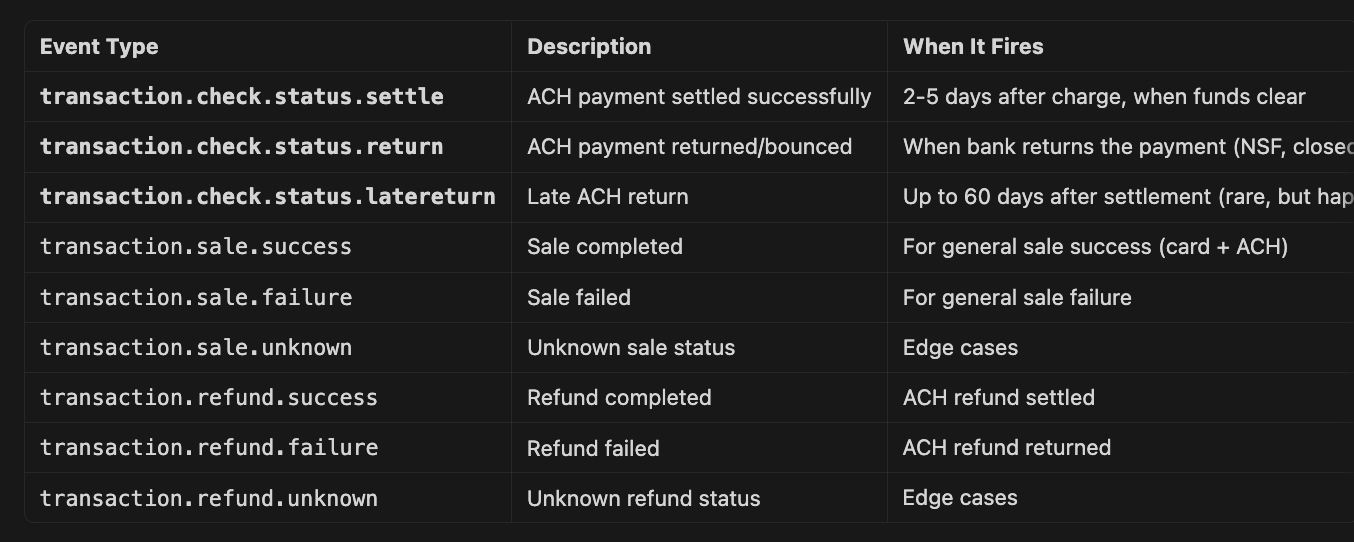
- Complete the required NMI settlement and payment-status configuration.
- Configure the webhook settings documented in the existing NMI ACH support instructions.
- Confirm that the invoice uses the intended NMI payment provider.
For instructions on connecting the payment processor, refer to How to Set Up the NMI Integration.
US Bank Account Payment Experience
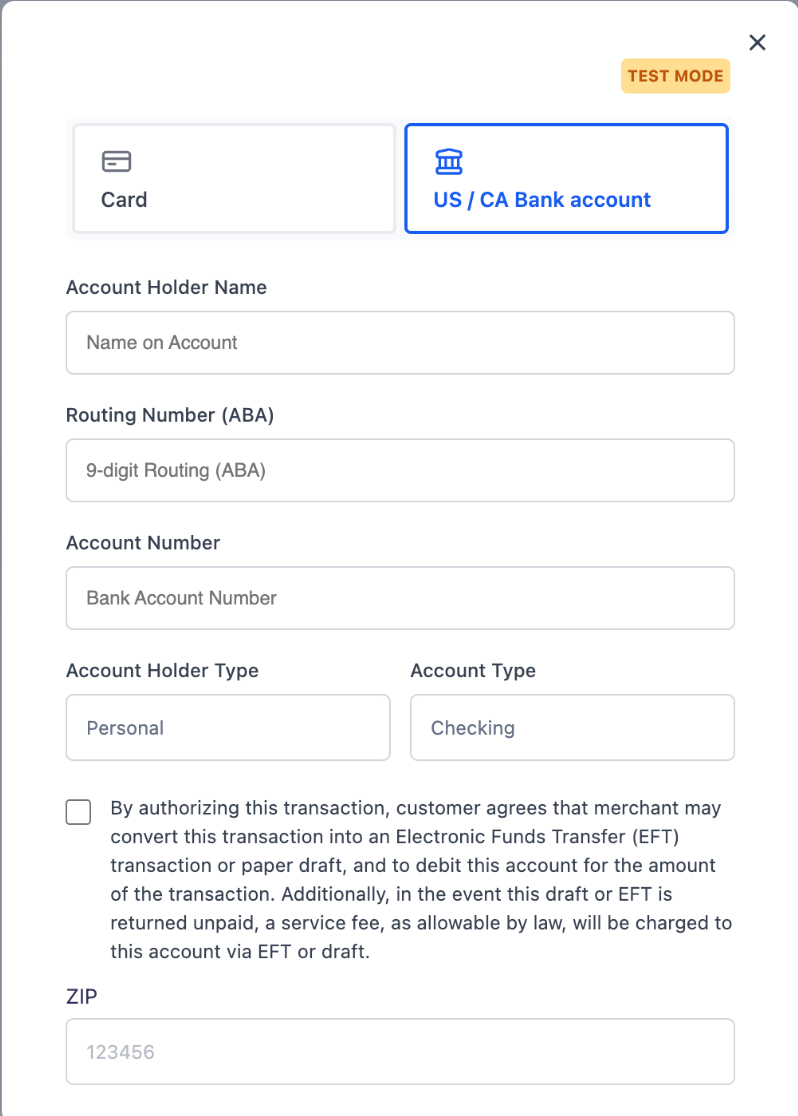
US customers enter their banking and account-holder information through the invoice payment form. Accurate details and customer authorization are required before the payment can be submitted.
After opening the invoice payment page, the customer selects US / CA Bank account and provides:
- Account Holder Name
- Routing Number (ABA)
- Account Number
- Account Holder Type
- Account Type
- Authorization acknowledgment
- ZIP code
The routing number must be the nine-digit ABA number associated with the customer’s US bank account.
Canadian Bank Account Payment Experience
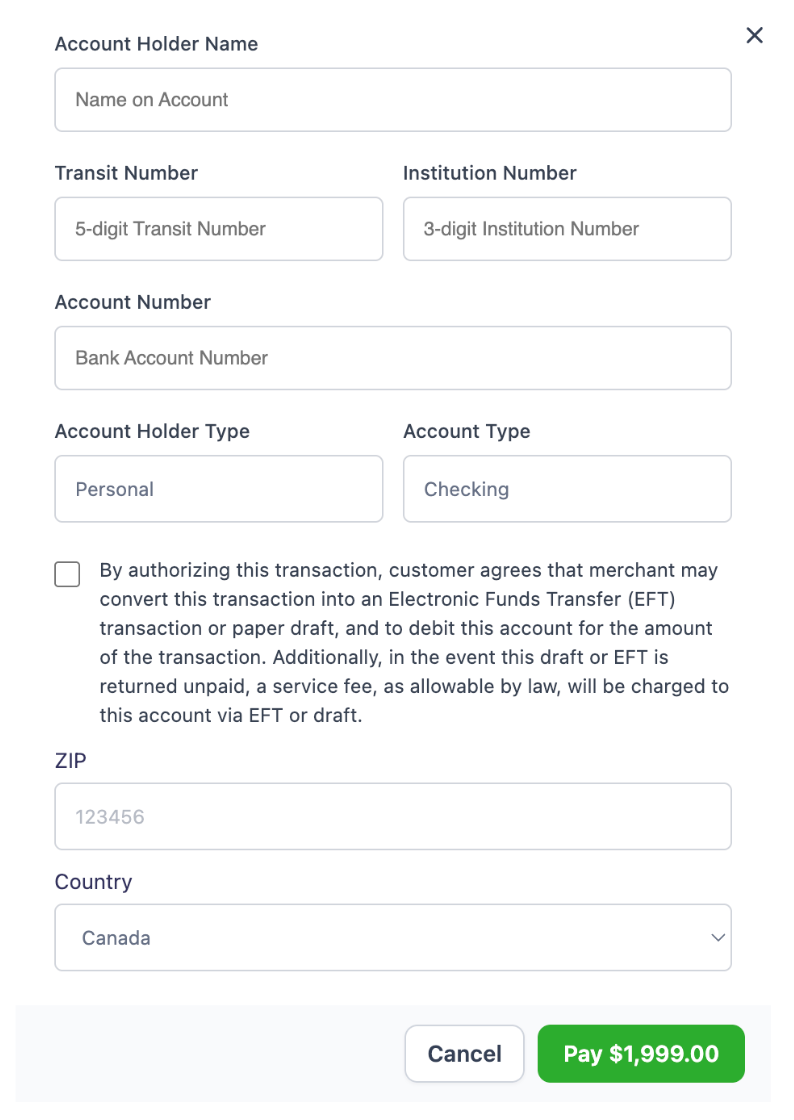
Canadian customers use transit and institution numbers instead of a US ABA routing number. These values identify the customer’s bank branch and financial institution.
After selecting the bank-account payment option, the customer provides:
- Account Holder Name
- Five-digit Transit Number
- Three-digit Institution Number
- Account Number
- Account Holder Type
- Account Type
- Authorization acknowledgment
- ZIP or postal code information requested by the form
- Country
The customer must select Canada as the country and enter the banking information associated with the Canadian account.
How Payment Processing and Settlement Work
Bank transfers do not settle immediately like many card transactions. Monitoring the payment until it reaches a successful final status helps prevent services or products from being delivered before funds are confirmed.
After the customer submits the payment:
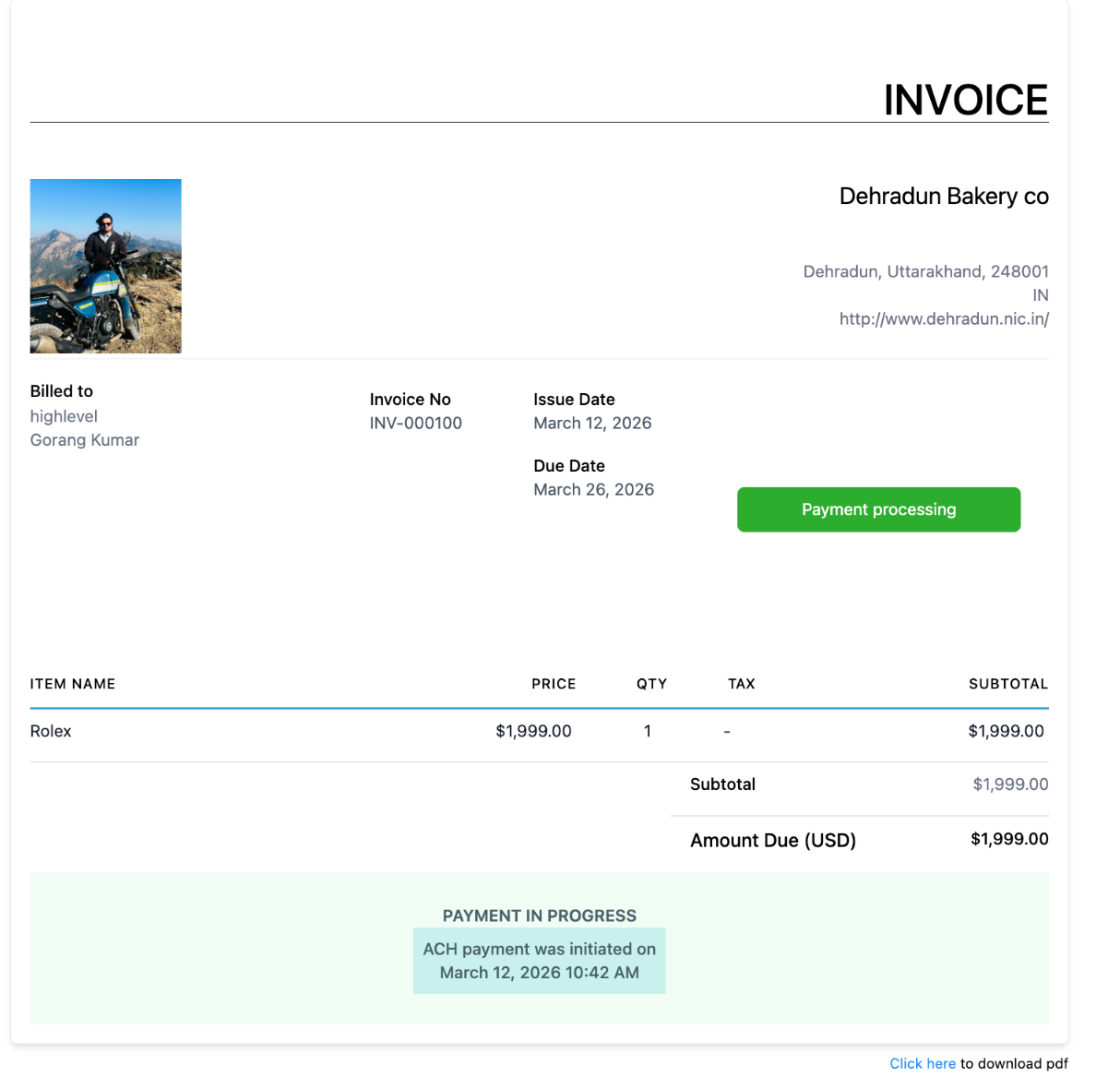
- The invoice displays a payment-in-progress message.
- The initiation date and time may appear on the invoice.
- The corresponding transaction displays a processing status.
- The transaction details identify NMI as the provider.
- The payment mode appears as Bank Account.
- The account number is masked for security.
- The transaction source identifies the related invoice.
Invoice page when paid
Transaction detail page
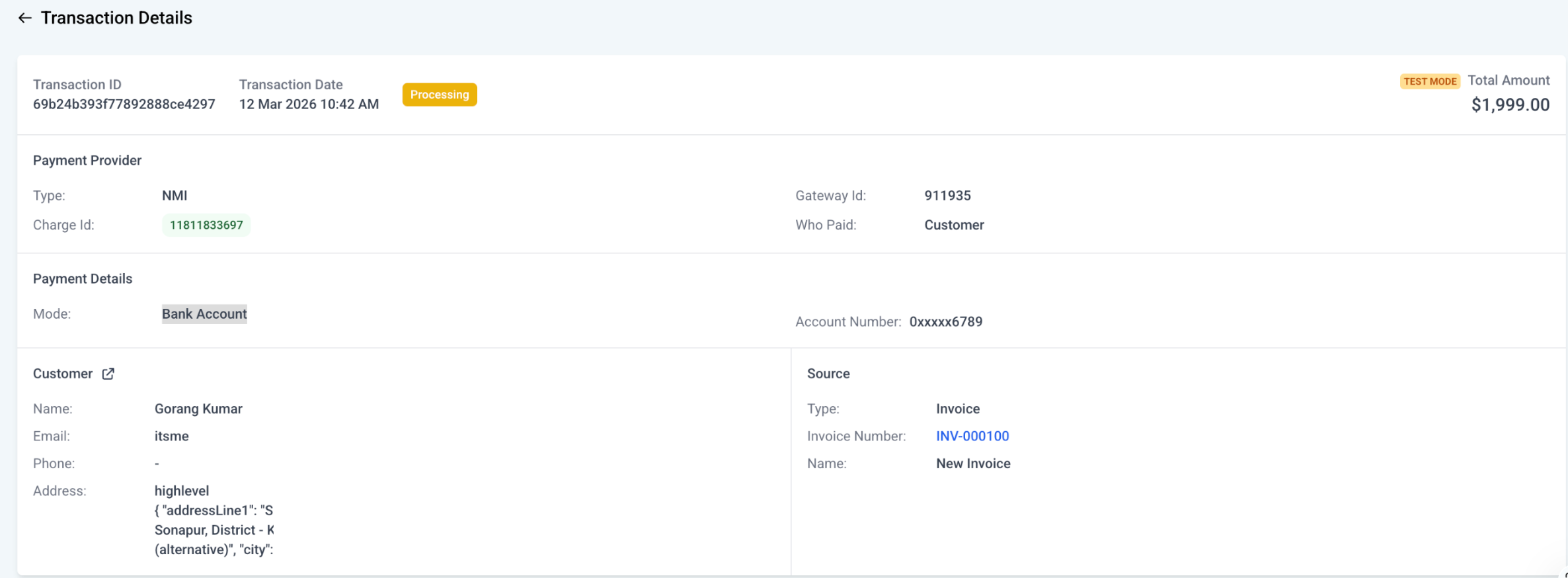
An NMI bank transfer may take up to five business days to receive a final result, depending on the customer’s bank.
Important: Wait until the transaction reaches a successful status before delivering the product, completing fulfillment, or providing the associated service.
How Saved Bank Accounts Work With Recurring Payments
Saved bank accounts allow eligible recurring charges to use previously authorized payment details. The initial invoice payment establishes the bank account that can later be selected for recurring invoices or subscriptions.
Current behavior requires the customer to:
- Pay an invoice using the bank-account payment option.
- Complete the required authorization.
- Allow the bank account to be saved through the invoice payment.
- Use that saved account for an eligible recurring invoice or subscription.
A customer cannot begin by entering a new bank account directly through the recurring invoice or subscription payment flow. The bank account must first be saved through an invoice payment.
For instructions on creating recurring billing, refer to How to Create and Manage Recurring Invoices in Chat To Clients CRM.
Frequently Asked Questions
Q. My client just paid, but the ACH transaction is still showing as processing.
This is normal. ACH transfers can take up to 5 business days to reach a final status, depending on the payer’s bank. We recommend providing services only after the payment status changes to Success.
Q. I am not getting the ACH option on an invoice.
If the feature is already enabled in Labs, please verify that ACH is also enabled on the NMI side. If the issue still continues after that, please contact our Support team for further assistance.
Q. I do not see the option to add a bank account for recurring invoices and subscriptions.
This is expected in the current V1 release. At this time, recurring invoices and subscriptions can only be started using a bank account that has already been saved. To save a bank account, you must first collect a payment through an invoice. Once the bank account is saved, it can be used for future recurring debits through recurring invoices and subscriptions. It would appear like this -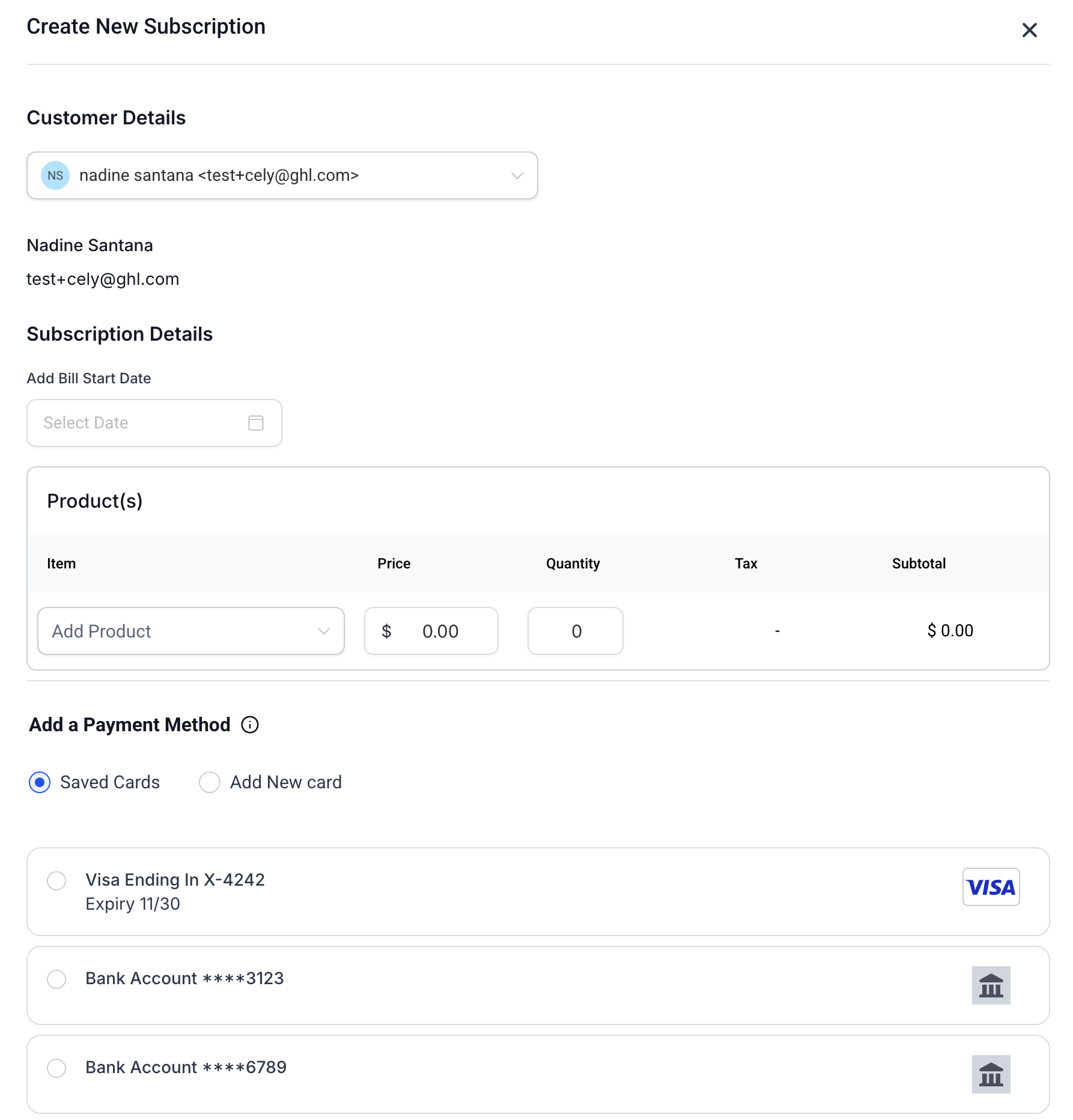
Q. Do I need to enable anything else on the NMI side?
Yes. Please make sure the required webhooks for settlements and payment status updates are enabled in your NMI dashboard. You can refer to NMI’s documentation here for setup steps: https://docs.nmi.com/reference/overview#where-to-setup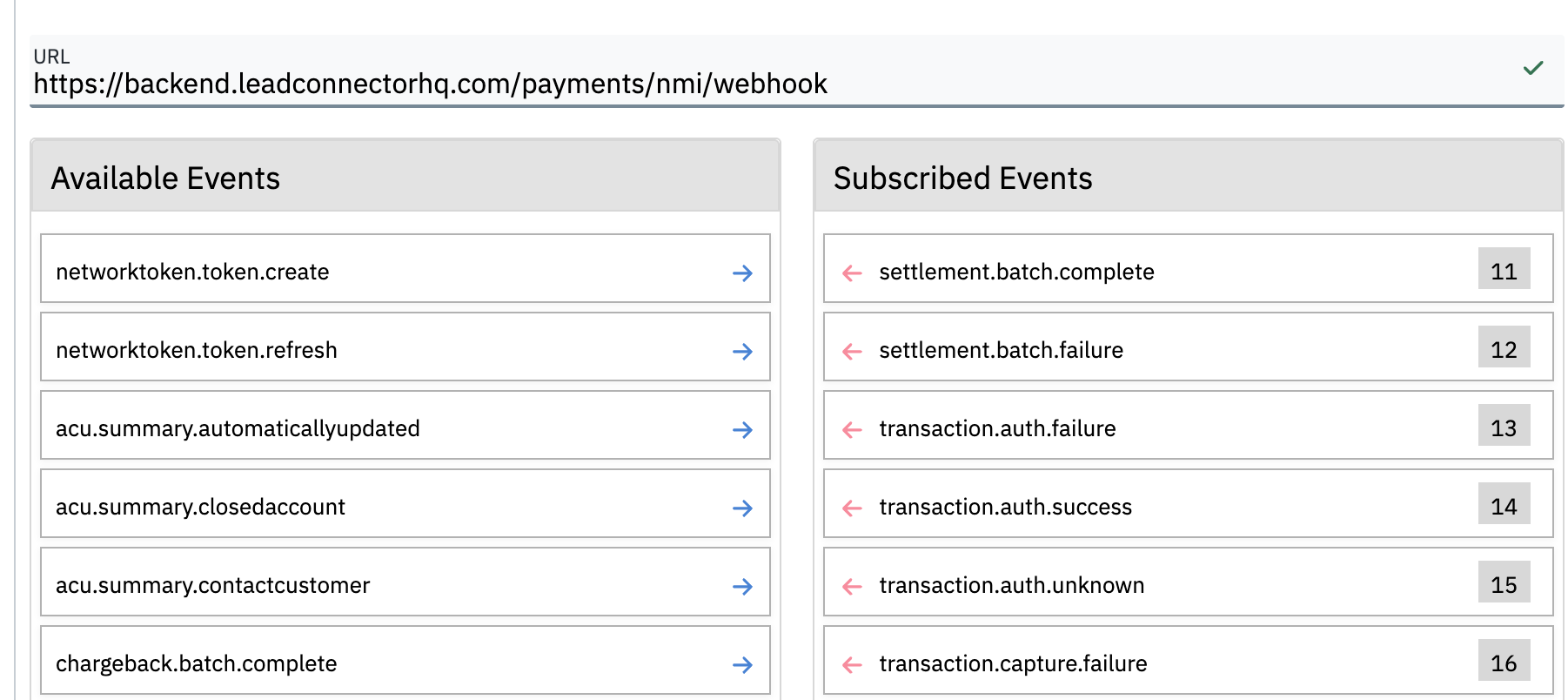
URL to be used - https://backend.leadconnectorhq.com/payments/nmi/webhook
Events to be enabled -