
Workflow Trigger - Order Fulfilled (For Ecommerce Stores, Including Shopify)
Automate post-purchase experiences in seconds with the new Chat To Clients CRM Ecommerce Stores “Order Fulfilled” workflow trigger. This guide explains what the trigger does, why it matters, and how to set it up so you can deliver delight the moment a package ships.
TABLE OF CONTENTS
- What is the Order Fulfilled Trigger?
- Key Benefits of the Order Fulfilled Trigger
- Filter Options for Precise Automation
- Store vs. External Order Sources
- Transition from “Shopify Order Fulfilled (Deprecating Soon)”
- Shipping-Integration Compatibility
- How To Setup the Order Fulfilled Trigger
- Personalize Fulfillment Notifications with Custom Values
- Frequently Asked Questions
- Related Articles
What is the Order Fulfilled Trigger?
When an order’s status changes to “Fulfilled,” this trigger launches a workflow, whether the fulfillment occurs inside a Chat To Clients CRM Ecommerce Store or via external platforms (e.g., Shopify) and shipping connectors like Shippo or ShipStation. It gives you a single automation point for all fulfillment events, ensuring customer follow-ups, internal tasks, and inventory updates fire exactly when products leave the warehouse.
Key Benefits of the Order Fulfilled Trigger
The Order Fulfilled trigger helps you:
- Close the customer-experience loop by sending shipment notifications the instant an order is fulfilled.
- Reduce manual work update CRMs, inventory, and accounting systems automatically.
- Segment customers using fulfillment-level data (cart value, product SKU, carrier, etc.).
- Support multi-store brands: one trigger covers both native Chat To Clients CRM Stores and external sources like Shopify.
Filter Options for Precise Automation
Fine-tune when a workflow should run by combining any of these filters:
- Cart Value: Target high- or low-value orders.
- Fulfilled Products: Run follow-ups only for specific SKUs.
- Order Source: Choose “Store” (Chat To Clients CRM) or “External.”
- Order Sub-Source: When “External,” narrow to Shopify.
- Shipping Carrier: Treat FedEx, UPS, USPS, etc., differently.
- Tracking Number: Trigger on presence or specific patterns (e.g., overnight shipping codes).
- Available Quantity: Filter fulfilled orders based on current inventory for a selected product price. Choose Global Products, select a single Price, then configure Available Quantity using the required condition and one numeric value.
- Fulfillment Status: Filter fulfillment events by their status.
- Product Collection: Filter shipments based on the collection associated with the fulfilled products.
- Order Tags: Filter Shopify fulfillment events using order tags.
- Product and Price: Target shipments using the product or price details of items actually fulfilled.
These filters let you craft hyper-relevant post-fulfillment experiences.
Store vs. External Order Sources
This trigger listens to two fulfillment pathways:
- Store – Orders created in a Chat To Clients CRM Ecommerce Store.
- External – Orders synced from third-party storefronts (currently Shopify).
By unifying both pathways, you no longer maintain separate workflows for each platform—simply set the Order Source filter and you’re covered.
Transition from “Shopify Order Fulfilled (Deprecating Soon)”
Chat To Clients CRM has renamed the legacy Shopify-only trigger to “Shopify Order Fulfilled (Deprecating Soon).” Existing workflows continue working, but new automations should use the Ecommerce Stores Order Fulfilled trigger to future-proof setups and gain access to the full filter set above.
Shipping-Integration Compatibility
Fulfillment events pushed in from Shippo, ShipStation, and other connected shipping tools will also fire this trigger, allowing one centralized workflow regardless of where labels are created.
How To Setup the Order Fulfilled Trigger
A well-configured trigger ensures customers hear from you exactly when their package ships. Follow these steps:
Open Workflows
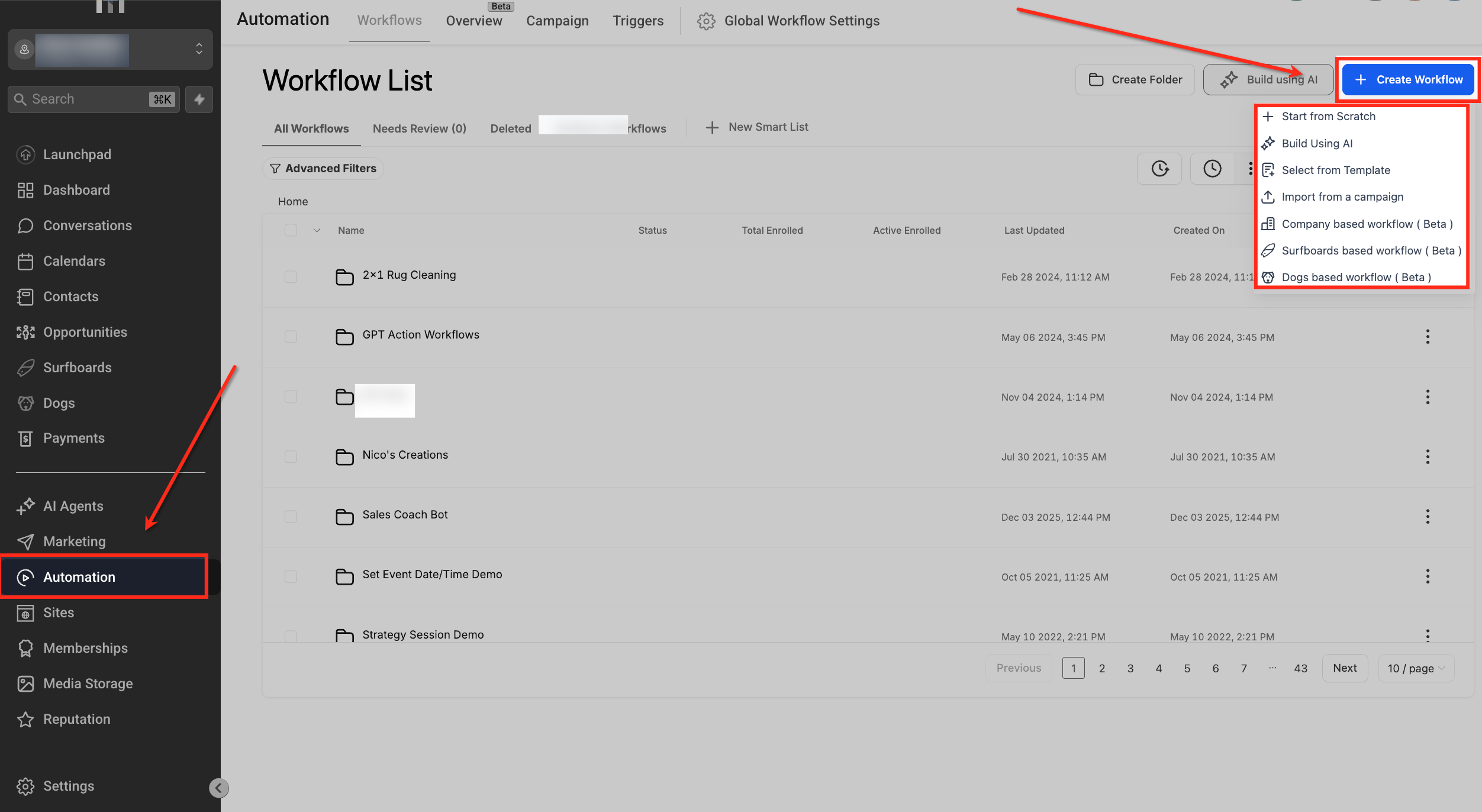
From the left navigation, click Automation to access your workflow tools. On the Workflow List page, click + Create Workflow to start a new workflow (or open an existing workflow you want to update).
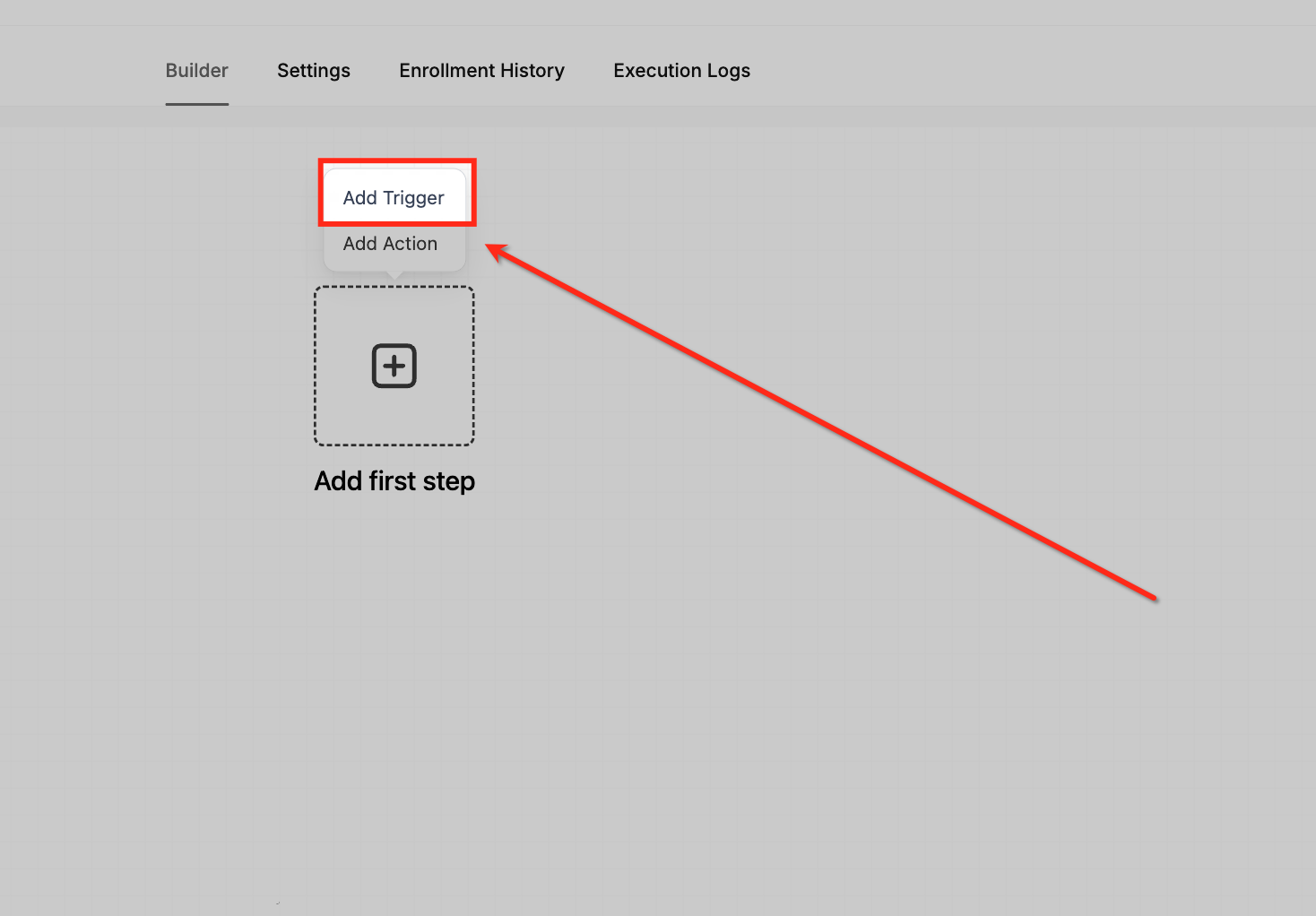
Add Trigger
In the workflow builder, click Add Trigger to define what event will start the workflow. This creates the entry point for your automation before you add any actions.
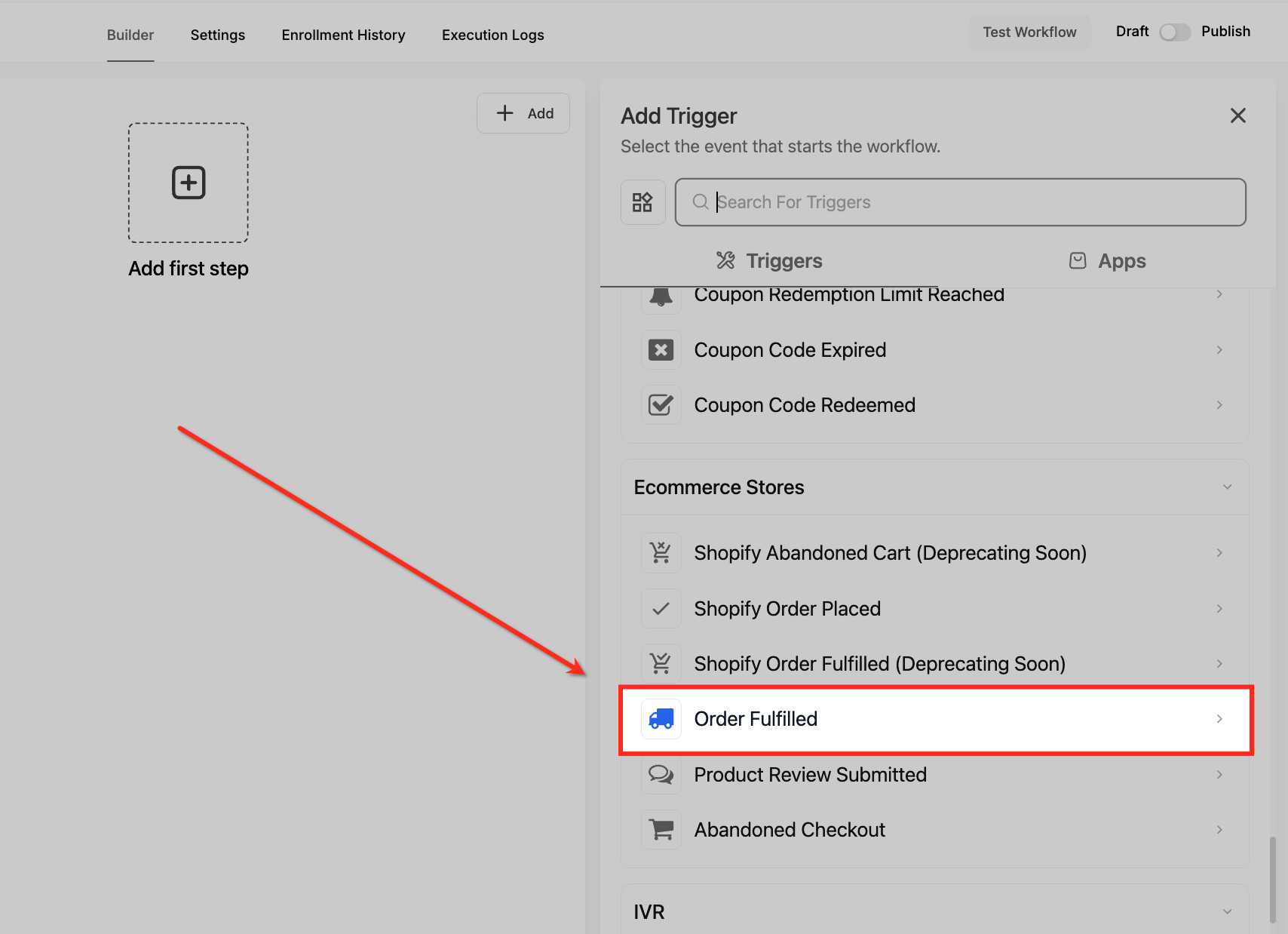
Select Trigger
In the Add Trigger panel, scroll to Ecommerce Stores and select Order Fulfilled. This ensures the workflow starts the moment an order is marked fulfilled.
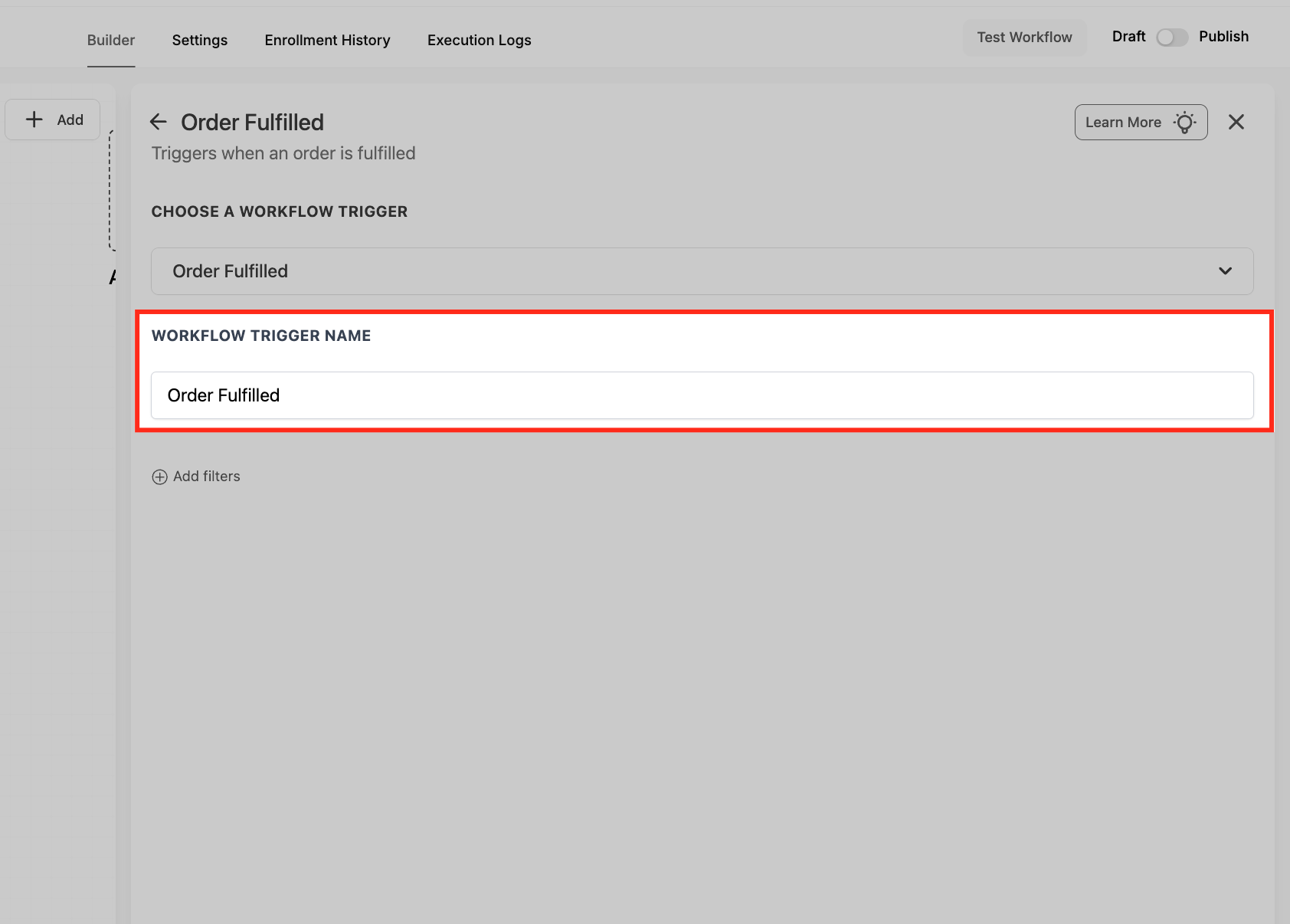
Name Trigger
Enter a clear Workflow Trigger Name (for example, “Order Fulfilled – Store + Shopify”). A descriptive name makes it easier to find and manage the trigger later, especially in workflows with multiple starting points.
Add Filters
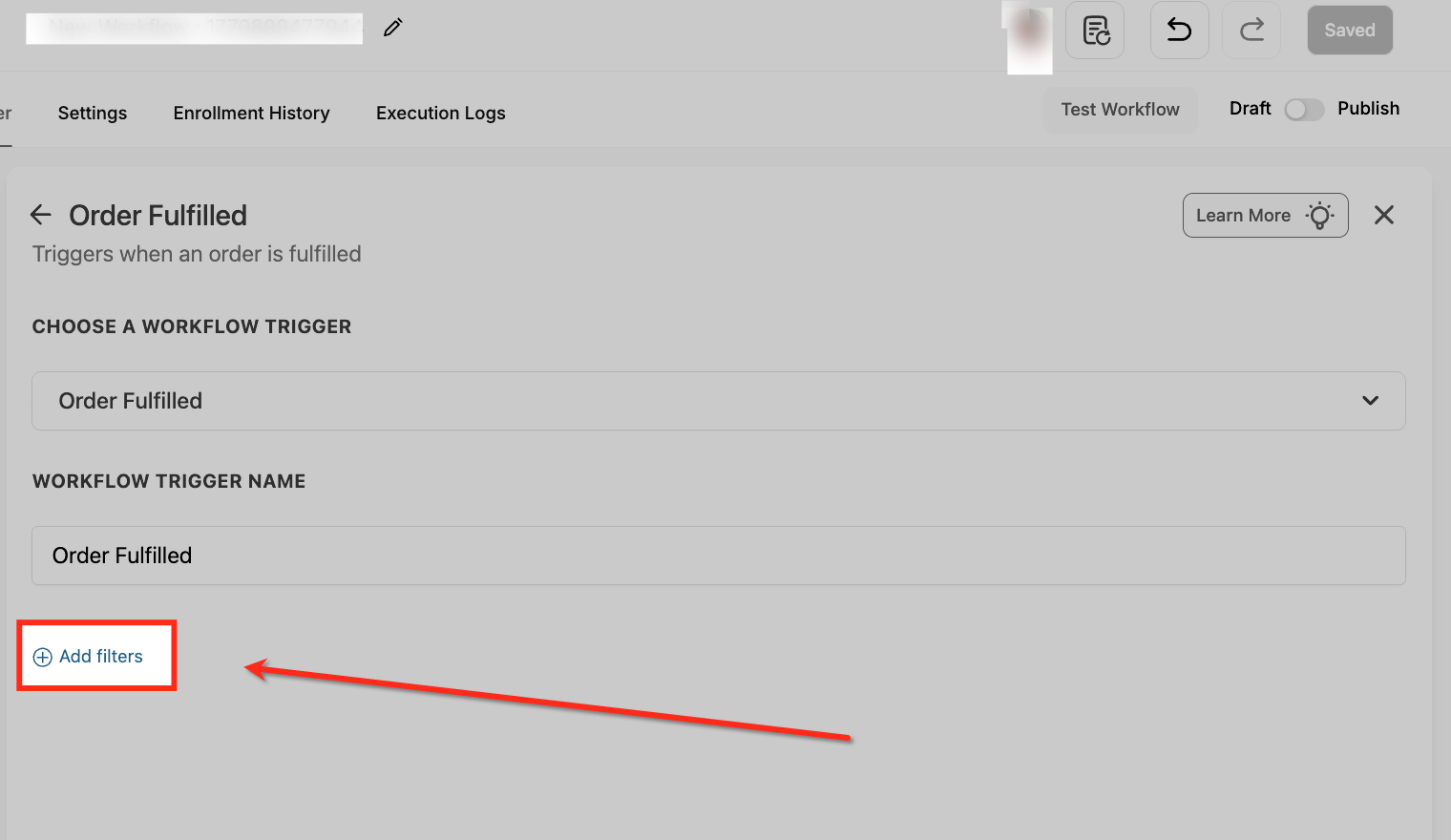
Under Filters, click Add filters to control which fulfillment events should enroll in the workflow. Using filters helps you avoid unnecessary enrollments and keeps your follow-ups relevant to the order details.
Pick Filter
Open the filter dropdown and select the first condition you want to apply (for example, Cart Value or Order Source). Choosing the right filter type is what tells Chat To Clients CRM which part of the fulfillment data to evaluate.
To filter by inventory, use the nested filter path Global Products → Price → Available Quantity. Select one Price, choose the required condition, and enter the numeric Available Quantity value.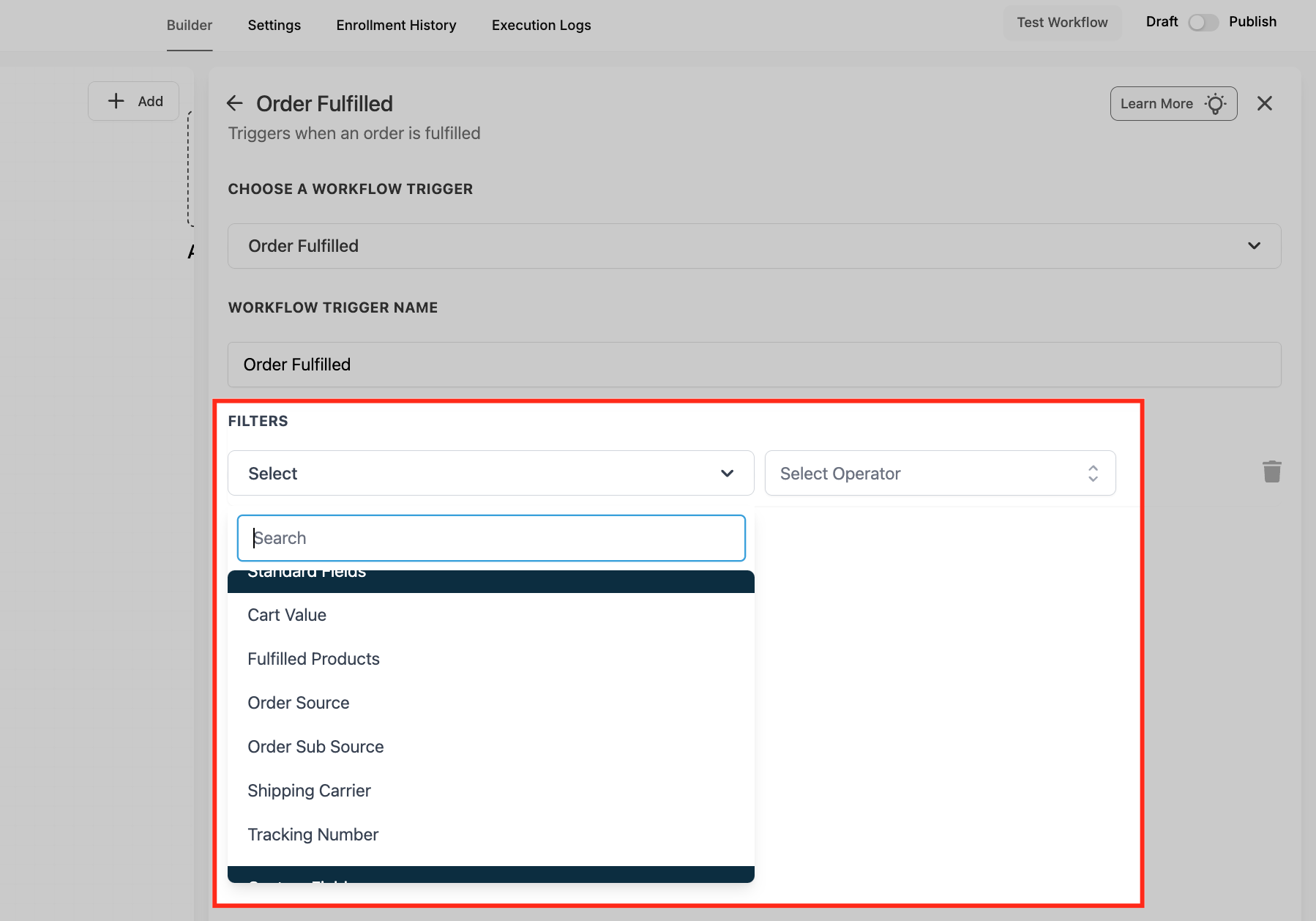
Filter Shopify Fulfillments
To configure a workflow for Shopify fulfillment events, set Order Source to External and Order Sub Source to Shopify.
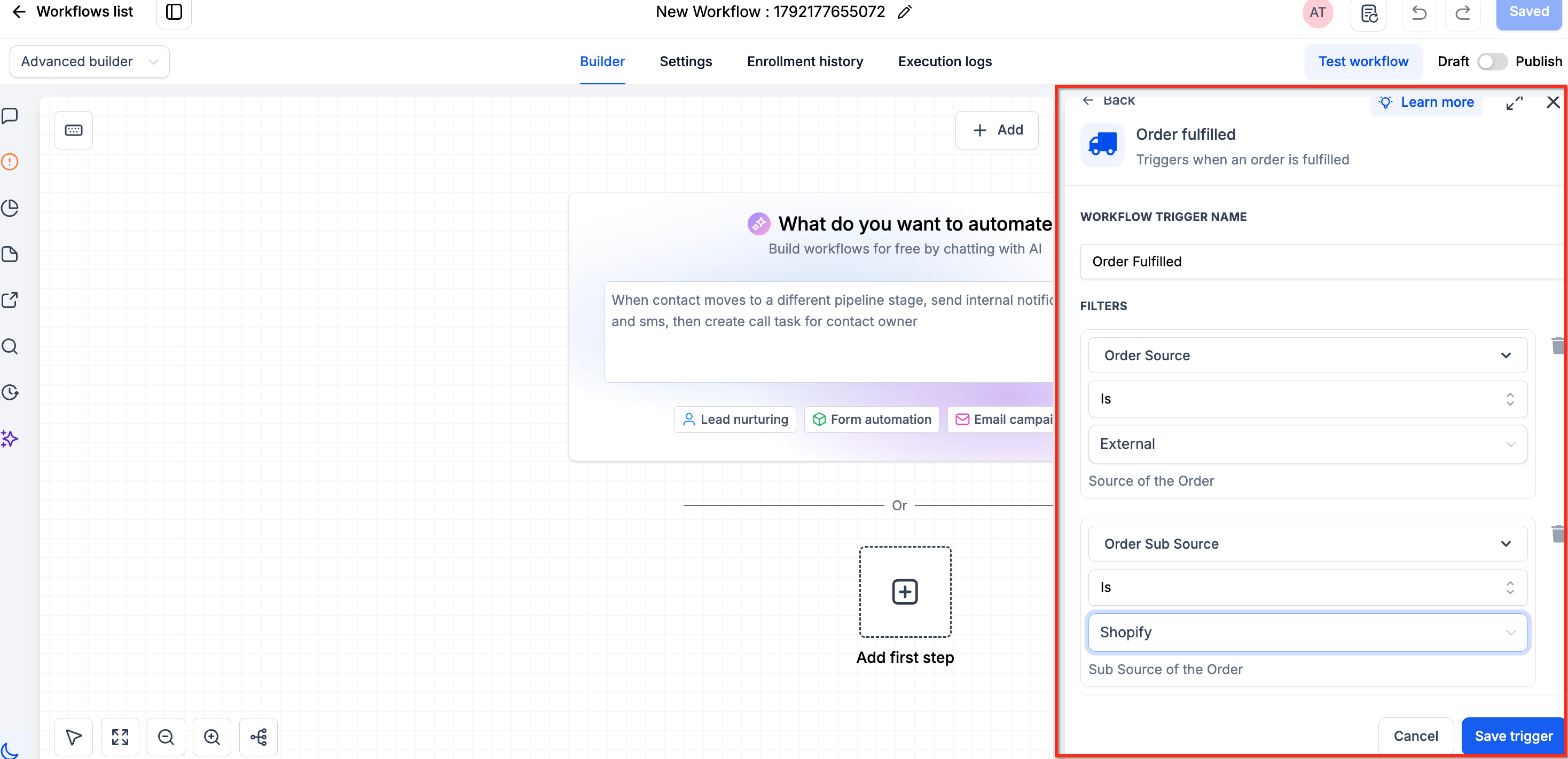
Use the available filters to target specific shipments. You can filter by Product Collection, order tags, or the product and price details of the fulfilled items.
For partially fulfilled orders, product-based filters evaluate the items included in the shipment rather than every item in the original order.
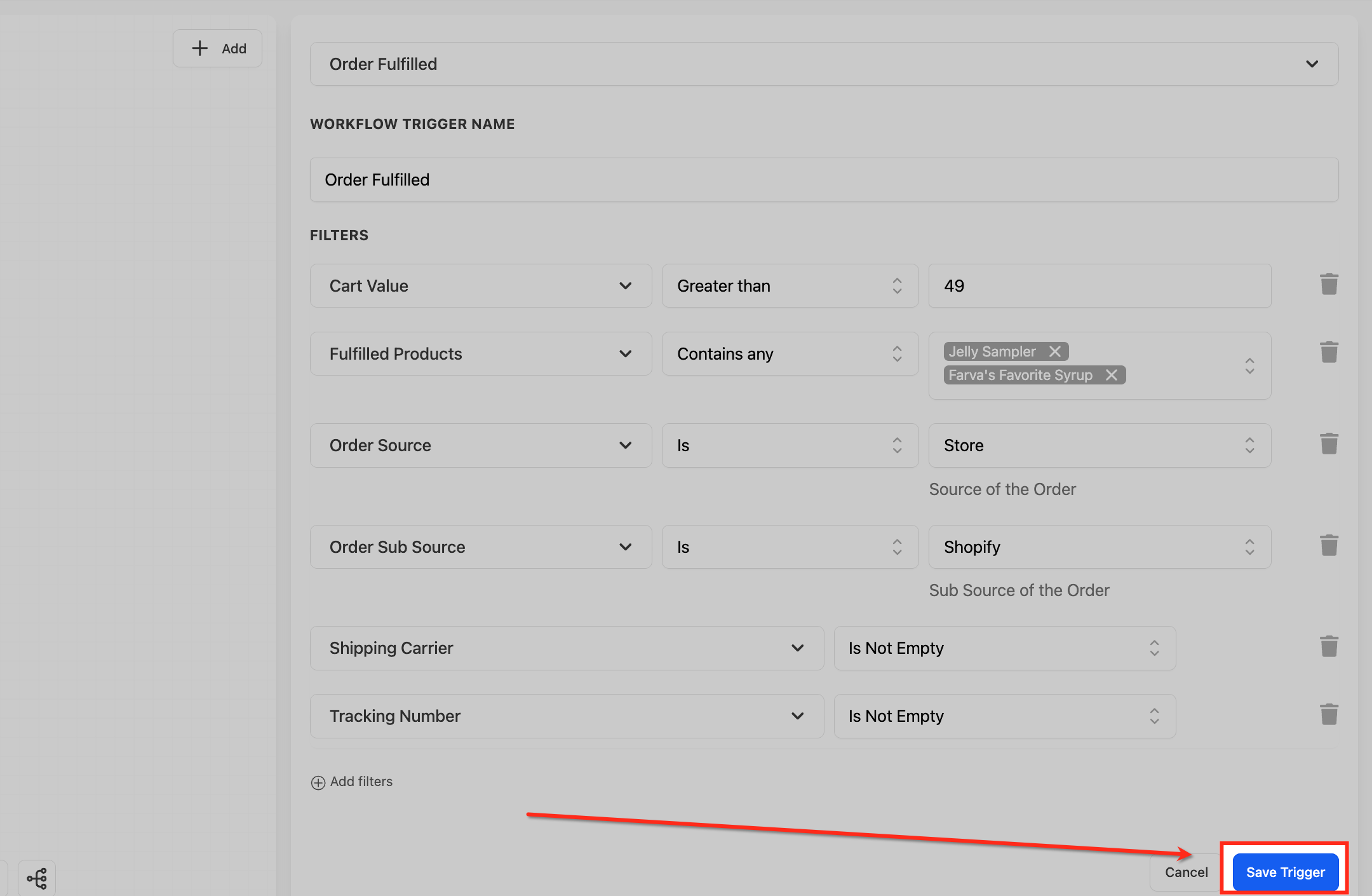
Save the trigger after configuring your filters.
Cart Value
Choose Cart Value from the filter list to target orders based on how much the customer spent. This is a simple way to route higher-value purchases into VIP follow-ups or exclude low-value orders from certain automations.
Set Cart Rules
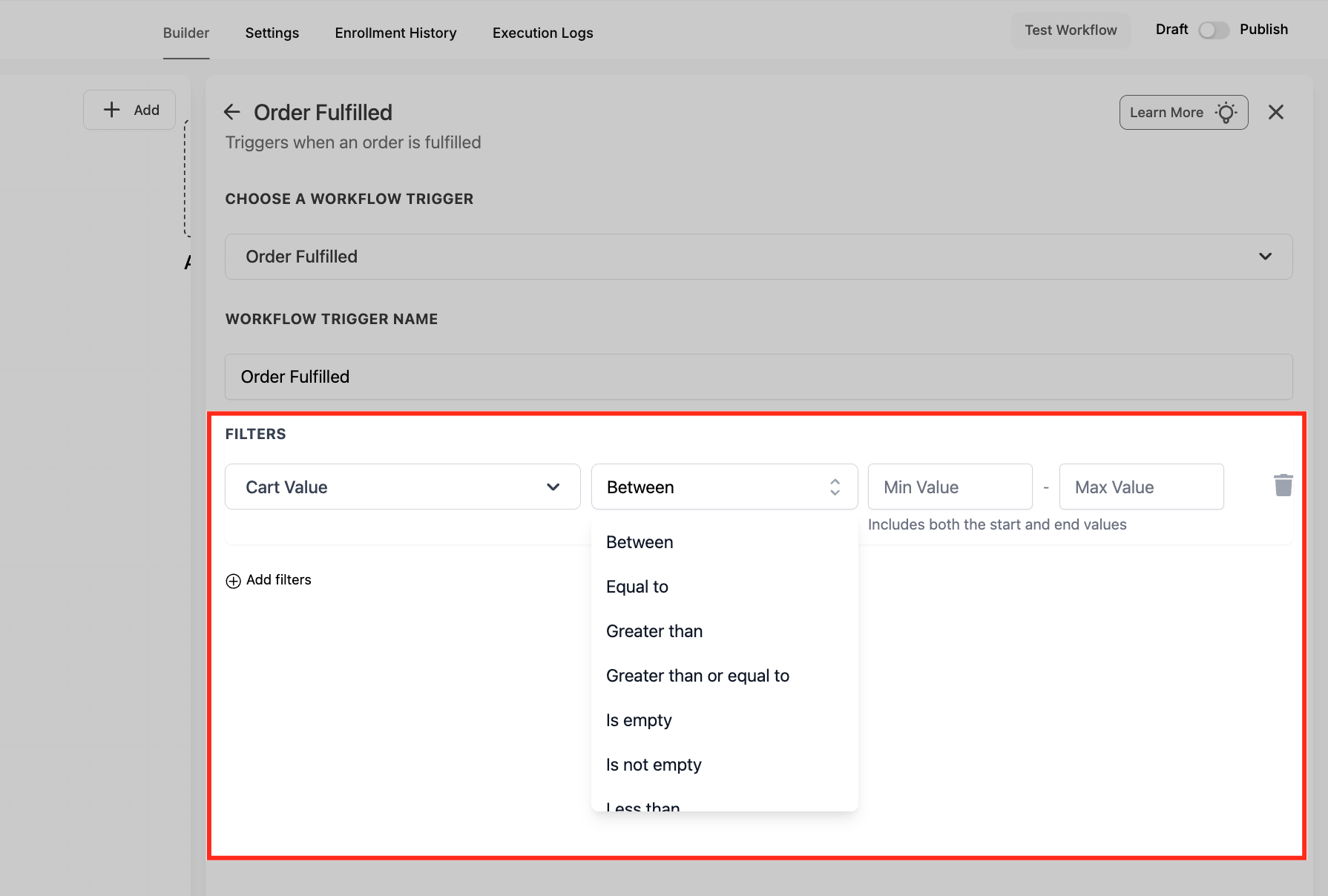
After choosing Cart Value, select an operator (like Greater than or Between) and enter the value(s) you want to target. This is useful for routing higher-value orders into premium experiences while excluding low-value purchases.
Filter Products
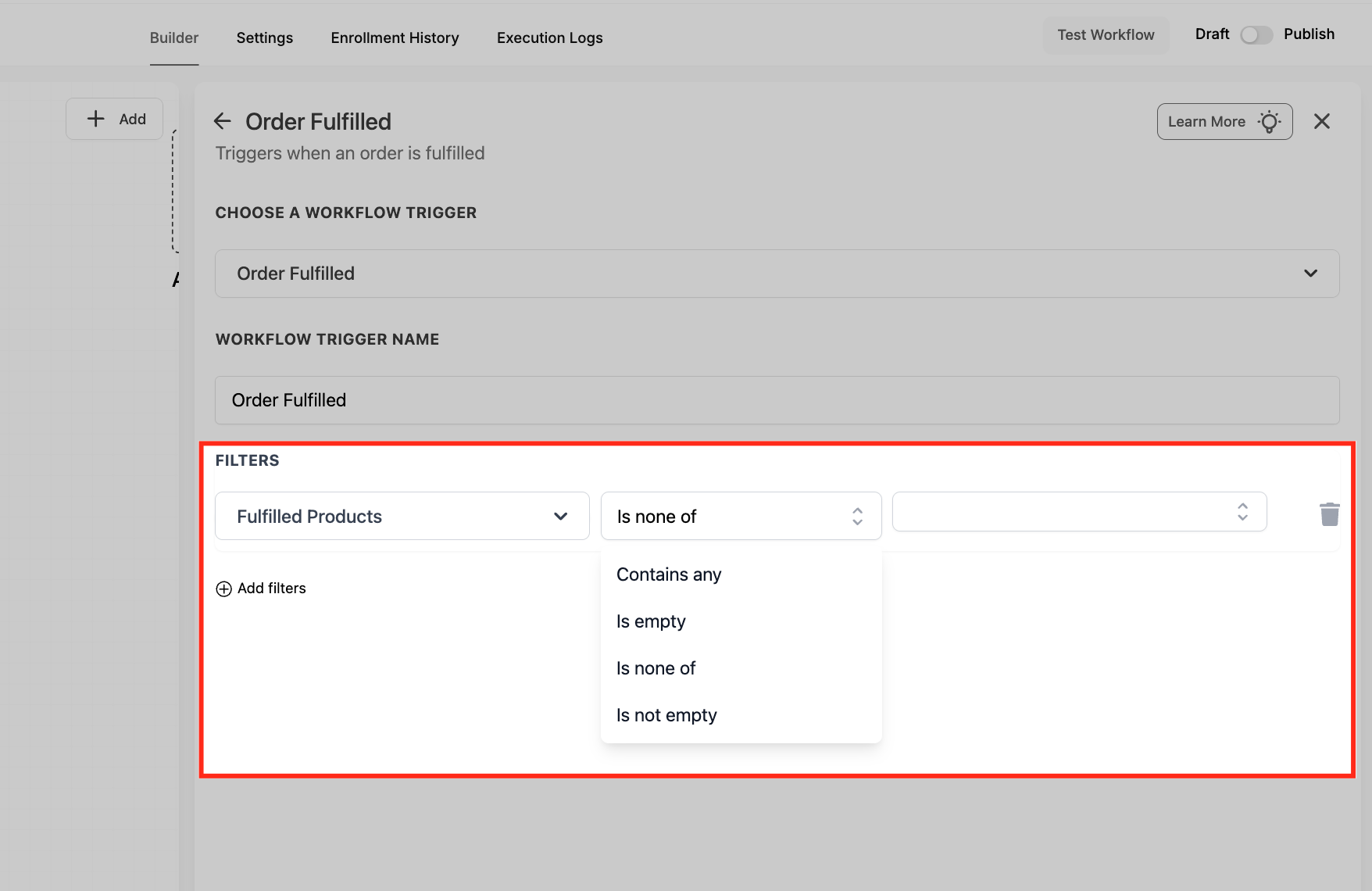
Select Fulfilled Products and choose an operator like Contains any to include specific items or Is none of to exclude them. This lets you tailor post-purchase messaging based on what was actually fulfilled, not just what was ordered.
Select Source
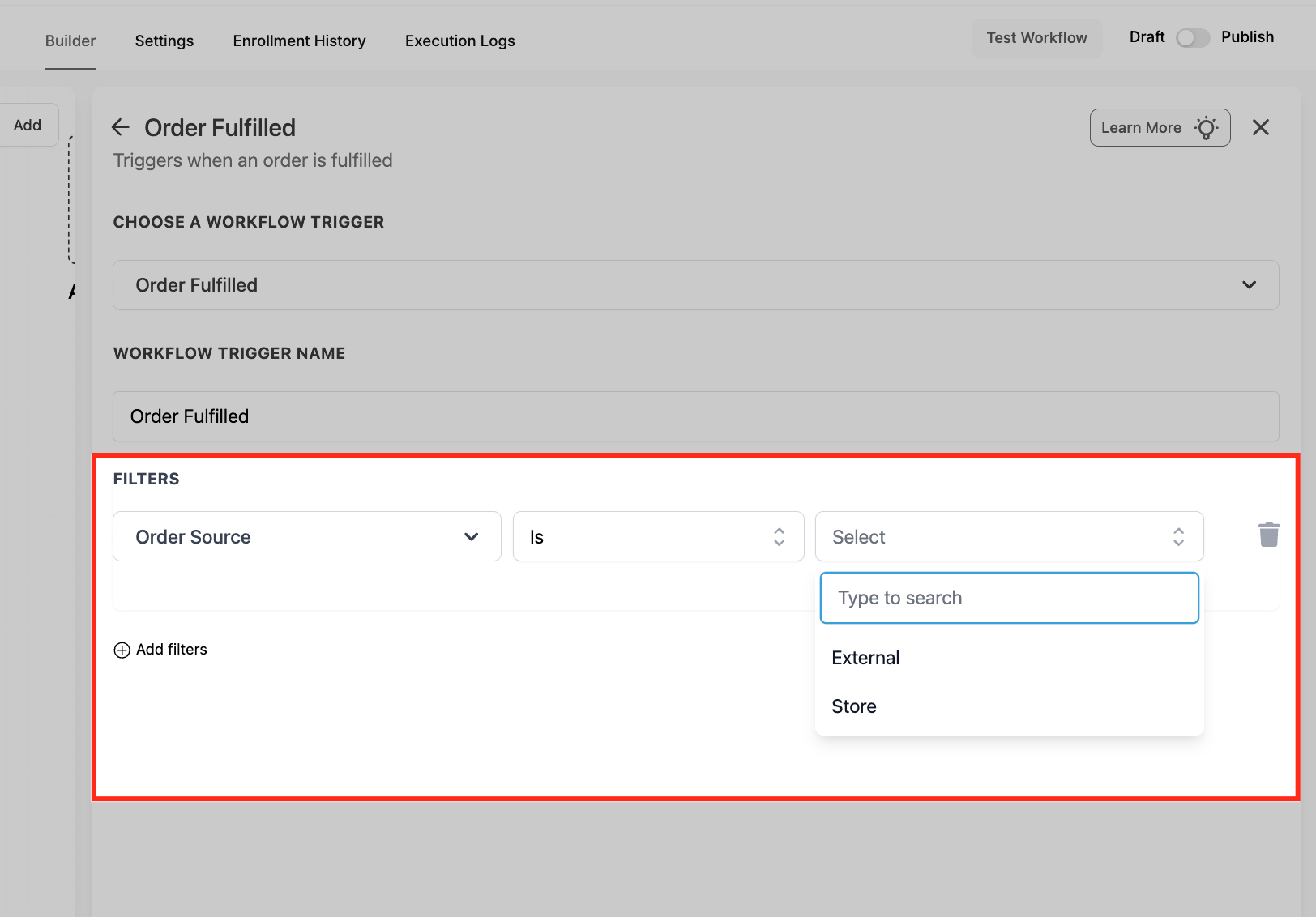
Set Order Source to choose where the fulfilled order originated, such as Store or External. This is important for brands running multiple storefronts because it helps you segment automation behavior by platform.
Choose Sub-Source
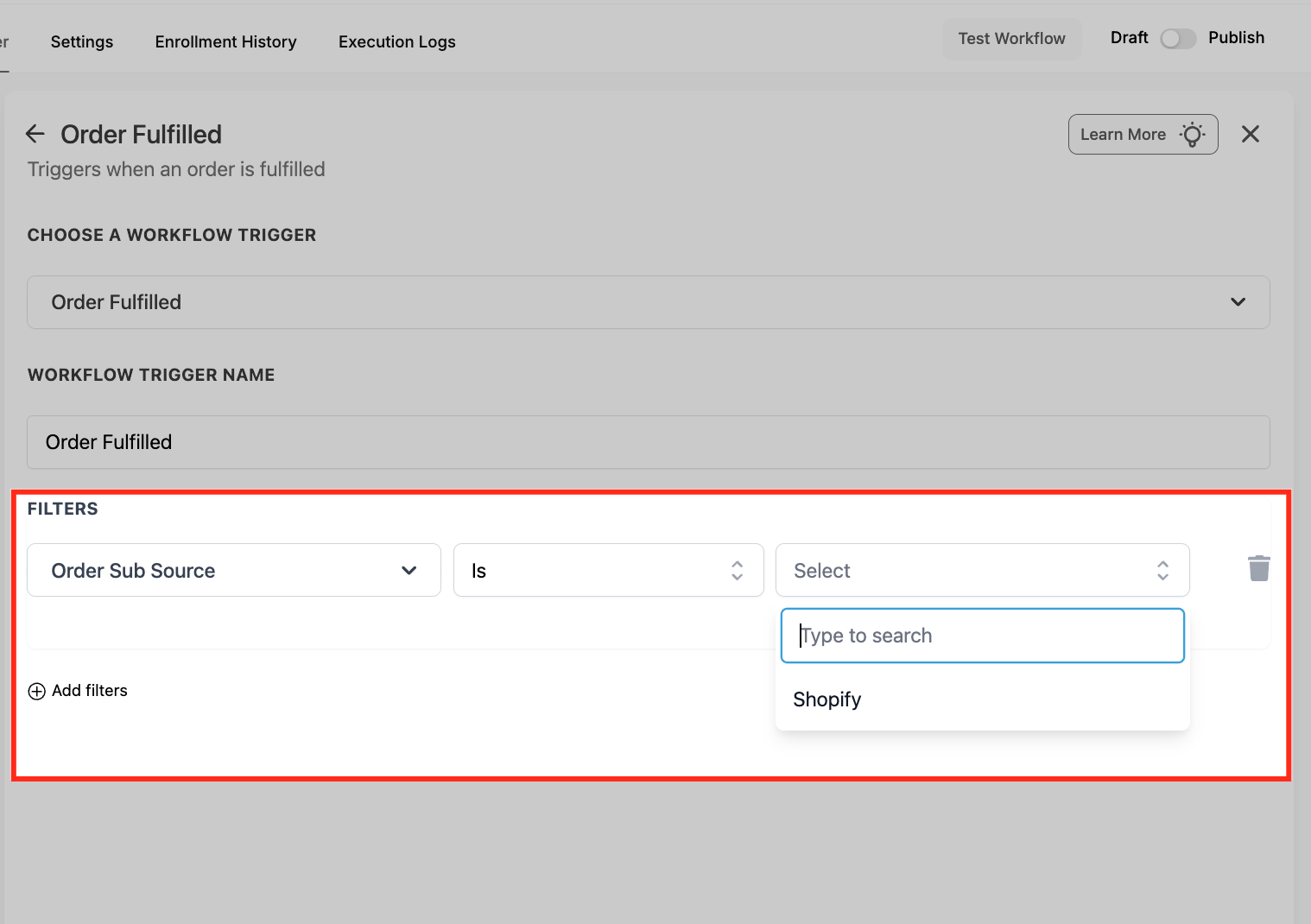
If you set Order Source to External, use Order Sub Source to narrow the trigger to a specific platform like Shopify. This keeps external order automations precise while still using the unified Order Fulfilled trigger.
Filter Carrier
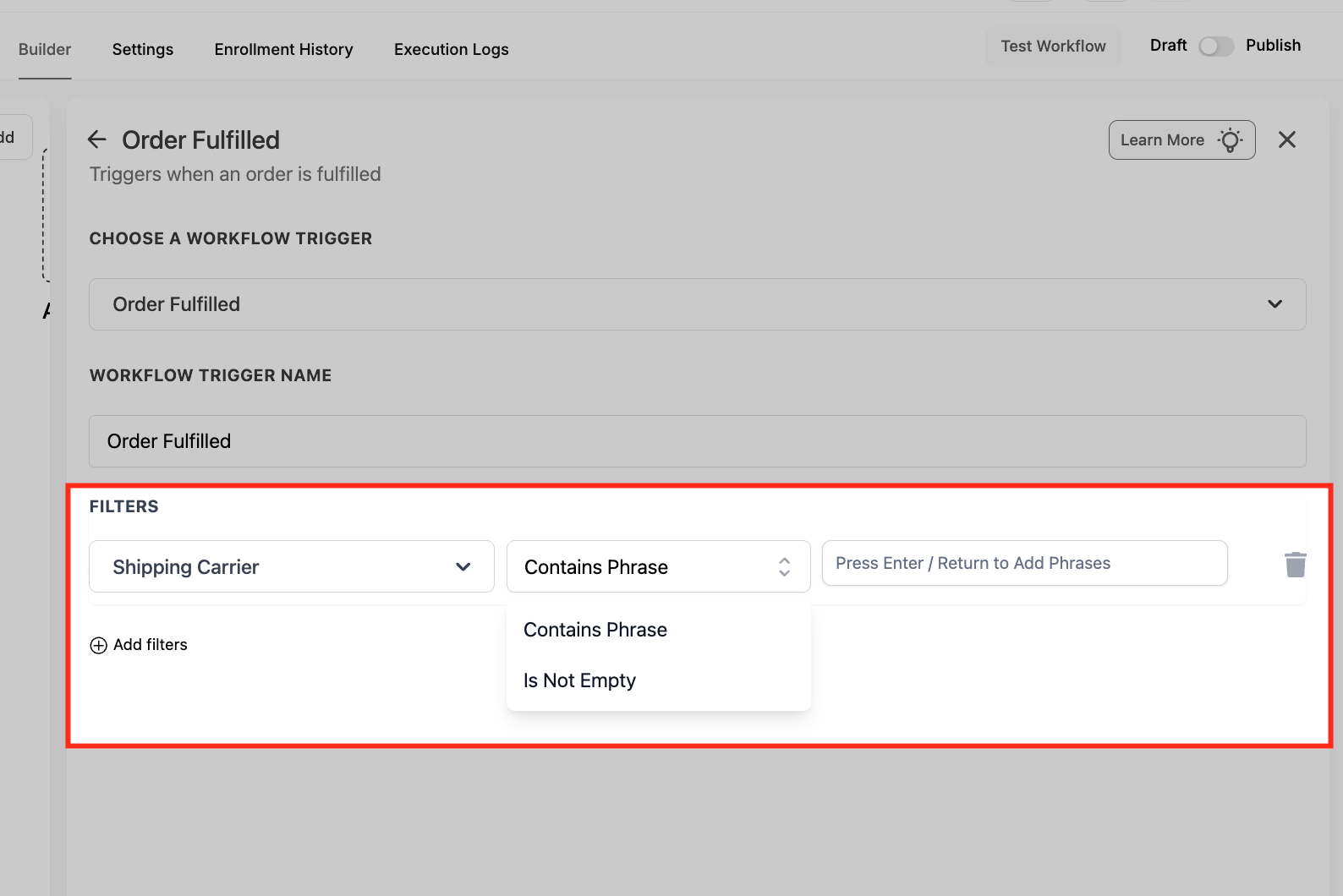
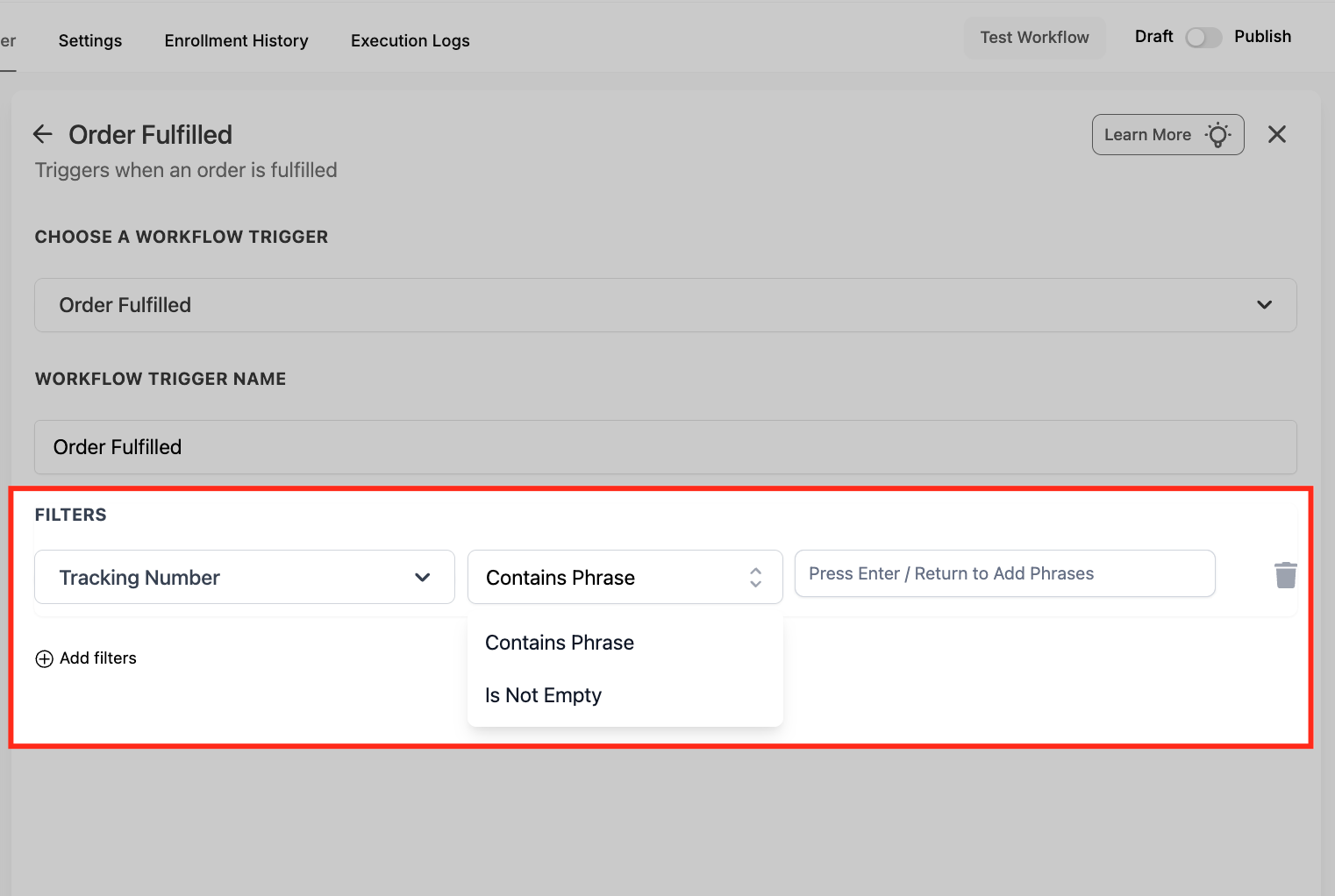
Select Shipping Carrier and choose an operator like Contains Phrase or Is Not Empty based on your goal. If you use Contains Phrase, type the carrier name and press Enter/Return to add it, which helps you customize messaging by carrier or shipping method.
Require Tracking
Choose Tracking Number and set the operator to Is Not Empty when you only want the workflow to run once tracking exists. This prevents premature notifications and ensures customers receive messages with actionable shipment details.
Save Trigger
After confirming your trigger name and filters, click Save Trigger to apply the configuration. Saving is required before you can reliably build and publish the rest of the workflow actions based on this fulfillment event.
Save, publish, and test by fulfilling a test order in your store or via Shopify.
(Optional) Toggle Allow Multiple if you expect multiple shipments per order.
Add post-fulfillment actions examples:
Send email/SMS with tracking link.
Add customer to a “Shipped” pipeline stage.
Notify the warehouse Slack channel.
Personalize Fulfillment Notifications with Custom Values
The Order Fulfilled trigger provides fulfillment-related custom values that you can use to personalize customer notifications.
These values let you include details about fulfilled products, shipment quantities, fulfillment status, and tracking information in your messages.
Available Order Fulfillment Custom Values
The Order Fulfillment category includes the following values:
Product details: Fulfilled Product IDs, Product Name(s), Price, Fulfilled Quantity, and Fulfilled Quantity (per item).
Fulfillment details: Fulfillment Date and Fulfillment Status.
Shipping details: Shipping Carrier, Tracking Number, Tracking URL, and Order Status URL.
Additional order information, including Order ID and Billing Address, is also available for personalization.
Use Fulfillment Custom Values in Workflow Emails
Open a workflow containing the Order Fulfilled trigger.
Add or open an Email action.
Enter the email subject and message.
In the message editor, open the custom value picker.
Select Order Fulfilled.
Choose the fulfillment values you want to include in your email.
Click Save action.
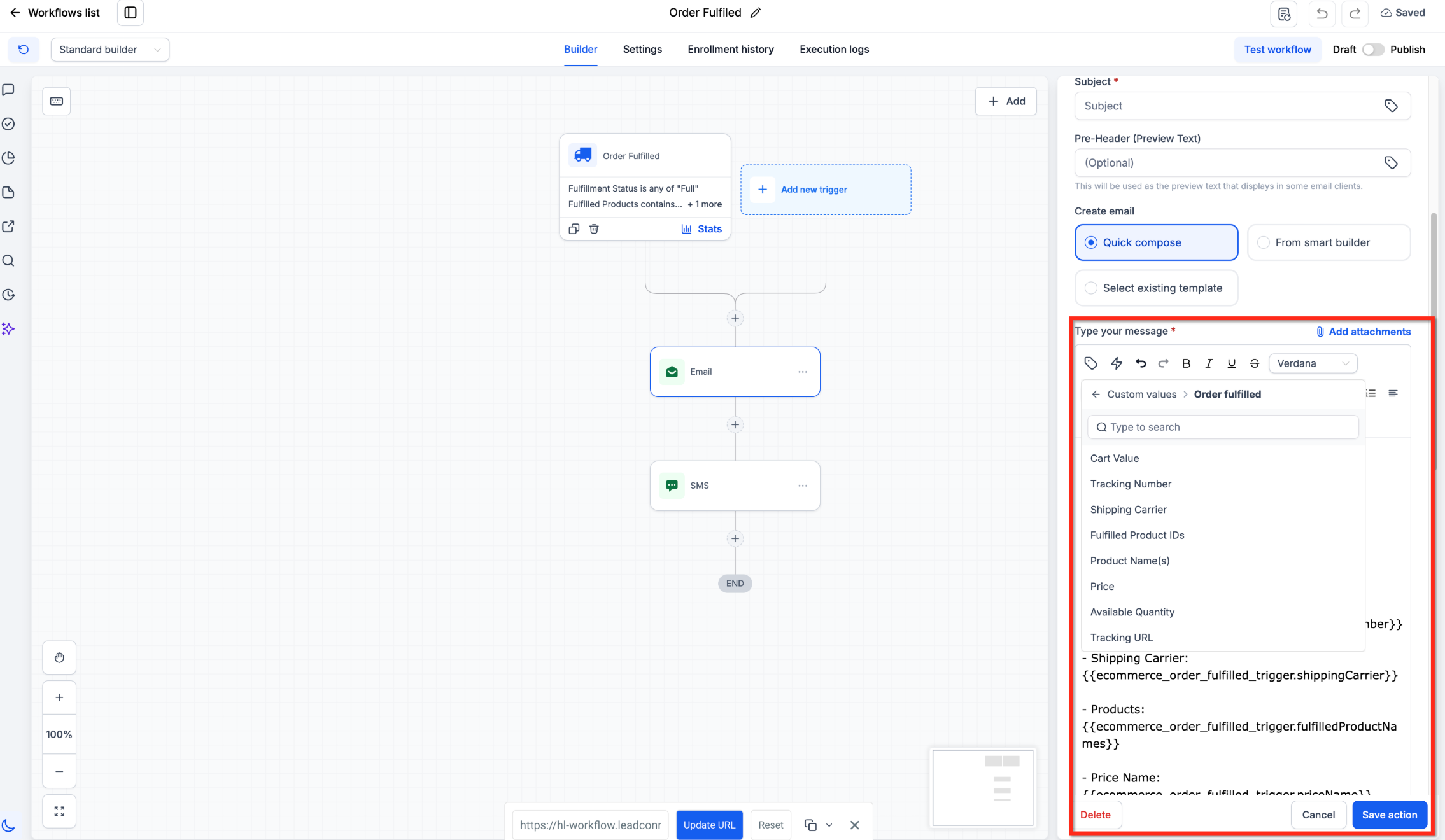
You can use these values to share fulfilled product details, shipping carrier information, tracking numbers, and tracking links.
Use Fulfillment Custom Values in SMS Messages
Open the workflow and add or select an SMS action.
In the message editor, open the custom value picker.
Select the Order Fulfilled values you want to include.
Add the relevant shipment and tracking information to your message.
Click Save action.
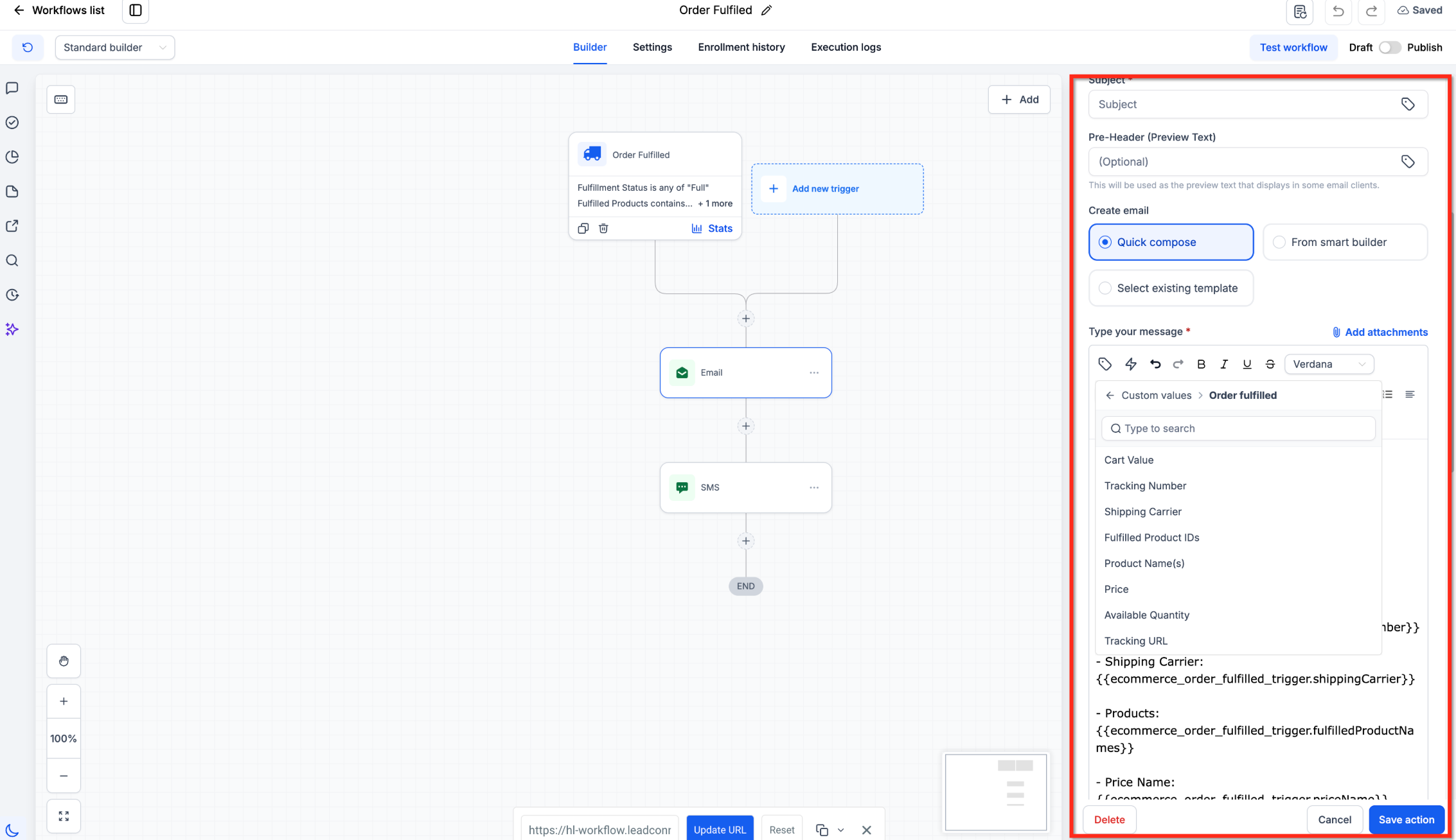
For example, you can personalize SMS notifications with fulfilled quantities, fulfillment status, shipping carrier details, and tracking URLs.
Use Fulfillment Custom Values in Email Templates and Snippets
You can also insert Order Fulfillment values when preparing reusable email templates and message snippets.
Open the relevant editor, select the custom value picker, and navigate to Order Fulfillment to select the available shipment information.
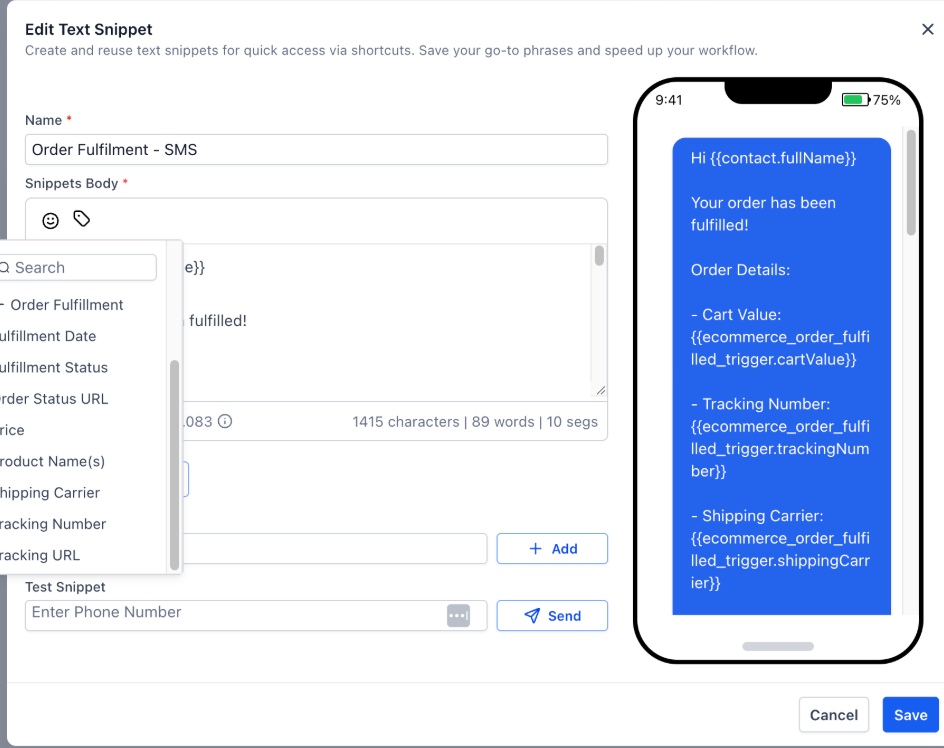
These values help you prepare messages that contain fulfillment details without manually entering the information for each order.
Frequently Asked Questions
Q: Does the trigger fire on partial fulfillments?
Yes. For Shopify orders, each shipment generates its own Order Fulfilled event, including when an order is fulfilled in multiple shipments.
Each shipment notification includes only the items fulfilled in that shipment, rather than every item in the original order.
You can use fulfillment-specific filters to target the shipments relevant to your workflow.
Q: Will my old “Shopify Order Fulfilled” workflows break?
No. They keep running, but we recommend migrating before the legacy trigger is retired.
Q: Can I delay the follow-up email until the tracking number is live?
Yes add a Wait step “until tracking URL is not empty” or delay by X minutes after the trigger.
Q: How do I stop duplicate notifications on split shipments?
Enable the Tracking Number filter and choose “Is Not Empty” so only shipments with new tracking numbers trigger.
Q: Does marking an order “Delivered” retrigger anything?
No the Order Fulfilled trigger fires only when status changes to Fulfilled. Use other triggers for delivery-stage automations.
Q: Is WooCommerce supported?
Not yet. Use External > Sub-Source filters as new platform integrations become available.
Q. What happens if tracking information changes after fulfillment?
If a tracking number is added or corrected after a Shopify shipment goes out, the customer receives a follow-up notification with the updated tracking information.
Q. Do canceled fulfillments or historical orders generate notifications?
Canceled fulfillments and historical or imported orders do not generate unexpected or duplicate fulfillment notifications.
Q. Will existing order-triggered workflows continue working?
Yes. Existing order-triggered workflows and email notifications continue working without changes.
Q. Does marking an order “Delivered” retrigger the workflow?
Marking an order as Delivered does not, by itself, retrigger the Order Fulfilled workflow.
Tracking-number additions or corrections after Shopify fulfillment are handled separately and can generate follow-up notifications.