
Understanding the 5% Markup on Phone System Pass-Through Charges
Chat To Clients CRM Phone System billing separates standard usage costs, selected pass-through charges, and any agency-configured rebilling. A fixed 5% location-level markup currently applies to specific Phone System pass-through categories, while other wallet-billed services follow their applicable rates. Understanding these differences makes it easier to review wallet deductions, reconcile client usage, and verify charges directly inside Chat To Clients CRM.
What is the 5% Phone System Pass-Through Markup?
The 5% Phone System markup is an additional location-level charge applied to specific pass-through billing categories. It is separate from any rebilling or reselling amount an agency chooses to configure for its sub-accounts.
Current Chat To Clients CRM Phone System pricing documentation identifies these categories as receiving the fixed 5% markup:
- A2P Registration Fees: Applicable brand, campaign registration, and recurring campaign fees.
- SMS Carrier Fees: Applicable carrier surcharges for SMS messaging.
- MMS Carrier Fees: Applicable carrier surcharges for MMS messaging.
- Verified Caller ID: Applicable charges associated with Verified Caller ID.
- RCS Messaging Carrier Fees: Applicable carrier charges for RCS messaging.
The 5% markup applies at the location level regardless of whether agency rebilling is enabled.
Key Benefits of Understanding Phone System Billing
Knowing how underlying usage, pass-through charges, and agency rebilling are separated helps you verify wallet activity and explain costs more accurately to your clients.
- Clearer billing: Understand which charges include the location-level markup and which follow their standard wallet rate.
- Better reconciliation: Match individual wallet transactions with the corresponding Chat To Clients CRM pricing information.
- Accurate client pricing: Keep Chat To Clients CRM Phone System charges separate from the rebilling or reselling amount your agency chooses to apply.
- Centralized verification: Review transaction details and current wallet pricing directly inside Chat To Clients CRM.
- Improved visibility: Filter wallet transactions by sub-account, billing period, product, transaction type, and other available criteria.
Phone System Charges and Agency Rebilling
Agency rebilling is separate from the underlying Phone System charge. This distinction matters because an agency-configured markup does not replace the location-level 5% markup applied to the documented pass-through categories.
When the 5% markup applies and agency rebilling is enabled, the billing sequence is:
Base pass-through cost → 5% location-level markup → agency-configured rebilling
When agency rebilling is disabled, the applicable 5% location-level markup still applies to the documented categories.
Agency rebilling and reselling settings remain under the agency's control and should be reviewed separately from the underlying Phone System charge.
Current Pricing in Wallet & Transactions
Wallet & Transactions provides a centralized place to review wallet usage, individual charges, pricing, invoices, recharge activity, and exports. This makes it easier to trace a transaction and compare it with the applicable current Chat To Clients CRM wallet rate.
Go to:
Agency View → Settings → Billing → Wallet & Transactions
The current Wallet & Transactions experience includes:
- Usage Overview: Review wallet usage by sub-account or activity.
- Wallet & Recharge: Manage wallet balance and recharge settings.
- Transactions: Review individual wallet charges.
- Invoices: Access applicable billing records.
- Pricing: Review current wallet-billed product rates.
- Export Center: Create and manage transaction exports.
Chat To Clients CRM's Wallet Pricing page is designed as the centralized source of truth for wallet-billed product rates and keeps displayed rates updated automatically.
Using the Transactions Page
The Transactions page helps you investigate a specific wallet deduction without reviewing all account activity manually. Filtering the transaction list is especially useful when reconciling Phone System costs for a particular sub-account or billing period.
Go to:
Agency View → Settings → Billing → Wallet & Transactions → Transactions
The available transaction controls can be used to narrow results by applicable criteria such as:
Sub-account
Billing period
Product
Transaction Type
Transaction ID
The transaction table provides information such as:
ID and Location Name
Billing Date
Activity Date
Description
Amount
Total Balance
Use the Description and Amount fields to identify the service responsible for the wallet deduction before comparing it with the applicable current rate.
Using the Pricing Page
The Pricing page gives agencies a Chat To Clients CRM-native reference for wallet-billed product costs. Using this page is more reliable than comparing a Chat To Clients CRM wallet charge with an external provider's public pricing because wallet charges can involve different products, billing units, providers, and country-specific rates.
Go to:
Agency View → Settings → Billing → Wallet & Transactions → Pricing
The Wallet Pricing experience allows you to:
Search for a product or category.
Browse wallet-billed products by category.
Review unit costs and billing units.
Expand a product for additional pricing details.
Review supported country-specific rates.
Prices shown on the Wallet Pricing page are maintained automatically by Chat To Clients CRM.
What Did Not Change?
Separating the Phone System markup from other billing functions helps prevent unnecessary configuration changes. The 5% location-level markup does not replace the agency's own pricing controls or change unrelated wallet-management settings.
Your agency can continue using applicable:
Rebilling and reselling configurations
Wallet funding
Auto-Recharge settings
Subscription and add-on billing
Other wallet-billed Chat To Clients CRM products
Historical transactions remain records of the amounts charged when those transactions occurred. Use the current Pricing page when you need to confirm the rate that applies to new usage.
How To Verify a Phone System Charge
Reviewing both the transaction and its current pricing reference helps you understand what generated a wallet deduction and how that service is billed.
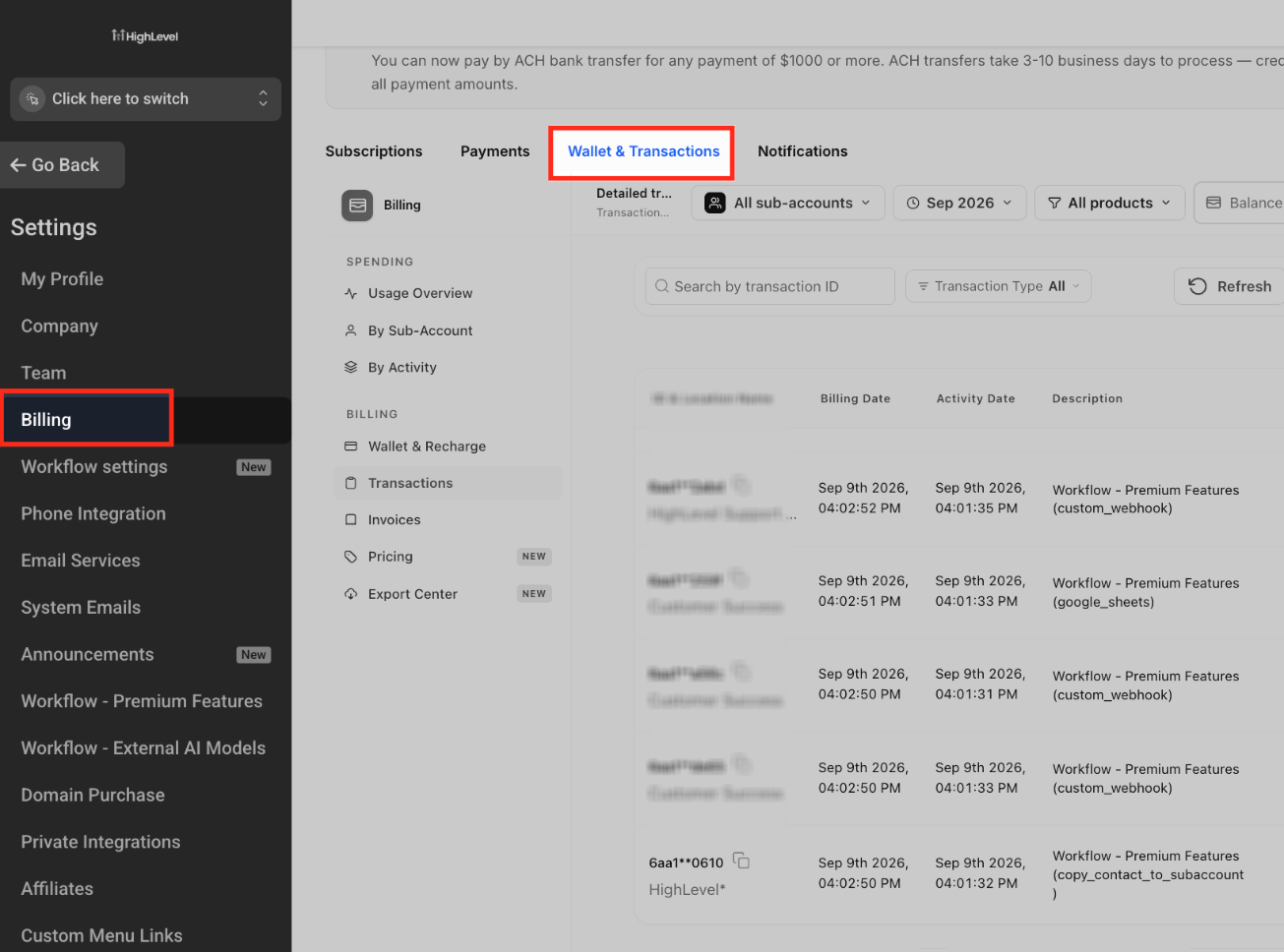
Step 1: Open Wallet & Transactions
Go to Agency View.
Select Settings.
Open Billing.
Select Wallet & Transactions.
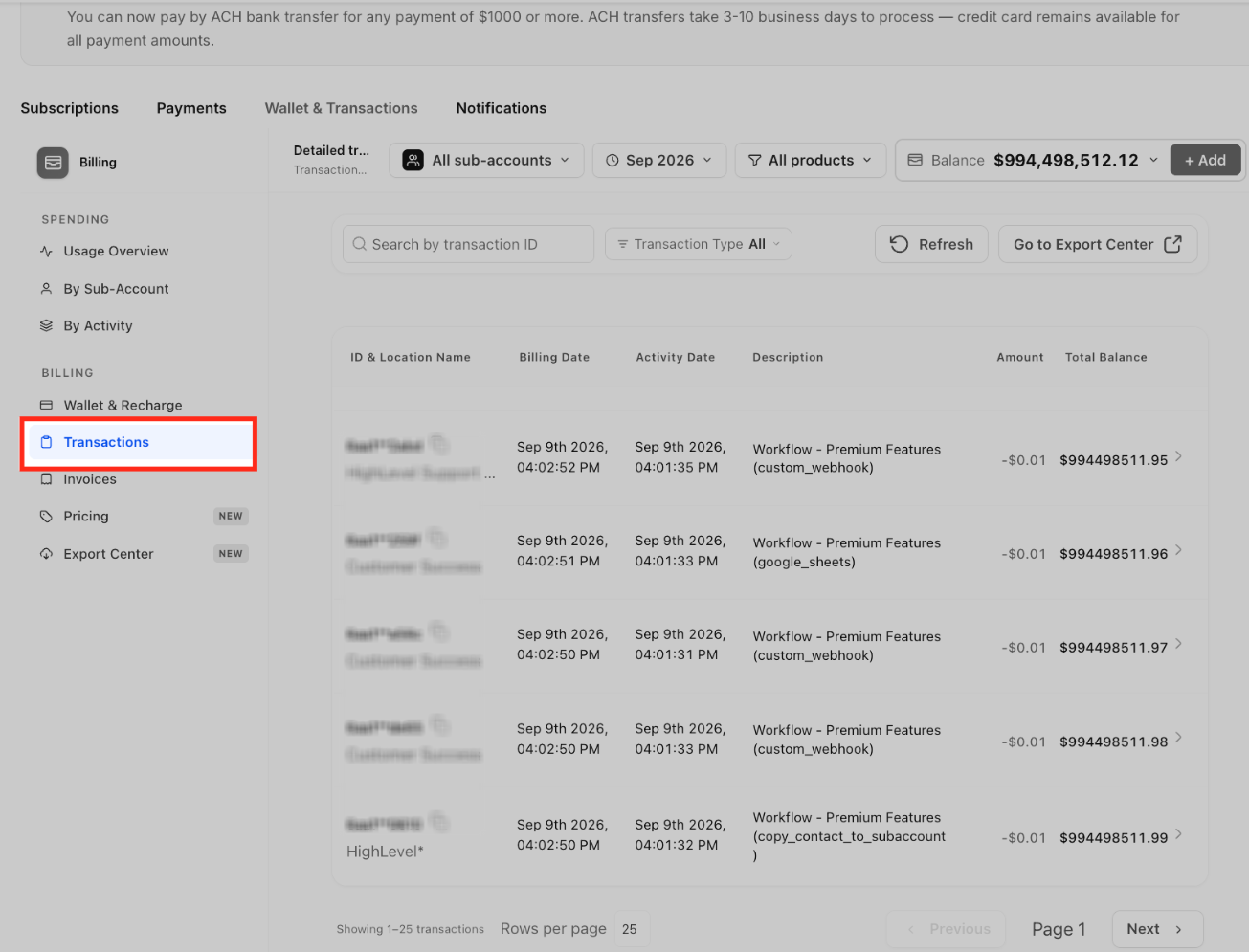
Step 2: Open Transactions
Select Transactions from Wallet & Transactions.
Review the transaction table.
Select the applicable sub-account when you are investigating usage for a specific location.
Step 3: Filter the Transaction List
Use the available filters to narrow the transaction list.
Depending on the charge you are investigating, filter by:
Sub-account
Billing period
Product
Transaction Type
Transaction ID
Locate the applicable Phone System transaction.
Step 4: Review the Transaction Details
Review the transaction's:
Billing Date
Activity Date
Description
Amount
Total Balance
Use the transaction description to identify the product or Phone System activity responsible for the charge.
Step 5: Compare the Charge With Current Pricing
Open Wallet & Transactions → Pricing.
Search for the corresponding product or service.
Review its current pricing and billing unit.
Select the applicable country where country-specific pricing is available.
Compare the pricing information with the transaction you are reviewing.
The Pricing page provides the current Chat To Clients CRM reference for wallet-billed product rates.
How To Export Wallet Transactions
Export Center gives agencies a dedicated location for preparing transaction exports when a larger billing reconciliation needs to be completed outside Chat To Clients CRM.
Go to Agency View → Settings → Billing → Wallet & Transactions.
Open Transactions.
Apply the filters needed for the transactions you want to investigate.
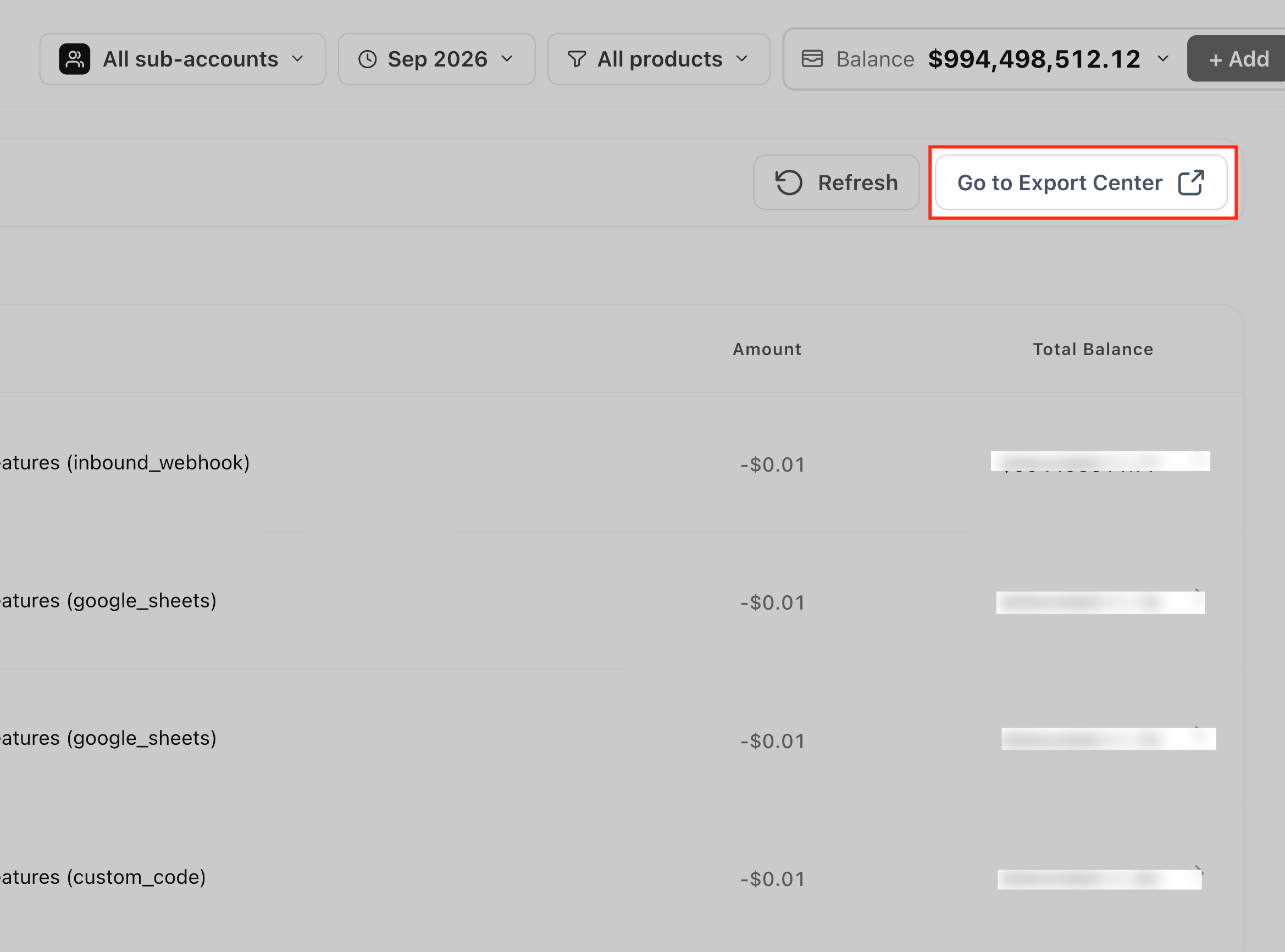
Select Go to Export Center, or open Export Center directly from the Wallet & Transactions navigation.
Configure the applicable export from Export Center.
Complete the export process using the options available in the current interface.
Frequently Asked Questions
Q: Does every Phone System charge receive the 5% markup?
No. Current Chat To Clients CRM Phone System documentation identifies specific pass-through categories that receive the fixed 5% location-level markup. Other services follow their applicable documented rates.
Q: Does agency rebilling replace the 5% Phone System markup?
No. Agency rebilling is separate. For categories where the 5% location-level markup applies, an agency-configured rebilling amount can be applied afterward when rebilling is enabled.
Q: Do I need to change my agency's resale pricing?
Not solely because of the Phone System markup. Rebilling and reselling are configured separately from the underlying wallet charge.
Q: Where can I see the current rate for a wallet-billed product?
Go to Billing → Wallet & Transactions → Pricing. The Wallet Pricing page provides centralized, automatically updated pricing for wallet-billed products.
Q: Can I filter transactions for one sub-account?
Yes. Use the sub-account selector on the Transactions page to isolate applicable wallet activity for a specific location.
Q: Does Auto-Recharge change because of the Phone System markup?
No. Auto-Recharge is a separate wallet-management setting and continues to follow the wallet configuration selected by the agency.
Q: Are previous wallet transactions recalculated when pricing changes?
No. Historical transactions remain records of the charges that occurred at that time.
Q: Where do I export wallet transactions?
Use Wallet & Transactions → Export Center. You can also access the Export Center from the Transactions page using Go to Export Center.
[H3] Related Articles