
Download Chat To Clients CRM & Chat To Clients CRM Desktop App for Windows, macOS & Linux
We’re excited to introduce the Chat To Clients CRM Desktop App for macOS, Windows and Linux. It provides a faster, distraction‑free experience and native OS notifications ideal for teams that keep Chat To Clients CRM open all day. This quick guide walks you through getting the mac/Windows/Linux app onto your computer and logging in for the first time.
TABLE OF CONTENTS
Download Links
Always install from the official links to ensure you’re running an authentic, up‑to‑date build.
Chat To Clients CRM
| OS | Variant | Download |
|---|---|---|
| macOS | — | Download Link |
| Windows | — | Download Link |
| Linux | Debian-based (x64) | Download Link |
| Linux | Debian-based (arm64) | Download Link |
| Linux | Red Hat–based (x64) | Download Link |
| Linux | Red Hat–based (arm64) | Download Link |
Chat To Clients CRM
| OS | Variant | Download |
|---|---|---|
| macOS | — | Download Link |
| Windows | — | Download Link |
| Linux | Debian-based (x64) | Download Link |
| Linux | Debian-based (arm64) | Download Link |
| Linux | Red Hat–based (x64) | Download Link |
| Linux | Red Hat–based (arm64) | Download Link |
Install the Desktop App (macOS, Windows & Linux)
Choose your operating system below. Each path is short and direct; follow the four steps in order.
macOS
Download the installer - Use the macOS (.dmg) link above.
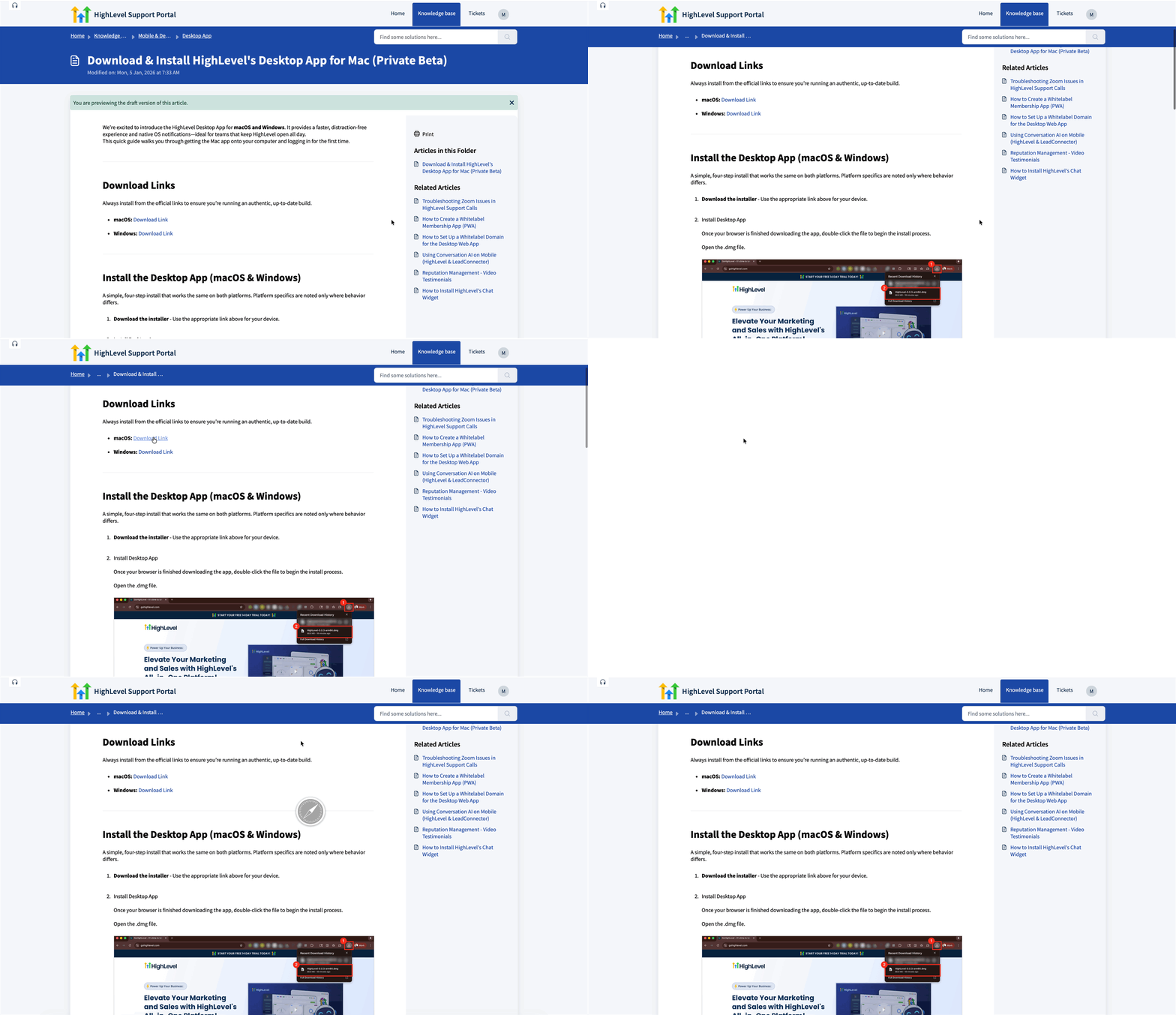
Install - Open the .dmg and drag Chat To Clients CRM into Applications.
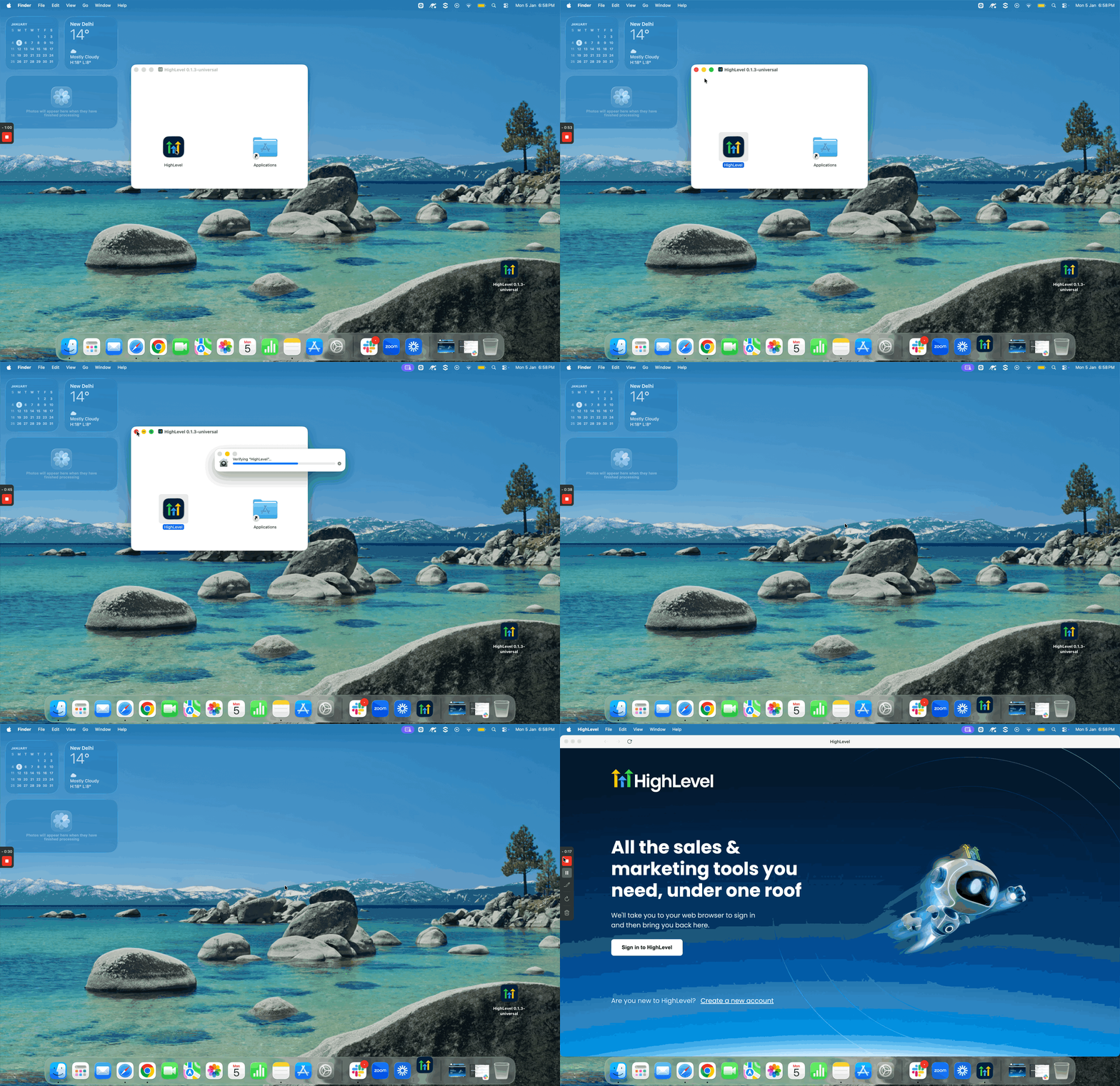
Open Chat To Clients CRM - Launch from Applications, Launchpad, or Spotlight.
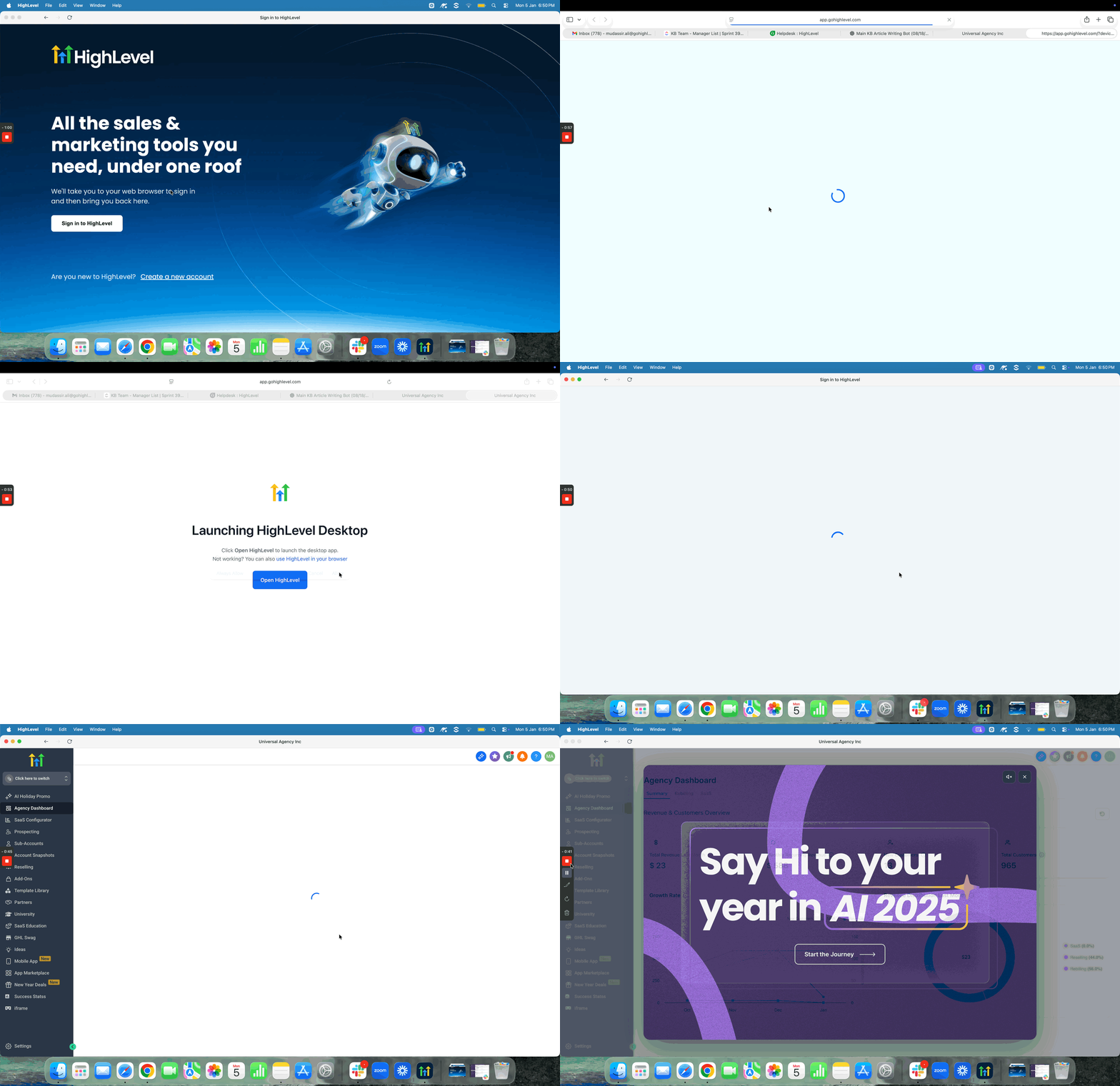
Sign in - Click Sign In in the desktop app. Your default browser opens. If you’re already signed in to the Chat To Clients CRM web app in that browser, you’ll be routed back to the desktop app automatically. If not, complete the browser login (whitelabeled domain if enabled), then you’ll return to the app.
Windows
Download the installer — Use the Windows (.exe) link above.
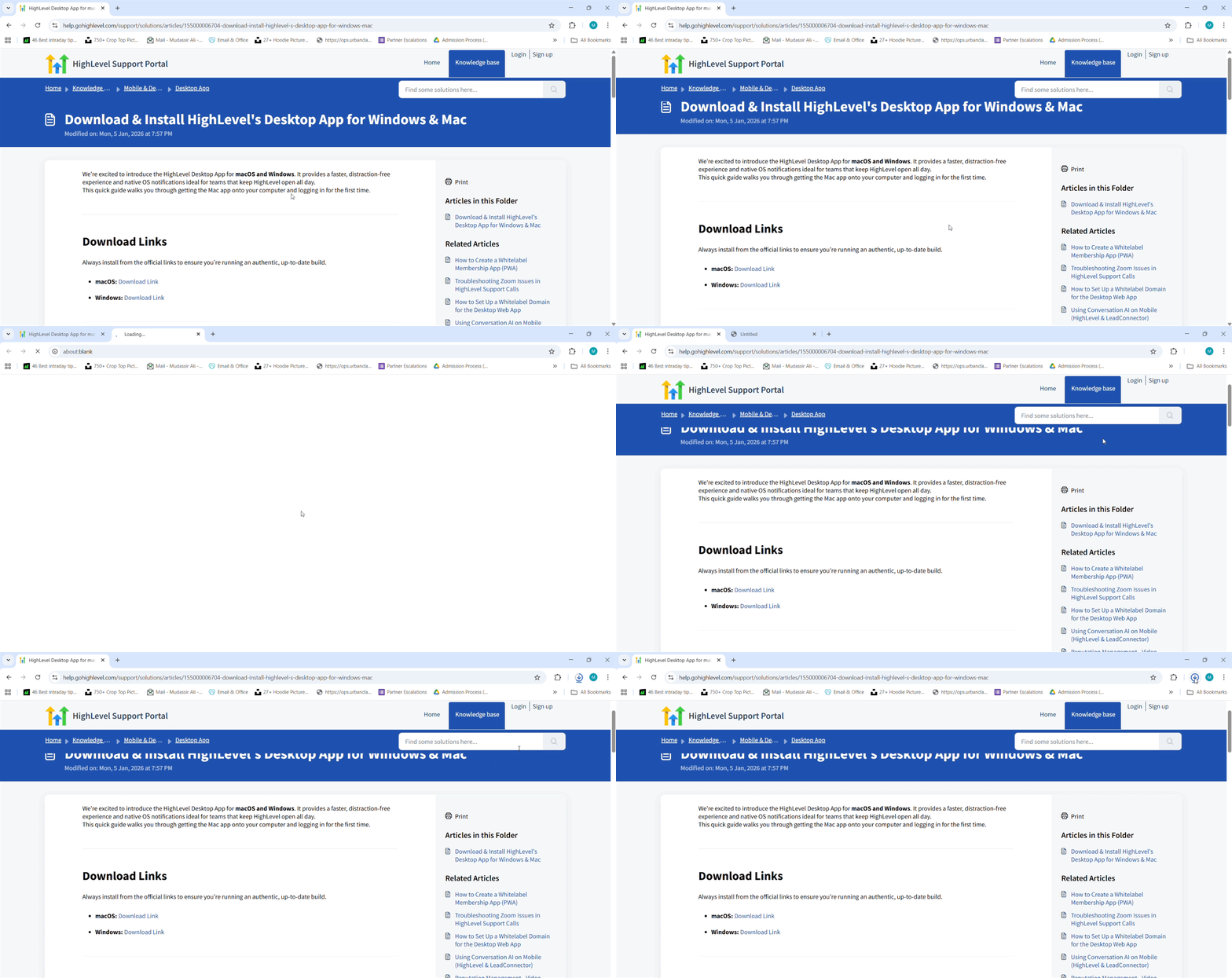
Install - Open the .exe and finish the setup wizard.
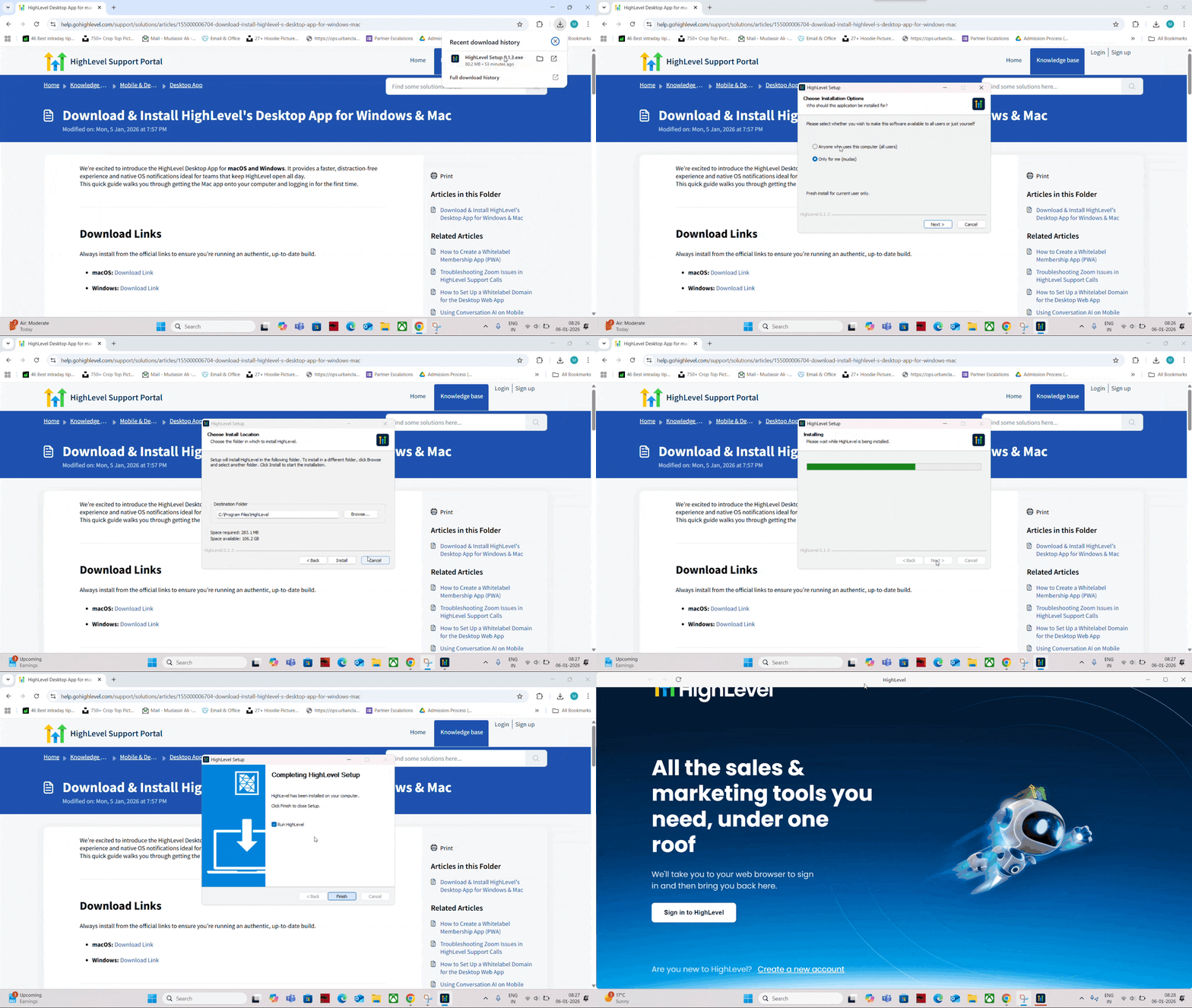
Open Chat To Clients CRM — Launch from the Start menu.
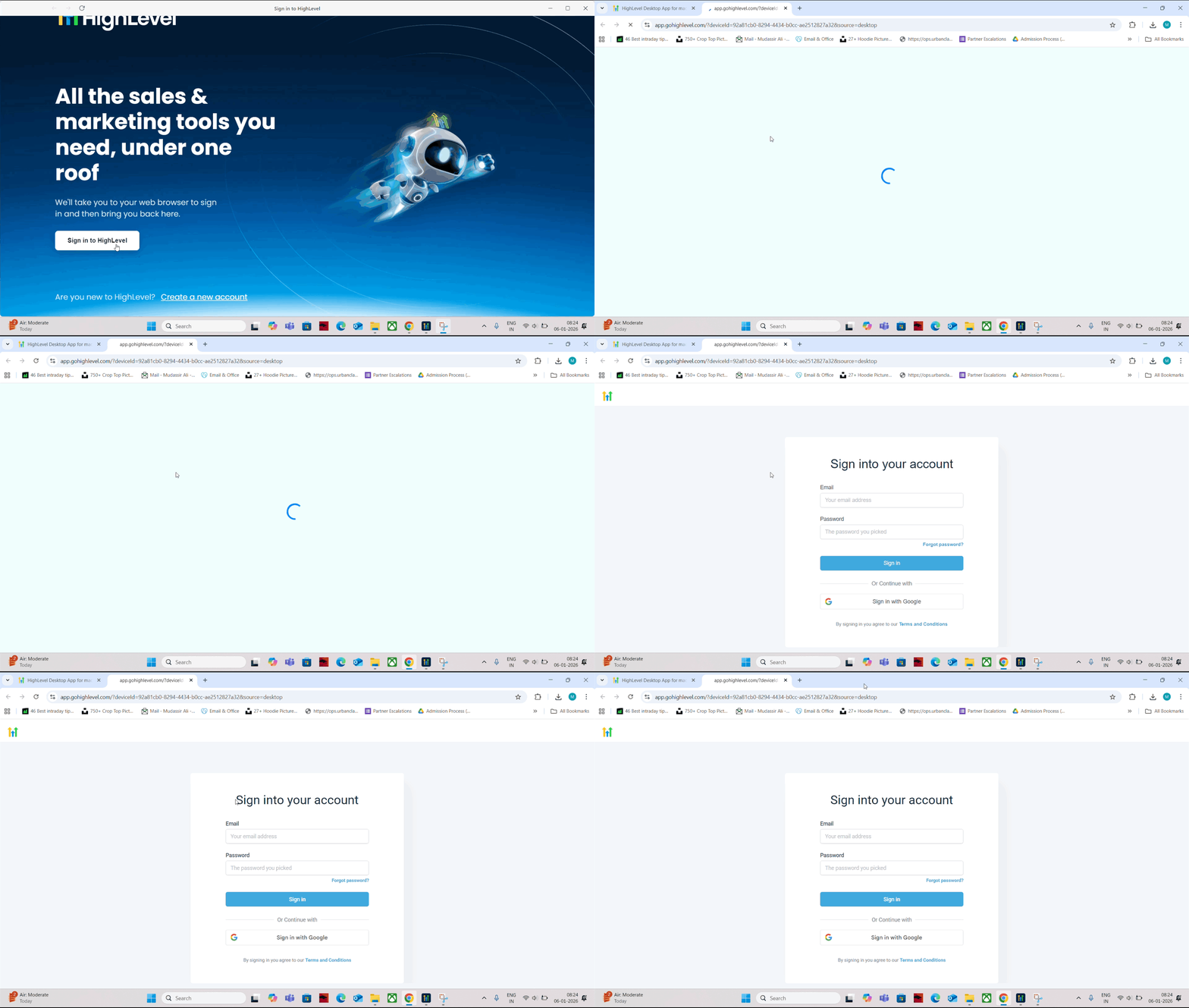
Sign in - Click Sign In in the desktop app. Your default browser opens. If you’re already signed in to the Chat To Clients CRM web app in that browser, you’ll be routed back to the desktop app automatically. If not, enter your credentials in the browser (whitelabeled domain if enabled), then you’ll return to the app.
Linux
- Download the Linux installer for your distribution and architecture from the links above.
- Install using your system’s standard installer flow.
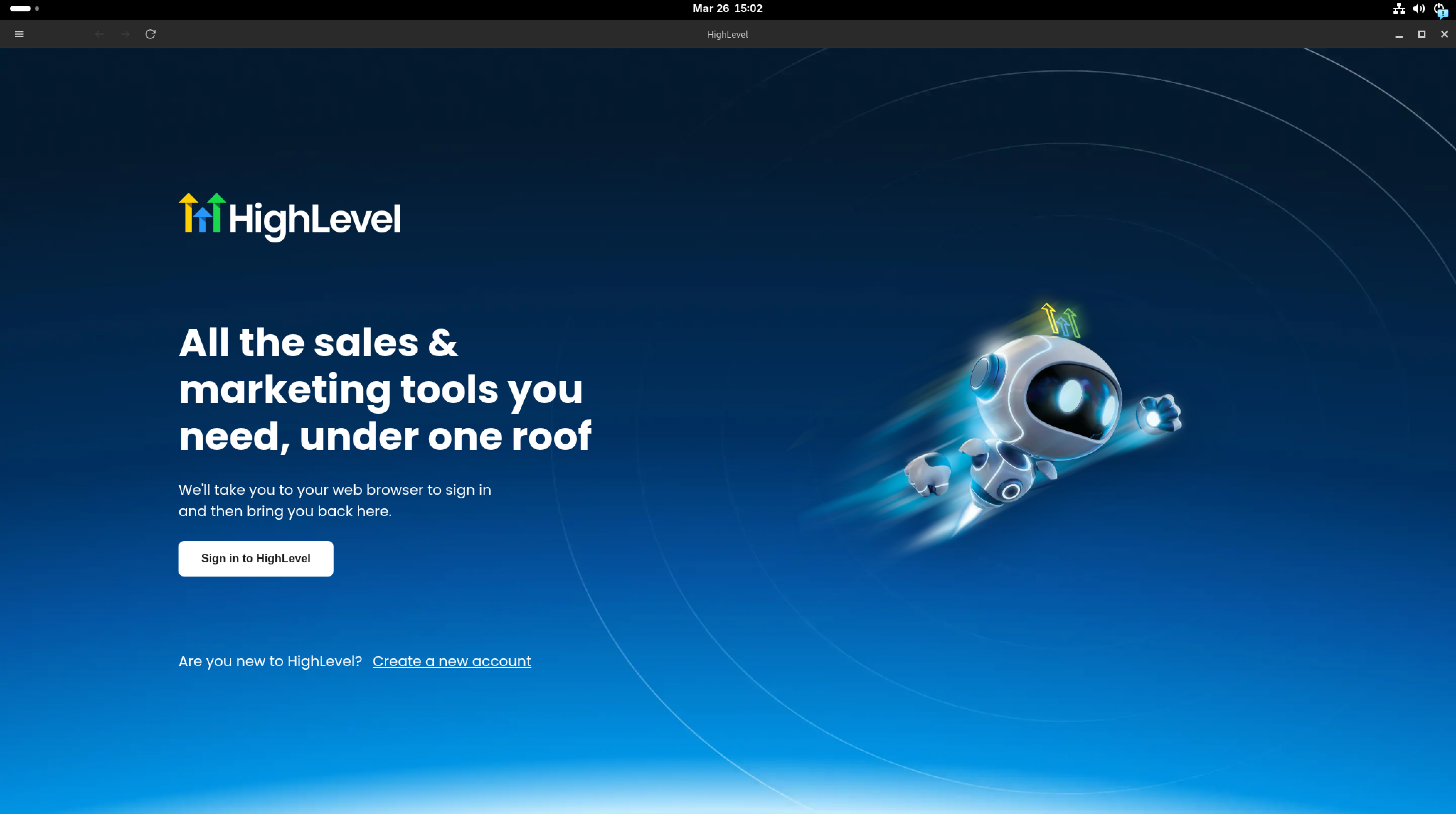
- Open the Desktop App from your applications menu.
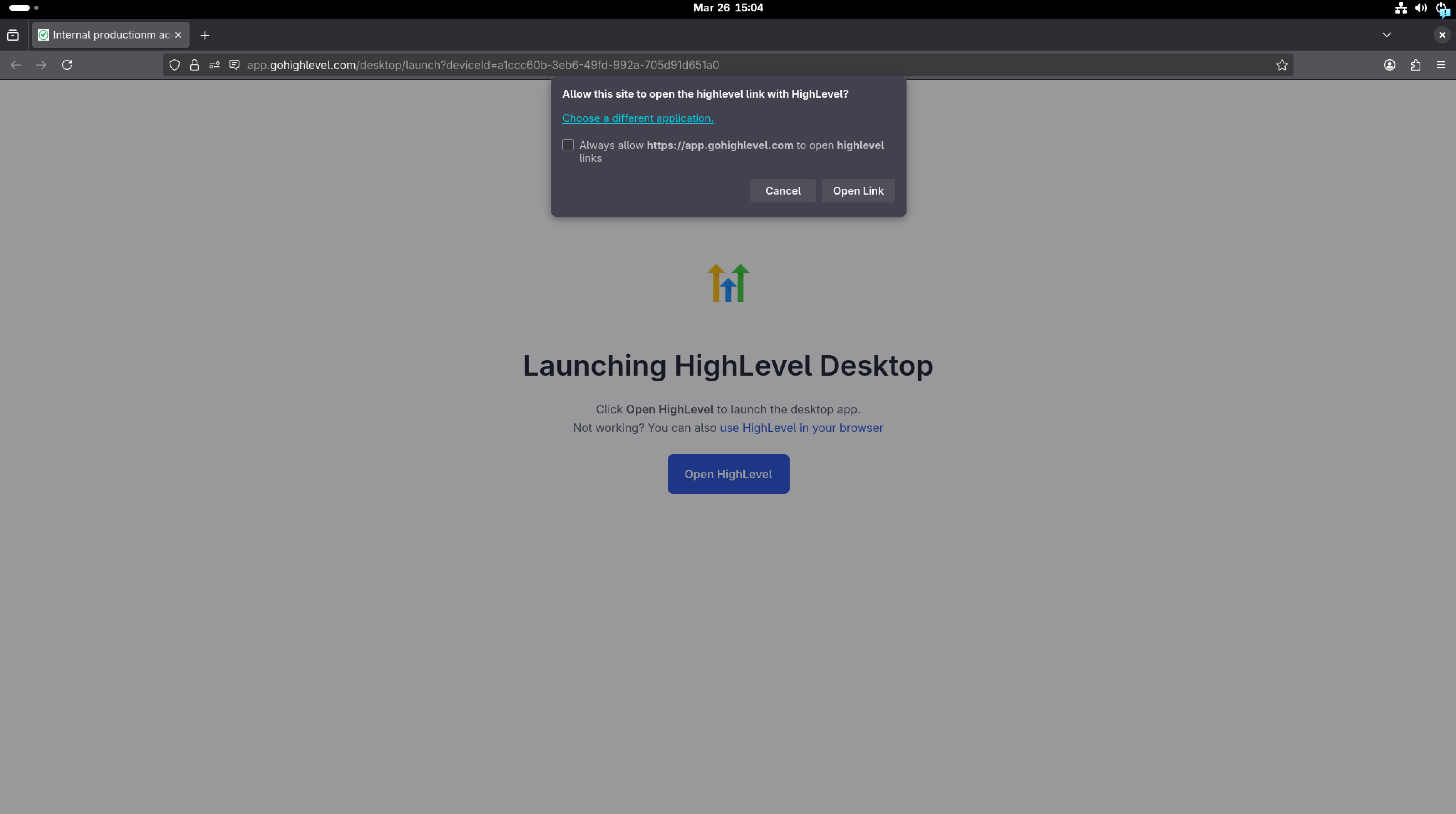
- Click Sign In. Your default browser opens to complete sign-in, then routes you back to the desktop app.
Frequently Asked Questions
Q: Is the desktop app different from the Chat To Clients CRM web app?
The experience and data are the same; the desktop app packages Chat To Clients CRM in a dedicated, optimized window with native notifications.
Q: Can I use multiple accounts or sub‑accounts?
Yes - sign in normally, then switch using the account menu if you have access to multiple sub‑accounts.
Q: Will my whitelabeled domain affect login?
Yes - if enabled, you’ll be routed through your branded login during sign‑in before returning to the app.
Q: What if I don’t see notifications?
Enable OS‑level notifications for Chat To Clients CRM and then review in‑app preferences.