
Custom Values in WordPress
The Custom Values integration in the LC WordPress Plugin lets you display live Chat To Clients CRM data inside WordPress pages or posts using shortcodes. It brings the same personalization used in funnels, emails, and automations directly to WordPress—no coding or complex setup required.
TABLE OF CONTENTS
- What Are Custom Values in WordPress?
- Key Benefits
- Native Sync with Chat To Clients CRM
- Using Shortcodes in WordPress
- Custom Value Manager (WP Admin)
- Dynamic Rendering and Page Output
- Setup Steps
- FAQ
- Related Articles
What Are Custom Values in WordPress?
Custom Values in WordPress sync the key:value pairs from your Chat To Clients CRM sub-account (system and custom) and make them available as WordPress shortcodes.
When a visitor loads a page, the plugin automatically pulls the latest data—keeping your content current without manual edits.
Key Benefits
Omnichannel consistency: Use the same data in automations, emails, and websites.
Real-time updates: Change a value once in Chat To Clients CRM—WordPress updates instantly.
No-code setup: Paste a shortcode instead of editing code.
Reusable templates: Build client sites with placeholders that auto-fill on sync.
Seamless integration: WordPress becomes part of your Chat To Clients CRM ecosystem.
Native Sync with Chat To Clients CRM
The LC Plugin connects your WordPress site to your Chat To Clients CRM sub-account through secure OAuth. Once authorized, it:
Fetches all system and user-defined Custom Values.
Stores them locally for quick access.
Resyncs automatically every 12 hours (manual Sync Now also available).
This ensures your WordPress data always mirrors your Chat To Clients CRM account without manual syncing.
Using Shortcodes in WordPress
Shortcodes let you dynamically display live data anywhere inside your WordPress content—page builders, blocks, or classic posts.
Syntax:
[hl_custom_value name="custom_values.your_key"]
Example:
Wish You a Very [hl_custom_value name="custom_values.festive_greeting"]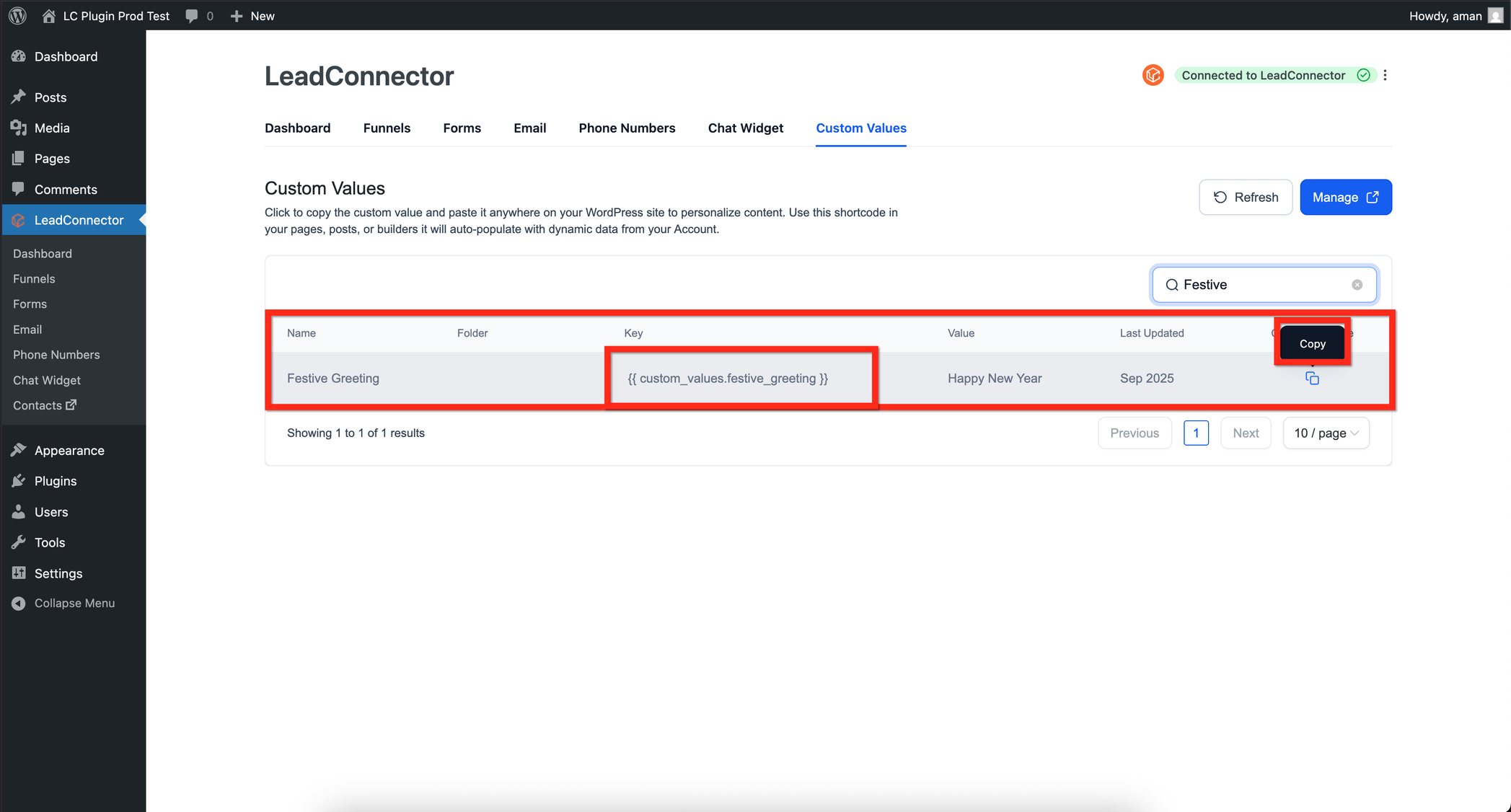
You can use shortcodes in Elementor, Divi, Bricks, Beaver Builder, Gutenberg, or the Classic Editor—any builder that supports native WordPress shortcodes.
Custom Value Manager (WP Admin)
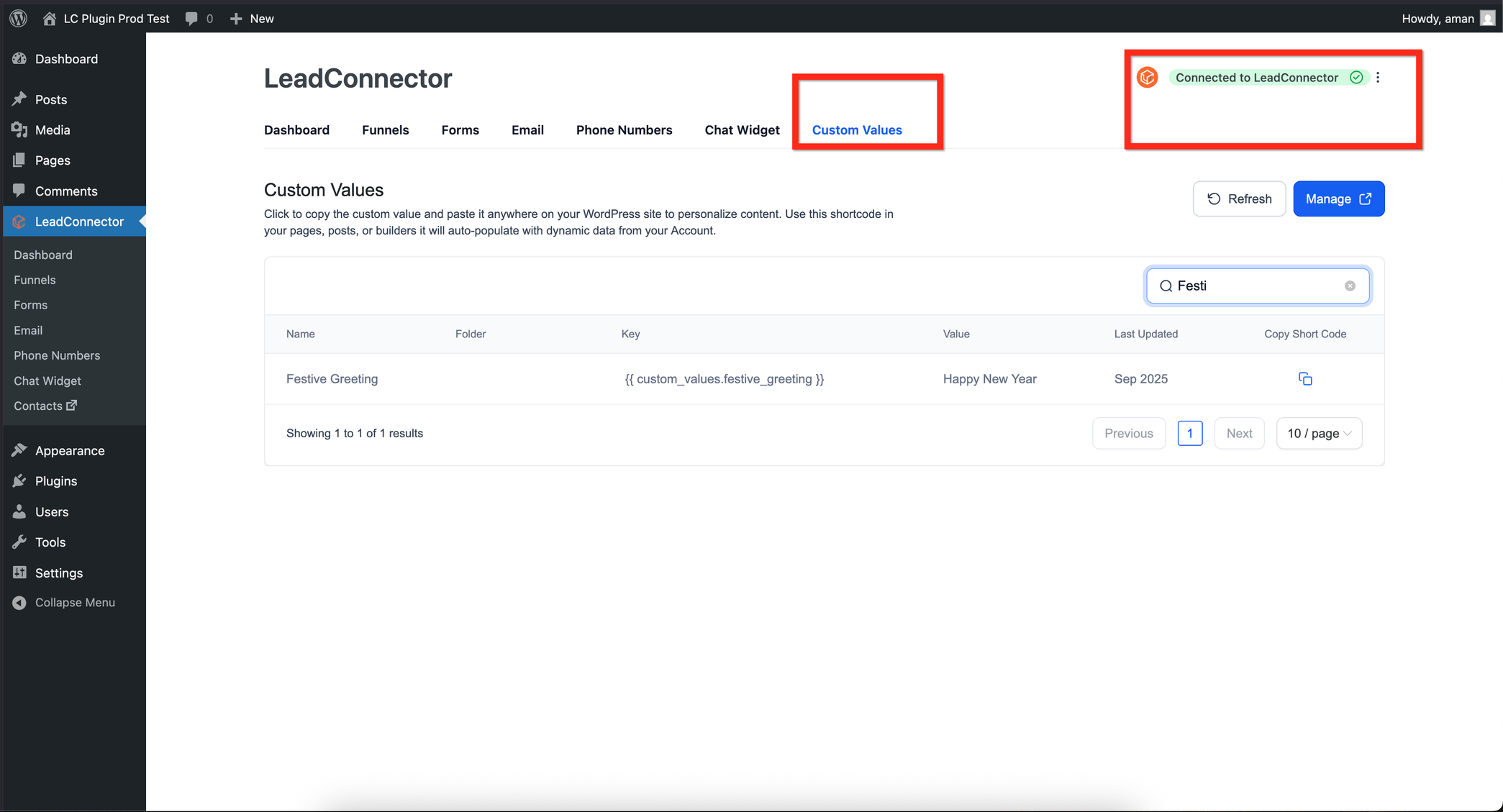
Inside WordPress, open the Chat To Clients CRM Custom Values section to view and manage your synced keys.
Here you can:
View each synced Custom Value and its current data.
Copy shortcodes in one click.
Trigger a manual resync or enable automatic syncing.
Filter by folders matching your Chat To Clients CRM structure.
This makes it easy to organize and access all synced data directly within your WordPress dashboard.
Dynamic Rendering and Page Output
When a visitor opens a page, the LC Plugin renders the Custom Value in real time.
If caching plugins are used, stale data may appear unless proper cache rules are applied.
Best Practices:
Enable “Purge cache on resync” if caching is active.
Avoid caching pages that display contact-specific values.
Always resync after updating values in Chat To Clients CRM.
Setup Steps
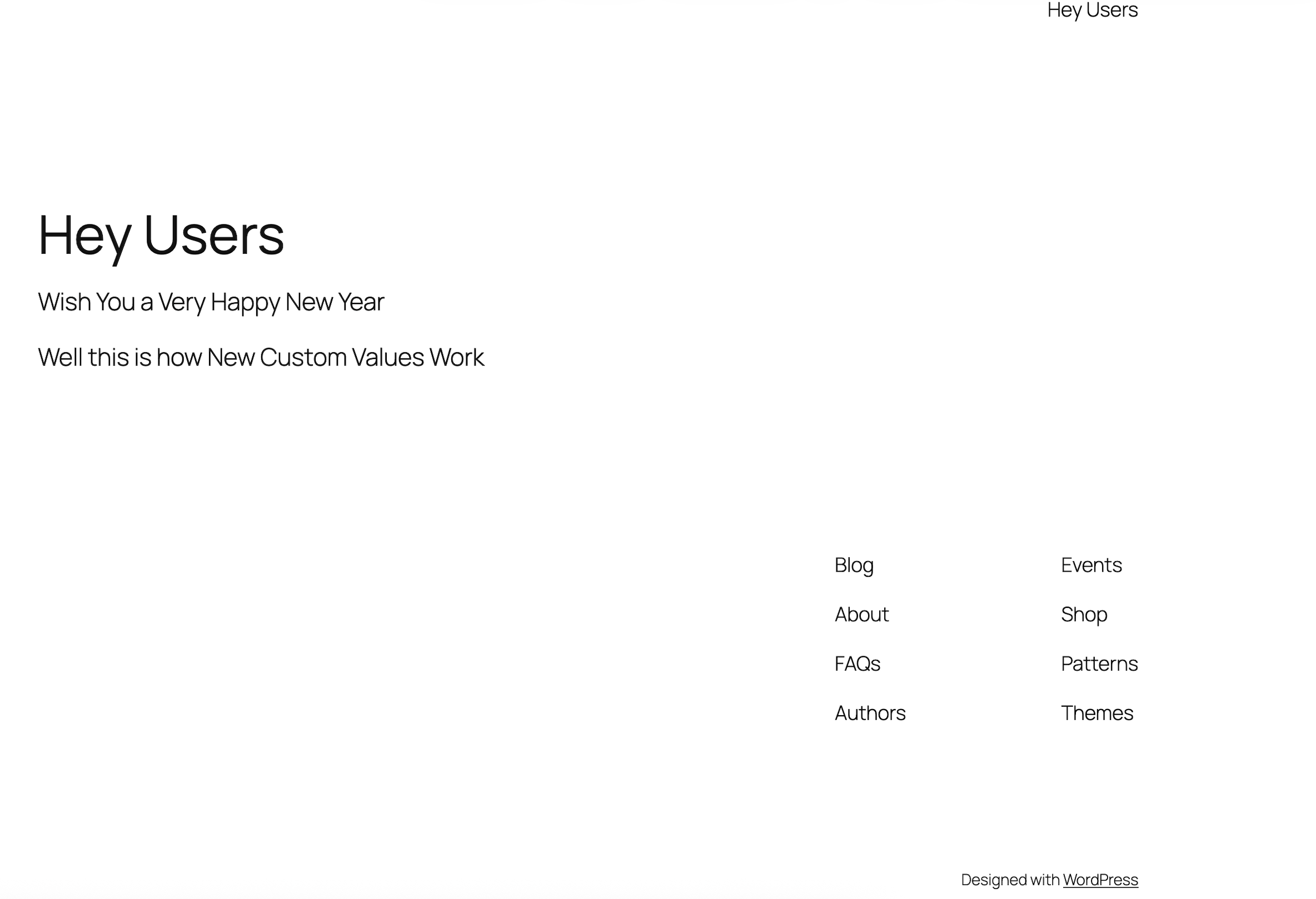
To connect your WordPress site with Chat To Clients CRM, make sure you’re using LC Plugin version 3.5.0 or higher. In your WordPress Admin, open the Chat To Clients CRM settings and select Connect Account, then authorize your Chat To Clients CRM login. Choose the appropriate sub-account and grant access. Once connected, the plugin will automatically sync and display a confirmation message stating Connected to Chat To Clients CRM.
After the sync completes, open the Custom Values section in Chat To Clients CRM to confirm that your data has been imported. You can then copy a shortcode and place it within any page or post using your preferred builder. When published, your WordPress content will dynamically display the synced Chat To Clients CRM data in real time.
FAQ
Does it support contact-level values?
Yes—if the visitor is tracked via cookie or URL parameter.
Will it slow my site?
No. Values are cached locally and refreshed only during sync operations.
Can I connect multiple sub-accounts?
Each WordPress install can connect to one sub-account. Use multisite for multiple clients.
What if a value is deleted in Chat To Clients CRM?
It appears blank until you resync or replace it.
Who can authorize connections?
Only Chat To Clients CRM users with API access to the sub-account can connect WordPress.