
In-App Banner Management
Quickly control which in‑app banners your clients see—and keep your interface on‑brand—using Chat To Clients CRM’s Banner Management in Agency Settings. Use it to review, prioritize, and enable/disable banners across the agency and connected sub‑accounts so only the most relevant messages are shown.
TABLE OF CONTENTS
- What is Banner Management?
- Key Benefits of Banner Management
- Access & Permissions
- Banner Status (Enable vs Disable)
- Dismissal & Reappearance
- How To Setup Banner Management
- Best Practices
- Frequently Asked Questions
- Related Articles
What is In-App Banner Management?
Banner Management is a centralized control panel in Agency Settings for reviewing, ordering, and controlling the visibility of informational or promotional in‑app banners across your agency account and connected sub‑accounts.
Banner Management gives agency administrators a single place to decide which banners appear, where they appear, and how often they reappear. Centralizing this control helps reduce noise, preserve white‑label consistency, and surface time‑sensitive announcements in the right order.
Key Benefits of In-App Banner Management
Understanding the benefits clarifies when to use banners versus other channels like emails or push notifications. These advantages focus on controlling visibility, brand consistency, and the user experience for agency staff and clients.
Client‑facing control: Turn eligible Chat To Clients CRM‑provided banners on or off at any time.
White‑label consistency: Keep in‑app announcements aligned with your agency’s branding and tone.
Reduced support noise: Hide upsells or system prompts that aren’t relevant to your clients.
Prioritized communication: Ensure critical alerts appear ahead of general promotions.
Flexible recurrence: Use frequency to prevent over‑messaging and banner fatigue.
Access & Permissions
Knowing who can manage banners prevents permission errors and ensures only authorized team members make platform‑wide changes.
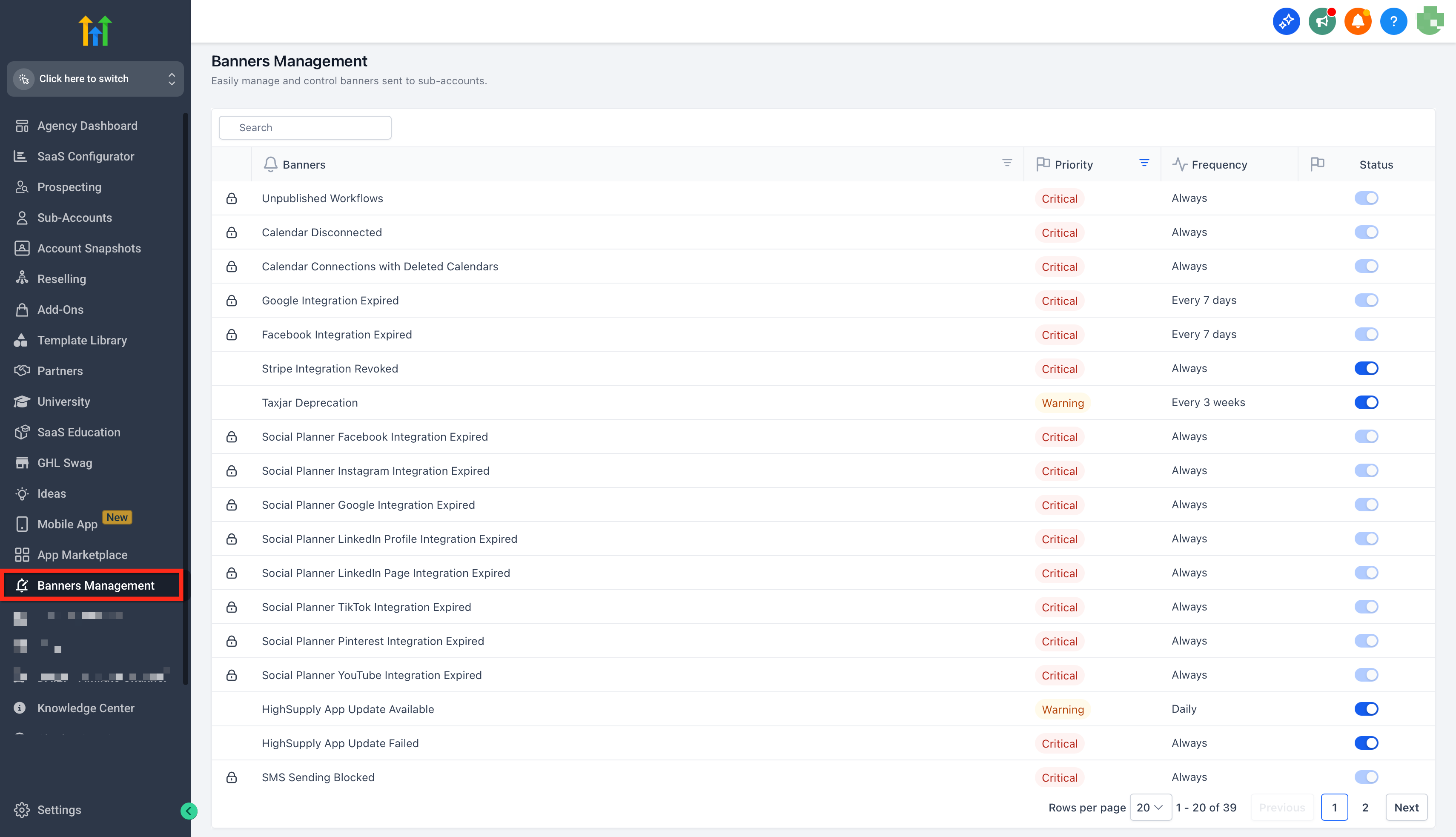
Banner Management is available from Agency Settings → Banner.
Typically restricted to Agency Admins. If your account uses custom roles, ensure the user has permission to manage agency‑level settings (or a specific Banner Management permission, if available in your account).
Changes to banners affect the agency and may propagate to connected sub‑accounts, depending on the banner’s scope.
For roles/permissions setup, see Agency | Managing user roles & permissions.
Banner Status (Enable vs Disable)
Status is the fastest way to control visibility platform‑wide. Enable/Disable is helpful for seasonality, temporary campaigns, and minimizing distractions.
Enabled banners are eligible to appear wherever their scope allows (agency and/or sub‑accounts).
Disabled banners are hidden platform‑wide.
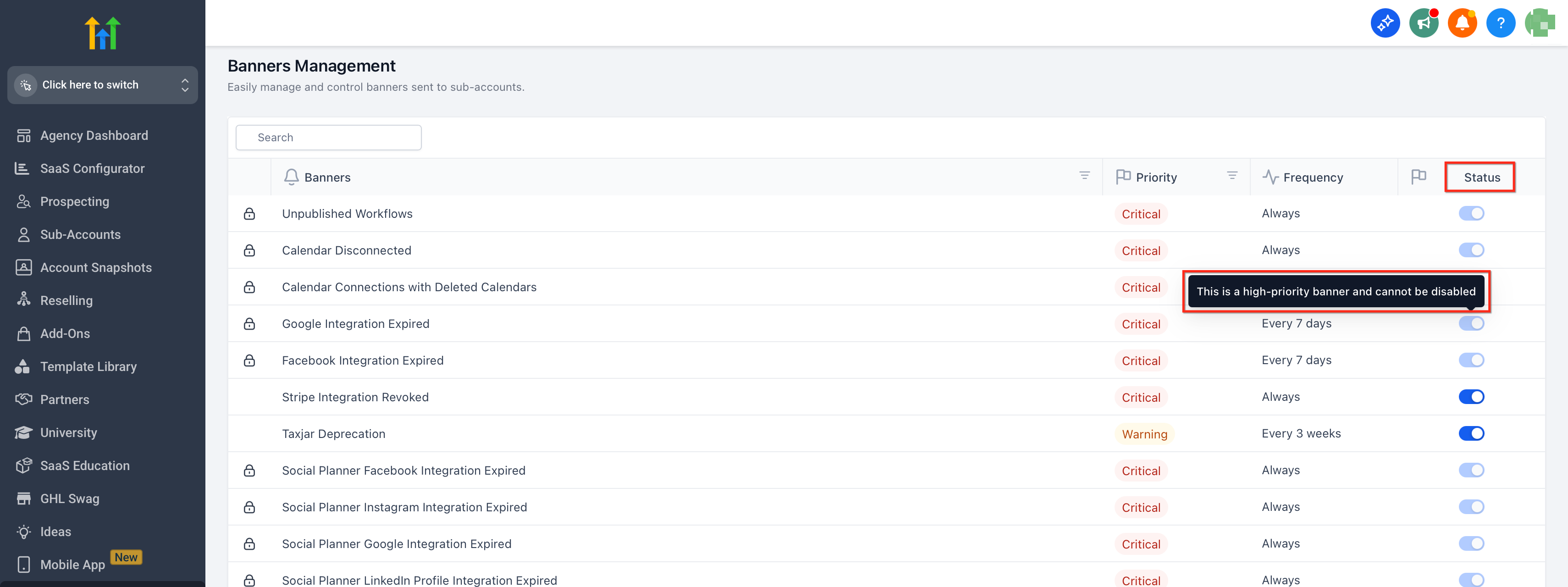
Some system banners may be locked or have limited controls based on product requirements; these will indicate restricted state (e.g., non‑interactive toggle or lock icon).
How To Setup Banner Management
Proper setup ensures the right messages display to the intended audience at the right cadence. Follow these steps to review current banners and adjust order, frequency, and visibility.
Log in as an Agency Admin and go to Agency Settings → Banners Management
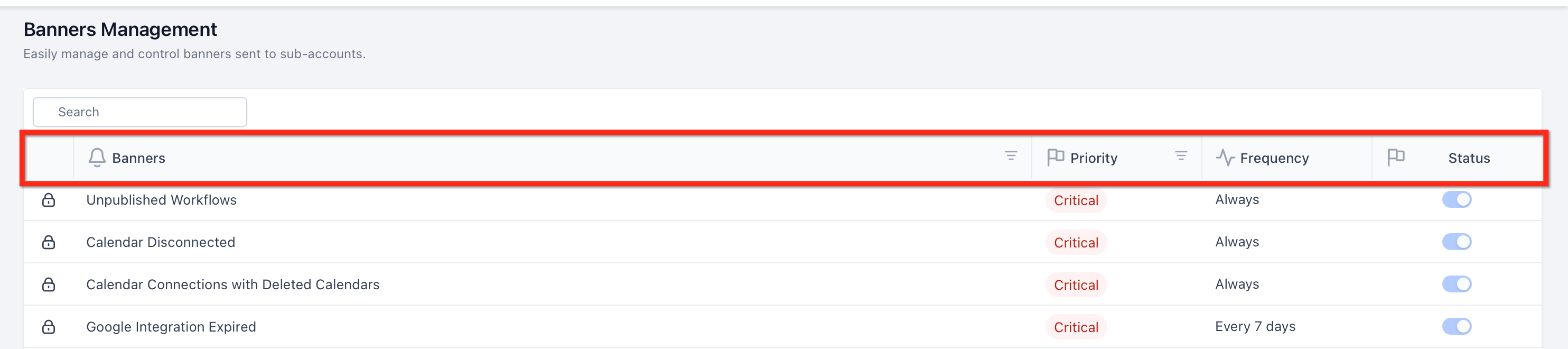
Review the banner list. Key columns typically include Banners, Priority, Frequency, and Status.
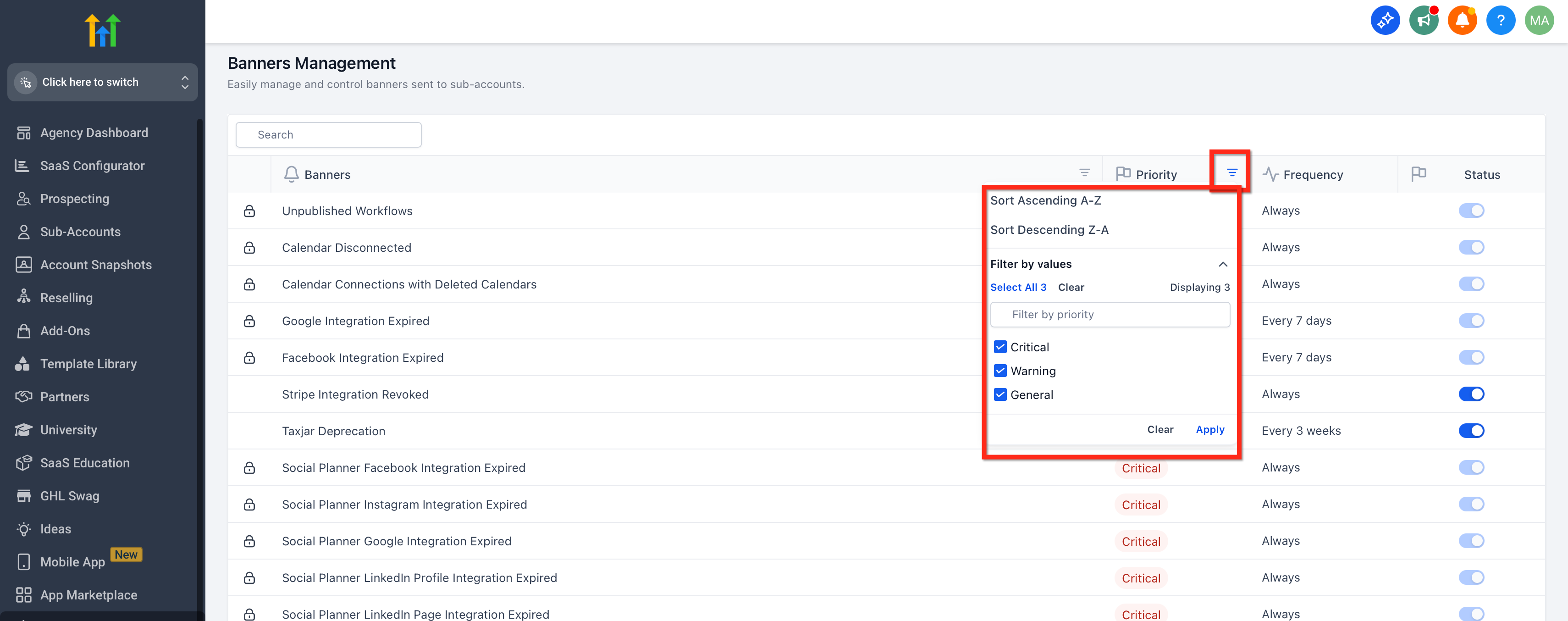
Adjust Priority (drag to reorder or edit the priority value), then save the order if required.
Toggle Enable/Disable to control visibility. System‑locked banners will indicate restricted controls.
Switch to a sub‑account to validate that banners appear as expected based on scope.
Frequently Asked Questions
Q: Will disabling a banner hide it for all users?
Yes. Disabling a banner removes it platform‑wide according to its scope.
Q: Can I show a banner only in the agency dashboard and not to clients?
Scope determines where a banner appears. If a banner supports Agency only, it will not show in sub‑accounts when enabled.
Q: Can I control upsell or plan‑related banners?
Some upsell/system prompts appear in Banner Management. Editability depends on your plan and banner type.
Q: Does changing priority affect analytics?
Priority only affects display order. If analytics are available for your banners, the data tracks views/clicks independently of priority.
Q: Can I target specific sub‑accounts or user roles?
Targeting options vary by banner type. Review the banner’s details to confirm available scope controls.
Q: Do dismissals persist across browsers/devices?
Dismissal is typically user‑based but may vary by device/session. Frequency settings determine when a banner can reappear.