
Bulk Prospecting in Chat To Clients CRM
Bulk Prospecting makes it faster to find, evaluate, and save multiple local leads from Google Maps inside the Prospecting Tool. Use keyword, location (including “near me”), and radius controls to surface up to 60 leads per search. Sort by what matters, detect duplicates automatically, and save up to 15 prospects in a single batch. This guide explains how to run smart searches, customize your layout, and launch outreach with confidence.
TABLE OF CONTENTS
- What is Bulk Prospecting?
- Key Benefits of Bulk Prospecting
- Smarter Search
- Expanded Results
- Bulk Save & Selection
- Sorting & Filtering
- Customizable Search Layout
- Duplicate Detection & Statuses
- Where Saved Prospects Go
- How To Set Up Bulk Prospecting
- Frequently Asked Questions
What is Bulk Prospecting?
Bulk Prospecting is an enhanced search-and-save workflow in Chat To Clients CRM’s Prospecting Tool that streamlines lead discovery and capture from Google Maps. It introduces higher-volume results, multi-select saving, duplicate detection, and customizable result views so agencies can scale prospecting without spreadsheets or manual copy-paste.
Key Benefits of Bulk Prospecting
Educational description: Understanding the core benefits helps teams decide where Bulk Prospecting fits in their acquisition workflow and how to unlock speed, accuracy, and scale in day‑to‑day outreach.
Smarter search controls: Search by industry or brand using keywords, pair with location (address or “near me”), and set a radius (up to ~30 miles / 49 km) to focus results.
Higher result volume: Return up to 60 leads per search (Google‑imposed cap), expanding coverage beyond the legacy 20‑lead limit.
Batch saving at scale: Select and add up to 15 leads per batch—selection persists across pages so you capture more with fewer clicks.
Built‑in duplicate detection: See whether a prospect is already saved via the Status column to avoid re‑work.
Prioritization tools: Sort by Prospect Score, Google rating, or website/GBP indicators to focus on high‑value leads first.
Customizable layout: Choose the columns you need and set rows per page for faster scanning and processing.
Smarter Search
Search settings control what appears in your results. Dialing in keyword, location, and radius ensures you see the most relevant businesses and reduces time spent skimming.
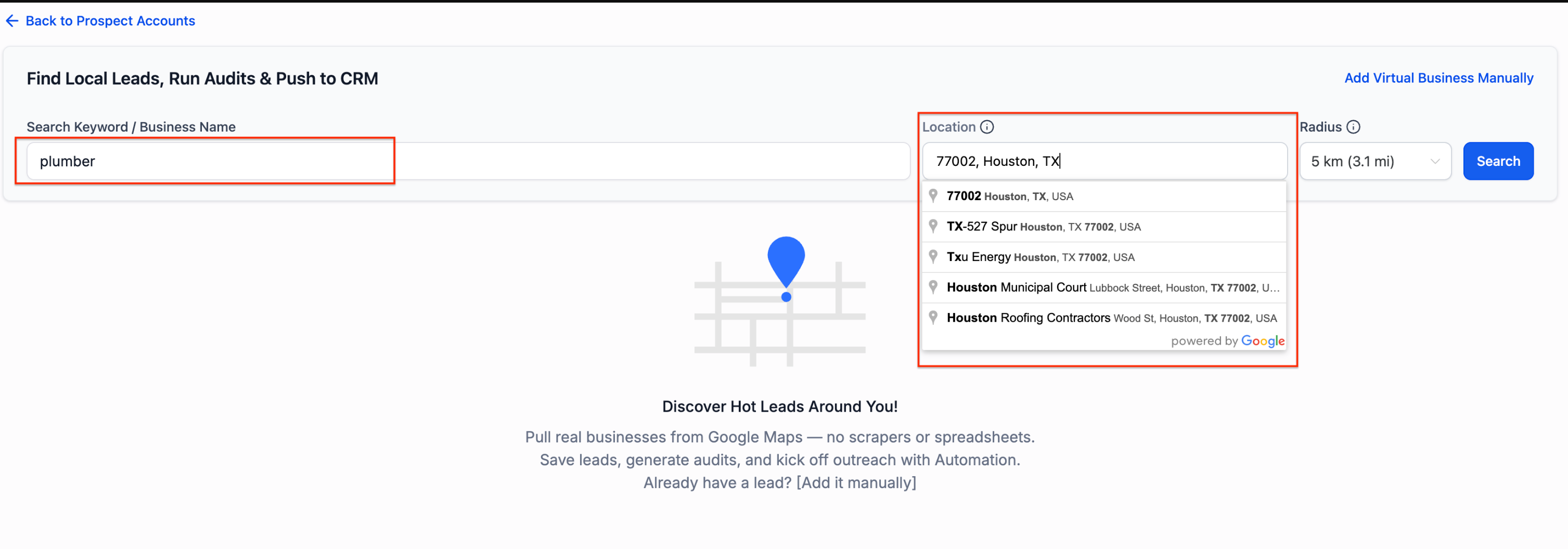
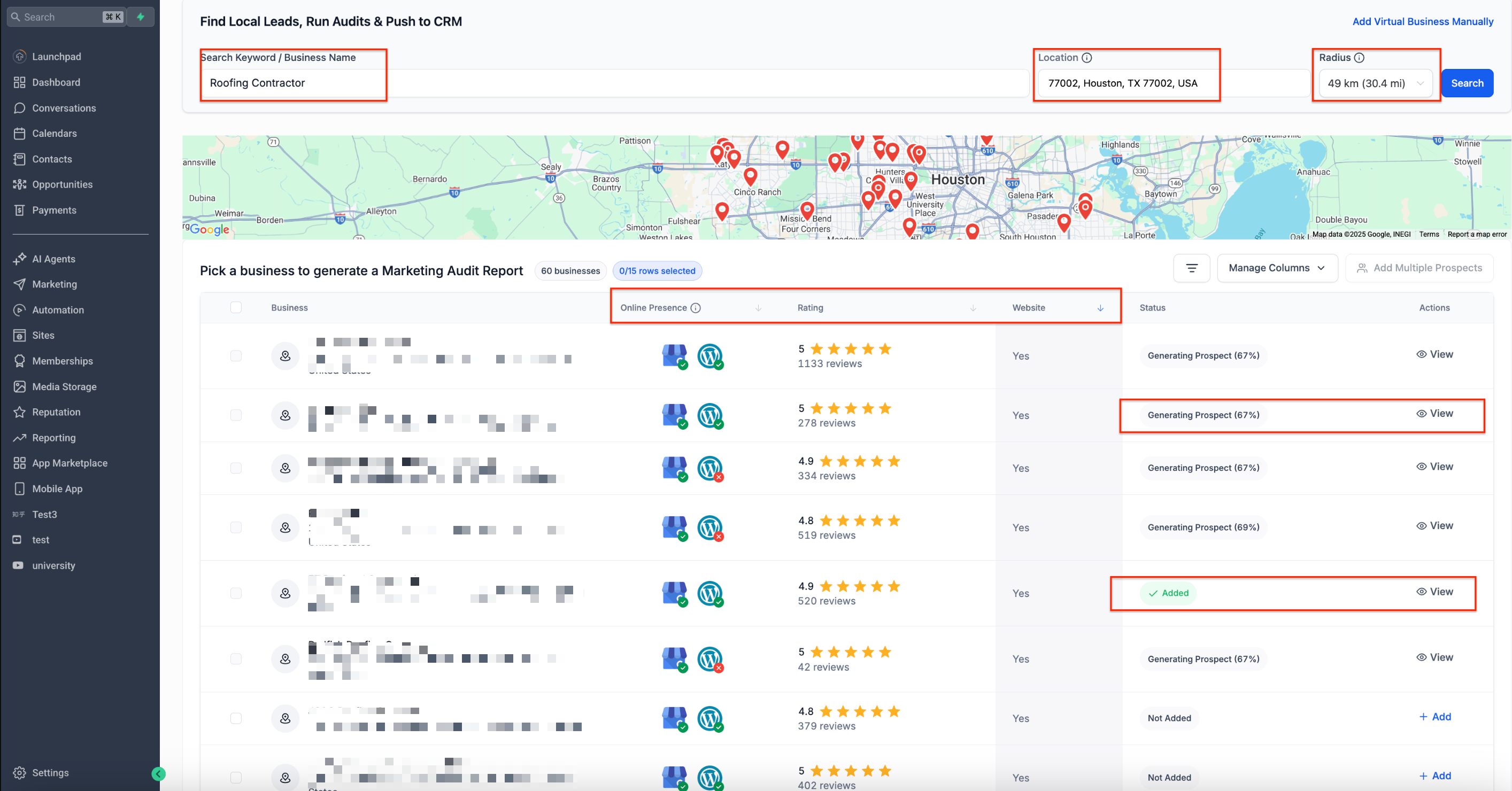
Keyword / Business Name: Type an industry (e.g., “Dentist,” “Roofing Contractor”) or a specific brand (e.g., “KFC”).
Location: Enter a full address/city/ZIP or type near me to use IP‑based geolocation (accuracy may vary on VPNs or shared office IPs).
Radius: Limit the area of your search to ~30 miles (49 km). Broader radius returns more results but may reduce local relevance.
Expanded Results
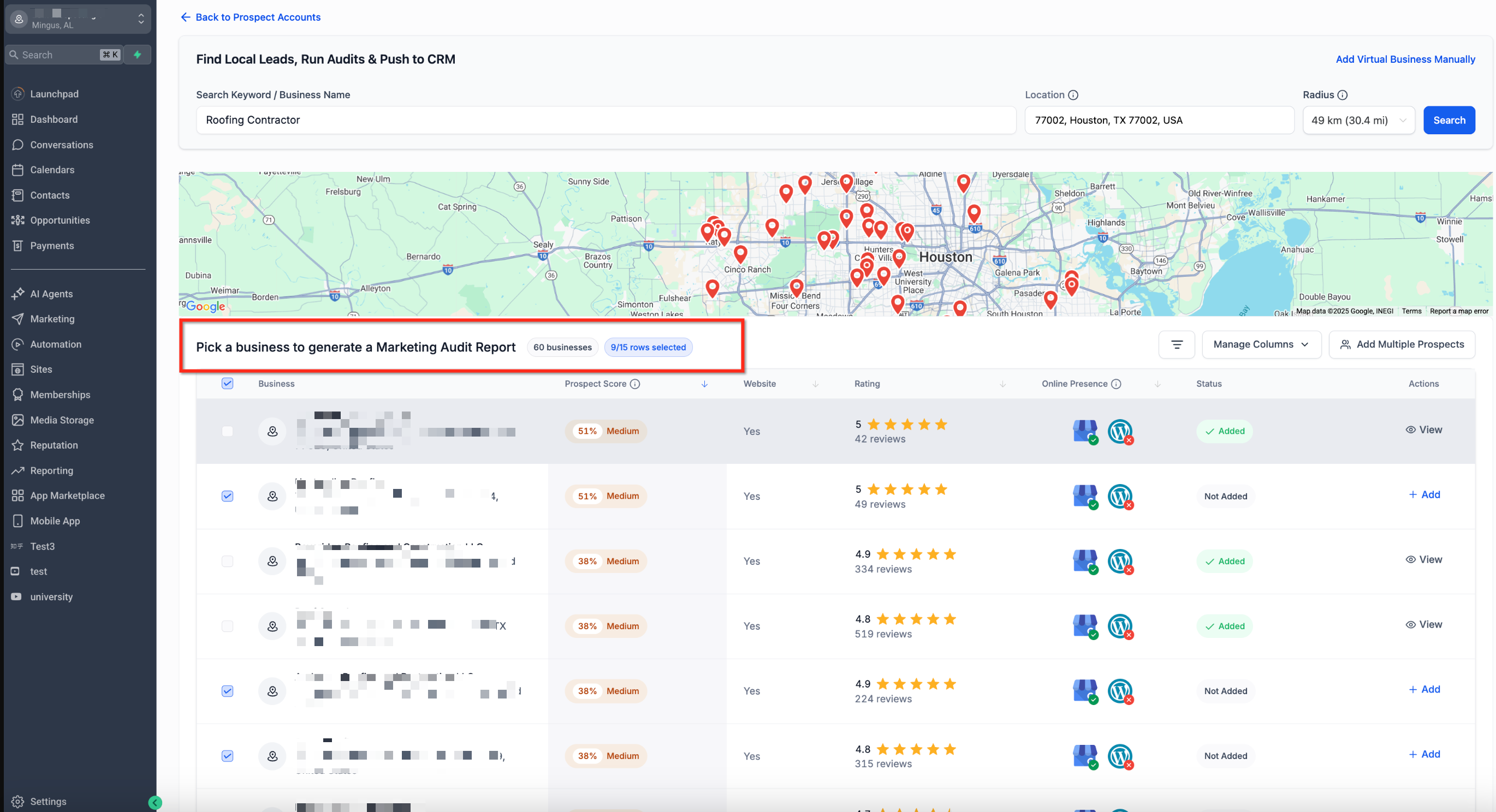
Expanded results increase discovery per search, saving time and widening your pipeline without rerunning the same query repeatedly.
Up to 60 leads per search. If you need more, run additional searches with adjusted keywords/locations.
Map + table view for quick spatial context and list scanning.
Status hints appear as results are saved or being processed.
Bulk Save & Selection
Multi-select saving reduces clicks and speeds up list building. Understanding limits and persistence helps you plan workflows efficiently.
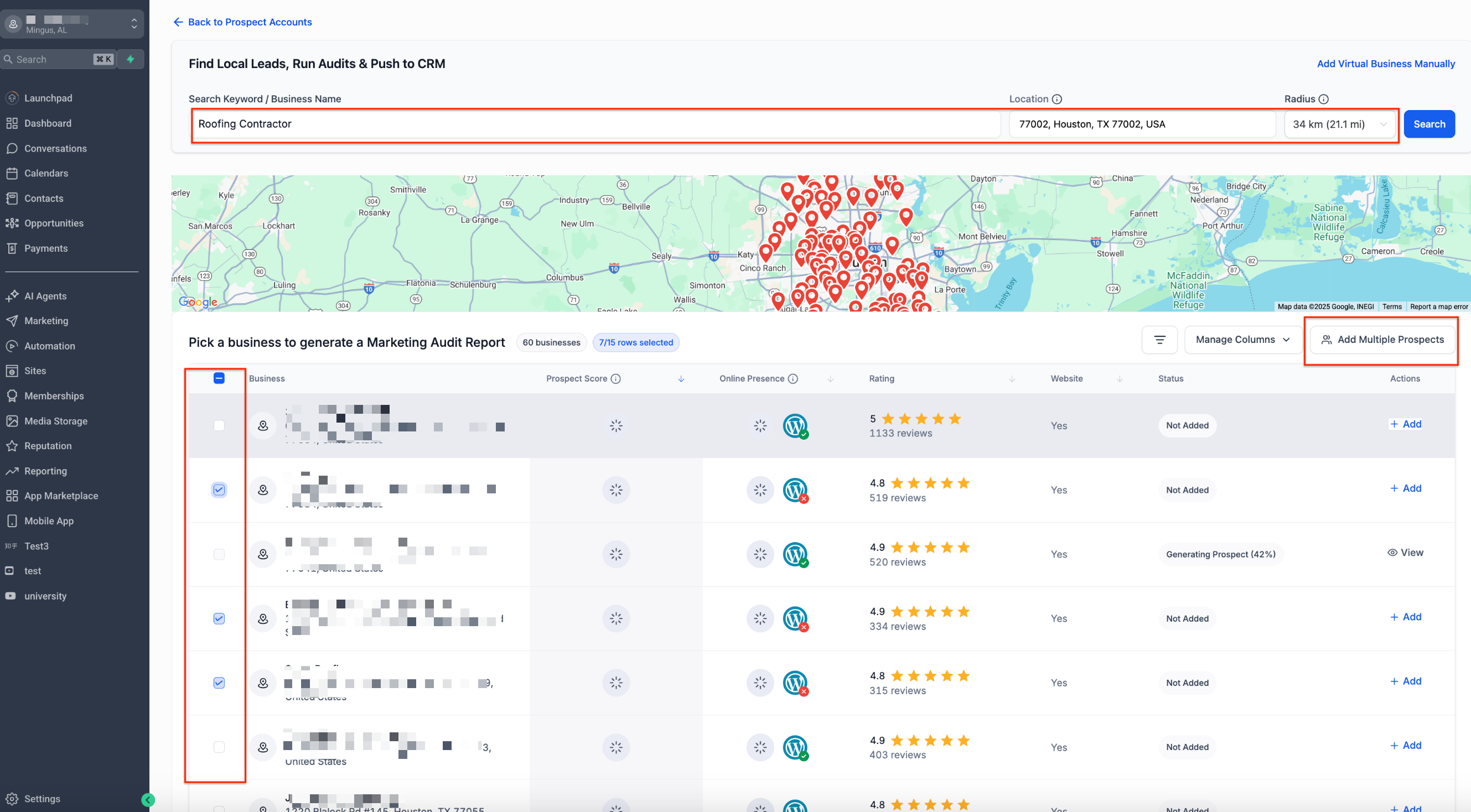
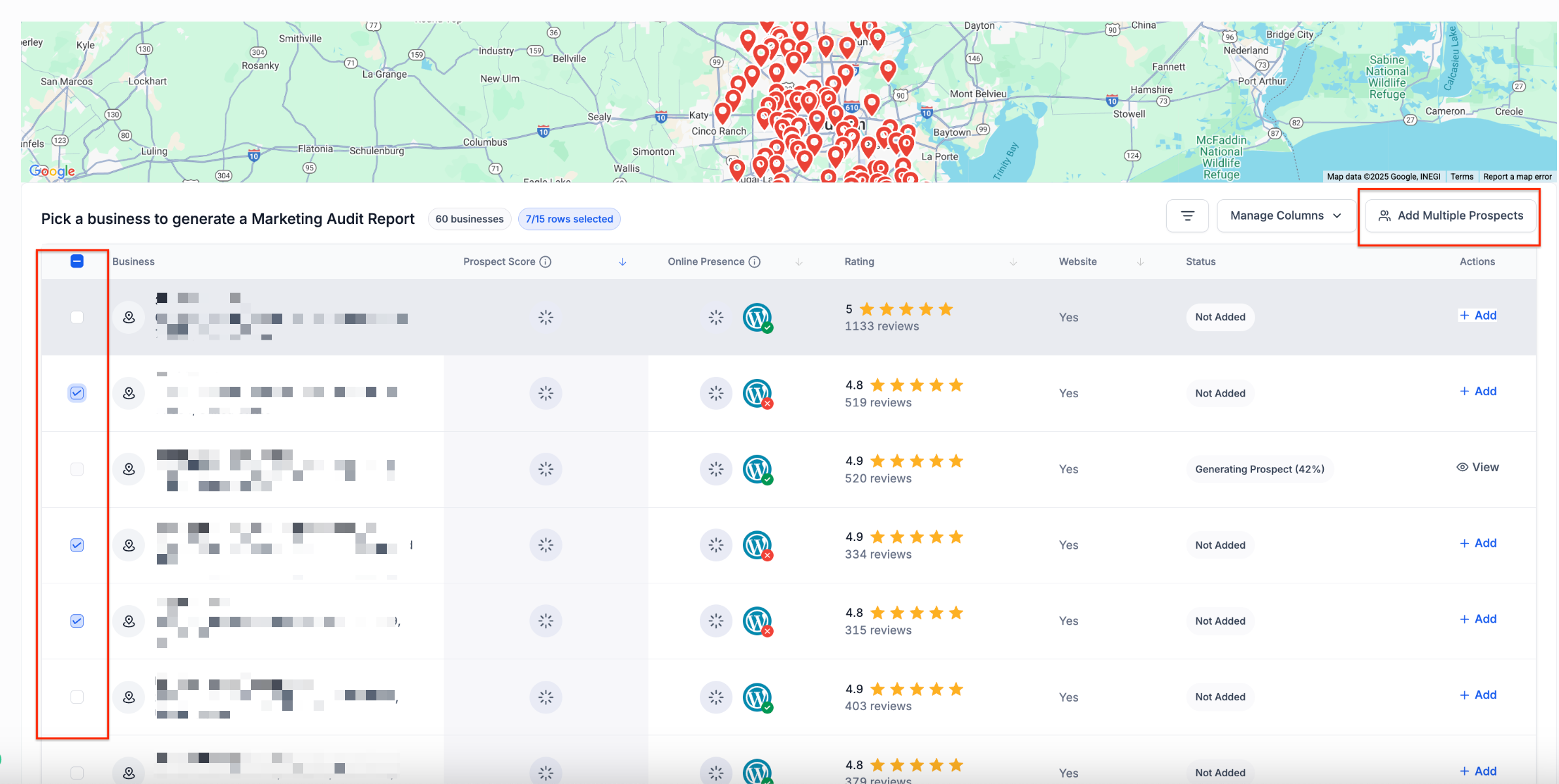
Select up to 15 rows per batch and click Add Multiple Prospects to save them at once.
Selection persists across pages—you can navigate through results, select rows, and save them together.
Use the Select All / Unselect All controls on the current page to move faster while avoiding accidental global deselection.
Sorting & Filtering
Sorting and filters help you prioritize high‑value prospects and quickly spot best‑fit opportunities for outreach.
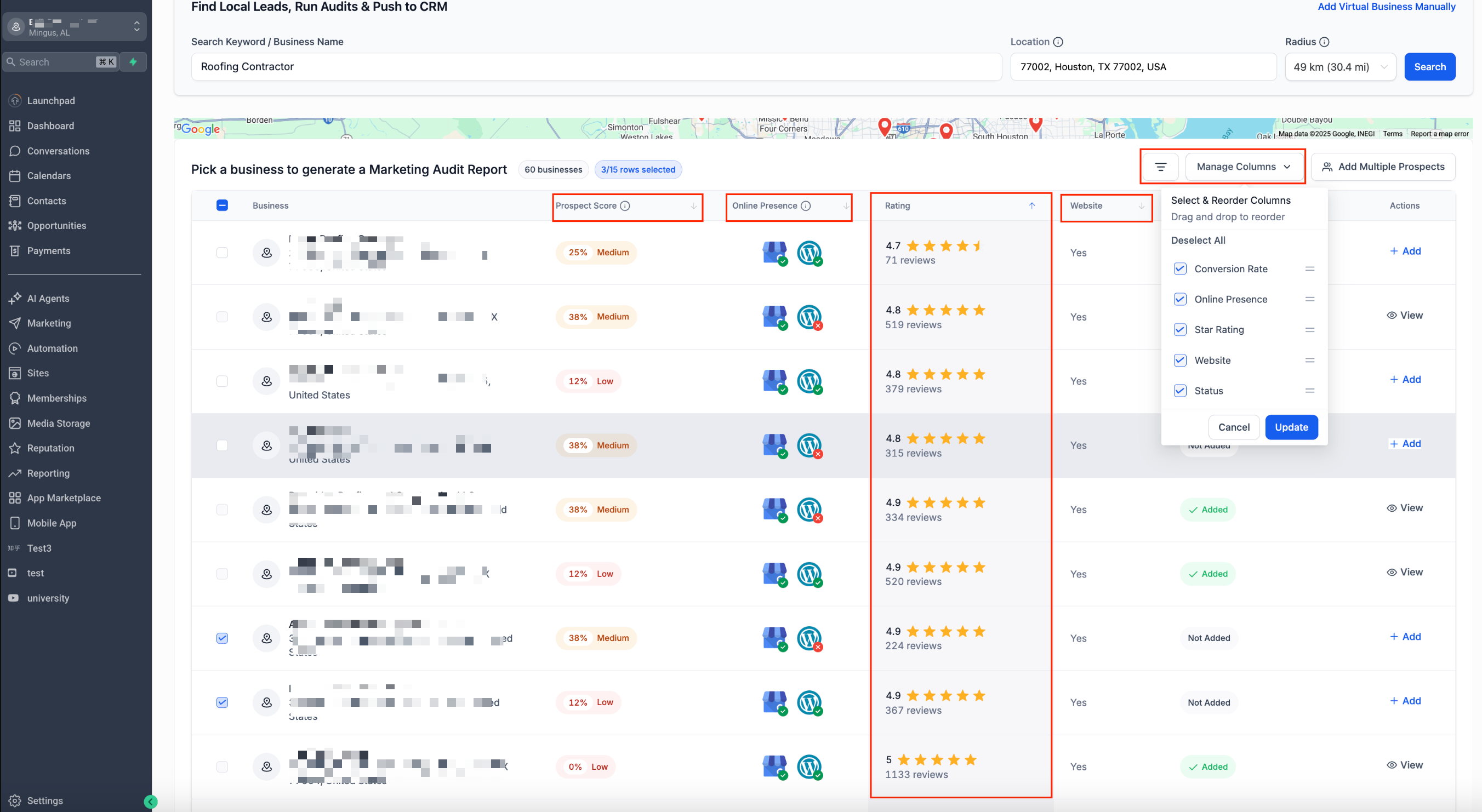
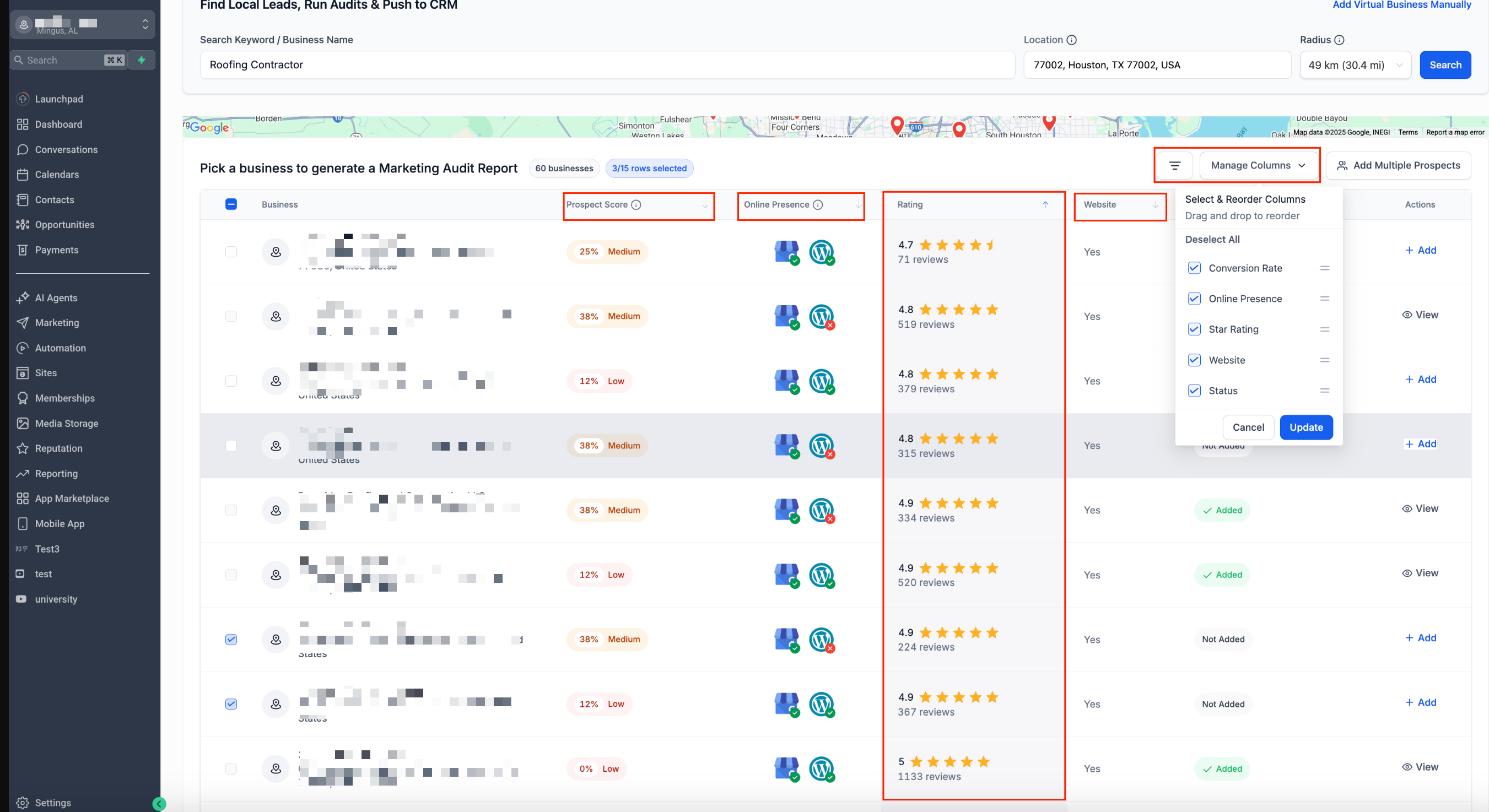
Sort by Prospect Score, Online Presence/GBP, Website (Yes/No), or Google rating/reviews.
Use the filter icon (next to Manage Columns) to refine your view and focus on prospects that meet your criteria.
Customizable Search Layout
Tailoring columns and page density keeps your workflow clean and fast, especially when auditing many leads in one session.
Click Manage Columns to show/hide and reorder fields such as Prospect Score, Online Presence, Website, and Status.
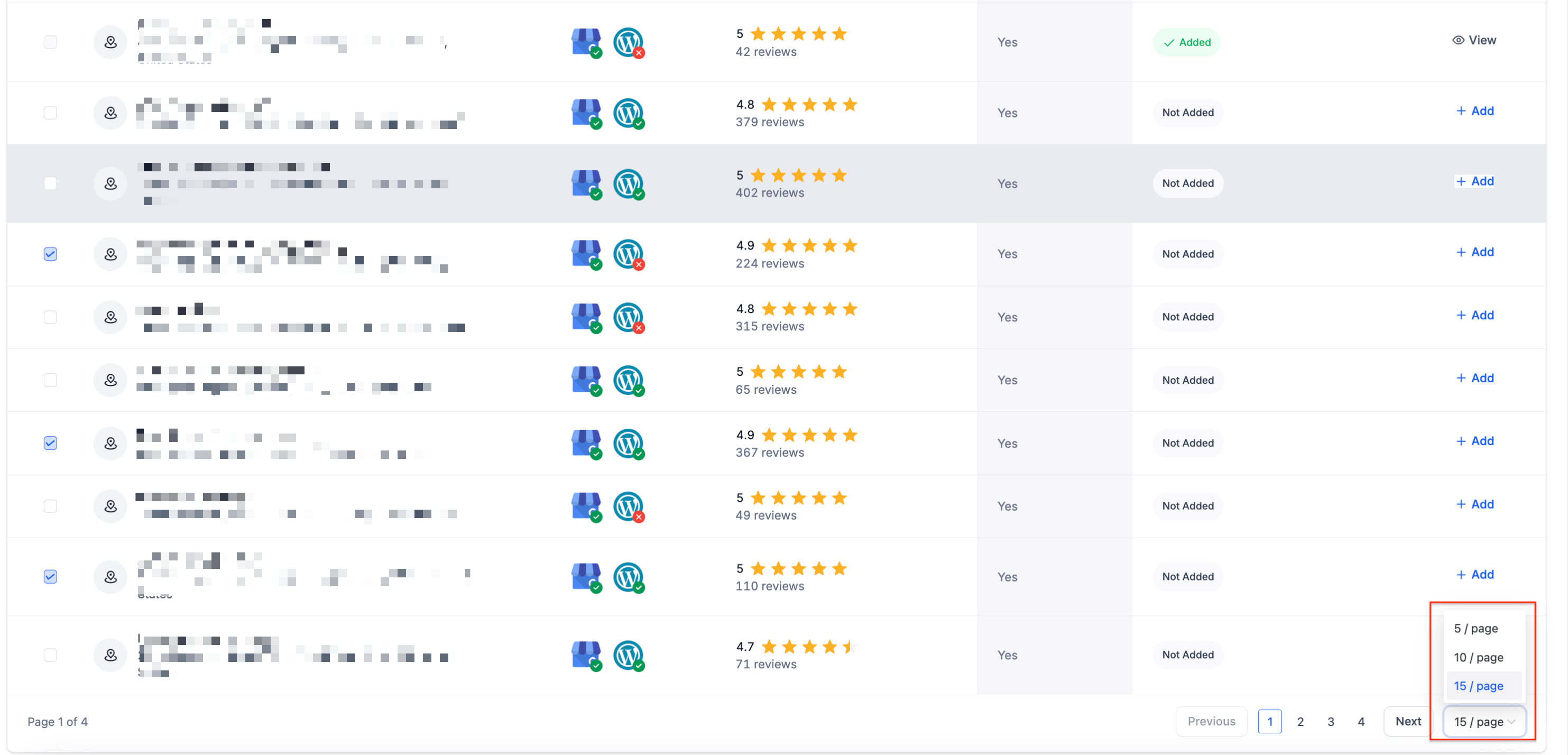
Choose Rows per page: 5, 10, or 15 for faster processing and easier scanning.
Duplicate Detection & Statuses
Statuses reduce confusion and rework. Knowing what each state means helps you avoid duplicates and understand what’s happening after you save.
Not Added: The prospect has not been saved yet.
Added: The prospect was previously saved or has just been added.
Generating Prospect (xx%): The system is preparing the record and its Marketing Audit; progress percentage reflects processing.
The Status column and View action help you confirm whether a business already exists, so you avoid adding duplicates.
Where Saved Prospects Go
Knowing where records land ensures your team can trigger outreach and tracking without hunting for data.
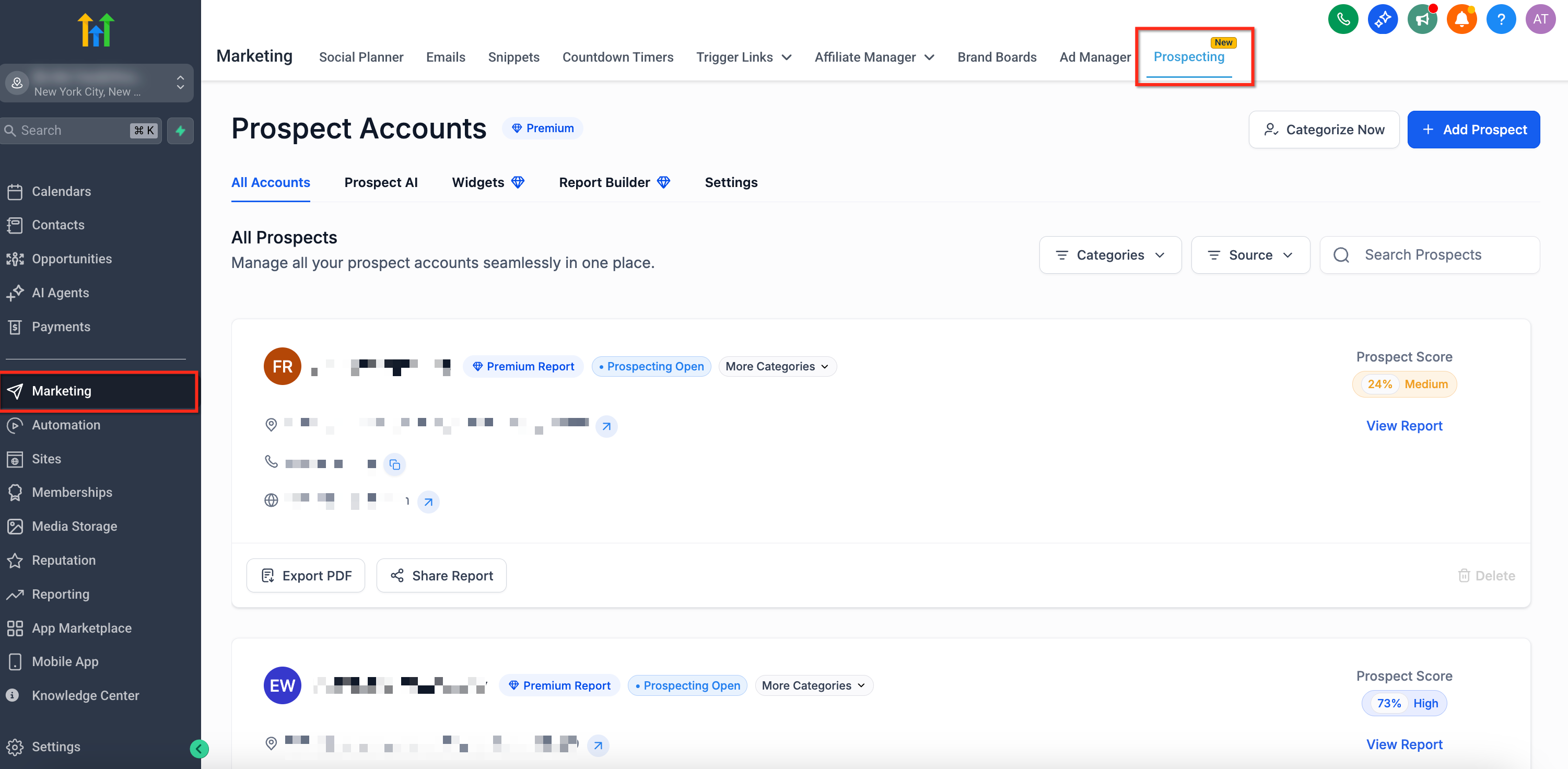
Saved records appear in Prospect Accounts (Agency view) or, if you are in your subaccount, Marketing → Prospecting, and are accessible from the Prospecting Tool.
If Prospecting Premium is enabled and linked to a sub‑account, matching Contacts are created in that sub‑account for automations and outreach.
Open the Marketing Audit Report from the prospect’s row (or the prospect profile) to review website/GBP performance and plan next steps.
Tip: Launch nurture campaigns from the sub‑account once contacts are created. See [How to Reach Out to Prospect Leads Generated via the Prospecting Tool]
How To Set Up Bulk Prospecting
Follow this guided flow to run your first search, evaluate results, and save multiple prospects efficiently.
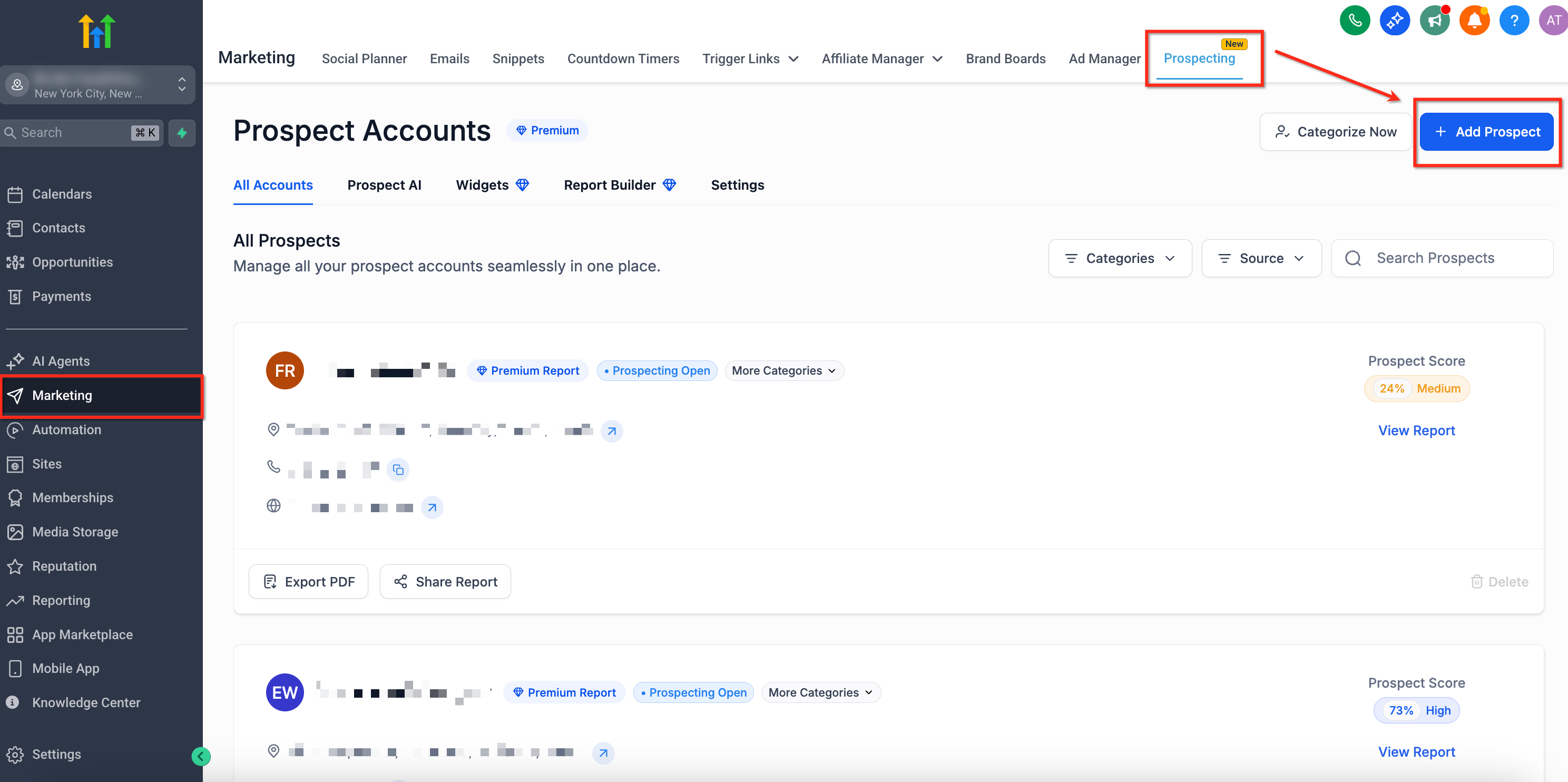
Step 1: Go to the sub‑account: Marketing → Prospecting, and click on Add Prospect.
Step 2: In Search Keyword / Business Name, type an industry (e.g., Dominos) or brand. In Location, enter a city/ZIP, set the Radius (up to ~30 mi / 49 km), then click Search.
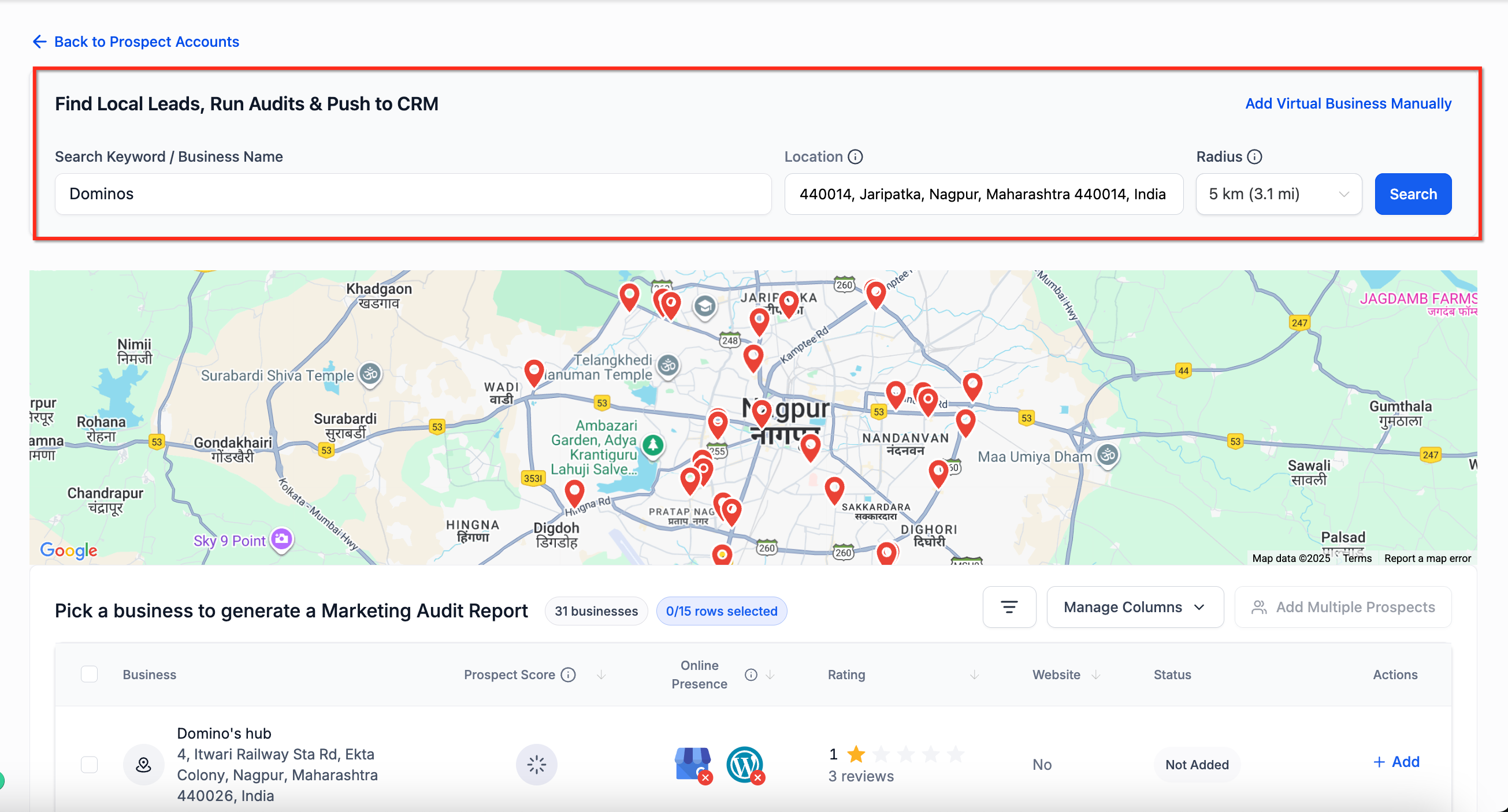
Step 3: Review the results list + map. Use column headers to sort by Prospect Score, Website, or Rating.
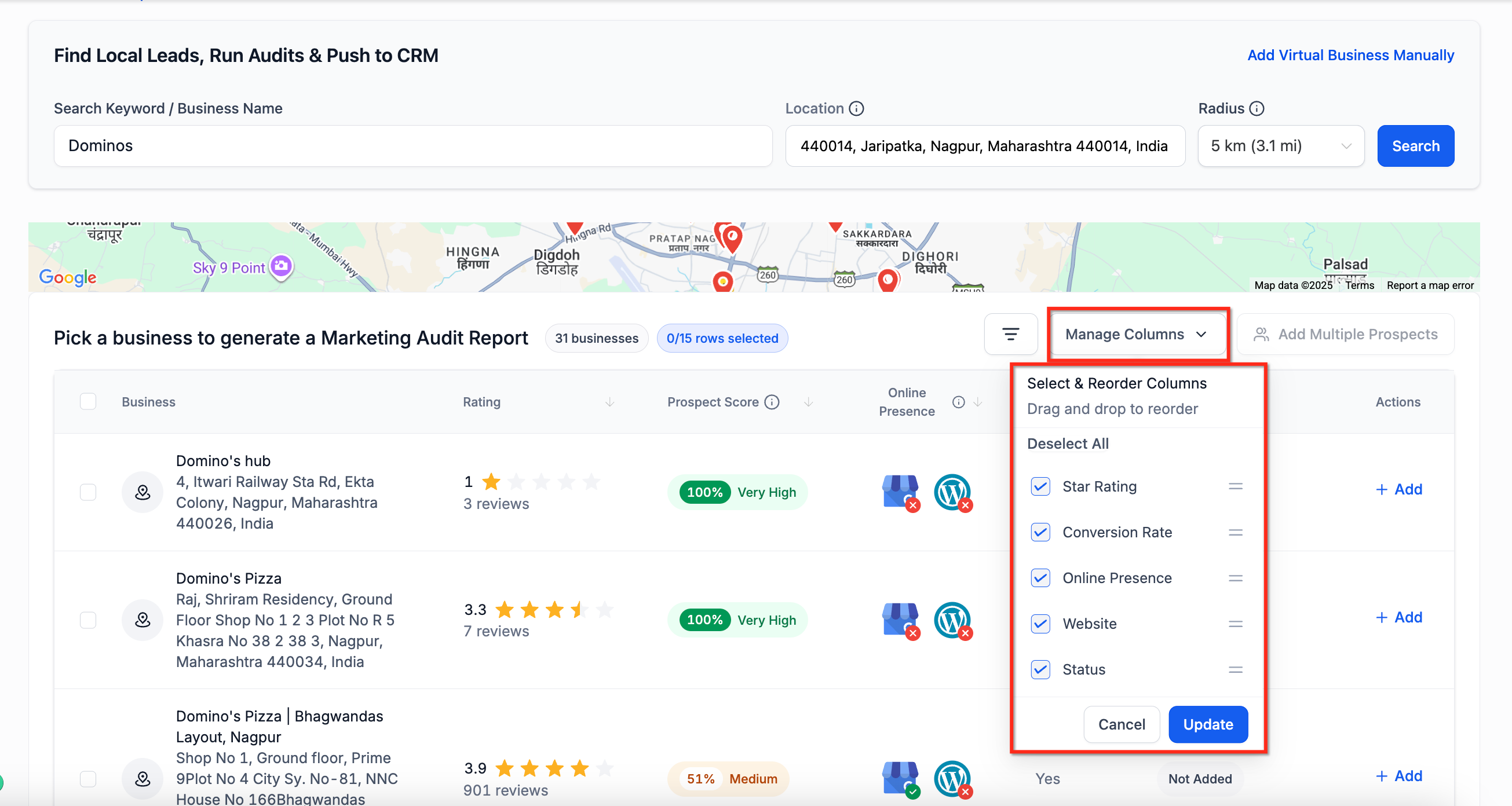
Tip: You can click Manage Columns to show/hide fields; set Rows per page to 15 for faster batching.
Step 4: Select up to 15 rows (selection persists across pages)
Step 5: Click Add Multiple Prospects
IMPORTANT: Watch the Status column for Generating Prospect (xx%), then Added. Click View to open the record and its Marketing Audit Report.Also, if using Prospecting Premium linked to a sub‑account, open Contacts to verify sync and start an outreach workflow.
Tips:

1. If you hit the 60‑lead cap, broaden the radius, tweak keywords (e.g., “roofer” vs “roofing contractor”), or move the center location to search a new area.

2. If near me looks off, check VPN/location settings or type the location explicitly.
Frequently Asked Questions
Q: Why do I only see up to 60 results per search?
The cap is imposed by Google. Run additional searches with different keywords/locations to expand coverage.
Q: How many prospects can I save at once?
Up to 15 per batch. Selection persists across pages until you add them.
Q: What does “Generating Prospect (xx%)” mean?
Chat To Clients CRM is creating the prospect record and preparing the Marketing Audit. It will switch to Added when complete.
Q: How does duplicate detection work?
If a business has already been saved in your account, the Status shows Added. Use View to open the existing record instead of adding it again.
Q: Can I filter to only businesses without a website?
Yes. Sort/filter by the Website column and focus outreach on businesses marked No.
Q: Where can I change the columns I see?
Click Manage Columns to show/hide and reorder fields such as Prospect Score, Online Presence, Website, and Status.
Q: Does “near me” always use my exact location?
It uses IP‑based geolocation, which can be affected by VPNs or office network routing. Enter a specific location if precision matters.