
Workflow Trigger – Association Created
Use the Association Created trigger to start a workflow when a new association links CRM records. Select the associated object and relationship label so the workflow responds to the connections relevant to your process.
TABLE OF CONTENTS
- How to Use the Association Created Workflow Trigger
- What is the Association Created Trigger?
- Supported Records and Workflows
- Before you begin
- Set up the trigger
- Understanding the Trigger Filters
- Example workflows
- Frequently asked questions
How to Use the Association Created Workflow Trigger
Use the Association Created trigger to automatically start workflows when a new association is created between CRM records. Configure the associated object and relationship label to automate follow-ups, notifications, and other actions when Contacts, Opportunities, Custom Objects, or Companies are linked.
Note: This feature is available in Labs. Enable Association Created Trigger for your location before configuring the workflow.
What is the Association Created Trigger?
The Association Created trigger starts a workflow whenever a new relationship between CRM records matches the configured trigger filters.
For example, when a Contact is associated with a Property as a Buyer, the workflow can automatically create a follow-up task or notify the assigned team.
Supported Records and Workflows
| Category | Supported Types |
|---|---|
| CRM Records | Contacts, Opportunities, Custom Objects, and Companies |
| Workflow Types | Standard workflows, Custom Object workflows, and Company workflows |
Note: Opportunities can participate in associations, but the trigger is configured within one of the three supported workflow types.
Before you begin
Enable Association Created Trigger in Labs for the location.
Ensure the required CRM objects and associations are configured.
Create the association labels you want to use for filtering.
Choose the workflow type based on the record that should enroll.
Set up the trigger
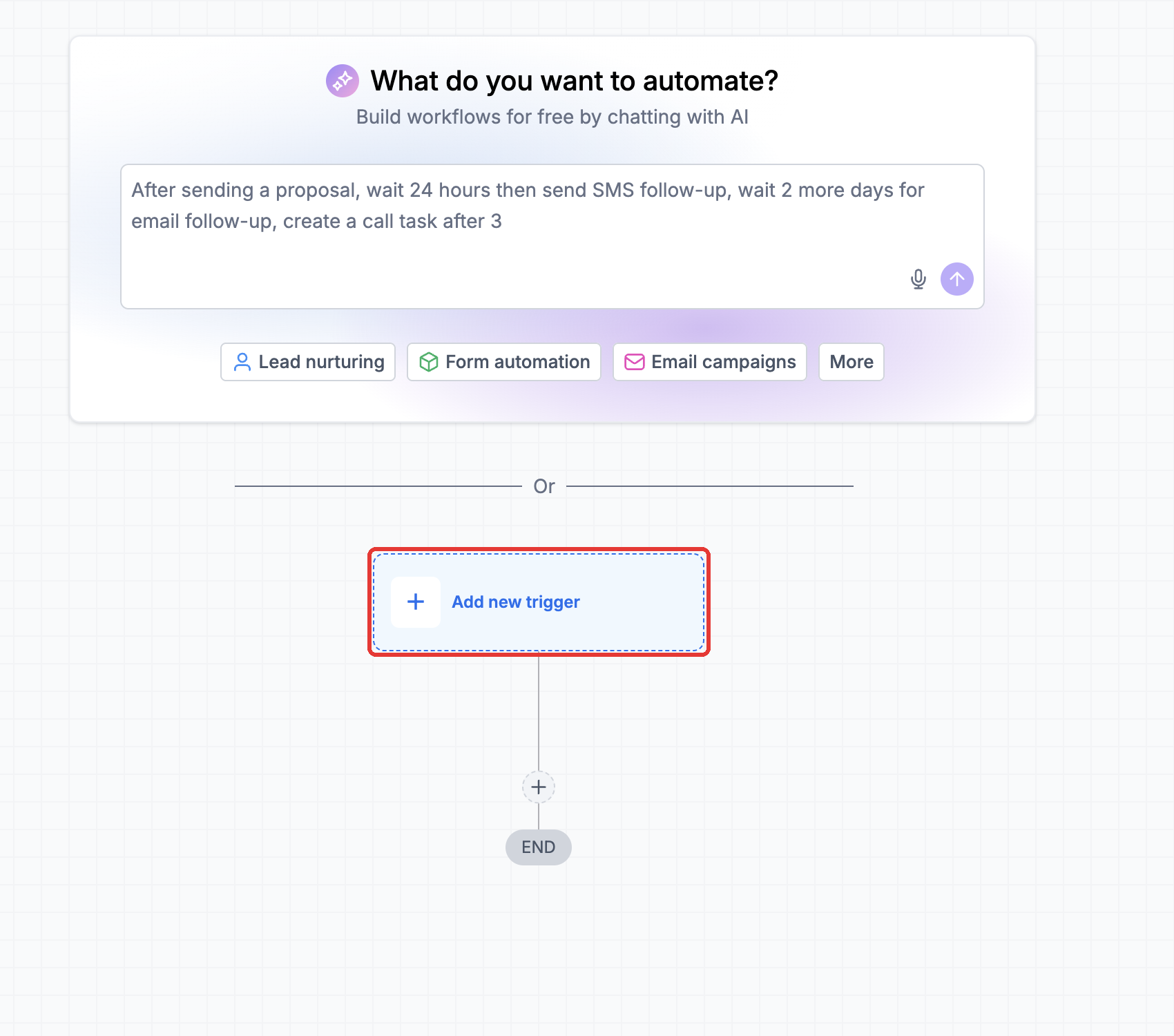
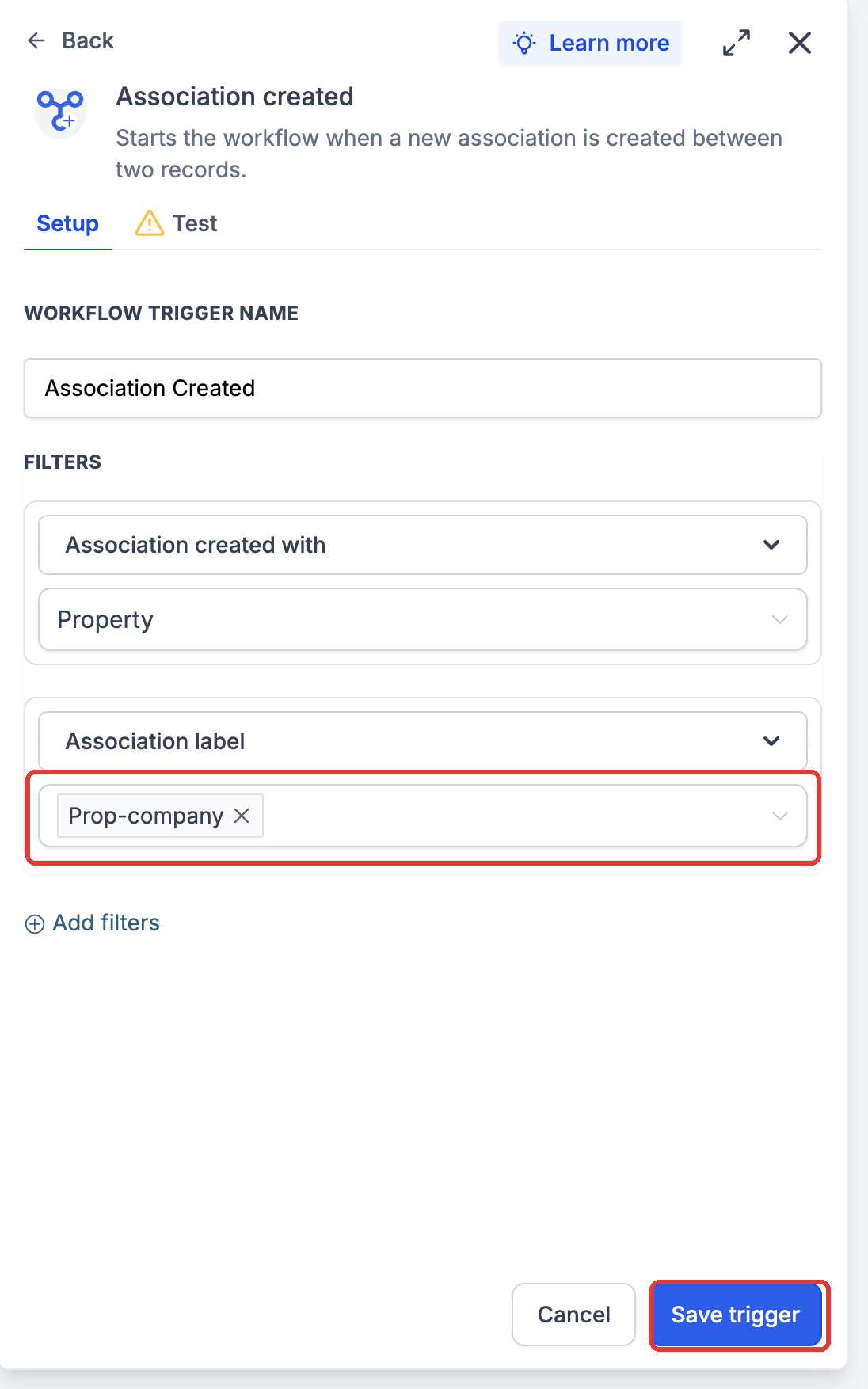
Step 1: In a Company or Custom Object workflow, click Add new trigger.
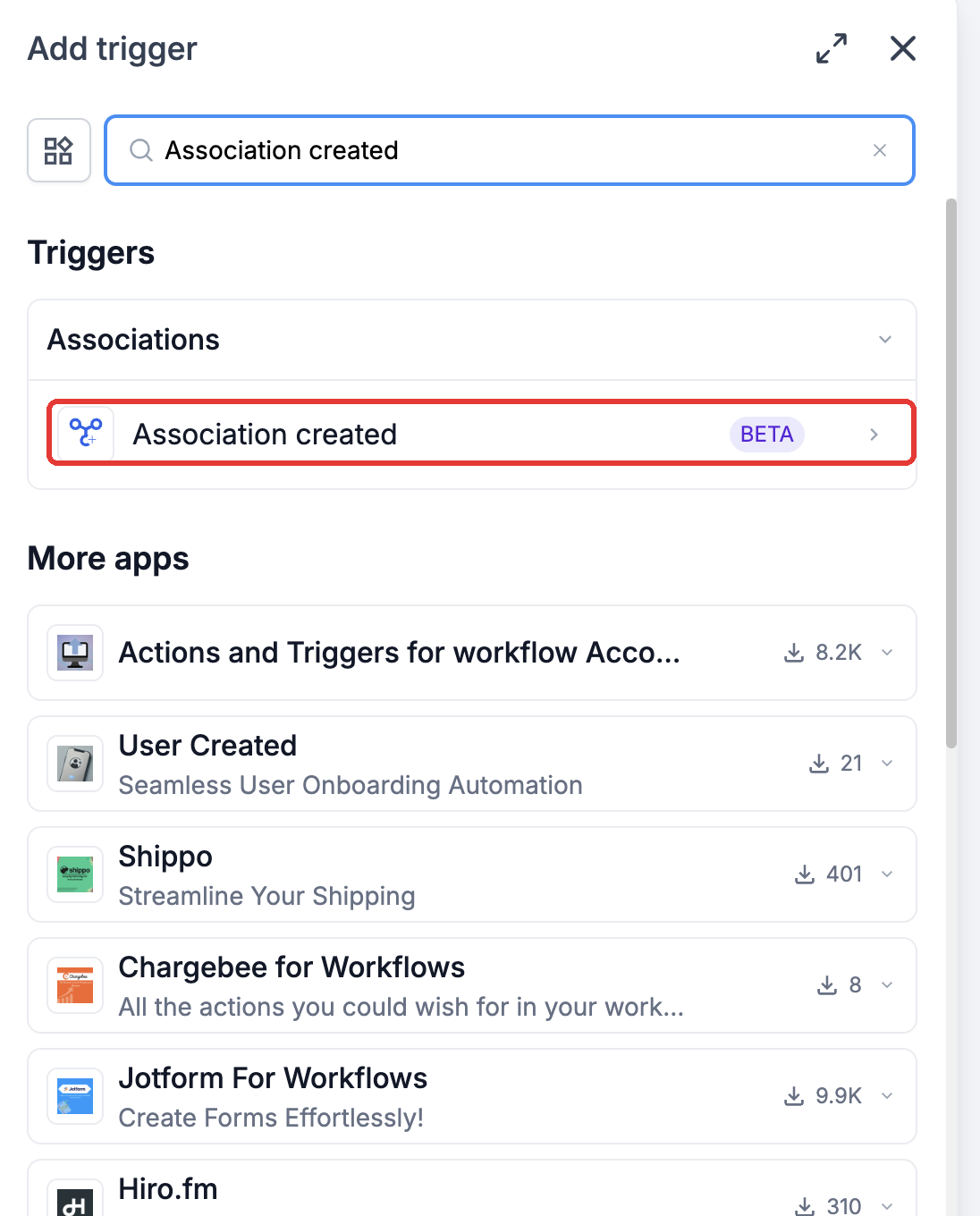
Step 2: Search for and choose Association created.
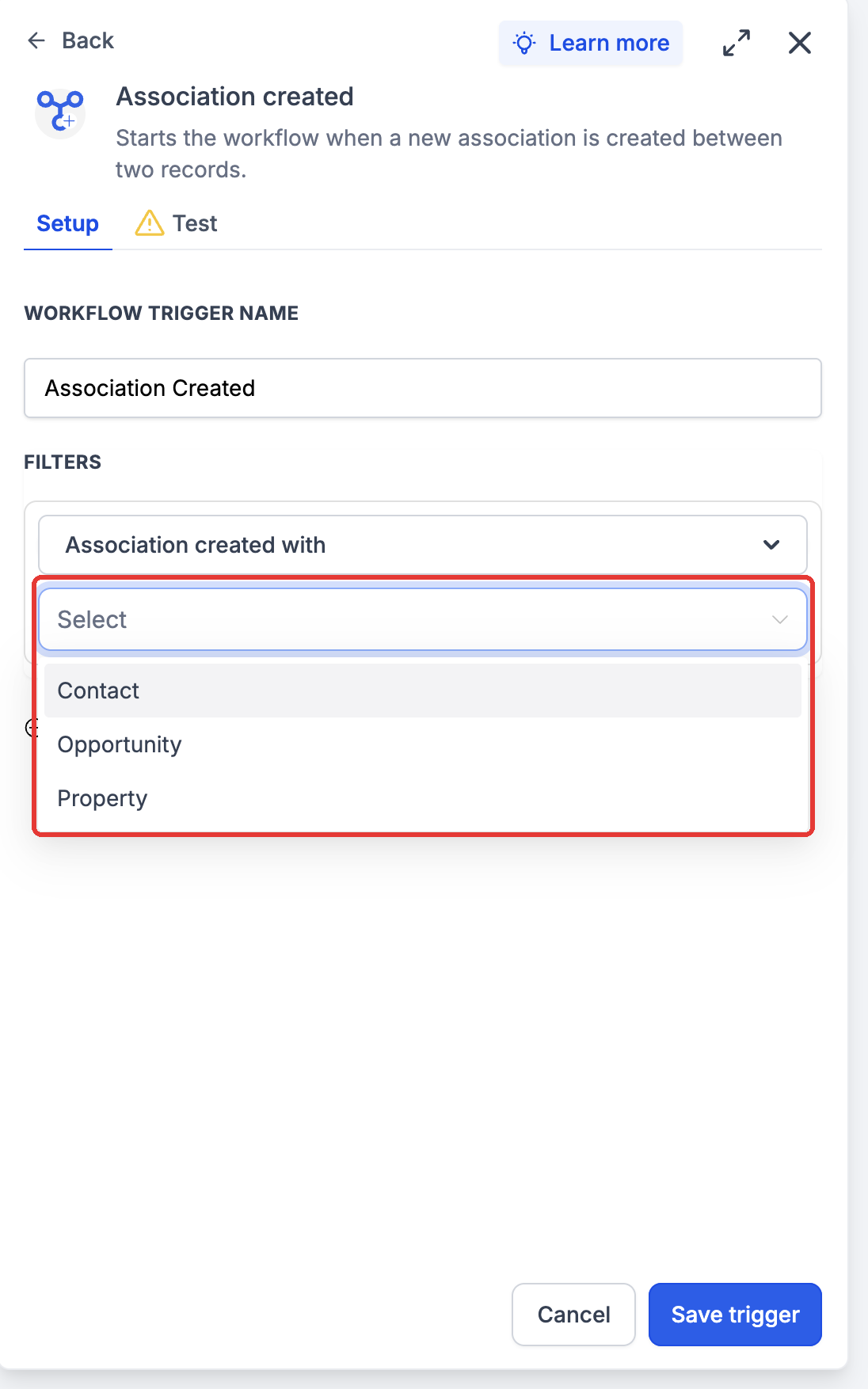
Step 3: Under Association created with, choose the associated object.
Step 4: Click Add filters to add an Association label filter.
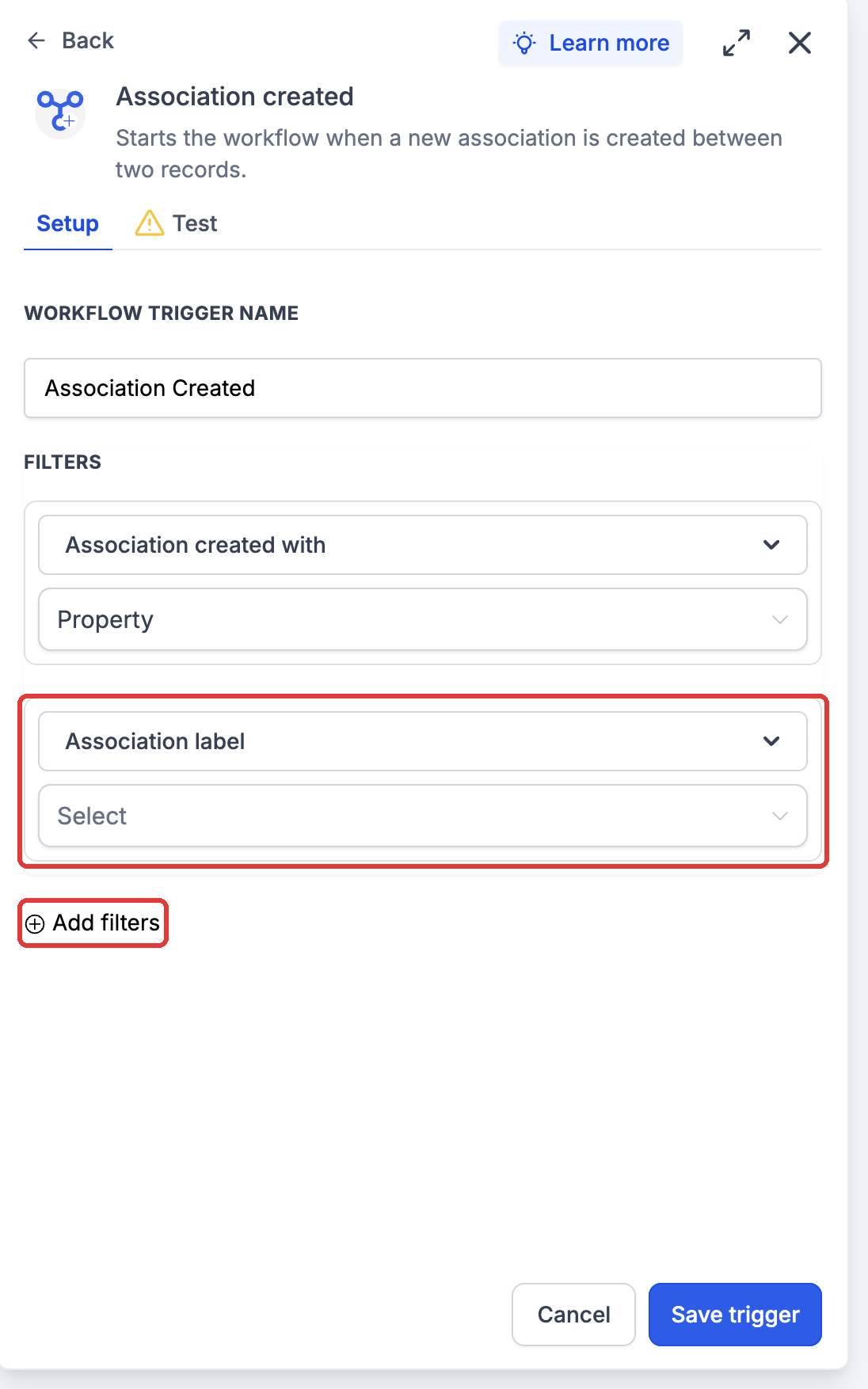
Step 5: Choose the label, then click Save trigger.
- Go to Automation > Workflows and open a standard workflow, Custom Object workflow, or Company workflow.
- In the builder, choose Add trigger and select Association Created.
- Click Add filters. Set Association created with to the object involved in the new association.
- Click Add filters again and select Association label when the workflow should respond to a particular relationship. Choose the relevant label. For paired labels within the same object type, select the role that should enrol.
- Save the trigger and configure the actions for your process.
- Publish the workflow. Create a new association that matches the configuration, then check Enrollment history and Execution logs to verify the result.
Understanding the Trigger Filters
The Association Created trigger provides two filters to control when a workflow starts.
| Filter | Description | Example |
|---|---|---|
| Association created with | Specifies the object being linked to the workflow record. | Select Property when a Contact is associated with a Property. |
| Association label | Restricts the trigger to a specific relationship. | Select Buyer to trigger only when a Contact is linked as a buyer. |
Example workflows
1. Contact linked to a Property
A real estate team uses a Properties Custom Object and a Buyer association label. In a standard workflow, select Properties as the associated object and Buyer as the label. When a Contact is linked as a buyer, use the workflow to create a follow-up task or notify the team.
2. New relationship on a Custom Object record
A dealership uses Cars and Dealers as Custom Objects. In a Cars workflow, select Dealers and the Assigned Dealer label. When a Car is linked to a Dealer using that relationship, run the actions that coordinate the assignment.
3. Opportunity linked to a Company
An account team wants to respond when an Opportunity is associated with a Company. In a Company workflow, select Opportunities as the associated object and the relevant label, then configure an internal notification or another supported action for the account team.
Frequently asked questions
Q: Does the Association Created trigger create an association?
No. The trigger responds when an association is created between CRM records. It does not create the association itself.
Q: Is creating a record the same as creating an association?
No. Creating a CRM record and establishing an association are separate events. The trigger responds when the relationship is created.
Q: Can Opportunities be used with this trigger?
Yes. Opportunities can participate in associations. The trigger is available in standard, Custom Object, and Company workflows.
Q: Is the Association label filter required?
No. The label filter is optional. Use it when the workflow should respond only to specific relationship types.
Q: Why can't I find an association label?
Available labels depend on the associations configured for the selected objects. Ensure the required association and label exist.
Q: Does the trigger run for existing associations?
The trigger responds to newly created associations. Create a new matching association to test the workflow.
Q: How can I troubleshoot a workflow that does not enroll records?
Verify that the workflow is published, the selected object and association label match the new relationship, and the feature is enabled in Labs. Review Enrollment history and Execution logs for additional details.