
Multilingual Prospect Report Sharing (Prospecting Tool)
Build trust with prospects by sharing your Marketing Audit Report in their preferred language. This article shows how to share Marketing Audit Reports in different languages and how prospects can switch to their preferred language after sending.
TABLE OF CONTENTS
What is Multilingual Prospect Report Sharing?
Multilingual Prospect Report Sharing localizes the web version of the Marketing Audit Report in the Prospecting Tool. Agencies and Sub-Accounts can select a language when generating a share link (or sending via Email/SMS), and prospects can also change the language from a dropdown on the report page.
This improves clarity for non-English audiences and strengthens their engagement. Multilingual Prospect Report Sharing works from both the agency and sub-account level!
Note: Multilingual Prospect Report Sharing is available for web-reports only (not for PDF exports).Key Benefits of Multilingual Prospect Report Sharing
Understanding the advantages helps you decide where multilingual reports fit in your prospecting process!
Faster Understanding: Prospects read key insights in their own language, reducing confusion and follow-up time.
Higher Conversion: Localized reports build credibility and increases response rates.
Flexible Sharing: Choose language at share-time and prospects can still switch on-page if needed.
Omni-Channel Friendly: Links shared via Email/SMS open in the language you selected.
Reduced Support Needs: Fewer clarification requests from non-English prospects, saving time for sales and support teams.
Supported Languages
Knowing what’s available helps you plan outreach to specific markets and set expectations with clients and sales teams. Supported languages are:
- English
- German
- Spanish
- French
- French (Canadian)
- Italian
- Dutch
- Danish
- Norwegian
- Finnish
- Swedish
- Portuguese (Brazil)
- Portuguese (Portugal)
How to Select Language at Share-Time
Selecting a language before you share ensures recipients land on the web report in the right language, while still allowing them to switch later if needed.
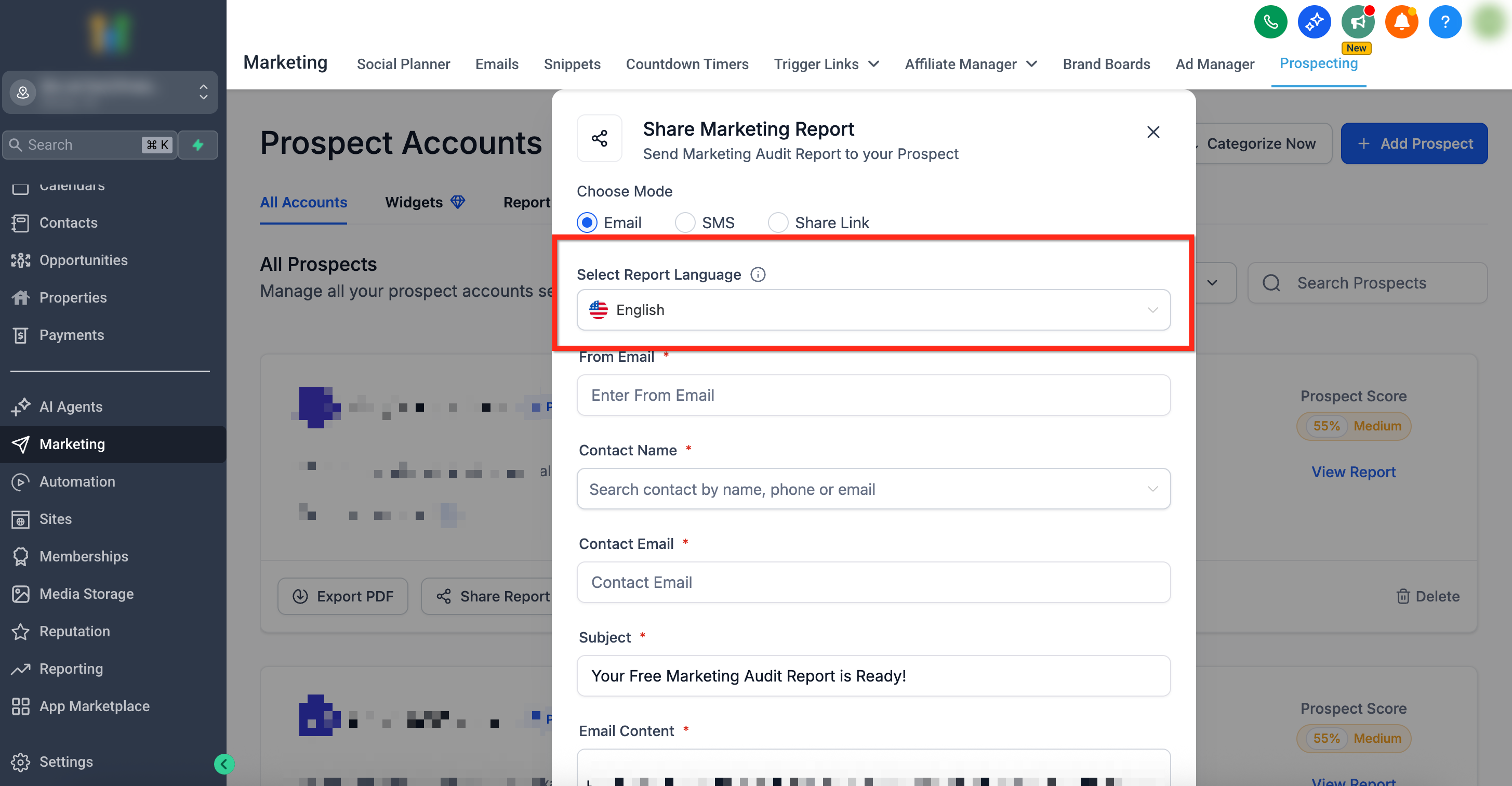
Go to Marketing → Prospecting Tool and locate or generate marketing audit report for the desired prospect.
Click Share Report.
Choose your channel: Email, SMS, or Share Link.
Set Select Report Language to the language you want the recipient to see first.
Complete sending details then send the report or copy and share the link.
Prospect-Side Language Switching
Allow prospects to switch languages themselves on the web report so teams with different preferences can view insights comfortably.
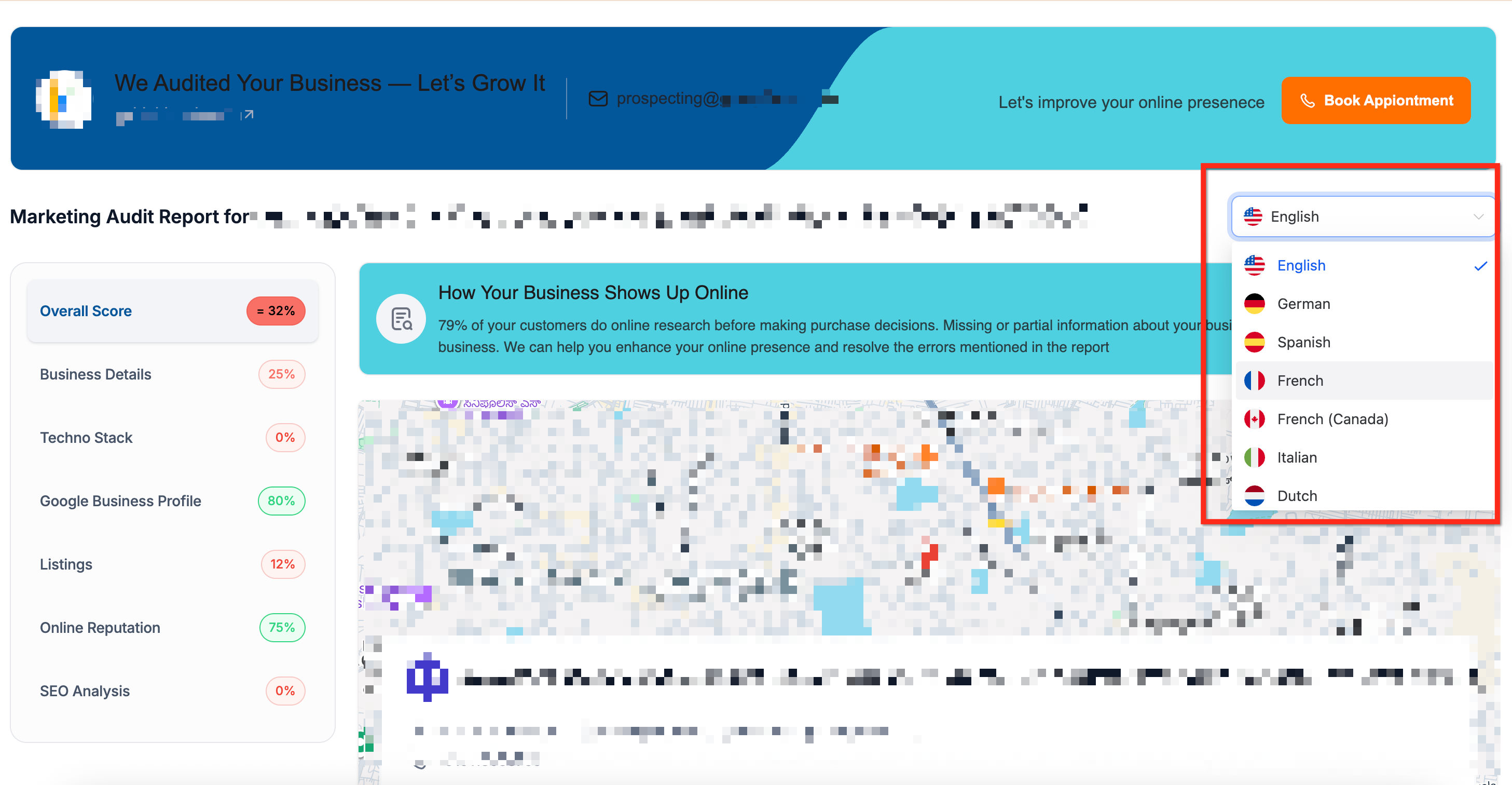
Open the shared web report link.
At the top-right of the page, select a language from the dropdown.
The report updates immediately in the chosen language.
Frequently Asked Questions
Q: Does this work on PDF exports?
Not yet. Multilingual support currently applies to web reports. Multi-language support for PDFs is planned.
Q: Can I change the language after I’ve already sent the link?
The recipient can change languages on the public report using the language dropdown without needing a new link.
Q: Which parts of the report are translated?
System labels and UI text are localized. Business data you enter (e.g., names, addresses, custom notes) remains as entered.
Q: Do Email/SMS messages get translated automatically?
No. The report is localized; your email/SMS copy is not. Write the message in the recipient’s preferred language.
Q: Is this available at both Agency and Sub-Account levels?
Yes. You can select the report language when sharing from either level.
Q: What happens if I’m unsure of the recipient’s language?
Choose the most likely language at share-time and note that the viewer can switch languages on the report page.