
Cancellation for reselling subscriptions: In-app
Chat To Clients CRM’s In-App Cancellation for Reselling Subscriptions lets subaccount users review and cancel add-on product subscriptions directly from Settings → Billing → Subscriptions. The unified experience provides clear plan details and a guided unsubscribe flow with timing options, reducing dependency on agency-only controls and speeding up subscription management.
TABLE OF CONTENTS
- What is In-App Cancellation for Reselling Subscriptions?
- Key Benefits of In-App Cancellation for Reselling Subscriptions
- Prerequisites & Access
- View Subscription Details
- How To Set Up In-App Cancellation for Reselling Subscriptions
- Frequently Asked Questions
What is In-App Cancellation for Reselling Subscriptions?
This capability enables users working inside a subaccount to view the add-ons they’re subscribed to (e.g., WhatsApp, Listings, WordPress, AI tools) and cancel those resold Marketplace subscriptions from the same Billing area where they manage payments and wallet transactions. The experience mirrors agency-side controls but is purpose-built for subaccount access and day-to-day management.
Key Benefits of In-App Cancellation for Reselling Subscriptions
Understanding the advantages helps teams decide when to use subaccount-level cancellation versus contacting the agency. The items below focus on clarity, control, and a consistent experience across add-ons.
Self-service control: subaccount users can cancel eligible add-on subscriptions without agency intervention.
Visibility of details: see Plan, Purchase Type, Status, Purchase Date, and Billing Cycle before taking action.
Unified cancellation flow: a standardized, multi-step unsubscribe modal across products keeps the process predictable.
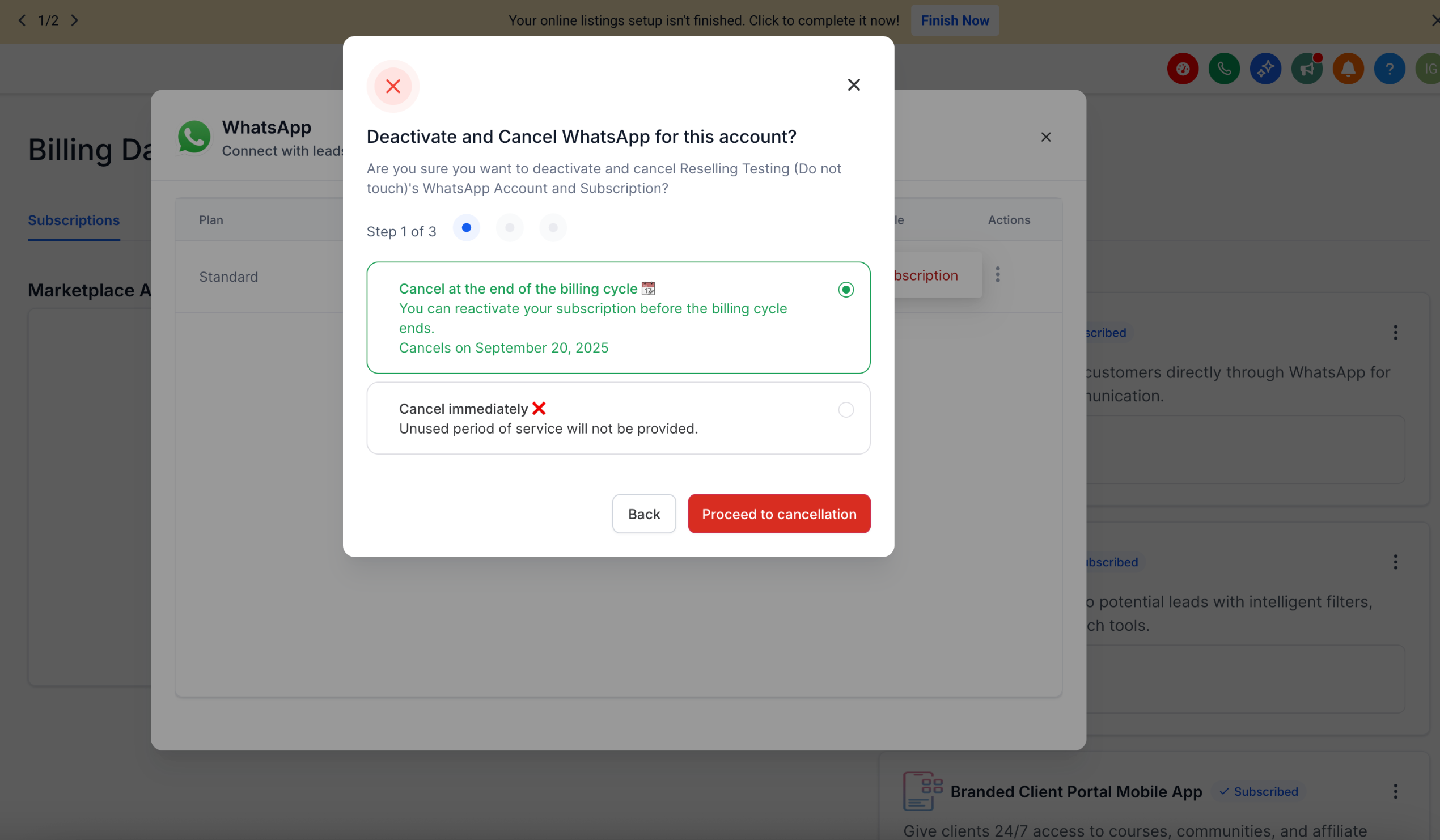
Timing options: choose End of billing cycle (default) or Cancel immediately as appropriate.
Reactivation window: if you select end-of-cycle, you can reactivate before the effective date.
Operational efficiency: fewer back-and-forth requests between subaccounts and agencies.
Prerequisites & Access
Successful cancellation depends on being in the correct workspace and having access to the Billing area. Confirm the items below to avoid confusion or missing controls.
You’re working inside the target subaccount (left sidebar breadcrumb shows the subaccount name).
You have permission to open Settings → Billing in that subaccount.
The subscription you want to manage is a resold add-on that appears under Add-On Products on the Billing Dashboard.Scope note: This article covers Reselling Subscriptions (add-ons), not the core SaaS plan.
IMPORTANT:This article covers Reselling Subscriptions (add-ons), not the core SaaS plan.
View Subscription Details
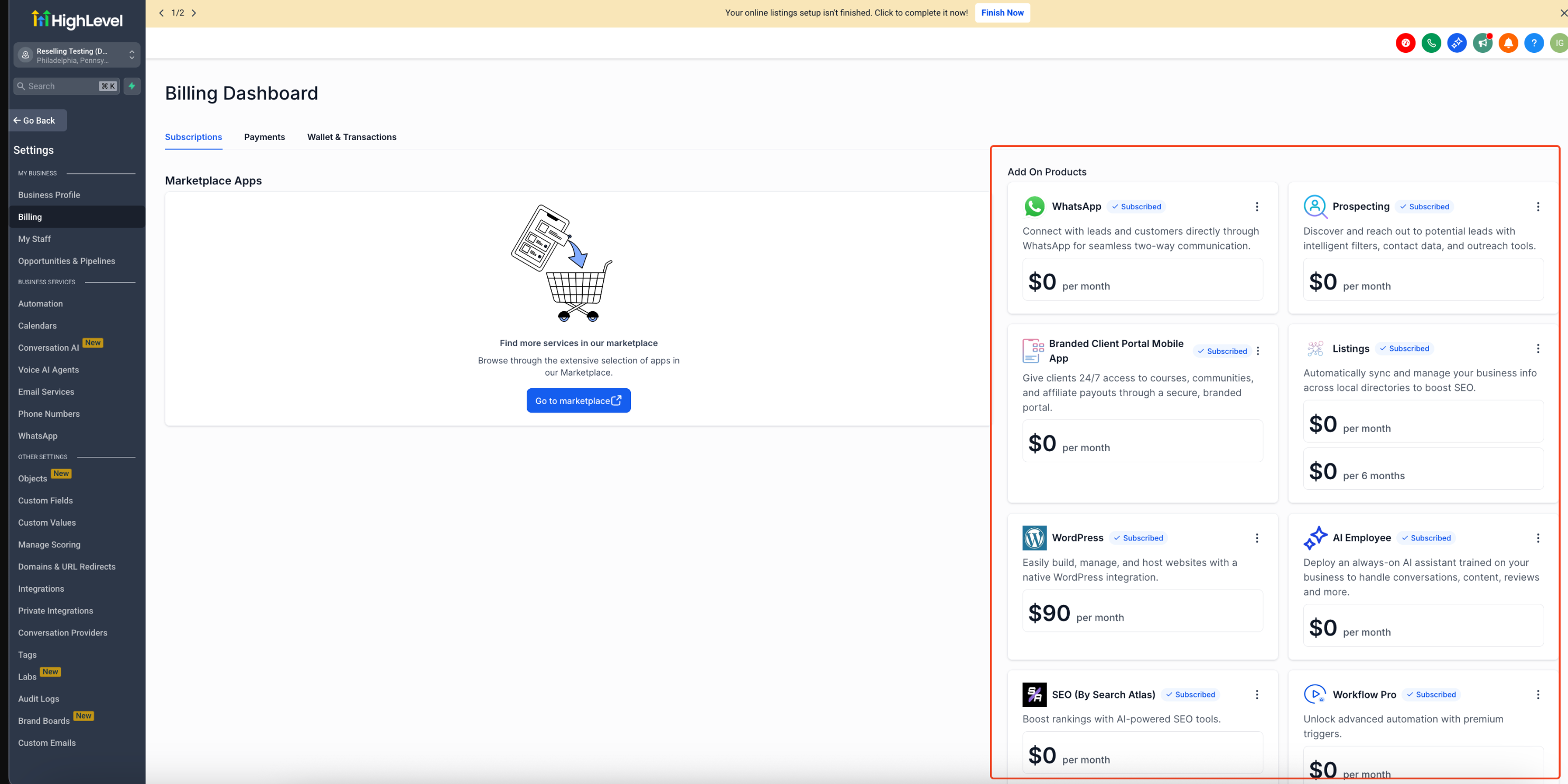
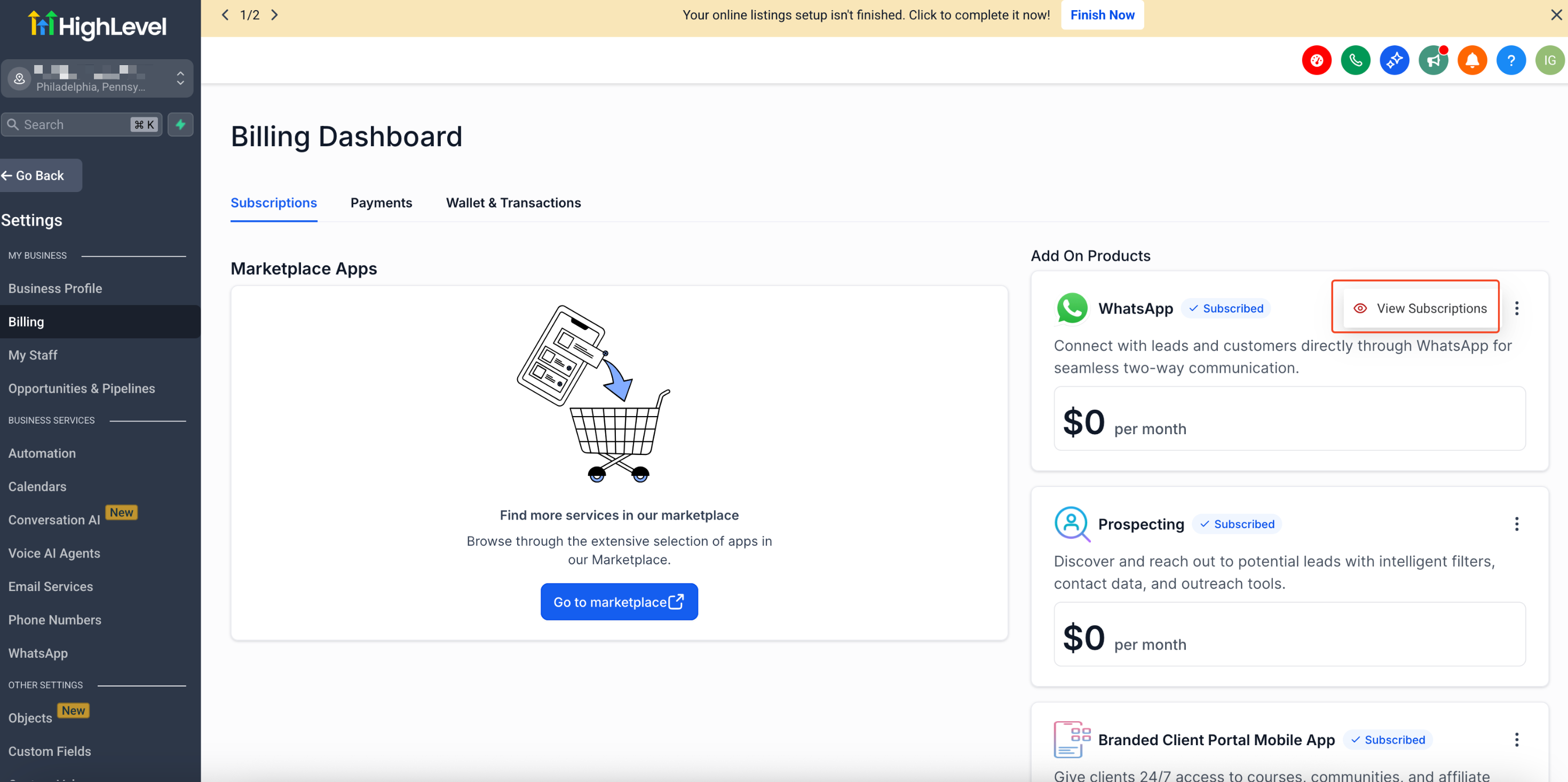
Reviewing subscription details first helps you pick the right timing option and verify you’re canceling the intended plan, especially when multiple add-ons are active. Navigate to Subaccount → Settings → Billing → Subscriptions. In the Add On Products panel, locate the product card and click View Subscriptions.
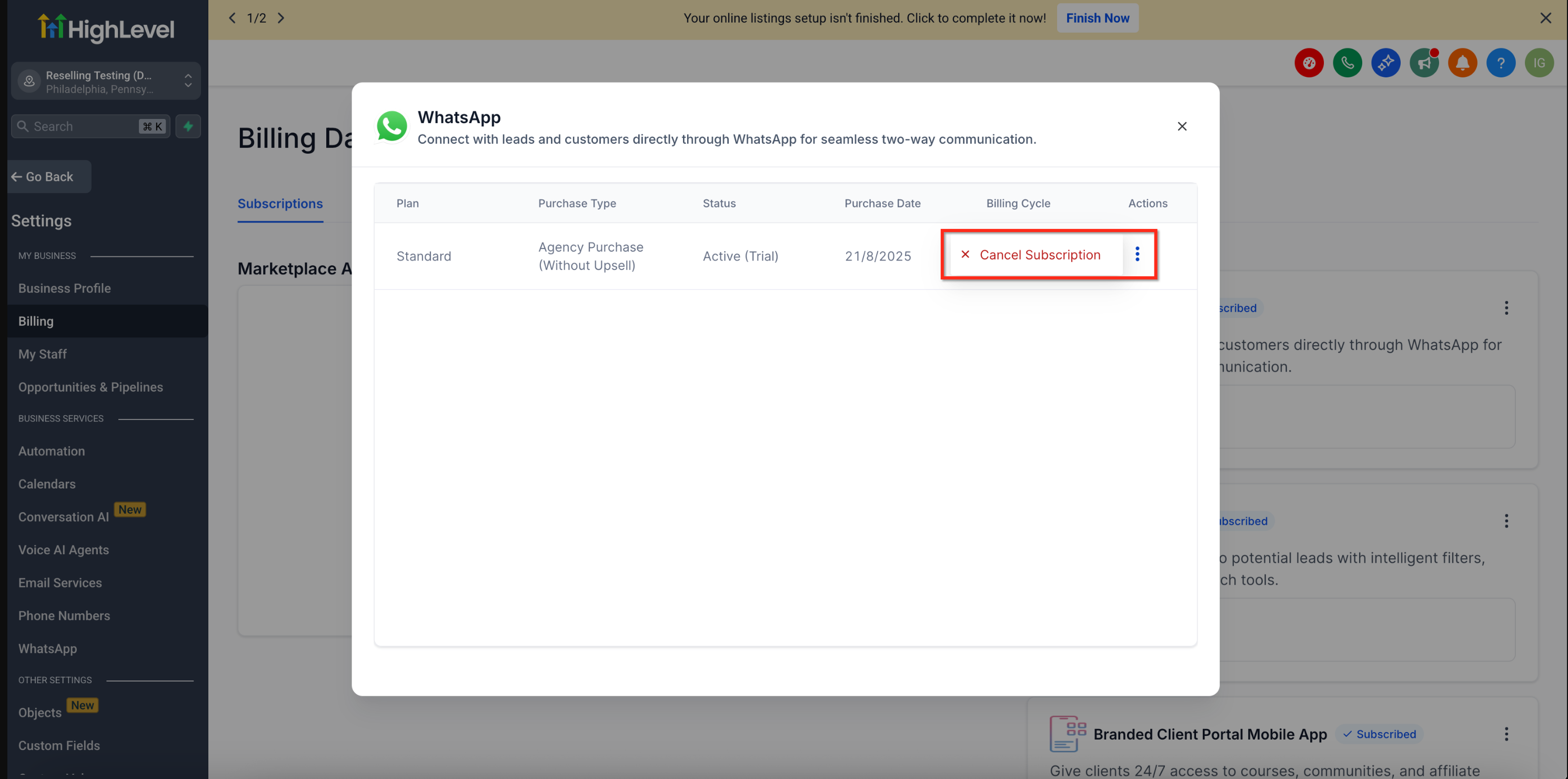
What you’ll see (modal columns):
Plan: the subscribed plan name for the product.
Purchase Type: where/how it was purchased (e.g., “Agency Purchase (Without Upsell)”).
Status: e.g., Active, Active (Trial).
Purchase Date: the date the subscription began.
Billing Cycle: the cadence for renewals.
Actions (⋮): management menu, including Cancel Subscription.
How To Set Up In-App Cancellation for Reselling Subscriptions
No separate configuration is required at the subaccount level—the feature runs where you already manage billing. Use the steps below any time you need to review or cancel a resold add-on.
Step 1: Go to Subaccount Settings → Billing → Subscriptions.
Step 2: On the relevant product card, click View Subscriptions.
Step 3: In the modal, review Plan, Purchase Type, Status, Purchase Date, Billing Cycle. Once reviewed the correct subscription to cancel, Click Actions (⋮) → Cancel Subscription.
Step 4: In the unified modal, choose End of billing cycle (default) or Cancel immediately, then Proceed to cancellation. Complete the remaining confirmation steps until you see success feedback.
Frequently Asked Questions
Q. Who can cancel resold add-on subscriptions now?
A. Both agency users (from Agency Billing) and subaccount users (from Subaccount Billing) can cancel supported add-ons. This article focuses on the subaccount flow.
Q. Will I be charged again after I cancel?
A. If you select End of billing cycle, billing stops on the effective date shown in the modal. If you cancel immediately, the subscription stops right away, and unused period of service will not be provided.
Q. Can I undo a cancellation?
A. If you chose End of billing cycle, you can reactivate before the effective date from the same area where you initiated cancellation (if the option is available for that add-on).
Q. Why don’t I see the Cancel option?
A. Confirm you are in the correct subaccount, have Billing access, and are looking at an eligible add-on. Some add-ons or billing sources may not support in-app cancellation.
Q. What’s the difference between SaaS plan cancellation and add-on cancellation?
A. SaaS plan covers the core subaccount subscription and is managed via SaaS tools; add-ons are resold Marketplace products managed from Subaccount Billing → Subscriptions.
Q. Do product-specific rules still apply?
A. The unified unsubscribe modal governs timing and confirmation. Some products may have extra considerations (e.g., usage-based charges that settle after cancel).