
Workflow Action - AI Translate
This article will guide you through using the AI Translate action in your workflows. You'll learn how to automatically translate text from a source language to a target language, making it easier to personalize communication for a global audience.
What is the "AI Translate" Workflow Action?
"AI Translate" action is a powerful action within the workflow builder that allows you to translate any given text from one language to another. By integrating this action, you can automate multilingual communications. For instance, you can take an incoming message in one language, translate it, and then use that translated text in a subsequent action, like an email, SMS, or internal notification. This ensures contacts receive messages in their preferred language, enhancing customer experience.
How to Set Up the "AI Translate" Workflow Action
Follow these steps to configure the action in your workflow.
Step 1: Add the "Translate Content" Action
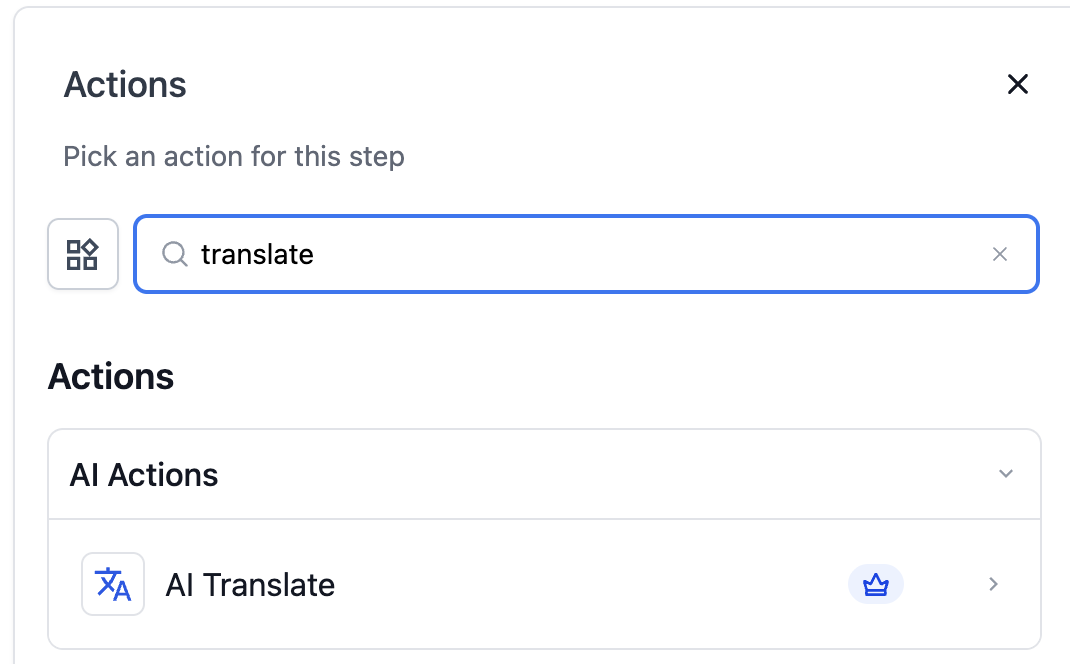
Navigate to your workflow builder and search for "Translate" in the actions menu. Add it to your workflow at the point where you want to translate content.
Step 2: Configure Settings
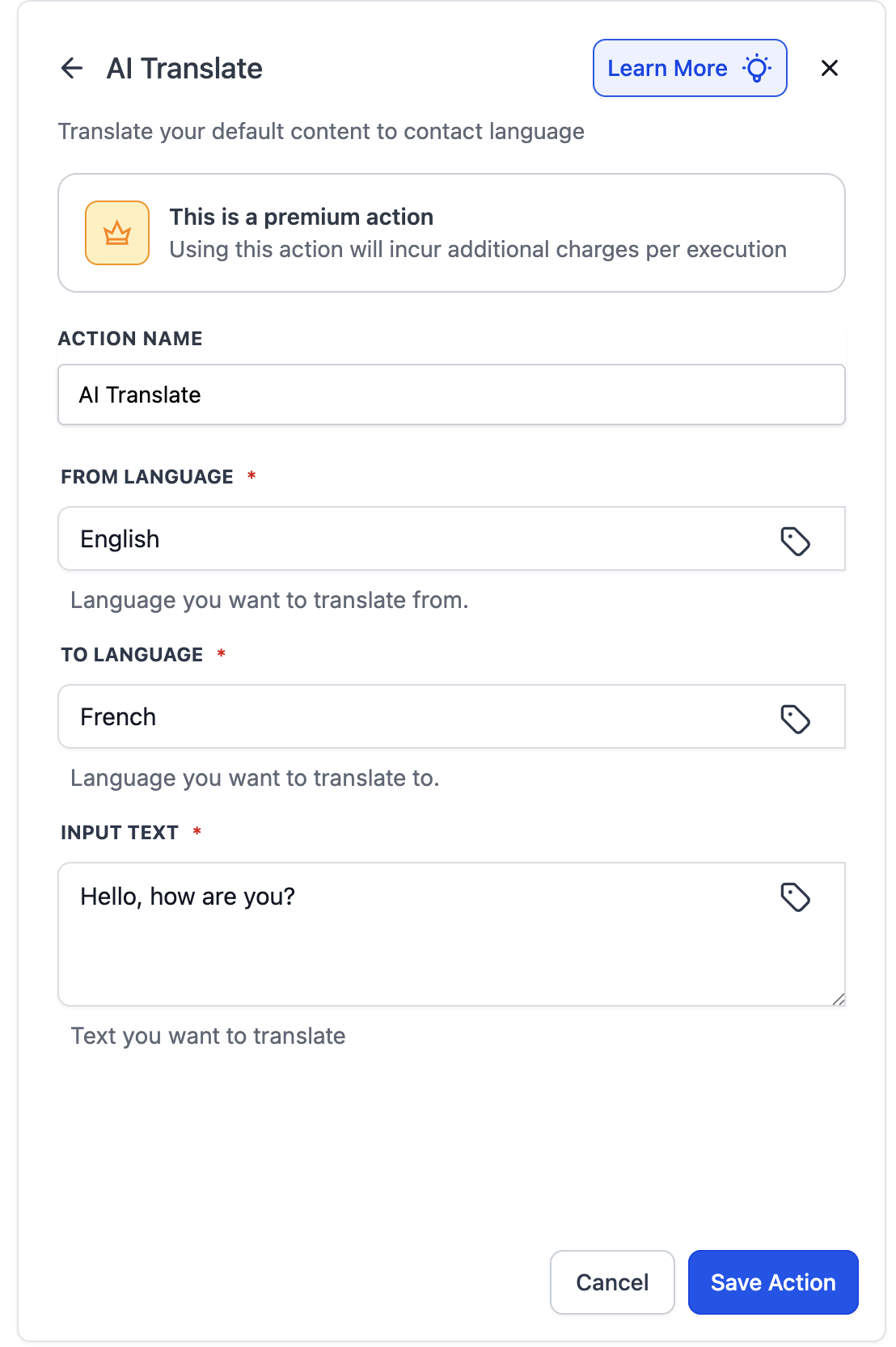
1. Action name: Give your action a descriptive name (e.g., "Translate Welcome Email to Spanish")
2. Select the 'From' Language:
Input the source language of the text you want to translate. This is the language your original text is written in. (e.g., "English")
3. Select the 'To' Language:
Input the target language. This is the language you want the text to be converted into. (e.g., "French")
4. Input Text
In the Input Text field, enter the content you want to translate. You have two options:
Static Value: Type the text directly into the field.
Custom Variables: Use the tag icon to insert dynamic data from a contact's profile or a previous workflow step.
Once configured, click Save Action to add it to your workflow.
Using the output
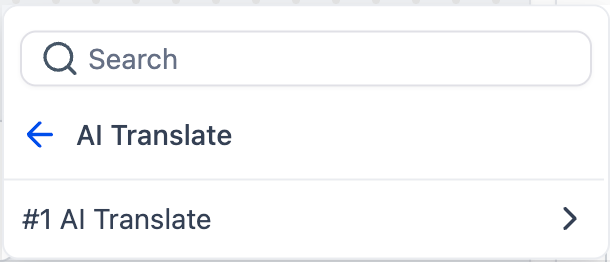
After configuration, the translated text is available as a custom variable: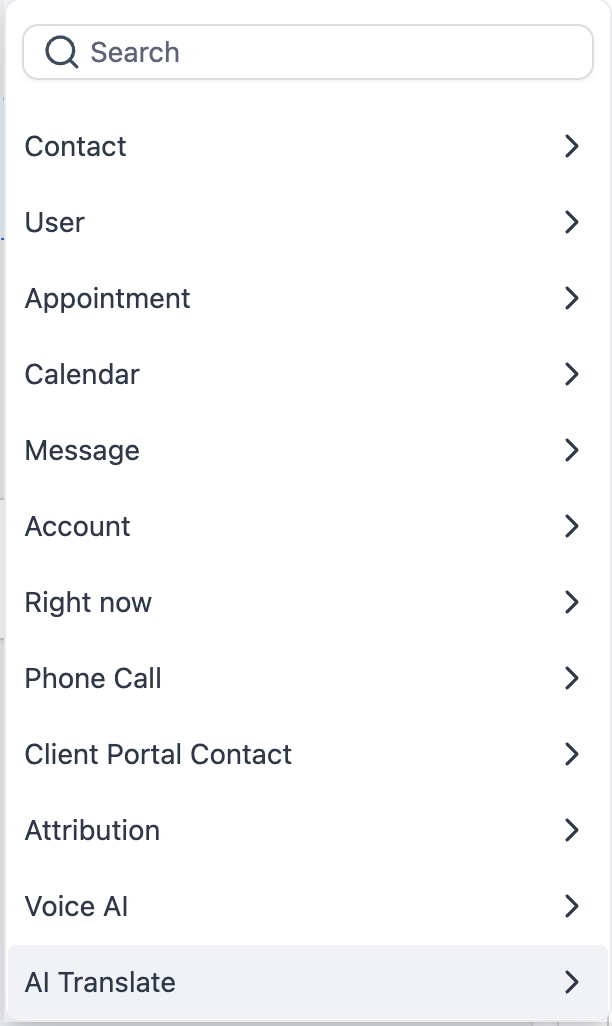
Example Use Case
Example: Translating a Welcome Message
Imagine a new contact signs up through a form and specifies "French" as their preferred language. The workflow can use this information to send them a welcome email in their chosen language.
Trigger: Contact Created
Action: Translate Content
Action Name: Translate Welcome to French
From Language: English
To Language: French
Input Text:
Hello, thank you for signing up!
Action: Send Email
Email Body: Insert the output from the translation action:
{{workflow_ai_translate_content.2.response}}
This workflow ensures the new French-speaking contact automatically receives a personalized and correctly translated welcome message.