
Support for BBPOS WisePOS E and Stripe S700 Internet Readers on Mobile POS
This article shows you how to pair Stripe’s Wi-Fi–enabled WisePOS E and S700 readers with the Chat To Clients CRM, Chat To Clients CRM, or your own white-label mobile app. Once connected, you can take secure, card-present payments right inside the POS—no dongles, cables, or browser windows required!
TABLE OF CONTENTS
What Are Stripe Internet Readers?
Stripe Internet Readers are standalone payment terminals that connect to your phone or tablet over local Wi-Fi. Because they’re internet-connected, every tap, insert, or swipe flows directly through Stripe’s PCI-certified infrastructure for end-to-end encryption. Pairing them with Chat To Clients CRM turns any iOS or Android device into a countertop-to-mobile checkout station.
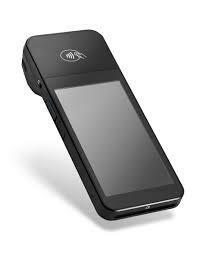 | 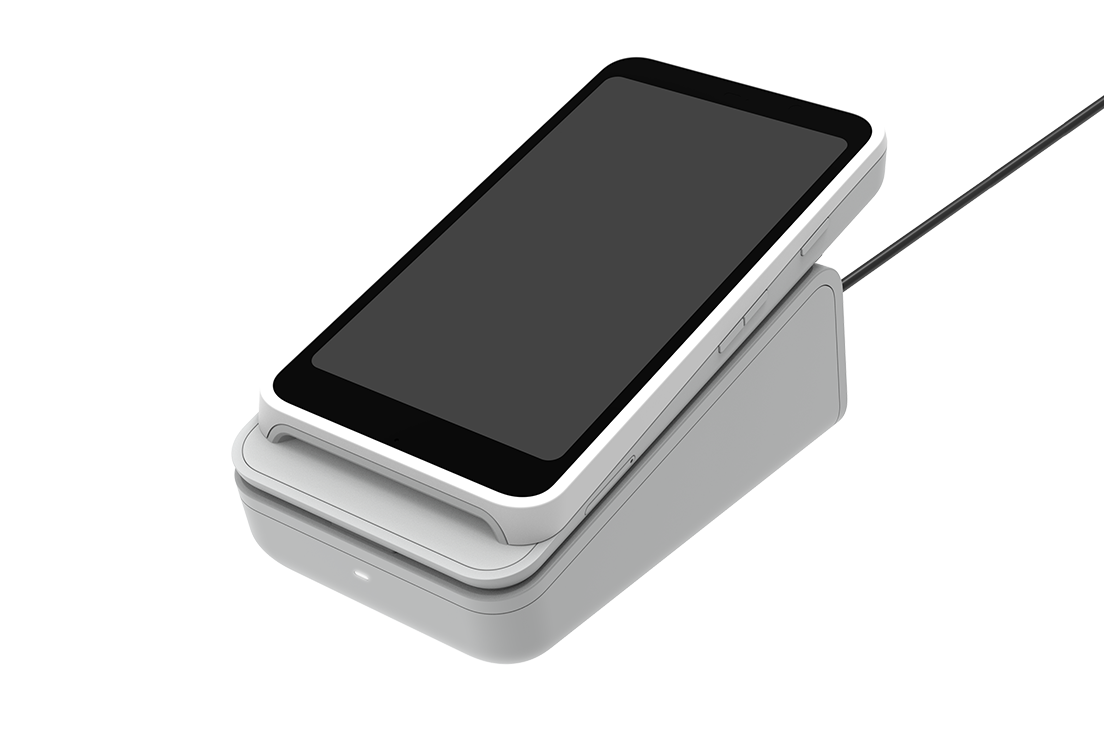 |
Key Benefits of Using WisePOS E & S700 With Mobile POS
Knowing the advantages helps you choose the right hardware for every checkout lane or roaming associate.
- All-In-One Hardware: Accept chip, tap, and magnetic-stripe payments out of the box.
- Speedier Lines: Customer-facing prompts slash cashier time.
- Unlimited Readers Per Location: Register as many devices as you need; each appears in the Payment Instruments list.
- Unified Reporting: In-person and online sales land in the same Chat To Clients CRM Payments dashboard.
- Automatic Compliance: Firmware updates add new card-scheme requirements with no manual effort.
Prerequisites
Confirm these items before you begin to avoid pairing errors and failed transactions.
- A live Stripe account connected in Payments → Integrations
- Mobile device and reader on the same 2.4 GHz or 5 GHz Wi-Fi network
- Device enrolled in the Chat To Clients CRM / Chat To Clients CRM public beta on the App Store or Google Play
- Mobile-app version v 3.103.4 or later
How to Register a WisePOS E or S700 Reader
Pairing links the physical terminal to your sub-account so it appears at checkout.
Step 1: Get Pairing Code from Reader
- Power on the reader
- On the idle screen, tap Generate Pairing Code to display a six-digit code.
Step 2: Navigate to Internet Reader Settings
- Open the mobile app and select the correct sub-account
- Navigate to Settings → Stripe Payment Hardware → Pair New Devices → Internet Readers
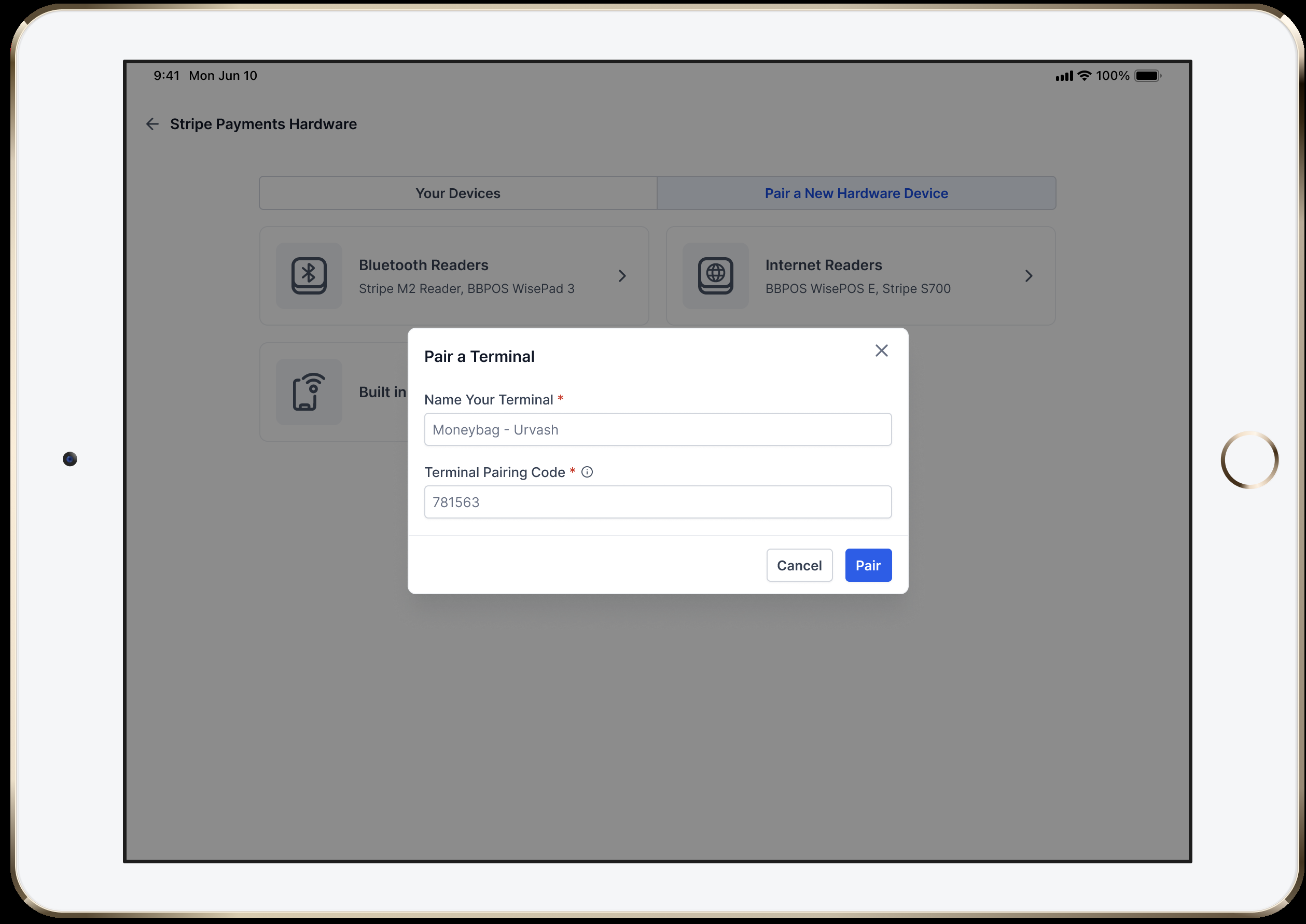
Step 3: Pair Device
- Enter a reader name you’ll recognize at checkout (e.g., FrontCounter_WisePOS1)
- Type the pairing code shown on the reader.
- Tap Pair. Look for the toast “FrontCounter_WisePOS1 registered successfully.”
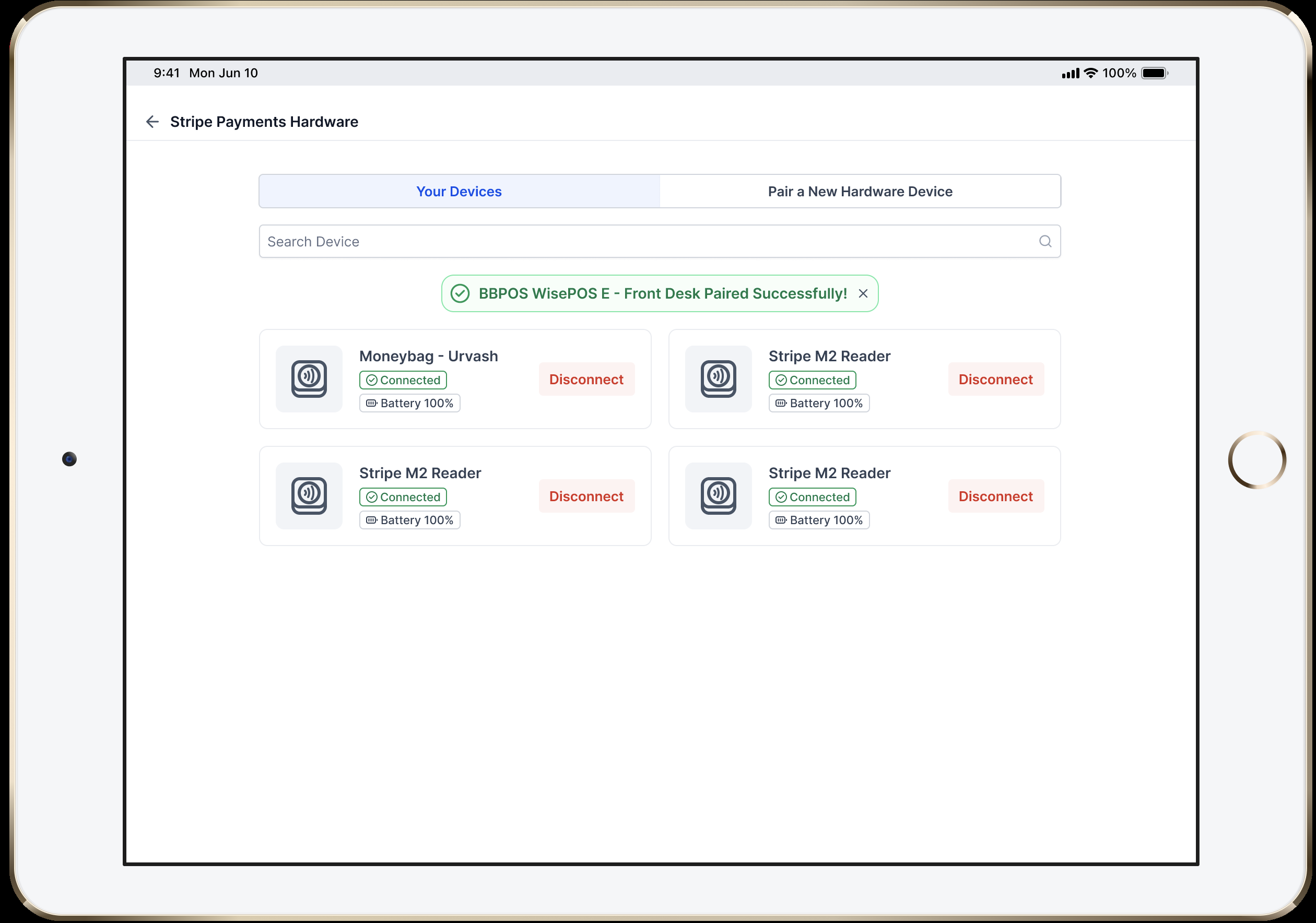
Step 4: Repeat for Other Devices
- Repeat these steps for any other additional readers on the network
Taking a Payment With a Registered Reader
Once paired, selecting a reader is as easy as choosing a card-on-file.
- Start a sale in the POS and add items to the cart.
- On Payment Instruments, choose the reader you want to use.
- Present the reader to the customer. They can tap, insert, or swipe. A 5-minute timer counts down on the mobile screen.
- Wait for confirmation. The reader shows “Approved,” and the sale appears instantly in Transaction History.
Troubleshooting & Best Practices
Use these quick fixes to keep every lane moving.
Symptom | Fix |
Reader not found | Verify both devices are on the same SSID; restart the reader; ensure ports 443 & 4070 are open. |
Pairing code expired | Codes last 60 seconds—generate a new one on the reader and try again. |
Payment timer expired | Relaunch the sale; ask the customer to keep the card in place until the beep. |
Need to move readers between stores | Unpair in Payment Devices, then repeat the pairing steps on the new Wi-Fi network. |
Frequently Asked Questions
Q: How many internet readers can I register in one sub-account?
Unlimited. Each reader shows up individually in Payment Instruments.
Q: Do I need Bluetooth?
No. WisePOS E and S700 pair over local Wi-Fi.
Q: Can customers add a tip on the reader?
Yes. Enable Prompt for Tip under POS Settings → Gratuity.
Q: Can I refund these payments from the web app?
Absolutely—the refund flow is identical to online Stripe charges.
Q: Do the readers work offline?
Transactions require an active internet connection. If Wi-Fi drops, accept cash or card-on-file.