
SIM-based calling with the Mobile App
SIM-Based Calling with the Mobile App
SIM-based calling lets you start a call from the Chat To Clients CRM mobile app using the mobile number and carrier plan already configured on your phone. Chat To Clients CRM passes the contact's phone number to your device's native dialer, where you place the call using your SIM.
SIM-based calling is available only when an Chat To Clients Phone number is not active for the sub-account. Once Chat To Clients Phone is set up, the mobile app uses the Chat To Clients CRM Phone System instead of SIM-based calling.
1. What Is SIM-Based Calling?
SIM-based calling is a quick way to start a phone call from the Chat To Clients CRM mobile app using your device's normal carrier calling service.
When you tap the call icon next to a contact's number, Chat To Clients CRM passes the number to your phone's native dialer. You then place the call using the SIM or mobile line configured on your device.
2. Key Benefits
SIM-based calling provides a simple way to contact customers directly from the mobile app without manually copying their phone number.
Tap the call icon and open your phone's native dialer with the contact's number already filled in.
Calls use your mobile carrier and SIM instead of the Chat To Clients CRM Phone System.
Call contacts directly while working from Contacts, Opportunities, or Conversations in the mobile app.
3. SIM-Based vs Chat To Clients CRM Calling
SIM-based calls and Chat To Clients CRM Phone System calls use different calling methods and provide different features.
| Feature | SIM-Based Call | Chat To Clients CRM Phone Call |
|---|---|---|
| Calling network | Mobile carrier/SIM | Chat To Clients CRM Phone System |
| Number used | Carrier mobile number | Chat To Clients CRM phone number |
| How the call is placed | Uses the device's carrier/SIM calling service | Uses the Chat To Clients CRM Phone System |
| Chat To Clients CRM call recording | Not available for the SIM call | Available when supported and configured |
| Chat To Clients CRM call transfer | Not available for the SIM call | Available where supported |
| Chat To Clients CRM call analytics | Not automatically captured | Available for supported calls |
| Billing | Mobile carrier plan | Chat To Clients CRM Phone System usage |
4. Prerequisites and Limitations
Before using SIM-based calling, review the following requirements and limitations.
- No active Chat To Clients Phone number: SIM-based calling is available only when an Chat To Clients Phone number has not been purchased and activated for the sub-account. Once Chat To Clients Phone is active, calls use the Chat To Clients CRM Phone System instead.
- Carrier charges may apply: Calls use your existing mobile plan. Standard minutes, roaming charges, international calling charges, or other carrier fees may apply.
- Chat To Clients CRM call features do not apply to the SIM call: Because the call is handled through your device's carrier service, Chat To Clients CRM call recording, transfer controls, and automatic call analytics are not available for that call.
- Manual logging is required for Chat To Clients CRM tracking: SIM-based calls are not automatically logged in Chat To Clients CRM. If you want the call outcome recorded in the contact record, log it manually after the call.
- Local Presence Dialing does not apply: SIM-based calls use the phone number associated with your mobile carrier line instead of a Chat To Clients CRM phone number.
5. Where You Can Place SIM-Based Calls
When SIM-based calling is available, you can start a call from common areas of the Chat To Clients CRM mobile app where a contact's phone number appears.
- Contacts: From the contact profile.
- Opportunities: From an opportunity card or opportunity details.
- Conversations: From the call action available in the conversation.
6. How to Place a SIM-Based Call
You do not need to copy and paste the contact's phone number. Start the call directly from the mobile app.
Open Contacts, Opportunities, or Conversations and locate the contact you want to call.
Tap the phone icon next to the contact's phone number.
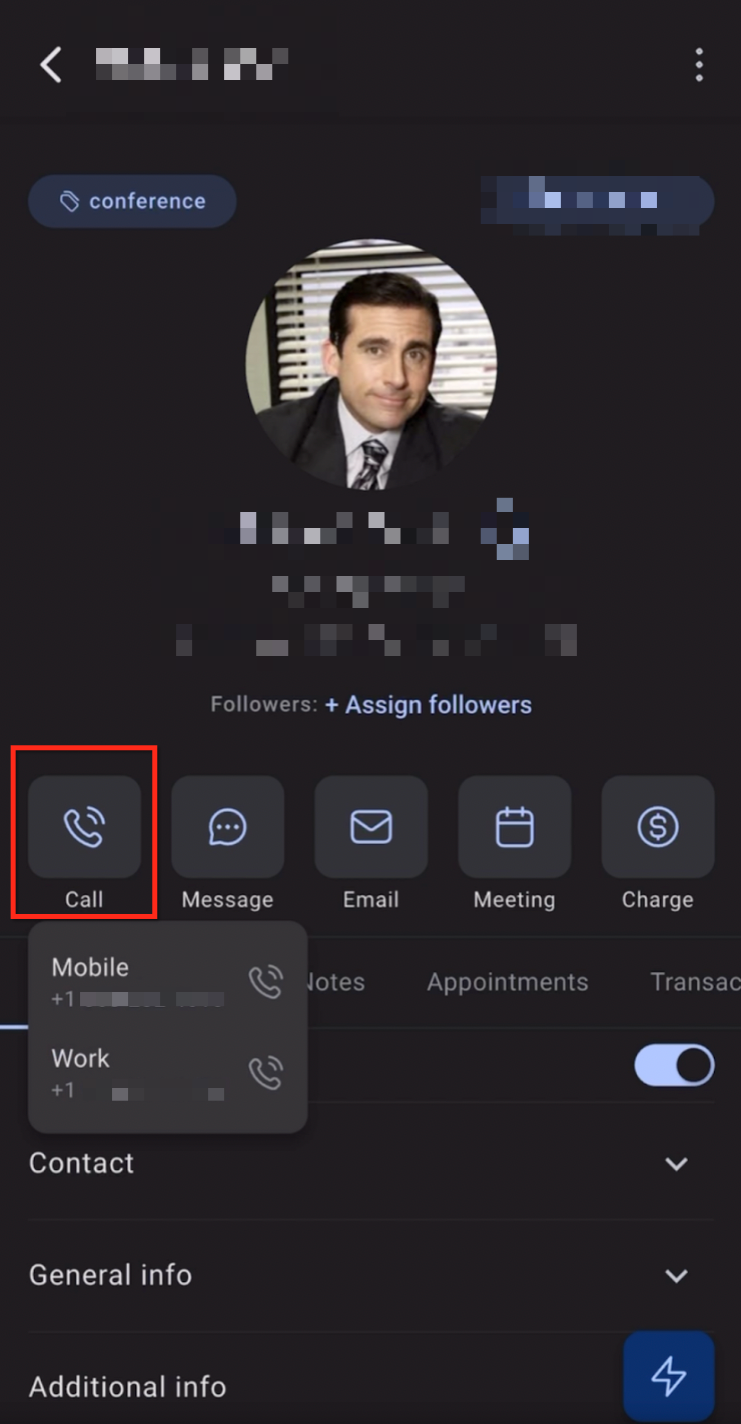
Your device's native dialer opens with the contact's phone number pre-filled. Use the native dialer to place the call.
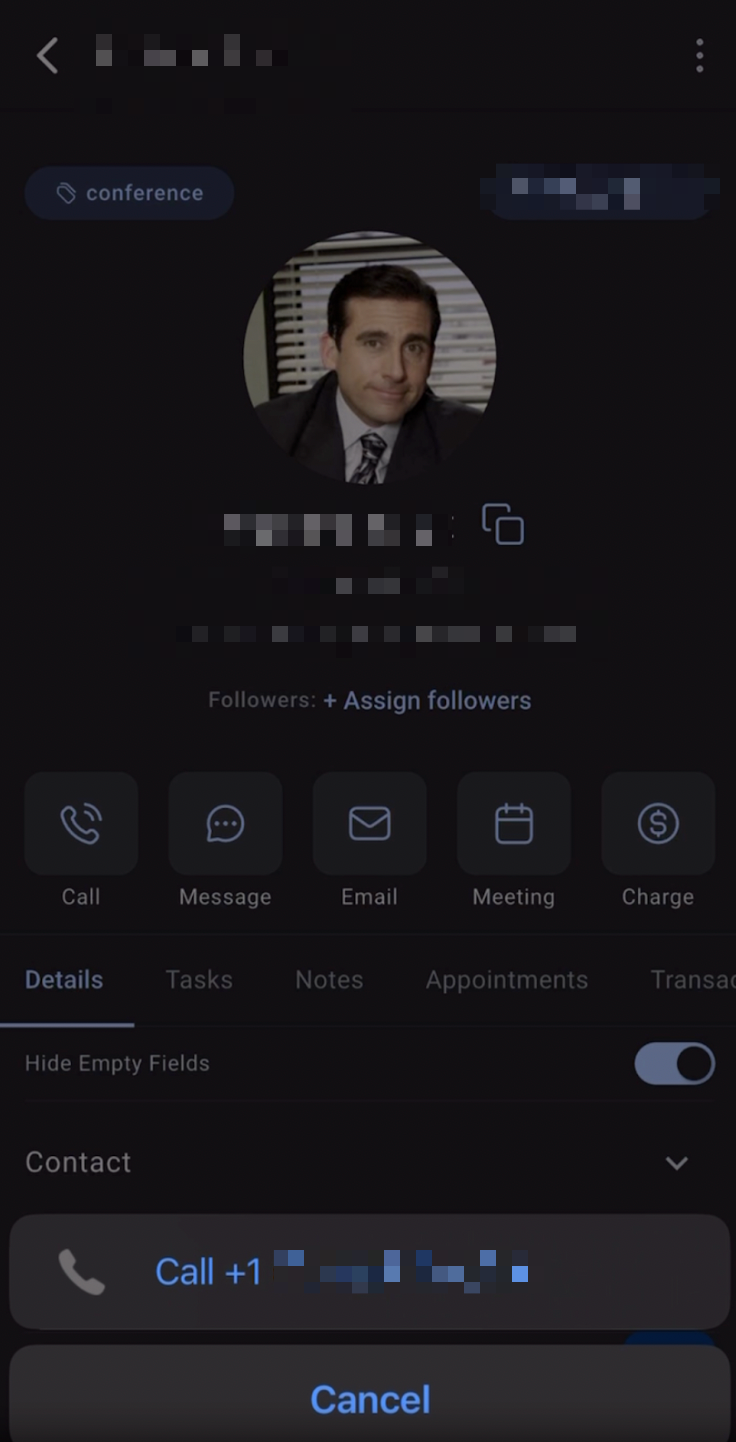
Result: The call is placed through your mobile carrier just like a standard phone call made from your device.
7. Manual Call Logging
SIM-based calls are handled outside the Chat To Clients CRM Phone System, so they are not automatically logged as Chat To Clients CRM calls.
After completing a SIM-based call, record the outcome when needed so the contact record and sales process remain up to date.
- Add a Note to the contact record with the call outcome.
- Use an applicable manual or external call logging option when your workflow requires structured call tracking.
For automated or workflow-based call tracking, see the related Log External Call and Manual Call documentation.
8. Troubleshooting
If SIM-based calling does not work as expected, check the device and sub-account calling configuration first.