
Collect In-Person Signatures via Mobile App
Chat To Clients CRM’s mobile app now allows you to collect in-person signatures directly within the app, making it easier than ever to finalize documents and contracts while on the go. Whether you’re in a meeting, at an event, or face-to-face with a client, you can now have recipients sign documents on your mobile device—no printing, scanning, or emailing required.
This functionality is available in the Chat To Clients CRM, Chat To Clients CRM, and whitelabeled mobile apps. (Note: If you’re using a whitelabeled app, you may need to request an update to access this feature.)
TABLE OF CONTENTS
⸻
What You Can Do
- View As Signer: Open a published document on behalf of any listed recipient to accept their signature.
- Sign on Mobile: Capture signatures using typed text or free-hand drawing directly in the mobile app interface.
- Use Templates: Create documents from pre-built templates with one or more signature fields.
⸻
How to Collect In-Person Signatures on Mobile
Follow these steps to prepare and sign a document directly from your mobile app:
- Log in to the Mobile App - Make sure you’re logged into your preferred sub-account.
- Navigate to Documents - Open the left-hand navigation drawer and go to the Documents and Contracts section.
- Create a New Document - Tap to create a document using a saved template that includes one or more signature fields.
- Publish the Document - Once you’re ready, tap the Share icon and copy the link to finalize publishing the document.
- Locate the Published Document
- Exit the document editor.
- Go to the “All Documents” tab.
- If the document does not yet show as Sent, refresh the page. You should then see it marked as Sent.
- Open in ‘View As’ Mode
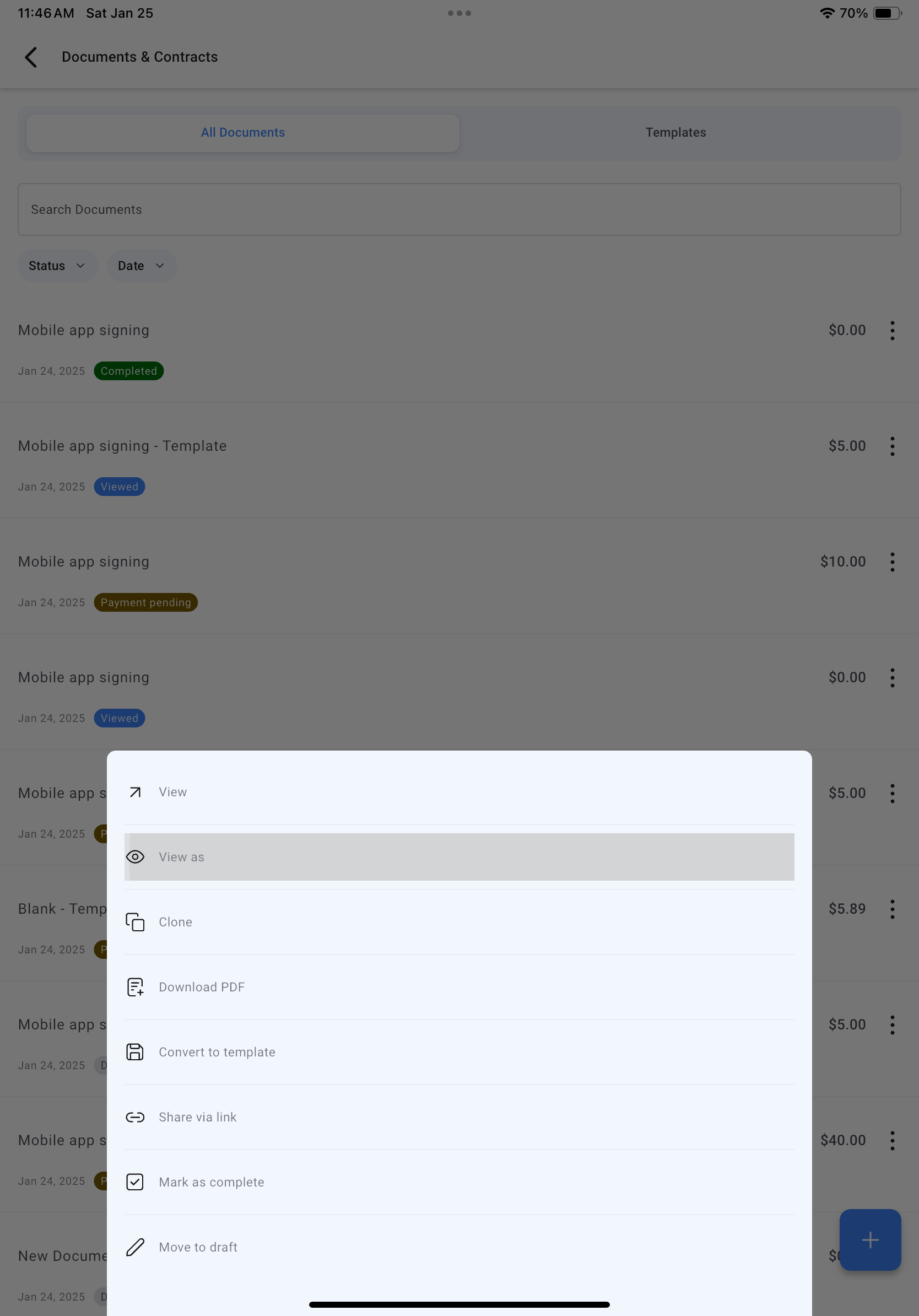
- Tap the three-dot menu (⋮) on the right side of the document.
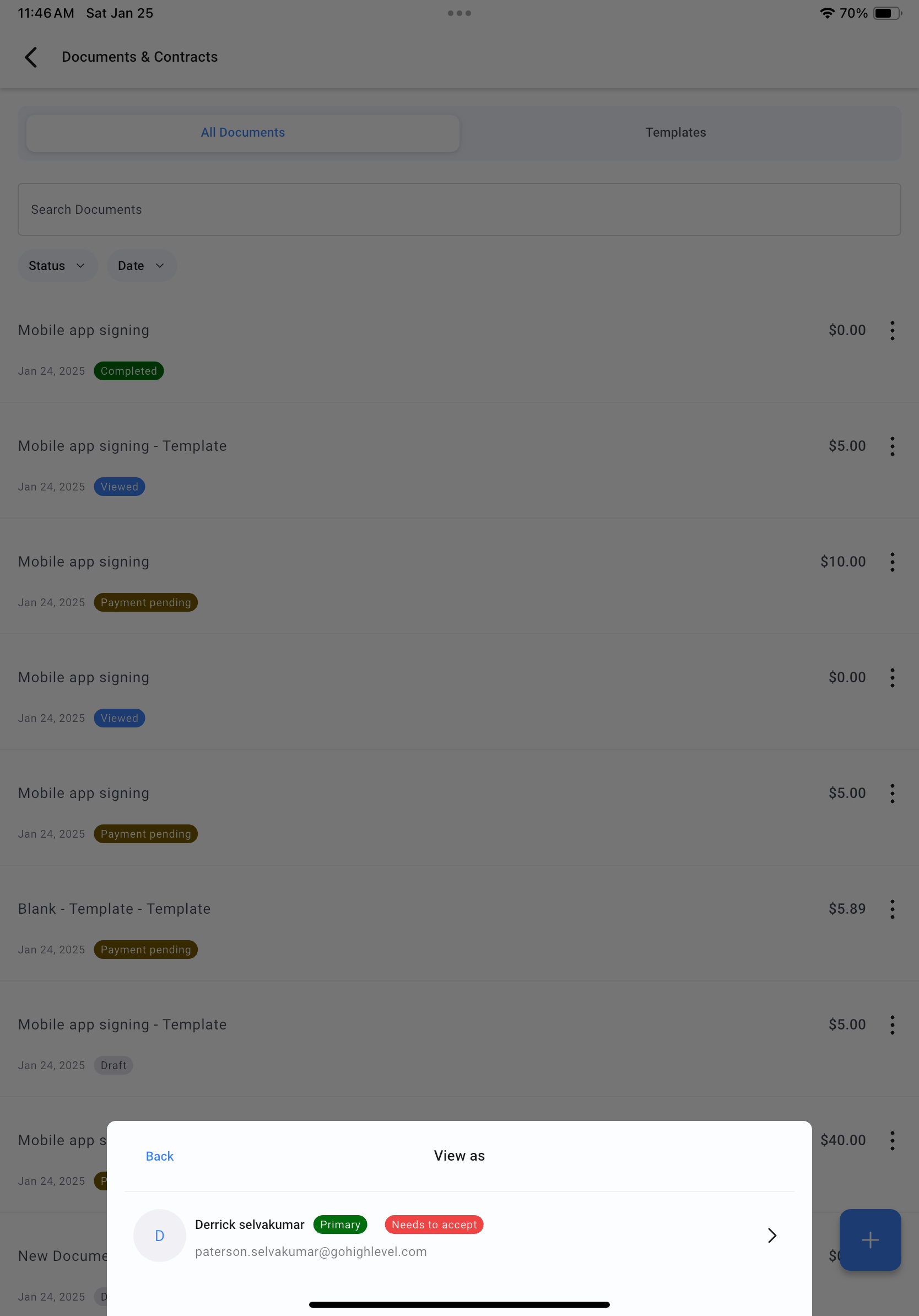
- Select “View as” and choose the intended signer from the recipient list.
- Collect the Signature
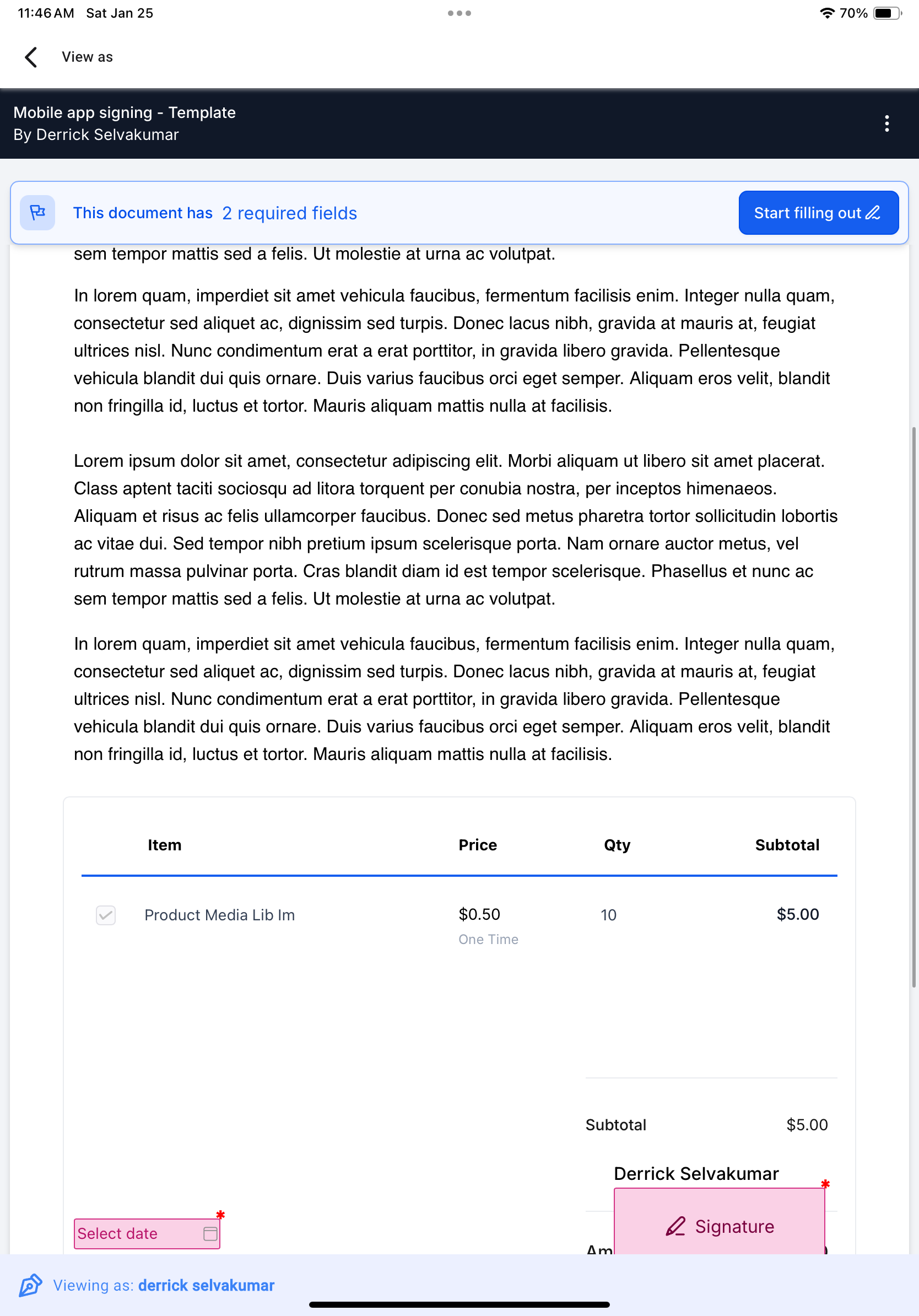
- Hand the device to the recipient.
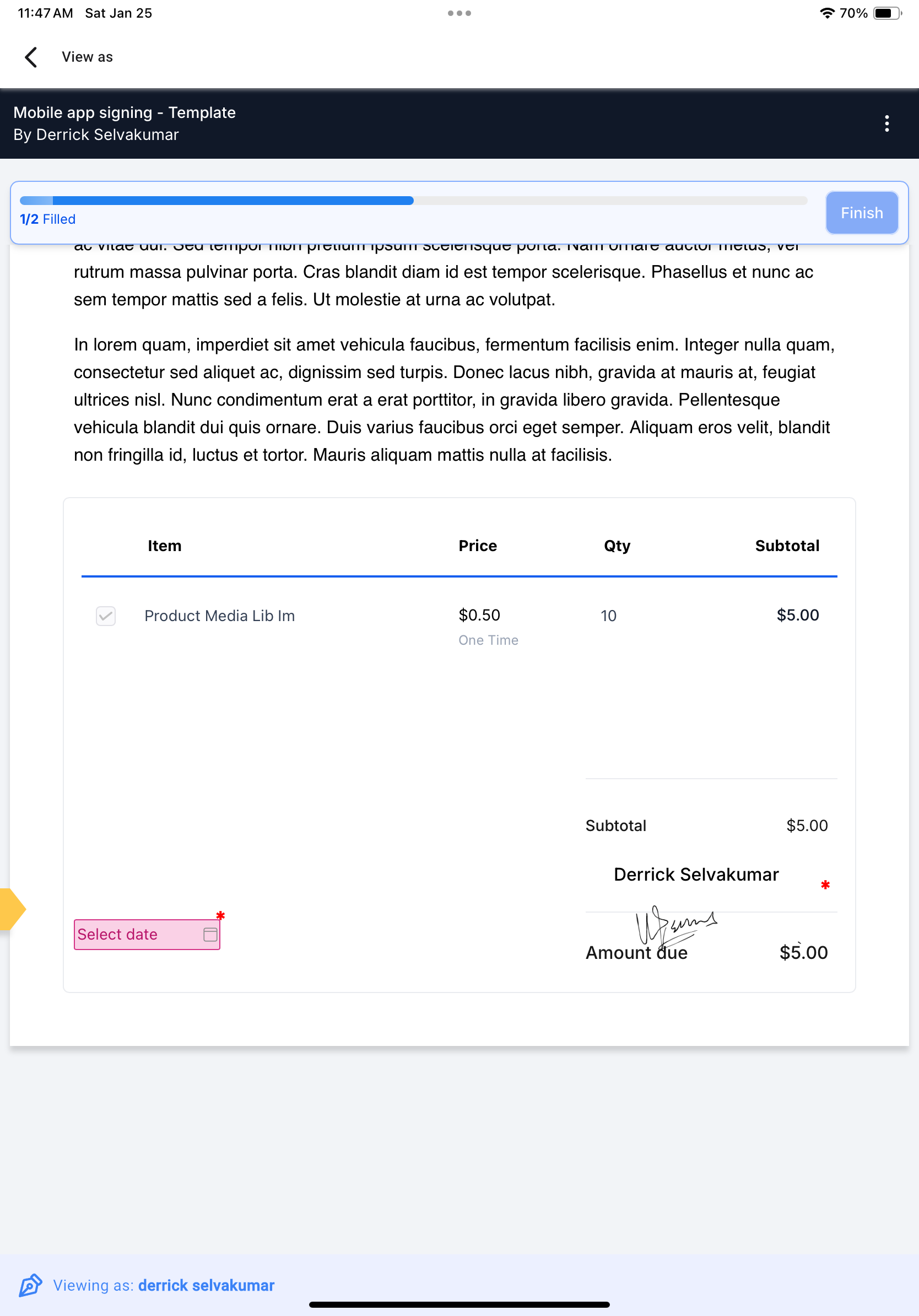
- The recipient can sign using typed text or free-hand drawing directly within the app.
- They can also fill out any other required fields.
- Repeat for All Signers - Repeat the “View As” and signing process for each additional recipient.
- Done! - Once all parties have signed, your document will be fully executed and saved with all captured signatures.
⸻
Notes & Best Practices
- Ensure your template includes the correct number of signature fields for each signer.
- The “View As” option will only be available after the document has reached Sent status.
- For white-labeled apps, make sure the mobile app is updated to the latest version that supports in-person signing.
⸻
By enabling in-person signing directly from the mobile app, you can close deals, sign contracts, and complete agreements faster and more efficiently—anytime, anywhere.
If you run into issues or need help enabling this feature on a white-labeled app, contact your support team.