
How to Filter Contacts by Community Groups in Smart Lists
This article explains the Community Groups filter available in CRM Smart Lists. With this feature, you can quickly segment contacts based on their community memberships, allowing you to run targeted campaigns, improve communication, and keep your contact list organized and community-focused.
TABLE OF CONTENTS
- What is the Groups Filter in Smart Lists?
- Key Benefits of the Groups Filter in Smart Lists
- How To Use the Groups Filter in Smart Lists
- Frequently Asked Questions
- Related Articles
What is the Groups Filter in Smart Lists?
The Groups filter is a new addition to CRM Smart Lists that makes it easy to segment and manage your contacts based on the Community Groups they belong to.
Instead of manually tagging or sorting contacts, you can now filter contacts precisely by their community membership and create highly targeted lists in just a few clicks.
Key Benefits of the Groups Filter in Smart Lists
- Easily segment contacts by the specific Community Groups they belong to.
- Create targeted campaigns and personalized communication for different groups.
- Save time by automating community-focused segmentation rather than manually sorting.
- Keep your contact list organized and aligned with your community strategy.
- Increase engagement and drive higher conversion with community-specific outreach.
How To Use the Groups Filter in Smart Lists
Filtering your contacts by Community Groups in Smart Lists is simple and intuitive. Follow these steps to get started.
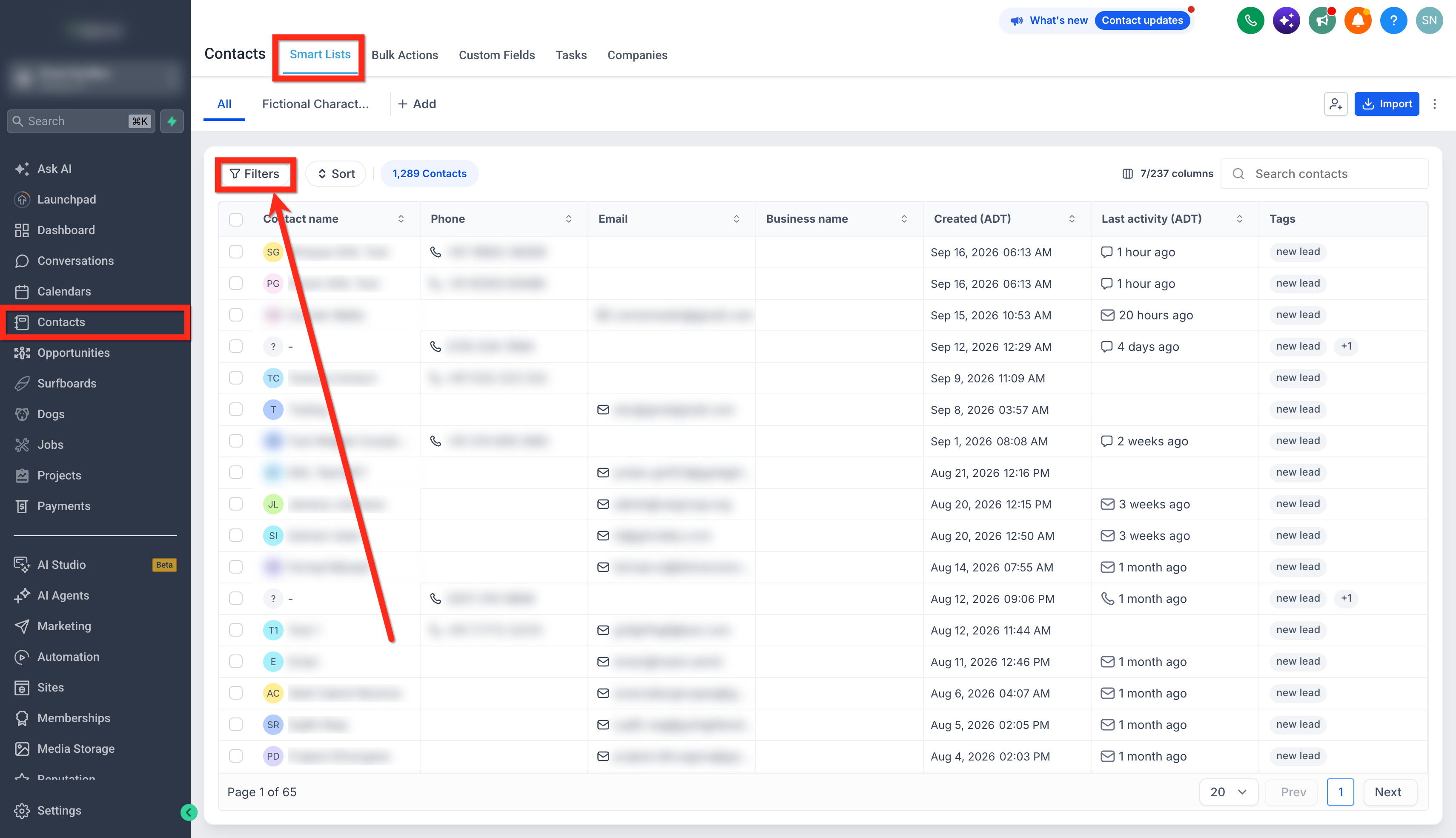
- Navigate to Contacts > Smart Lists.
- Click on Filters.
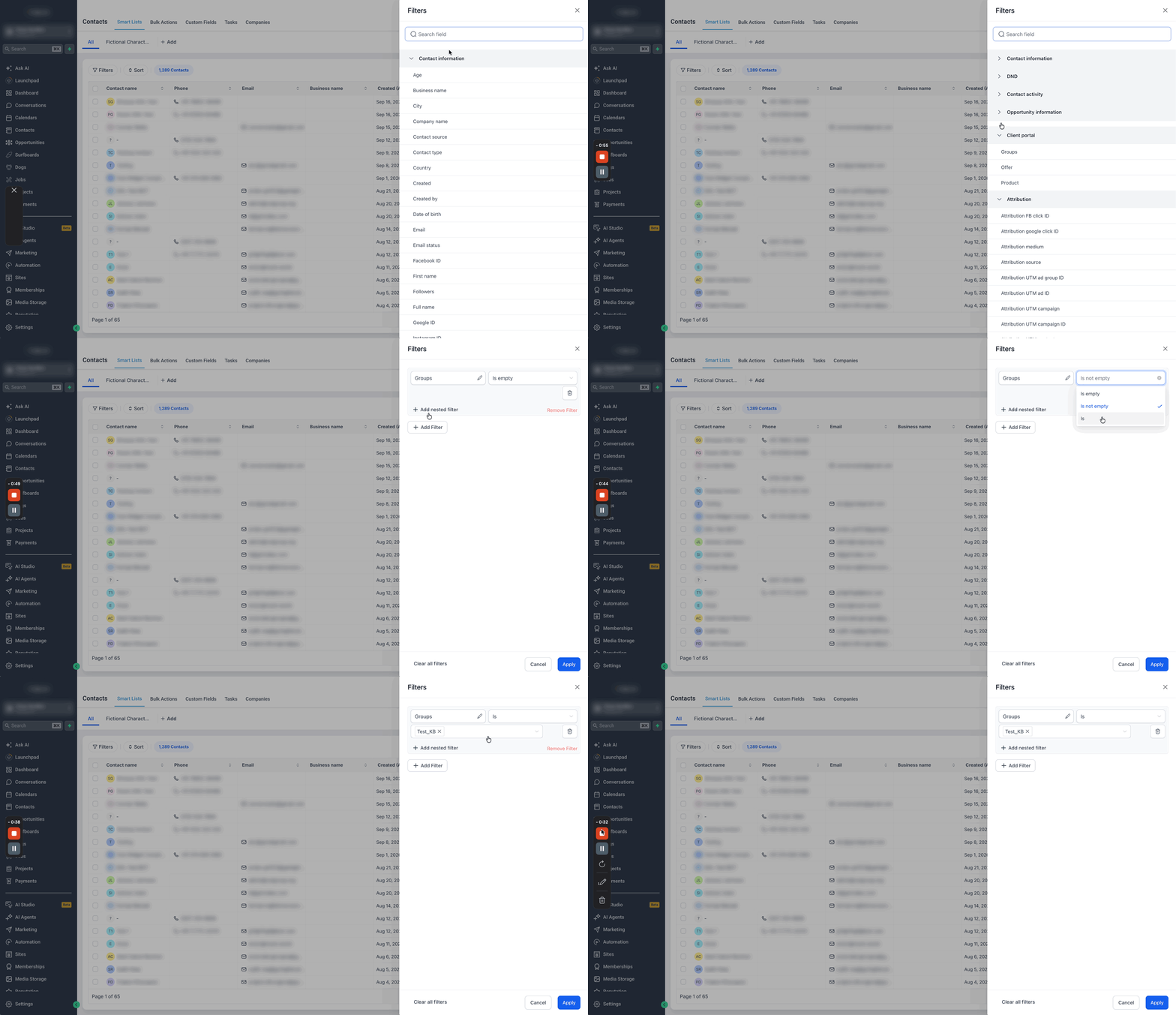
- Find the Groups filter:
- Scroll down to the Client Portal section, or
- Type "Groups" or "Client Portal" in the search bar to quickly find the new Groups filter.
- Scroll down to the Client Portal section, or
- Click on Groups, then select either:
- Groups = is empty (contacts not in any groups)
- Groups = is not empty (contacts in any group)
- Groups = is (the specific Group(s) you want to filter for)
- Groups = is empty (contacts not in any groups)
- Click on Apply.
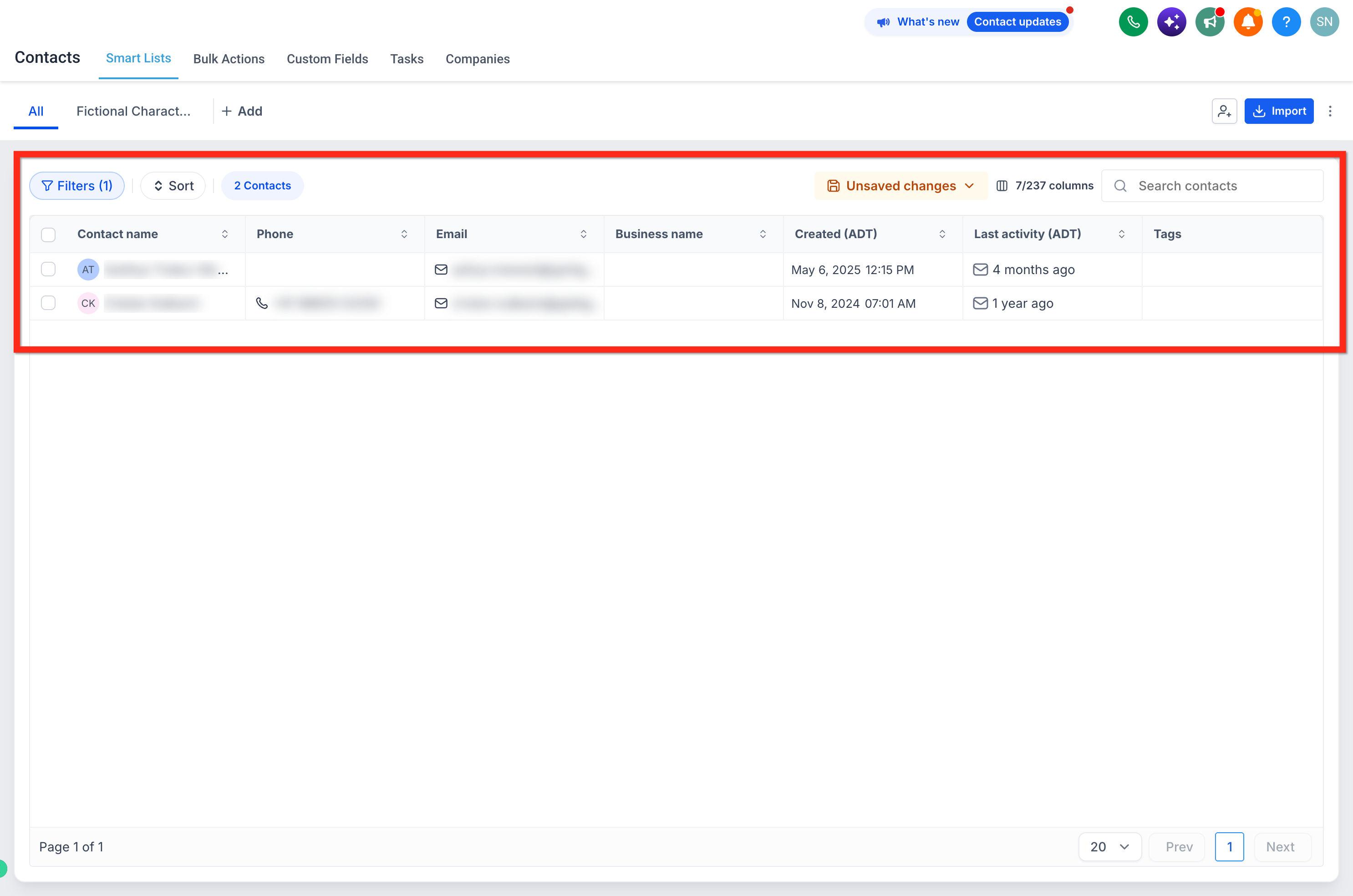
- Your Smart List will now display only the contacts who belong to the selected groups, making it easy to manage and engage with them directly.
Frequently Asked Questions
Q: Can I select multiple groups at once in the filter?
Yes! You can select one or multiple Community Groups to create flexible and precise segments.
Q: Will this filter work with other filters in Smart Lists?
Absolutely. You can combine the Groups filter with other filters (e.g., tags, custom fields, activity) to create even more refined lists.
Q: Do I need to manually tag contacts to use this filter?
No. The filter automatically pulls membership data from Community Groups, so no extra tagging is needed.
Q: Where do I manage Community Groups?
You can create and manage Community Groups in the Client Portal settings under Communities.