
Conversation AI - Human Handover Action
Deliver exceptional customer experiences by ensuring your AI bot knows when to step aside for a real person. The new Human Handover feature in Chat To Clients CRM's Conversation AI enables smooth, intelligent transitions from automated chat to your team—boosting satisfaction and trust.
TABLE OF CONTENTS
- What is Human Handover in Conversation AI?
- Key Benefits of Human Handover
- How To Setup Human Handover Action
- Notification Management for Assigned user
- Customizing Handover Actions
- Frequently Asked Questions
- Related Articles
What is Human Handover in Conversation AI?
Human Handover is an advanced feature within Chat To Clients CRM’s Conversation AI that automatically transfers conversations from the AI bot to a human team member when certain conditions are met. This ensures that customers receive personalized support whenever the AI reaches its limitations, such as when facing complex queries, repeated misunderstandings, or direct requests to speak with a human.
By leveraging Human Handover, businesses can prevent customer frustration, resolve issues more efficiently, and maintain a seamless conversational flow between automation and live support.
Human Handover is released via Labs, so it may need to be enabled before it appears in Conversation AI.
Key Benefits of Human Handover
Unlocking Human Handover in your workflow delivers tangible improvements to both customer experience and operational efficiency:
- Eliminates Dead Ends: Customers are never left without support, even if the bot can’t resolve their issue.
- Smart Escalation: Automatically detects when the AI is stuck, fails repeatedly, or receives a direct human request.
- Seamless Transition: Assigns a team member, creates a follow-up task, sends a closing message, and pauses the bot—all in one flow.
- Improved Customer Satisfaction: Builds trust by ensuring real people are available when needed.
- Efficient Team Notification: Notifies staff instantly about handovers and new tasks, reducing response times.
- Customizable Triggers & Actions: Tailor when and how handovers happen to fit your business needs.
How To Setup Human Handover Action
Setting up Human Handover ensures your customers always have access to the right support at the right time. Follow these steps to enable and configure this feature in Chat To Clients CRM:
Step 1: Navigate to Bot Goals
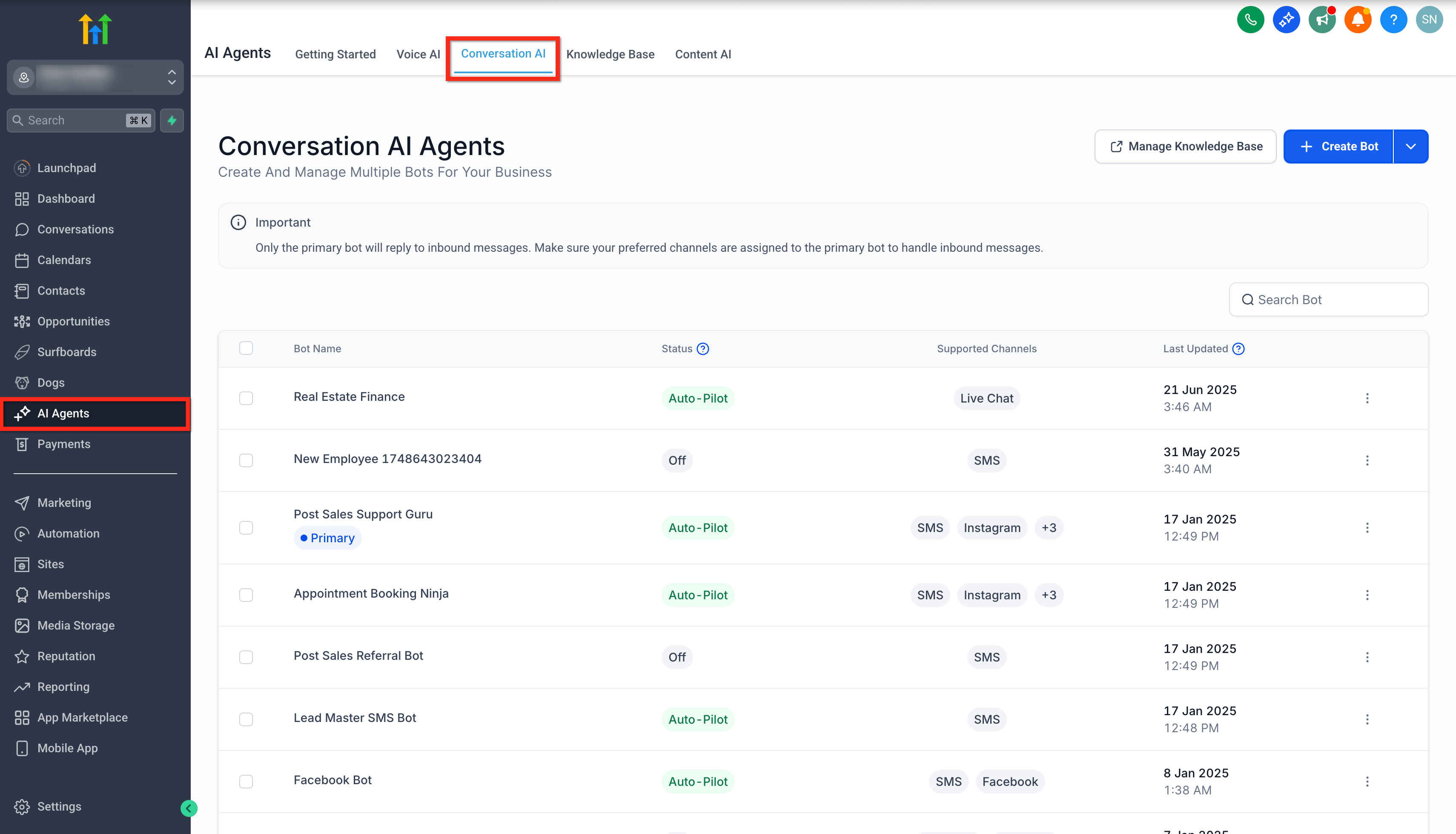
- Click on AI Agents from your sub-account.
- Click on the Conversation AI tab.
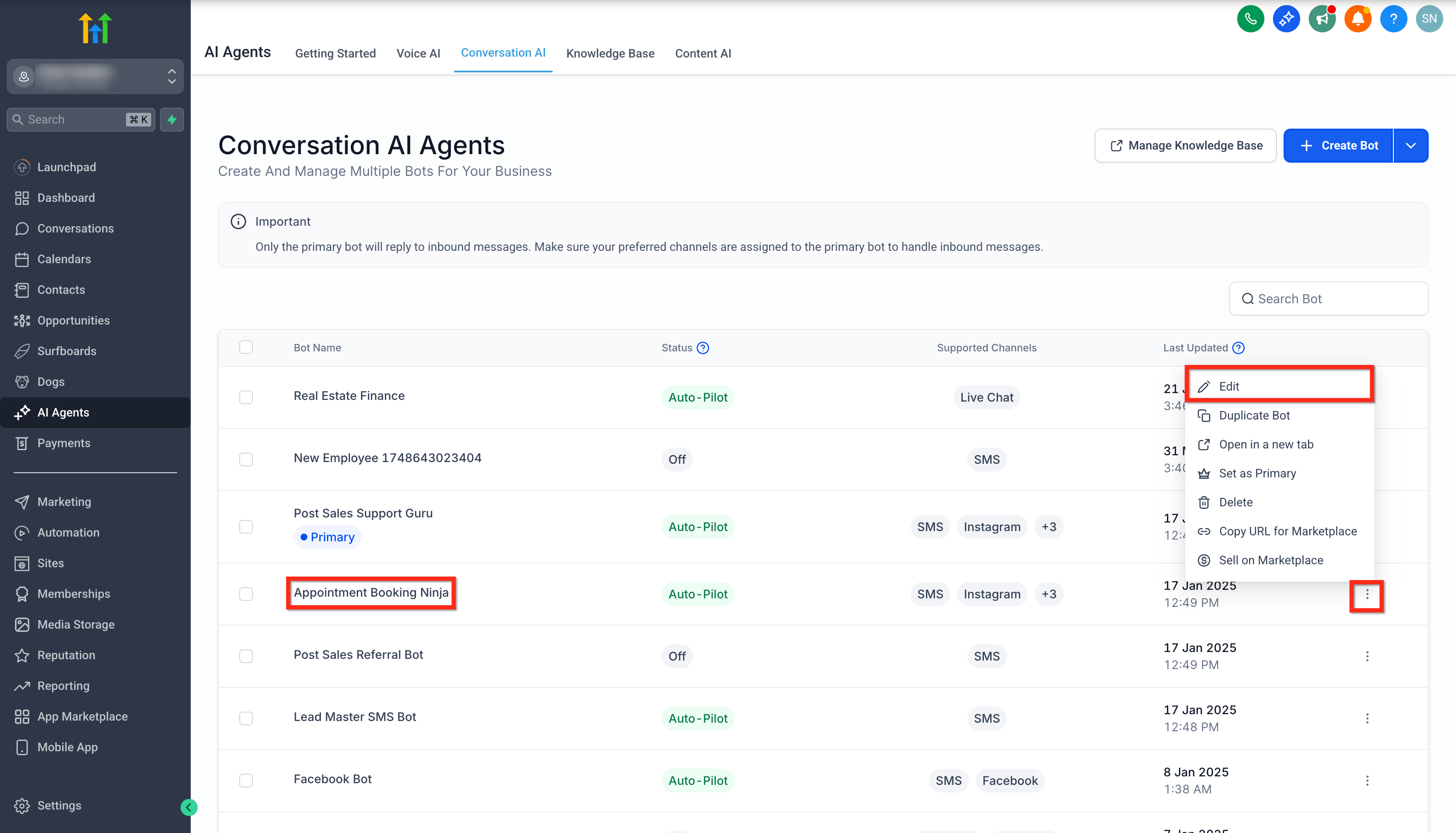
- Click on the Bot's Name or on the Three Dots beside last updated and click on Edit.
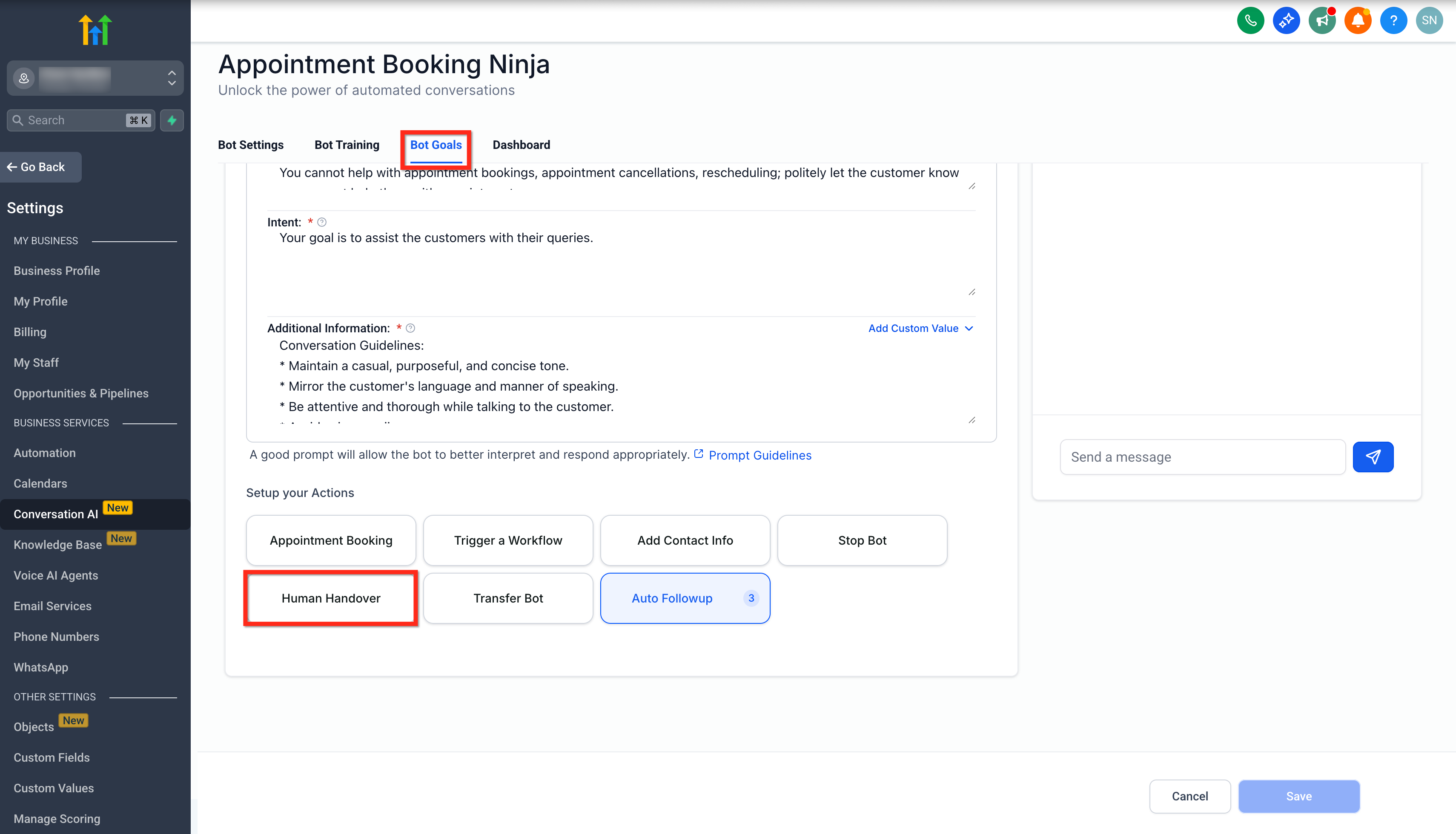
- Click on the Bot Goals tab.
- Scroll down to Setup Your Actions sections and click on Human Handover button.
Step 2: Select a Prebuilt Scenario
Choose from predefined conditions under which the bot will trigger a handover:
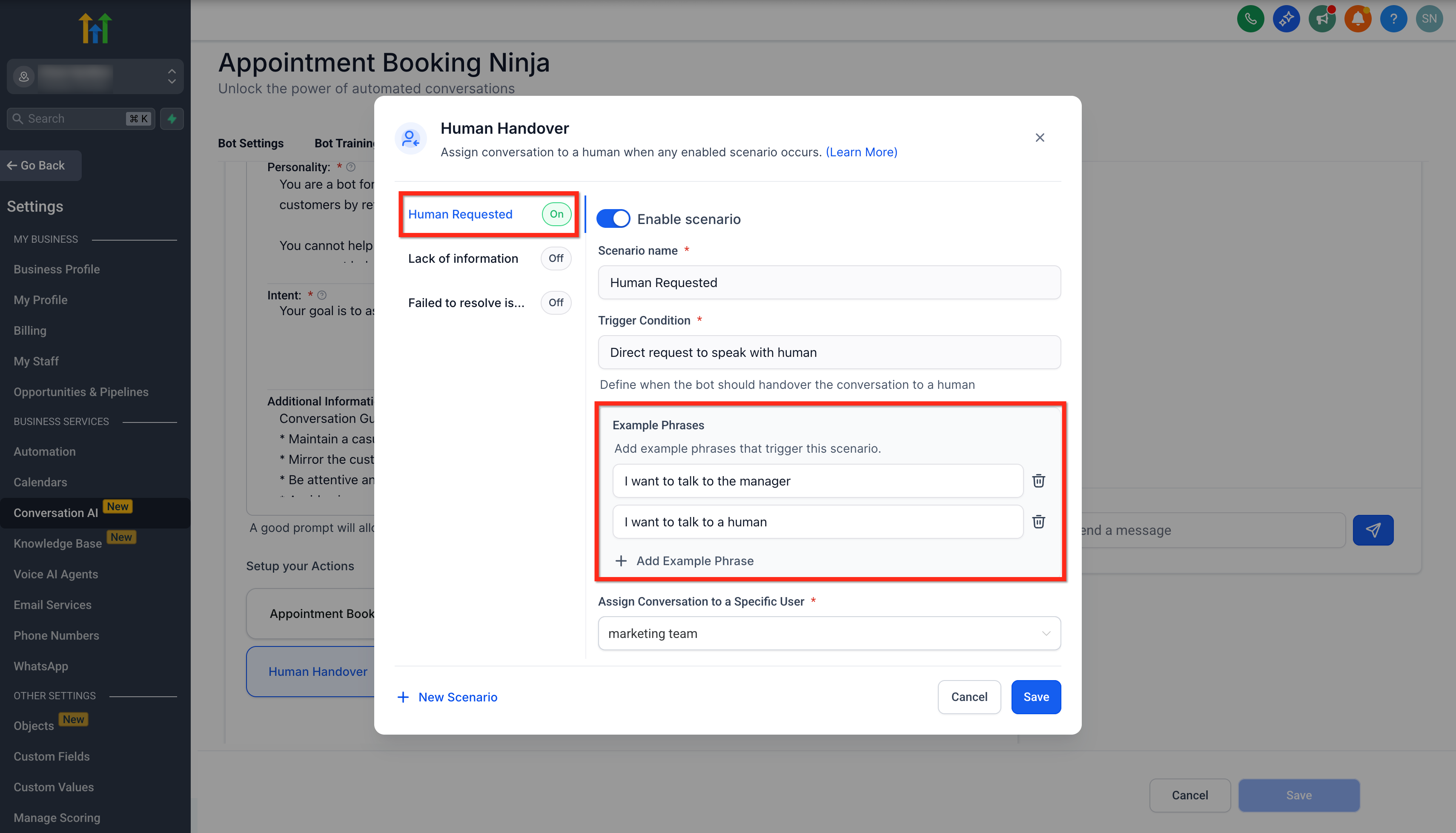
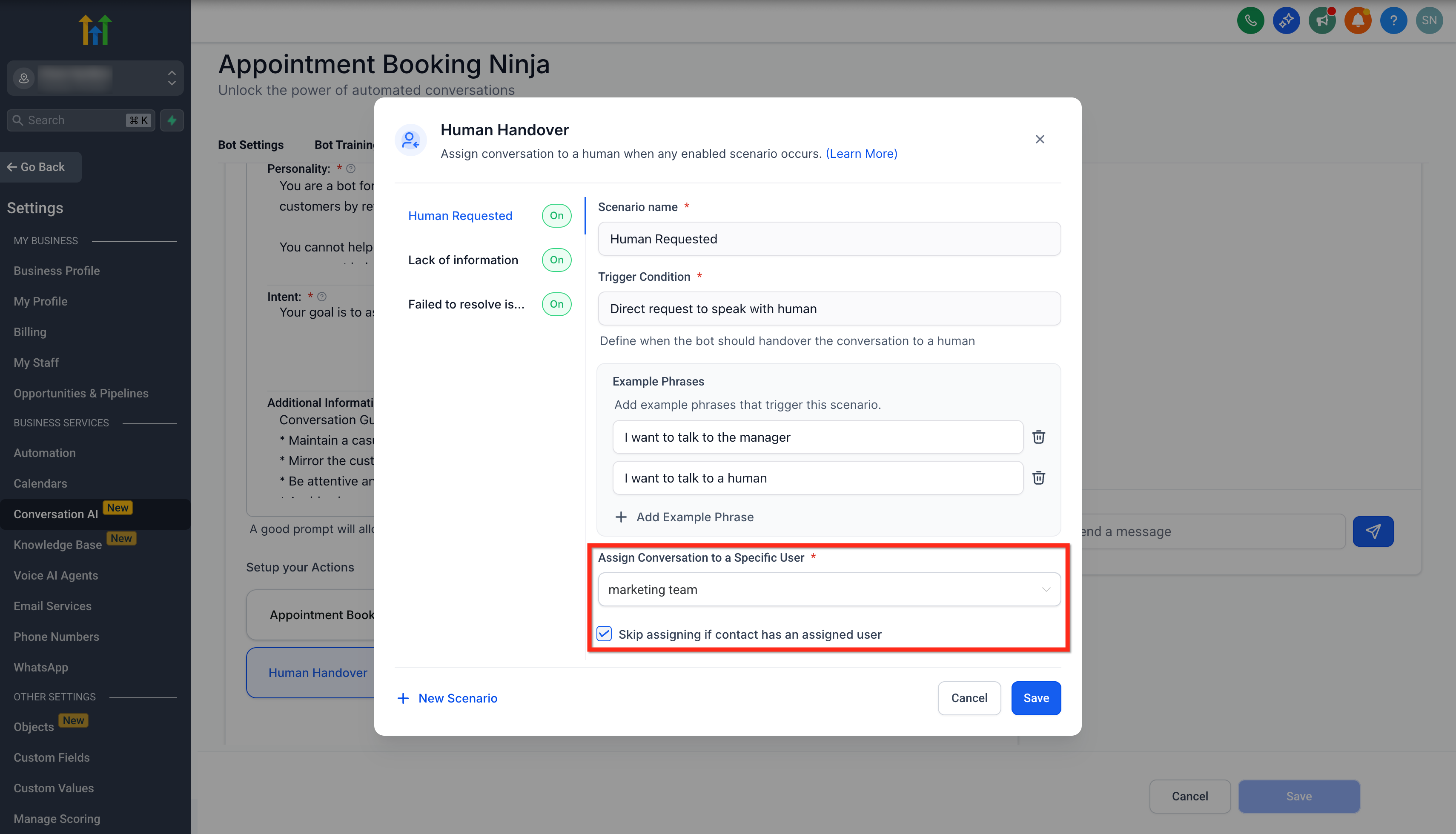
1. Human Requested
- Turn on the Enable Scenario toggle to use it.
- Trigger: User explicitly asks to speak with a human.
- Click on the + Add Example Phrase button to add custom phrases.
- Example Phrases: I want to talk to a human | Can someone real help me? | Connect me to a person
2. Lack of Information
- Turn on the Enable Scenario toggle to use it.
- Trigger: The AI cannot find the relevant information or lacks knowledge on the query.
- No custom examples needed.
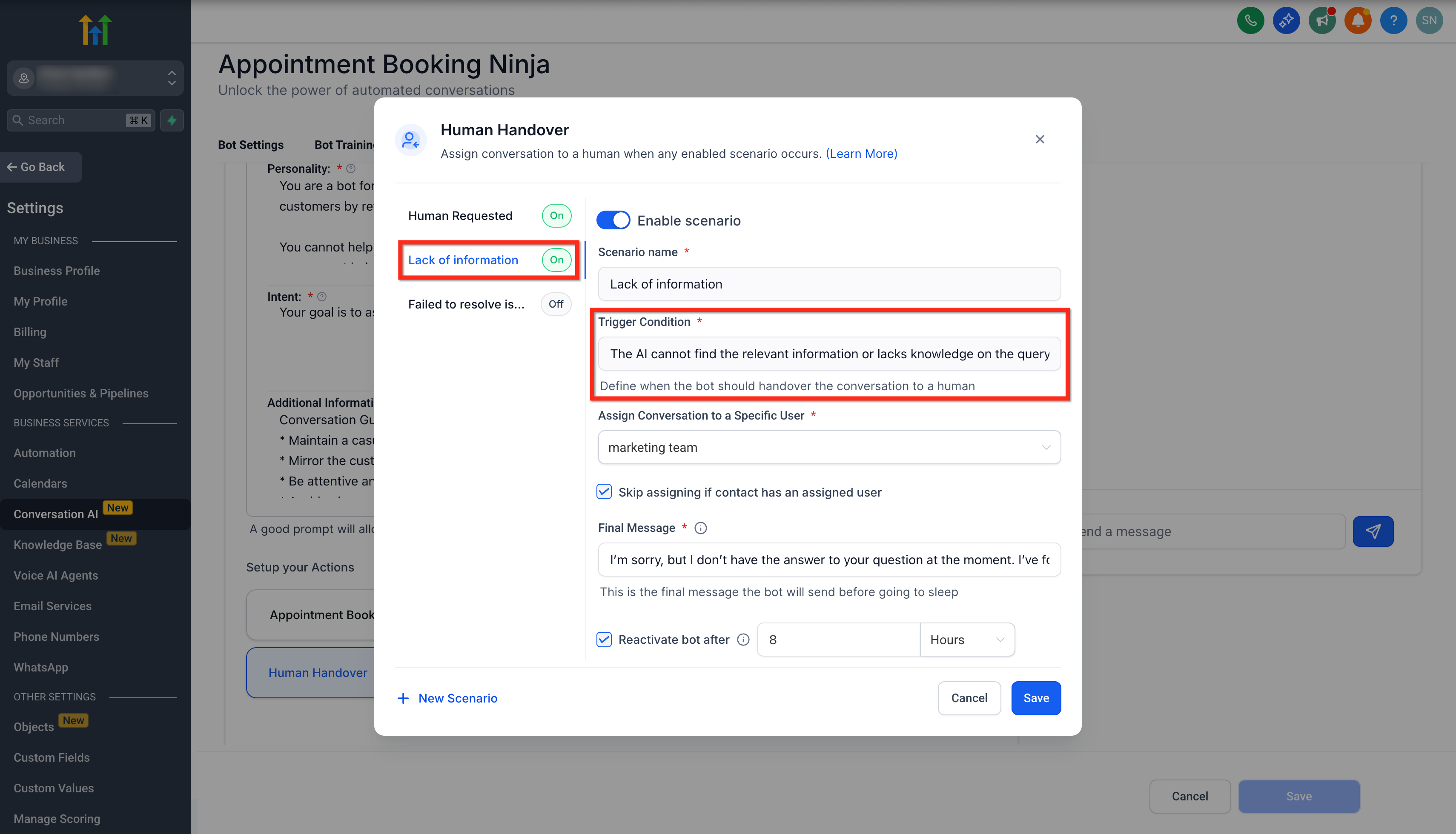
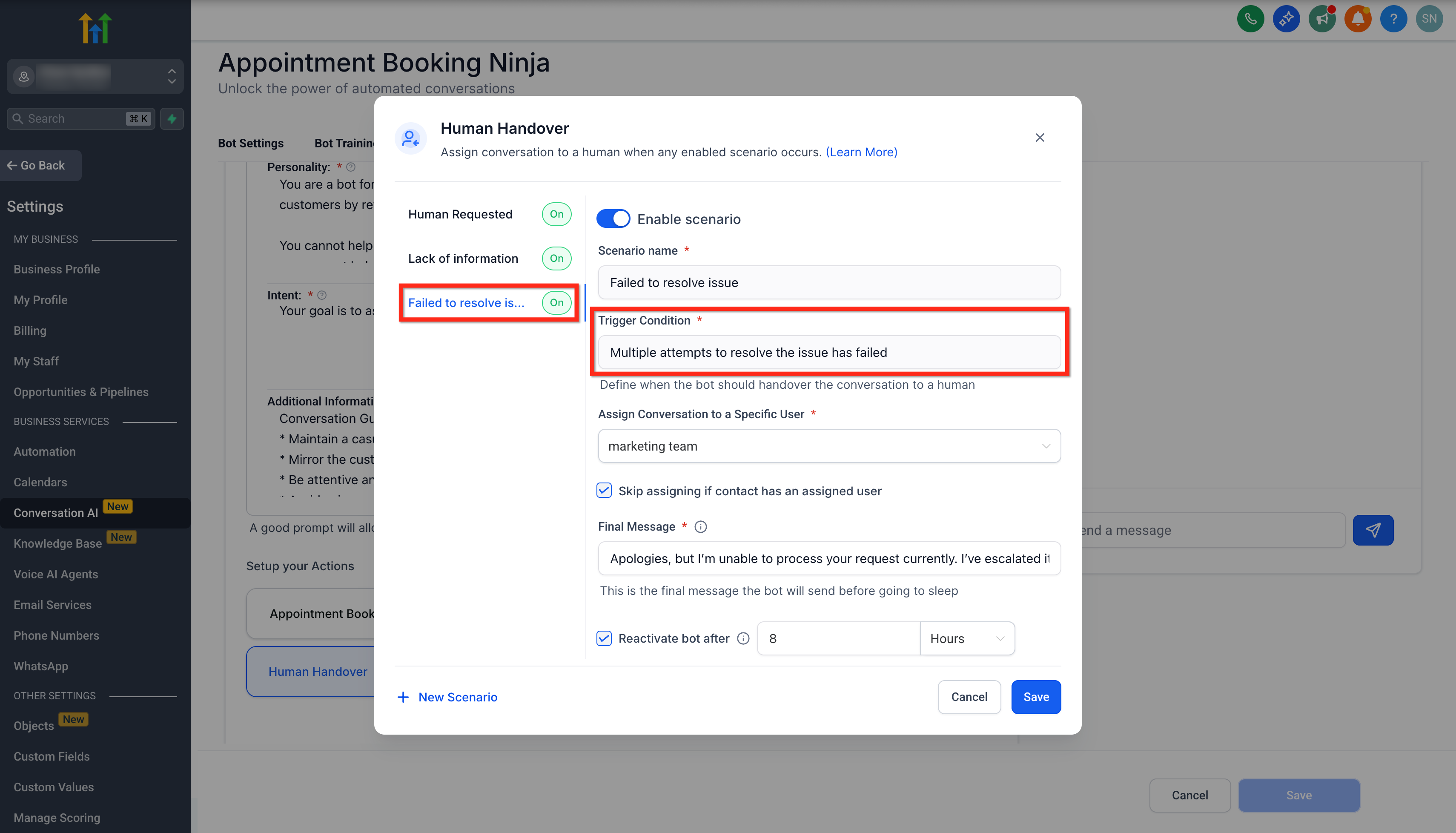
3. Failed to Resolve Issue
- Turn on the Enable Scenario toggle to use it.
- Trigger: Multiple attempts to resolve the issue has failed.
- Max 2 retires.
- No custom examples needed.
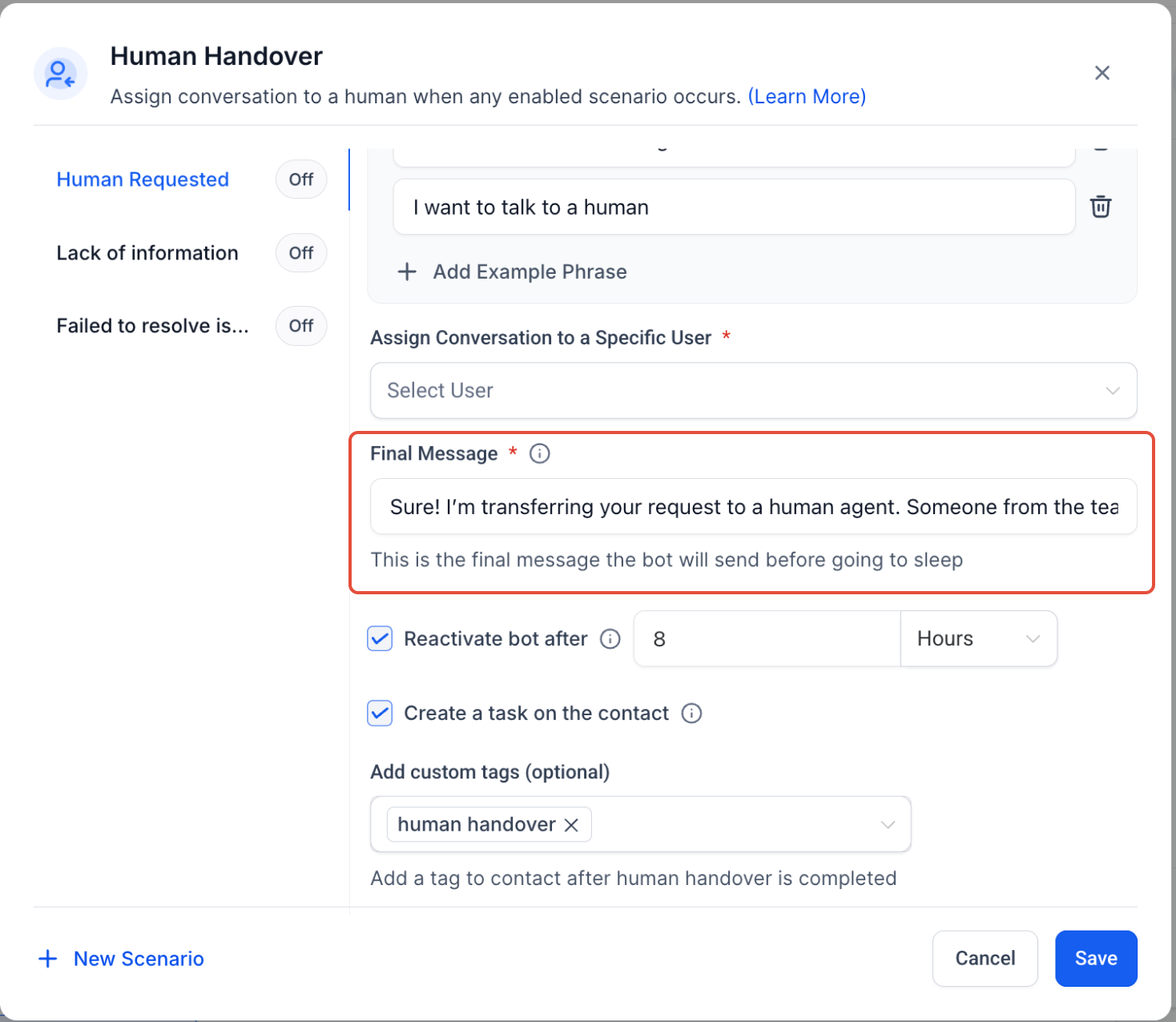
Step 3: Configure Post-Handover Actions
Customise what happens once the bot hands over the conversation:
1. Assign Conversation to a User
- Choose a specific user to assign the conversation.
- Optional: Skip assignment if the contact already has an assigned user.
2. Final Message
- The final message that the bot will send before handing over the conversation to a human.
- Example Message: "Thank you! Someone from the team will get back to you."
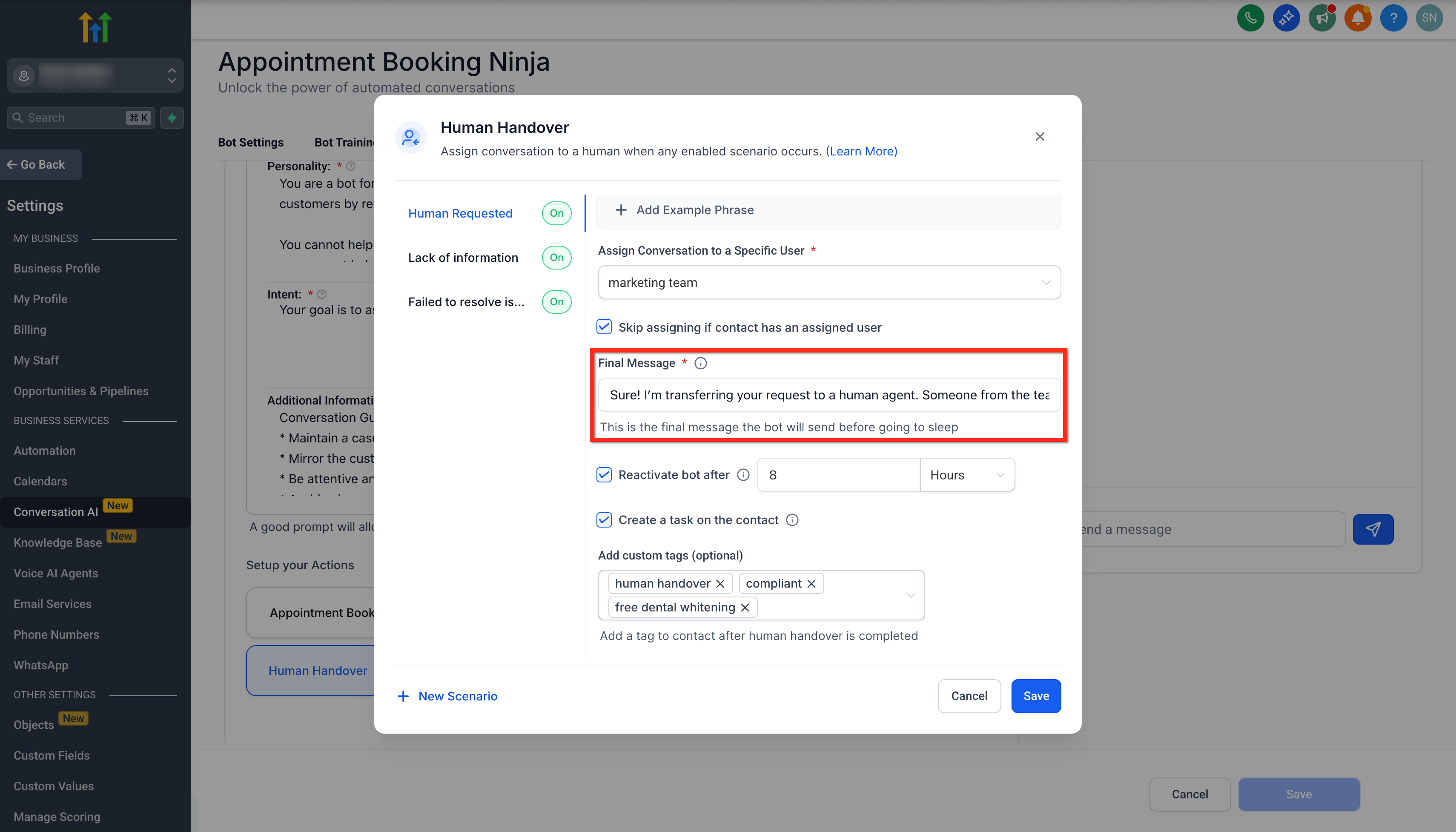
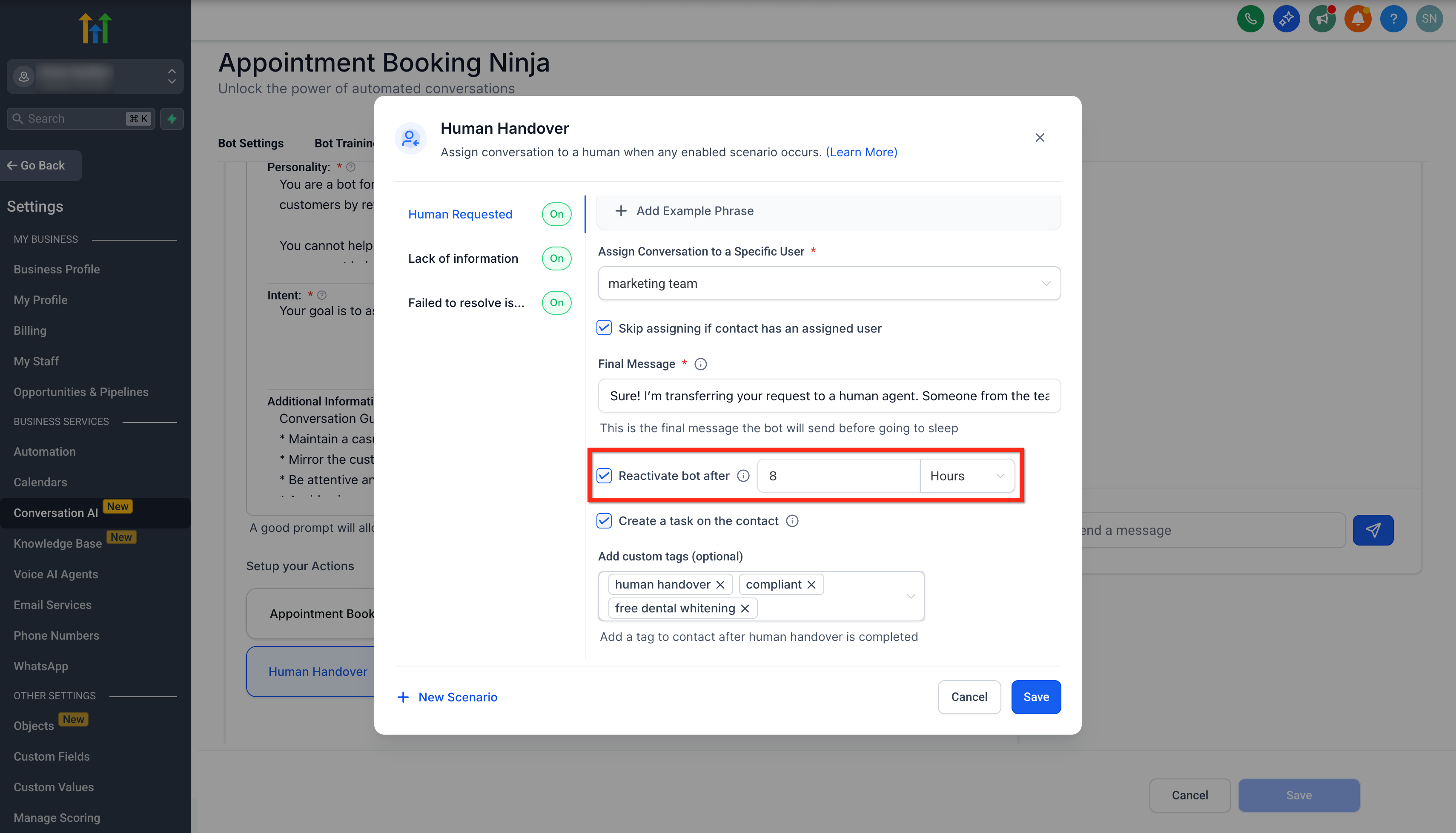
3. Bot Pause Behaviour
- Set a timer to resume bot interactions at a later time.
- You can set the duration in Days, Hours and Minutes.
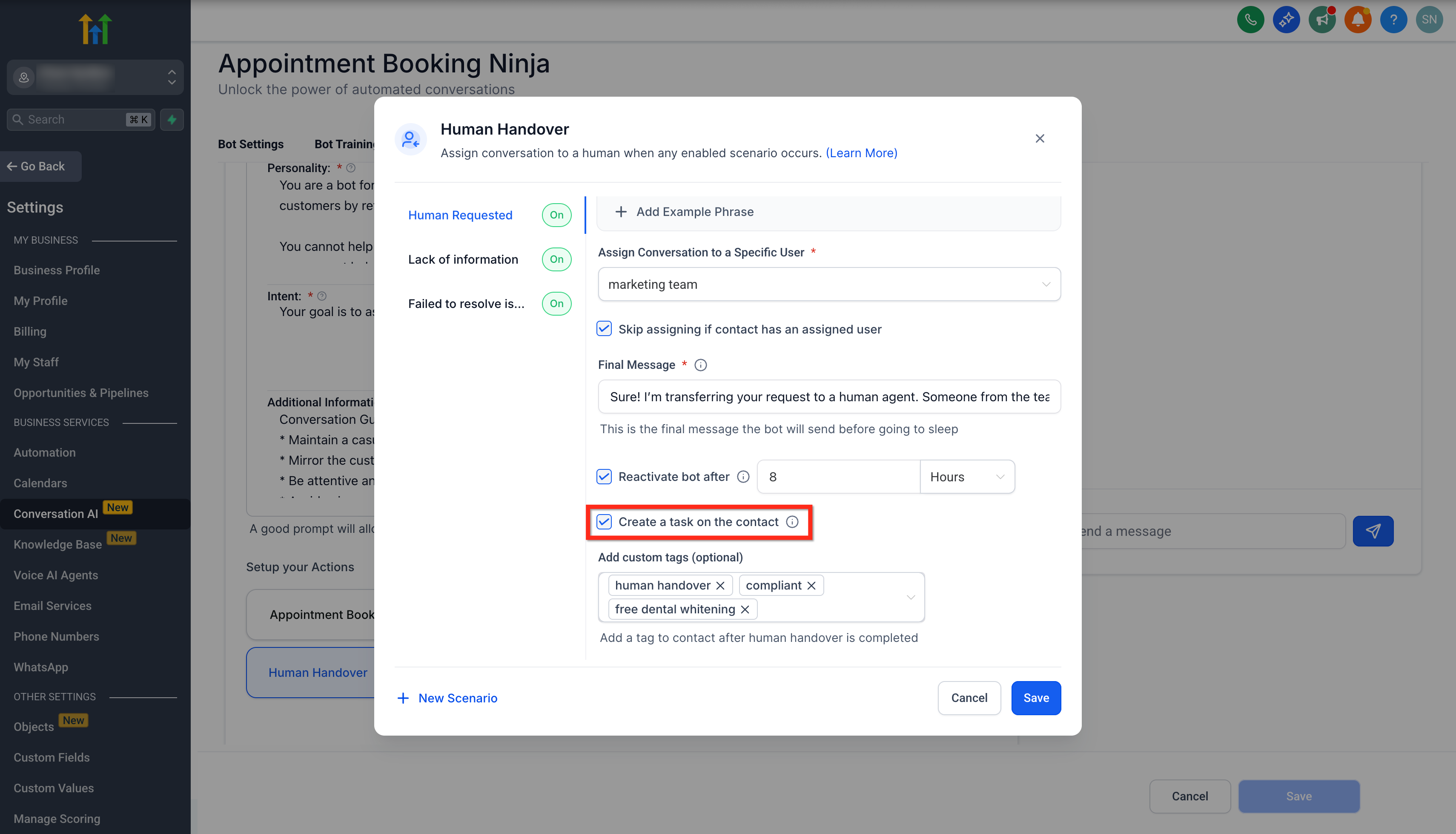
4. Create a Task
- A task will be created within the contact when human handover is triggered.
- Due time: 24 hours from trigger.
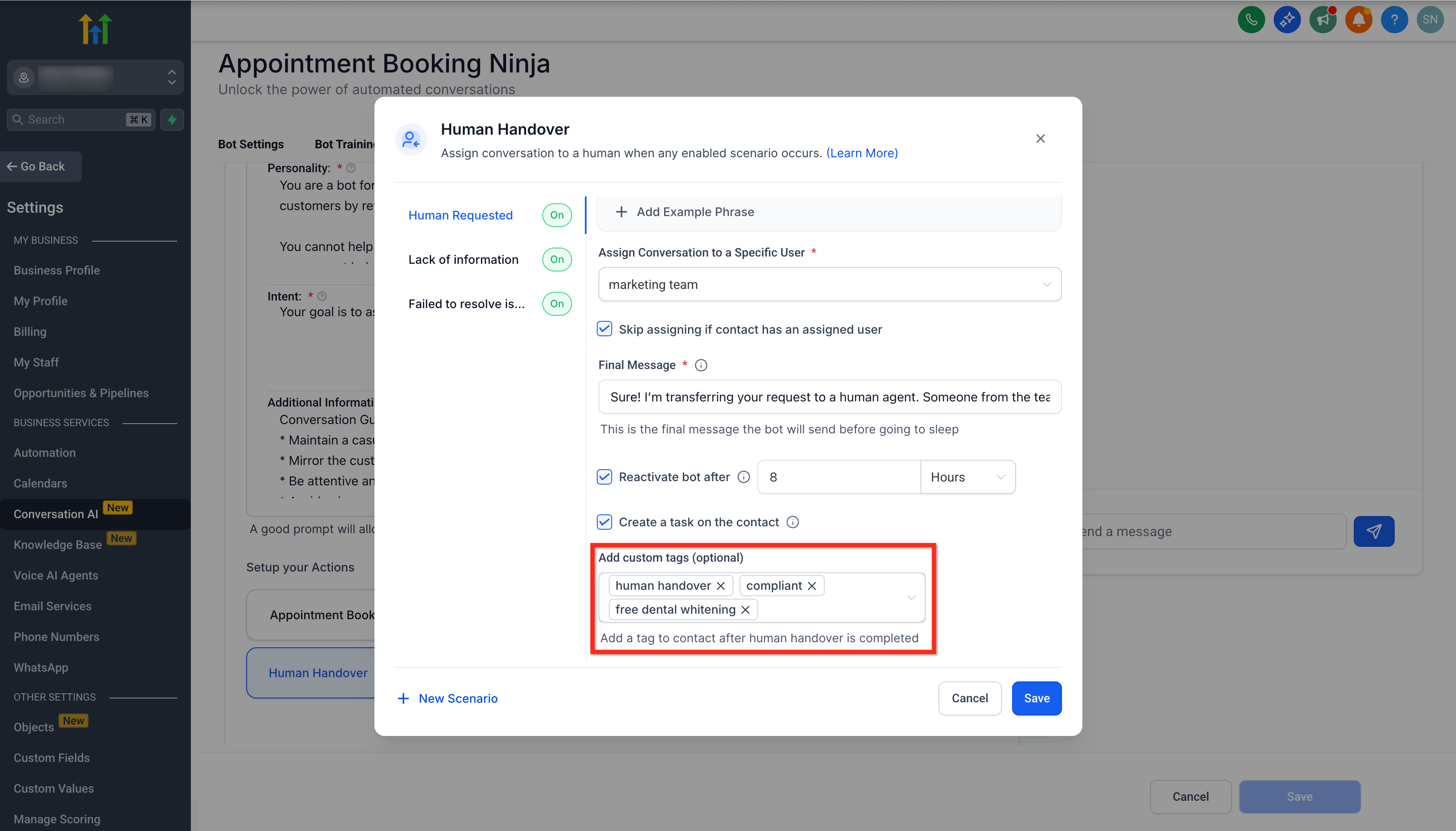
5. Create Tags
- Add a tag to contact after human handover is completed.
- Default tag: human_handover
Notification Management for Assigned user
Ensure that your staff receives timely alerts is crucial for prompt human intervention.
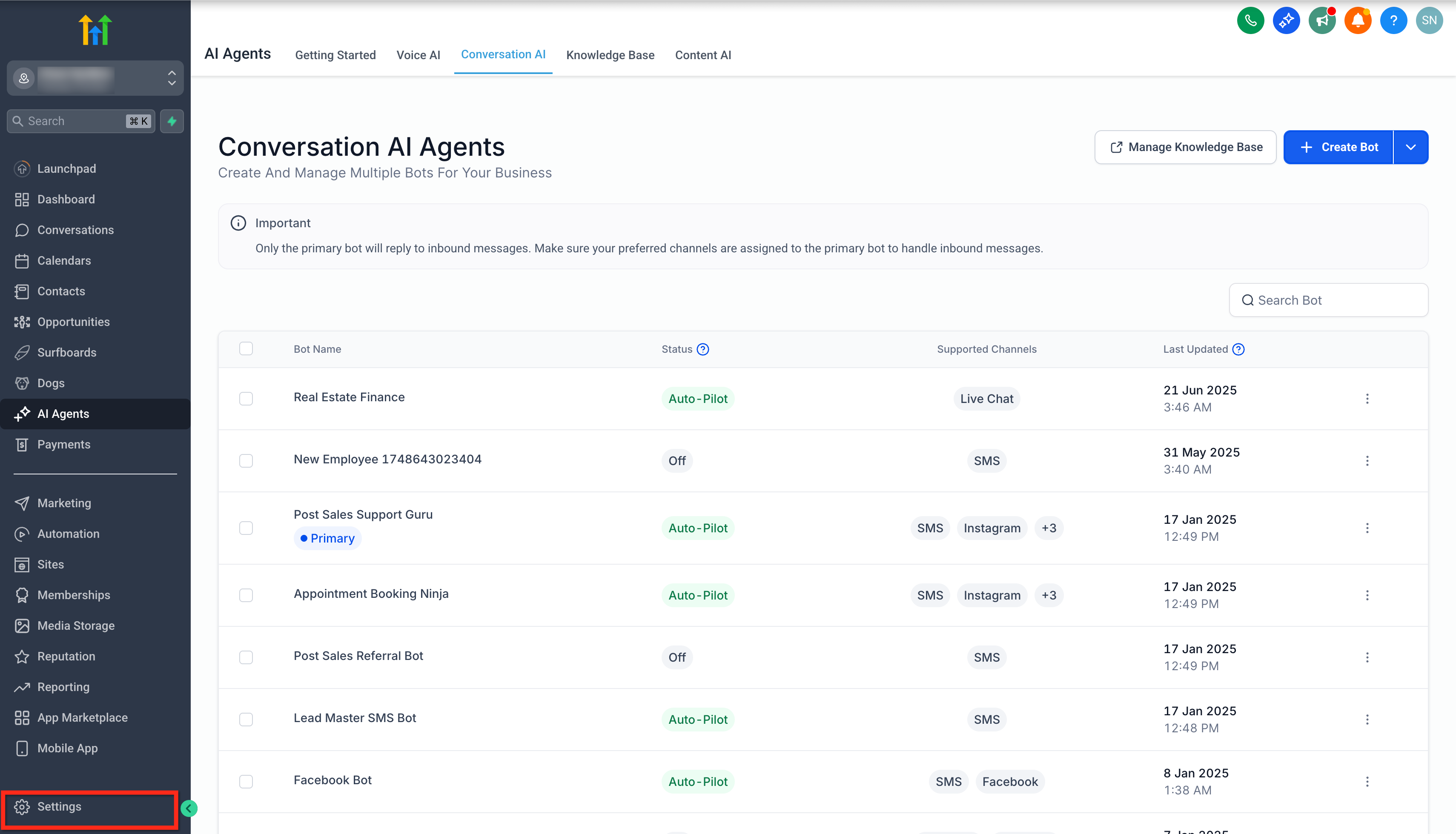
- Go to Settings from your sub-account.
- Click on the My Staff tab.
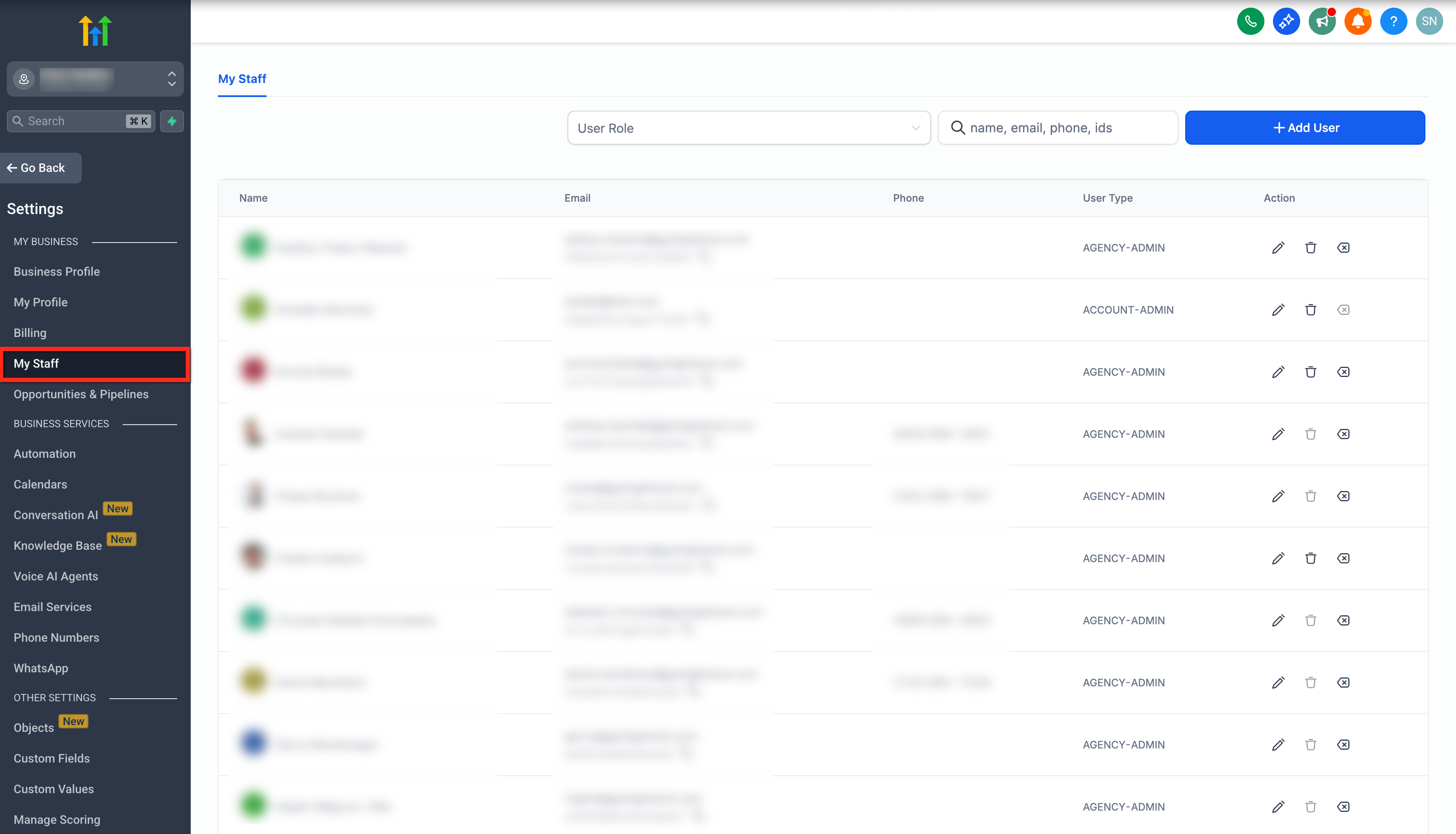
- Click on the Edit action button for the particular staff you want to notify.
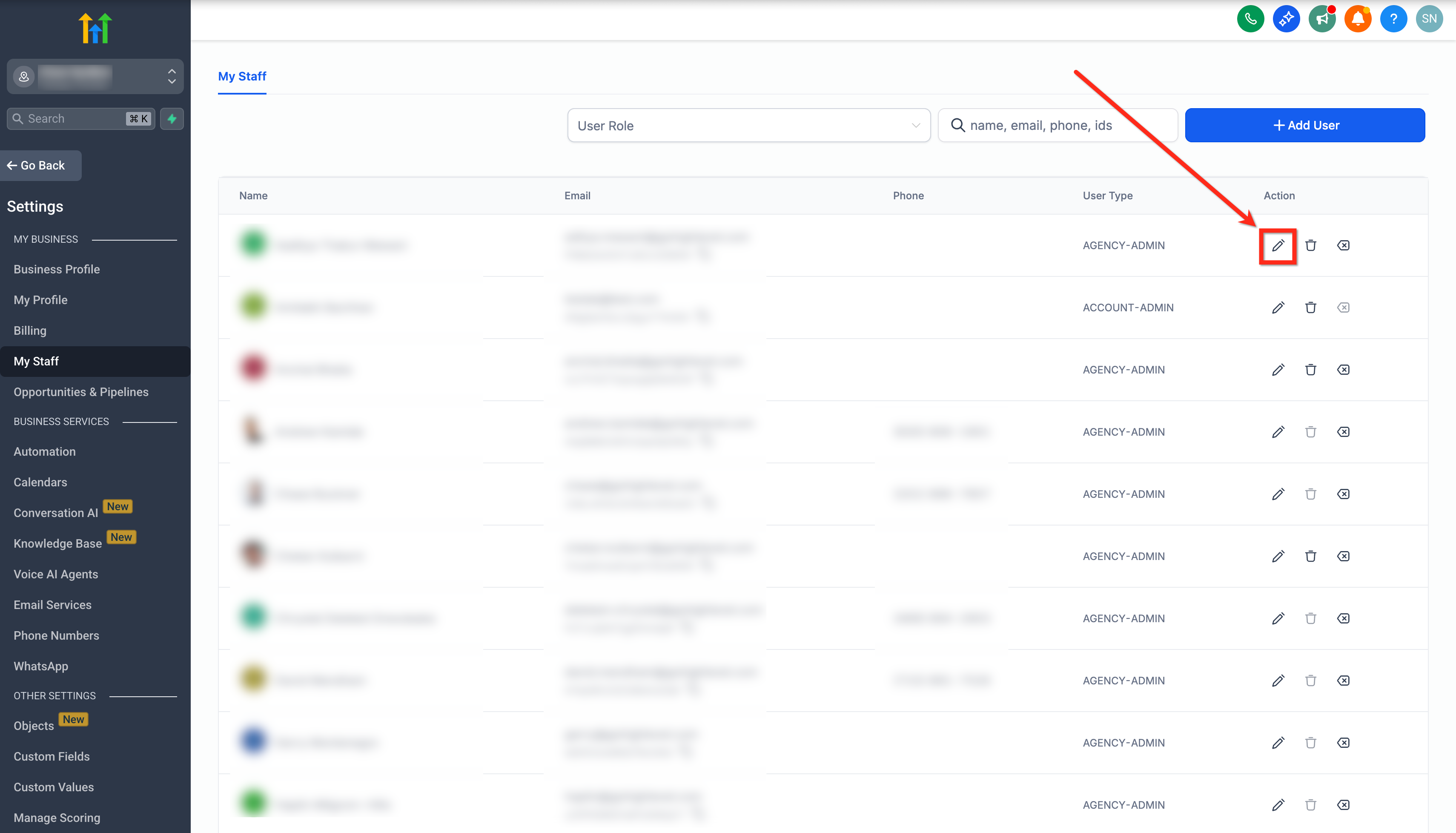
- Click on the Notification Settings tab.
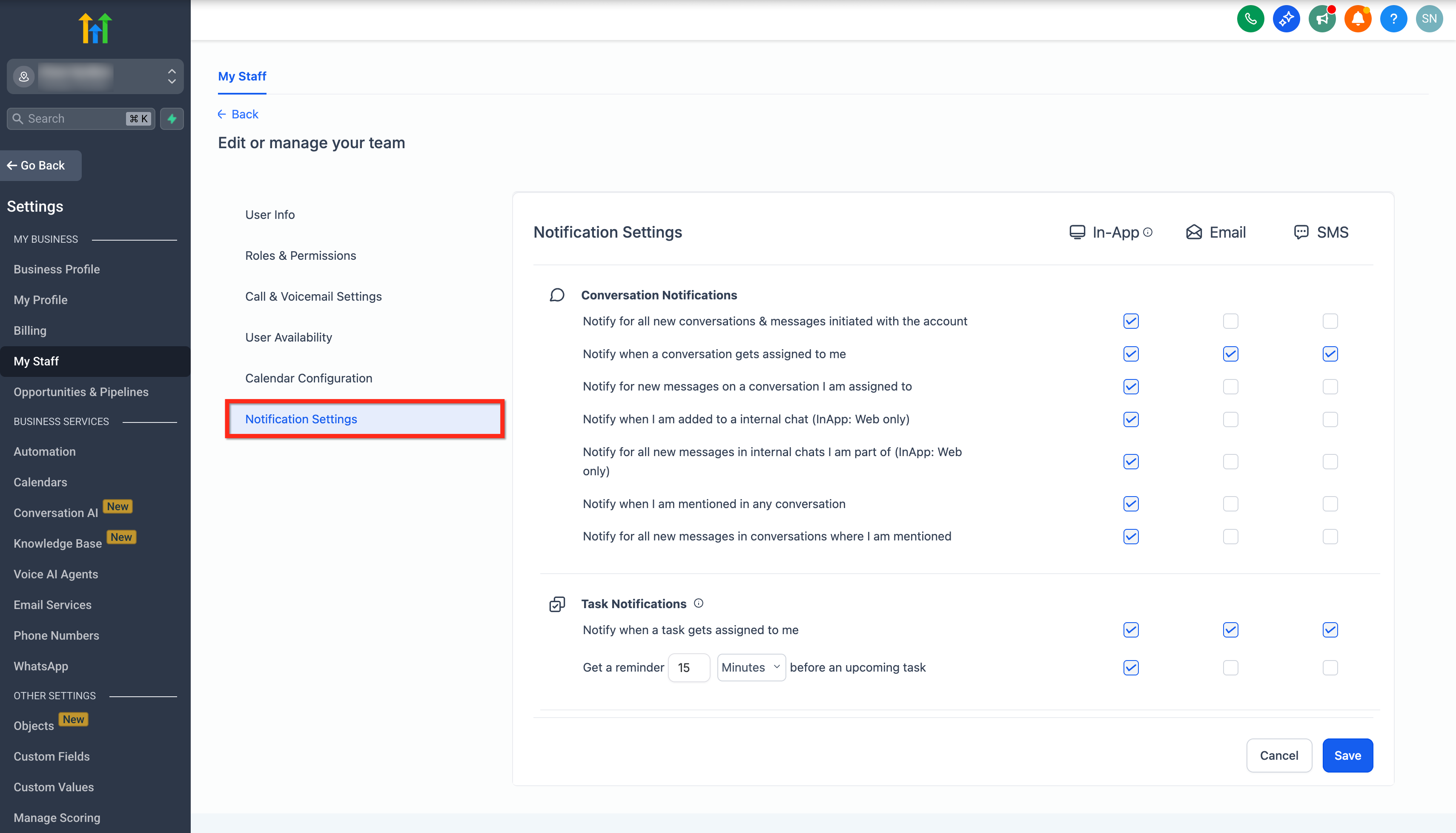
- Enable Notifications for all channels:
- When a conversation gets assigned to me
- When a task gets assigned to me
- Click on Save.
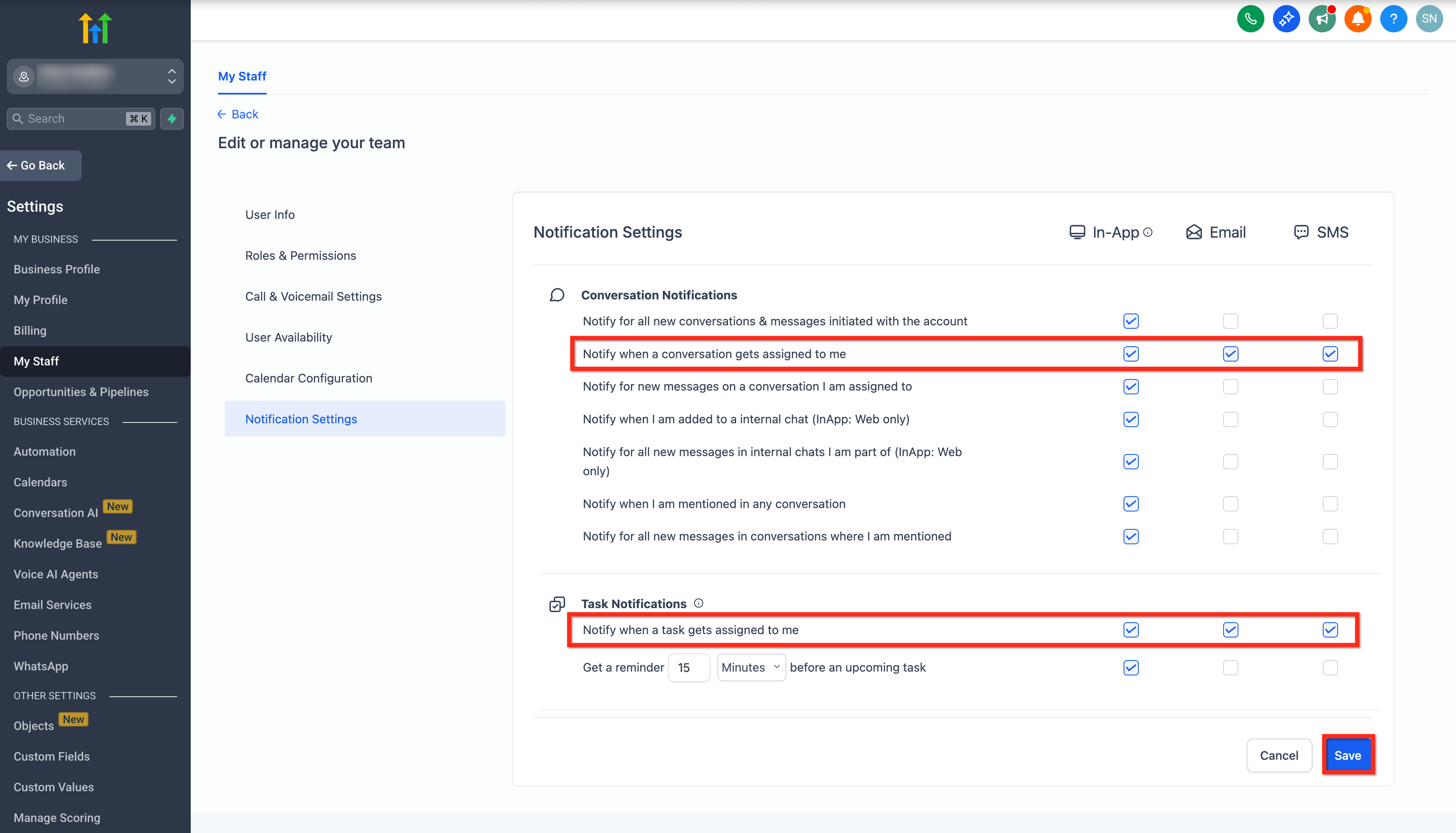
- When a conversation gets assigned to me
Note: You can configure a maximum of 6 handover actions per bot.
Customizing Handover Actions
Tailor the handover process to match your team’s workflow and customer expectations.
- Assign conversations to specific staff based on expertise or availability.
- Automatically create actionable tasks with clear deadlines.
- Personalize closing messages to maintain a friendly, professional tone.
- Adjust bot pause duration to allow human follow-up before automation resumes.
- Use conversation tags for reporting and workflow automation.
Frequently Asked Questions
Q: Can I customize the message sent to customers during a handover?
Yes, you can personalize the closing message that’s sent when a handover is triggered.
Q: What happens if no team member is assigned during a handover?
The conversation will remain unassigned until a staff member claims it, so it’s best to set up default assignees for seamless support.
Q: Can I set different triggers for different bots or workflows?
Yes, triggers can be customized per bot or workflow within the Bot Goals section.
Q: How does the bot know when to pause, and for how long?
You can configure the cooldown period during which the bot will not respond, giving your team time to intervene.
Q: Will my team get notified immediately after a handover?
Yes, as long as notifications for assigned conversations and new tasks are enabled in staff settings.
Q: Is there a way to track all conversations that have been handed over?
Yes, conversations are tagged with human_handover for easy filtering and reporting.
Q: Can I disable Human Handover for certain workflows?
Absolutely, simply toggle off the feature in the relevant Bot Goals configuration.