
Outbound Calling Using the Chat To Clients CRM Mobile App
The mobile calling experience goes beyond just “Hello.” Whether you’re speaking to a lead, a client, or a teammate, everything you need to take action is now just a tap away. From scheduling follow-ups to logging call outcomes, the Mobile App puts your workflows where they matter most: right on the call screen.
For a full overview of available mobile features, visit Mobile Apps Overview.TABLE OF CONTENTS
- Overview of Outbound Calling Using the Chat To Clients CRM Mobile App
- Key Benefits of Outbound Calling in the Chat To Clients CRM Mobile App
- Advanced Features Available During a Call on the Chat To Clients CRM Mobile App
- Advanced Features Available After a Call on the Chat To Clients CRM Mobile App
- How to Make Outbound Calls Using the Chat To Clients CRM Mobile App
- Frequently Asked Questions
- Related Articles
Overview of Outbound Calling Using the Chat To Clients CRM Mobile App
With Chat To Clients CRM’s mobile call feature, your smartphone becomes a central hub for communication and productivity. Beyond making calls, the app enables you to handle tasks, add notes, and schedule follow-ups instantly without switching screens or losing focus during conversations. The mobile app uses the same phone system as your Chat To Clients CRM desktop experience, so calls, recordings, and billing are managed seamlessly across both platforms.
Key Benefits of Outbound Calling in the Chat To Clients CRM Mobile App
Mobile calling isn’t just about talking, it’s about acting. This feature helps streamline your workflow, allowing you to manage follow-ups, notes, payments, and more!
Real-time Action: Eliminate screen switching by scheduling or taking notes mid-call
Efficiency: Save time with embedded task creation tools
Customer Experience: Improve interactions with instant follow-up options
Consistency: Reduce missed tasks or lost context from calls
Information Access: View complete profile and payment information while speaking
Flexibility: Work on the go without sacrificing CRM functionality
Advanced Features Available During a Call on the Chat To Clients CRM Mobile App
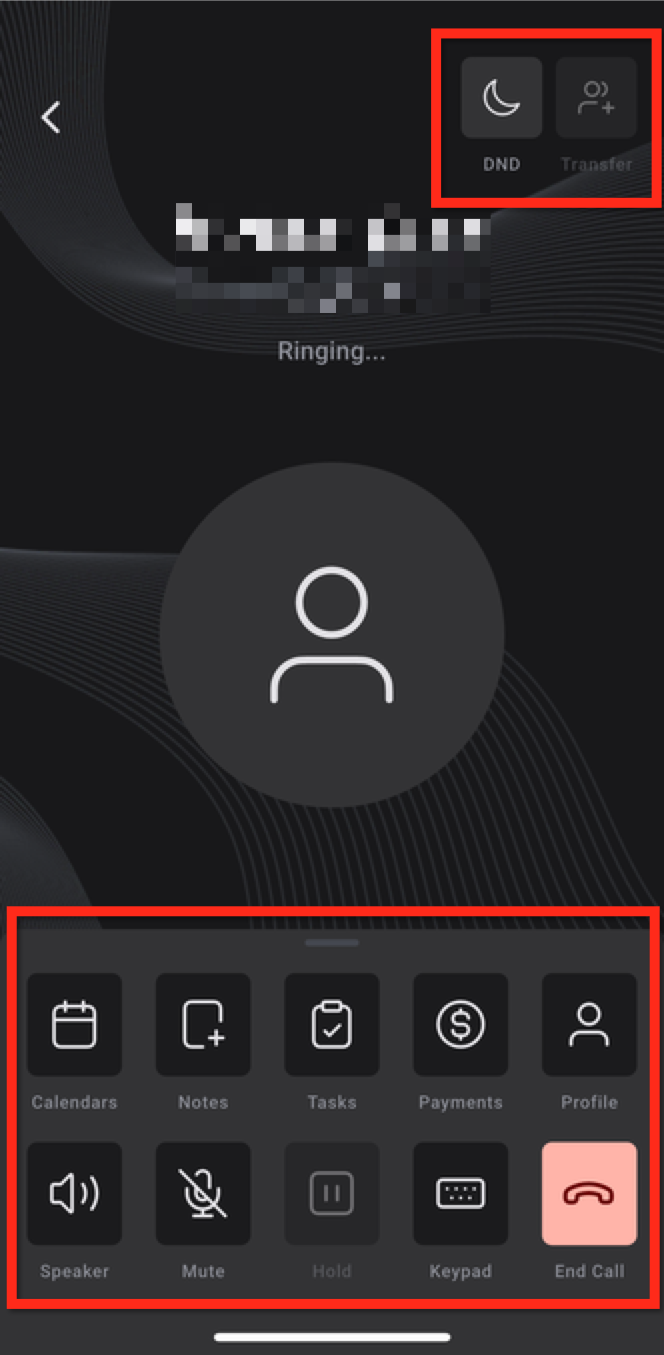
On the in-call screen, you can do much more than just talk. These tools help you take action in real time, keeping everything organized and actionable.
- DND: Toggle Do Not Disturb for the contact directly from the call
- Transfer: Pass the call to another team member. Click here to learn more about the Call Transfer feature
- Calendars: Access calendars and schedule a follow-up appointment without leaving the call
- Notes: Type or dictate real-time notes while on the call
- Tasks: Create, manage and view tasks associated with the contact
- Payments: Review or log payments. Click here to learn more on Payment Hub in the Mobile App
- Profile: View the contact’s full profile details
Speaker / Mute / Hold / Keypad / End Call: Standard call controls
Advanced Features Available After a Call on the Chat To Clients CRM Mobile App
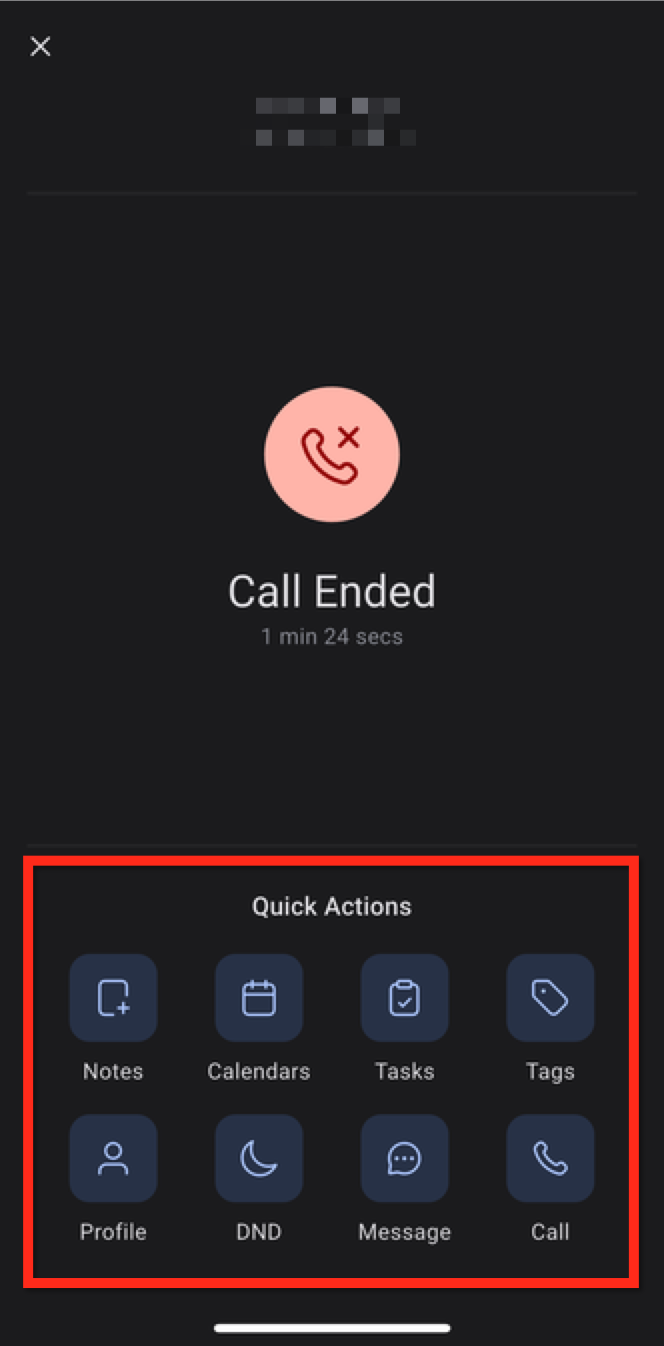
Once the call ends, the mobile app presents a summary screen with direct access to post-call actions. This helps ensure nothing falls through the cracks.
Notes: Finish or edit your in-call notes
Calendars: Schedule any meetings or callbacks
- Tasks: Add new follow-ups or action items
Tags: Apply contact tags to help organize leads
Profile: View the contact’s detailed information
DND / Message / Call Back: Take immediate next steps with a tap
How to Make Outbound Calls Using the Chat To Clients CRM Mobile App
You can make outbound calls using either through the Chat To Clients CRM Mobile App or through your phone's native call functionality. This flexibility allows you to stay connected from wherever you're working. There are multiple methods to place an outbound call, allowing you to chose the option that best fits your workflow.
Local Presence Dialing
When Local Presence Dialing is enabled for the sub-account, supported outbound calls through the Chat To Clients CRM mobile app use Local Presence caller-ID selection. Configure Local Presence Dialing in the web app under Settings → Phone System → Voice → Other Settings → Outbound Calls.
For supported countries, matching behavior, fallback logic, and reserved numbers, see Local Presence Dialing with the Chat To Clients CRM Phone System.
Local Presence Dialing does not apply to SIM-based calls. SIM-based calls use the mobile carrier number.
Placing Outbound Calls with Chat To Clients CRM Through Your Phone's Native Calling App
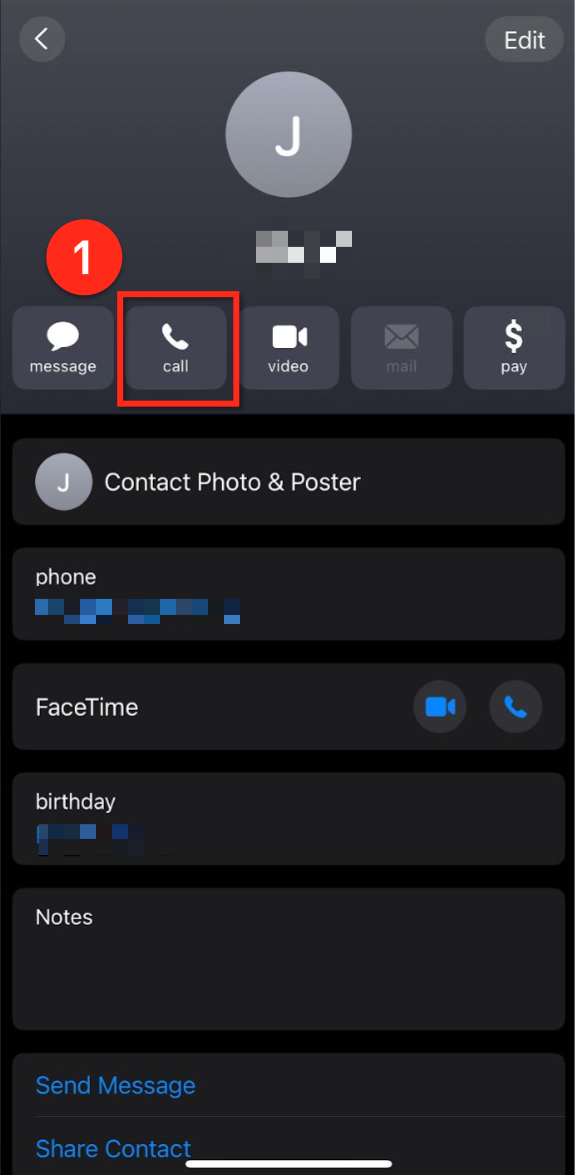
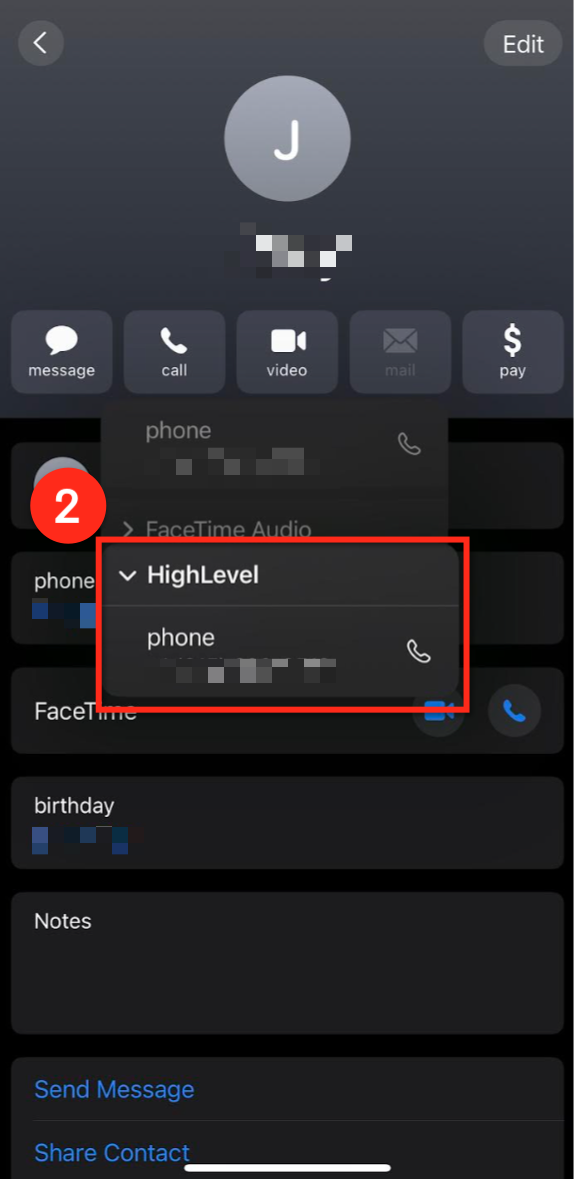
After installing the mobile app, you can also use it to call contacts saved directly in your phone:
Open your phone’s Contacts app. Press and hold the call button.
When prompted, select Chat To Clients CRM or Chat To Clients CRM from the call method options to place the call
 |  |
Placing Outbound Calls Within the Chat To Clients CRM Mobile App
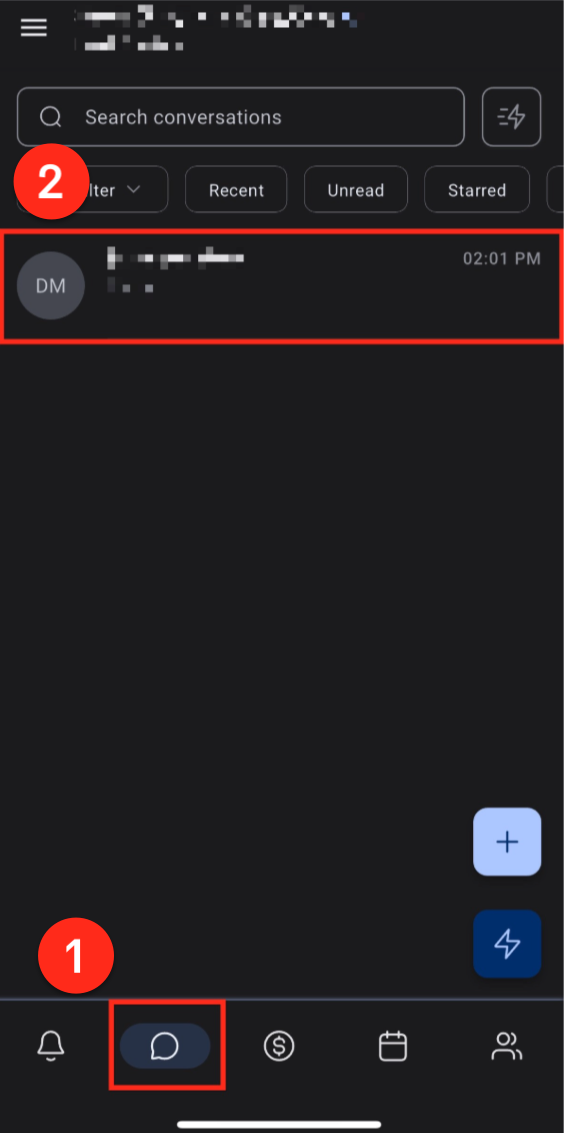
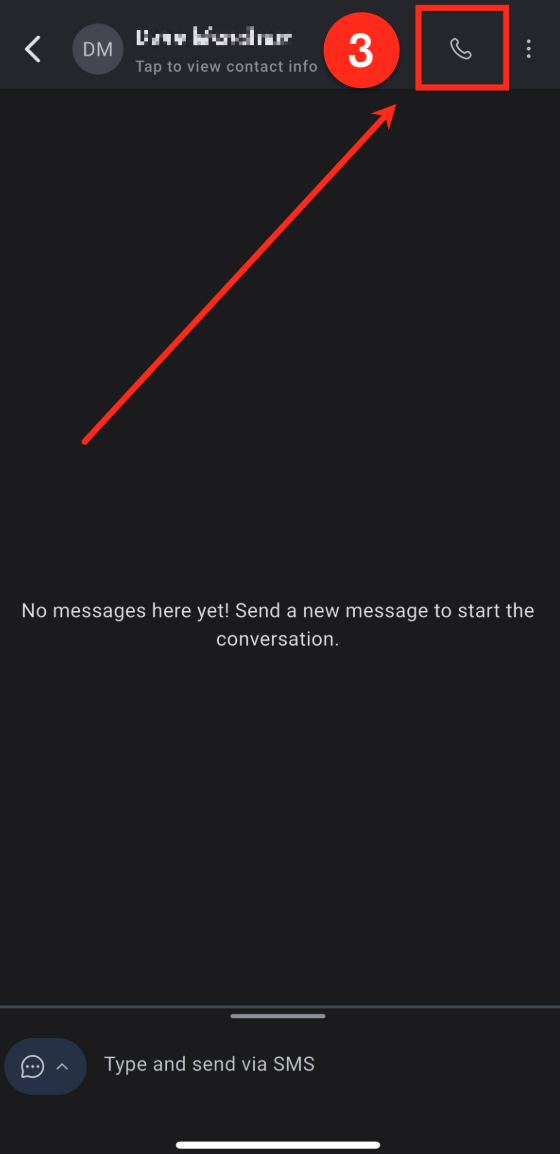
From an Existing Conversation:
- Navigate to the Conversations tab using the bottom navigation ribbon
- Locate the conversation with the contact you would like to call and click on the conversation to open it.
- Tap the Call button in the upper right corner of the screen.
 |  |
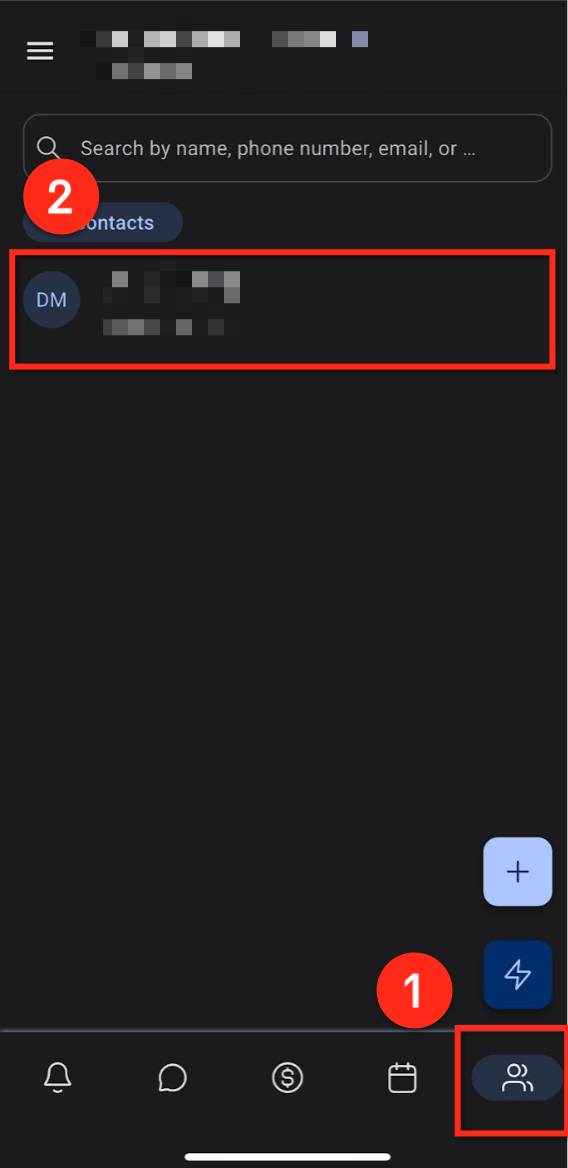
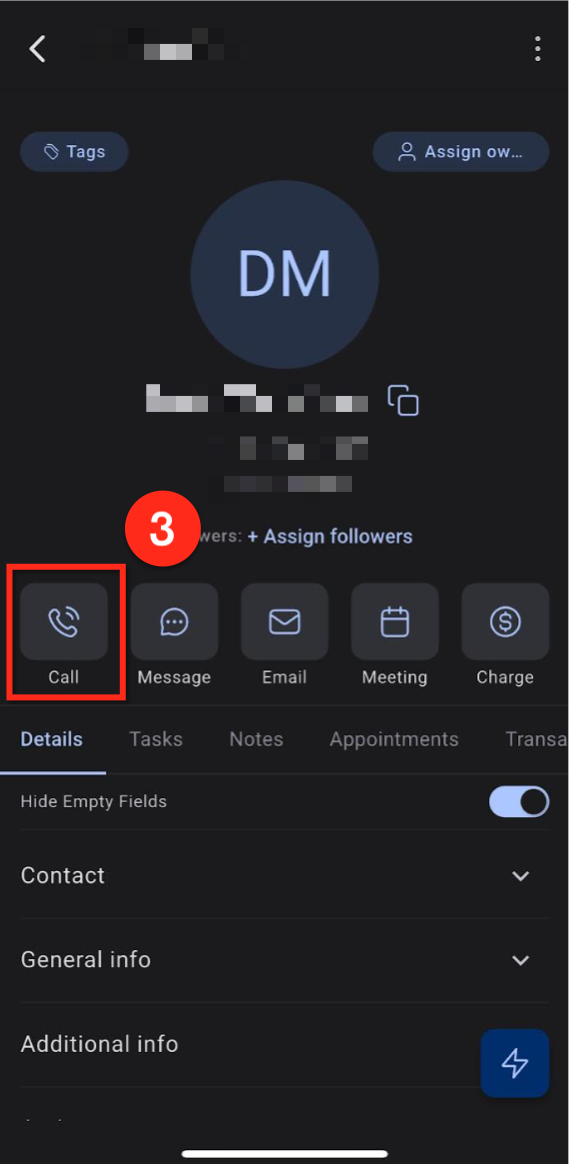
From an Existing Contact:
- Navigate to the Contacts tab using the bottom navigation ribbon
- Select the desired contact to open the contact page
- Tap the Call button to place a call
 |  |
Using the Floating Lightning Button:
- Tap the Lightning icon in the bottom-right corner of the screen.
- Select the "Make a Call" option in the lower-left corner in order to place a call.
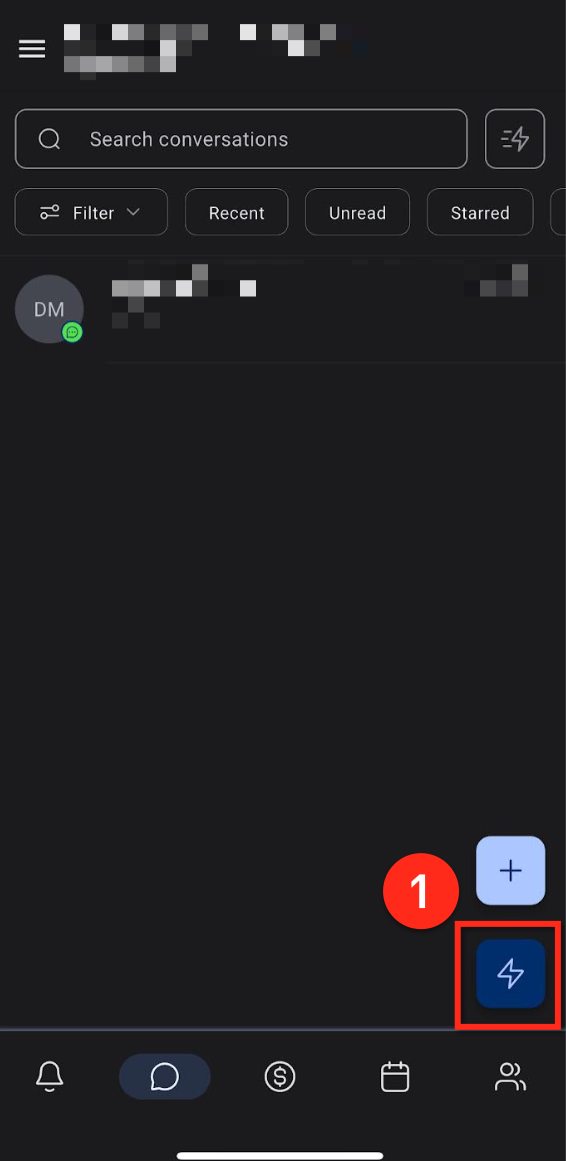 | 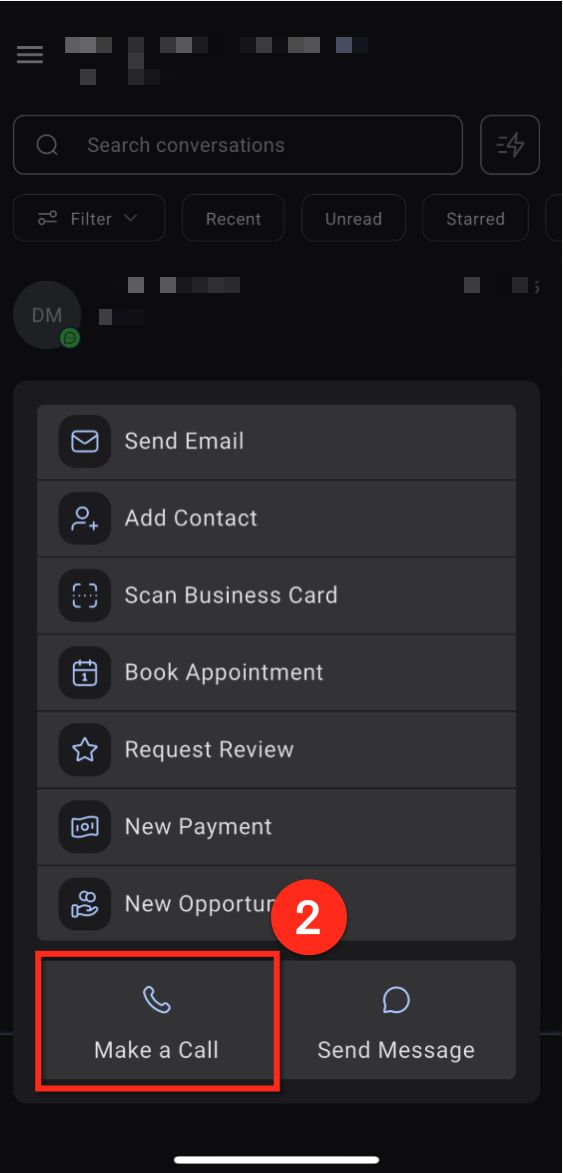 |
Using the Floating Phone Button:
- From the Notifications tab, select the phone button in the lower right-hand corner
- This will bring you to the call dialer screen. Enter a phone number here to place an outbound call
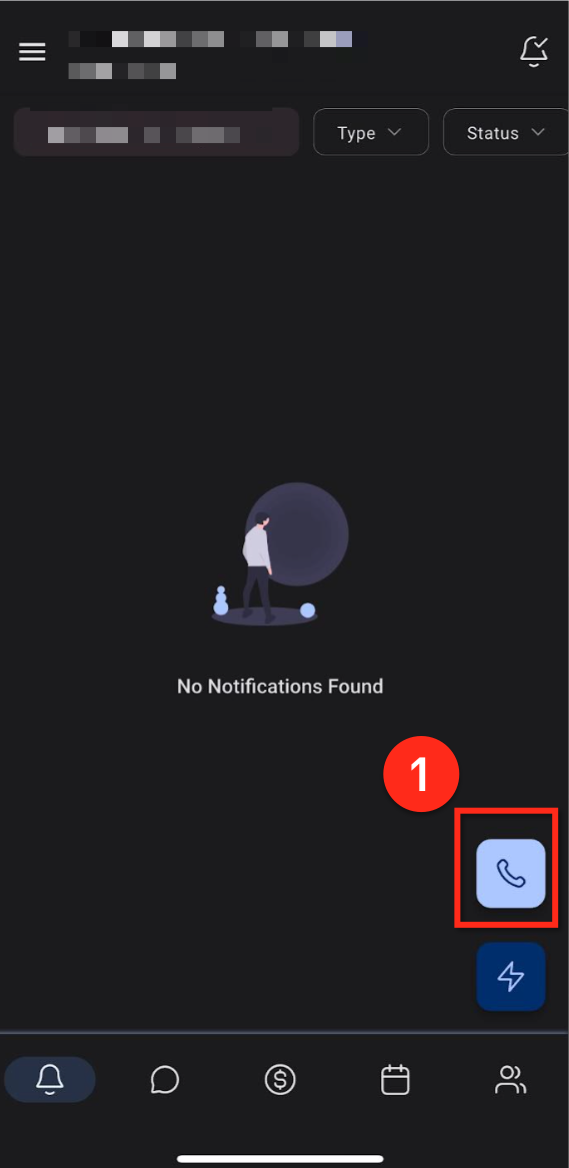 | 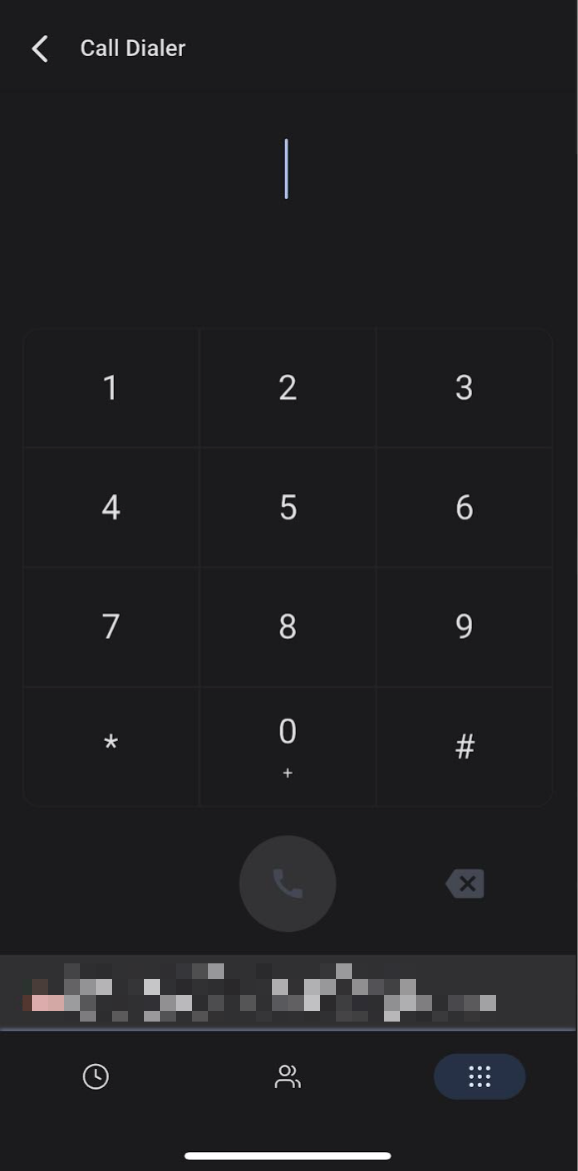 |
Frequently Asked Questions
Q: Can I transfer a call while using the mobile app?
Yes. Use the Transfer button on the call screen to redirect the call to a teammate. Learn more about call transfers.
Q: Where do my in-call notes get saved?
They are saved under the contact’s record in your CRM for easy follow-up.
Q: How are spam calls handled in the mobile app?
The app automatically flags known or suspected spam callers. These calls will appear with a spam label to help you avoid answering unwanted calls. Learn more about spam tagging.
Q: What happens if I miss a call?
If a voicemail is set up, the contact can leave a message. Learn more on setting up voicemail. You can also set up call routing to ensure calls reach your mobile app. Learn more on forwarding calls to mobile app.
Q: How is mobile calling priced in Chat To Clients CRM?
Calls made through the mobile app are billed based on your Twilio or Chat To Clients CRM phone system usage. This includes outbound and inbound minutes, which are tracked in your account. Learn more about Chat To Clients Phone pricing.