
Tag Contacts from Campaign Statistics
Chat To Clients CRM allows you to tag contacts directly from email campaign statistics based on interactions such as email opens and link clicks. You can manually apply tags to contacts who have already interacted with a campaign or enable automatic tagging for future interactions. This helps you organize engaged contacts, build targeted audience segments, and create more relevant follow-up campaigns. Learn how to configure contact tagging, manage multiple tags, and review tagging activity.
TABLE OF CONTENTS
- What is Tagging Contacts from Campaign Statistics?
- Key Benefits of Tagging Contacts from Campaign Statistics
- Manual Tagging Based on Campaign Interactions
- Auto-Tag Future Interactions
- Manual Tagging vs. Automatic Tagging
- Tracking Tagging Activity and Logs
- Limitations of Campaign Statistics Tagging
- How to Tag Contacts from Campaign Statistics
- Frequently Asked Questions
- Related Articles
What is Tagging Contacts from Campaign Statistics?
Tagging contacts from campaign statistics allows you to organize your audience based on how recipients interact with your email campaigns. Instead of identifying engaged contacts manually in the Contacts section, you can select recipients directly from campaign interaction data and apply relevant tags. This makes it easier to group contacts by their engagement and use those groups for future marketing activities.
For example, you can apply a tag to contacts who opened an email or clicked a link within a specific campaign. You can also enable automatic tagging so contacts who interact with the campaign in the future receive the appropriate tag without requiring additional manual actions. This functionality is available through the Statistics interface of sent email campaigns.
Key Benefits of Tagging Contacts from Campaign Statistics
Campaign interaction tagging helps you turn email engagement data into actionable contact segments. By organizing recipients according to their behavior, you can identify interested audiences, simplify follow-ups, and reduce repetitive contact management tasks.
Post-Campaign Segmentation: Apply tags to contacts after a campaign has been sent without needing to configure tagging conditions in advance.
Automatic Tagging: Automatically tag contacts who meet the selected interaction conditions in the future.
Engagement-Based Targeting: Identify contacts who opened or clicked your campaign emails for more relevant follow-up communication.
Multiple Tag Support: Apply multiple tags to contacts to create more detailed audience segments.
Simplified Contact Management: Manage engagement-based tagging directly from campaign statistics without navigating to individual contact records.
Tagging Activity Tracking: Review manual tagging operations through the available tagging and Bulk Actions interfaces.
Manual Tagging Based on Campaign Interactions
Manual tagging allows you to select contacts who have already interacted with a sent email campaign and apply one or more tags to their records. This is useful when you want to organize contacts after reviewing campaign performance or identify recipients for a targeted follow-up.
For example, after reviewing a promotional email campaign, you might tag contacts who opened the email as Fall Campaign - Opened and contacts who clicked a link as Fall Campaign - Clicked.
Selecting Contacts by Interaction Type
Campaign statistics organize recipients according to their interactions with the email. Selecting an interaction category helps you identify the contacts you want to tag based on their activity. Common interaction categories include:
Opened: Contacts who opened the email.
Clicked: Contacts who clicked a tracked link in the email.
Other available interaction categories: Additional recipient lists displayed in the campaign's statistics interface.
After opening a category, you can select individual contacts or use the available selection options to tag multiple contacts.
Applying Multiple Tags
Multiple tags allow you to categorize contacts using more than one characteristic. For example, a contact who clicked a promotional link could receive both Interested in Product A and October Promotion. Chat To Clients CRM supports applying multiple tags during the same tagging operation.
Important: Applying a tag that already exists on a contact does not create a duplicate tag. Existing tags are retained.Auto-Tag Future Interactions
Auto-Tag Future Interactions automatically applies your selected tags to contacts who engage with the campaign after automatic tagging is enabled. This helps keep engagement-based audience segments updated without requiring you to return to campaign statistics and repeat the tagging process.
For example, you can configure automatic tagging for the Opened interaction category. When additional contacts open the campaign email, Chat To Clients CRM automatically applies the configured tag to their contact records.
How Automatic Tagging Works
Automatic tagging is configured for a selected interaction category within a sent campaign. The process involves:
Opening the relevant campaign interaction category.
Selecting All contacts.
Choosing the tags you want to apply.
Enabling Auto-Tag Future Interactions.
Once enabled, the selected tags are automatically applied when additional contacts meet the configured interaction condition.
Important: Automatic tagging is intended for future interactions. To tag contacts who have already interacted with the campaign, use the manual tagging option.Manual Tagging vs. Automatic Tagging
| Feature | Manual Tagging | Automatic Tagging |
|---|---|---|
| Primary purpose | Tag contacts who have already interacted | Tag contacts who interact in the future |
| Contact selection | Select specific contacts or an available group | Select All within an interaction category |
| Tag application | Initiated manually | Triggered by future interactions |
| Bulk Actions visibility | Manual operations are recorded | Future automatic tagging is not recorded as a Bulk Actions job |
| Typical use case | Organizing existing campaign engagement | Maintaining engagement-based tags over time |
Tagging Before vs. After Sending an Email Campaign
Chat To Clients CRM also supports configuring tagging options from the Send or Schedule page before an email campaign is sent. This is separate from applying tags through the campaign's Statistics interface.
Before sending: Configure tags during campaign preparation using the Send or Schedule workflow.
After sending: Use Campaign Statistics to tag recipients according to their recorded interactions or configure tagging for future interactions.
For instructions on creating tags while preparing a campaign, see Email Builder: Create New Tags in the Send or Schedule Page.
Tracking Tagging Activity and Logs
Tracking tag operations helps you confirm that contact tags have been applied and provides visibility into manual tagging activity. Understanding where Chat To Clients CRM records different tagging actions is especially useful when managing large contact groups or troubleshooting tag assignments.
Manual Tagging Activity
Manual tagging operations initiated through campaign statistics are recorded through Chat To Clients CRM's tagging and Bulk Actions functionality. You can use the available records to review manual tagging activity and check the status of supported bulk operations.
For additional guidance, see Bulk Actions For Contacts & SmartLists.
Automatic Tagging Activity
Contacts tagged through Auto-Tag Future Interactions do not appear as separate operations in the Bulk Actions log.
To verify automatic tagging, review the relevant campaign interaction information and check the resulting tags on contact records.
Limitations of Campaign Statistics Tagging
Understanding the limitations of campaign statistics tagging helps you select the appropriate contact management workflow and avoid relying on functionality that is not currently supported. Some restrictions apply specifically to automatic tagging rather than all campaign statistics operations.
Invalid Contacts: Automatic tagging is not available for contacts in the Invalid category.
Order Details Lists: Automatic tagging is not supported for Order Details lists.
Tag Removal: The campaign statistics tagging feature supports adding tags, not removing existing tags.
Bulk Actions Logging: Future automatic tagging is not recorded as a Bulk Actions job.
To remove existing tags, use the available contact management tools rather than the campaign statistics tagging interface. For more information about managing contact tags, see Adding Tags to Multiple Contacts.
How to Tag Contacts from Campaign Statistics
Properly selecting the campaign, interaction category, and tagging method ensures that tags are applied to the intended contacts. You can use the Statistics interface to tag contacts who have already interacted with a campaign or enable automatic tagging for future engagement.
Step 1: Open Email Campaign Statistics
Start by locating the sent email campaign whose recipients you want to tag.
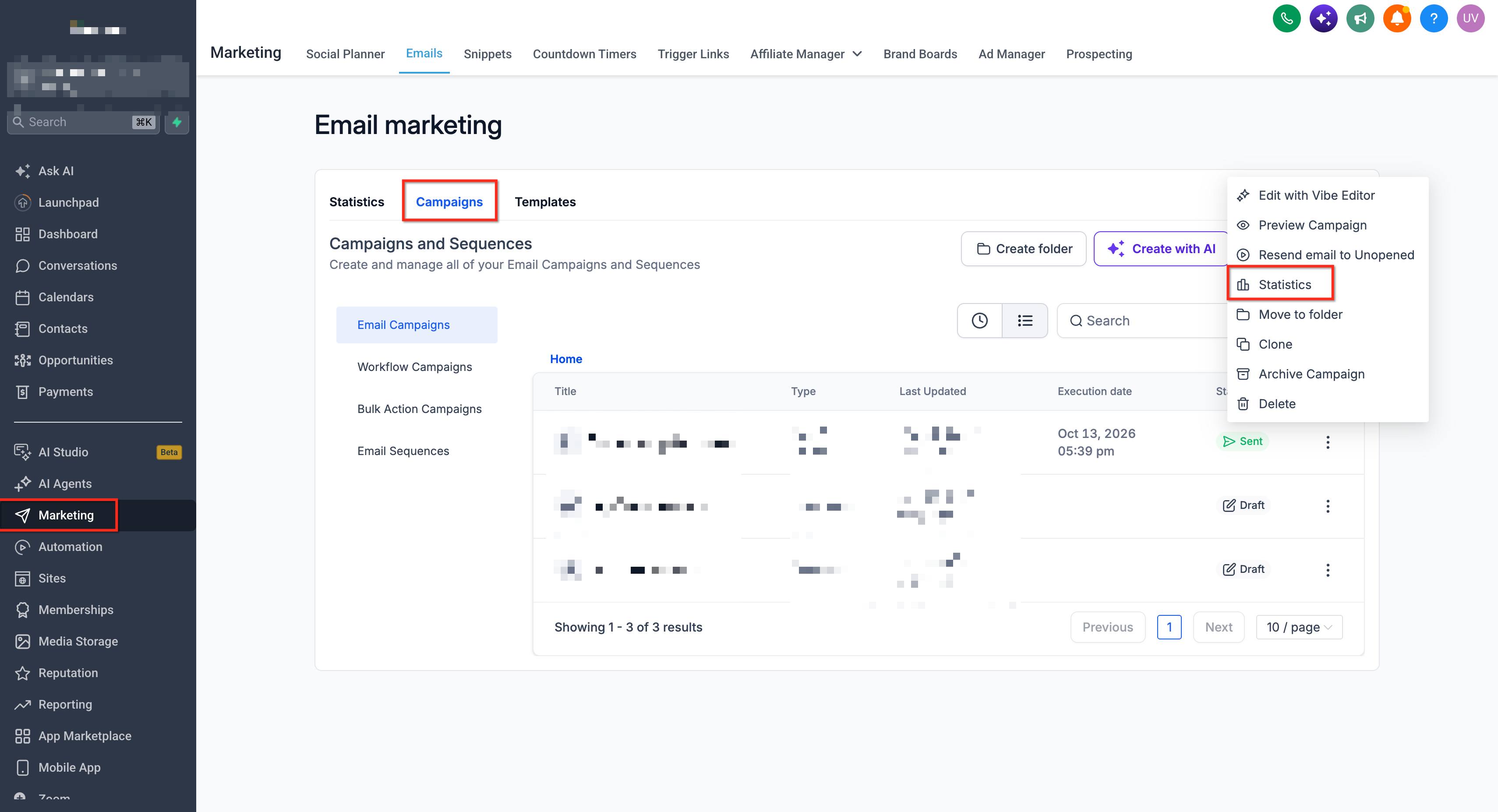
Navigate to Marketing → Email Campaigns in your Chat To Clients CRM account.
Locate the email campaign you want to review.
Click the three-dot menu associated with the campaign.
Select Statistics.
Step 2: Load Campaign Interaction Data
Campaign statistics provide interaction-level information that allows you to identify recipients based on their engagement with the email.
In the Statistics interface, click Load More to display additional recipient interaction data.
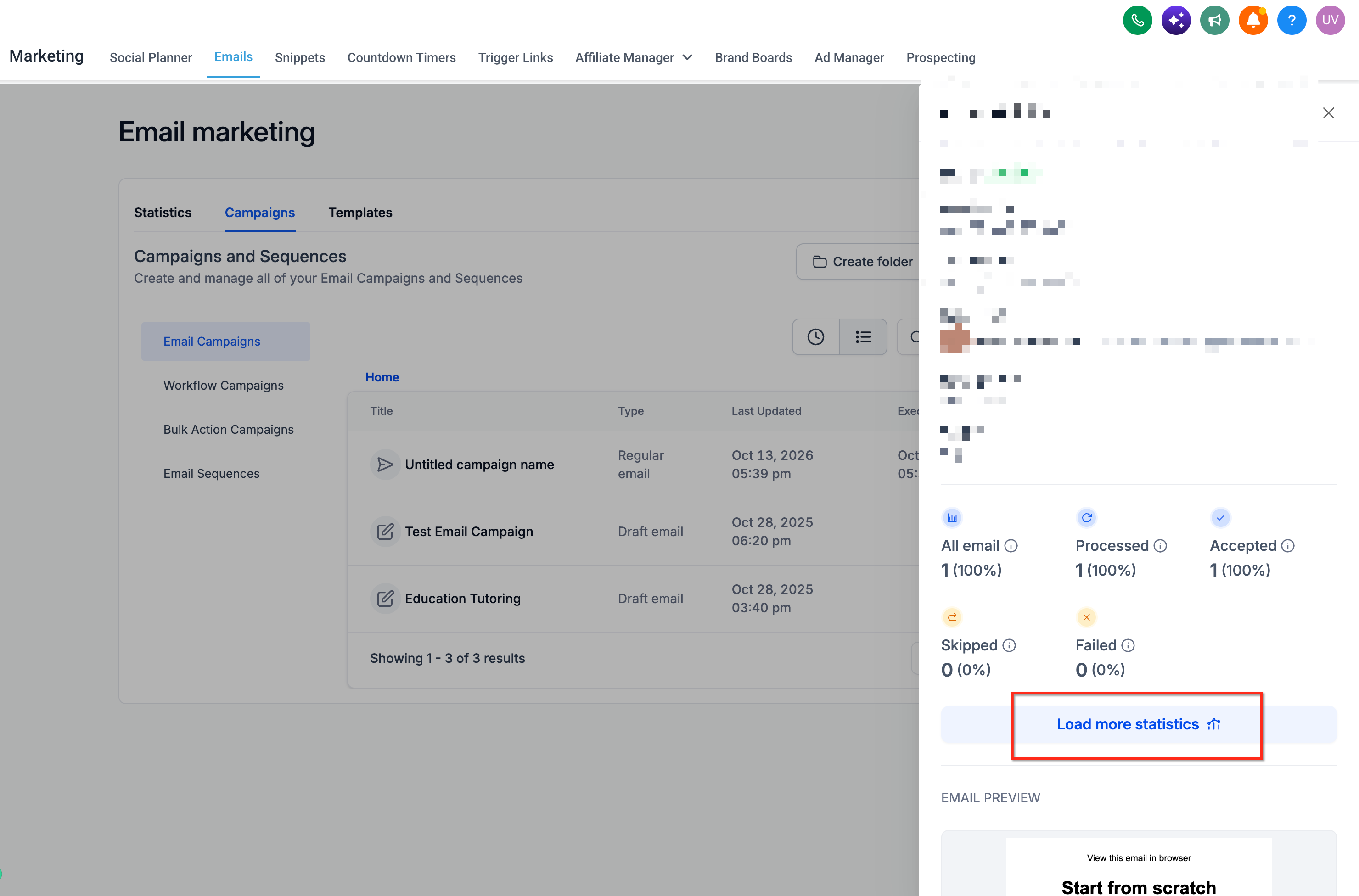
Locate the interaction categories, such as Opened or Clicked.
Select the category that corresponds to the contacts you want to tag.
Step 3: Select Contacts to Tag
Selecting the correct recipients helps ensure that only the intended contacts receive the selected tags.
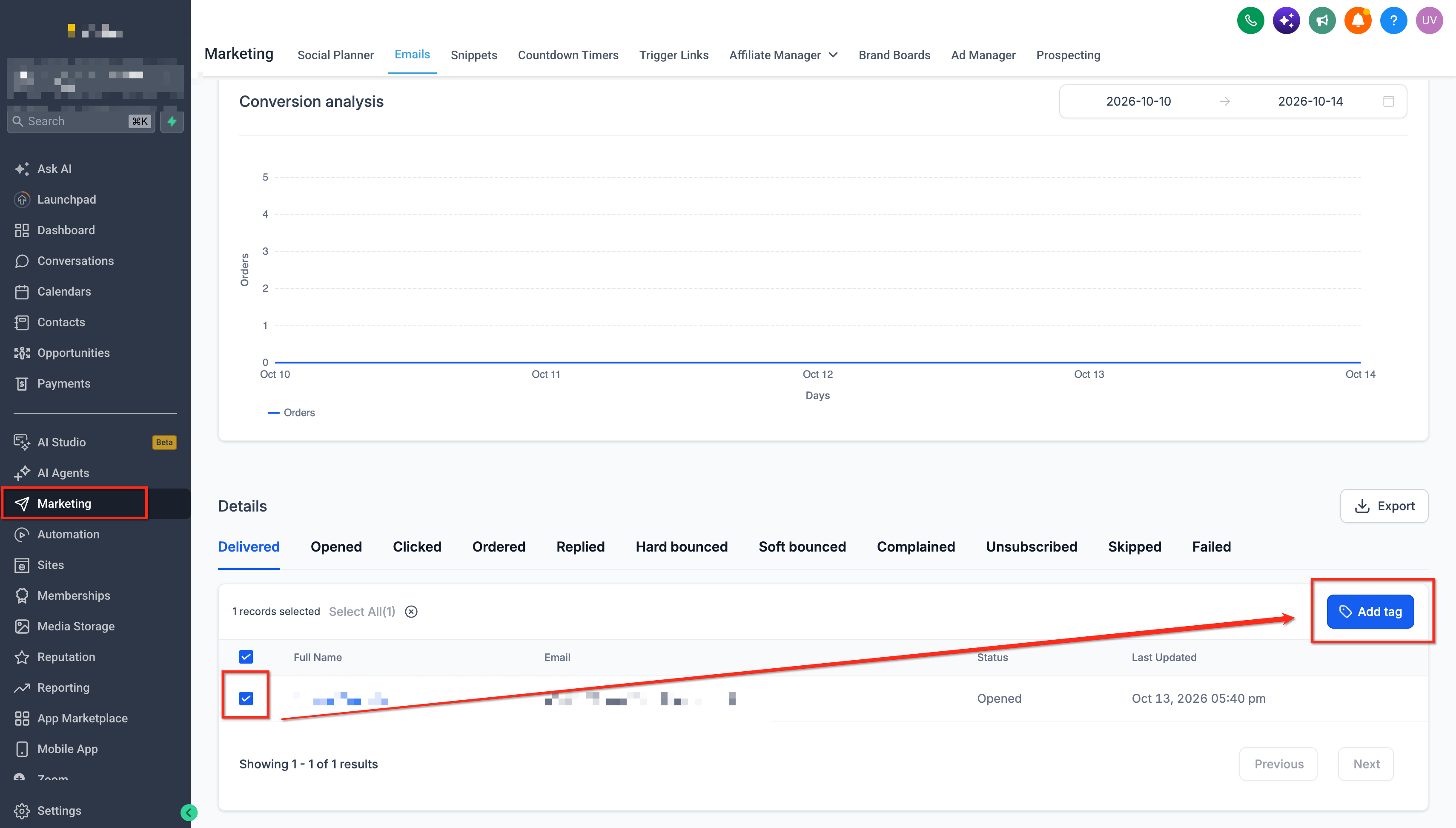
Open the desired interaction category.
Review the contacts displayed in the list.
Select the individual contacts you want to tag, or use All when you want to select the entire available group.
Click Add Tags.
Step 4: Apply Tags to Selected Contacts
Tags allow you to identify contacts based on their campaign engagement. Use descriptive tag names so that your team can recognize the purpose of each tag when reviewing contact records or creating future audience segments.
In the Add Tags interface, enter or select the tag you want to apply.
Add additional tags if needed.
Apply the selected tags to the contacts.
The tags will be associated with the selected contact records.
Step 5: Enable Auto-Tag Future Interactions (Optional)
Automatic tagging reduces repetitive work by applying your selected tags when additional contacts interact with the campaign. Enable this option when you want to continue tagging contacts based on the selected interaction category.
Open the interaction category where you want to configure automatic tagging.
Choose All.
Click Add Tags.
Enter or select the tags to apply.
Enable the Auto-Tag Future Interactions toggle.
Complete the tagging action using the available interface controls.
Chat To Clients CRM will automatically apply the configured tags to contacts who subsequently meet the selected interaction condition.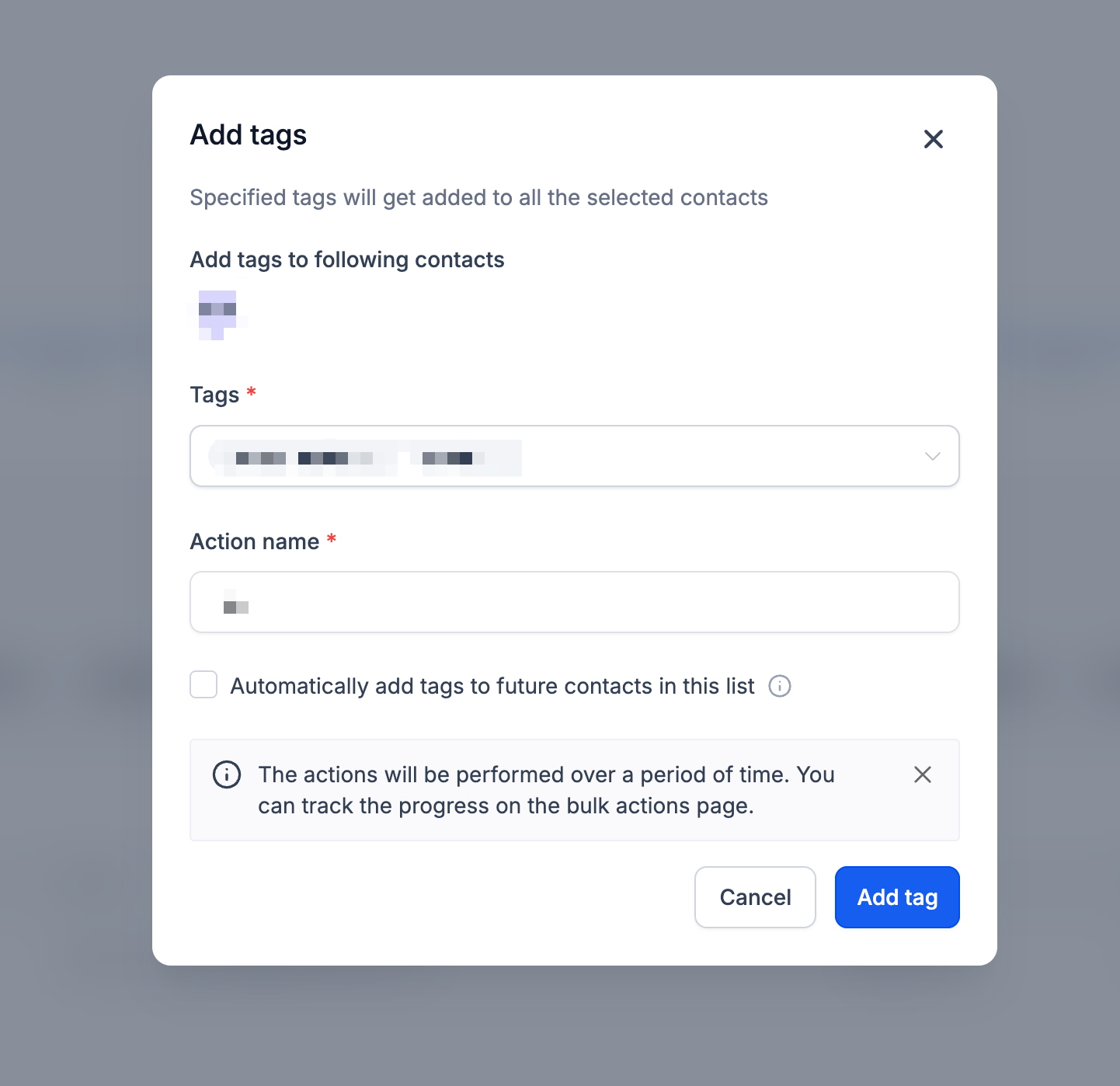
Step 6: Verify Tagging Results
Verifying tag assignments helps confirm that the intended contacts received the correct tags before you use them for additional marketing activities.
Navigate to Contacts.
Open a contact included in the tagging operation.
Review the contact's assigned tags.
For manual bulk tagging, review the available Bulk Actions records when applicable.
For automatic tagging, check the contact record after a new qualifying interaction occurs.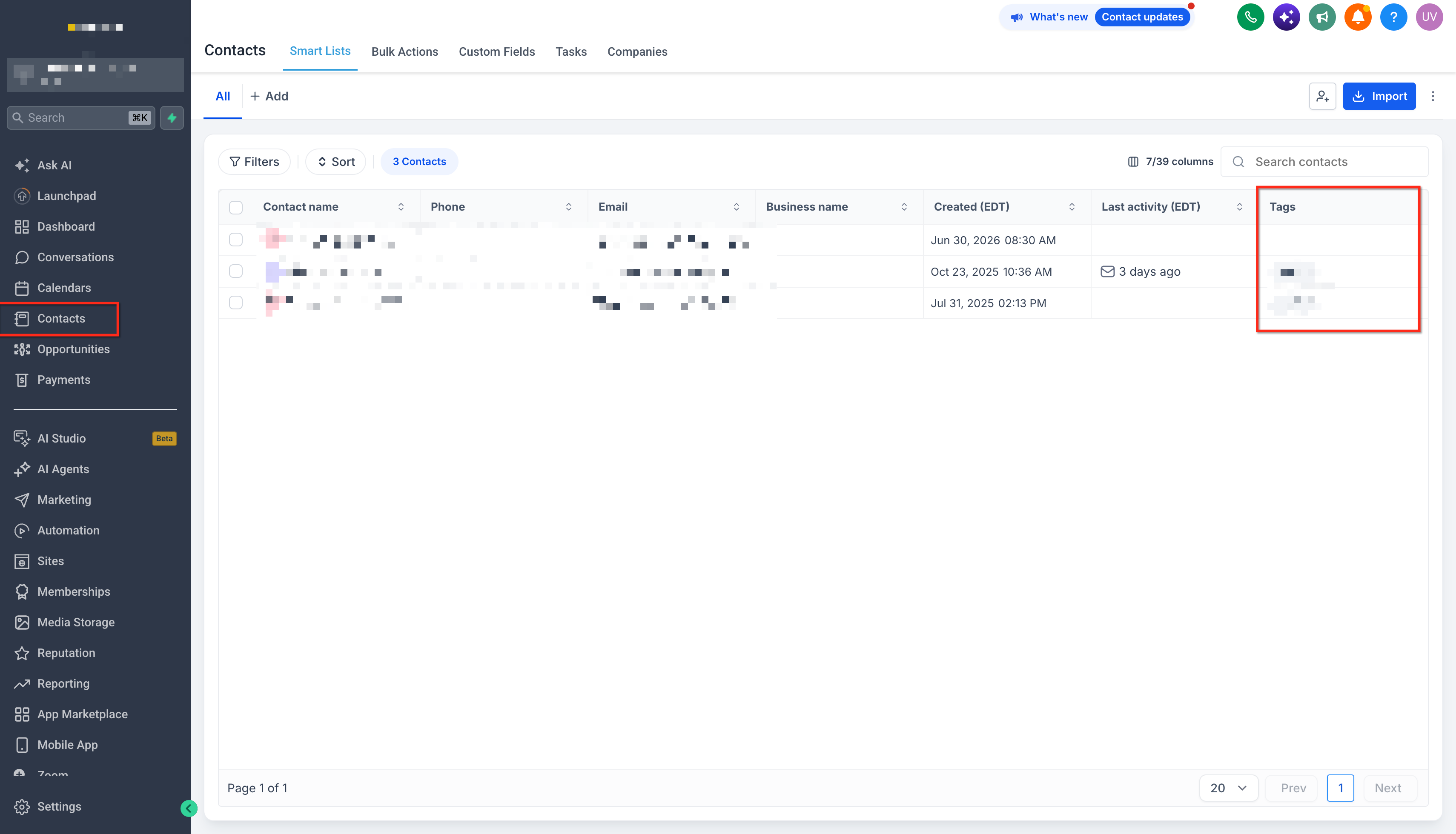
Frequently Asked Questions
Q: Can I remove tags directly from Campaign Statistics?
No. The campaign statistics tagging feature supports adding tags. To remove a tag, use the contact management tools available in Chat To Clients CRM.
Q: What happens if I apply a tag that a contact already has?
Chat To Clients CRM ignores duplicate tag assignments. The contact will not receive another copy of the same tag.
Q: Does campaign statistics tagging support A/B test campaigns?
Yes. Tagging is supported for A/B test campaigns.
Q: Can I apply multiple tags during a single operation?
Yes. You can apply multiple tags to selected contacts, similar to the tagging functionality available in Contacts.
Q: Can contacts who previously interacted with a campaign be tagged after the campaign was sent?
Yes. Open the campaign statistics, choose the relevant interaction category, select the existing contacts, and apply the desired tags manually.
Q: Will automatically tagged contacts appear in Bulk Actions?
No. Future automatic tagging is not recorded as a Bulk Actions job. Manual tagging operations can be reviewed through the available bulk tagging records.
Q: Can I configure tagging after sending a campaign if I did not create any tagging conditions beforehand?
Yes. Campaign statistics tagging allows you to apply tags based on existing engagement data without having configured tagging conditions before the campaign was sent.
Q: Are there interaction categories where automatic tagging is unavailable?
Yes. Automatic tagging is not supported for Invalid contacts or Order Details lists.